remote control Hyundai Sonata 2015 User Guide
[x] Cancel search | Manufacturer: HYUNDAI, Model Year: 2015, Model line: Sonata, Model: Hyundai Sonata 2015Pages: 603, PDF Size: 14.7 MB
Page 287 of 603
4-34
Multimedia System
Pairing Key / Key
on the Steering Remote
Controller
When No Devices have beenPaired
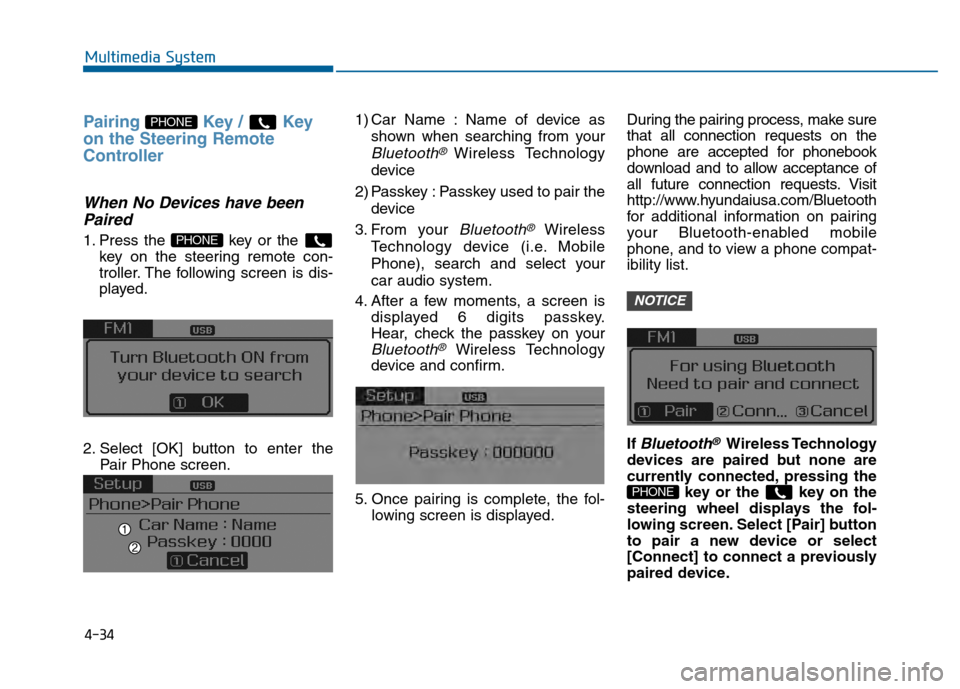
1. Press the key or the
key on the steering remote con-
troller. The following screen is dis-
played.
2. Select [OK] button to enter the Pair Phone screen. 1) Car Name : Name of device as
shown when searching from your
Bluetooth® Wireless Technology
device
2) Passkey : Passkey used to pair the device
3. From your
Bluetooth®Wireless
Technology device (i.e. Mobile
Phone), search and select your
car audio system.
4. After a few moments, a screen is displayed 6 digits passkey.
Hear, check the passkey on your
Bluetooth®Wireless Technology
device and confirm.
5. Once pairing is complete, the fol- lowing screen is displayed. During the pairing process, make sure
that all connection requests on the
phone are accepted for phonebook
download and to allow acceptance of
all future connection requests. Visit
http://www.hyundaiusa.com/Bluetooth
for additional information on pairing
your Bluetooth-enabled mobile
phone, and to view a phone compat-
ibility list.
If
Bluetooth®Wireless Technology
devices are paired but none are
currently connected, pressing the key or the key on the
steering wheel displays the fol-
lowing screen. Select [Pair] button
to pair a new device or select
[Connect] to connect a previously
paired device.
PHONE
NOTICE
PHONE
PHONE
Page 298 of 603
4-45
Multimedia System
4
V
VO
O I
IC
C E
E
R
R E
EC
CO
O G
GN
N I
IT
T I
IO
O N
N
Using Voice Recognition
Starting Voice Recognition
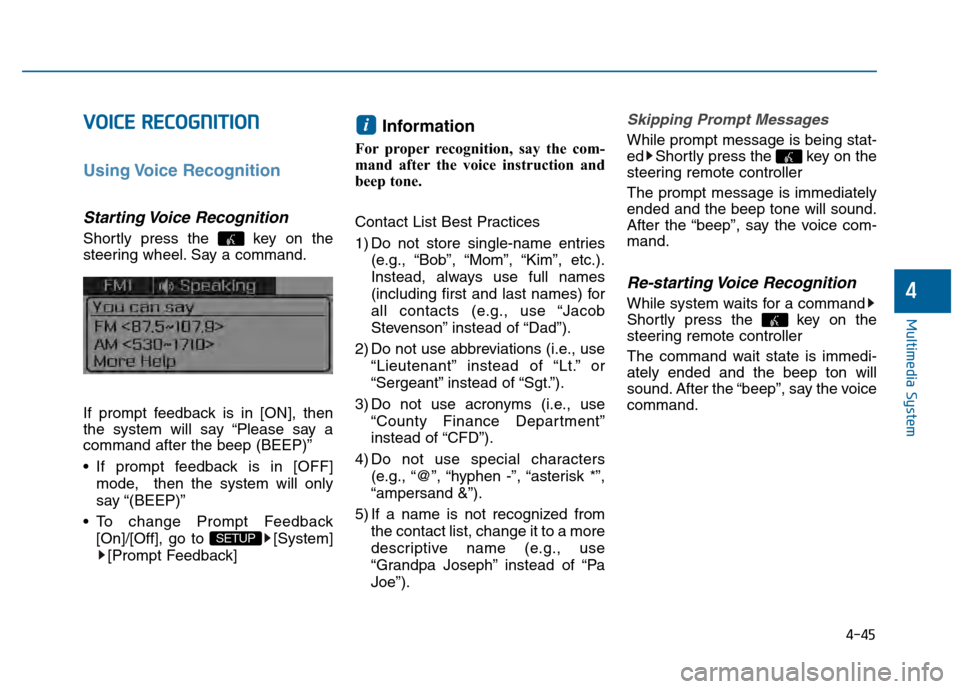
Shortly press the key on the
steering wheel. Say a command.
If prompt feedback is in [ON], then
the system will say “Please say a
command after the beep (BEEP)”
If prompt feedback is in [OFF]
mode, then the system will only
say “(BEEP)”
To change Prompt Feedback [On]/[Off], go to [System][Prompt Feedback]
Information
For proper recognition, say the com-
mand after the voice instruction and
beep tone.
Contact List Best Practices
1) Do not store single-name entries (e.g., “Bob”, “Mom”, “Kim”, etc.).
Instead, always use full names
(including first and last names) for
all contacts (e.g., use “Jacob
Stevenson” instead of “Dad”).
2) Do not use abbreviations (i.e., use “Lieutenant” instead of “Lt.” or
“Sergeant” instead of “Sgt.”).
3) Do not use acronyms (i.e., use “County Finance Department”
instead of “CFD”).
4) Do not use special characters (e.g., “@”, “hyphen -”, “asterisk *”,
“ampersand &”).
5) If a name is not recognized from the contact list, change it to a more
descriptive name (e.g., use
“Grandpa Joseph” instead of “Pa
Joe”).
Skipping Prompt Messages
While prompt message is being stat-
ed Shortly press the key on the
steering remote controller
The prompt message is immediately
ended and the beep tone will sound.
After the “beep”, say the voice com-
mand.
Re-starting Voice Recognition
While system waits for a command
Shortly press the key on the
steering remote controller
The command wait state is immedi-
ately ended and the beep ton will
sound. After the “beep”, say the voice
command.
i
SETUP
Page 299 of 603
4-46
Multimedia System
E
EN
N D
DI
IN
N G
G
V
V O
O I
IC
C E
E
R
R E
EC
CO
O G
GN
N I
IT
T I
IO
O N
N
While Voice Recognition is operating
Press and hold the key on the
steering remote controller
Information
• While using voice command, press- ing any steering wheel control or a
different key will end voice com-
mand.
• When the system is waiting for a voice command, say “cancel” or
“end” to end voice command.
• When the system is waiting for a voice command, press and hold the key on the steering wheel to end
voice command.
Voice Recognition and Phone
Contact Tips:
The Hyundai Voice Recognition
System may have difficulty under-
standing some accents or uncom-
mon names.
When using Voice Recognition to
place a call, speak in a moderate
tone, with clear pronunciation To
maximize the use of Voice
Recognition, consider these guide-
lines when storing contacts:
Do not store single-name entries
(e.g., “Bob”, “Mom”, etc.). Instead,
always use full names (including first
and last names) for these contacts
Do not use special characters (e.g., '@', '-', '*', '&', etc.)
Do not use abbreviations (i.e., use "Lieutenant" instead of "Lt.") or
acronyms (i.e., use "County Finance
Department" instead of "C. F. D."; Be
sure to say the name exactly as it is
entered in the contacts list
i
Page 330 of 603
4-77
Multimedia System
4
Pairing a Bluetooth®Wireless
Technology Device
What is Bluetooth® Wireless
Technology Pairing?
Pairing refers to the process of syn-
chronizing your
Bluetooth®Wireless
Technology phone or device with the
car audio system for connection.
Pairing is necessary to connect and
use the
Bluetooth®Wireless
Technology feature.
Pairing Key / Key
on the Steering Remote
Controller
When No Devices have been Paired
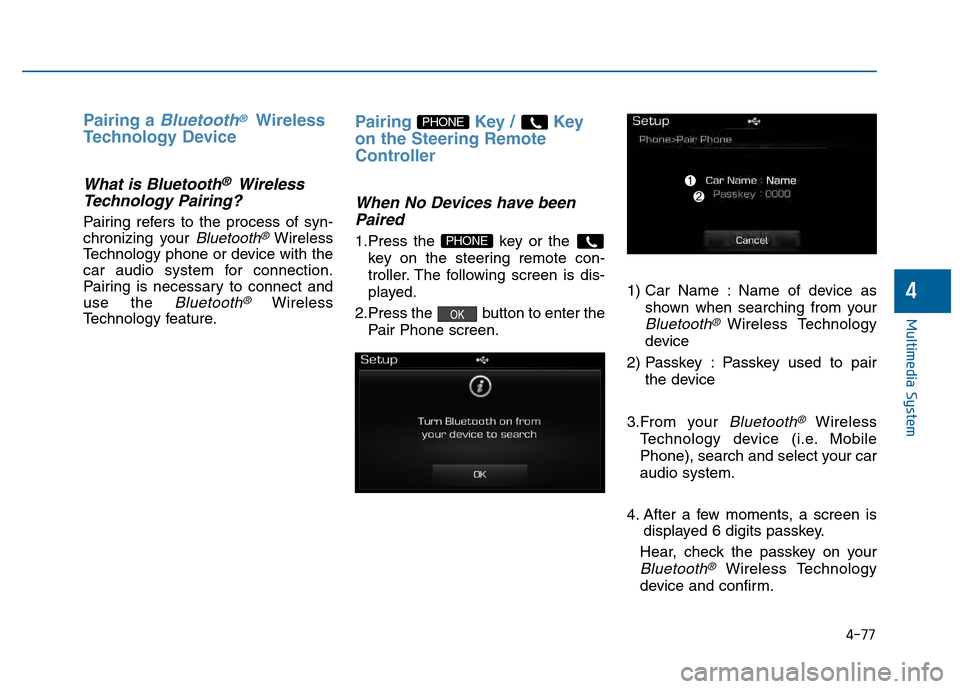
1.Press the key or the
key on the steering remote con-
troller. The following screen is dis-
played.
2.Press the button to enter the Pair Phone screen. 1) Car Name : Name of device as
shown when searching from your
Bluetooth®Wireless Technology
device
2) Passkey : Passkey used to pair the device
3.From your
Bluetooth®Wireless
Technology device (i.e. Mobile
Phone), search and select your car
audio system.
4. After a few moments, a screen is displayed 6 digits passkey.
Hear, check the passkey on your
Bluetooth®Wireless Technology
device and confirm.
OK
PHONE
PHONE
Page 344 of 603
4-91
Multimedia System
4
V
VO
O I
IC
C E
E
R
R E
EC
CO
O G
GN
N I
IT
T I
IO
O N
N
Using Voice Recognition
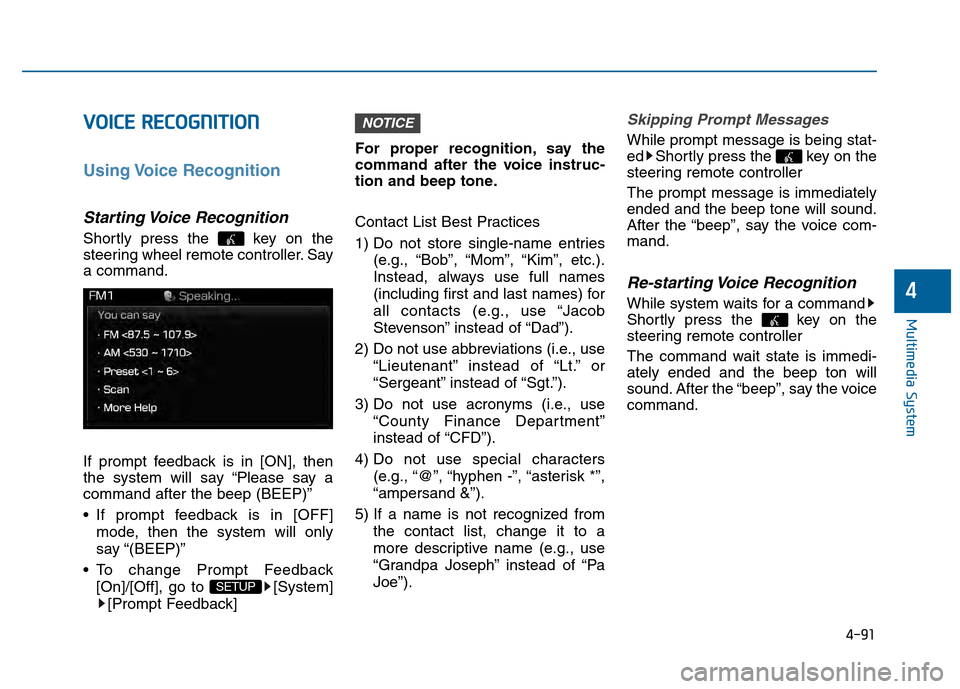
Starting Voice Recognition
Shortly press the key on the
steering wheel remote controller. Say
a command.
If prompt feedback is in [ON], then
the system will say “Please say a
command after the beep (BEEP)”
If prompt feedback is in [OFF]
mode, then the system will only
say “(BEEP)”
To change Prompt Feedback [On]/[Off], go to [System][Prompt Feedback] For proper recognition, say the
command after the voice instruc-
tion and beep tone.
Contact List Best Practices
1) Do not store single-name entries
(e.g., “Bob”, “Mom”, “Kim”, etc.).
Instead, always use full names
(including first and last names) for
all contacts (e.g., use “Jacob
Stevenson” instead of “Dad”).
2) Do not use abbreviations (i.e., use “Lieutenant” instead of “Lt.” or
“Sergeant” instead of “Sgt.”).
3) Do not use acronyms (i.e., use “County Finance Department”
instead of “CFD”).
4) Do not use special characters (e.g., “@”, “hyphen -”, “asterisk *”,
“ampersand &”).
5) If a name is not recognized from the contact list, change it to a
more descriptive name (e.g., use
“Grandpa Joseph” instead of “Pa
Joe”).
Skipping Prompt Messages
While prompt message is being stat-
ed Shortly press the key on the
steering remote controller
The prompt message is immediately
ended and the beep tone will sound.
After the “beep”, say the voice com-
mand.
Re-starting Voice Recognition
While system waits for a command
Shortly press the key on the
steering remote controller
The command wait state is immedi-
ately ended and the beep ton will
sound. After the “beep”, say the voice
command.
NOTICE
SETUP
Page 357 of 603
4-104
Multimedia System
6. Suspend Route
“Suspend Route” VR command
allows the user to suspend and
pause Turn by Turn(TBT) route guid-
ance while in the guidance mode.
7. Resume Route
“Resume Route” VR command
allows the user to resume Turn by
Turn(TBT) route guidance.
➂ (Blue Link
®for SOS)
In the case of an emergency,
requests for help to the Blue Link
®
center.
Call is connected to the Blue Link
®
emergency rescue center. Re-press-
ing the key will end the call.
If already on a Bluetooth
®phone call,
the call will end to connect you to the
Blue Link
®Emergency Rescue
Center.
Information
• You cannot talk simultaneously on the Bluetooth®phone and Blue
Link®phone.
• While on a Bluetooth®call, pressing
the key or key will dis-
play a message indicating that you
are currently on a call.
• A message will be displayed if you receive a Bluetooth
®Bluetooth®
Wireless Technology call while already
on a Blue Link®call. At this time,
press the key on the steering
wheel remote controller to accept the
call. The phone bell will not ring.
Eco Coach
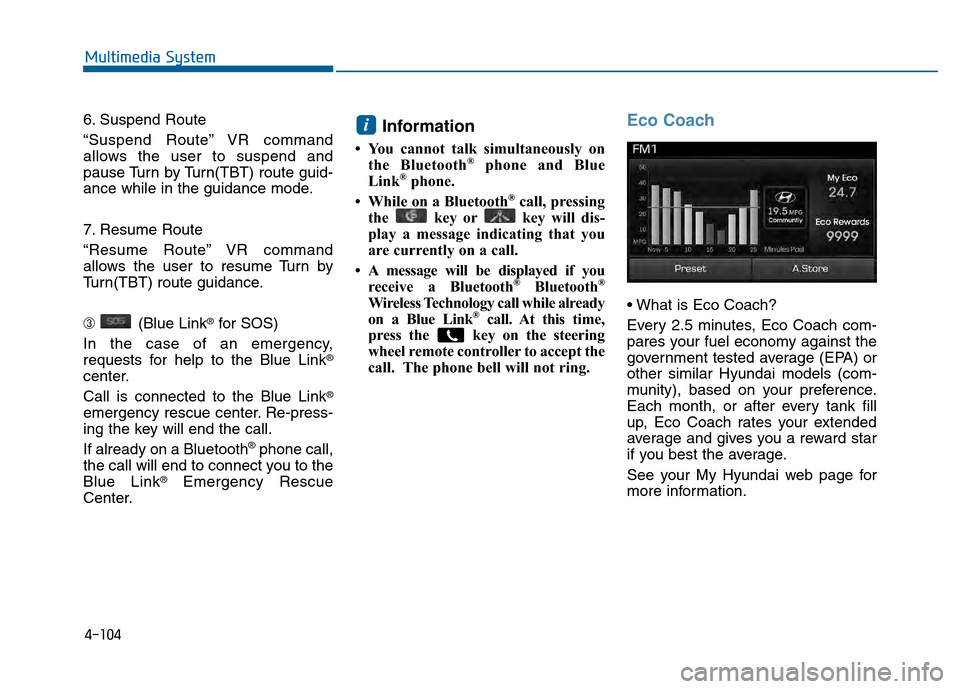
Every 2.5 minutes, Eco Coach com-
pares your fuel economy against the
government tested average (EPA) or
other similar Hyundai models (com-
munity), based on your preference.
Each month, or after every tank fill
up, Eco Coach rates your extended
average and gives you a reward star
if you best the average.
See your My Hyundai web page for
more information.
i
Page 598 of 603
I-7
Instrument cluster ...........................................................3-63Automatic transmission shift indicator ......................3-69
Dual clutch transmission shift indicator.....................3-69
Gauges ........................................................................\
3-66
Instrument panel illumination ....................................3-65
LCD display control ...................................................3-66
Instrument panel fuse......................................................7-58
Instrument panel overview ...............................................1-5
Interior care .....................................................................7-8\
7
Interior features .............................................................3-152 Clock ........................................................................\
3-155
Clothes hanger ..........................................................3-156
Cup holder ................................................................3-152
Floor mat anchor(s) ..................................................3-157
Luggage net holder ...................................................3-158
Power outlet..............................................................3-153
Side curtain...............................................................3-158
Sunvisor ....................................................................3-15\
3
Interior lamp AUTO cut................................................3-114
Interior lights .................................................................3-116 Door courtesy lamp ..................................................3-116
Glove box lamp ........................................................3-117
Interior lamp AUTO cut ...........................................3-114
Map lamp ..................................................................3-114
Room lamp ...............................................................3-115
Trunk room lamp ......................................................3-116
Vanity mirror lamp ...................................................3-117
Interior overview...............................................................1-4 Jack and tools..................................................................6-15
Jack label........................................................................\
.6-22
Jump starting .....................................................................6-4\
Keys
Remote key...................................................................3-4
Smart key......................................................................3-\
8
Label Air bag warning labels ...............................................2-68
Jack label ....................................................................6-22\
Refrigerant label .........................................................8-10
Tire loading information label....................................5-92
Tire sidewall labeling .................................................7-47
Tire specification and pressure label ..........................8-10
Vehicle certification label .............................................8-9
Lane departure warning system (LDWS) .......................5-69
LCD display ....................................................................3-71\
A/V mode ...................................................................3-73
Information mode .......................................................3-74
LCD modes ................................................................3-71
I
Index
J
K
L
Page 600 of 603

I-9
Antenna ........................................................................\
4-2
AUX, USB and iPod®port ..........................................4-2
Blue Link®................................................................4-102
Steering wheel audio control........................................4-3
Voice recognition..................................................4-45, 91
Occupant classification system (OCS) ...........................2-56
Odometer........................................................................\
.3-68
Oil (Engine) ....................................................................7-24\
Outside rearview mirror..................................................3-42
Outside temperature gauge ............................................3-69
Owner maintenance ..........................................................7-7
Paddle shifter .................................................................5-24
Panoramic sunroof ..........................................................3-48
Parking brake ..................................................................7-31
Parking brake (Manual) ..................................................5-29
Parking lamp position ...................................................3-106
Passenger’s front air bag.................................................2-47
Power brakes ...................................................................5-28
Power outlet ..................................................................3-153
Power window lock button .............................................3-47 Rear combination light bulb replacement.......................7-76
Rear parking assist system(RPAS) ...............................3-121
Rear seats ........................................................................\
2-12
Rear view camera .........................................................3-120
Recommended cold tire inflation pressure .....................7-42
Recommended lubricants and capacities ..........................8-6
Recommended lubricants and capacities
Recommended SAE viscosity number .........................8-8
Refrigerant label .............................................................8-10
Remote key .......................................................................3\
-4
Replacement light bulb ...................................................7-69
Reporting safety defects .................................................8-12
Reverse parking aid function .........................................3-43
Rocking the vehicle ........................................................5-84
Room lamp ....................................................................3-115
Rotation (Tire) ................................................................7-44
Safety messages ................................................................F-6
SCC/LDWS mode...........................................................3-73
Scheduled maintenance service ........................................7-9
I
Index
O
P
R
S