change time Hyundai Sonata 2015 Owner's Guide
[x] Cancel search | Manufacturer: HYUNDAI, Model Year: 2015, Model line: Sonata, Model: Hyundai Sonata 2015Pages: 603, PDF Size: 14.7 MB
Page 275 of 603
4-22
Multimedia System
R
RA
A D
DI
IO
O
:
:
F
F M
M ,
,
A
A M
M
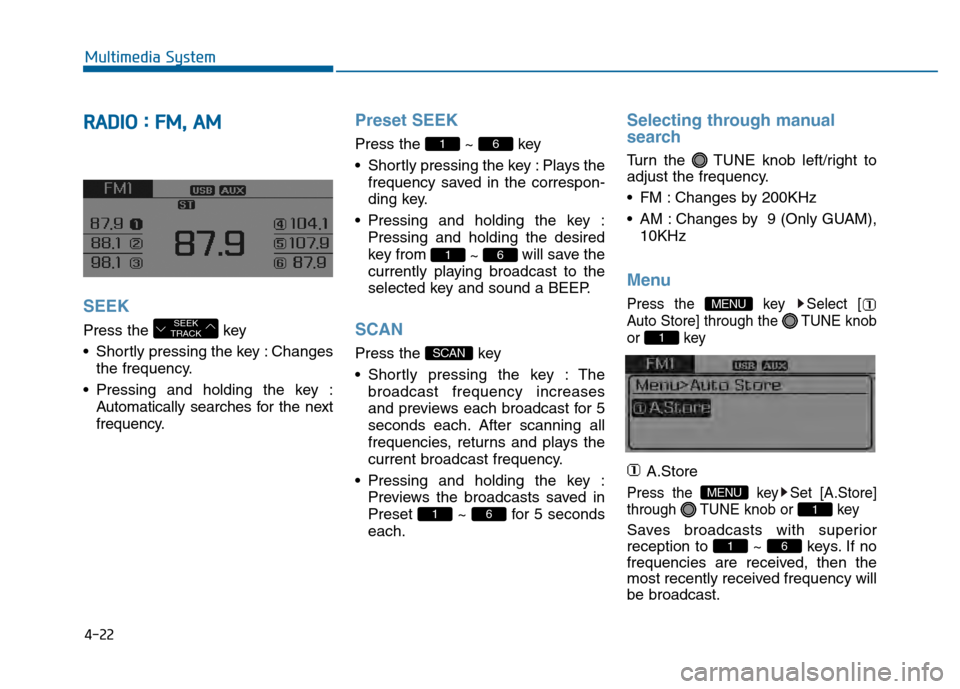
SEEK
Press the key
Shortly pressing the key : Changes
the frequency.
Pressing and holding the key : Automatically searches for the next
frequency.
Preset SEEK
Press the ~ key
Shortly pressing the key : Plays thefrequency saved in the correspon-
ding key.
Pressing and holding the key : Pressing and holding the desired
key from ~ will save the
currently playing broadcast to the
selected key and sound a BEEP.
SCAN
Press the key
Shortly pressing the key : The broadcast frequency increases
and previews each broadcast for 5
seconds each. After scanning all
frequencies, returns and plays the
current broadcast frequency.
Pressing and holding the key : Previews the broadcasts saved in
Preset ~ for 5 seconds
each.
Selecting through manual
search
Turn the TUNE knob left/right to
adjust the frequency.
FM : Changes by 200KHz
AM : Changes by 9 (Only GUAM),10KHz
Menu
Press the key Select [
Auto Store] through the TUNE knob
or key
A.Store
Press the key Set [A.Store]
through TUNE knob or key
Saves broadcasts with superior
reception to ~ keys. If no
frequencies are received, then the
most recently received frequency will
be broadcast.61
1
MENU
1
MENU
61
SCAN
61
61
SEEK
TRACK
Page 276 of 603
4-23
Multimedia System
4
X
XM
MT
TM
MR
R A
A D
DI
IO
O
Your vehicle is equipped with a 3
month complimentary period of XM™
Satellite Radio. XM™provides
access to over 130 channels of
music, information, and entertain-
ment programming.
SEEK
Press the key
Shortly pressing the key : select
previous or next channel.
Pressing and holding the key : con- tinuously move to previous or next
channel.
❈ If the “Category” icon is displayed,
channels are changed within the
current category.
SCAN
Press the key
Shortly pressing the key : Previews each broadcast for 10 seconds
each
❈ Press the key again to con-
tinue listening to the current fre-
quency
❈ If the “Category” icon is displayed,
channels are changed within the
current category.
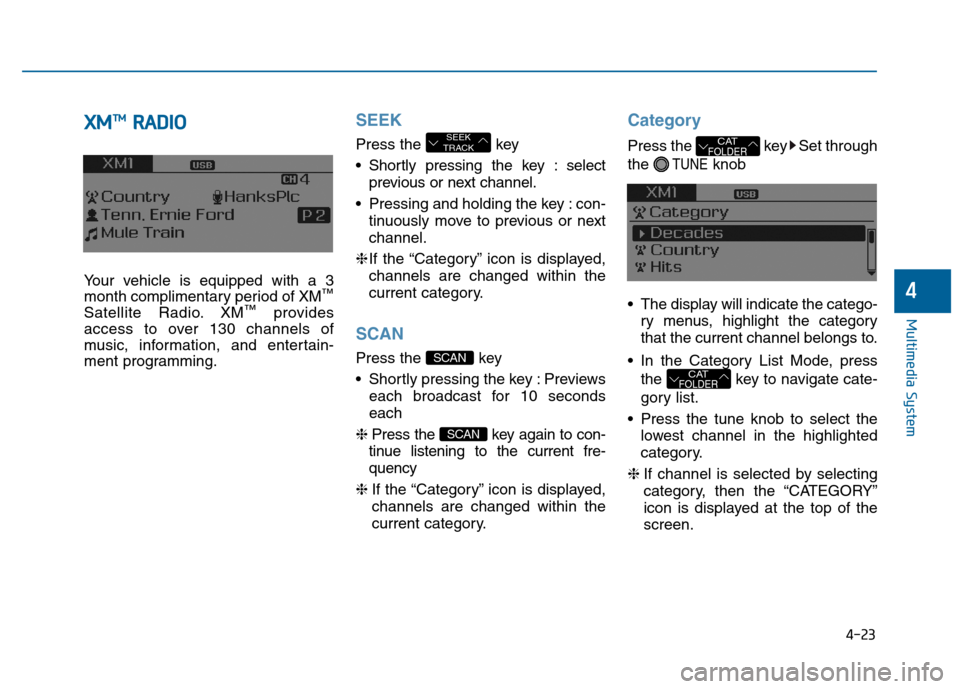
Category
Press the key Set through
the
TUNEknob
The display will indicate the catego- ry menus, highlight the category
that the current channel belongs to.
In the Category List Mode, press the key to navigate cate-
gory list.
Press the tune knob to select the lowest channel in the highlighted
category.
❈ If channel is selected by selecting
category, then the “CATEGORY”
icon is displayed at the top of the
screen.
CATFOLDER
CATFOLDER
SCAN
SCAN
SEEK
TRACK
Page 283 of 603
![Hyundai Sonata 2015 Owners Guide 4-30
Multimedia System
Delete All
Set [ Del.All] through the TUNE
knob or key.
Deletes all songs of My Music.
Delete Selection
Press the key Set [ Del.Sel]
through the TUNEknob or key.
Songs withi](/img/35/16796/w960_16796-282.png "Hyundai Sonata 2015 Owners Guide 4-30
Multimedia System
Delete All
Set [ Del.All] through the TUNE
knob or key.
Deletes all songs of My Music.
Delete Selection
Press the key Set [ Del.Sel]
through the TUNEknob or key.
Songs withi")
4-30
Multimedia System
Delete All
Set [ Del.All] through the TUNE
knob or key.
Deletes all songs of My Music.
Delete Selection
Press the key Set [ Del.Sel]
through the TUNEknob or key.
Songs within My Music are selected
and deleted.
➀Select the songs you wish to
delete from the list.
➁ After selecting, press the
key and select the delete menu.
AUX
AUX is used to play external MEDIA
currently connected with the AUX
terminal.
AUX mode will automatically start
when an external device is connect-
ed to the AUX terminal.
If an external device is connected,
you can also press the key to
change to AUX mode.
❈ AUX mode cannot be started
unless there is an external device
connected to the AUX terminal.
MEDIA
MENU
6
MENU
5
Page 284 of 603
4-31
Multimedia System
4
Bluetooth®Wireless
Technology AUDIO
What is
Bluetooth®Wireless
Technology?
Bluetooth®Wireless Technology allows
devices to be connected in a short dis-
tance, including hands-free devices,
stereo headsets, wireless remote con-
trollers, etc. For more information, visit
the
Bluetooth®Wireless Technology
website
at www.Bluetooth.com
Before using Bluetooth®Wireless
Technology audio features
Bluetooth®Wireless Technology
audio may not be supported
depending on the compatibility of
your
Bluetooth®Wireless
Technology mobile phone.
In order to use
Bluetooth®Wireless
Technology audio, you must first
pair and connect the
Bluetooth®
Wireless Technology mobile phone.
Bluetooth®Wireless Technology
audio can be used only when the
[Audio Streaming] of Phone is
turned .
❈ Setting
Bluetooth®Wireless
Technology Audio Streaming :
Press the key Select
[Phone] through the tune knob or key Select [Audio
Streaming] through the TUNE
knob Set /
Starting Bluetooth®Wireless
Technology Audio
Press the key to change
the mode in order of CD ➟ USB ➟
AUX ➟ My Music ➟ BT Audio.
If BT Audio is selected,
Bluetooth®
Wireless Technology audio will
start playing.
❈ Audio may not automatically start
playing in some mobile phones.
Using the Bluetooth®Wireless
Technology audio features
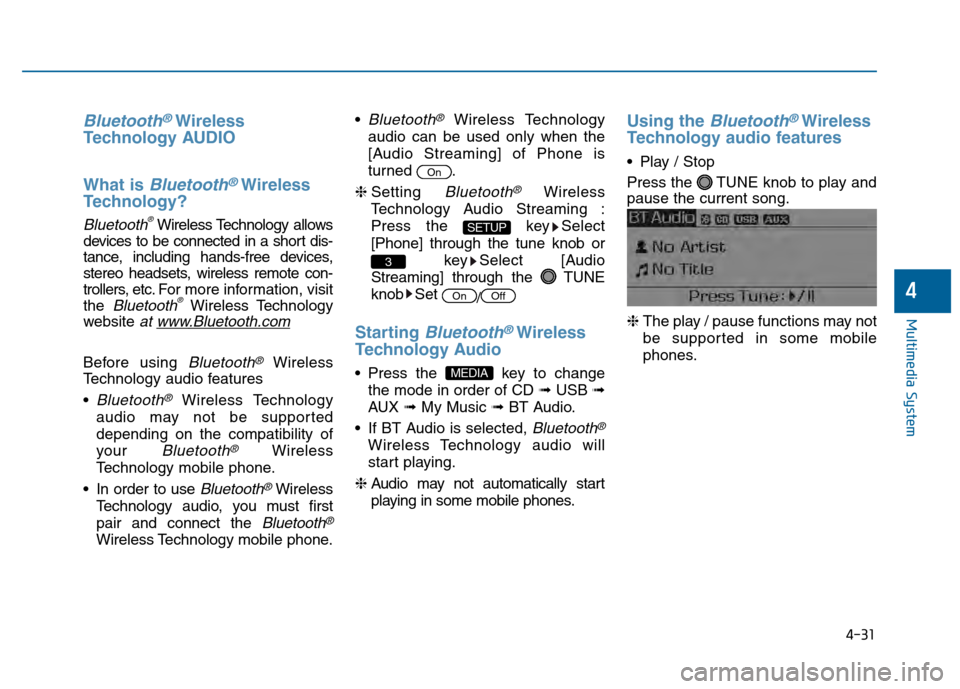
Play / Stop
Press the TUNE knob to play and
pause the current song.
❈ The play / pause functions may not
be supported in some mobile
phones.
MEDIA
OffOn
3
SETUP
On
Page 289 of 603
![Hyundai Sonata 2015 Owners Guide 4-36
Multimedia System
Connecting a Device
Press the key Select
[Phone] Select [Phone List]
1) Connected Phone : Device that iscurrently connected
2) Paired Phone : Device that is paired but not con](/img/35/16796/w960_16796-288.png "Hyundai Sonata 2015 Owners Guide 4-36
Multimedia System
Connecting a Device
Press the key Select
[Phone] Select [Phone List]
1) Connected Phone : Device that iscurrently connected
2) Paired Phone : Device that is paired but not con")
4-36
Multimedia System
Connecting a Device
Press the key Select
[Phone] Select [Phone List]
1) Connected Phone : Device that iscurrently connected
2) Paired Phone : Device that is paired but not connected From the paired phone list, select the
device you want to connect and
select [Connect].
Changing PriorityWhat is Priority?
It is possible to pair up to five
Bluetooth®Wireless Technology
devices with the car audio system.
The "Change Priority" feature is used
to set the connection priority of
paired phones.
Press the key Select
[Phone] Select [Phone List]
SETUP
SETUP
Page 290 of 603
![Hyundai Sonata 2015 Owners Guide 4-37
Multimedia System
4
From the paired phone list, select
the phone you want to switch to the
highest priority, then select [Change
Priority] button from the Menu. The
selected device will be change](/img/35/16796/w960_16796-289.png "Hyundai Sonata 2015 Owners Guide 4-37
Multimedia System
4
From the paired phone list, select
the phone you want to switch to the
highest priority, then select [Change
Priority] button from the Menu. The
selected device will be change")
4-37
Multimedia System
4
From the paired phone list, select
the phone you want to switch to the
highest priority, then select [Change
Priority] button from the Menu. The
selected device will be changed to
the highest priority. Priority icon will be displayed when
the selected phone is set as a pri-
ority phone.Disconnecting a Device
Press the key Select
[Phone] Select [Phone List]
From the paired phone list, select the
currently connected device and
select [Disconnect] button.SETUP
NOTICE
Page 292 of 603
![Hyundai Sonata 2015 Owners Guide 4-39
Multimedia System
4
Viewing Paired Phone List
Press the key Select
[Phone] Select [Phone List]
This feature is used to view mobile
phones that have been paired with
the audio system. Upon select](/img/35/16796/w960_16796-291.png "Hyundai Sonata 2015 Owners Guide 4-39
Multimedia System
4
Viewing Paired Phone List
Press the key Select
[Phone] Select [Phone List]
This feature is used to view mobile
phones that have been paired with
the audio system. Upon select")
4-39
Multimedia System
4
Viewing Paired Phone List
Press the key Select
[Phone] Select [Phone List]
This feature is used to view mobile
phones that have been paired with
the audio system. Upon selecting a
paired phone, the setup menu is dis-
played.
For more information, refer to the
“Setting
Bluetooth®Wireless
Technology Connection” section with-
in
Bluetooth®Wireless Technology. 1) Connect/Disconnect Phone :
Connect/ disconnects currently
selected phone
2) Change Priority : Sets currently selected phone to highest connec-
tion priority
3) Delete : Deletes the currently selected phone
4) Return : Moves to the previous screen
Information - Before down
loading contacts
• Only contacts within connected phones can be downloaded. Also
check to see that your mobile phone
supports the download feature.
• To learn more about whether your mobile phone supports contacts
downloads, refer to your mobile
phone user’s manual.
• The contacts for only the connected phone can be downloaded.iSETUP
Page 294 of 603
![Hyundai Sonata 2015 Owners Guide 4-41
Multimedia System
4
Audio Streaming
Press the key Select
[Phone] Select [Audio Streaming]
When Audio Streaming is turned on,
you can play music files saved in
your
Bluetooth®Wireless Technolog](/img/35/16796/w960_16796-293.png "Hyundai Sonata 2015 Owners Guide 4-41
Multimedia System
4
Audio Streaming
Press the key Select
[Phone] Select [Audio Streaming]
When Audio Streaming is turned on,
you can play music files saved in
your
Bluetooth®Wireless Technolog")
4-41
Multimedia System
4
Audio Streaming
Press the key Select
[Phone] Select [Audio Streaming]
When Audio Streaming is turned on,
you can play music files saved in
your
Bluetooth®Wireless Technology
device through the audio system.
Outgoing Volume
Press the key Select
[Phone] Select [Outgoing Volume]
Use TUNE knob to adjust the out-
going volume level.
Information
While on a call, the volume can be
changed by using the key.
Turning Bluetooth System Off
Press the key Select
[Phone] Select [Bluetooth System
Off]
Once
Bluetooth®Wireless Technology
is turned off,
Bluetooth®Wireless
Technology related features will not be
supported within the audio system.
Information
To turn Bluetooth®Wireless
Technology back on, go to
[Phone] and select “Yes”.SETUP
i
SETUP
SEEK
TRACK
i
SETUP SETUP
Page 298 of 603
4-45
Multimedia System
4
V
VO
O I
IC
C E
E
R
R E
EC
CO
O G
GN
N I
IT
T I
IO
O N
N
Using Voice Recognition
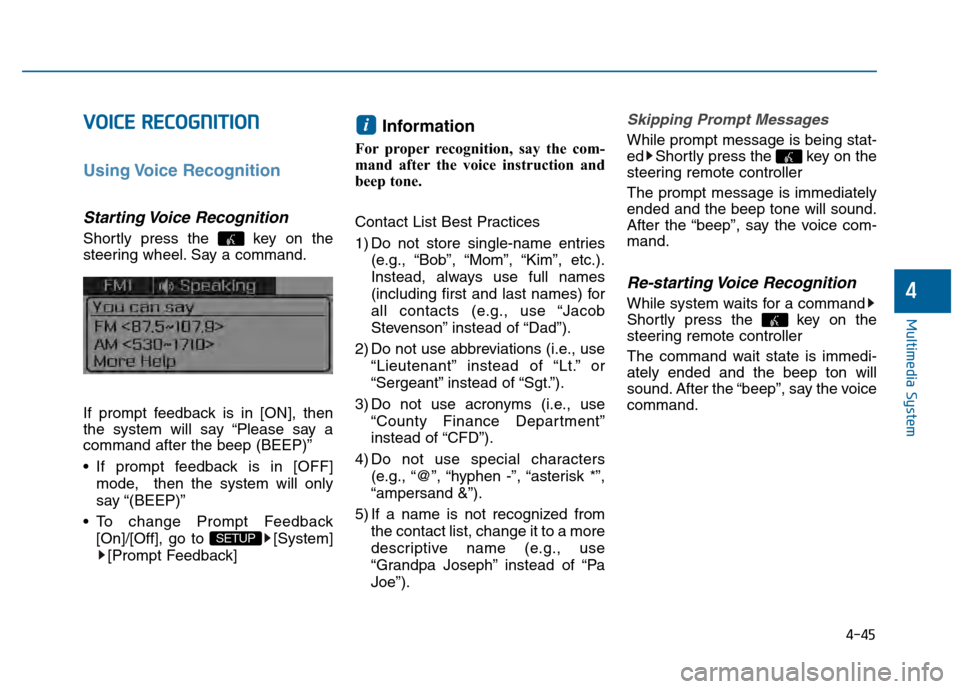
Starting Voice Recognition
Shortly press the key on the
steering wheel. Say a command.
If prompt feedback is in [ON], then
the system will say “Please say a
command after the beep (BEEP)”
If prompt feedback is in [OFF]
mode, then the system will only
say “(BEEP)”
To change Prompt Feedback [On]/[Off], go to [System][Prompt Feedback]
Information
For proper recognition, say the com-
mand after the voice instruction and
beep tone.
Contact List Best Practices
1) Do not store single-name entries (e.g., “Bob”, “Mom”, “Kim”, etc.).
Instead, always use full names
(including first and last names) for
all contacts (e.g., use “Jacob
Stevenson” instead of “Dad”).
2) Do not use abbreviations (i.e., use “Lieutenant” instead of “Lt.” or
“Sergeant” instead of “Sgt.”).
3) Do not use acronyms (i.e., use “County Finance Department”
instead of “CFD”).
4) Do not use special characters (e.g., “@”, “hyphen -”, “asterisk *”,
“ampersand &”).
5) If a name is not recognized from the contact list, change it to a more
descriptive name (e.g., use
“Grandpa Joseph” instead of “Pa
Joe”).
Skipping Prompt Messages
While prompt message is being stat-
ed Shortly press the key on the
steering remote controller
The prompt message is immediately
ended and the beep tone will sound.
After the “beep”, say the voice com-
mand.
Re-starting Voice Recognition
While system waits for a command
Shortly press the key on the
steering remote controller
The command wait state is immedi-
ately ended and the beep ton will
sound. After the “beep”, say the voice
command.
i
SETUP
Page 305 of 603
4-52
Multimedia System
S
SY
Y S
ST
T E
EM
M
C
C O
O N
NT
TR
R O
O L
LL
LE
E R
R S
S
A
A N
N D
D
F
F U
U N
NC
CT
T I
IO
O N
NS
S
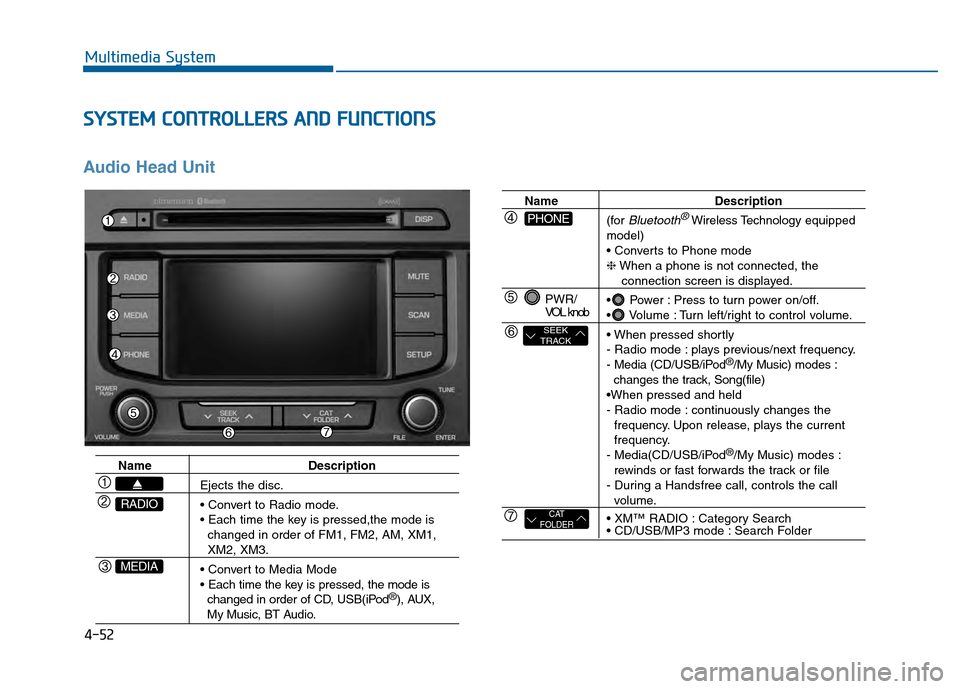
Audio Head Unit
Name Description
Ejects the disc.
changed in order of FM1, FM2, AM, XM1,
XM2, XM3.
changed in order of CD, USB(iPod
®), AUX, My Music, BT Audio.
MEDIA
RADIO
Name Description
(for
Bluetooth®Wireless Technology equipped
model)
❈ When a phone is not connected, the
connection screen is displayed.
Power : Press to turn power on/off.
Volume : Turn left/right to control volume.
- Radio mode : plays previous/next frequency.
- Media (CD/USB/iPod
®/My Music) modes :
changes the track, Song(file)
- Radio mode : continuously changes the frequency. Upon release, plays the current
frequency.
- Media(CD/USB/iPod
®/My Music) modes :
rewinds or fast forwards the track or file
- During a Handsfree call, controls the call
volume.
Category Search
Search Folder
PWR/
VOL knob
CAT
FOLDER
SEEK
TRACK
PHONE