Hyundai Sonata 2015 Quick Tips
Sonata 2015
Hyundai
Hyundai
https://www.carmanualsonline.info/img/35/16799/w960_16799-0.png
Hyundai Sonata 2015 Quick Tips
Page 1 of 16
TOPICS
Phone Pairing
Navigation
Blue Link
To start voice command, press the TALK button
HELP provides guidance on commands that can be used within the current function
CALL calls a name saved in Contacts Example: “CALL JOHN SMITH”
DIAL makes a call by dialing the spoken numbers Example: “DIAL 1-800-633-5151”
PHONE provides guidance on phone-related commands
CALL HISTORY displays the Call History screen
CONTACTS displays the phone’s Contacts screen
DISCLAIMER: Compatibility and performance may vary based on your phone, the phone’s software and your wireless carrier.
SONATA
QUICK TIPS
NAVIGATION
AUDIO
Page 2 of 16
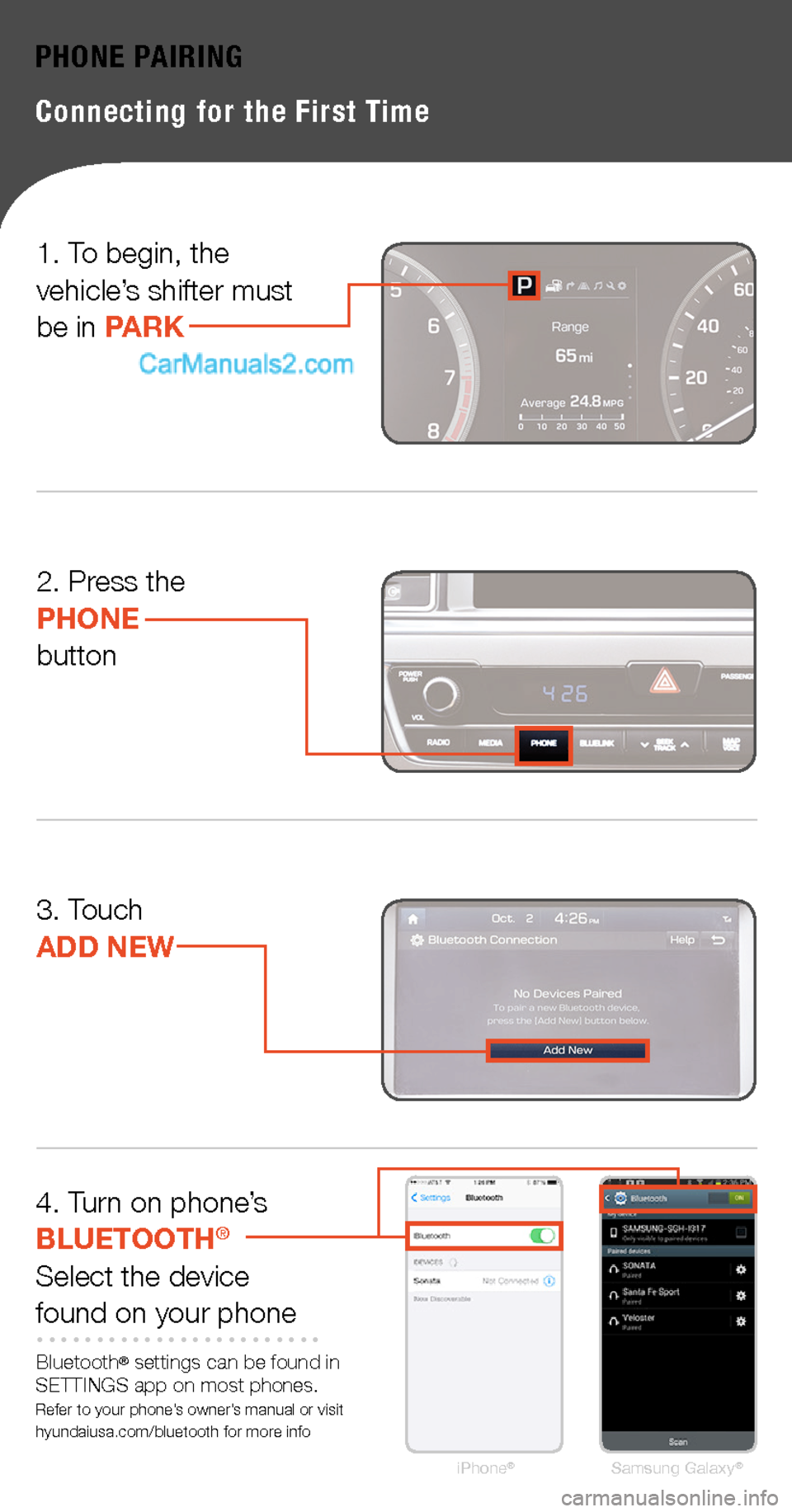
PHONE PAIRING
Connecting for the First Time
2. Press thePHONEbutton
3. Touch ADD NEW
4. Turn on phone’s BLUETOOTH®
Select the devicefound on your phone
Bluetooth® settings can be found in SETTINGS app on most phones. Refer to your phone’s owner’s manual or visit hyundaiusa.com/bluetooth for more infoiPhone®Samsung Galaxy®
1. To begin, the vehicle’s shifter must be in PARK
Page 4 of 16
PHONE PAIRING
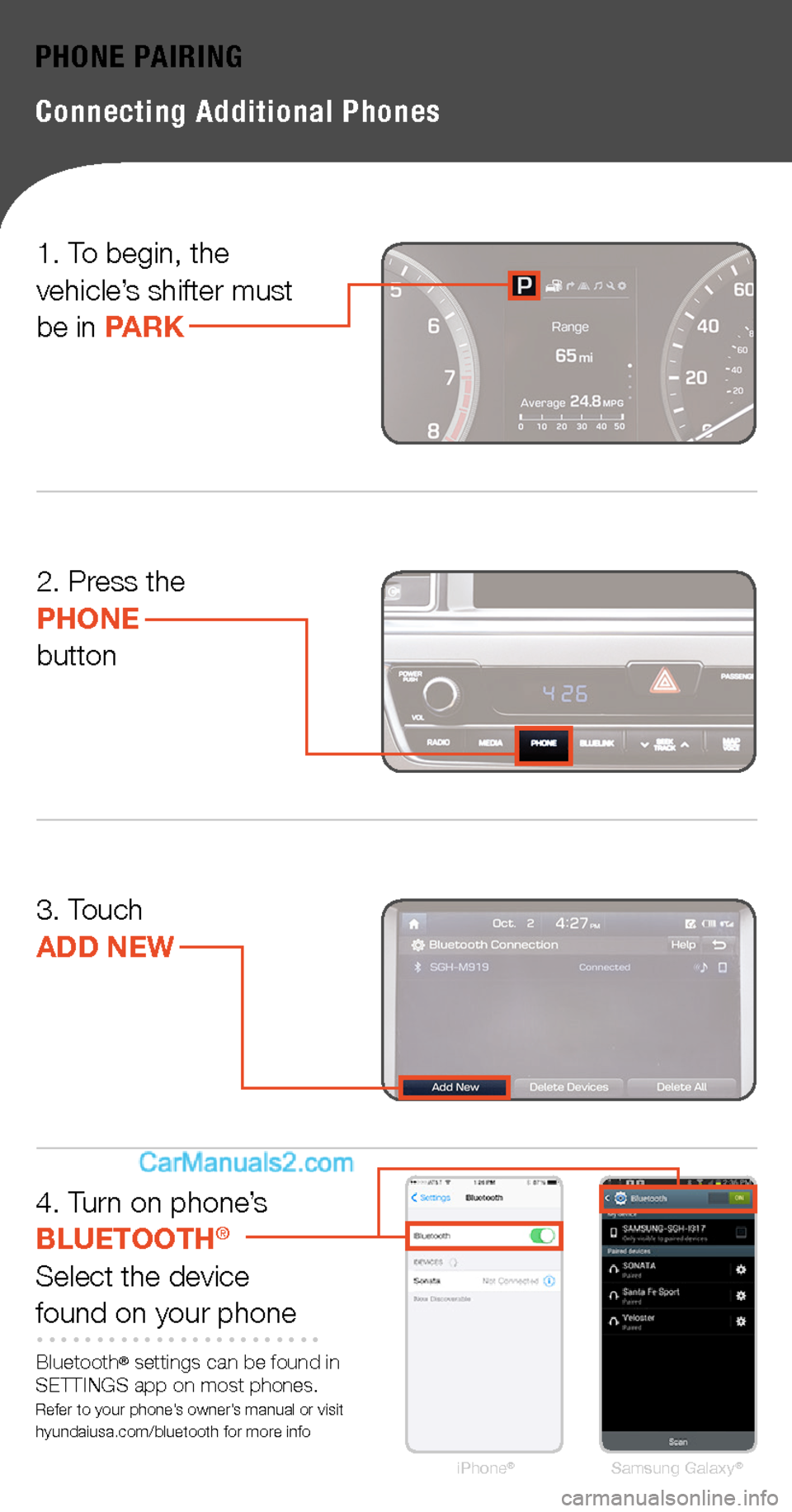
Connecting Additional Phones
1. To begin, the vehicle’s shifter must be in PARK
2. Press thePHONEbutton
3. Touch ADD NEW
4. Turn on phone’s BLUETOOTH®
Select the devicefound on your phone
Bluetooth® settings can be found in SETTINGS app on most phones. Refer to your phone’s owner’s manual or visit hyundaiusa.com/bluetooth for more infoiPhone®Samsung Galaxy®
Page 5 of 16
PHONE PAIRING
Connecting Additional Phones
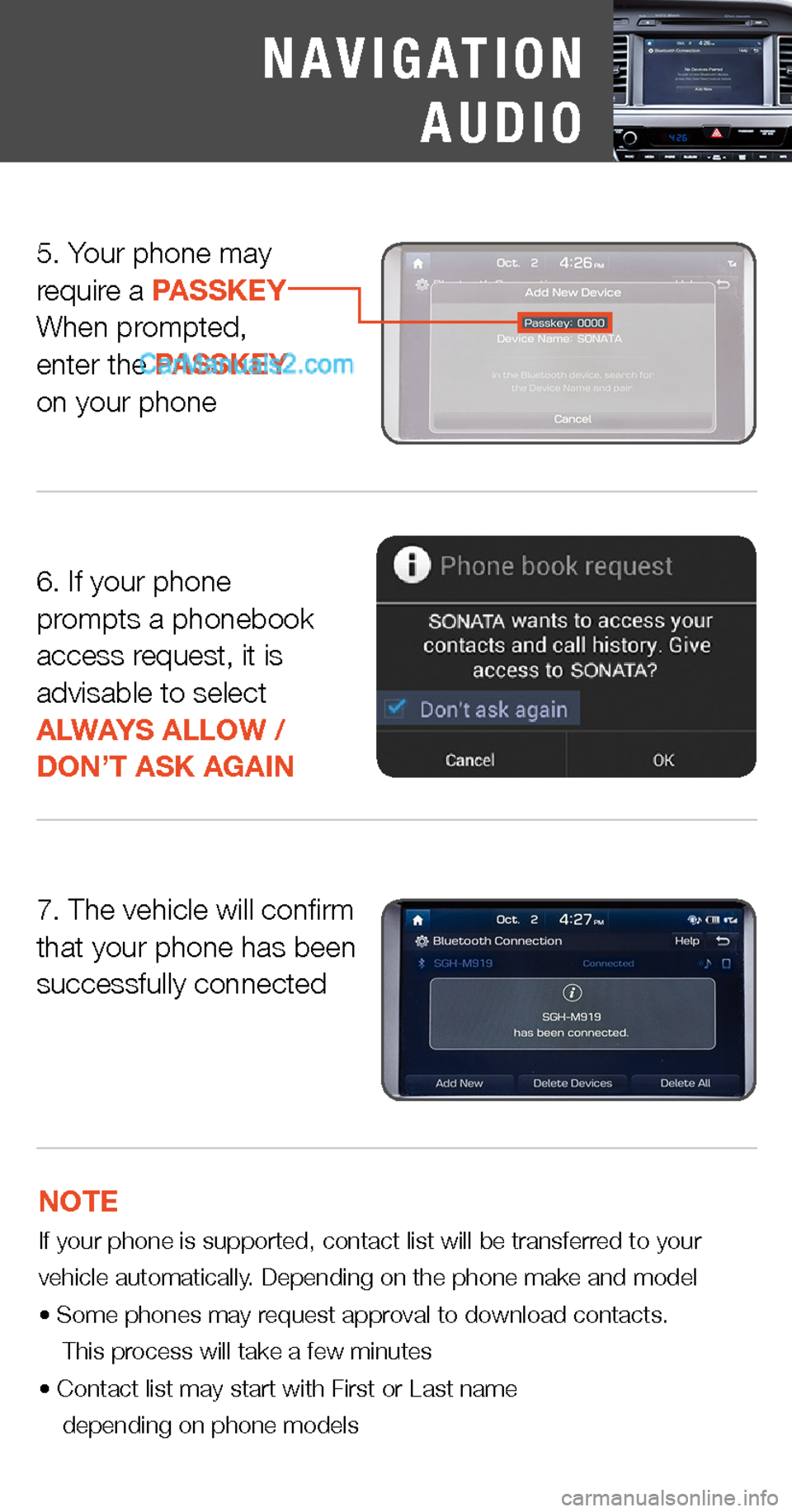
5. Your phone mayrequire a PASSKEYWhen prompted,enter the PASSKEYon your phone
NOTE If your phone is supported, contact list will be transferred to your vehicle automatically. Depending on the phone make and model• Some phones may request approval to download contacts. This process will take a few minutes• Contact list may start with First or Last name depending on phone models
6. If your phone prompts a phonebook access request, it is advisable to select ALWAYS ALLOW /DON’T ASK AGAIN
7. The vehicle will confirmthat your phone has been successfully connected
NAVIGATION
AUDIO
Page 10 of 16
iPhone®Samsung Galaxy®
PHONE PAIRING
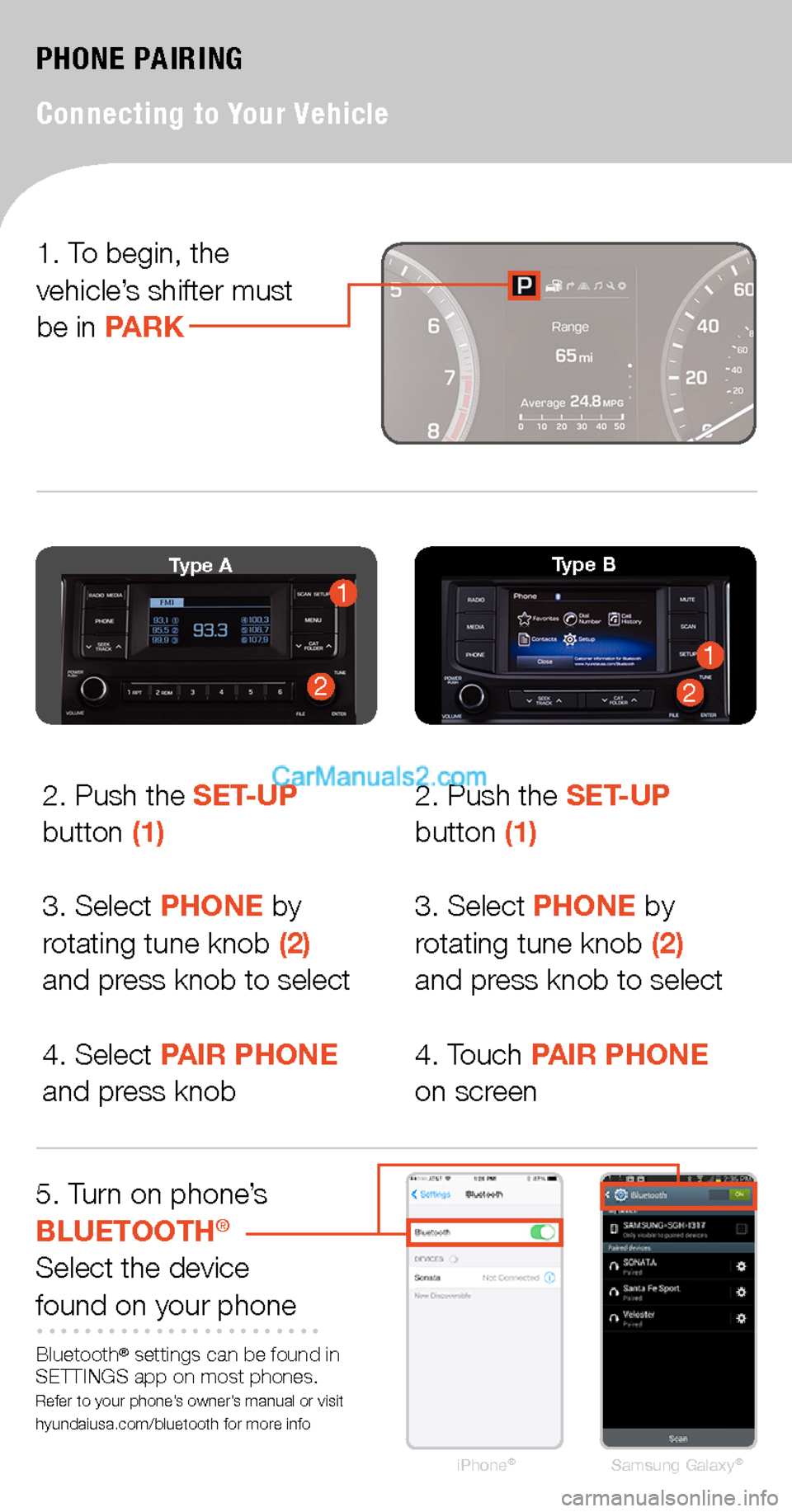
Connecting to Your Vehicle
2
11Type A
211
Type B
2. Push the SET-UP button (1)
3. Select PHONE by rotating tune knob (2) and press knob to select
4. Select PAIR PHONE and press knob
2. Push the SET-UP button (1)
3. Select PHONE by rotating tune knob (2) and press knob to select
4. Touch PAIR PHONE on screen
5. Turn on phone’s BLUETOOTH®
Select the devicefound on your phone
Bluetooth® settings can be found in SETTINGS app on most phones. Refer to your phone’s owner’s manual or visit hyundaiusa.com/bluetooth for more info
1. To begin, the vehicle’s shifter must be in PARK
Page 15 of 16
After pairing is completed, transfer of the contact list to the audio system will begin (if your phone is supported). The downloaded contact list may start with either first or last name depending on the phone make and model
Some phones may request approval to download contact list* to the audio system (If approval is not granted, the phone may frequently disconnect or not download contact list)
This process may take a few minutes depending on the phone make, model and number of entries in the contact list
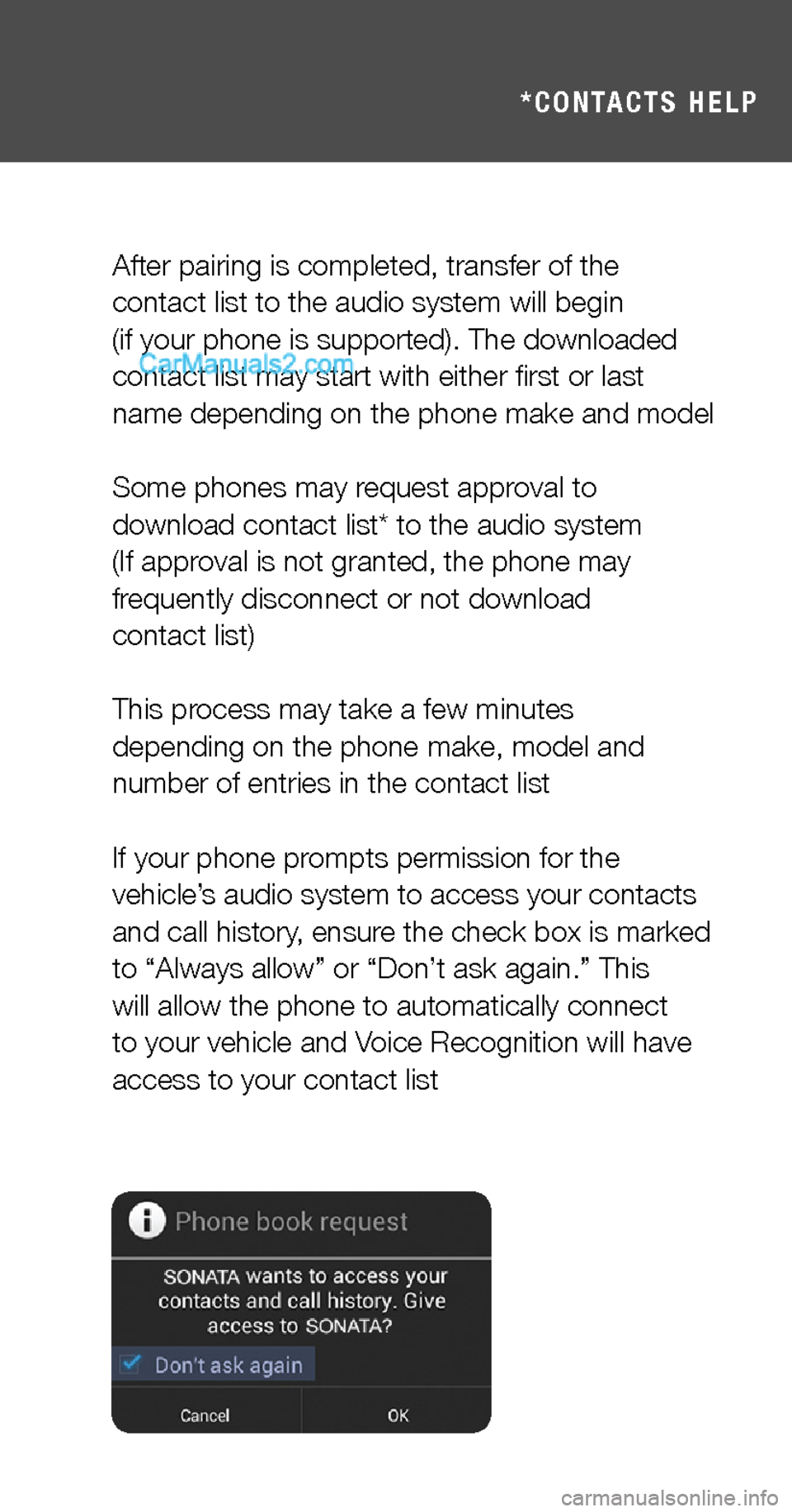
If your phone prompts permission for the vehicle’s audio system to access your contacts and call history, ensure the check box is marked to “Always allow” or “Don’t ask again.” This will allow the phone to automatically connect to your vehicle and Voice Recognition will have access to your contact list
*CONTACTS HELP
NAVIGATION
AUDIO