aux Hyundai Sonata 2016 Owner's Manual
[x] Cancel search | Manufacturer: HYUNDAI, Model Year: 2016, Model line: Sonata, Model: Hyundai Sonata 2016Pages: 603, PDF Size: 16.3 MB
Page 15 of 603
F15F15
Storage compartment ........................................3-150
Center Console Storage ..............................................3-150
Glove Box ........................................................................\
3-150
Sunglass Holder.............................................................3-151
Multi box ........................................................................\
.3-151
Interior features.................................................3-152
Cup Holder ......................................................................3-\
152
Sunvisor ........................................................................\
...3-153
Power Outlet ..................................................................3-153
Clock ........................................................................\
.........3-155
Clothes Hanger ..............................................................3-156
Floor Mat Anchor(s).....................................................3-157
Side Curtain ....................................................................3-15\
8
Luggage Net Holder .....................................................3-158
Multimedia System.................................................4-2
AUX, USB and iPod®Port ...............................................4-2
Antenna ........................................................................\
.......4-2
Steering Wheel Audio Control........................................4-3
Audio / Video / Navigation System (AVN) ..................4-4
Bluetooth®Wireless Technology Hands-Free ...........4-4
How Vehicle Audio Works ...............................................4-5
Features of Your Vehicle.................................................4-7
System Controllers and Functions
- 3.8 Inch Mono TFT ...........................................4-17
Audio Head Unit ..............................................................4-17
Setup ........................................................................\
..........4-19
Radio : FM, AM ................................................................4-22
XM
TMRADIO ......................................................................4-\
23
Basic Method of Use : Audio CD / MP3 CD / USB /
iPod
®/ My Music ...........................................................4-25
Bluetooth®Wireless Technology Audio ....................4-31
Making a Call Using the Steering Wheel Remote
Controller........................................................................\
...4-32
Bluetooth®Wireless Technology ................................4-33
Voice Recognition ...........................................................4-45
Ending Voice Recognition .............................................4-46
4Multimedia system
Page 16 of 603
F16F16
System Controllers and Functions
- 5 Inch Color TFT LCD .......................................4-52
Audio Head Unit ..............................................................4-52
Steering-Wheel Mounted Controls ............................4-54
Radio Mode.......................................................................4\
-56
XM
TMRadio Mode ...........................................................4-58
Media Mode......................................................................4-\
60
Audio CD Mode ................................................................4-61
MP3 CD Mode ..................................................................4-63
USB Mode ........................................................................\
.4-66
iPod
®Mode ......................................................................4-\
69
AUX Mode ........................................................................\
.4-71
MY Music Mode ..............................................................4-72
Bluetooth®Wireless Technology Audio Mode ........4-75
Voice Recognition ...........................................................4-91
Setup ........................................................................\
..........4-97
Rear View Camera ........................................................4-102
Blue Link
®.......................................................................4\
-102
Before Driving ........................................................5-4
Before Entering the Vehicle ...........................................5-4
Before Starting ..................................................................5-4
Key Ignition Switch ...........................................................5-6
Ignition Switch ........................................................5-6
Engine Start/Stop Button................................................5-9
Transmission .........................................................5-14
Automatic Transmission .................................................5-14
Dual Clutch Transmission ..............................................5-18
Paddle Shifter .................................................................5-24
Shift-Lock System .........................................................5-25
Shift-Lock Override .......................................................5-25
Parking ........................................................................\
.......5-26
Good Driving Practices .................................................5-26
Braking System ....................................................5-28
Power Brakes ...................................................................5-28
Disc Brakes Wear Indicator ..........................................5-29
Foot Parking Brake.........................................................5-29
Electric Parking Brake (EPB) ......................................5-31
AUTO HOLD .....................................................................5-3\
7
5Driving your vehicle
Page 26 of 603
1-5
Your vehicle at a glance
1
I
IN
N S
ST
T R
R U
U M
M E
EN
N T
T
P
P A
A N
N E
EL
L
O
O V
VE
ER
R V
V I
IE
E W
W
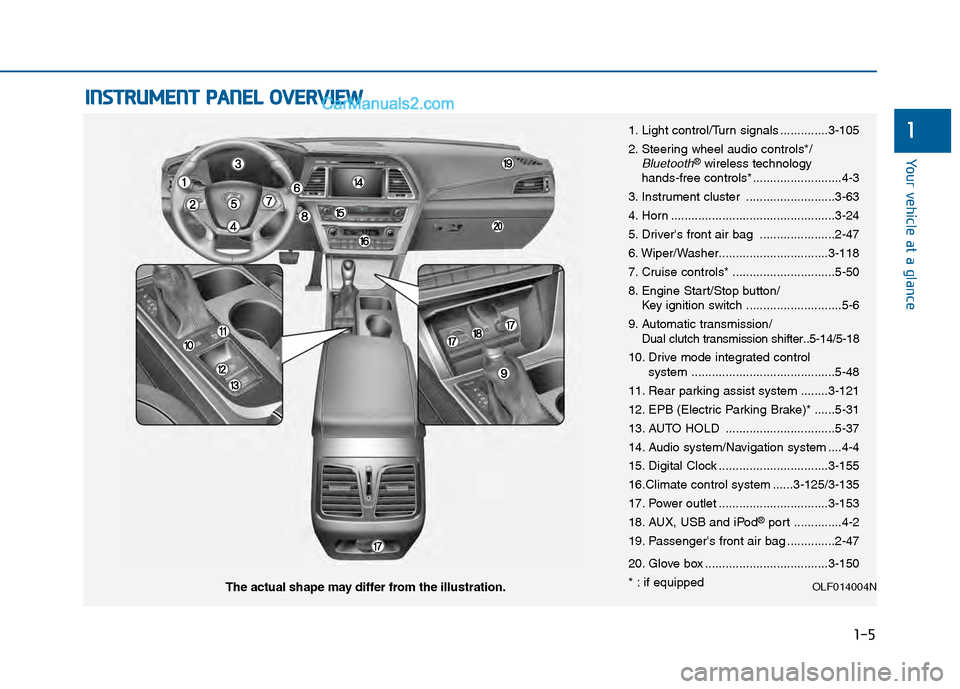
1. Light control/Turn signals ..............3-105
2. Steering wheel audio controls*/
Bluetooth®wireless technology
hands-free controls* ..........................4-3
3. Instrument cluster ..........................3-63
4. Horn ................................................3-24
5. Driver's front air bag ......................2-47
6. Wiper/Washer................................3-118
7. Cruise controls* ..............................5-50
8. Engine Start/Stop button/ Key ignition switch ............................5-6
9. Automatic transmission/
Dual clutch transmission shifter..5-14/5-18
10. Drive mode integrated control system ..........................................5-48
11. Rear parking assist system ........3-121
12. EPB (Electric Parking Brake)* ......5-31
13. AUTO HOLD ................................5-37
14. Audio system/Navigation system ....4-4
15. Digital Clock ................................3-155
16.Climate control system ......3-125/3-135
17. Power outlet ................................3-153
18. AUX, USB and iPod
®port ..............4-2
19. Passenger's front air bag ..............2-47
20. Glove box ....................................3-150
* : if equipped
OLF014004NThe actual shape may differ from the illustration.
Page 254 of 603
Multimedia System
Multimedia System.................................................4-2
AUX, USB and iPod®Port ...............................................4-2
Antenna ........................................................................\
.......4-2
Steering Wheel Audio Control........................................4-3
Audio / Video / Navigation System (AVN) ..................4-4
Bluetooth®Wireless Technology Hands-Free ...........4-4
How Vehicle Audio Works ...............................................4-5
Features of Your Vehicle.................................................4-7
System Controllers and Functions
- 3.8 Inch Mono TFT ...........................................4-17
Audio Head Unit ..............................................................4-17
Setup ........................................................................\
..........4-19
Radio : FM, AM ................................................................4-22
XM
TMRADIO ......................................................................4-\
23
Basic Method of Use : Audio CD / MP3 CD / USB /
iPod
®/ My Music ...........................................................4-25
Bluetooth®Wireless Technology Audio ....................4-31
Making a Call Using the Steering Wheel Remote
Controller........................................................................\
...4-32
Bluetooth®Wireless Technology ................................4-33
Voice Recognition ...........................................................4-45
Ending Voice Recognition .............................................4-46
System Controllers and Functions
- 5 Inch Color TFT LCD .......................................4-52
Audio Head Unit ..............................................................4-52
Steering-Wheel Mounted Controls ............................4-54
Radio Mode.......................................................................4\
-56
XM
TMRadio Mode ...........................................................4-58
Media Mode......................................................................4-\
60
Audio CD Mode ................................................................4-61
MP3 CD Mode ..................................................................4-63
USB Mode ........................................................................\
.4-66
iPod
®Mode ......................................................................4-\
69
AUX Mode ........................................................................\
.4-71
MY Music Mode ..............................................................4-72
Bluetooth®Wireless Technology Audio Mode ........4-75
Voice Recognition ...........................................................4-91
Setup ........................................................................\
..........4-97
Rear View Camera ........................................................4-102
Blue Link
®.......................................................................4\
-102
4
Page 255 of 603
4-2
• If you install an aftermarket HIDhead lamp, your vehicle’s audio
and electronic device may mal-
function.
Prevent chemicals such as per- fume, cosmetic oil, sun cream,
hand cleaner, and air freshener
from contacting the interior
parts because they may cause
damage or discoloration.
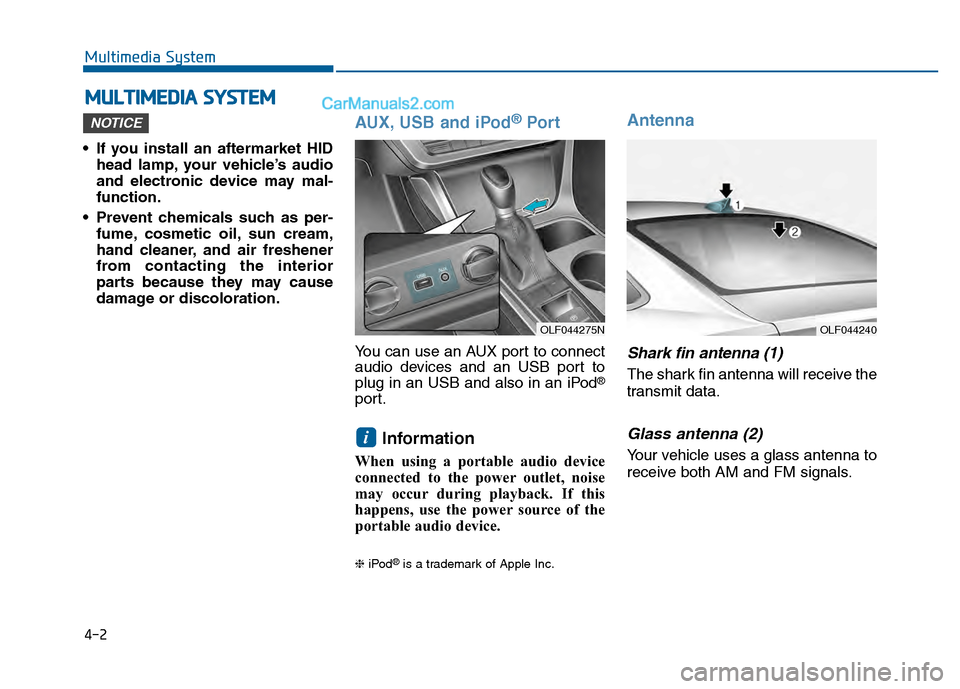
AUX, USB and iPod®Por t
You can use an AUX port to connect
audio devices and an USB port to
plug in an USB and also in an iPod
®
port.
Information
When using a portable audio device
connected to the power outlet, noise
may occur during playback. If this
happens, use the power source of the
portable audio device.
❈ iPod®is a trademark of Apple Inc.
Antenna
Shark fin antenna (1)
The shark fin antenna will receive the
transmit data.
Glass antenna (2)
Your vehicle uses a glass antenna to
receive both AM and FM signals.
i
NOTICE
M MU
UL
LT
T I
IM
M E
ED
D I
IA
A
S
S Y
Y S
ST
T E
EM
M
Multimedia System
OLF044275NOLF044240
Page 257 of 603
4-4
MODE (3)
Press the MODE button to select
Radio, XM, Disc, or AUX.
Information
Detailed information for audio control
buttons are described in the following
pages in this chapter.
Audio / Video / Navigation
System (AVN)
Detailed information for the AVN sys-
tem is described in a separately sup-
plied manual.
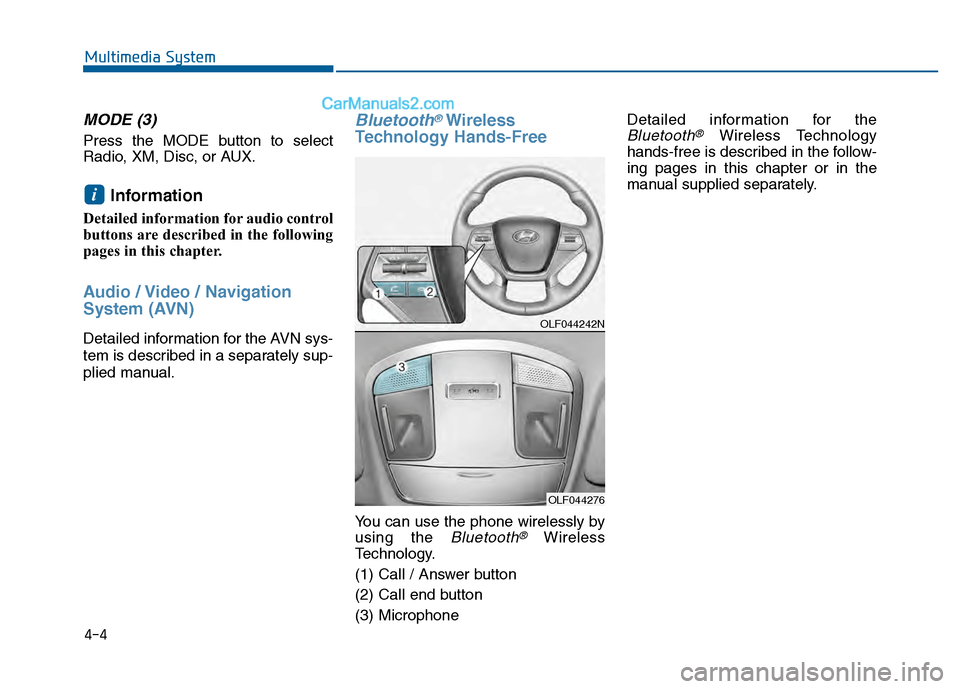
Bluetooth®Wireless
Technology Hands-Free
You can use the phone wirelessly by
using the
Bluetooth®Wireless
Technology.
(1) Call / Answer button
(2) Call end button
(3) Microphone Detailed information for the
Bluetooth®Wireless Technology
hands-free is described in the follow-
ing pages in this chapter or in the
manual supplied separately.
i
Multimedia System
OLF044242N
OLF044276
Page 266 of 603
4-13
Multimedia System
4
(Continued)
• Avoid use of USB mem-ory products that can
also be used as key
chains or mobile phone
accessories. Use of such products
may cause damage to the USB jack.
• Connecting an MP3 device or phone through various channels, such as
AUX/BT or Audio/ USB mode may
result in pop noises or abnormal
operation.Information - Using theiPod®device
• iPod
®is a registered trademark of
Apple Inc.
• In order to use the iPod
®while oper-
ating the keys, you must use a dedi-
cated iPod
®cable. (the cable that is
supplied when purchasing iPod®
/iPhone®products)
• If the iPod
®is connected to the vehi-
cle while it is playing, a high pitch
sound could occur for approximate-
ly 1-2 seconds immediately after
connecting. If possible, connect the
iPod to the vehicle with the iPod
®
stopped/ paused.
• During ACC ON state, connecting the iPod
®through the iPod®cable
will charge the iPod®through the
car audio system.
• When connecting with the iPod
®
cable, make sure to fully insert the
jack to prevent communication
interference. (Continued)(Continued)
• When the EQ features of an exter-
nal device, such as the iPod
®, and
the audio system are both active, EQ
effects could overlap and cause
sound deterioration and distortion.
Whenever possible, turn off the EQ
feature within the external device
upon use by connecting with the
audio system.
• Noise may occur when an iPod
®or
AUX device is connected. When
such devices are not being used, dis-
connect the device for storage.
• When the iPod
®or AUX device
power is connected to the power
jack, playing the external device
may result in noise. In such cases,
disconnect the power connection
before use.
• Skipping or improper operation may occur depending on the charac-
teristics of your iPod
® /Phone®
device.
(Continued)
i
Page 267 of 603
4-14
(Continued)
• If your iPhone
®is connected to both
the Bluetooth®Wireless Technology
and USB, the sound may not be
properly played. In your iPhone
®,
select the Dock c onnector or
Bluetooth
®Wireless Technology to
change the sound output (source).
• iPod mode cannot be operated when the iPod
®cannot be recognized due
to versions that do not support com-
munication protocols.
• For fifth generation iPod
®Nano
devices, the iPod®may not be recog-
nized when the battery level is low.
Please charge the iPod
®for use.
• Search/play orders shown within the iPod
®device may differ with the
orders shown within the audio sys-
tem.
• If the iPod
®malfunctions due to an
iPod®device defect, reset the iPod®
and try again. (To learn more, refer to
your iPod®manual)
(Continued) (Continued)
• Some iPod
®s may not sync with the
System depending on its version. If
the Media is removed before the
Media is recognized, then the sys-
tem may not properly restore the
previously operated mode. (iPad
®
charging is not supported.)
Information - Using the AUX
device
• If an external device connector is connected with the AUX terminal,
then AUX mode will automatically
operate. Once the connector is dis-
connected, the previous mode will
be restored.
• AUX mode can be used only when an external audio player (cam-
corder, car VCR, etc.) has been con-
nected.
• The AUX volume can be controlled separately from other audio modes.
• Connecting a connector jack to the AUX terminal without an external
device will convert the system to
AUX mode, but only output noise.
When an external device is not
being used, also remove the connec-
tor jack.
• When the external device power is connected to the power jack, play-
ing the external device may output
noise. In such cases, disconnect the
power connection before use.
• Fully insert the AUX cable to the AUX jack upon use.i
Multimedia System
Page 270 of 603
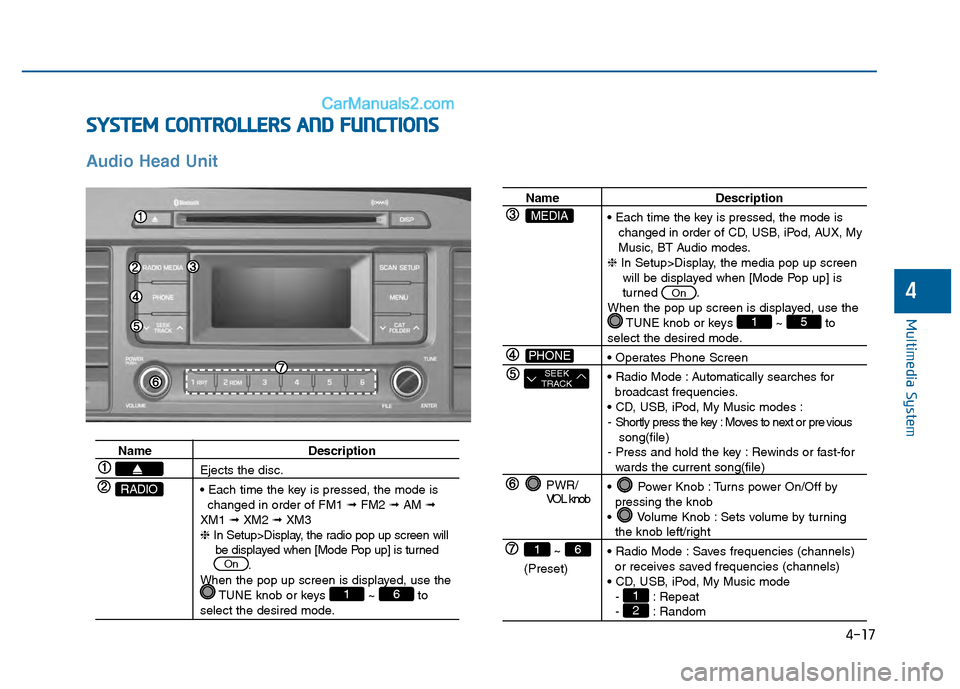
S
SY
Y S
ST
T E
EM
M
C
C O
O N
NT
TR
R O
O L
LL
LE
E R
R S
S
A
A N
N D
D
F
F U
U N
NC
CT
T I
IO
O N
NS
S
Audio Head Unit
4-17
Multimedia System
4
Name Description
Ejects the disc.
changed in order of FM1 ➟FM2 ➟AM ➟
XM1 ➟XM2 ➟XM3
❈ In Setup>Display, the radio pop up screen will
be displayed when [Mode Pop up] is turned .
When the pop up screen is displayed, use the TUNE knob or keys ~ to
select the desired mode.
61
On
RADIO
Name Description
changed in order of CD, USB, iPod, AUX, My
Music, BT Audio modes.
❈ In Setup>Display, the media pop up screen
will be displayed when [Mode Pop up] is
turned .
When the pop up screen is displayed, use the TUNE knob or keys ~ to
select the desired mode.
Automatically searches for broadcast frequencies.
- Shortly press the key : Moves to next or pre vious song(file)
- Press and hold the key : Rewinds or fast-for
wards the current song(file)
Power Knob : Turns power On/Off by pressing the knob
Volume Knob : Sets volume by turning
the knob left/right
Saves frequencies (channels) or receives saved frequencies (channels)
- : Repeat
- : Random21
51
On
PWR/
VOL knob
~
(Preset)
61
SEEK
TRACK
PHONE
MEDIA
Page 281 of 603
![Hyundai Sonata 2016 Owners Manual 4-28
Multimedia System
Folder Repeat
Set [ F.RPT] through the TUNE
knob or key to repeat songs
within the current folder.
❈Press F.RPT again to turn off.
All Random
Set [ A.RDM] through the TUNE
kn](/img/35/16786/w960_16786-280.png "Hyundai Sonata 2016 Owners Manual 4-28
Multimedia System
Folder Repeat
Set [ F.RPT] through the TUNE
knob or key to repeat songs
within the current folder.
❈Press F.RPT again to turn off.
All Random
Set [ A.RDM] through the TUNE
kn")
4-28
Multimedia System
Folder Repeat
Set [ F.RPT] through the TUNE
knob or key to repeat songs
within the current folder.
❈Press F.RPT again to turn off.
All Random
Set [ A.RDM] through the TUNE
knob or key to randomly play all
songs within the CD.
❈Press A.RDM again to turn off.
Information
Set [ Info] through the TUNE
knob or key to display informa-
tion of the current song.
❈Press the key to turn off
info display.
Copy
Set [ Copy] through the TUNE
knob or key.
❈This is used to copy the current
song into My Music. You can play
the copied Music in My Music
mode.
❈ If another key is pressed while
copying is in progress, a pop up
asking you whether to cancel
copying is displayed.
❈ If another media is connected or
inserted (USB, CD, iPod
®, AUX)
while copying is in progress, copy-
ing is canceled.
❈ Music will not be played while
copying is in progress.
MENU : iPod®
In iPod mode, press key.
Repeat
Set [ RPT] through the TUNE
knob or key to repeat the cur-
rent song.
❈ Press RPT again to turn repeat off.
Random
Set [ RDM] through the TUNE
knob or key.
Plays all songs within the currently
playing category in random order.
❈ Press RDM again to turn off.
2 RDM
1 RPT
MENU
6
MENU
5
4
3