Chapter 5 Hyundai Sonata 2017 User Guide
[x] Cancel search | Manufacturer: HYUNDAI, Model Year: 2017, Model line: Sonata, Model: Hyundai Sonata 2017Pages: 563, PDF Size: 17.7 MB
Page 118 of 563
3-33
Convenient features of your vehicle
3
Erasing HomeLink®buttons
Individual buttons cannot be erased.
However, to erase all three pro-
grammed buttons:
1. Press and hold the two outerHomeLink
®buttons until the indi-
cator light begins to flash after 10
seconds.
2. Release both buttons. Do not hold for longer than 20 seconds.
The Integrated HomeLink
®Wireless
Control System is now in the training
(learn) mode and can be pro-
grammed at any time following the
appropriate steps in the
Programming chapters above.
NVS
®is a registered trademark and
Z-Nav™ is a trademark of the Gentex
Corporation, Zeeland, Michigan.
HomeLink
®is a registered trademark
owned by Johnson Controls,
Incorporated, Milwaukee, Wisconsin.
FCC ID: NZLTLMHL4
IC: 4112A-TLMHL4
Information
This device complies with Part 15 of
the FCC Rules.
Operation is subject to the following
three conditions:
1. This device may not cause harmful interference, and
2. This device must accept any inter- ference received, including interfer-
ence that may cause undesired
operation.
3. The transceiver has been tested and complies with FCC and Industry
Canada rules. Changes or modifica-
tions not expressly approved by the
party responsible for compliance
could void the user’s authority to
operate the device.
Electric chromic mirror (ECM)with compass and HomeLink®
system (for Canada)
Your vehicle may be equipped with a
Gentex Automatic-Dimming Mirror
with a Z-Nav™ Electronic Compass
Display and an Integrated HomeLink
®
Wireless Control System.
During nighttime driving, this feature
will automatically detect and reduce
rearview mirror glare while the com-
pass indicates the direction the vehi-
cle is pointed. The HomeLink
®
Universal Transceiver allows you to
activate your garage door(s), electric
gate, home lighting, etc.
i
Page 125 of 563
3-40
Convenient features of your vehicle
Erasing HomeLink®buttons
Individual buttons cannot be erased.
However, to erase all three pro-
grammed buttons:
1. Press and hold the two outerHomeLink
®buttons until the indi-
cator light begins to flash-after 20
seconds.
2. Release both buttons. Do not hold for longer than 30 seconds.
The Integrated HomeLink
®Wireless
Control System is now in the training
(learn) mode and can be pro-
grammed at any time following the
appropriate steps in the Programming
chapters above.
NVS
®is a registered trademark and
Z-Nav™ is a trademark of the Gentex
Corporation, Zeeland, Michigan.
HomeLink
®is a registered trademark
owned by Johnson Controls,
Incorporated, Milwaukee, Wisconsin.
FCC ID: NZLZTVHL3
IC: 4112A-ZTVHL3
Information
This device complies with Part 15 of
the FCC Rules.
Operation is subject to the following
three conditions:
1. This device may not cause harmful interference, and
2. This device must accept any interfer- ence received, including interference
that may cause undesired operation.
3. The transceiver has been tested and complies with FCC and Industry
Canada rules. Changes or modifica-
tions not expressly approved by the
party responsible for compliance
could void the user’s authority to
operate the device.
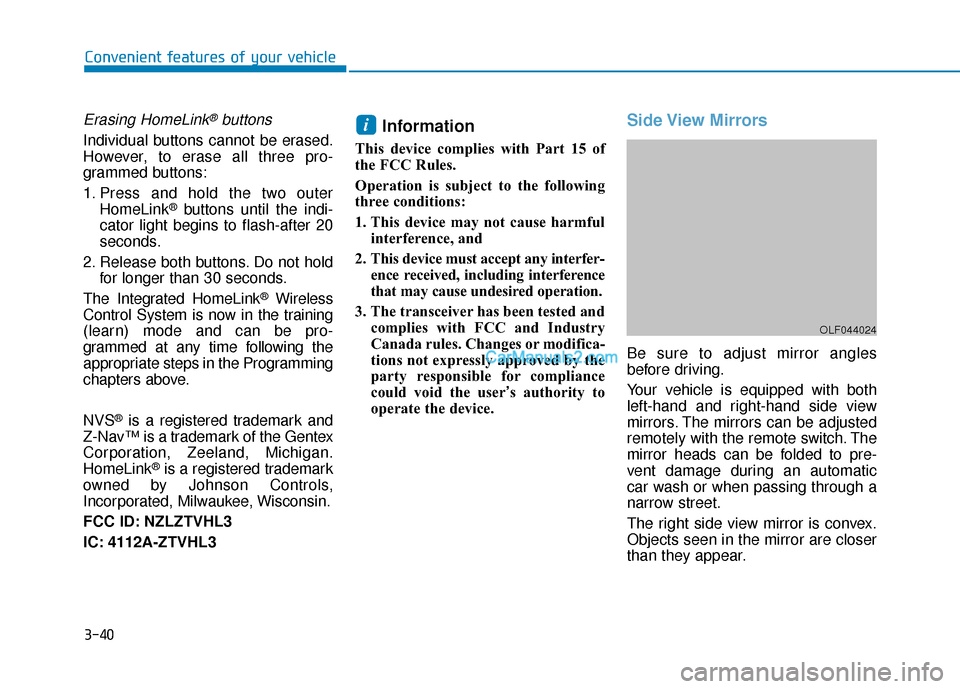
Side View Mirrors
Be sure to adjust mirror angles
before driving.
Your vehicle is equipped with both
left-hand and right-hand side view
mirrors. The mirrors can be adjusted
remotely with the remote switch. The
mirror heads can be folded to pre-
vent damage during an automatic
car wash or when passing through a
narrow street.
The right side view mirror is convex.
Objects seen in the mirror are closer
than they appear.
i
OLF044024
Page 145 of 563
3-60
Convenient features of your vehicle
Smart Trunk (if equipped)
On a vehicle equipped with a smart
key, the trunk can be opened using
the Smart Trunk system.
How to use the Smart Trunk
The trunk can be opened with no-
touch activation satisfying all the
conditions below.
After 15 seconds when all doorsare closed and locked
Positioned in the detecting area for more than 3 seconds.
Information
• The Smart Trunk does not operatewhen:
- The smart key is detected within15 seconds after the doors are
closed and locked, and is continu-
ously detected.
- The smart key is detected within 15 seconds after the doors are
closed and locked, and within 60
inches (1.5 m) from the front door
handles. (for vehicles equipped
with Welcome Light)
- A door is not locked or closed.
- The smart key is in the vehicle. 1. Setting
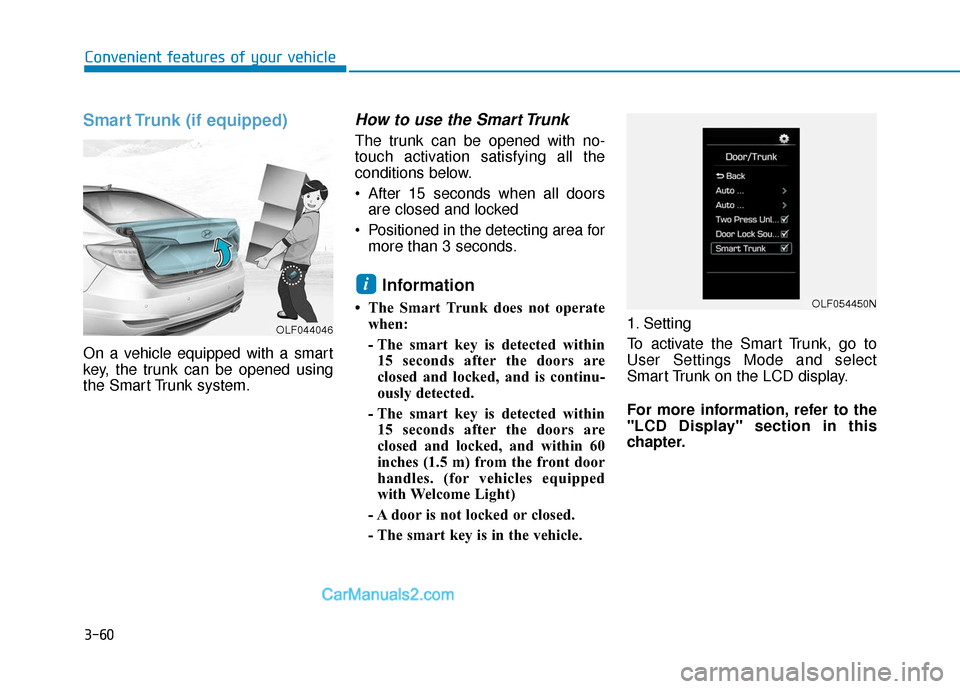
To activate the Smart Trunk, go to
User Settings Mode and select
Smart Trunk on the LCD display.
For more information, refer to the
"LCD Display" section in this
chapter.
i
OLF044046
OLF054450N
Page 151 of 563
3-66
Convenient features of your vehicle
Information
Make sure to refuel your vehicle
according to the "Fuel Requirements"
suggested in the Introduction chapter.
Do not spill fuel on the exteriorsurfaces of the vehicle. Any type
of fuel spilled on painted sur-
faces may damage the paint.
If the fuel filler cap requires replacement, use only a genuine
HYUNDAI cap or the equivalent
specified for your vehicle. An
incorrect fuel filler cap can
result in a serious malfunction
of the fuel system or emission
control system.
Emergency fuel filler door release
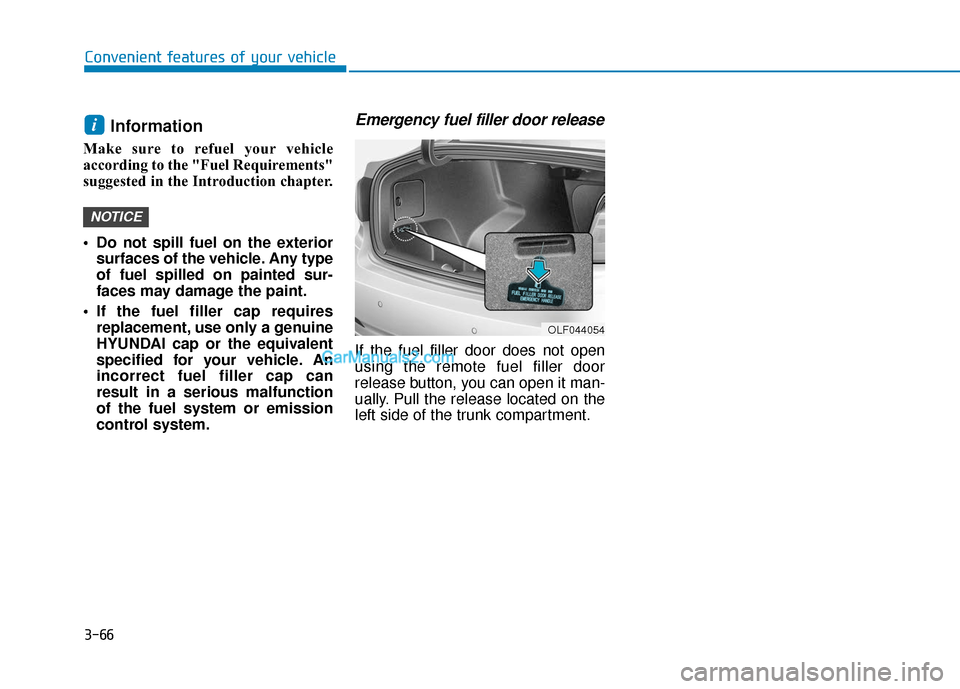
If the fuel filler door does not open
using the remote fuel filler door
release button, you can open it man-
ually. Pull the release located on the
left side of the trunk compartment.
NOTICE
i
OLF044054
Page 154 of 563
3-69
Convenient features of your vehicle
3
Instrument Cluster Control
Adjusting instrument clusterillumination
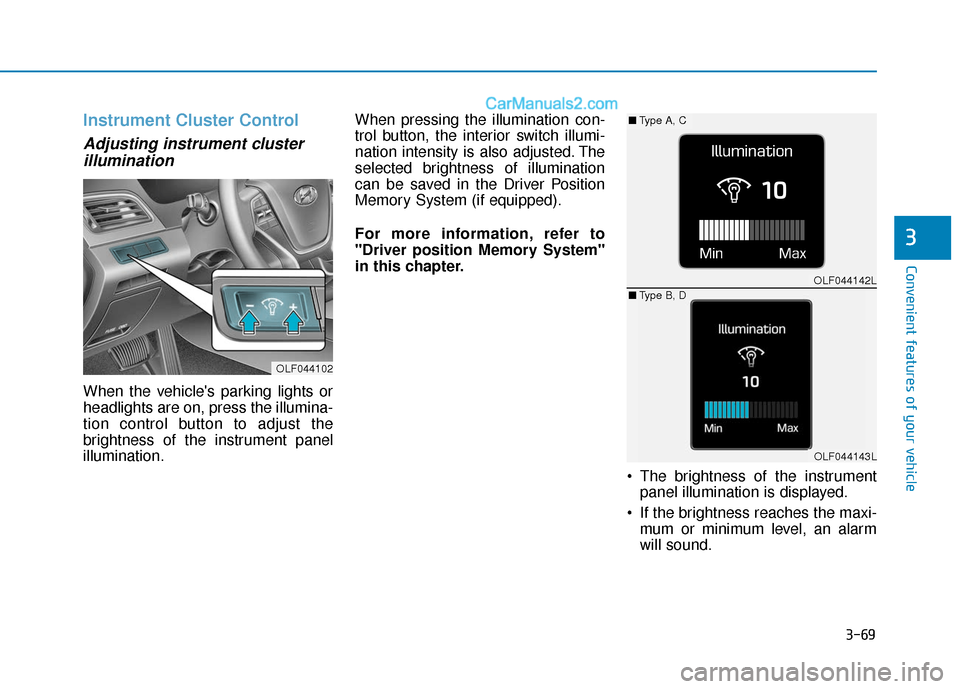
When the vehicle's parking lights or
headlights are on, press the illumina-
tion control button to adjust the
brightness of the instrument panel
illumination. When pressing the illumination con-
trol button, the interior switch illumi-
nation intensity is also adjusted. The
selected brightness of illumination
can be saved in the Driver Position
Memory System (if equipped).
For more information, refer to
"Driver position Memory System"
in this chapter.
The brightness of the instrumentpanel illumination is displayed.
If the brightness reaches the maxi- mum or minimum level, an alarm
will sound.
OLF044102
OLF044142L
OLF044143L
■ Type A, C
■ Type B, D
Page 155 of 563
3-70
Convenient features of your vehicle
LCD Display Control
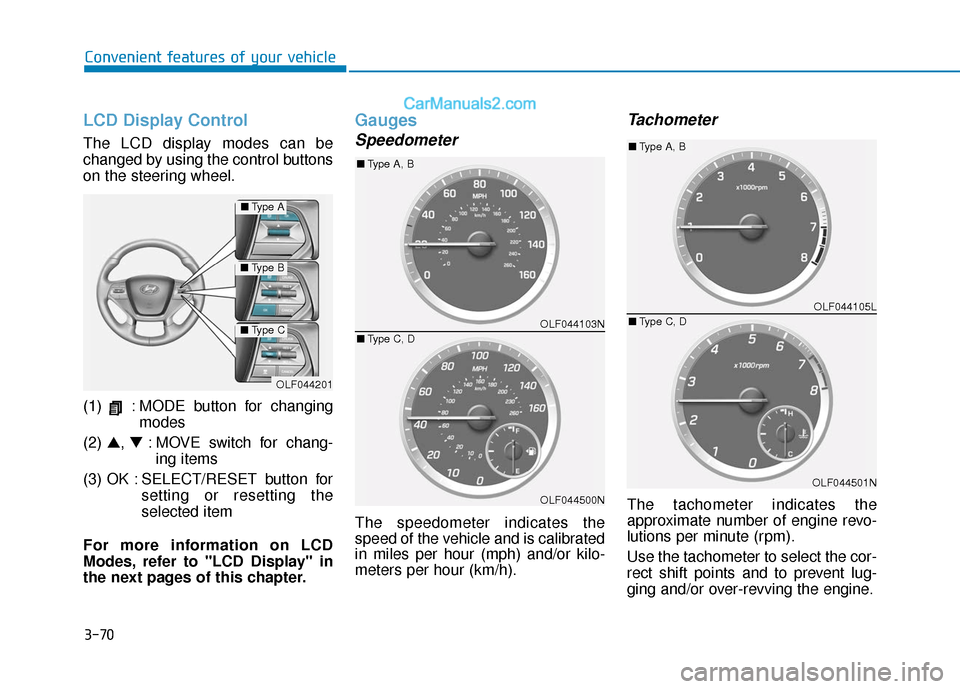
The LCD display modes can be
changed by using the control buttons
on the steering wheel.
(1) : MODE button for changingmodes
(2) ▲, ▼: MOVE switch for chang-
ing items
(3) OK : SELECT/RESET button for setting or resetting the
selected item
For more information on LCD
Modes, refer to "LCD Display" in
the next pages of this chapter.
Gauges
Speedometer
The speedometer indicates the
speed of the vehicle and is calibrated
in miles per hour (mph) and/or kilo-
meters per hour (km/h).
Tachometer
The tachometer indicates the
approximate number of engine revo-
lutions per minute (rpm).
Use the tachometer to select the cor-
rect shift points and to prevent lug-
ging and/or over-revving the engine.
OLF044201
■ Type A
■Type B
■Type COLF044103N
OLF044500N
■Type A, B
■ Type C, D
OLF044105L
OLF044501N
■Type A, B
■ Type C, D
Page 156 of 563
3-71
Convenient features of your vehicle
3
Do not operate the engine within
the tachometer's RED ZONE. This
may cause severe engine damage.
Engine Coolant TemperatureGauge
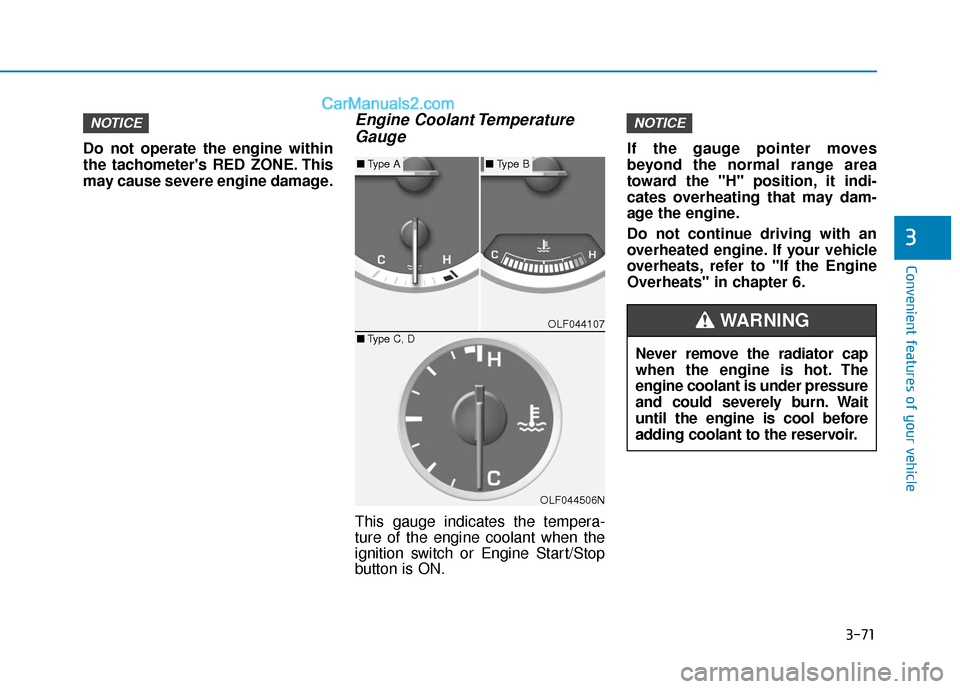
This gauge indicates the tempera-
ture of the engine coolant when the
ignition switch or Engine Start/Stop
button is ON. If the gauge pointer moves
beyond the normal range area
toward the "H" position, it indi-
cates overheating that may dam-
age the engine.
Do not continue driving with an
overheated engine. If your vehicle
overheats, refer to "If the Engine
Overheats" in chapter 6.
NOTICENOTICE
OLF044107
OLF044506N
■
Type A■Type B
■ Type C, D
Never remove the radiator cap
when the engine is hot. The
engine coolant is under pressure
and could severely burn. Wait
until the engine is cool before
adding coolant to the reservoir.
WARNING
Page 157 of 563
3-72
Convenient features of your vehicle
Fuel Gauge
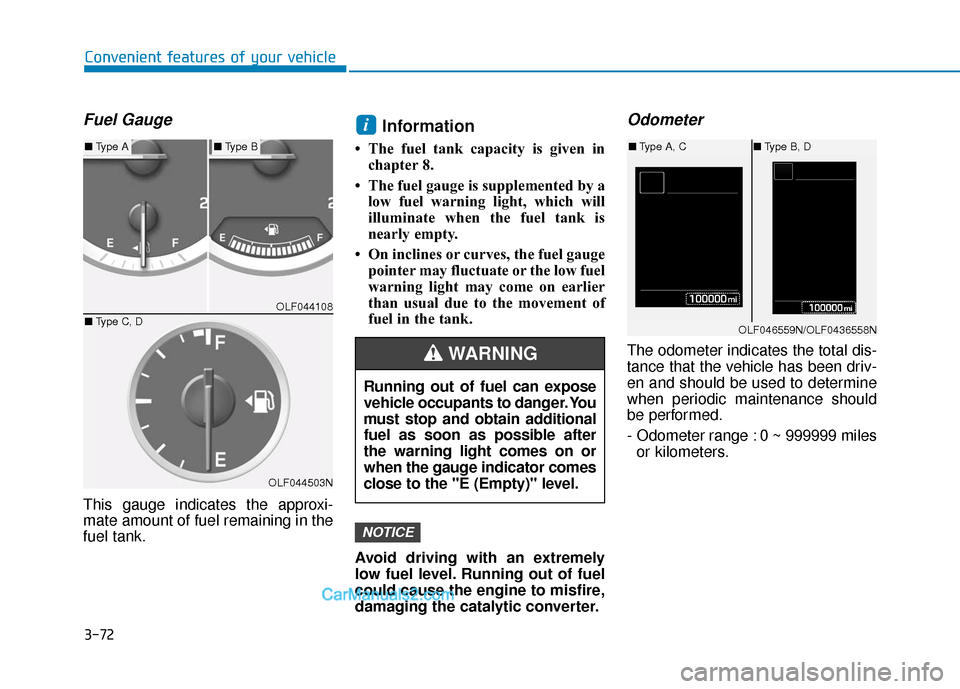
This gauge indicates the approxi-
mate amount of fuel remaining in the
fuel tank.
Information
• The fuel tank capacity is given inchapter 8.
• The fuel gauge is supplemented by a low fuel warning light, which will
illuminate when the fuel tank is
nearly empty.
• On inclines or curves, the fuel gauge pointer may fluctuate or the low fuel
warning light may come on earlier
than usual due to the movement of
fuel in the tank.
Avoid driving with an extremely
low fuel level. Running out of fuel
could cause the engine to misfire,
damaging the catalytic converter.
Odometer
The odometer indicates the total dis-
tance that the vehicle has been driv-
en and should be used to determine
when periodic maintenance should
be performed.
- Odometer range : 0 ~ 999999 miles or kilometers.
NOTICE
i
OLF044108
OLF044503N
■ Type A■Type B
■ Type C, D
Running out of fuel can expose
vehicle occupants to danger. You
must stop and obtain additional
fuel as soon as possible after
the warning light comes on or
when the gauge indicator comes
close to the "E (Empty)" level.
WARNING
OLF046559N/OLF0436558N
■Type A, C ■Type B, D
Page 160 of 563
3-75
Convenient features of your vehicle
3
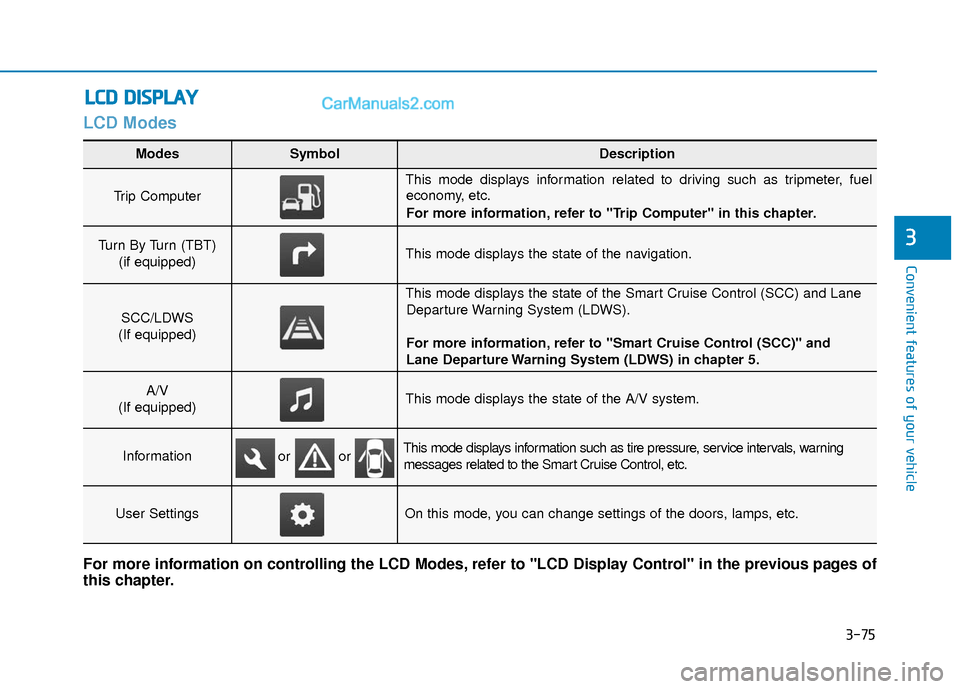
LCD Modes
L
LC
C D
D
D
D I
IS
S P
P L
LA
A Y
Y
Modes SymbolDescription
Trip Computer
This mode displays information related to driving such as tripmeter, fuel
economy, etc.
For more information, refer to "Trip Computer" in this chapter.
Turn By Turn (TBT)
(if equipped)This mode displays the state of the navigation.
SCC/LDWS
(If equipped)
This mode displays the state of the Smart Cruise Control (SCC) and Lane Departure Warning System (LDWS).
For more information, refer to "Smart Cruise Control (SCC)" and
Lane Departure Warning System (LDWS) in chapter 5.
A/V
(If equipped)This mode displays the state of the A/V system.
InformationThis mode displays information such as tire pressure, service intervals, warning messages related to the Smart Cruise Control, etc.
User SettingsOn this mode, you can change settings of the doors, lamps, etc.
For more information on controlling the LCD Modes, refer to "LCD Display Control" in the previous pages of
this chapter.
or or
Page 161 of 563
3-76
Convenient features of your vehicle
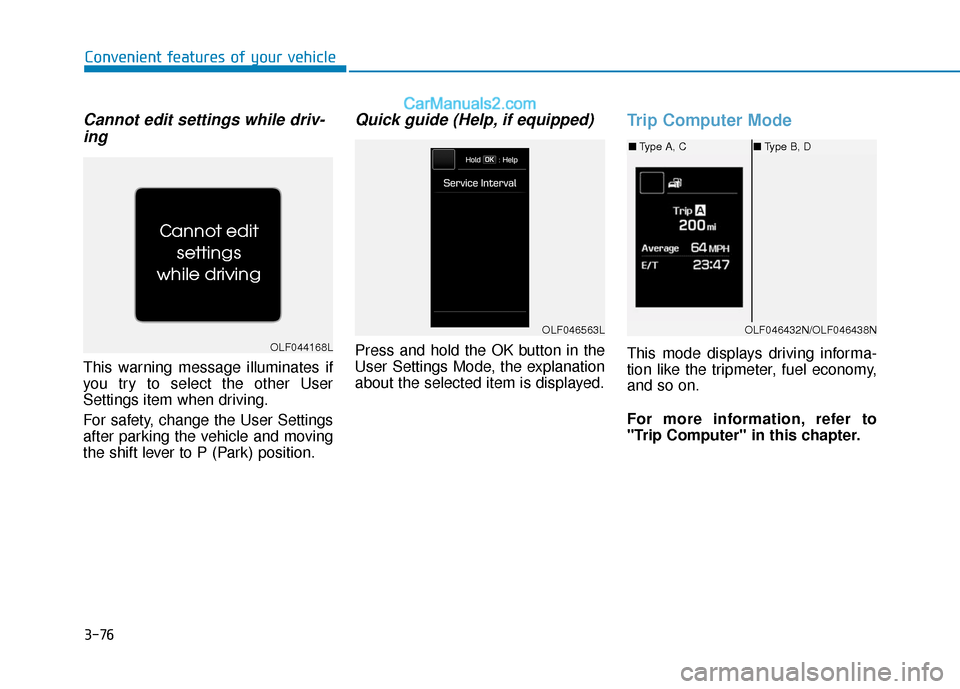
Cannot edit settings while driv-ing
This warning message illuminates if
you try to select the other User
Settings item when driving.
For safety, change the User Settings
after parking the vehicle and moving
the shift lever to P (Park) position.
Quick guide (Help, if equipped)
Press and hold the OK button in the
User Settings Mode, the explanation
about the selected item is displayed.
Trip Computer Mode
This mode displays driving informa-
tion like the tripmeter, fuel economy,
and so on.
For more information, refer to
"Trip Computer" in this chapter.OLF044168L
OLF046432N/OLF046438N
■ Type A, C ■Type B, D
OLF046563L