power Hyundai Sonata 2017 Owner's Guide
[x] Cancel search | Manufacturer: HYUNDAI, Model Year: 2017, Model line: Sonata, Model: Hyundai Sonata 2017Pages: 563, PDF Size: 17.7 MB
Page 244 of 563
3-159
Convenient features of your vehicle
3
To prevent damage to the Power
Outlets :
Use the power outlet only whenthe engine is running and
remove the accessory plug after
use. Using the accessory plug
for prolonged periods of time
with the engine off could cause
the battery to discharge.
Only use 12V electric acces- sories which are less than 180
W(Watt) in electric capacity.
Adjust the air-conditioner or heater to the lowest operating
level when using the power outlet.
Close the cover when not in use.
Some electronic devices can cause electronic interference
when plugged into a vehicle’s
power outlet. These devices may
cause excessive audio static
and malfunctions in other elec-
tronic systems or devices used
in your vehicle.
(Continued)(Continued)
Push the plug in as far as it will
go. If good contact is not made,
the plug may overheat and the
fuse may open.
Plug in battery equipped electri- cal/electronic devices with
reverse current protection. The
current from the battery may
flow into the vehicle’s electri-
cal/electronic system and cause
system malfunction.
NOTICE
Avoid electrical shocks. Do not
place your fingers or foreign
objects (pin, etc.) into a power
outlet or touch the power outlet
with a wet hand.
WARNING
Page 250 of 563
4-2
• If you install an aftermarket HIDhead lamp, your vehicle’s audio
and electronic device may mal-
function.
Prevent chemicals such as per- fume, cosmetic oil, sun cream,
hand cleaner, and air freshener
from contacting the interior
parts because they may cause
damage or discoloration.
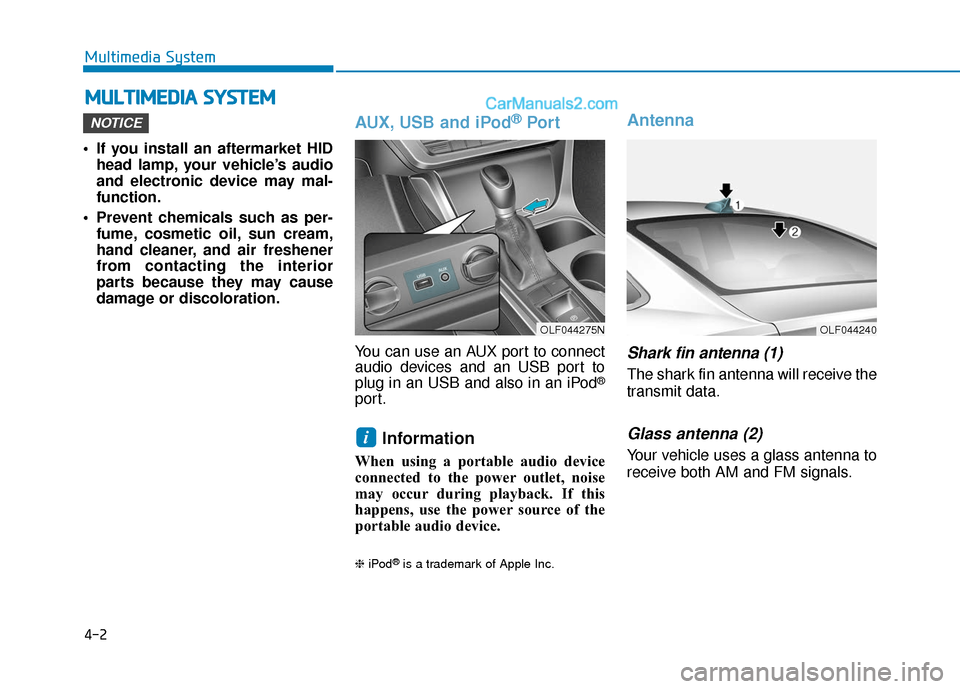
AUX, USB and iPod®Por t
You can use an AUX port to connect
audio devices and an USB port to
plug in an USB and also in an iPod
®
port.
Information
When using a portable audio device
connected to the power outlet, noise
may occur during playback. If this
happens, use the power source of the
portable audio device.
❈ iPod®is a trademark of Apple Inc.
Antenna
Shark fin antenna (1)
The shark fin antenna will receive the
transmit data.
Glass antenna (2)
Your vehicle uses a glass antenna to
receive both AM and FM signals.
i
NOTICE
M MU
UL
LT
T I
IM
M E
ED
D I
IA
A
S
S Y
Y S
ST
T E
EM
M
Multimedia System
OLF044275NOLF044240
Page 254 of 563
4-6
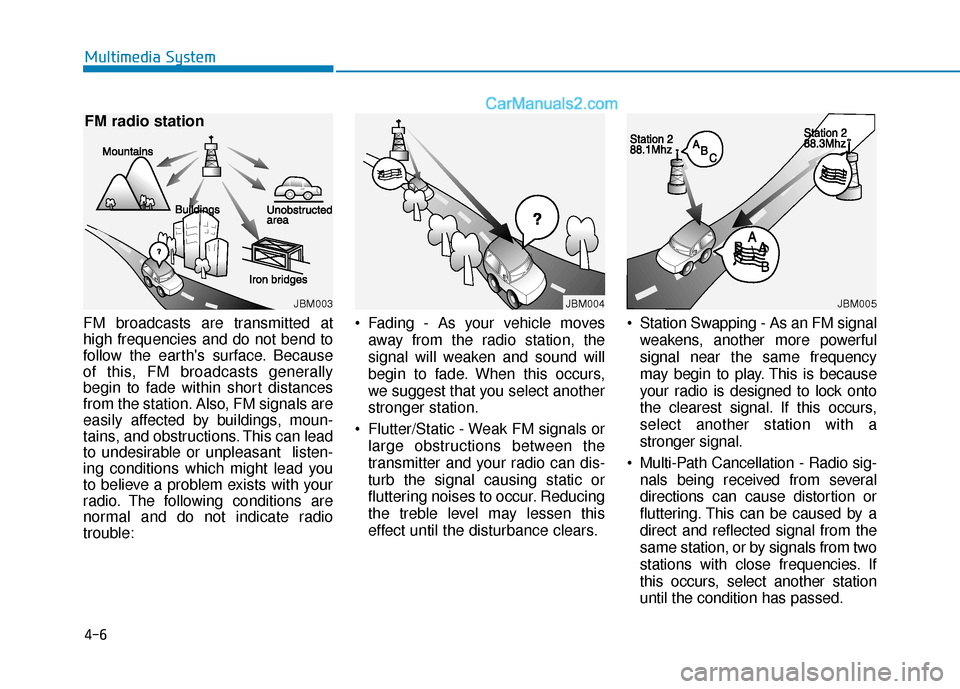
FM broadcasts are transmitted at
high frequencies and do not bend to
follow the earth's surface. Because
of this, FM broadcasts generally
begin to fade within short distances
from the station. Also, FM signals are
easily affected by buildings, moun-
tains, and obstructions. This can lead
to undesirable or unpleasant listen-
ing conditions which might lead you
to believe a problem exists with your
radio. The following conditions are
normal and do not indicate radio
trouble: Fading - As your vehicle moves
away from the radio station, the
signal will weaken and sound will
begin to fade. When this occurs,
we suggest that you select another
stronger station.
Flutter/Static - Weak FM signals or large obstructions between the
transmitter and your radio can dis-
turb the signal causing static or
fluttering noises to occur. Reducing
the treble level may lessen this
effect until the disturbance clears. Station Swapping - As an FM signal
weakens, another more powerful
signal near the same frequency
may begin to play. This is because
your radio is designed to lock onto
the clearest signal. If this occurs,
select another station with a
stronger signal.
Multi-Path Cancellation - Radio sig- nals being received from several
directions can cause distortion or
fluttering. This can be caused by a
direct and reflected signal from the
same station, or by signals from two
stations with close frequencies. If
this occurs, select another station
until the condition has passed.
Multimedia System
JBM003
FM radio station
JBM004JBM005
Page 260 of 563
4-12
(Continued)
• Some USB devices may not be sup- ported due to compatibility issues.
• Avoid contact between the USB con- nector with bodily parts or foreign
objects.
• Repeated connecting/disconnecting of USB devices within short periods
of time may result in product mal-
function.
• A strange noise may occur when dis- connecting the USB.
• Make sure to connect/disconnect external USB devices with the audio
power turned off.
• The amount of time required to rec- ognize the USB device may differ
depending on the type, size or file
formats stored in the USB. Such dif-
ferences in time are not indications
of malfunctions.
• The device only supports USB devices used to play music files.
• USB images and videos are not sup- ported.
(Continued)(Continued)
• Do not use the USB I/F to charge batteries or USB accessories that
generate heat. Such acts may lead to
worsened performance or damage
to the device.
• The device may not recognize the USB device if separately purchased
USB hubs and extension cables are
being used. Connect the USB direct-
ly with the multimedia terminal of
the vehicle.
• When using mass storage USB devices with separate logical drives,
only files saved to the root drive can
be played.
• Files may not properly operate if application programs are installed
to the USBs.
• The device may not operate normal- ly if MP3 Players, cellular phones,
digital cameras, or other electronic
devices (USB devices not recognized
as portable disk drives) are connect-
ed with the device. (Continued)
• Charging through the USB may not
work for some mobile devices.
• The device may not support normal operation when using a USB memo-
ry type besides (Metal Cover Type)
USB Memory.
• The device may not support normal operation when using formats such
as HDD Type, CF, or SD Memory.
• The device will not support files locked by DRM (Digital Rights
Management.)
• USB memory sticks used by con- necting an Adaptor (SD Type or CF
Type) may not be properly recog-
nized.
• The device may not operate proper- ly when using USB HDDs or USBs
subject to connection failures
caused by vehicle vibrations. (e.g. i-
stick type)
(Continued)
Multimedia System
Page 261 of 563
4-13
Multimedia System
(Continued)
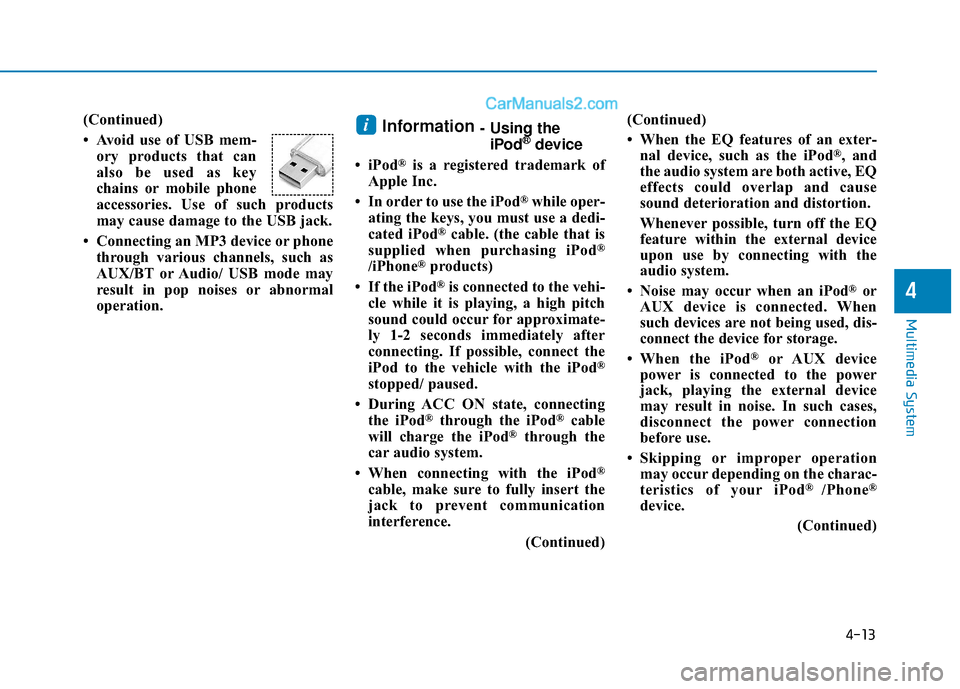
• Avoid use of USB mem-ory products that can
also be used as key
chains or mobile phone
accessories. Use of such products
may cause damage to the USB jack.
• Connecting an MP3 device or phone through various channels, such as
AUX/BT or Audio/ USB mode may
result in pop noises or abnormal
operation.Information - Using theiPod®device
• iPod
®is a registered trademark of
Apple Inc.
• In order to use the iPod
®while oper-
ating the keys, you must use a dedi-
cated iPod
®cable. (the cable that is
supplied when purchasing iPod®
/iPhone®products)
• If the iPod
®is connected to the vehi-
cle while it is playing, a high pitch
sound could occur for approximate-
ly 1-2 seconds immediately after
connecting. If possible, connect the
iPod to the vehicle with the iPod
®
stopped/ paused.
• During ACC ON state, connecting the iPod
®through the iPod®cable
will charge the iPod®through the
car audio system.
• When connecting with the iPod
®
cable, make sure to fully insert the
jack to prevent communication
interference. (Continued)(Continued)
• When the EQ features of an exter-
nal device, such as the iPod
®, and
the audio system are both active, EQ
effects could overlap and cause
sound deterioration and distortion.
Whenever possible, turn off the EQ
feature within the external device
upon use by connecting with the
audio system.
• Noise may occur when an iPod
®or
AUX device is connected. When
such devices are not being used, dis-
connect the device for storage.
• When the iPod
®or AUX device
power is connected to the power
jack, playing the external device
may result in noise. In such cases,
disconnect the power connection
before use.
• Skipping or improper operation may occur depending on the charac-
teristics of your iPod
® /Phone®
device.
(Continued)
i
4
Page 262 of 563
4-14
(Continued)
• If your iPhone
®is connected to both
the Bluetooth®Wireless Technology
and USB, the sound may not be
properly played. In your iPhone
®,
select the Dock c onnector or
Bluetooth
®Wireless Technology to
change the sound output (source).
• iPod mode cannot be operated when the iPod
®cannot be recognized due
to versions that do not support com-
munication protocols.
• For fifth generation iPod
®Nano
devices, the iPod®may not be recog-
nized when the battery level is low.
Please charge the iPod
®for use.
• Search/play orders shown within the iPod
®device may differ with the
orders shown within the audio sys-
tem.
• If the iPod
®malfunctions due to an
iPod®device defect, reset the iPod®
and try again. (To learn more, refer to
your iPod®manual)
(Continued) (Continued)
• Some iPod
®s may not sync with the
System depending on its version. If
the Media is removed before the
Media is recognized, then the sys-
tem may not properly restore the
previously operated mode. (iPad
®
charging is not supported.)
Information - Using the AUX
device
• If an external device connector is connected with the AUX terminal,
then AUX mode will automatically
operate. Once the connector is dis-
connected, the previous mode will
be restored.
• AUX mode can be used only when an external audio player (cam-
corder, car VCR, etc.) has been con-
nected.
• The AUX volume can be controlled separately from other audio modes.
• Connecting a connector jack to the AUX terminal without an external
device will convert the system to
AUX mode, but only output noise.
When an external device is not
being used, also remove the connec-
tor jack.
• When the external device power is connected to the power jack, play-
ing the external device may output
noise. In such cases, disconnect the
power connection before use.
• Fully insert the AUX cable to the AUX jack upon use.i
Multimedia System
Page 263 of 563
4-15
Multimedia System
Information - Before using
the
Bluetooth®handsfree
What is Bluetooth®?
• Bluetooth®refers to a short-distance
wireless networking technology
which uses a 2.4GHz ~ 2.48GHz fre-
quency to connect various devices
within a certain distance.
• Supported within PCs, external devices, Bluetooth
®phones, PDAs,
various electronic devices, and auto-
motive environments, Bluetooth
®
allows data to be transmitted at high
speeds without having to use a con-
nector cable.
• Bluetooth
®Handsfree refers to a
device which allows the user to con-
veniently make phone calls with
Bluetooth
®mobile phones through
the audio system.
• Bluetooth
®Handsfree may not be sup-
ported in some mobile phones. To learn
more about mobile device compatibility,
visit www
. hyundaiusa.com.
Information - Precautions for
safe driving
• Bluetooth
®Handsfree is a feature
that enables drivers to practice safe
driving. Connecting the head unit
with a Bluetooth
®phone allows the
user to conveniently make and
receive calls and use contacts.
Before using Bluetooth
®, carefully
read the contents of this user’s man-
ual.
• Excessive use or operations while driving may lead to negligent driv-
ing practices and result in accidents.
Refrain from excessive operations
while driving.
• Viewing the screen for prolonged periods of time is dangerous and
may lead to accidents. When driv-
ing, view the screen only for short
periods of time.
Information - When connect-
ing a
Bluetooth®phone
• Before connecting the head unit with the mobile phone, check to see
that the mobile phone supports
Bluetooth
®features.
• Even if the phone supports Bluetooth
®, the phone will not be
found during device searches if the
phone has been set to hidden state
or the Bluetooth
®power is turned
off. Disable the hidden state or turn
on the Bluetooth
®power prior to
searching/connecting with the Head
unit.
• Bluetooth phone is automatically connected when the ignition on.
• If you do not want automatic con- nection with your Bluetooth
®device,
turn off the Bluetooth®feature with-
in your mobile phone.
• The Handsfree call volume and quality may differ depending on the
mobile phone.
(Continued)
iii
4
Page 264 of 563
4-16
(Continued)
• Park the vehicle when connectingthe head unit with the mobile phone.
• Bluetooth
®connection may become
intermittently disconnected in some
mobile phones. Follow these steps to
try again.
1. Within the mobile phone, turn the Bluetooth
®function off/on and try
again.
2. Turn the mobile phone power Off/On and try again.
3. Completely remove the mobile phone battery, reboot, and then
again.
4. Reboot the Audio System and try again.
5. Delete all paired devices, pair and try again.
• Handsfree call quality and volume may differ depending on the model
of your mobile phone.
Information - Using the voicerecognition
• When using the voice recognition feature, only commands listed with-
in the user's manual are supported.
• Be aware that during the operation of the voice recognition system,
pressing any key other than the
key terminate voice recognition
mode.
• For superior voice recognition per- formance, position the microphone
used for voice recognition above the
head of the driver’s seat and main-
tain a proper position when saying
commands.
• Within the following situations, voice recognition may not function
properly due to external sound.
- When the windows and sunroofare open
- When the wind of the cooling / heating device is strong
- When entering and passing through tunnels
(Continued)(Continued)
- When driving on rugged anduneven roads
- During severe rain (heavy rains, windstorms)
• Phone related voice commands can be used only when a Bluetooth
®
Wireless Technology device is con-
nected.
• When making calls by stating a name, the corresponding contact
must be downloaded and stored
within the audio system.
• After downloading the Bluetooth
®
Wireless Technology phone book, it
takes some times to convert the
phone book data into voice informa-
tion. During this time, voice recogni-
tion may not properly operate.
• Pronounce the voice commands nat- urally and clearly as if in a normal
conversation.
i
Multimedia System
Page 265 of 563
4-17
Multimedia System
4
S
SY
Y S
ST
T E
EM
M
C
C O
O N
NT
TR
R O
O L
LL
LE
E R
R S
S
A
A N
N D
D
F
F U
U N
NC
CT
T I
IO
O N
NS
S
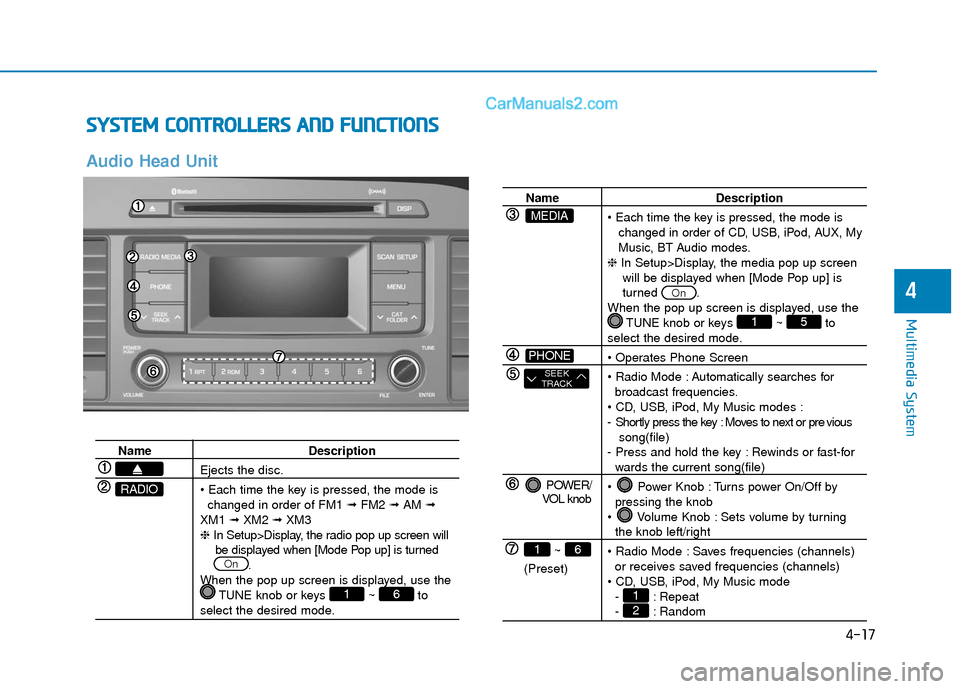
Audio Head Unit
Name Description
Ejects the disc.
changed in order of FM1 ➟FM2 ➟AM ➟
XM1 ➟XM2 ➟XM3
❈ In Setup>Display, the radio pop up screen will
be displayed when [Mode Pop up] is turned .
When the pop up screen is displayed, use the TUNE knob or keys ~ to
select the desired mode.
61
On
RADIO
Name Description
changed in order of CD, USB, iPod, AUX, My
Music, BT Audio modes.
❈ In Setup>Display, the media pop up screen
will be displayed when [Mode Pop up] is
turned .
When the pop up screen is displayed, use the TUNE knob or keys ~ to
select the desired mode.
Automatically searches for broadcast frequencies.
- Shortly press the key : Moves to next or pre vious song(file)
- Press and hold the key : Rewinds or fast-for
wards the current song(file)
Power Knob : Turns power On/Off by pressing the knob
Volume Knob : Sets volume by turning
the knob left/right
Saves frequencies (channels) or receives saved frequencies (channels)
- : Repeat
- : Random21
51
On
POWER/
VOL knob
~
(Preset)
61
SEEK
TRACK
PHONE
MEDIA
Page 283 of 563
4-35
Multimedia System
4
Bluetooth®Wireless Technology
Pairing a
Bluetooth®Wireless
Technology Device
What is Bluetooth®Wireless
Technology Pairing?
Pairing refers to the process of syn-
chronizing your
Bluetooth®Wireless
Technology phone or device with the
car audio system for connection.
Pairing is necessary to connect and
use the
Bluetooth®Wireless
Technology feature.
PHONE (if equipped)
Before using the
Bluetooth®
Wireless Technology phone
features
In order to use Bluetooth®Wireless
Technology phone, you must first
pair and connect the
Bluetooth®
Wireless Technology mobile phone.
If the mobile phone is not paired or connected, it is not possible to
enter Phone mode. Once a phone
is paired or connected, the guid-
ance screen will be displayed.
If Priority is set upon vehicle igni- tion(IGN/ACC ON), the
Bluetooth®
Wireless Technology phone will be
automatically connected. Even if
you are outside, the first
Bluetooth®
Wireless Technology phone will be
automatically connected once you
are in the vicinity of the vehicle. If you
do not want automatic
Bluetooth®
Wireless Technology phone connec-
tion, set the
Bluetooth®Wireless
Technology power to OFF.
Driving while distracted can
result in a loss of vehicle con-
trol that may lead to an acci-
dent, severe personal injury,
and death. The driver’s primary
responsibility is in the safe and
legal operation of a vehicle, and
use of any handheld devices,
other equipment, or vehicle sys-
tems which take the driver’s
eyes, attention and focus away
from the safe operation of a
vehicle or which are not permis-
sible by law should never be
used during operation of the
vehicle.
WARNING