display Hyundai Sonata 2020 User Guide
[x] Cancel search | Manufacturer: HYUNDAI, Model Year: 2020, Model line: Sonata, Model: Hyundai Sonata 2020Pages: 537, PDF Size: 14.54 MB
Page 102 of 537
04
4-17
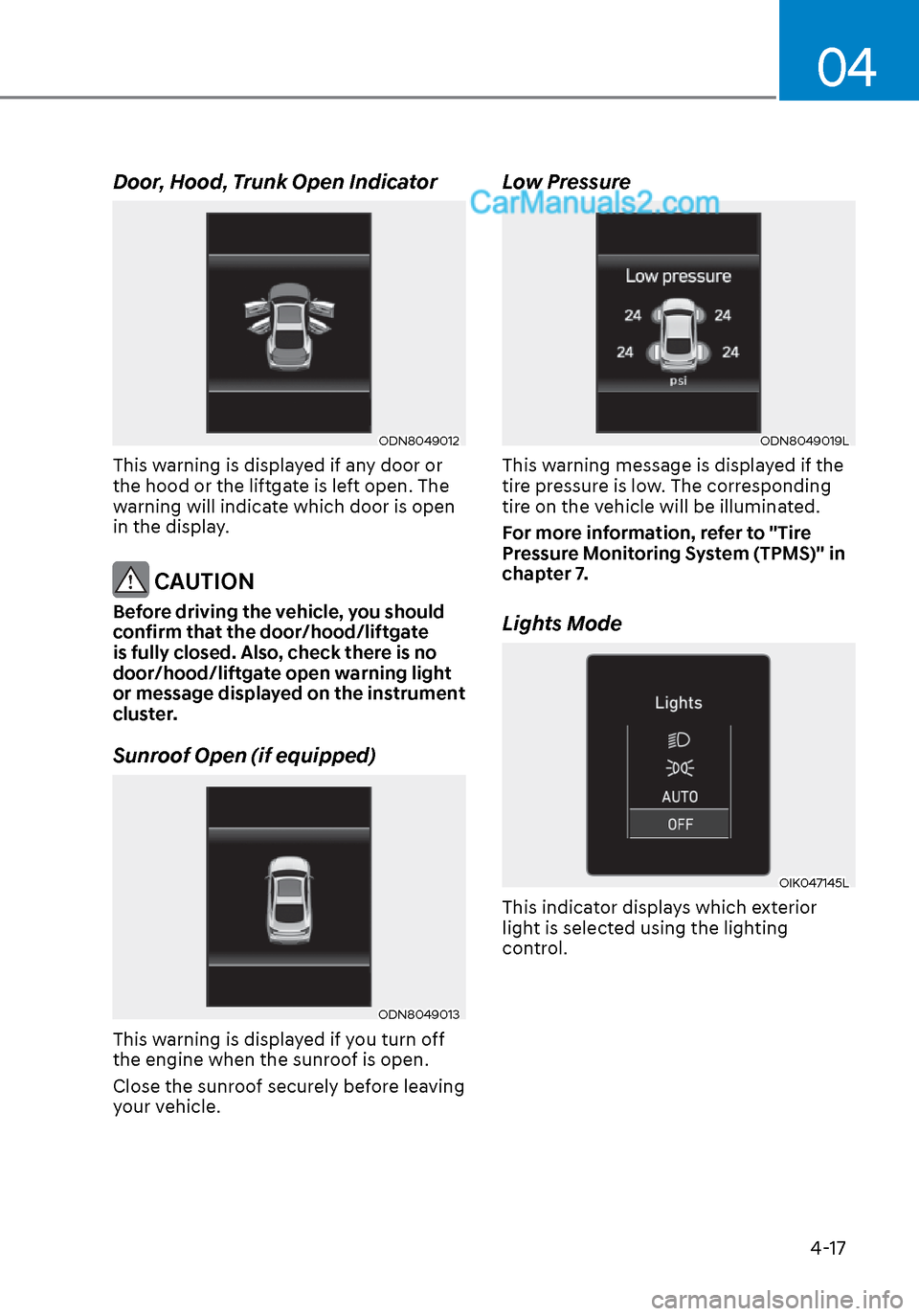
Door, Hood, Trunk Open Indicator
ODN8049012ODN8049012
This warning is displayed if any door or
the hood or the liftgate is left open. The
warning will indicate which door is open
in the display.
CAUTION
Before driving the vehicle, you should
confirm that the door/hood/liftgate
is fully closed. Also, check there is no
door/hood/liftgate open warning light
or message displayed on the instrument
cluster.
Sunroof Open (if equipped)
ODN8049013ODN8049013
This warning is displayed if you turn off
the engine when the sunroof is open.
Close the sunroof securely before leaving
your vehicle.
Low Pressure
ODN8049019LODN8049019L
This warning message is displayed if the
tire pressure is low. The corresponding
tire on the vehicle will be illuminated.
For more information, refer to "Tire
Pressure Monitoring System (TPMS)" in
chapter 7.
Lights Mode
OIK047145LOIK047145L
This indicator displays which exterior
light is selected using the lighting
control.
Page 103 of 537
Instrument Cluster4-18
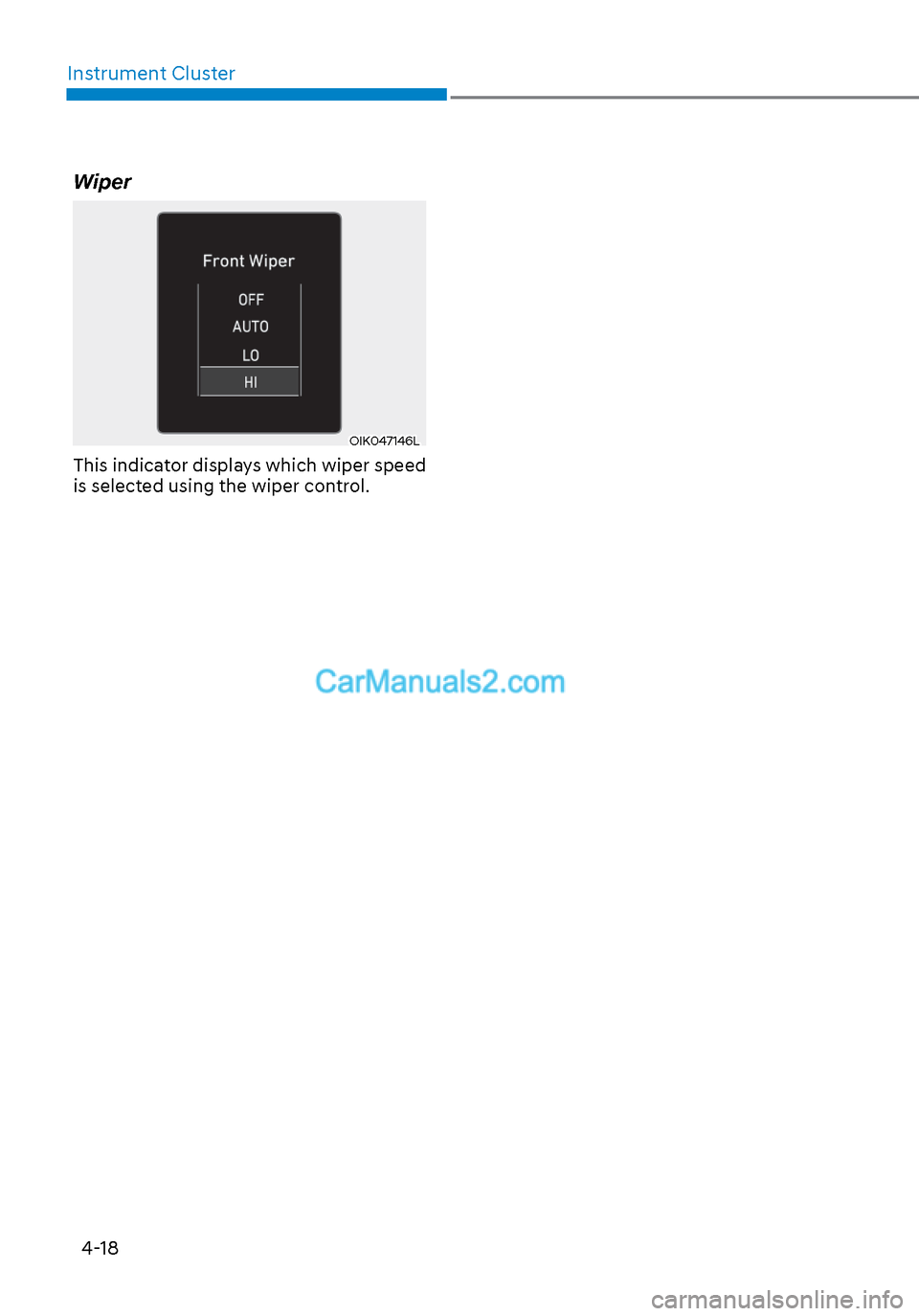
Wiper
OIK047146LOIK047146L
This indicator displays which wiper speed
is selected using the wiper control.
Page 104 of 537
4-19
04
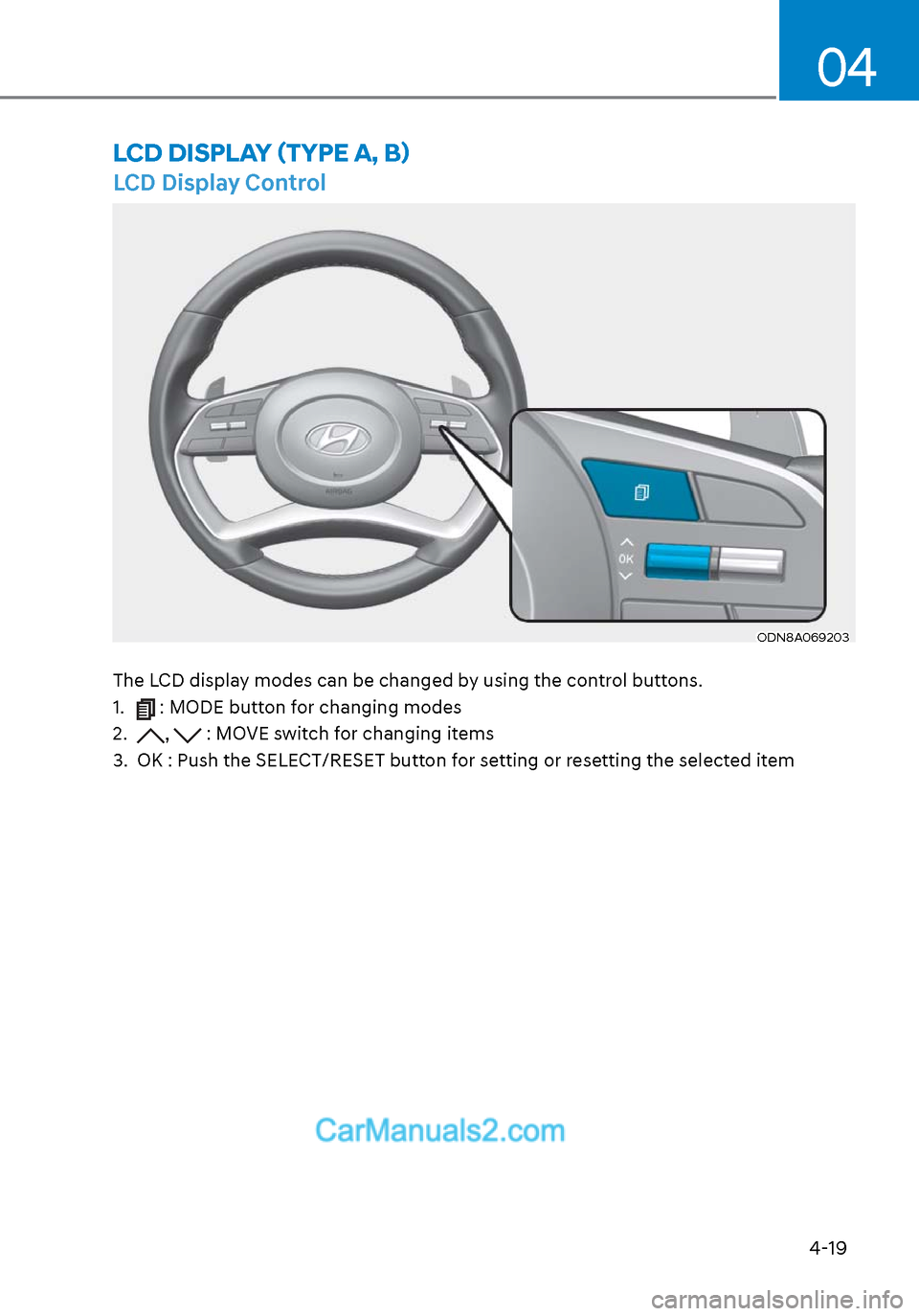
LCD Display Control
ODN8A069203ODN8A069203
The LCD display modes can be changed by using the control buttons.
1.
: MODE button for changing modes
2.
, : MOVE switch for changing items
3. OK : Push the SELECT/RESET button for setting or resetting the selected item
LCD DISPLAY (TYPE A, B)
Page 105 of 537
Instrument Cluster4-20
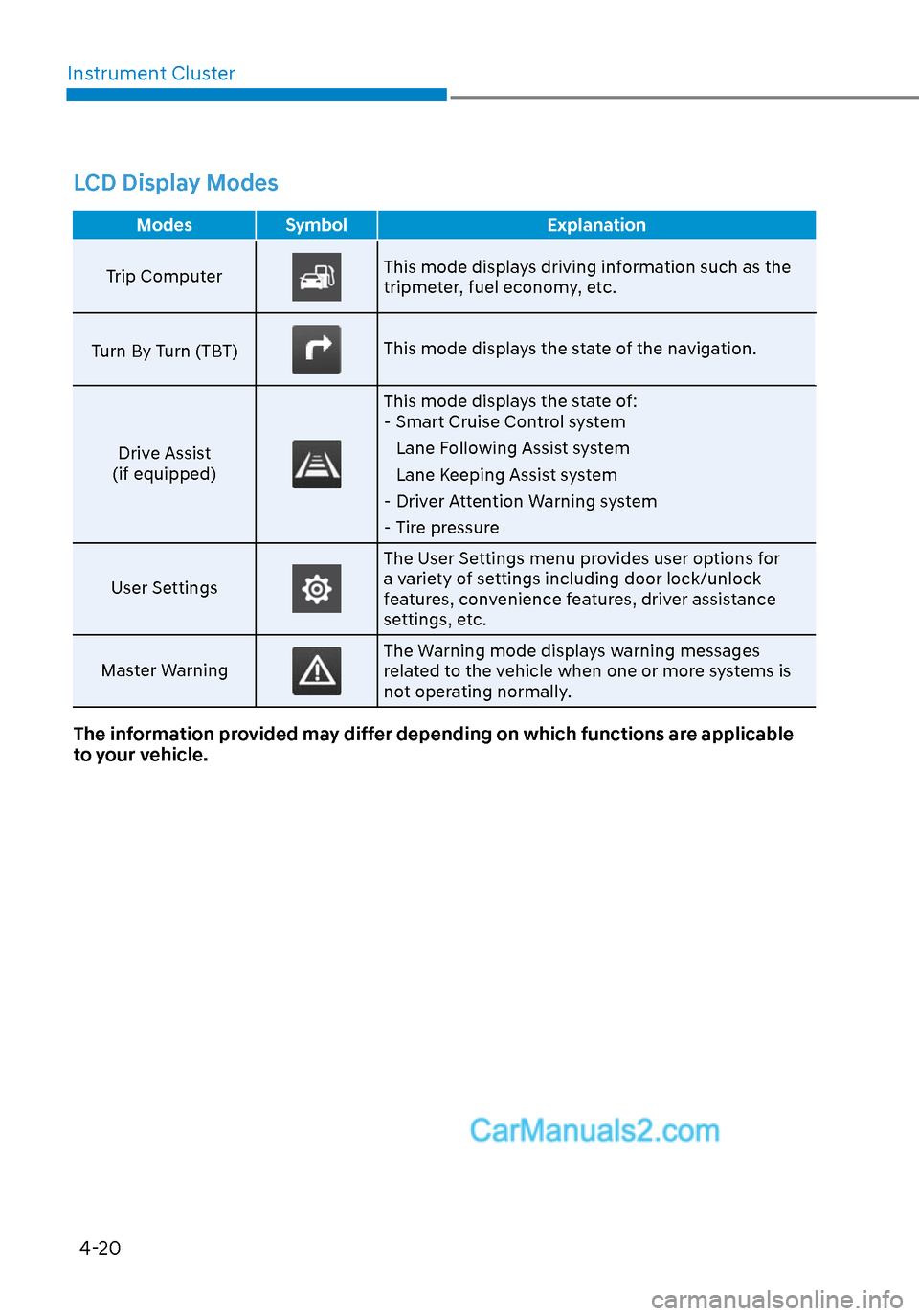
LCD Display Modes
Modes Symbol Explanation
Trip Computer
This mode displays driving information such as the
tripmeter, fuel economy, etc.
Turn By Turn (TBT)
This mode displays the state of the navigation.
Drive Assist
(if equipped)
This mode displays the state of: - Smart Cruise Control system
Lane Following Assist system
Lane Keeping Assist system
- Driver Attention Warning system
- Tire pressure
User Settings
The User Settings menu provides user options for
a variety of settings including door lock/unlock
features, convenience features, driver assistance
settings, etc.
Master Warning
The Warning mode displays warning messages
related to the vehicle when one or more systems is
not operating normally.
The information provided may differ depending on which functions are applicable
to your vehicle.
Page 106 of 537
04
4-21
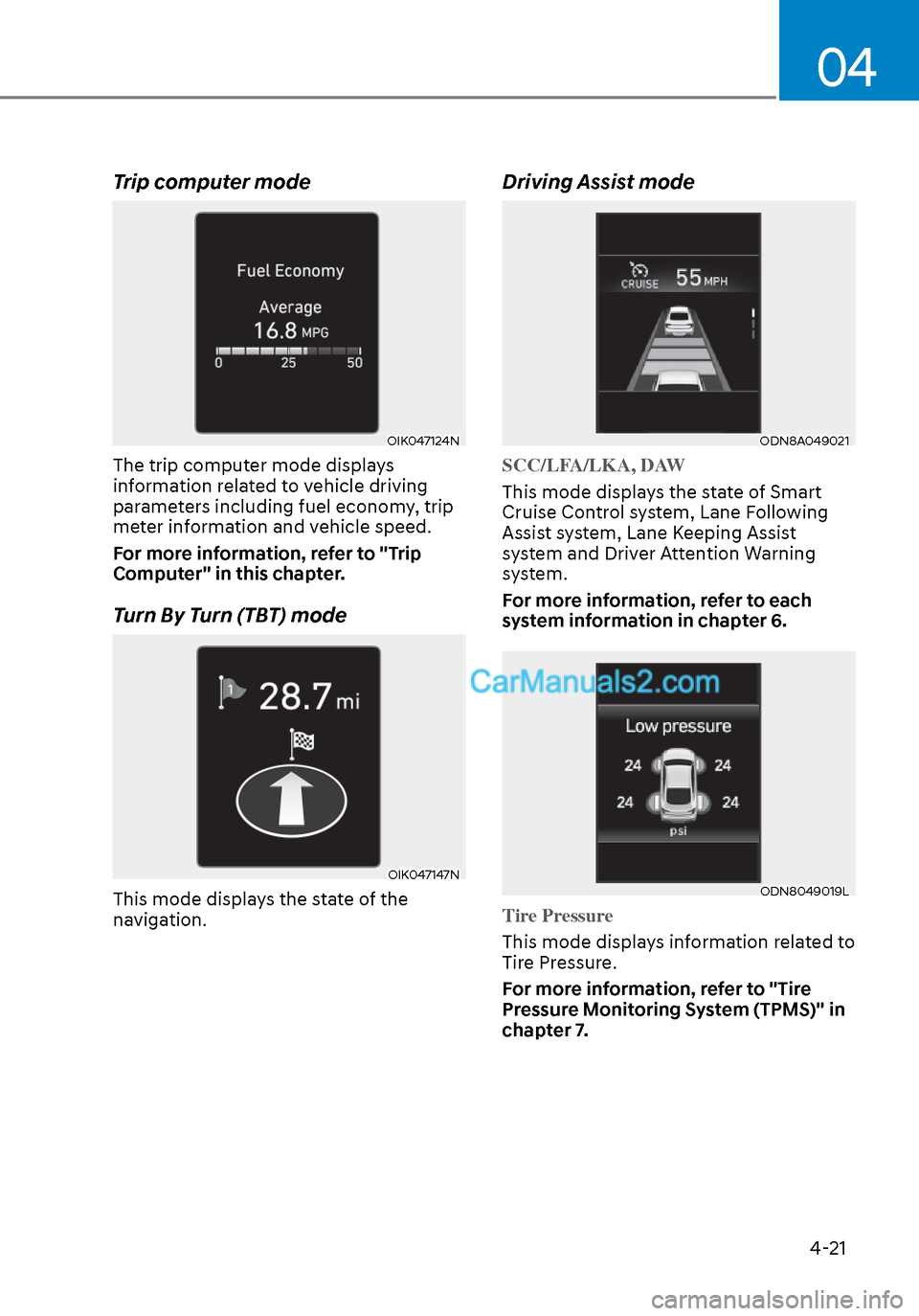
Trip computer mode
OIK047124NOIK047124N
The trip computer mode displays
information related to vehicle driving
parameters including fuel economy, trip
meter information and vehicle speed.
For more information, refer to "Trip
Computer" in this chapter.
Turn By Turn (TBT) mode
OIK047147NOIK047147N
This mode displays the state of the
navigation.
Driving Assist mode
ODN8A049021ODN8A049021
SCC/LFA/LKA, DAW
This mode displays the state of Smart
Cruise Contr
ol system, Lane Following
Assist system, Lane Keeping Assist
system and Driver Attention Warning
system.
For more information, refer to each
system information in chapter 6.
ODN8049019LODN8049019L
Tire Pressure
This mode displays information related to
Tir
e Pressure.
For more information, refer to "Tire
Pressure Monitoring System (TPMS)" in
chapter 7.
Page 107 of 537
Instrument Cluster4-22
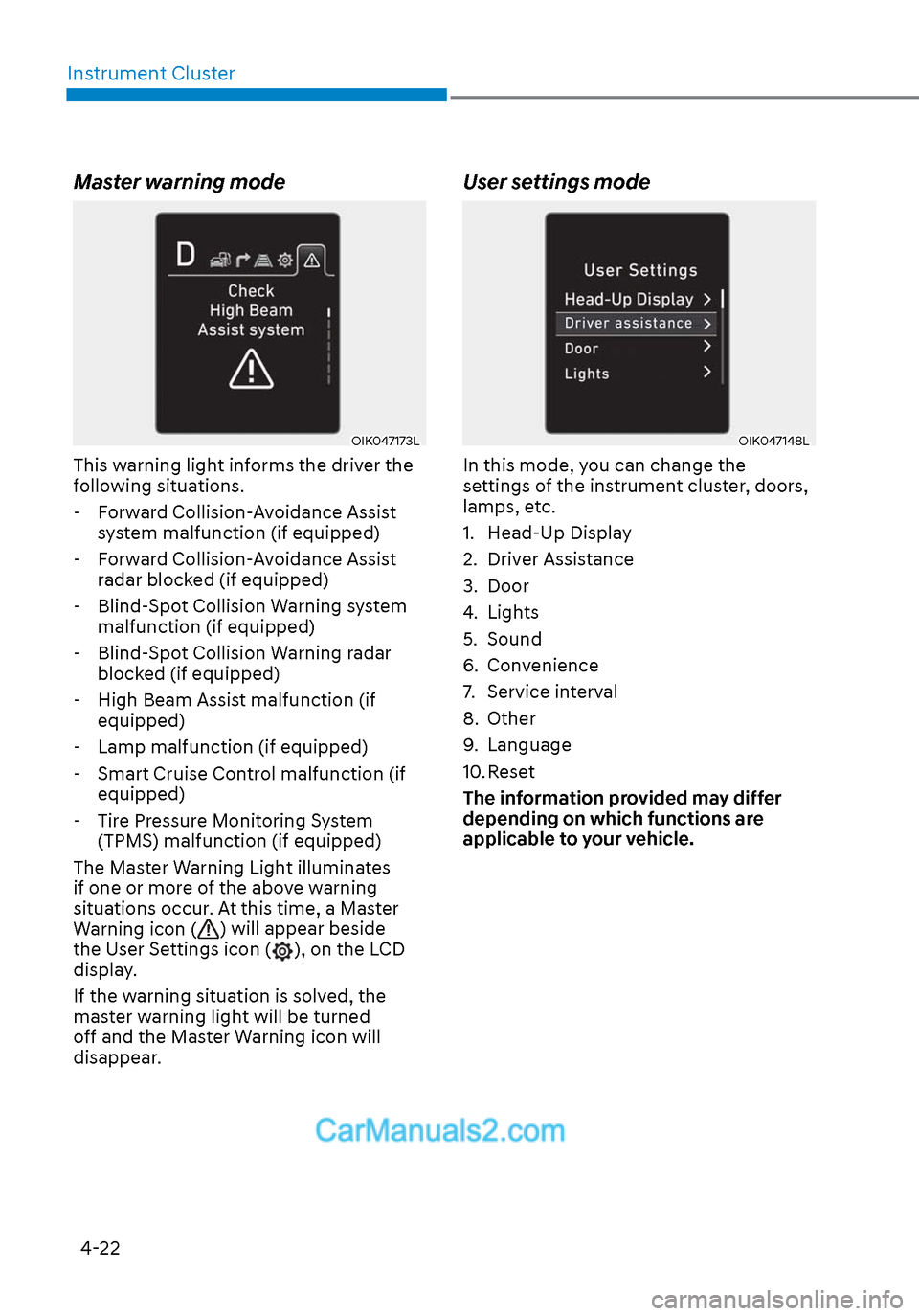
Master warning mode
OIK047173LOIK047173L
This warning light informs the driver the
following situations. - Forward Collision-Avoidance Assist system malfunction (if equipped)
- Forward Collision-Avoidance Assist radar blocked (if equipped)
- Blind-Spot Collision Warning system malfunction (if equipped)
- Blind-Spot Collision Warning radar blocked (if equipped)
- High Beam Assist malfunction (if equipped)
- Lamp malfunction (if equipped)
- Smart Cruise Control malfunction (if equipped)
- Tire Pressure Monitoring System (TPMS) malfunction (if equipped)
The Master Warning Light illuminates
if one or more of the above warning
situations occur. At this time, a Master
Warning icon (
) will appear beside
the User Settings icon (), on the LCD
display.
If the warning situation is solved, the
master warning light will be turned
off and the Master Warning icon will
disappear.
User settings mode
OIK047148LOIK047148L
In this mode, you can change the
settings of the instrument cluster, doors,
lamps, etc.
1. Head-Up Display
2. Driver Assistance
3. Door
4. Lights
5. Sound
6. Convenience
7. Service interval
8. Other
9. Language
10. Reset
The information provided may differ
depending on which functions are
applicable to your vehicle.
Page 109 of 537
Instrument Cluster4-24
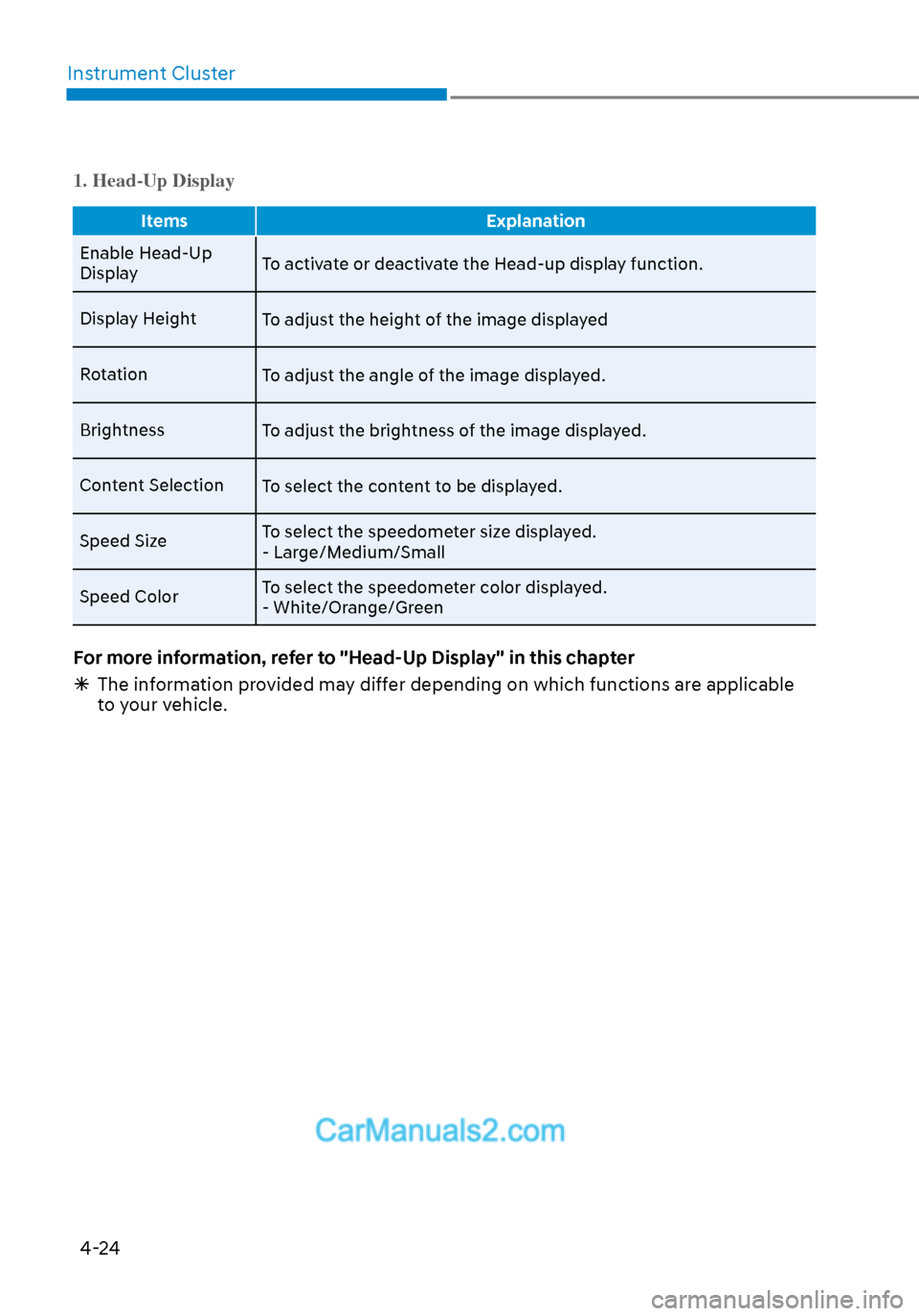
1. Head-Up Display
Items Explanation
Enable Head-Up
Displa
y To activate or deactivate the Head-up display function.
Display Height To adjust the height of the image displayed
Rotation To adjust the angle of the image displayed.
Brightness To adjust the brightness of the image displayed.
Content Selection To select the content to be displayed.
Speed Size To select the speedometer size displayed.
- Large/Medium/Small
Speed Color To select the speedometer color displayed.
- White/Orange/Green
For more information, refer to "Head-Up Display" in this chapter
The information provided may differ depending on which functions are applicable
to your vehicle.
Page 113 of 537
Instrument Cluster4-28
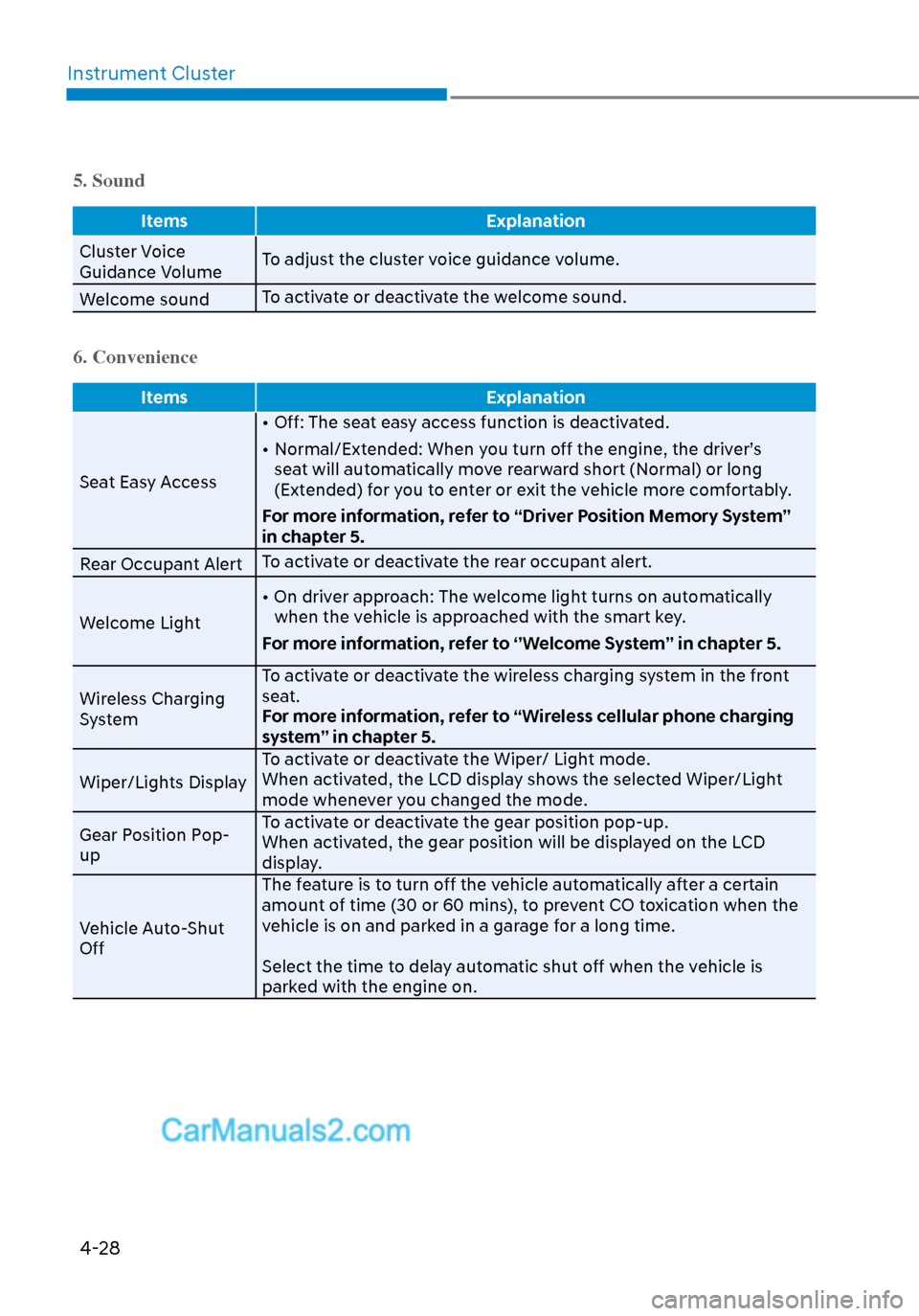
5. Sound
Items Explanation
Cluster Voice
Guidance V
olumeTo adjust the cluster voice guidance volume.
Welcome sound To activate or deactivate the welcome sound.
6. Convenience
Items
Explanation
Seat Easy Access •
Off: The seat easy access function is deactivated.
• Normal/Extended: When you turn off the engine, the driver’s seat will automatically move rearward short (Normal) or long
(Extended) for you to enter or exit the vehicle more comfortably.
For more information, refer to “Driver Position Memory System”
in chapter 5.
Rear Occupant Alert To activate or deactivate the rear occupant alert.
Welcome Light • On driver approach: The welcome light turns on automatically
when the vehicle is approached with the smart key.
For more information, refer to ‘’Welcome System’’ in chapter 5.
Wireless Charging
System To activate or deactivate the wireless charging system in the front
seat.
For more information, refer to “Wireless cellular phone charging
system” in chapter 5.
Wiper/Lights Display To activate or deactivate the Wiper/ Light mode.
When activated, the LCD display shows the selected Wiper/Light
mode whenever you changed the mode.
Gear Position Pop-
up To activate or deactivate the gear position pop-up.
When activated, the gear position will be displayed on the LCD
display.
Vehicle Auto-Shut
Off The feature is to turn off the vehicle automatically after a certain
amount of time (30 or 60 mins), to prevent CO toxication when the
vehicle is on and parked in a garage for a long time.
Select the time to delay automatic shut off when the vehicle is
parked with the engine on.
Page 114 of 537
04
4-29
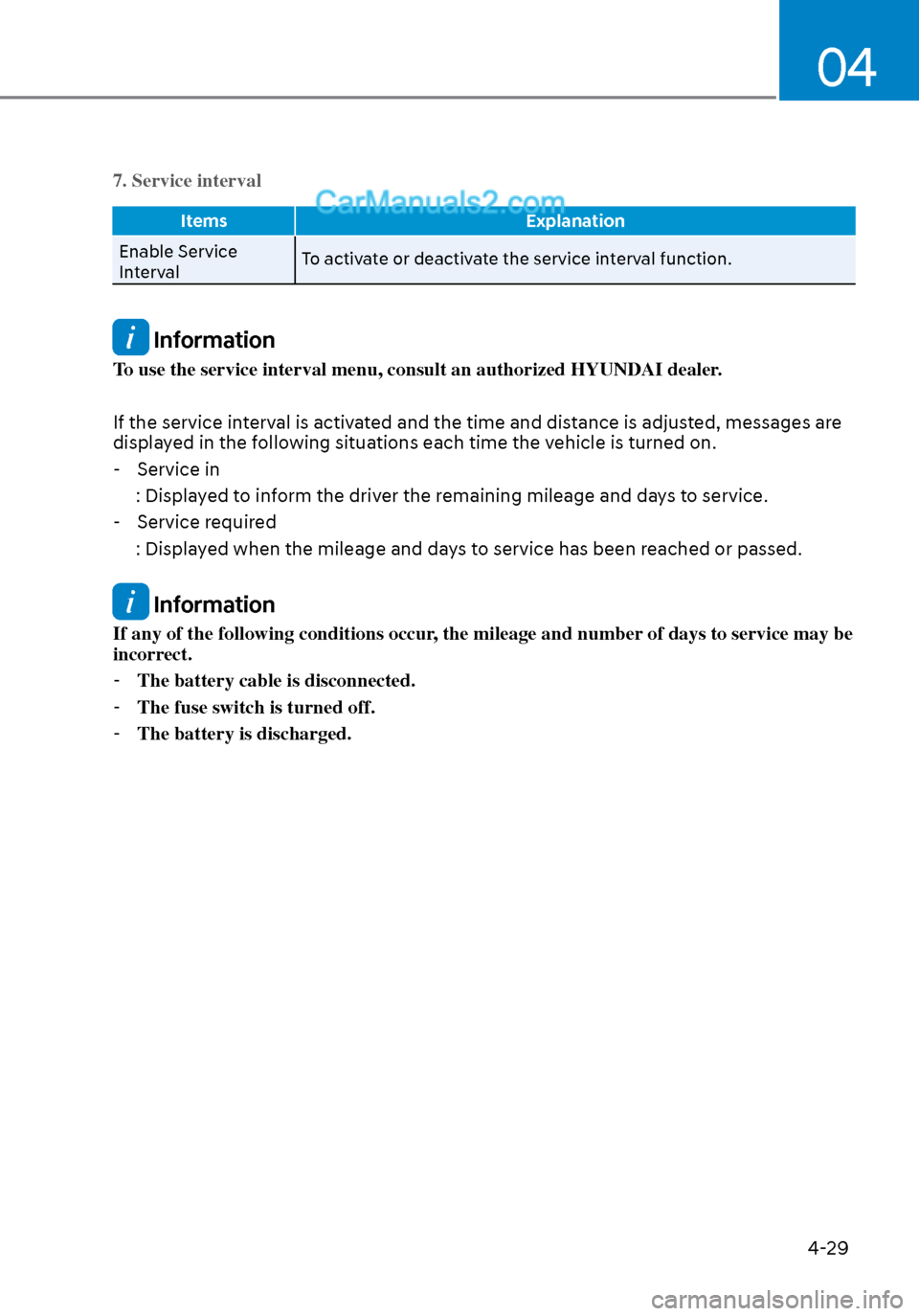
7. Service interval
ItemsExplanation
Enable Service
Int
erval To activate or deactivate the service interval function.
Information
To use the service interval menu, consult an authorized HYUNDAI dealer.
If the service interval is activated and the time and distance is adjusted, messages are
displayed in the following situations each time the vehicle is turned on.
- Service in
: Displayed to inform the driver the remaining mileage and days to service.
- Service required
: Displayed when the mileage and days to service has been reached or passed.
Information
If any of the following conditions occur, the mileage and number of days to service may be
incorrect. - The battery cable is disconnected.
- The fuse switch is turned off.
- The battery is discharged.
Page 116 of 537
04
4-31
Trip Computer
The trip computer is a microcomputer-
controlled driver information system that
displays information related to driving.
Information
Some driving information stored in the
trip computer (for example Average
Vehicle Speed) resets if the battery is
disconnected.
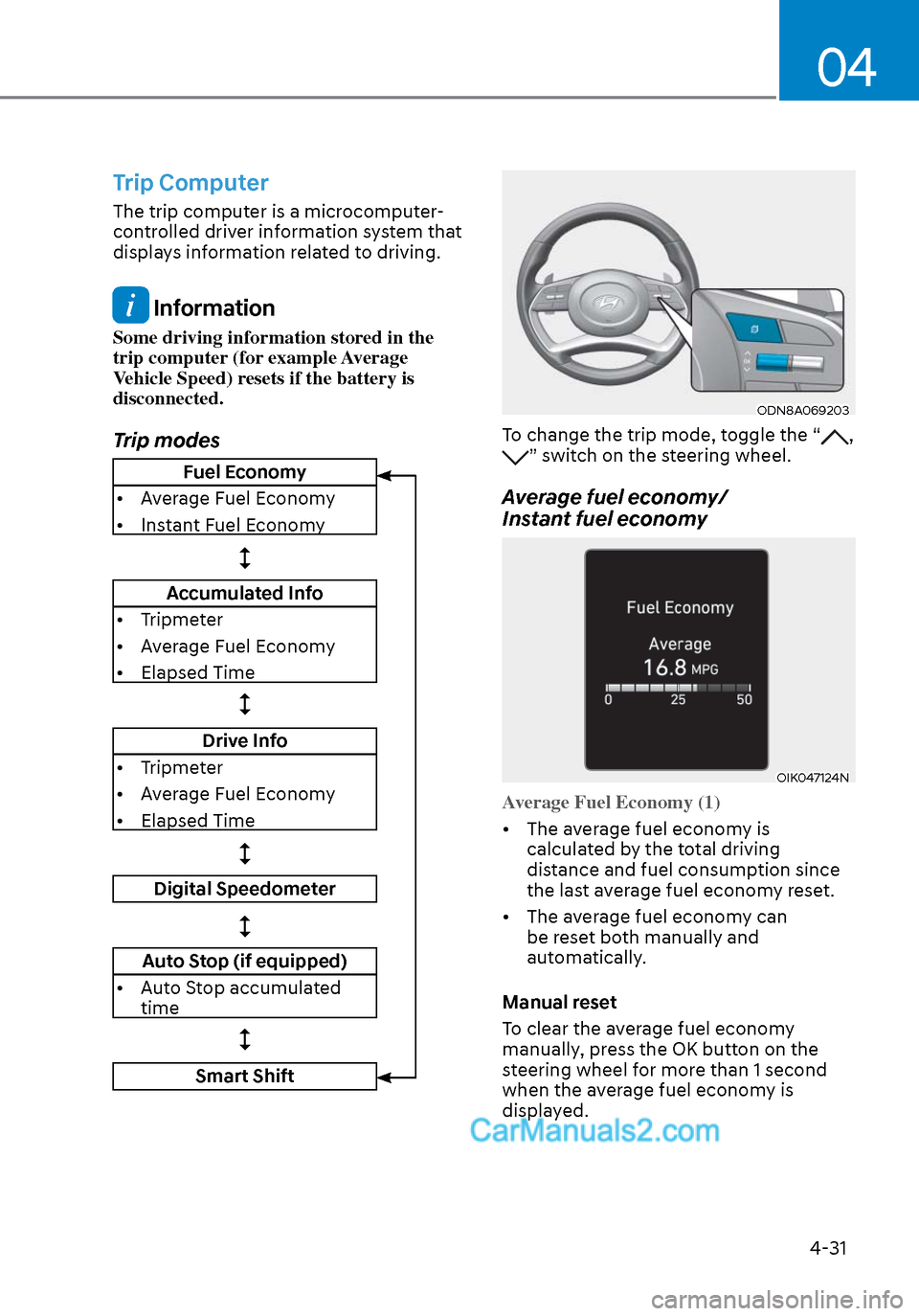
Trip modes
ODN8A069203ODN8A069203
To change the trip mode, toggle the “, ” switch on the steering wheel.
Average fuel economy/
Instant fuel economy
OIK047124NOIK047124N
Average Fuel Economy (1)
• The average fuel economy is calcula
ted by the total driving
distance and fuel consumption since
the last average fuel econ omy reset.
• The average fuel economy can be reset both manually and
automatically.
Manual reset
To clear the average fuel economy
manually, press the OK button on the
steering wheel for more than 1 second
when the average fuel economy is
displayed.
Fuel Economy
• Average Fuel Economy
• Instant Fuel Economy
Accumulated Info
• Tripmeter
• Average Fuel Economy
• Elapsed Time
Drive Info
• Tripmeter
• Average Fuel Economy
• Elapsed Time
Digital Speedometer
Auto Stop (if equipped)
• Auto Stop accumulated time
Smart Shift