display Hyundai Sonata 2020 Owner's Guide
[x] Cancel search | Manufacturer: HYUNDAI, Model Year: 2020, Model line: Sonata, Model: Hyundai Sonata 2020Pages: 537, PDF Size: 14.54 MB
Page 117 of 537
Instrument Cluster4-32
Automatic reset
To automatically reset the average fuel
economy after refueling, select the "Fuel
Econ. Reset" mode in the User Settings
menu on the LCD display.
- After Ignition: When the engine has
been OFF for 4 hours or longer the
average fuel economy will reset
automatically.
- After Refueling: The average fuel economy will reset automatically after
adding 1.6 gallons (6 liters) of fuel or
more and after driving speed exceeds
1 mph (1 km/h).
Information
The vehicle must be driven for a minimum
of 0.19 miles (300 meters) since the last
ignition key cycle before the average fuel
economy will be recalculated.
Instant Fuel Economy (2)
The instantaneous fuel economy is
displa
yed according to the bar graph in
the LCD display while driving.
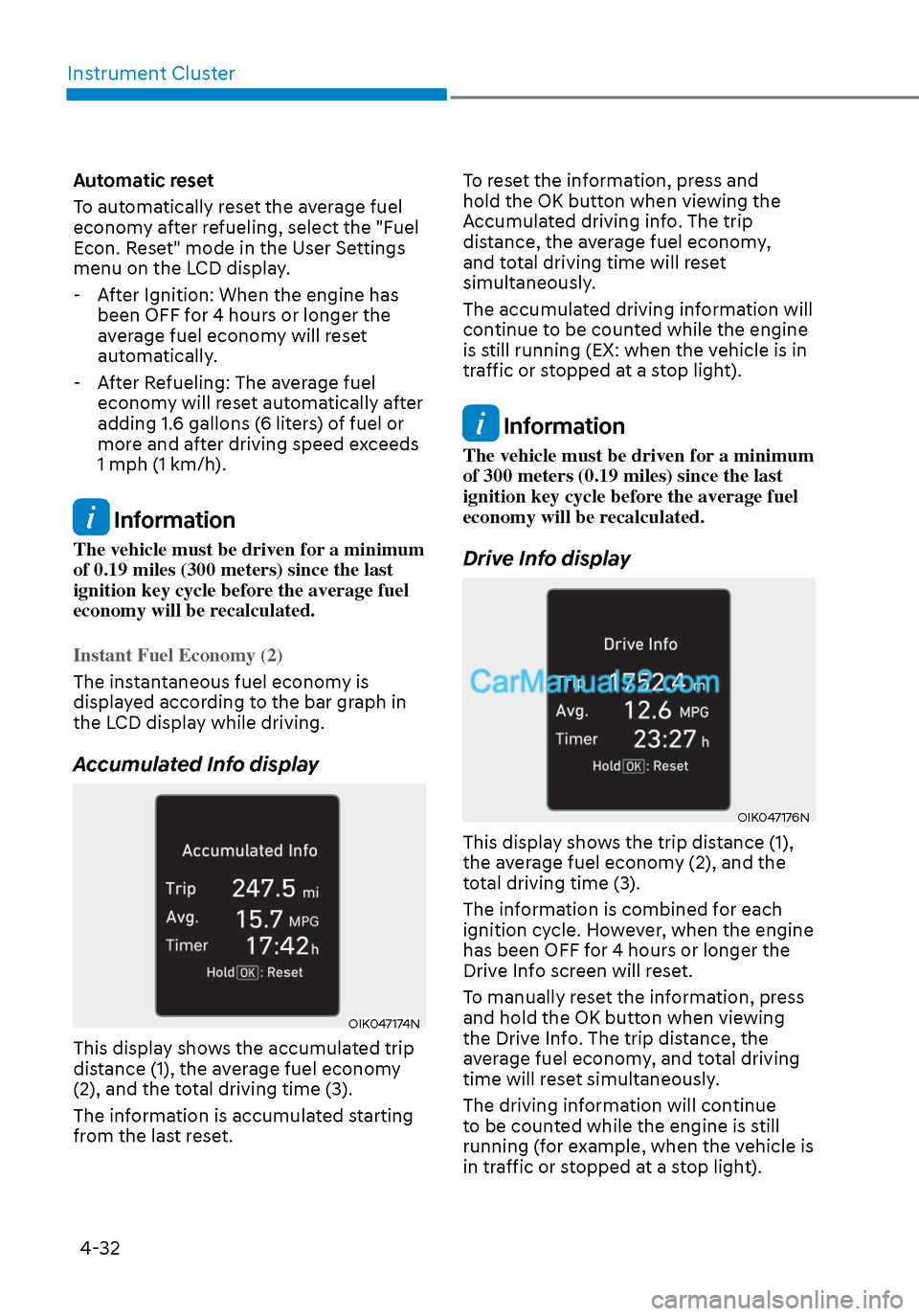
Accumulated Info display
OIK047174NOIK047174N
This display shows the accumulated trip
distance (1), the average fuel economy
(2), and the total driving time (3).
The information is accumulated starting
from the last reset. To reset the information, press and
hold the OK button when viewing the
Accumulated driving info. The trip
distance, the average fuel economy,
and total driving time will reset
simultaneously.
The accumulated driving information will
continue to be counted while the engine
is still running (EX: when the vehicle is in
traffic or stopped at a stop light).
Information
The vehicle must be driven for a minimum
of 300 meters (0.19 miles) since the last
ignition key cycle before the average fuel
economy will be recalculated.
Drive Info display
OIK047176NOIK047176N
This display shows the trip distance (1),
the average fuel economy (2), and the
total driving time (3).
The information is combined for each
ignition cycle. However, when the engine
has been OFF for 4 hours or longer the
Drive Info screen will reset.
To manually reset the information, press
and hold the OK button when viewing
the Drive Info. The trip distance, the
average fuel economy, and total driving
time will reset simultaneously.
The driving information will continue
to be counted while the engine is still
running (for example, when the vehicle is
in traffic or stopped at a stop light).
Page 118 of 537
04
4-33
Information
The vehicle must be driven for a minimum
of 0.19 miles (300 meters) since the last
ignition key cycle before the average fuel
economy will be recalculated.
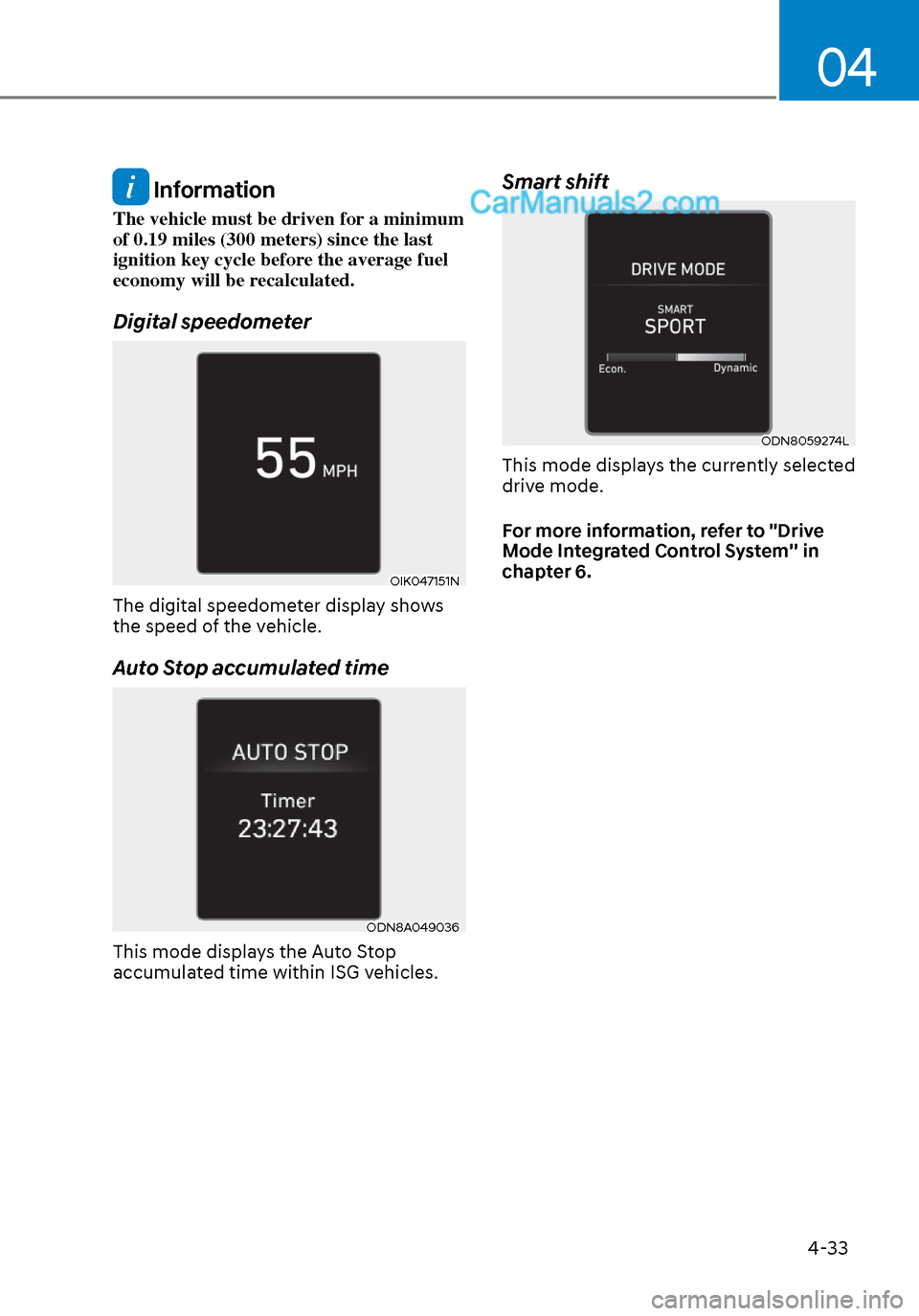
Digital speedometer
OIK047151NOIK047151N
The digital speedometer display shows
the speed of the vehicle.
Auto Stop accumulated time
ODN8A049036ODN8A049036
This mode displays the Auto Stop
accumulated time within ISG vehicles.
Smart shift
ODN8059274LODN8059274L
This mode displays the currently selected
drive mode.
For more information, refer to "Drive
Mode Integrated Control System'' in
chapter 6.
Page 119 of 537
4-34
Instrument Cluster
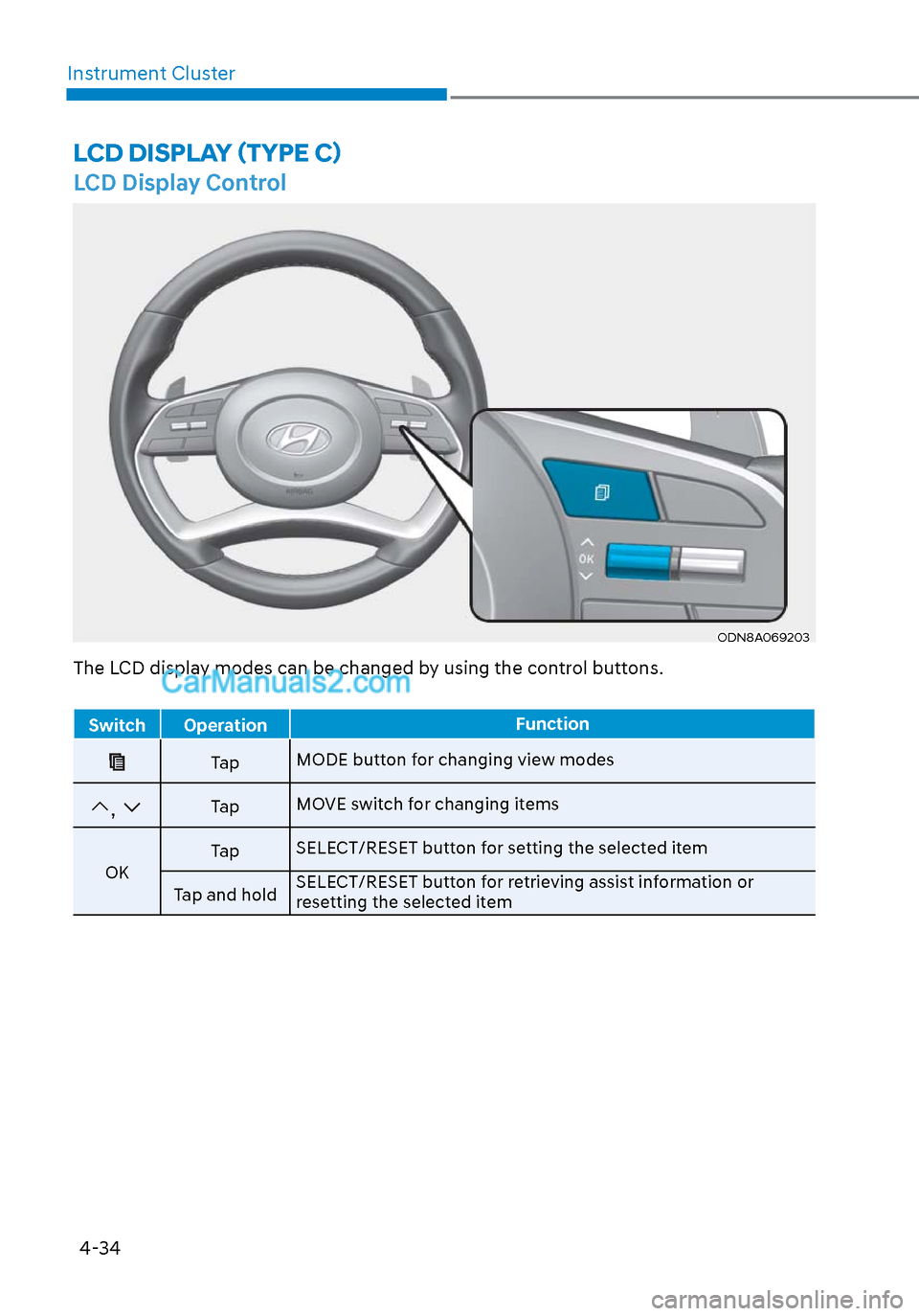
LCD Display Control
ODN8A069203ODN8A069203
LCD DISPLAY (TYPE C)
The LCD display modes can be changed by using the control buttons.
Switch Operation
Function
Ta pMODE button for changing view modes
, Ta pMOVE switch for changing items
OK Ta p
SELECT/RESET button for setting the selected item
Tap and hold SELECT/RESET button for retrieving assist information or
resetting the selected item
Page 120 of 537
04
4-35
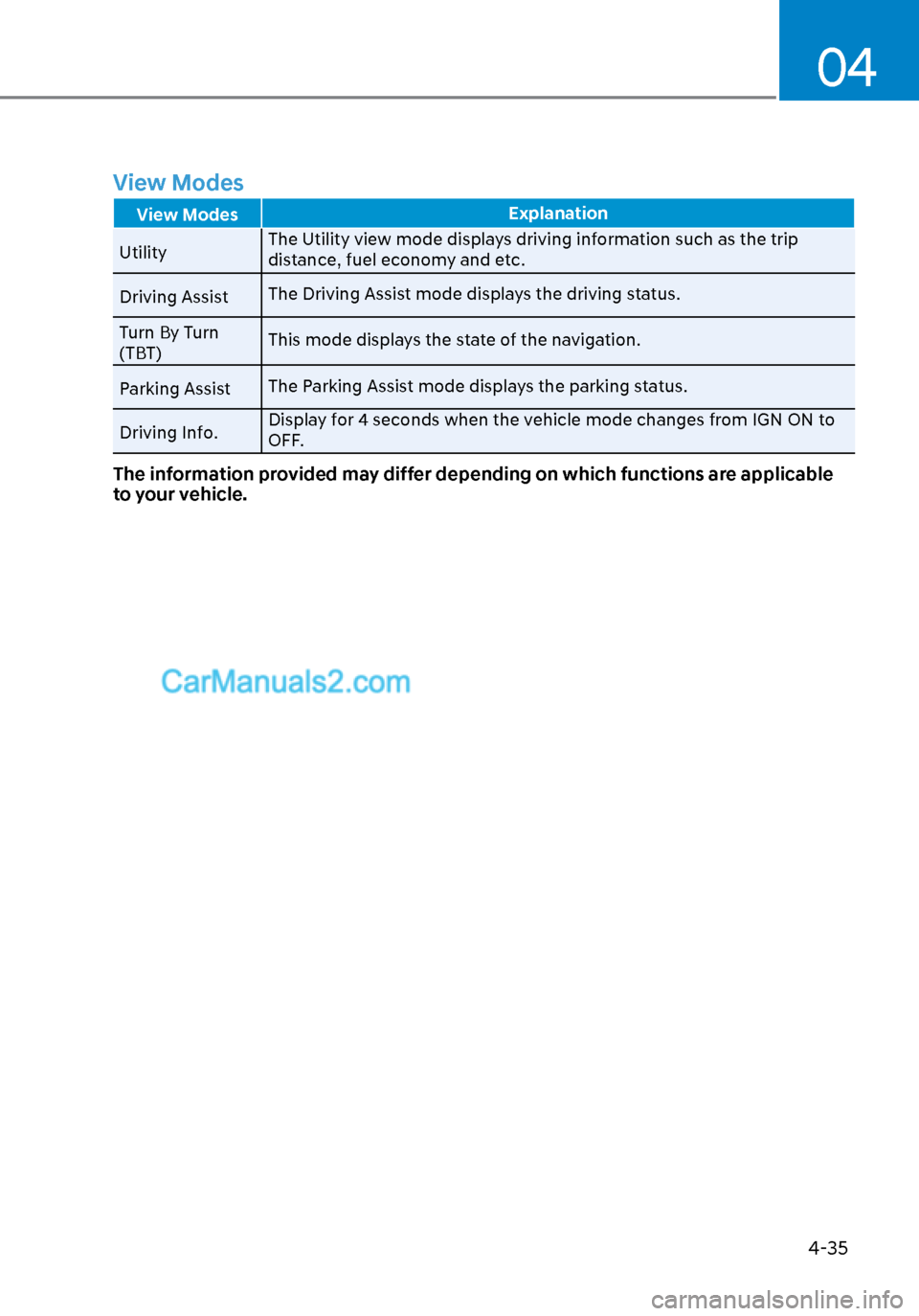
View Modes
View ModesExplanation
Utility The Utility vie
w mode displays driving information such as the trip
distance, fuel economy and etc.
Driving Assist The Driving Assist mode displays the driving status.
Turn By Turn
(TBT) This mode displays the state of the navigation.
Parking Assist The Parking Assist mode displays the parking status.
Driving Info. Display for 4 seconds when the vehicle mode changes from IGN ON to
OFF.
The information provided may differ depending on which functions are applicable
to your vehicle.
Page 121 of 537
Instrument Cluster4-36
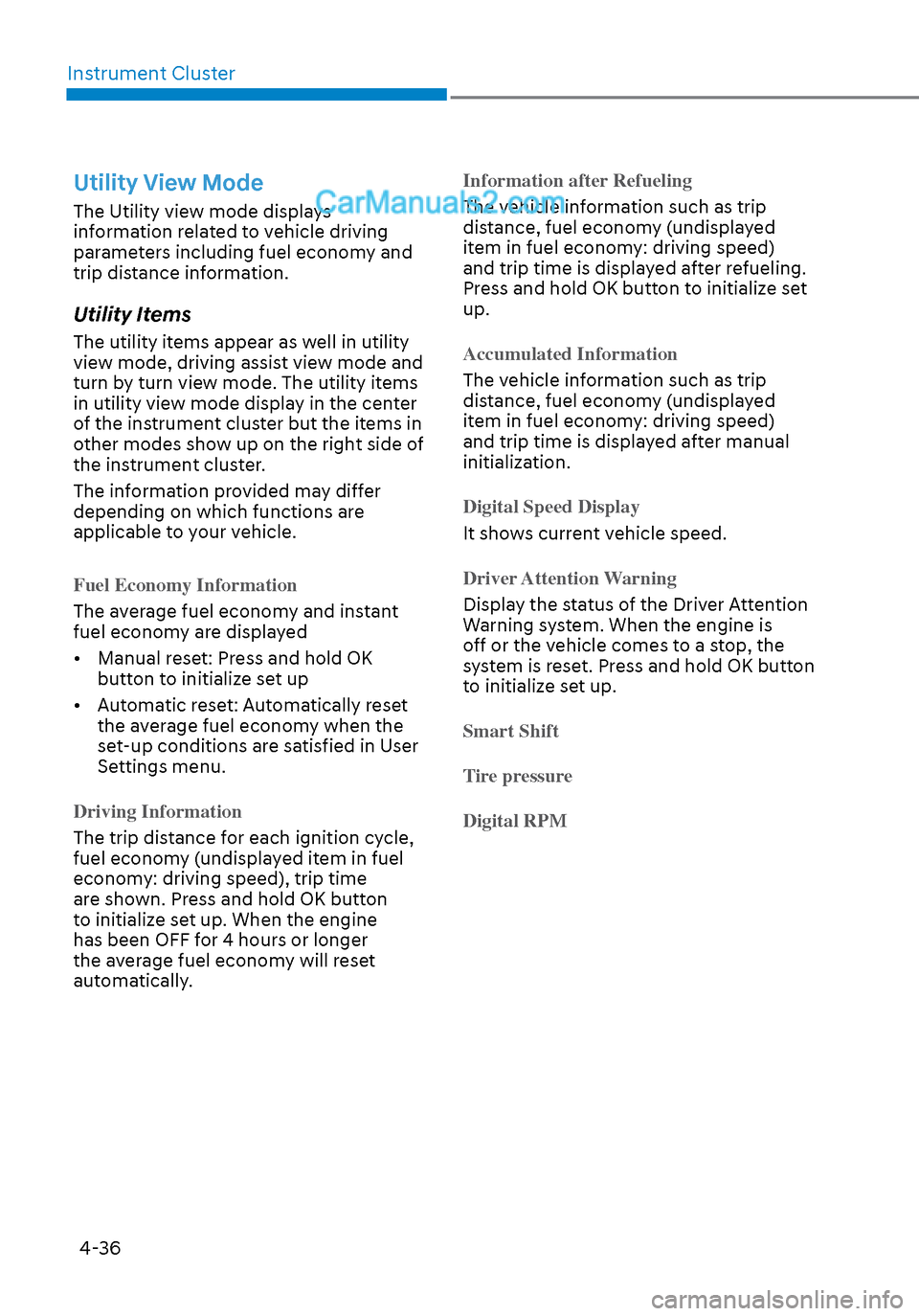
Utility View Mode
The Utility view mode displays
information related to vehicle driving
parameters including fuel economy and
trip distance information.
Utility Items
The utility items appear as well in utility
view mode, driving assist view mode and
turn by turn view mode. The utility items
in utility view mode display in the center
of the instrument cluster but the items in
other modes show up on the right side of
the instrument cluster.
The information provided may differ
depending on which functions are
applicable to your vehicle.
Fuel Economy Information
The average fuel economy and instant
fuel econom
y are displayed
• Manual reset: Press and hold OK button to initialize set up
• Automatic reset: Automatically reset the average fuel economy when the
set-up conditions are satisfied in User
Settings menu.
Driving Information
The trip distance for each ignition cycle,
fuel econom
y (undisplayed item in fuel
economy: driving speed), trip time
are shown. Press and hold OK button
to initialize set up. When the engine
has been OFF for 4 hours or longer
the average fuel economy will reset
automatically. Information after Refueling
The vehicle information such as trip
dis
tance, fuel economy (undisplayed
item in fuel economy: driving speed)
and trip time is displayed after refueling.
Press and hold OK button to initialize set
up.
Accumulated Information
The vehicle information such as trip
dis
tance, fuel economy (undisplayed
item in fuel economy: driving speed)
and trip time is displayed after manual
initialization.
Digital Speed Display
It shows current vehicle speed.
Driver Attention Warning
Display the status of the Driver Attention
W
arning system. When the engine is
off or the vehicle comes to a stop, the
system is reset. Press and hold OK button
to initialize set up.
Smart Shift
T
ire pressure
Digital RPM
Page 122 of 537
04
4-37
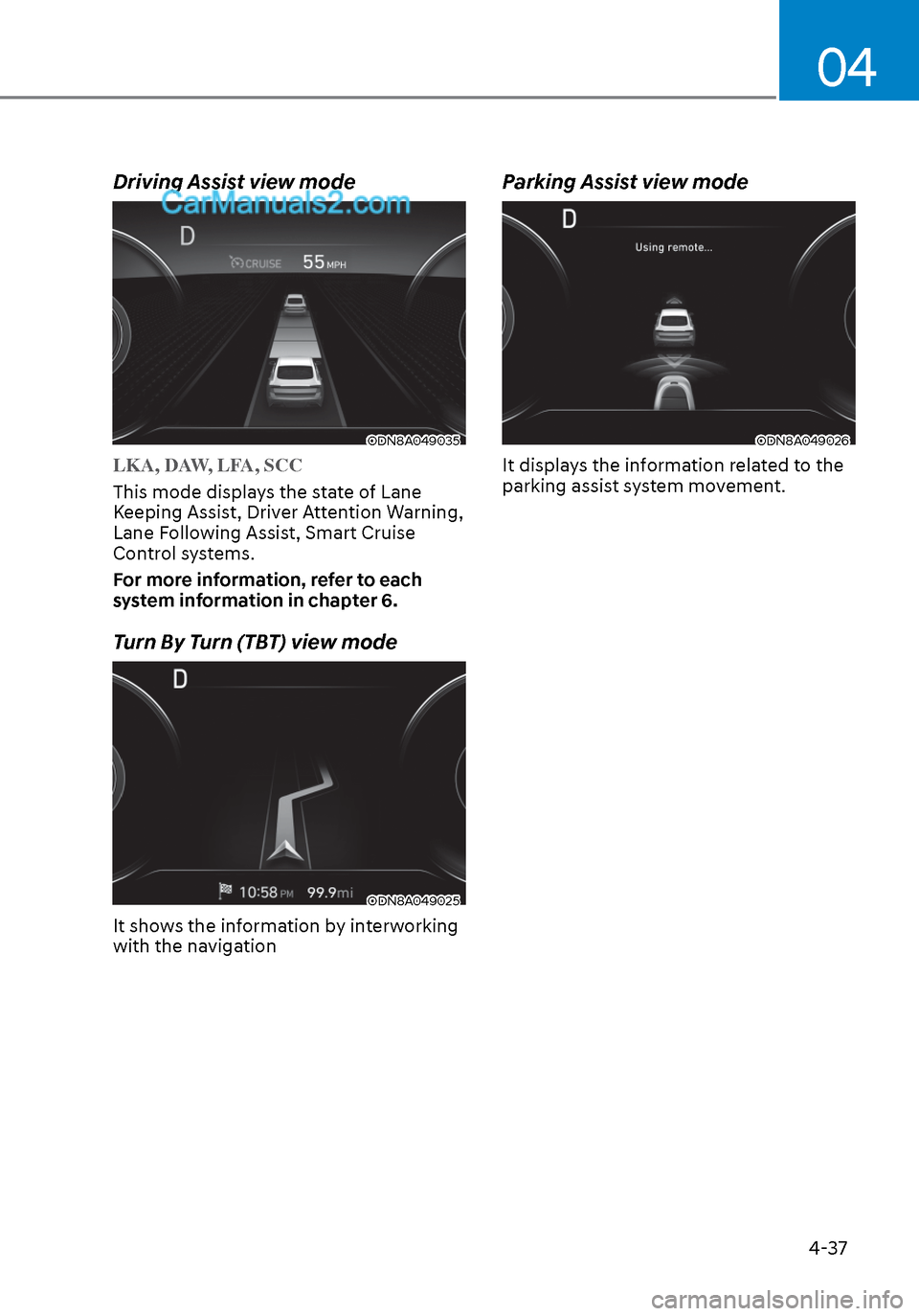
Driving Assist view mode
ODN8A049035ODN8A049035
LKA, DAW, LFA, SCC
This mode displays the state of Lane
K
eeping Assist, Driver Attention Warning,
Lane Following Assist, Smart Cruise
Control systems.
For more information, refer to each
system information in chapter 6.
Turn By Turn (TBT) view mode
ODN8A049025ODN8A049025
It shows the information by interworking
with the navigation
Parking Assist view mode
ODN8A049026ODN8A049026
It displays the information related to the
parking assist system movement.
Page 123 of 537
Instrument Cluster4-38
Option Menu
WARNING
While driving, please do not change
the setting mode. It may distract your
attention and cause the accident.
NOTICE
Displayed items may differ from the
content in this owner’s manual since
the contents vary with the vehicle’s
technical specifications.
List Set-up messages
Service Interval Check the service
message
H
ead-up Display To activate or
deactivate head-up
display
Set up the height,
rotation and brightness
(if equipped)
Warning Time • Normal/Later
To select when to
provide a warning for
all driver assistance
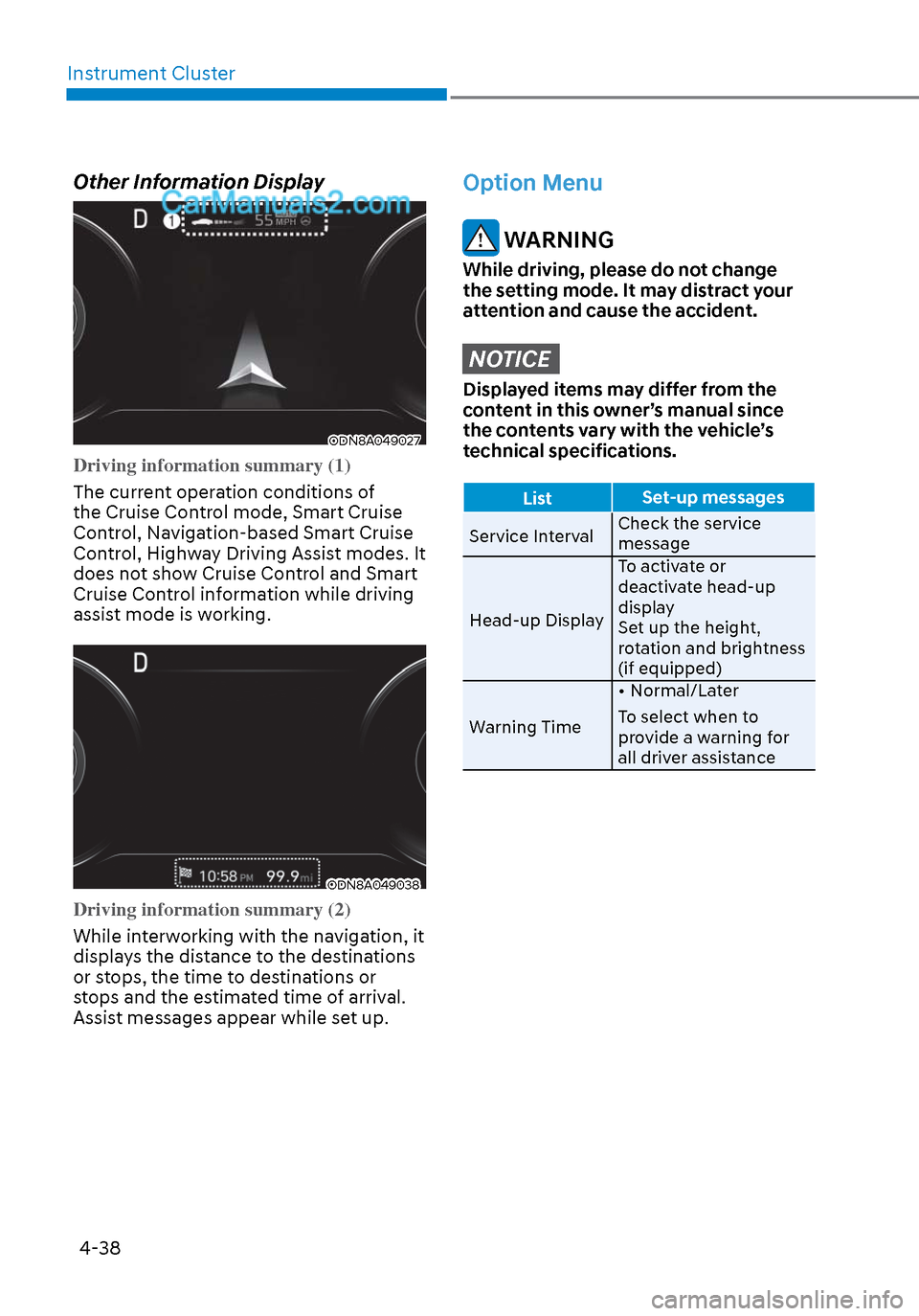
Other Information Display
ODN8A049027ODN8A049027
Driving information summary (1)
The current operation conditions of
the Cruise Con
trol mode, Smart Cruise
Control, Navigation-based Smart Cruise
Control, Highway Driving Assist modes. It
does not show Cruise Control and Smart
Cruise Control information while driving
assist mode is working.
ODN8A049038ODN8A049038
Driving information summary (2)
While interworking with the navigation, it
displa
ys the distance to the destinations
or stops, the time to destinations or
stops and the estimated time of arrival.
Assist messages appear while set up.
Page 124 of 537
04
4-39
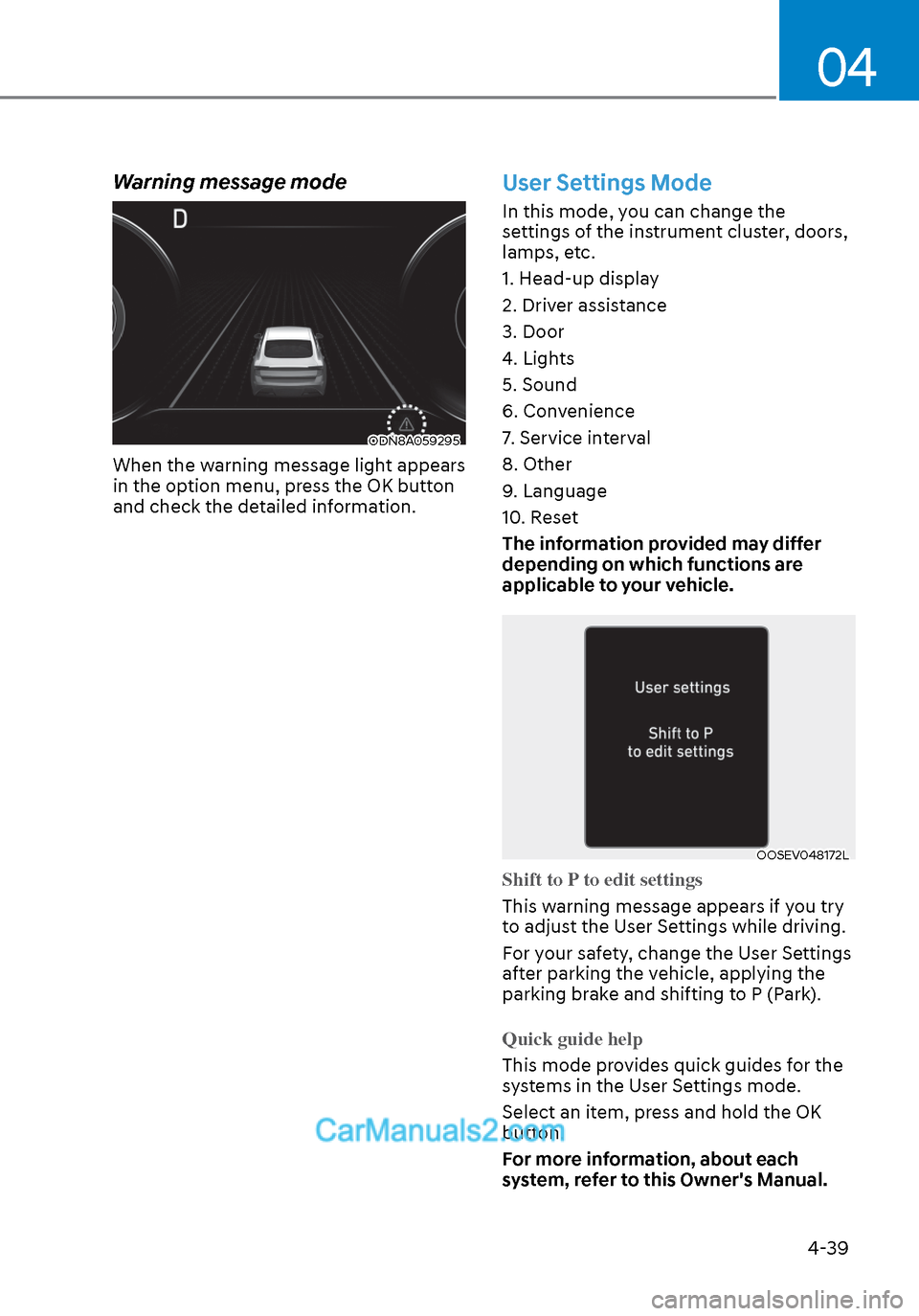
Warning message mode
ODN8A059295ODN8A059295
When the warning message light appears
in the option menu, press the OK button
and check the detailed information.
User Settings Mode
In this mode, you can change the
settings of the instrument cluster, doors,
lamps, etc.
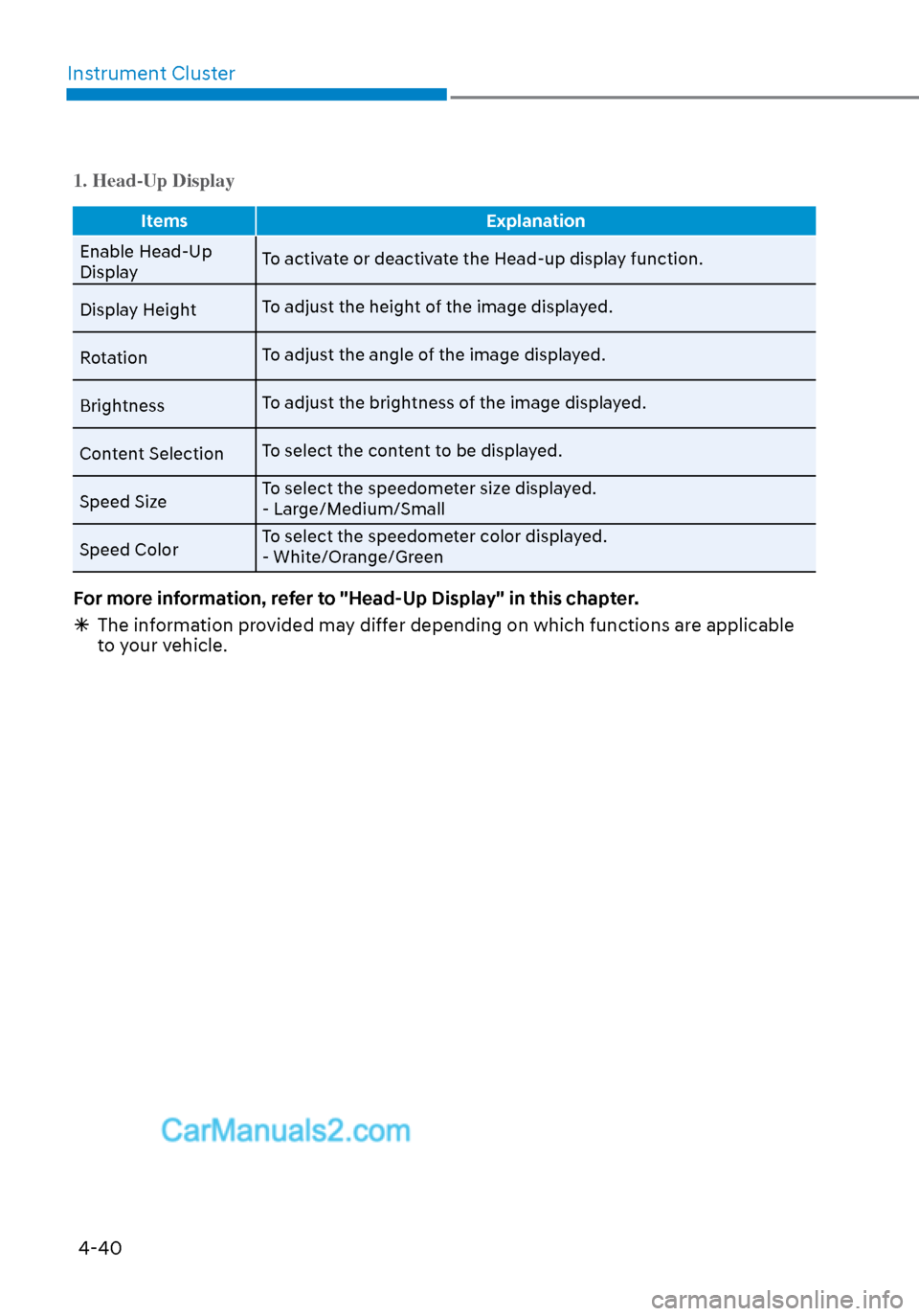
1. Head-up display
2. Driver assistance
3. Door
4. Lights
5. Sound
6. Convenience
7. Service interval
8. Other
9. Language
10. Reset
The information provided may differ
depending on which functions are
applicable to your vehicle.
OOSEV048172LOOSEV048172L
Shift to P to edit settings
This warning message appears if you try
t
o adjust the User Settings while driving.
For your safety, change the User Settings
after parking the vehicle, applying the
parking brake and shifting to P (Park).
Quick guide help
This mode provides quick guides for the
s
ystems in the User Settings mode.
Select an item, press and hold the OK
button.
For more information, about each
system, refer to this Owner's Manual.
Page 125 of 537
Instrument Cluster4-40
1. Head-Up Display
Items Explanation
Enable Head-Up
Displa
y To activate or deactivate the Head-up display function.
Display Height To adjust the height of the image displayed.
Rotation To adjust the angle of the image displayed.
Brightness To adjust the brightness of the image displayed.
Content Selection To select the content to be displayed.
Speed Size To select the speedometer size displayed.
- Large/Medium/Small
Speed Color To select the speedometer color displayed.
- White/Orange/Green
For more information, refer to "Head-Up Display" in this chapter.
The information provided may differ depending on which functions are applicable
to your vehicle.
Page 128 of 537
04
4-43
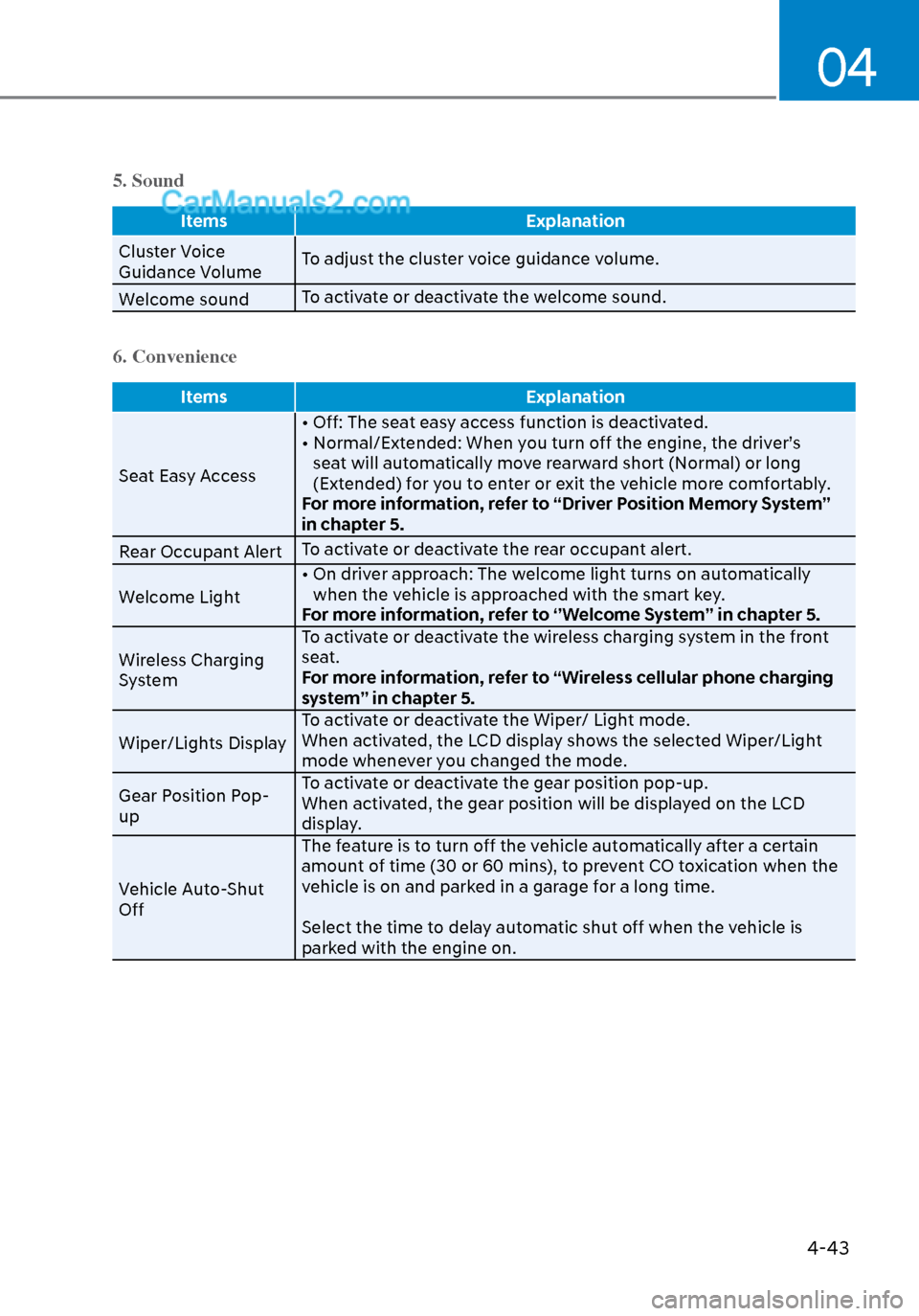
5. Sound
ItemsExplanation
Cluster Voice
Guidance V
olumeTo adjust the cluster voice guidance volume.
Welcome sound To activate or deactivate the welcome sound.
6. Convenience
Items
Explanation
Seat Easy Access • Off: The sea
t easy access function is deactivated.
• Normal/Extended: When you turn off the engine, the driver’s seat will automatically move rearward short (Normal) or long
(Extended) for you to enter or exit the vehicle more comfortably.
For more information, refer to “Driver Position Memory System”
in chapter 5.
Rear Occupant Alert To activate or deactivate the rear occupant alert.
Welcome Light • On driver approach: The welcome light turns on automatically
when the vehicle is approached with the smart key.
For more information, refer to ‘’Welcome System’’ in chapter 5.
Wireless Charging
System To activate or deactivate the wireless charging system in the front
seat.
For more information, refer to “Wireless cellular phone charging
system” in chapter 5.
Wiper/Lights Display To activate or deactivate the Wiper/ Light mode.
When activated, the LCD display shows the selected Wiper/Light
mode whenever you changed the mode.
Gear Position Pop-
up To activate or deactivate the gear position pop-up.
When activated, the gear position will be displayed on the LCD
display.
Vehicle Auto-Shut
Off The feature is to turn off the vehicle automatically after a certain
amount of time (30 or 60 mins), to prevent CO toxication when the
vehicle is on and parked in a garage for a long time.
Select the time to delay automatic shut off when the vehicle is
parked with the engine on.