bluetooth Hyundai Sonata Hybrid 2012 Owner's Manual
[x] Cancel search | Manufacturer: HYUNDAI, Model Year: 2012, Model line: Sonata Hybrid, Model: Hyundai Sonata Hybrid 2012Pages: 403, PDF Size: 7.86 MB
Page 191 of 403
Features of your vehicle
110
4
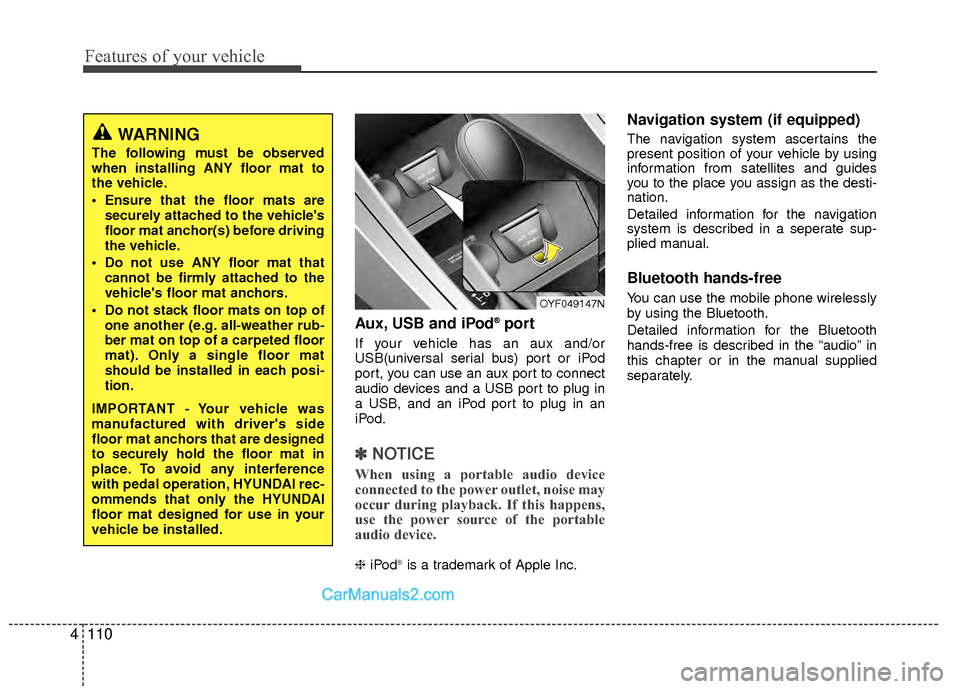
Aux, USB and iPod®port
If your vehicle has an aux and/or
USB(universal serial bus) port or iPod
port, you can use an aux port to connect
audio devices and a USB port to plug in
a USB, and an iPod port to plug in an
iPod.
✽ ✽
NOTICE
When using a portable audio device
connected to the power outlet, noise may
occur during playback. If this happens,
use the power source of the portable
audio device.
❈ iPod®is a trademark of Apple Inc.
Navigation system (if equipped)
The navigation system ascertains the
present position of your vehicle by using
information from satellites and guides
you to the place you assign as the desti-
nation.
Detailed information for the navigation
system is described in a seperate sup-
plied manual.
Bluetooth hands-free
You can use the mobile phone wirelessly
by using the Bluetooth.
Detailed information for the Bluetooth
hands-free is described in the “audio” in
this chapter or in the manual supplied
separately.
WARNING
The following must be observed
when installing ANY floor mat to
the vehicle.
Ensure that the floor mats are
securely attached to the vehicle's
floor mat anchor(s) before driving
the vehicle.
Do not use ANY floor mat that cannot be firmly attached to the
vehicle's floor mat anchors.
Do not stack floor mats on top of one another (e.g. all-weather rub-
ber mat on top of a carpeted floor
mat). Only a single floor mat
should be installed in each posi-
tion.
IMPORTANT - Your vehicle was
manufactured with driver's side
floor mat anchors that are designed
to securely hold the floor mat in
place. To avoid any interference
with pedal operation, HYUNDAI rec-
ommends that only the HYUNDAI
floor mat designed for use in your
vehicle be installed.
OYF049147N
Page 197 of 403
Features of your vehicle
116
4
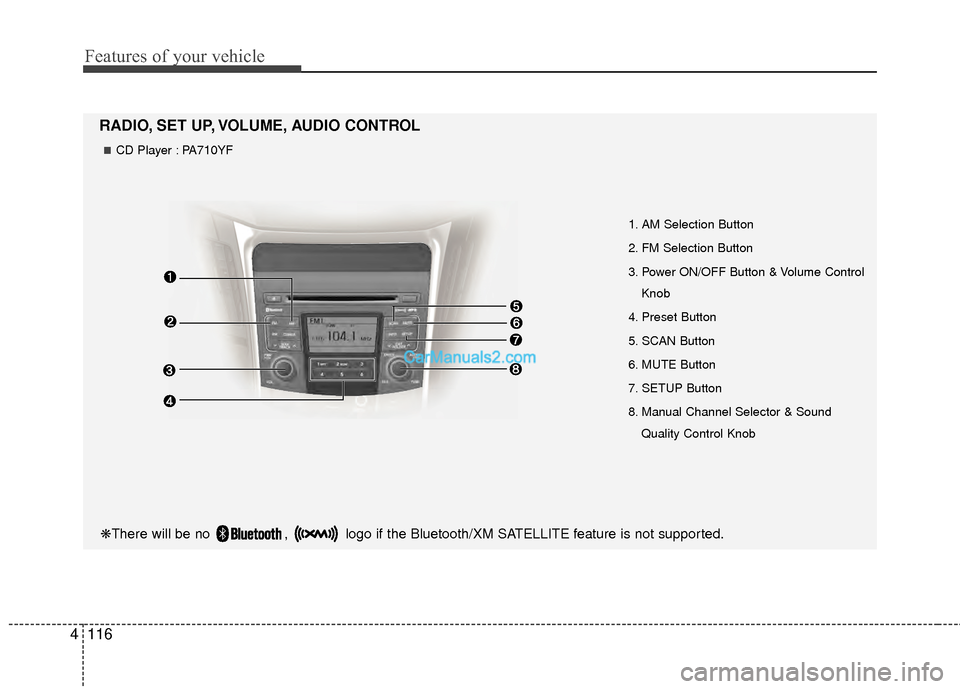
1. AM Selection Button
2. FM Selection Button
3. Power ON/OFF Button & Volume Control
Knob
4. Preset Button
5. SCAN Button
6. MUTE Button
7. SETUP Button
8. Manual Channel Selector & Sound Quality Control Knob
RADIO, SET UP, VOLUME, AUDIO CONTROL
❋There will be no , logo if the Bluetooth/XM SATELLITE feature is not supported.
CD Player : PA710YF
Page 200 of 403
4119
Features of your vehicle
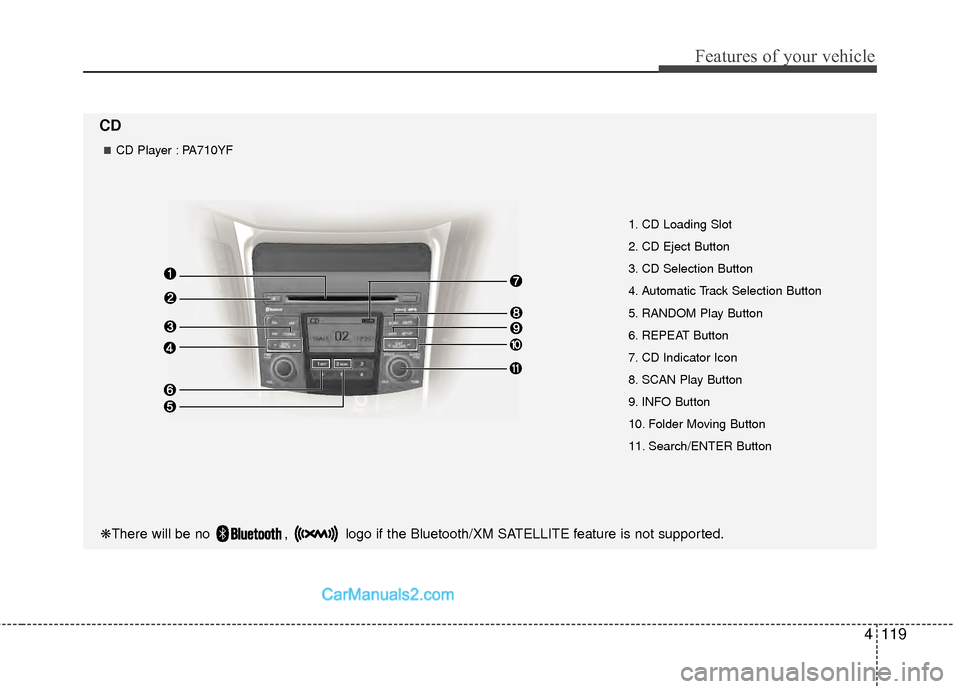
CD
1. CD Loading Slot
2. CD Eject Button
3. CD Selection Button
4. Automatic Track Selection Button
5. RANDOM Play Button
6. REPEAT Button
7. CD Indicator Icon
8. SCAN Play Button
9. INFO Button
10. Folder Moving Button
11. Search/ENTER Button
❋There will be no , logo if the Bluetooth/XM SATELLITE feature is not supported.
CD Player : PA710YF
Page 205 of 403
Features of your vehicle
124
4
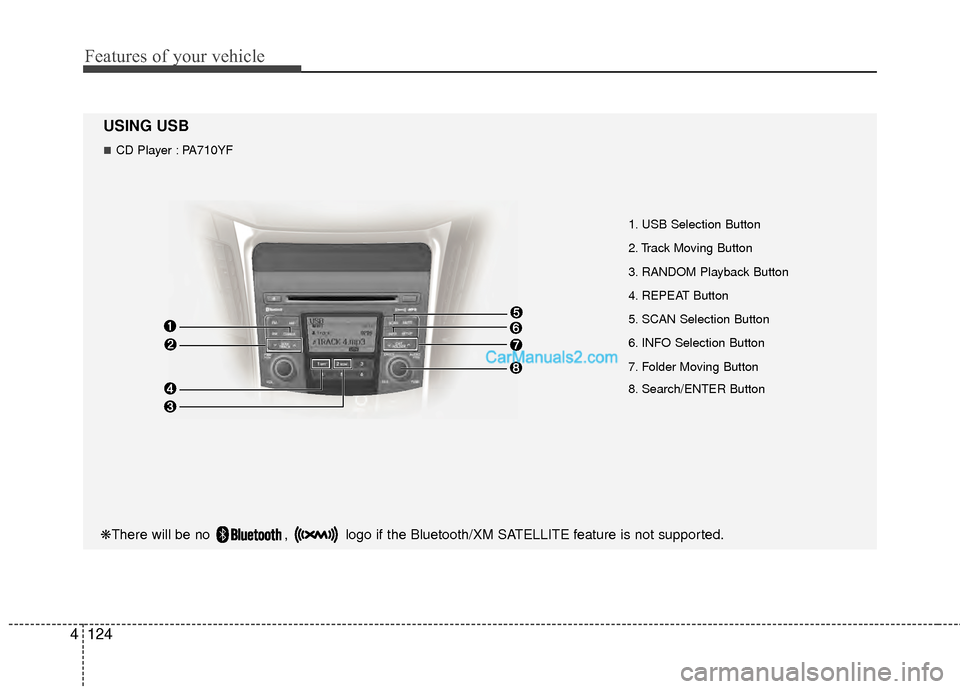
USING USB
1. USB Selection Button
2. Track Moving Button
3. RANDOM Playback Button
4. REPEAT Button
5. SCAN Selection Button
6. INFO Selection Button
7. Folder Moving Button
8. Search/ENTER Button
❋There will be no , logo if the Bluetooth/XM SATELLITE feature is not supported.
CD Player : PA710YF
Page 207 of 403
Features of your vehicle
126
4
✽
✽
NOTICE FOR USING THE
iPod®DEVICE
• Some iPod models might not sup-
port the communication protocol
and the files will not be played.
Supported iPod models:
- iPod Mini
- iPod 4th(Photo) ~ 6th(Classic)
generation
- iPod Nano 1st~4th generation
- iPod Touch 1st~2nd generation
• The order of search or playback of songs in the iPod can be different
from the order searched in the
audio system.
• If the iPod disabled due to its own malfunction, reset the iPod. (Reset:
Refer to iPod manual)
• An iPod may not operate normally on low battery.
• Some iPod devices, such as the iPhone, can be connected through the
Bluetooth
®interface. The device
must have audio Bluetooth®capabili-
ty (such as for stereo headphone
Bluetooth
®). The device can play, but
it will not be controlled by the audio
system.
(Continued)
When the iPod cable is connected, the system can be switched to AUXmode even without iPod deviceand may cause noise. D isconnect
the iPod cable when you are not using the iPod device.
When not using iPod with car audio, detach the iPod cable fromiPod. Otherwise, iPod may remainin accessory mode, and may notwork properly.CAUTION IN USING THE
iPod®DEVICE
The Hyundai iPod Power Cable is
needed in order to operate iPodwith the audio buttons on theaudio system. The USB cable pro-vided by Apple may cause mal-function and should not be usedfor Hyundai vehicles.
❋ The Hyundai iPod Power Cable may be purchased through yourHyundai Dealership.
When connecting iPod with the iPod Power Cable, insert the con-nector to the multimedia socket completely. If not inserted com-pletely, communications betweeniPod and audio may be interrupted.
When adjusting the sound effects of the iPod and the audio system, thesound effects of both devices willoverlap and might reduce or distort the quality of the sound.
Deactivate (turn off) the equalizer function of an iPod when adjust-ing the audio system’s volume,and turn off the equalizer of theaudio system when using theequalizer of an iPod.
(Continued)
Page 208 of 403
4127
Features of your vehicle
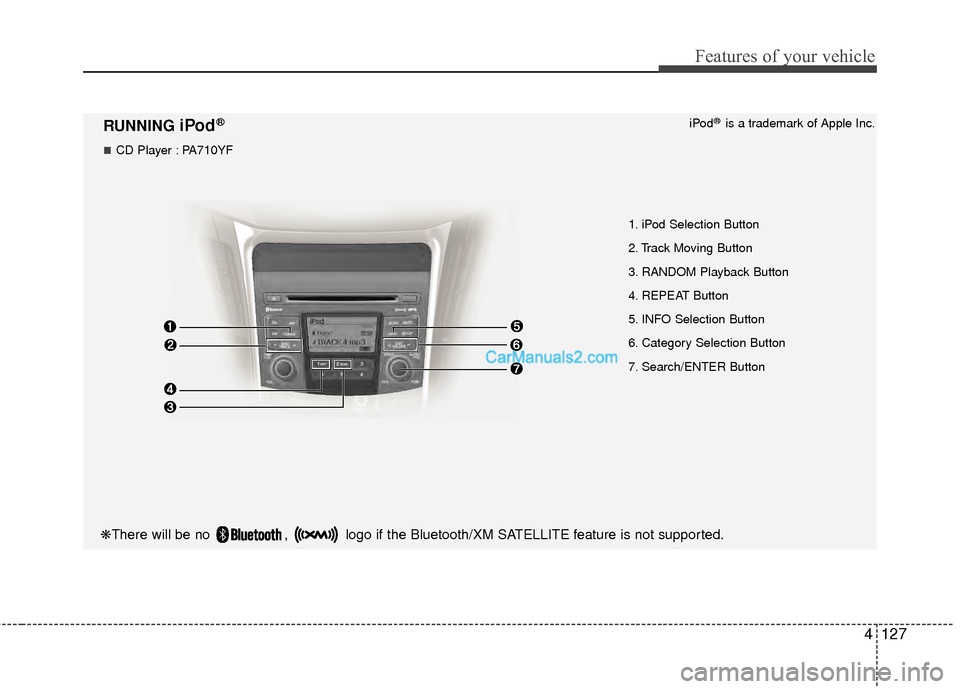
RUNNING iPod®
1. iPod Selection Button
2. Track Moving Button
3. RANDOM Playback Button
4. REPEAT Button
5. INFO Selection Button
6. Category Selection Button
7. Search/ENTER Button iPod
®is a trademark of Apple Inc.
❋There will be no
, logo if the Bluetooth/XM SATELLITE feature is not supported.
CD Player : PA710YF
Page 210 of 403
4129
Features of your vehicle
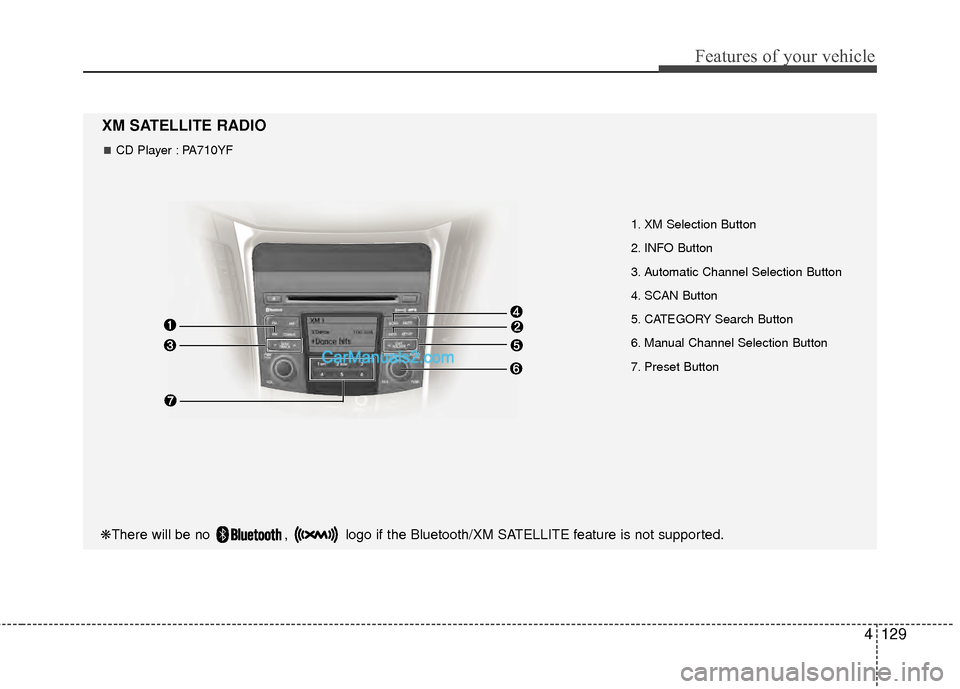
1. XM Selection Button
2. INFO Button
3. Automatic Channel Selection Button
4. SCAN Button
5. CATEGORY Search Button
6. Manual Channel Selection Button
7. Preset Button
XM SATELLITE RADIO
❋There will be no , logo if the Bluetooth/XM SATELLITE feature is not supported.
CD Player : PA710YF
Page 212 of 403
4131
Features of your vehicle
CAUTION IN USING
BLUETOOTH®CELLULAR
PHONE
Do not use a cellular phone or
perform Bluetooth®settings (e.g.
pairing a phone) while driving.
Some Bluetooth
®-enabled phones
may not be recognized by the system or fully compatible withthe system.
Before using Bluetooth
®related
features of the audio system, refer your phone’s User’s Manual for phone-side Bluetooth
®opera-
tions.
The phone must be paired to the audio system to use Bluetooth®
related features.
You will not be able to use the hands-free feature when yourphone (in the car) is outside ofthe cellular service area (e.g. in atunnel, in a underground, in amountainous area, etc.).
If the cellular phone signal is poor or the vehicles interior noise istoo loud, it may be difficult to hearthe other person’s voice during a call.
(Continued)
(continued) Do not place the phone near or inside metallic objects, otherwise
communications with Bluetooth
®
system or cellular service sta-tions can be disturbed.
While a phone is connected through Bluetooth
®your phone
may discharge quicker than usual for additional Bluetooth
®-related
operations.
Some cellular phones or other devices may cause interferencenoise or malfunction to audiosystem. In this case, store thedevice in a different location mayresolve the situation.
Page 213 of 403
Features of your vehicle
132
4
BLUETOOTH®PHONE OPERATION
(if equipped)
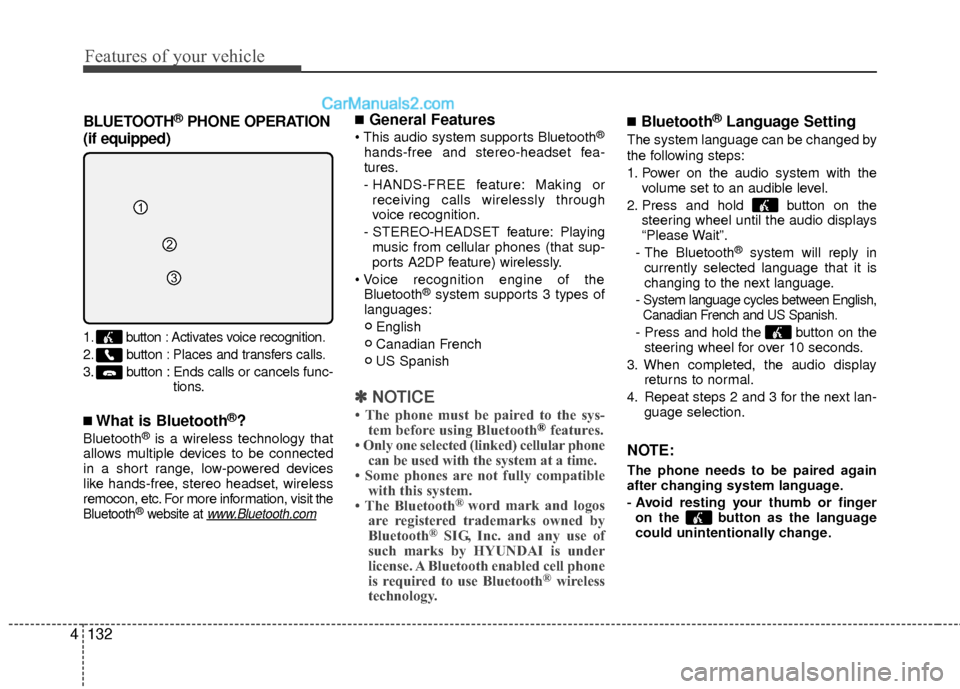
1. button : Activates voice recognition.
2. button : Places and transfers calls.
3.button: Ends calls or cancels func- tions.
■What is Bluetooth®?
Bluetooth®is a wireless technology that
allows multiple devices to be connected
in a short range, low-powered devices
like hands-free, stereo headset, wireless
remocon, etc. For more information, visit
the
Bluetooth®website at www.Bluetooth.com
■General Features
®
hands-free and stereo-headset fea-
tures.
- HANDS-FREE feature: Making or receiving calls wirelessly through
voice recognition.
- STEREO-HEADSET feature: Playing music from cellular phones (that sup-
ports A2DP feature) wirelessly.
Bluetooth
®system supports 3 types of
languages:
English
Canadian French
US Spanish
✽ ✽ NOTICE
• The phone must be paired to the sys-
tem before using Bluetooth®features.
• Only one selected (linked) cellular phone can be used with the system at a time.
• Some phones are not fully compatible with this system.
• The Bluetooth
® word mark and logos
are registered trademarks owned by
Bluetooth
®SIG, Inc. and any use of
such marks by HYUNDAI is under
license. A Bluetooth enabled cell phone
is required to use Bluetooth
®wireless
technology.
■Bluetooth®Language Setting
The system language can be changed by
the following steps:
1. Power on the audio system with the
volume set to an audible level.
2. Press and hold button on the steering wheel until the audio displays
“Please Wait”.
- The Bluetooth
®system will reply in
currently selected language that it is
changing to the next language.
- System language cycles between English, Canadian French and US Spanish.
- Press and hold the button on the steering wheel for over 10 seconds.
3. When completed, the audio display returns to normal.
4. Repeat steps 2 and 3 for the next lan- guage selection.
NOTE:
The phone needs to be paired again
after changing system language.
- Avoid resting your thumb or fingeron the button as the language
could unintentionally change.
1
3
2
Page 214 of 403
4133
Features of your vehicle
■Receiving a Phone Call
When receiving a phone call, a ringtone
is audible from speakers and the audio
system changes into telephone mode.
When receiving a phone call, “Incoming
call” message and incoming phone num-
ber (if available) are displayed on the
audio.
- Press button on the steering wheel.
- Press button on the steering wheel.
- Use VOLUME buttons on the steeringwheel.
Call):
- Press and hold button on the steering wheel until the audio system
transfers a call to the phone.
■Talking on the Phone
When talking on the phone, “Active Call”
message and the other party’s phone
number (if available) are displayed on the
audio.
- Press button on the steering wheel.
✽ ✽ NOTICE
In the following situations, you or the
other party may have difficulty hearing
each other:
1. Speaking at the same time, your voice
may not reach each other parties. (This
is not a malfunction.) Speak alternate-
ly with the other party on the phone.
2. Keep the Bluetooth
®volume to a low
level. High-level volume may result in
distortion and echo.
3. When driving on a rough road.
4. When driving at high speeds.
5. When the window is open.
6. When the air conditioning vents are facing the microphone.
7. When the sound of the air condition- ing fan is loud.
■Bluetooth®Audio Music Streaming
The audio system supports Bluetooth®
A2DP (Audio Advanced Distribution
Profile) and AVRCP (Audio Video
Remote Control Profile) technologies.
Both profiles provide steaming of music
via compatible “PAIRED” Bluetooth
®
Cellular phone.
To stream music from the Bluetooth® cel-
lular phone, play your music files on your
cellular phone according to your cellular
phone user’s manual and press the button on the audio system until
“MP3 play” is displayed on the LCD.
The audio system head unit displays
‘MP3 MODE’.
CD/AUX