reset Hyundai Sonata Hybrid 2013 User Guide
[x] Cancel search | Manufacturer: HYUNDAI, Model Year: 2013, Model line: Sonata Hybrid, Model: Hyundai Sonata Hybrid 2013Pages: 425, PDF Size: 36.95 MB
Page 194 of 425
Features of your vehicle
114 4
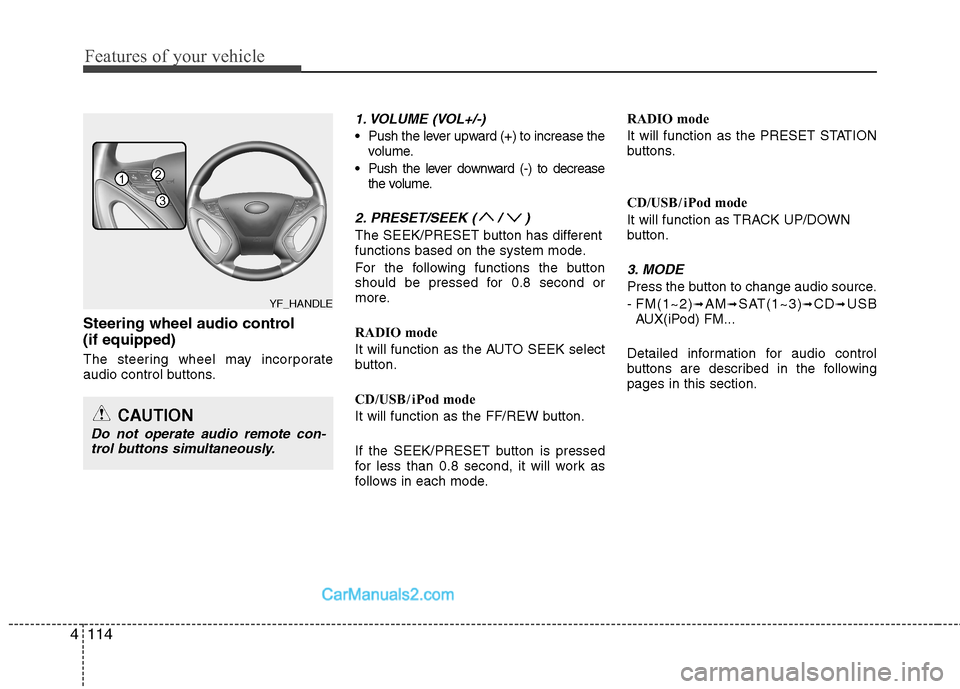
Steering wheel audio control
(if equipped)
The steering wheel may incorporate
audio control buttons.
1. VOLUME (VOL+/-)
Push the lever upward (+) to increase the
volume.
Push the lever downward (-) to decrease
the volume.
2. PRESET/SEEK ( / )
The SEEK/PRESET button has different
functions based on the system mode.
For the following functions the button
should be pressed for 0.8 second or
more.
RADIO mode
It will function as the AUTO SEEK select
button.
CD/USB/ iPod mode
It will function as the FF/REW button.
If the SEEK/PRESET button is pressed
for less than 0.8 second, it will work as
follows in each mode.RADIO mode
It will function as the PRESET STATION
buttons.
CD/USB/ iPod mode
It will function as TRACK UP/DOWN
button.
3. MODE
Press the button to change audio source.
- FM(1~2)
➟AM➟SAT(1~3)➟CD➟USB
AUX(iPod) FM...
Detailed information for audio control
buttons are described in the following
pages in this section.
CAUTION
Do not operate audio remote con-
trol buttons simultaneously.
1
3
2
YF_HANDLE
Page 196 of 425
Features of your vehicle
116 4
SYSTEM CONTROLLERS AND
FUNCTIONS
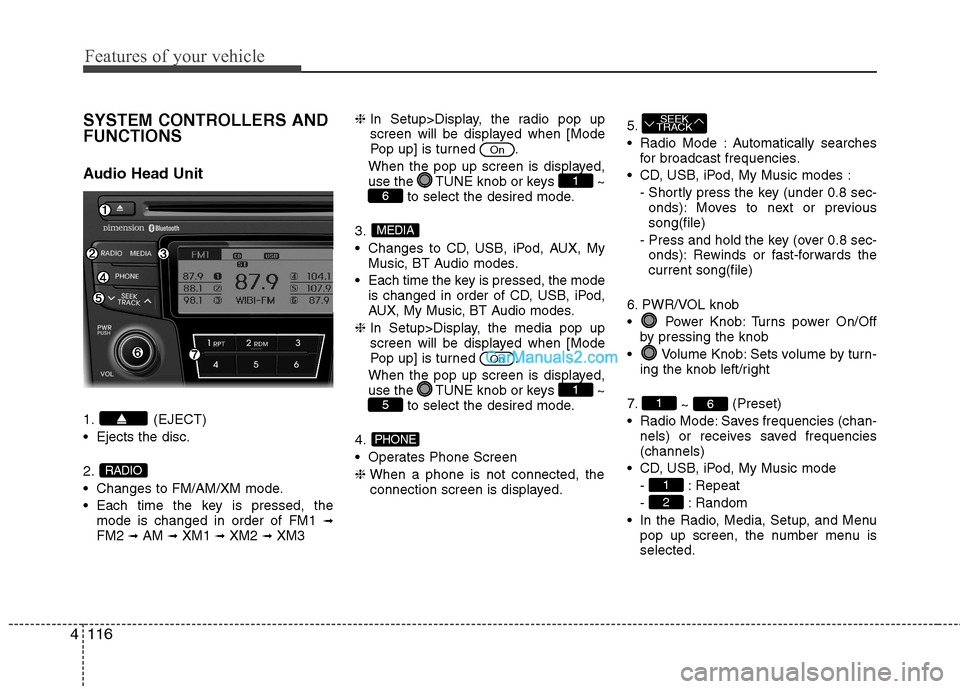
Audio Head Unit
1. (EJECT)
Ejects the disc.
2.
Changes to FM/AM/XM mode.
Each time the key is pressed, the
mode is changed in order of FM1
➟FM2 ➟AM ➟XM1 ➟XM2 ➟XM3❈In Setup>Display, the radio pop up
screen will be displayed when [Mode
Pop up] is turned .
When the pop up screen is displayed,
use the TUNE knob or keys ~
to select the desired mode.
3.
Changes to CD, USB, iPod, AUX, My
Music, BT Audio modes.
Each time the key is pressed, the mode
is changed in order of CD, USB, iPod,
AUX, My Music, BT Audio modes.
❈In Setup>Display, the media pop up
screen will be displayed when [Mode
Pop up] is turned .
When the pop up screen is displayed,
use the TUNE knob or keys ~
to select the desired mode.
4.
Operates Phone Screen
❈When a phone is not connected, the
connection screen is displayed.5.
Radio Mode : Automatically searches
for broadcast frequencies.
CD, USB, iPod, My Music modes :
- Shortly press the key (under 0.8 sec-
onds): Moves to next or previous
song(file)
- Press and hold the key (over 0.8 sec-
onds): Rewinds or fast-forwards the
current song(file)
6. PWR/VOL knob
Power Knob: Turns power On/Off
by pressing the knob
Volume Knob: Sets volume by turn-
ing the knob left/right
7.
~ (Preset)
Radio Mode: Saves frequencies (chan-
nels) or receives saved frequencies
(channels)
CD, USB, iPod, My Music mode
- : Repeat
- : Random
In the Radio, Media, Setup, and Menu
pop up screen, the number menu is
selected.
2
1
61
SEEK
TRACK
PHONE
51
On
MEDIA
61
On
RADIO
Page 197 of 425
4117
Features of your vehicle
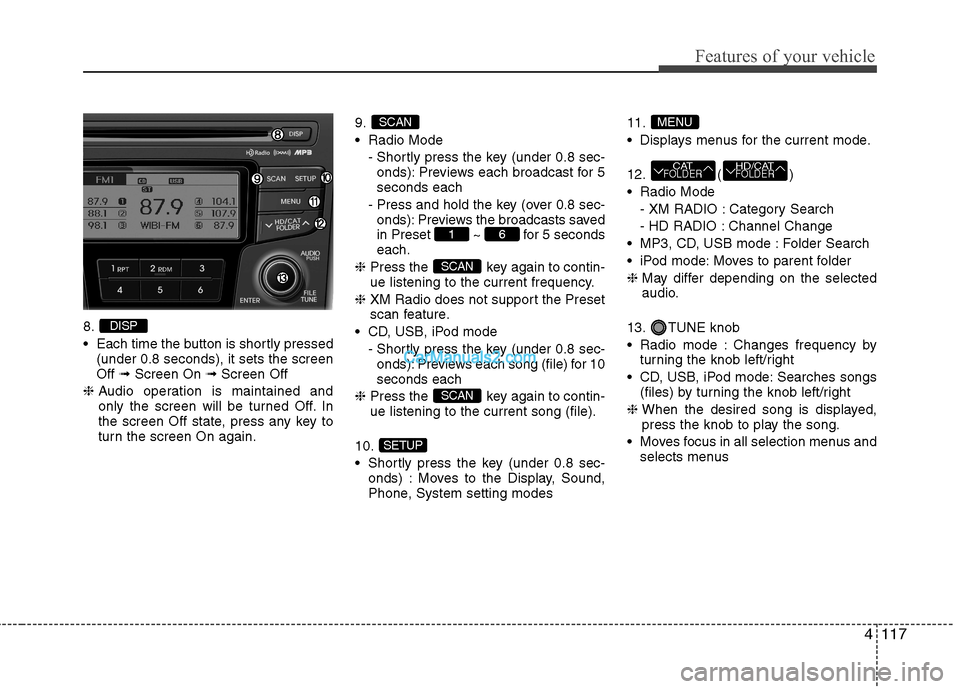
8.
Each time the button is shortly pressed
(under 0.8 seconds), it sets the screen
Off ➟Screen On ➟Screen Off
❈Audio operation is maintained and
only the screen will be turned Off. In
the screen Off state, press any key to
turn the screen On again.9.
Radio Mode
- Shortly press the key (under 0.8 sec-
onds): Previews each broadcast for 5
seconds each
- Press and hold the key (over 0.8 sec-
onds): Previews the broadcasts saved
in Preset ~ for 5 seconds
each.
❈Press the key again to contin-
ue listening to the current frequency.
❈XM Radio does not support the Preset
scan feature.
CD, USB, iPod mode
- Shortly press the key (under 0.8 sec-
onds): Previews each song (file) for 10
seconds each
❈Press the key again to contin-
ue listening to the current song (file).
10.
Shortly press the key (under 0.8 sec-
onds) : Moves to the Display, Sound,
Phone, System setting modes11.
Displays menus for the current mode.
12. ( )
Radio Mode
- XM RADIO : Category Search
- HD RADIO : Channel Change
MP3, CD, USB mode : Folder Search
iPod mode: Moves to parent folder
❈May differ depending on the selected
audio.
13. TUNE knob
Radio mode : Changes frequency by
turning the knob left/right
CD, USB, iPod mode: Searches songs
(files) by turning the knob left/right
❈ When the desired song is displayed,
press the knob to play the song.
Moves focus in all selection menus and
selects menus
HD/CATFOLDERCATFOLDER
MENU
SETUP
SCAN
SCAN
61
SCAN
DISP
Page 208 of 425
Features of your vehicle
128 4
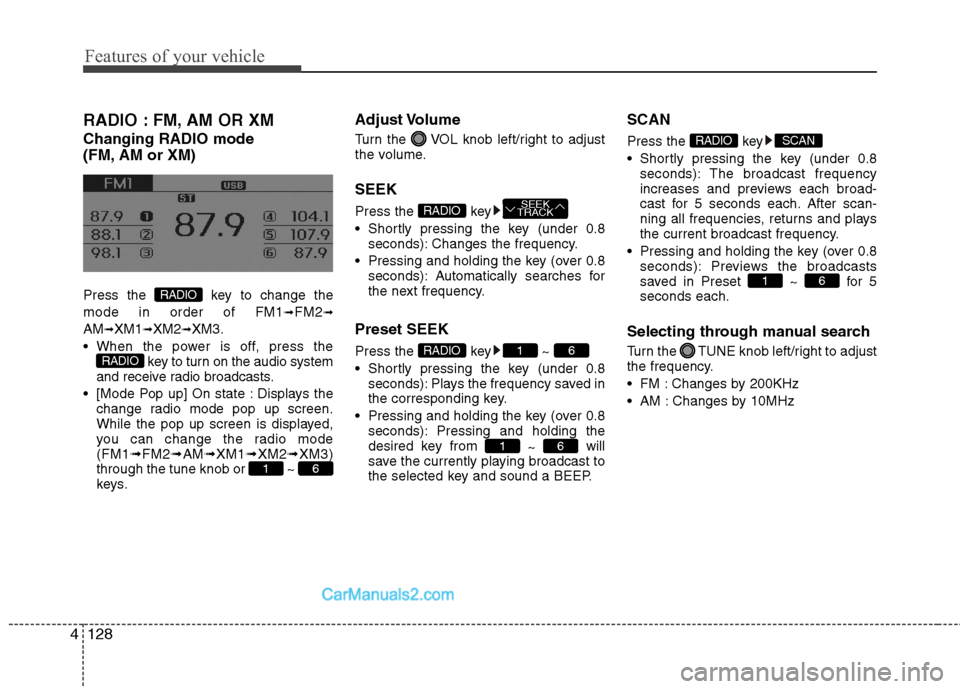
RADIO : FM, AM OR XM
Changing RADIO mode
(FM, AM or XM)
Press the key to change the
mode in order of FM1
➟FM2➟
AM➟XM1➟XM2➟XM3.
When the power is off, press the
key to turn on the audio system
and receive radio broadcasts.
[Mode Pop up] On state : Displays the
change radio mode pop up screen.
While the pop up screen is displayed,
you can change the radio mode
(FM1➟FM2➟AM➟XM1➟XM2➟XM3)
through the tune knob or ~
keys.
Adjust Volume
Turn the VOL knob left/right to adjust
the volume.
SEEK
Press the key
Shortly pressing the key (under 0.8
seconds): Changes the frequency.
Pressing and holding the key (over 0.8
seconds): Automatically searches for
the next frequency.
Preset SEEK
Press the key ~
Shortly pressing the key (under 0.8
seconds): Plays the frequency saved in
the corresponding key.
Pressing and holding the key (over 0.8
seconds): Pressing and holding the
desired key from
~ will
save the currently playing broadcast to
the selected key and sound a BEEP.
SCAN
Press the key
Shortly pressing the key (under 0.8
seconds): The broadcast frequency
increases and previews each broad-
cast for 5 seconds each. After scan-
ning all frequencies, returns and plays
the current broadcast frequency.
Pressing and holding the key (over 0.8
seconds): Previews the broadcasts
saved in Preset ~ for 5
seconds each.
Selecting through manual search
Turn the TUNE knob left/right to adjust
the frequency.
FM : Changes by 200KHz
AM : Changes by 10MHz
61
SCANRADIO
61
61RADIO
SEEK
TRACKRADIO
61
RADIO
RADIO
Page 212 of 425
Features of your vehicle
132 4
Preset
Press the key ~
Shortly pressing the key (under 0.8
seconds): Plays the frequency saved in
the corresponding key.
Pressing and holding the key (over 0.8
seconds): Pressing and holding the
desired key from
~ will
save the current broadcast to the
selected key and sound a BEEP.
Tune
Rotate TUNE knob : Changes the
channel number or scrolls category list.
Press TUNE knob : Selects the
menu.
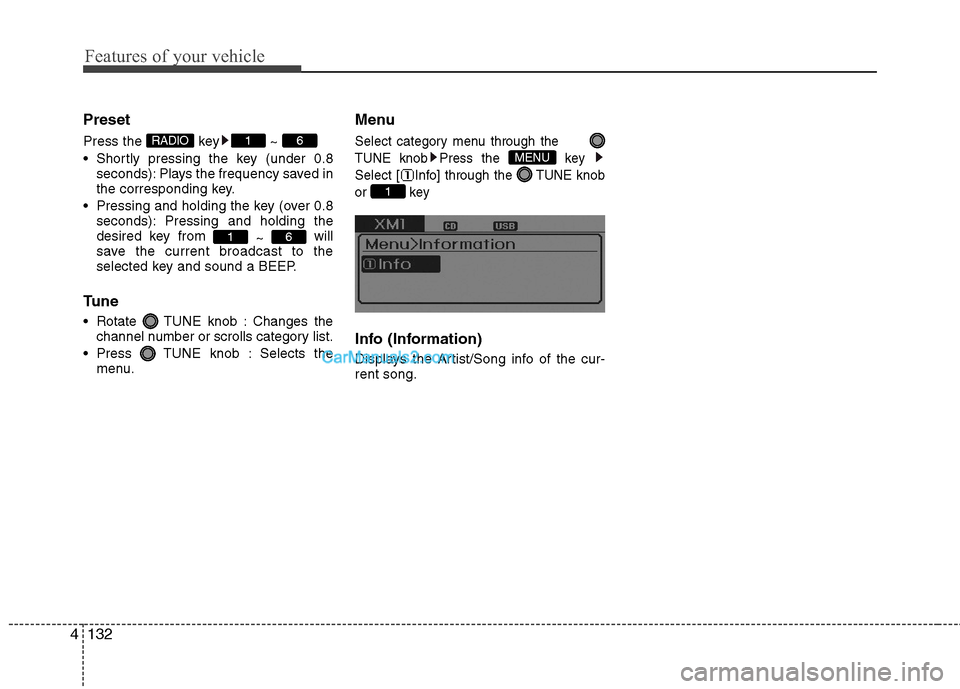
Menu
Select category menu through the
TUNE knob Press the key
Select [ Info] through the TUNE knob
or key
Info (Information)
Displays the Artist/Song info of the cur-
rent song.
1
MENU
61
61RADIO
Page 224 of 425
Features of your vehicle
144 4
✽
✽
NOTICE FOR USING THE
iPod®DEVICE
• Some iPod models may not support
communication protocol and files may
not properly play.
Supported iPod models:
- iPod Mini
- iPod 4th(Photo) ~ 6th(Classic)
generation
- iPod Nano 1st~4th generation
- iPod Touch 1st~2nd generation
• The order of search or playback of
songs in the iPod can be different
from the order searched in the audio
system.
• If the iPod disabled due to its own
malfunction, reset the iPod. (Reset:
Refer to iPod manual)
• An iPod may not operate normally on
low battery.
• Some iPod devices, such as the
iPhone, can be connected through the
Bluetooth
®Wireless Technology inter-
face. The device must have audio
Bluetooth
®Wireless Technology capa-
bility (such as for stereo headphone
Bluetooth
®Wireless Technology). The
device can play, but it will not be con-
trolled by the audio system.
(Continued)
(Continued)
Some USB flash memory readers
(such as CF, SD, micro SD, etc.) or
external-HDD type devices can be
unrecognizable.
Music files protected by DRM
(DIGITAL RIGHTS MANAGE-
MENT) are not recognizable.
The data in the USB memory may
be lost while using this audio.
Always back up important data on
a personal storage device.
Please avoid using USB memory
products which can be used as key
chains or cellular phone acces-
sories as they could cause dam-
age to the USB jack. Please make
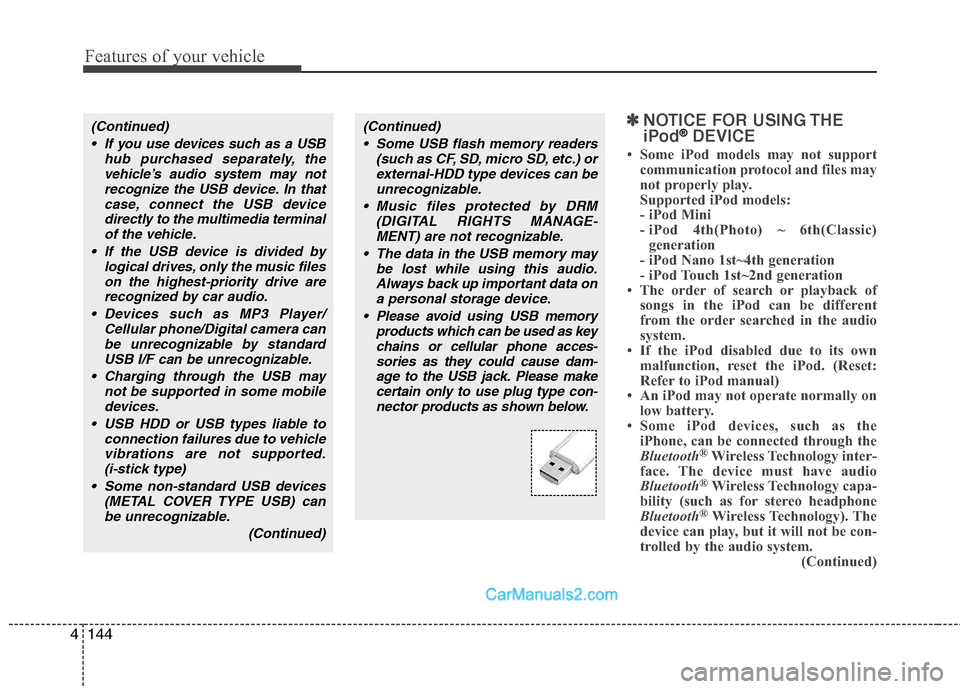
certain only to use plug type con-
nector products as shown below.(Continued)
If you use devices such as a USB
hub purchased separately, the
vehicle’s audio system may not
recognize the USB device. In that
case, connect the USB device
directly to the multimedia terminal
of the vehicle.
If the USB device is divided by
logical drives, only the music files
on the highest-priority drive are
recognized by car audio.
Devices such as MP3 Player/
Cellular phone/Digital camera can
be unrecognizable by standard
USB I/F can be unrecognizable.
Charging through the USB may
not be supported in some mobile
devices.
USB HDD or USB types liable to
connection failures due to vehicle
vibrations are not supported.
(i-stick type)
Some non-standard USB devices
(METAL COVER TYPE USB) can
be unrecognizable.
(Continued)
Page 234 of 425
Features of your vehicle
154 4
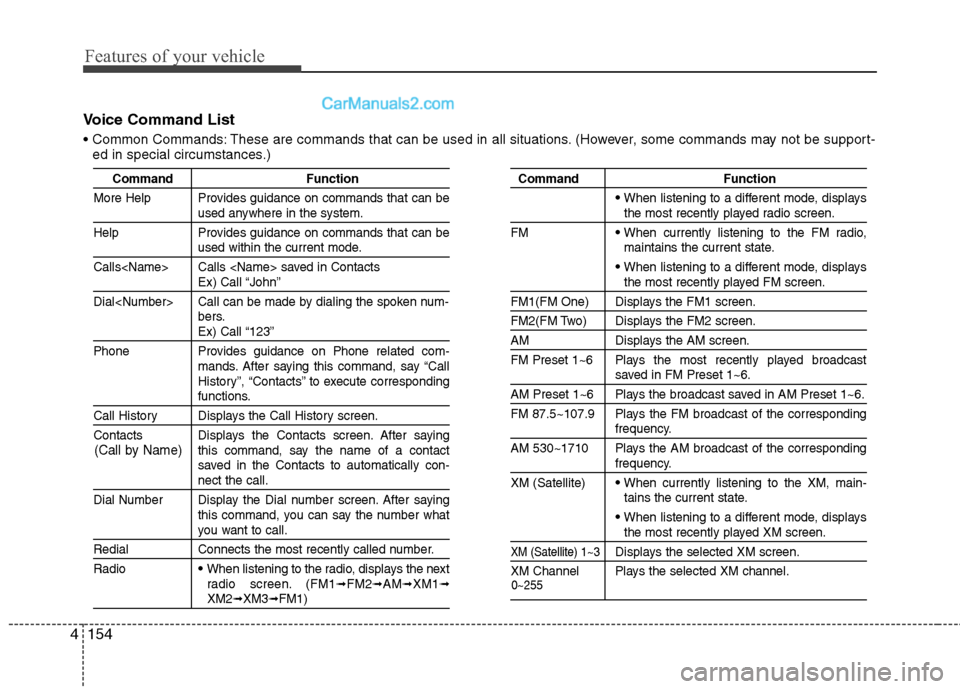
Voice Command List
These are commands that can be used in all situations. (However, some commands may not be support-
ed in special circumstances.)
Command Function
More Help Provides guidance on commands that can be
used anywhere in the system.
Help Provides guidance on commands that can be
used within the current mode.
Calls
Ex) Call “John”
Dial
bers.
Ex) Call “123”
Phone Provides guidance on Phone related com-
mands. After saying this command, say “Call
History”, “Contacts” to execute corresponding
functions.
Call History Displays the Call History screen.
Contacts Displays the Contacts screen. After saying
this command, say the name of a contact
saved in the Contacts to automatically con-
nect the call.
Dial Number Display the Dial number screen. After saying
this command, you can say the number what
you want to call.
Redial Connects the most recently called number.
Radio
When listening to the radio, displays the next
radio screen. (FM1➟FM2➟AM➟XM1➟XM2➟XM3➟FM1)
Command Function
When listening to a different mode, displaysthe most recently played radio screen.
FM
When currently listening to the FM radio,
maintains the current state.
When listening to a different mode, displaysthe most recently played FM screen.
FM1(FM One) Displays the FM1 screen.
FM2(FM Two) Displays the FM2 screen.
AM Displays the AM screen.
FM Preset 1~6 Plays the most recently played broadcast
saved in FM Preset 1~6.
AM Preset 1~6 Plays the broadcast saved in AM Preset 1~6.
FM 87.5~107.9 Plays the FM broadcast of the corresponding
frequency.
AM 530~1710 Plays the AM broadcast of the corresponding
frequency.
XM (Satellite)
When currently listening to the XM, main-
tains the current state.
When listening to a different mode, displaysthe most recently played XM screen.
XM (Satellite) 1~3Displays the selected XM screen.
XM Channel Plays the selected XM channel.
(Call by Name)
0~255
Page 236 of 425
Features of your vehicle
156 4
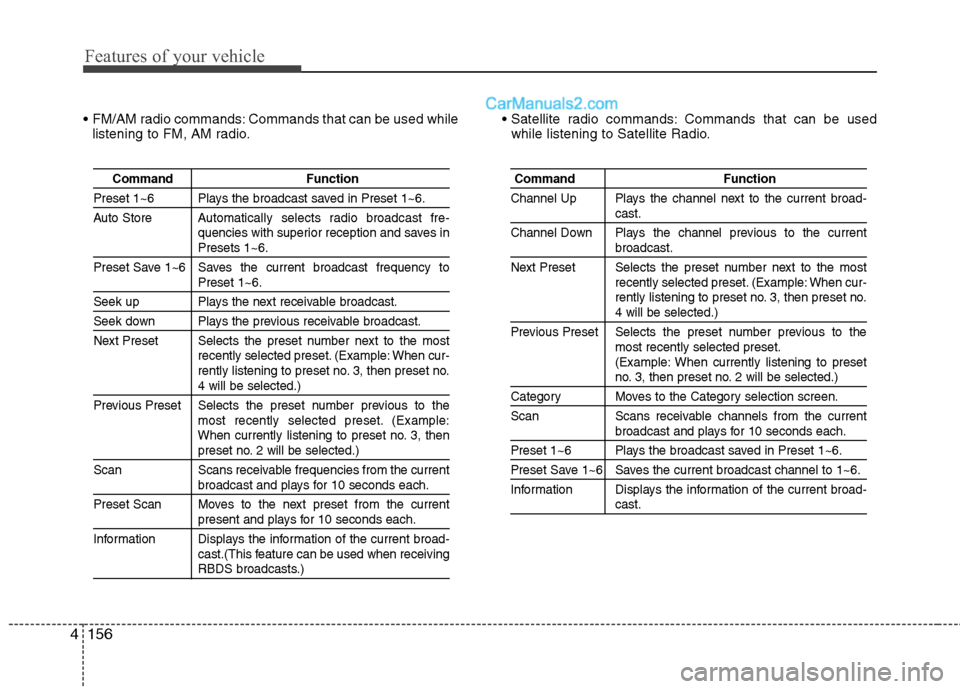
FM/AM radio commands: Commands that can be used while
listening to FM, AM radio. Commands that can be used
while listening to Satellite Radio.
Command Function
Preset 1~6 Plays the broadcast saved in Preset 1~6.
Auto Store Automatically selects radio broadcast fre-
quencies with superior reception and saves in
Presets 1~6.
Preset Save 1~6 Saves the current broadcast frequency to
Preset 1~6.
Seek up Plays the next receivable broadcast.
Seek down Plays the previous receivable broadcast.
Next Preset Selects the preset number next to the most
recently selected preset. (Example: When cur-
rently listening to preset no. 3, then preset no.
4 will be selected.)
Previous Preset Selects the preset number previous to the
most recently selected preset. (Example:
When currently listening to preset no. 3, then
preset no. 2 will be selected.)
Scan Scans receivable frequencies from the current
broadcast and plays for 10 seconds each.
Preset Scan Moves to the next preset from the current
present and plays for 10 seconds each.
Information Displays the information of the current broad-
cast.(This feature can be used when receiving
RBDS broadcasts.)
Command Function
Channel Up Plays the channel next to the current broad-
cast.
Channel Down Plays the channel previous to the current
broadcast.
Next Preset Selects the preset number next to the most
recently selected preset. (Example: When cur-
rently listening to preset no. 3, then preset no.
4 will be selected.)
Previous Preset Selects the preset number previous to the
most recently selected preset.
(Example: When currently listening to preset
no. 3, then preset no. 2 will be selected.)
Category Moves to the Category selection screen.
Scan Scans receivable channels from the current
broadcast and plays for 10 seconds each.
Preset 1~6 Plays the broadcast saved in Preset 1~6.
Preset Save 1~6 Saves the current broadcast channel to 1~6.
Information Displays the information of the current broad-
cast.
Page 269 of 425
527
Driving your vehicle
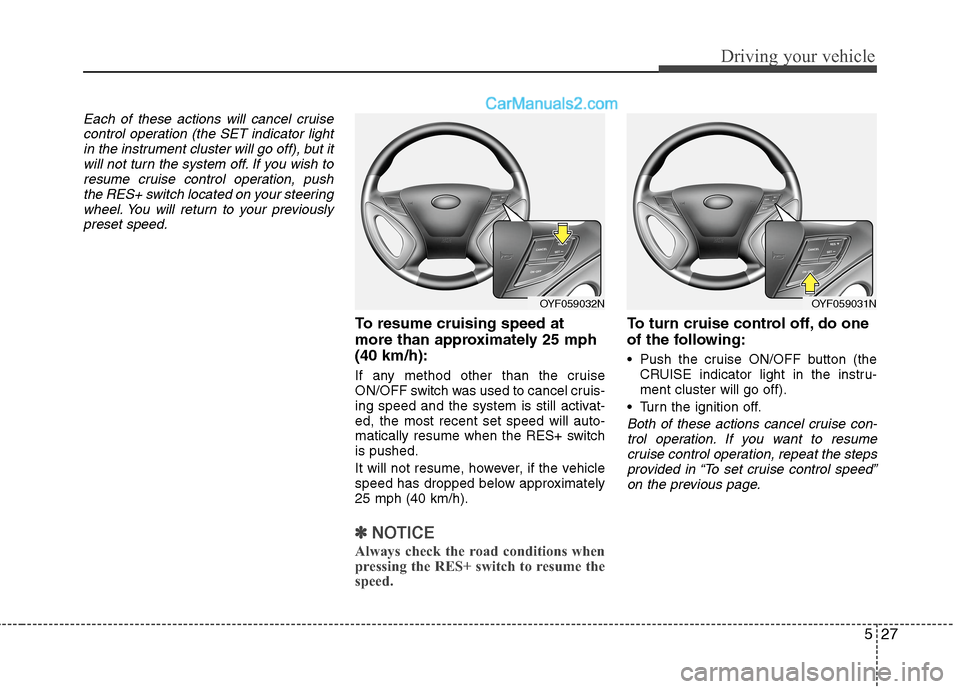
Each of these actions will cancel cruise
control operation (the SET indicator light
in the instrument cluster will go off), but it
will not turn the system off. If you wish to
resume cruise control operation, push
the RES+ switch located on your steering
wheel. You will return to your previously
preset speed.
To resume cruising speed at
more than approximately 25 mph
(40 km/h):
If any method other than the cruise
ON/OFF switch was used to cancel cruis-
ing speed and the system is still activat-
ed, the most recent set speed will auto-
matically resume when the RES+ switch
is pushed.
It will not resume, however, if the vehicle
speed has dropped below approximately
25 mph (40 km/h).
✽ ✽
NOTICE
Always check the road conditions when
pressing the RES+ switch to resume the
speed.
To turn cruise control off, do one
of the following:
Push the cruise ON/OFF button (the
CRUISE indicator light in the instru-
ment cluster will go off).
Turn the ignition off.
Both of these actions cancel cruise con-
trol operation. If you want to resume
cruise control operation, repeat the steps
provided in “To set cruise control speed”
on the previous page.
OYF059032NOYF059031N
Page 350 of 425
Maintenance
36 7
Reset items
Items should be reset after the 12V bat-
tery has been discharged or the 12V bat-
tery has been disconnected.
Auto up/down window (See section 4)
Sunroof (See section 4)
Trip computer (See section 4)
Climate control system
(See section 4)
Clock (See section 4)
Audio (See section 4)WARNING
Before performing maintenance
or recharging the 12V battery,
turn off all accessories and stop
the engine.
The negative battery cable must
be removed first and installed
last when the 12V battery is dis-
connected.
Operation related to the 12V bat-
tery should be done in an author-
ized HYUNDAI dealer.
WARNING- Recharging
12V battery
When recharging the battery,
observe the following precautions:
The battery must be removed
from the vehicle and placed in an
area with good ventilation.
Do not allow cigarettes, sparks,
or flame near the battery.
Watch the battery during charg-
ing, and stop or reduce the charg-
ing rate if the battery cells begin
gassing (boiling) violently or if
the temperature of the electrolyte
of any cell exceeds 120°F (49°C).
Wear eye protection when check-
ing the battery during charging.
Disconnect the battery charger in
the following order.
1. Turn off the battery charger main
switch.
2. Unhook the negative clamp from
the negative battery terminal.
3. Unhook the positive clamp from
the positive battery terminal.