audio Hyundai Sonata Hybrid 2015 Service Manual
[x] Cancel search | Manufacturer: HYUNDAI, Model Year: 2015, Model line: Sonata Hybrid, Model: Hyundai Sonata Hybrid 2015Pages: 543, PDF Size: 25.53 MB
Page 269 of 543
![Hyundai Sonata Hybrid 2015 Service Manual Features of your vehicle
188
4
Bluetooth®Wireless Technology
Setting
Pairing a New Device
Press the key Select
[Phone] Select [Pair Phone]
Bluetooth®Wireless Technology devices
can be paired with t](/img/35/19645/w960_19645-268.png "Hyundai Sonata Hybrid 2015 Service Manual Features of your vehicle
188
4
Bluetooth®Wireless Technology
Setting
Pairing a New Device
Press the key Select
[Phone] Select [Pair Phone]
Bluetooth®Wireless Technology devices
can be paired with t")
Features of your vehicle
188
4
Bluetooth®Wireless Technology
Setting
Pairing a New Device
Press the key Select
[Phone] Select [Pair Phone]
Bluetooth®Wireless Technology devices
can be paired with the audio system.
For more information, refer to the “Pairing
through Phone Setup” section within
Bluetooth®Wireless Technology.
Viewing Paired Phone List
Press the key Select
[Phone] Select [Paired Phone List]
This feature is used to view mobile
phones that have been paired with the
audio system. Upon selecting a paired
phone, the setup menu is displayed.
For more information, refer to the “Setting
Bluetooth®Wireless Technology
Connection” section within Bluetooth®
Wireless Technology. 1) : Moves to the previous screen
2) Connect/Disconnect Phone : Connect/
disconnects currently selected phone
3) Delete : Deletes the currently selected phone
4) Change Priority : Sets currently selected phone to highest connection priority
SETUP
SETUP
Page 271 of 543
![Hyundai Sonata Hybrid 2015 Service Manual Features of your vehicle
190
4
Streaming Audio
Press the key Select
[Phone] Select [Streaming Audio]
When Streaming Audio is turned on, you
can play music files saved in your
Bluetooth®Wireless Tech](/img/35/19645/w960_19645-270.png "Hyundai Sonata Hybrid 2015 Service Manual Features of your vehicle
190
4
Streaming Audio
Press the key Select
[Phone] Select [Streaming Audio]
When Streaming Audio is turned on, you
can play music files saved in your
Bluetooth®Wireless Tech")
Features of your vehicle
190
4
Streaming Audio
Press the key Select
[Phone] Select [Streaming Audio]
When Streaming Audio is turned on, you
can play music files saved in your
Bluetooth®Wireless Technology device
through the audio system.
Outgoing Volume
Press the key Select
[Phone] Select [Outgoing Volume]
Use the , buttons to adjust the
outgoing volume level.
✽ ✽ NOTICE
While on a call, the volume can be
changed by using the key.
Turning Bluetooth System Off
Press the key Select
[Phone] Select [Bluetooth System Off]
Once
Bluetooth®Wireless Technology is
turned off, Bluetooth®Wireless
Technology related features will not be
supported within the audio system.
✽ ✽ NOTICE
To turn Bluetooth®Wireless Technology
back on, go to [Phone] and
press “YesSETUP
SETUP
SEEK
TRACK
SETUP SETUP
Page 275 of 543
Features of your vehicle
194
4
0~255
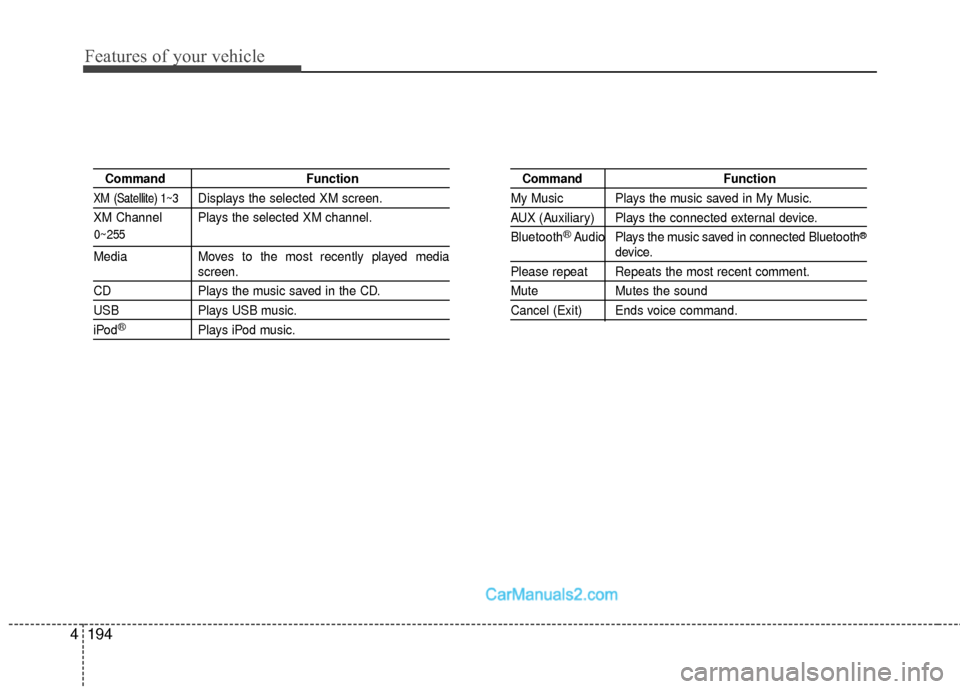
Command Function
XM (Satellite) 1~3Displays the selected XM screen.
XM Channel Plays the selected XM channel.
Media Moves to the most recently played mediascreen.
CD Plays the music saved in the CD.
USBPlays USB music.
iPod®Plays iPod music.
Command Function
My Music Plays the music saved in My Music.
AUX (Auxiliary) Plays the connected external device.
Bluetooth
®Audio Plays the music saved in connected Bluetooth®
device.
Please repeat Repeats the most recent comment.
Mute Mutes the sound
Cancel (Exit) Ends voice command.
Page 277 of 543
Features of your vehicle
196
4
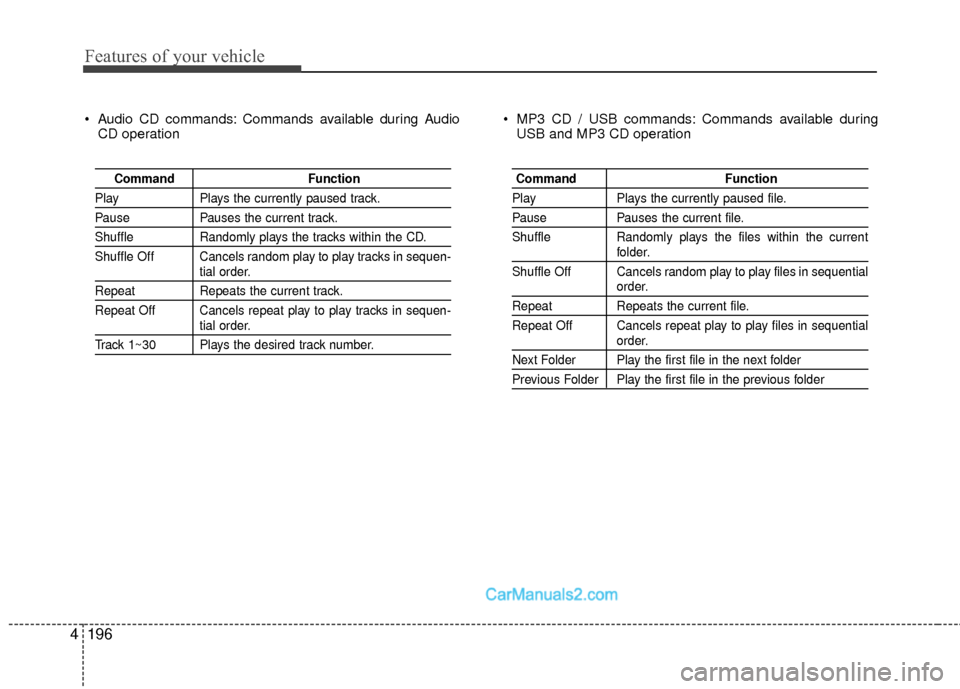
Audio CD commands: Commands available during Audio
CD operation MP3 CD / USB commands: Commands available during
USB and MP3 CD operation
Command Function
PlayPlays the currently paused track.
PausePauses the current track.
ShuffleRandomly plays the tracks within the CD.
Shuffle Off Cancels random play to play tracks in sequen-
tial order.
Repeat Repeats the current track.
Repeat Off Cancels repeat play to play tracks in sequen-
tial order.
Track 1~30 Plays the desired track number.
Command Function
PlayPlays the currently paused file.
PausePauses the current file.
Shuffle Randomly plays the files within the current
folder.
Shuffle Off Cancels random play to play files in sequential
order.
Repeat Repeats the current file.
Repeat Off Cancels repeat play to play files in sequential
order.
Next Folder Play the first file in the next folder
Previous Folder Play the first file in the previous folder
Page 290 of 543
4209
Features of your vehicle
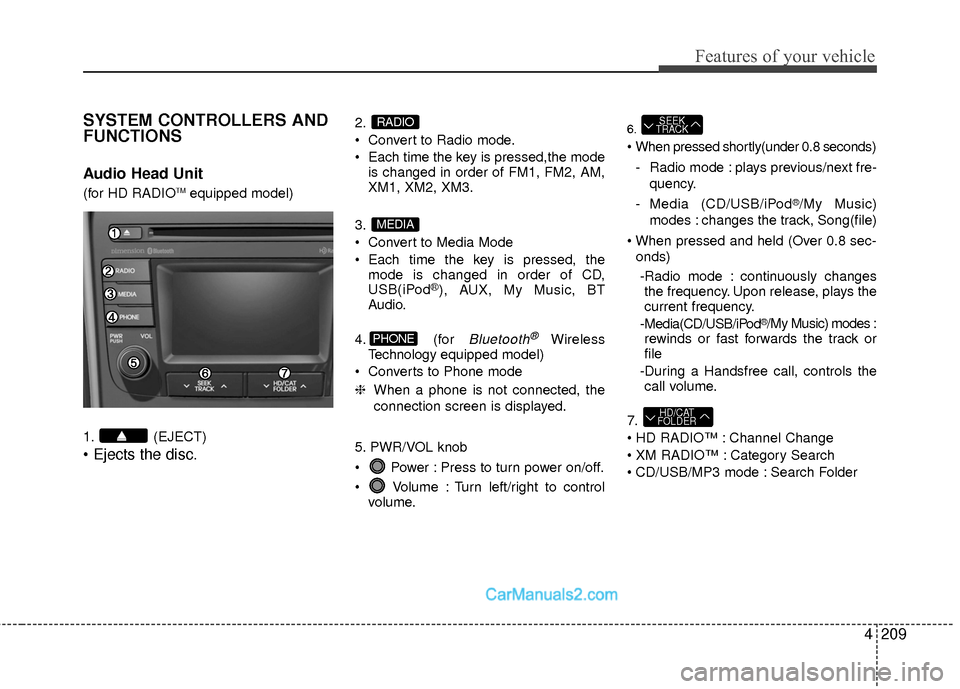
SYSTEM CONTROLLERS AND
FUNCTIONS
Audio Head Unit
(for HD RADIOTMequipped model)
1. (EJECT)
• Ejects the disc.
2.
Convert to Radio mode.
Each time the key is pressed,the mode is changed in order of FM1, FM2, AM,
XM1, XM2, XM3.
3.
Convert to Media Mode
Each time the key is pressed, the mode is changed in order of CD,
USB(iPod
®), AUX, My Music, BT
Audio.
4. (for
Bluetooth®Wireless
Technology equipped model)
Converts to Phone mode
❈ When a phone is not connected, the
connection screen is displayed.
5. PWR/VOL knob
Power : Press to turn power on/off.
Volume : Turn left/right to control volume.
6.
- Radio mode : plays previous/next fre- quency.
- Media (CD/USB/iPod
®/My Music)
modes : changes the track, Song(file)
onds)
-Radio mode : continuously changes the frequency. Upon release, plays the
current frequency.
-Media(CD/USB/iPod
®/My Music) modes :
rewinds or fast forwards the track or
file
-During a Handsfree call, controls the call volume.
7.
Channel Change
Category Search
CD/USB/MP3 mode : Search Folder
HD/CAT
FOLDER
SEEK
TRACK
PHONE
MEDIA
RADIO
Page 291 of 543
Features of your vehicle
210
4
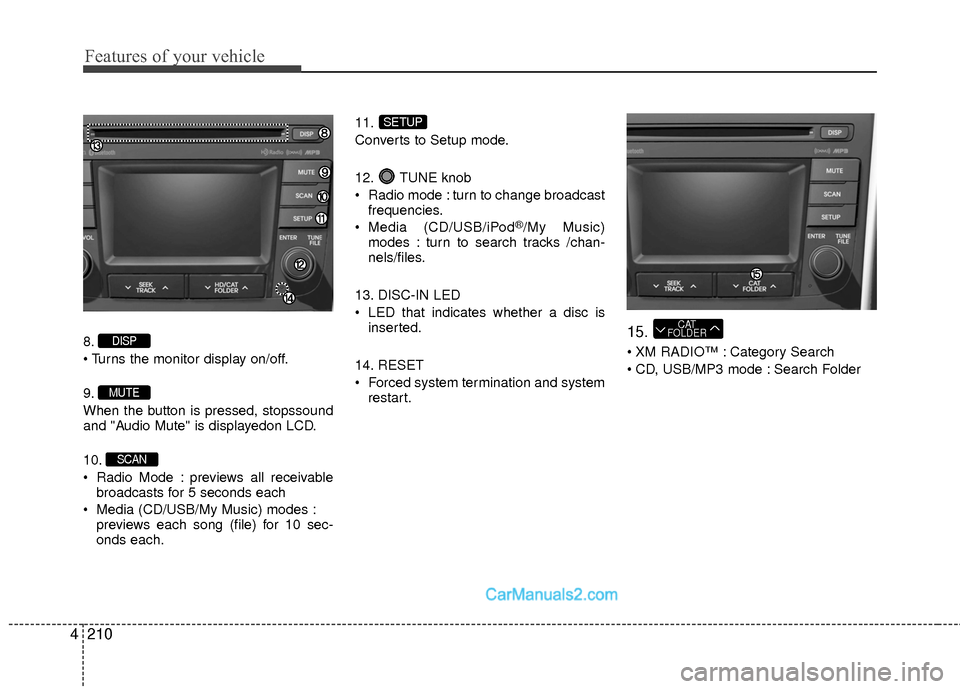
8.
9.
When the button is pressed, stopssound
and "Audio Mute" is displayedon LCD.
10.
Radio Mode : previews all receivable
broadcasts for 5 seconds each
Media (CD/USB/My Music) modes : previews each song (file) for 10 sec-
onds each. 11.
Converts to Setup mode.
12. TUNE knob
Radio mode : turn to change broadcast
frequencies.
Media (CD/USB/iPod
®/My Music)
modes : turn to search tracks /chan-
nels/files.
13. DISC-IN LED
LED that indicates whether a disc is inserted.
14. RESET
Forced system termination and system restart.
15.
XM RADIO™ : Category Search
CD, USB/MP3 mode : Search Folder
CAT
FOLDER
SETUP
SCAN
MUTE
DISP
Page 292 of 543
4211
Features of your vehicle
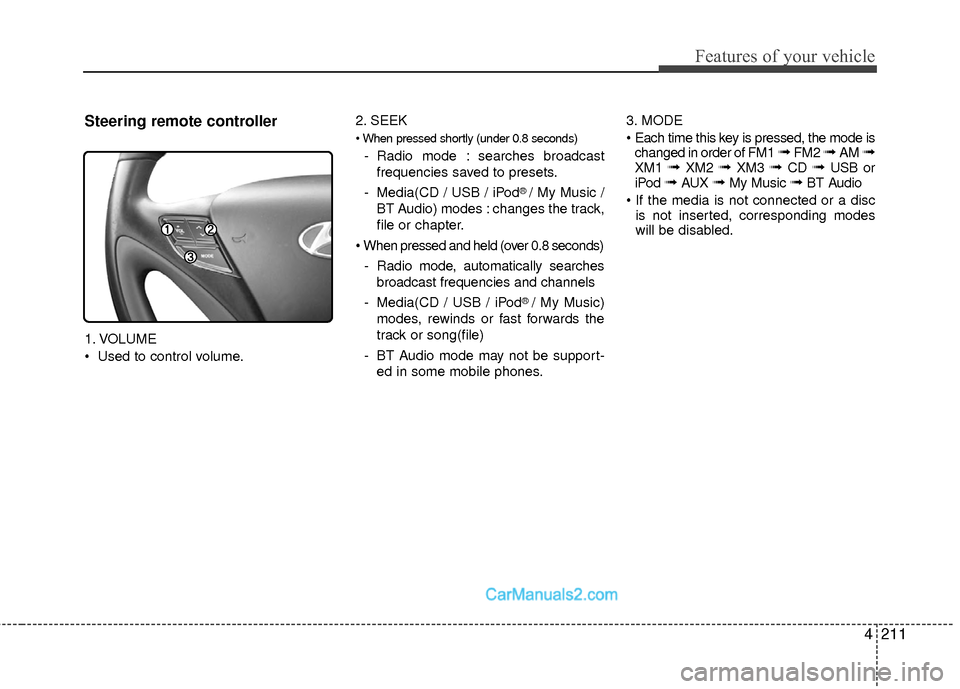
Steering remote controller
1. VOLUME
Used to control volume.2. SEEK
- Radio mode : searches broadcast
frequencies saved to presets.
- Media(CD / USB / iPod
® / My Music /
BT Audio) modes : changes the track,
file or chapter.
- Radio mode, automatically searches broadcast frequencies and channels
- Media(CD / USB / iPod
® / My Music)
modes, rewinds or fast forwards the
track or song(file)
- BT Audio mode may not be support- ed in some mobile phones. 3. MODE
changed in order of FM1
➟ FM2 ➟ AM ➟XM1 ➟ XM2 ➟ XM3 ➟ CD ➟ USB or
iPod ➟ AUX ➟ My Music ➟ BT Audio
is not inserted, corresponding modes
will be disabled.
Page 294 of 543
4213
Features of your vehicle
HD RadioTMTechnology
(for HD RADIOTMequipped model)
HD Radio Technology manufactured
under license from iBiquity Digital
Corporation. U.S. and Foreign Patents.
HD Radio™ and the HD, HD Radio, and
“Arc” logos are proprietary trademarks of
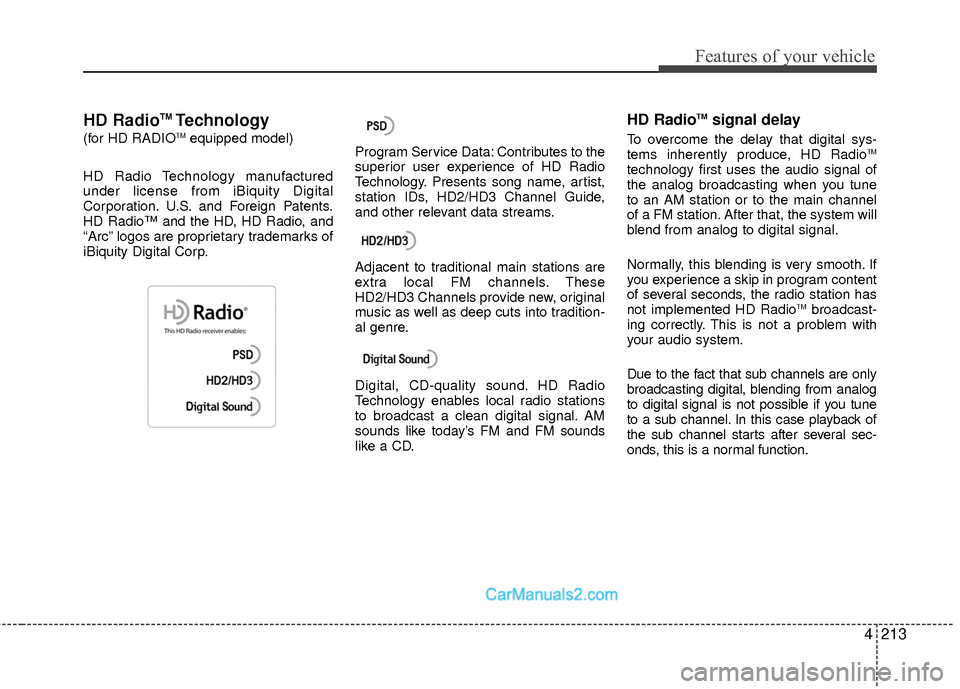
iBiquity Digital Corp. Program Service Data: Contributes to the
superior user experience of HD Radio
Technology. Presents song name, artist,
station IDs, HD2/HD3 Channel Guide,
and other relevant data streams.
Adjacent to traditional main stations are
extra local FM channels. These
HD2/HD3 Channels provide new, original
music as well as deep cuts into tradition-
al genre.
Digital, CD-quality sound. HD Radio
Technology enables local radio stations
to broadcast a clean digital signal. AM
sounds like today’s FM and FM sounds
like a CD.
HD RadioTMsignal delay
To overcome the delay that digital sys-
tems inherently produce, HD RadioTM
technology first uses the audio signal of
the analog broadcasting when you tune
to an AM station or to the main channel
of a FM station. After that, the system will
blend from analog to digital signal.
Normally, this blending is very smooth. If
you experience a skip in program content
of several seconds, the radio station has
not implemented HD Radio
TMbroadcast-
ing correctly. This is not a problem with
your audio system.
Due to the fact that sub channels are only
broadcasting digital, blending from analog
to digital signal is not possible if you tune
to a sub channel. In this case playback of
the sub channel starts after several sec-
onds, this is a normal function.
Page 298 of 543
![Hyundai Sonata Hybrid 2015 Service Manual 4217
Features of your vehicle
Auto Store
Press the button to automatical-
ly save receivable frequencies to Preset
buttons.
✽ ✽NOTICE
While Auto Store is operating, pressing
the [Cancel] button](/img/35/19645/w960_19645-297.png "Hyundai Sonata Hybrid 2015 Service Manual 4217
Features of your vehicle
Auto Store
Press the button to automatical-
ly save receivable frequencies to Preset
buttons.
✽ ✽NOTICE
While Auto Store is operating, pressing
the [Cancel] button")
4217
Features of your vehicle
Auto Store
Press the button to automatical-
ly save receivable frequencies to Preset
buttons.
✽ ✽NOTICE
While Auto Store is operating, pressing
the [Cancel] button again will cancel
Auto Store and restore the previous fre-
quency.
Scan
Press the key to preview fre-
quencies with superior reception for 5
seconds each.
Press and hold the key (over
0.8 seconds) to preview presets for 5
seconds each.
Once scan is complete, the previous fre-
quency will be restored.
While Scan is operating, pressing the
key will cancel the scan opera-
tion.
Listening to HD Radio Stations
HD Radio Technology is a digital radio
technology used by AM and FM radio
station to transmit audio and data via a
digital signal in conjunction with their
analog signals.
While listening to the radio, the HD Radio
icon will become displayed if receiving an
HD Radio broadcast.
Changing HD Radio stations
Press the button to change HD
Radio station.
Viewing Station Information
Press the button to view station
information.Info
SCAN
SCAN
SCAN
A.Store
Page 302 of 543
4221
Features of your vehicle
✽
✽NOTICE - USING THE
DISCS
• This device has been manufactured
to be compatible with software
bearing the following logo marks.
• Do not clean discs with chemical solutions, such as record sprays,
antistatic sprays, antistatic liquids,
benzene, or thinners.
• After using a disc, put the disc back in its original case to prevent disc
scratches.
• Hold discs by their edges or within the center hole to prevent damages
to disc surfaces.
• Do not introduce foreign substances into the disc insert/eject slot.
Introducing foreign substances
could damage the device interior.
• Do not insert two discs simultane- ously.
• When using CD-R/CD-RW discs, differences in disc reading and
playing times may occur depending
on the disc manufacturer, produc-
tion method and the recording
method as used by the user. (Continued)(Continued)
• Clean fingerprints and dust off the
disc surface (coated side) with a soft
cloth.
• The use of CD-R/CD-RW discs attached with labels may result in
disc slot jams or difficulties in disc
removal. Such discs may also result
in noise while playing.
• Some CD-R/CD-RW discs may not properly operate depending on the
disc manufacturer, production
method and the record method as
used by the user. If problems per-
sist, trying using a different CD as
continued use may result in mal-
functions.
• The performance of this product may differ depending on the CD-
RW Drive Software.
• Copy-protected CDs such as S-type CDs may not function in the device.
DATA discs cannot be played.
(However, such discs may still oper-
ate but will do so abnormally.) (Continued)(Continued)
• Do not use abnormally shaped discs
(8cm, heart-shaped, octagon-
shaped) as such discs could lead to
malfunctions.
• If the disc is straddled on the disc slot without removal for 10 seconds,
the disc will automatically be re-
inserted into the disc player.
• Only genuine audio CDs are sup- ported. Other discs may result in
recognition failure (e.g. copy CD-R,
CDs with labels)