bluetooth Hyundai Sonata Hybrid 2015 Owner's Manual
[x] Cancel search | Manufacturer: HYUNDAI, Model Year: 2015, Model line: Sonata Hybrid, Model: Hyundai Sonata Hybrid 2015Pages: 543, PDF Size: 25.53 MB
Page 206 of 543
4125
Features of your vehicle
Navigation system (if equipped)
The navigation system ascertains the
present position of your vehicle by using
information from satellites and guides
you to the place you assign as the desti-
nation.
Detailed information for the navigation
system is described in a separate sup-
plied manual.
Bluetooth hands-free
You can use the mobile phone wirelessly
by using the Bluetooth system.
Detailed information for the Bluetooth
hands-free is described in the “Audio
system” section in this chapter or in the
manual supplied separately.
✽ ✽NOTICE
• If you install an after market HID
head lamp, your vehicle's audio and
electronic device may malfunction.
• Prevent chemicals such as perfume, cosmetil oil, sun cream, hand cleaner,
and air freshener from contacting the
interior parts because they may cause
damage or discoloration.
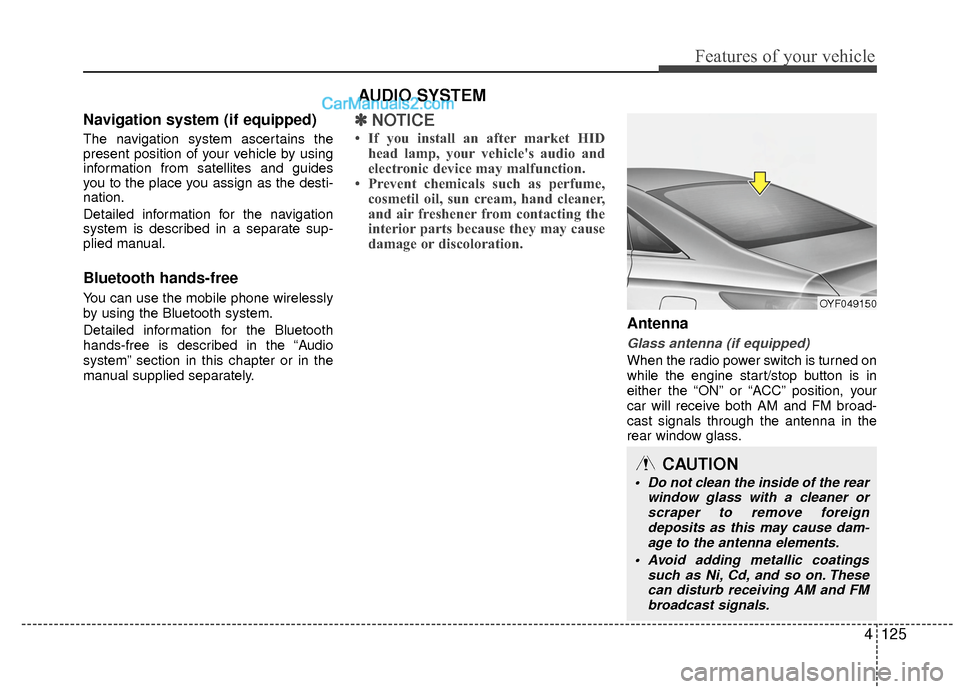
Antenna
Glass antenna (if equipped)
When the radio power switch is turned on
while the engine start/stop button is in
either the “ON” or “ACC” position, your
car will receive both AM and FM broad-
cast signals through the antenna in the
rear window glass.
AUDIO SYSTEM
OYF049150
CAUTION
• Do not clean the inside of the rear
window glass with a cleaner orscraper to remove foreign deposits as this may cause dam-age to the antenna elements.
Avoid adding metallic coatings such as Ni, Cd, and so on. Thesecan disturb receiving AM and FM broadcast signals.
Page 215 of 543
Features of your vehicle
134
4
✽
✽
NOTICE - USING THE
iPod®DEVICE
• Some iPod®models may not sup-
port communication protocol and
files may not properly play.
Supported iPod
®models:
- iPhone®3GS/4
- iPod®touch 1st~4th generation
- iPod®nano 1st~6th generation
- iPod®classic
• The order of search or playback of songs in the iPod
®can be different
from the order searched in the
audio system.
• If the iPod
®is disabled due to its
own malfunction, reset the iPod®.
(Reset: Refer to iPod®manual)
• An iPod®may not operate normal-
ly on low battery. (Continued)(Continued)
• Some iPod
®devices, such as the
iPhone®, can be connected through
the Bluetooth®Wireless Technology
interface. The device must have
audio Bluetooth
®Wireless
Technology capability (such as for
stereo headphone Bluetooth
®
Wireless Technology).
The device can play, but it will not
be controlled by the audio system.
• To use iPod
®features within the
audio, use the cable provided upon
purchasing an iPod
®device.
• Skipping or improper operation may occur depending on the char-
acteristics of your iPod
®/ iPhone®
device.
• If your iPhone®is connected to
both the Bluetooth®Wireless
Technology and USB, the sound
may not be properly played. In
your iPhone
®, select the Dock con-
nector or Bluetooth®Wireless
Technology to change the sound
output (source). (Continued)(Continued)
• When connecting iPod
®with the
iPod®Power Cable, insert the con-
nector to the multimedia socket
completely. If not inserted com-
pletely, communications between
iPod
®and audio may be interrupt-
ed.
• When adjusting the sound effects of the iPod
®and the audio system, the
sound effects of both devices will
overlap and might reduce or distort
the quality of the sound.
• Deactivate (turn off) the equalizer function of an iPod
®when adjust-
ing the audio system’s volume, and
turn off the equalizer of the audio
system when using the equalizer of
an iPod
®.
• When not using iPod®with car
audio, detach the iPod®cable from
iPod®. Otherwise, iPod®may
remain in accessory mode, and may
not work properly.
Page 216 of 543
4135
Features of your vehicle
✽
✽NOTICE - Bluetooth®
Wireless Technology
• The Bluetooth®word mark and logos
are registered trademarks owned by
Bluetooth SIG, lnc. and any use of
such marks is under license.
A Bluetooth
®enabled call phone is
required to use Bluetooth®wireless
technology.
• Bluetooth
®Wirelss Technology phone
compatibility can be checked by visit-
ing www
. hyundaiusa.comand under
the SERVICE & PARTS - BLUE-
TOOTH COMPATIBILITY menu.
✽ ✽ NOTICE - BEFORE USING
THE
Bluetooth®
HANDSFREE
What is Bluetooth®?
•Bluetooth®refers to a short-distance
wireless networking technology which
uses a 2.4GHz ~ 2.48GHz frequency to
connect various devices within a short
distance.
• Supported within PCs, external devices, Bluetooth
®phones, PDAs,
various electronic devices, and auto-
motive environments, Bluetooth
®
allows data to be transmitted at high
speeds without having to use a con-
nector cable.
• Bluetooth
®Handsfree refers to a
device which allows the user to conve-
niently make phone calls with
Bluetooth
®mobile phones through the
audio system.
• Bluetooth
®Handsfree may not be sup-
ported in some mobile phones. To learn
more about mobile device compatibility,
visit www
. hyundaiusa.com.
✽ ✽ NOTICE - PRECAUTIONS
FOR SAFE DRIVING
•Bluetooth®Handsfree is a feature that
enables drivers to practice safe driv-
ing. Connecting the head unit with a
Bluetooth
®phone allows the user to
conveniently make and receive calls
and use contacts. Before using
Bluetooth
®, carefully read the contents
of this user’s manual.
• Excessive use or operations while driving may lead to negligent driving
practices and result in accidents.
Refrain from excessive operations
while driving.
• Viewing the screen for prolonged peri- ods of time is dangerous and may lead
to accidents. When driving, view the
screen only for short periods of time.
Page 217 of 543

✽
✽NOTICE -WHEN CONNECT-
ING A
Bluetooth®PHONE
• Before connecting the head unit with
the mobile phone, check to see that the
mobile phone supports Bluetooth
®
features.
• Even if the phone supports Bluetooth
®, the phone will not be
found during device searches if the
phone has been set to hidden state or
the Bluetooth
®power is turned off.
Disable the hidden state or turn on the
Bluetooth
®power prior to
searching/connecting with the Head
unit.
• Bluetooth phone is automatically con- nected when the ignition on.
• If you do not want automatic connec- tion with your Bluetooth
®device, turn
off the Bluetooth®feature within your
mobile phone.
• The Handsfree call volume and quali- ty may differ depending on the mobile
phone. (Continued)(Continued)
• Park the vehicle when connecting the
head unit with the mobile phone.
• Bluetooth
®connection may become
intermittently disconnected in some
mobile phones. Follow these steps to
try again.
1. Within the mobile phone, turn the Bluetooth
®function off/on and try
again.
2. Turn the mobile phone power Off/On and try again.
3. Completely remove the mobile phone battery, reboot, and then
again.
4. Reboot the Audio System and try again.
5. Delete all paired devices, pair and try again.
• Handsfree call quality and volume may differ depending on the model of
your mobile phone.
Features of your vehicle
136
4
Page 218 of 543
4137
Features of your vehicle
✽
✽NOTICE - USING THE VOICE
RECOGNITION
• When using the voice recognition fea-
ture, only commands listed within the
user's manual are supported.
• Be aware that during the operation of the voice recognition system, pressing
any key other than the key termi-
nate voice recognition mode.
• For superior voice recognition per- formance, position the microphone
used for voice recognition above the
head of the driver’s seat and maintain
a proper position when saying com-
mands.
• Within the following situations, voice recognition may not function properly
due to external sound.
- When the windows and sunroof areopen
- When the wind of the cooling / heat- ing device is strong
- When entering and passing through tunnels (Continued)(Continued)
- When driving on rugged and unevenroads
- During severe rain (heavy rains, windstorms)
• Phone related voice commands can be used only when a Bluetooth
®Wireless
Technology device is connected.
• When making calls by stating a name, the corresponding contact must be
downloaded and stored within the
audio system.
• After downloading the Bluetooth
®
Wireless Technology phone book, it
takes some times to convert the phone
book data into voice information.
During this time, voice recognition
may not properly operate.
• Pronounce the voice commands natu- rally and clearly as if in a normal con-
versation.
Page 219 of 543
![Hyundai Sonata Hybrid 2015 Owners Manual Features of your vehicle
138
4
■ 4.3 inch Audio (Color LCD)
Press the key Select [Phone]
1. If you CAN find “Streaming Audio” menu, (Go to 139 page)
2. If you CANNOT find “Streaming Audio”](/img/35/19645/w960_19645-218.png "Hyundai Sonata Hybrid 2015 Owners Manual Features of your vehicle
138
4
■ 4.3 inch Audio (Color LCD)
Press the key Select [Phone]
1. If you CAN find “Streaming Audio” menu, (Go to 139 page)
2. If you CANNOT find “Streaming Audio”")
Features of your vehicle
138
4
■ 4.3 inch Audio (Color LCD)
Press the key Select [Phone]
1. If you CAN find “Streaming Audio” menu, (Go to 139 page)
2. If you CANNOT find “Streaming Audio” menu, (Go to 208 page)
SETUP
The Bluetooth and Voice Recognition Manual is provided in two versions due to software version differences.
Before reading the manual, check the following.
Page 221 of 543
Features of your vehicle
140
4
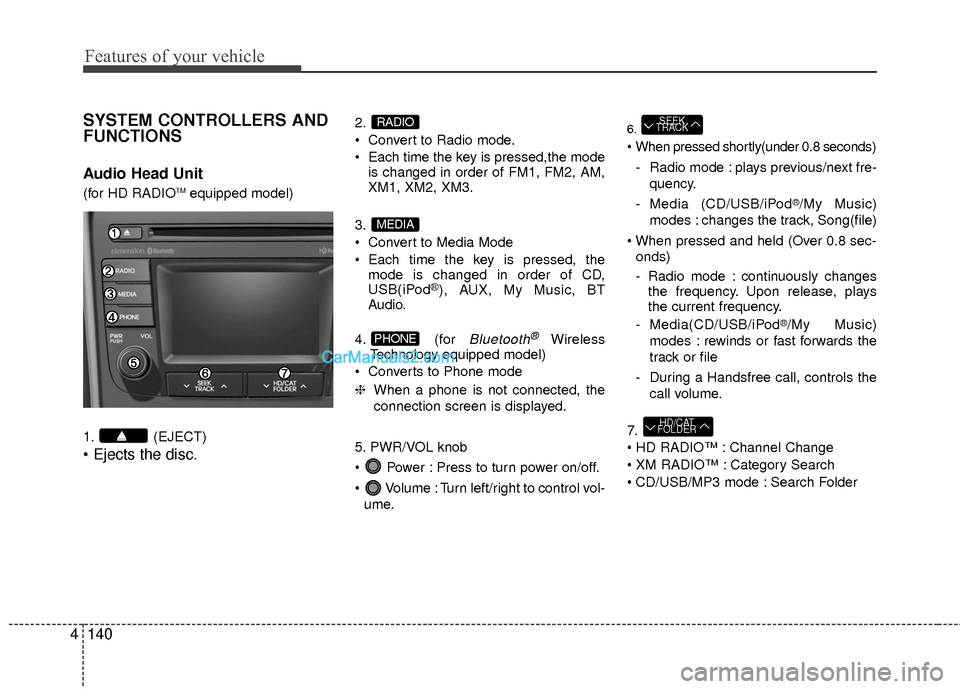
SYSTEM CONTROLLERS AND
FUNCTIONS
Audio Head Unit
(for HD RADIOTMequipped model)
1. (EJECT)
2.
Convert to Radio mode.
Each time the key is pressed,the mode is changed in order of FM1, FM2, AM,
XM1, XM2, XM3.
3.
Convert to Media Mode
Each time the key is pressed, the mode is changed in order of CD,
USB(iPod
®), AUX, My Music, BT
Audio.
4. (for
Bluetooth®Wireless
Technology equipped model)
Converts to Phone mode
❈ When a phone is not connected, the
connection screen is displayed.
5. PWR/VOL knob
Power : Press to turn power on/off.
Volume : Turn left/right to control vol- ume.
6.
- Radio mode : plays previous/next fre- quency.
- Media (CD/USB/iPod
®/My Music)
modes : changes the track, Song(file)
onds)
- Radio mode : continuously changes the frequency. Upon release, plays
the current frequency.
- Media(CD/USB/iPod
®/My Music)
modes : rewinds or fast forwards the
track or file
- During a Handsfree call, controls the call volume.
7.
Channel Change
Category Search
CD/USB/MP3 mode : Search Folder
HD/CAT
FOLDER
SEEK
TRACK
PHONE
MEDIA
RADIO
Page 224 of 543
4143
Features of your vehicle
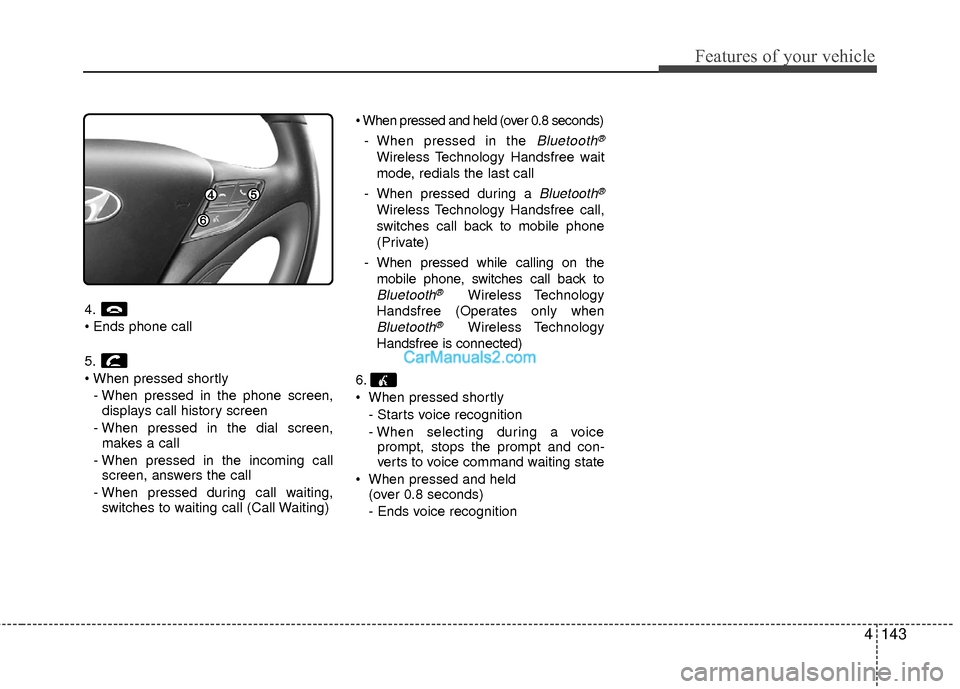
4.
5.
- When pressed in the phone screen,displays call history screen
- When pressed in the dial screen, makes a call
- When pressed in the incoming call screen, answers the call
- When pressed during call waiting, switches to waiting call (Call Waiting)
- When pressed in the
Bluetooth®
Wireless Technology Handsfree wait
mode, redials the last call
- When pressed during a
Bluetooth®
Wireless Technology Handsfree call,
switches call back to mobile phone
(Private)
- When pressed while calling on the mobile phone, switches call back to
Bluetooth®Wireless Technology
Handsfree (Operates only when
Bluetooth®Wireless Technology
Handsfree is connected)
6.
When pressed shortly - Starts voice recognition
- When selecting during a voiceprompt, stops the prompt and con-
verts to voice command waiting state
When pressed and held (over 0.8 seconds)
- Ends voice recognition
Page 234 of 543
![Hyundai Sonata Hybrid 2015 Owners Manual 4153
Features of your vehicle
MEDIA MODE
Pressing the key will change the
operating mode in order of CD ➟USB(iPod®) ➟ AUX ➟ My Music ➟BT
Audio.
If [Mode Pop up] is turned on within
[Display]](/img/35/19645/w960_19645-233.png "Hyundai Sonata Hybrid 2015 Owners Manual 4153
Features of your vehicle
MEDIA MODE
Pressing the key will change the
operating mode in order of CD ➟USB(iPod®) ➟ AUX ➟ My Music ➟BT
Audio.
If [Mode Pop up] is turned on within
[Display]")
4153
Features of your vehicle
MEDIA MODE
Pressing the key will change the
operating mode in order of CD ➟USB(iPod®) ➟ AUX ➟ My Music ➟BT
Audio.
If [Mode Pop up] is turned on within
[Display], then pressing the
key will display the Media Pop-
up Mode screen.
Turn the TUNE knob to move the
focus. Press the knob to select.
✽ ✽ NOTICE
The media mode pop up screen can be
displayed only when there are two or
more media modes turned on.
Title Icon
When a Bluetooth®Wireless
Technology, iPod®, USB, or AUX device
is connected or a CD is inserted, the cor-
responding mode icon will be displayed.
Icon Title
Bluetooth®Wireless Technology
CD
iPod®
USB
AUX
MEDIA
SETUP
MEDIA
Page 247 of 543
Features of your vehicle
166
4
✽
✽
NOTICE - USING THE
iPod®DEVICE
• iPod®is a registered trademark of
Apple Inc.
• In order to use the iPod
®while
operating the keys, you must use a
dedicated iPod
®cable. (the cable
that is supplied when purchasing
iPod
®/iPhone®products)
• If the iPod®is connected to the
vehicle while it is playing, a high
pitch sound could occur for approx-
imately 1-2 seconds immediately
after connecting. If possible, con-
nect the iPod to the vehicle with the
iPod
®stopped/paused.
• During ACC ON state, connecting the iPod
®through the iPod®cable
will charge the iPod®through the
car audio system.
• When connecting with the iPod
®
cable, make sure to fully insert the
jack to prevent communication
interference. (Continued)(Continued)
• When the EQ features of an exter-
nal device, such as the iPod
®, and
the audio system are both active,
EQ effects could overlap and cause
sound deterioration and distortion.
Whenever possible, turn off the EQ
feature within the external device
upon use by connecting with the
audio system.
• Noise may occur when an iPod
®or
AUX device is connected. When
such devices are not being used, dis-
connect the device for storage.
• When the iPod
®or AUX device
power is connected to the power
jack, playing the external device
may result in noise. In such cases,
disconnect the power connection
before use.
• Skipping or improper operation may occur depending on the char-
acteristics of your iPod
® /Phone®
device. (Continued)(Continued)
• If your iPhone
®is connected to
both the Bluetooth®Wireless
Technology and USB, the sound
may not be properly played. In
your iPhone
®, select the Dock con-
nector or Bluetooth®Wireless
Technology to change the sound
output (source).
• iPod mode cannot be operated when the iPod
®cannot be recog-
nized due to versions that do not
support communication protocols.
• For fifth generation iPod
®Nano
devices, the iPod®may not be rec-
ognized when the battery level is
low. Please charge the iPod
®for
use.
• Search/play orders shown within the iPod
®device may differ with the
orders shown within the audio sys-
tem.
• If the iPod
®malfunctions due to an
iPod®device defect, reset the iPod®
and try again. (To learn more, refer
to your iPod®manual)
(Continued)