buttons HYUNDAI SONATA HYBRID 2019 Owners Manual
[x] Cancel search | Manufacturer: HYUNDAI, Model Year: 2019, Model line: SONATA HYBRID, Model: HYUNDAI SONATA HYBRID 2019Pages: 546, PDF Size: 78.75 MB
Page 150 of 546
3-14
Convenient features of your vehicle
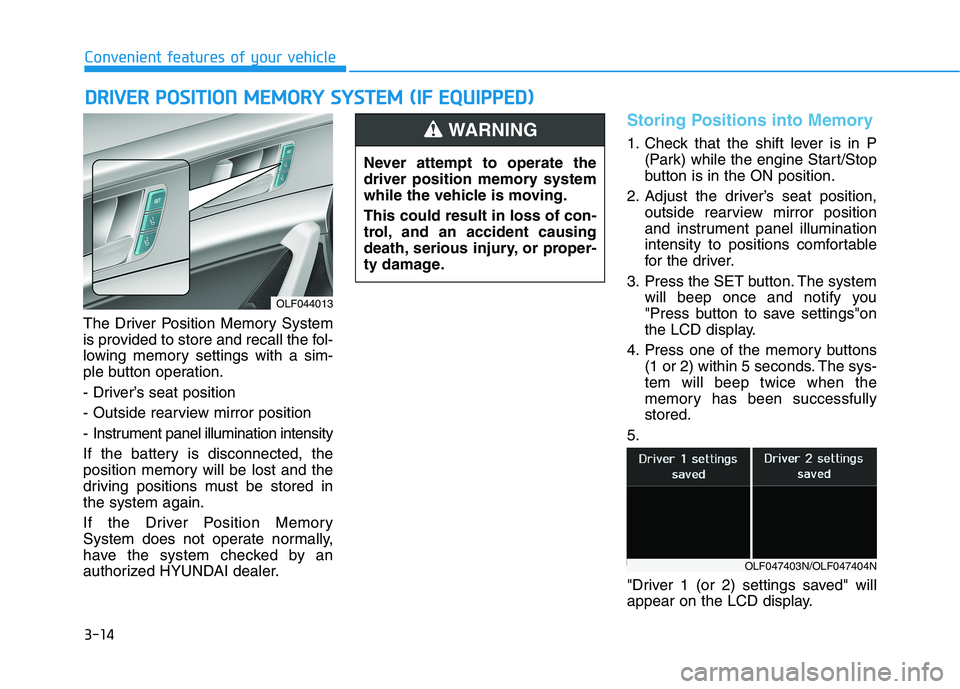
The Driver Position Memory System
is provided to store and recall the fol-
lowing memory settings with a sim-
ple button operation.
- Driver’s seat position
- Outside rearview mirror position
- Instrument panel illumination intensity
If the battery is disconnected, the
position memory will be lost and the
driving positions must be stored inthe system again.
If the Driver Position Memory
System does not operate normally,
have the system checked by an
authorized HYUNDAI dealer.
Storing Positions into Memory
1. Check that the shift lever is in P(Park) while the engine Start/Stop
button is in the ON position.
2. Adjust the driver’s seat position, outside rearview mirror position
and instrument panel illumination
intensity to positions comfortable
for the driver.
3. Press the SET button. The system will beep once and notify you
"Press button to save settings"on
the LCD display.
4. Press one of the memory buttons (1 or 2) within 5 seconds. The sys-tem will beep twice when the
memory has been successfullystored.
5.
"Driver 1 (or 2) settings saved" will
appear on the LCD display.
DD RRIIVV EERR PP OO SSIITT IIOO NN MM EEMM OORRYY SS YY SSTT EEMM (( IIFF EE QQ UUIIPP PPEEDD ))
OLF044013 Never attempt to operate the
driver position memory system
while the vehicle is moving. This could result in loss of con-
trol, and an accident causing
death, serious injury, or proper-
ty damage.
WARNING
OLF047403N/OLF047404N
Page 151 of 546
3-15
Convenient features of your vehicle
3
Recalling positions from memory
1. Check that the shift lever is in P(Park) while the engine Start/Stop
button is in the ON position.
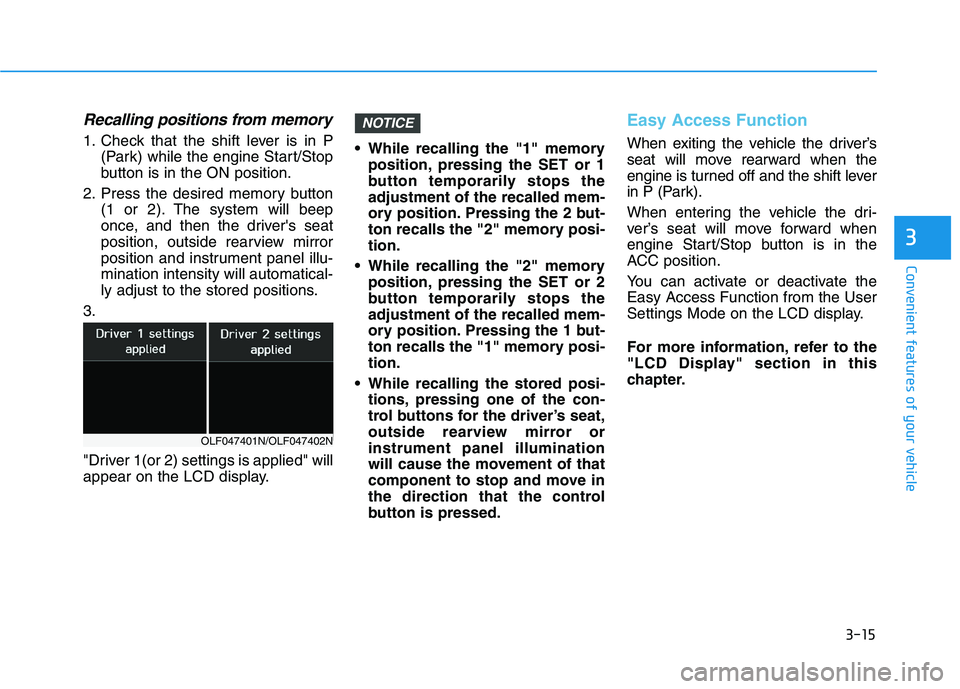
2. Press the desired memory button (1 or 2). The system will beep
once, and then the driver's seat
position, outside rearview mirror
position and instrument panel illu-mination intensity will automatical-
ly adjust to the stored positions.
3.
"Driver 1(or 2) settings is applied" will
appear on the LCD display. While recalling the "1" memory
position, pressing the SET or 1
button temporarily stops theadjustment of the recalled mem-
ory position. Pressing the 2 but-
ton recalls the "2" memory posi-tion.
While recalling the "2" memory position, pressing the SET or 2
button temporarily stops theadjustment of the recalled mem-
ory position. Pressing the 1 but-
ton recalls the "1" memory posi-tion.
While recalling the stored posi- tions, pressing one of the con-
trol buttons for the driver’s seat,
outside rearview mirror orinstrument panel illumination
will cause the movement of that
component to stop and move in
the direction that the control
button is pressed.
Easy Access Function
When exiting the vehicle the driver’s
seat will move rearward when the
engine is turned off and the shift lever
in P (Park).
When entering the vehicle the dri-
ver’s seat will move forward when
engine Start/Stop button is in the
ACC position.
You can activate or deactivate the Easy Access Function from the User
Settings Mode on the LCD display.
For more information, refer to the
"LCD Display" section in this
chapter.
NOTICE
OLF047401N/OLF047402N
Page 159 of 546
3-23
Convenient features of your vehicle
3
To adjust the Zone setting:
1. Determine the desired ZoneNumber based upon your current
location on the Zone Map.
2. Press and hold the button for more than 3 but less than 6 sec-
onds, the current Zone Number
will appear on the display.
3. Pressing and holding the button again will cause the numbers to
increment (Note: they will repeat
…13, 14, 15, 1, 2, …). Releasing
the button when the desired Zone
Number appears on the display
will set the new Zone.
4. Within about 5 seconds the com- pass will start displaying a com-pass heading again.
There are some conditions that can
cause changes to the vehicle mag-
nets, such as installing a ski rack or
a CB antenna. Body repair work on
the vehicle can also cause changes
to the vehicle’s magnetic field. In
these situations, the compass will
need to be re-calibrated to quickly
correct these changes. If you need to recalibrate the com-pass:
1. Press and hold the button for
more than 6 seconds. When the
compass memory is cleared a "C"
will appear in the display.
2. Drive the vehicle in 2 complete cir- cles at less than 8 km/h (5 mph).Integrated HomeLink ®
Wireless
Control System
The HomeLink ®
Wireless Control
System can replace up to three hand-
held radio-frequency (RF) transmit-
ters with a single built-in device. This
innovative feature will learn the radiofrequency codes of most current
transmitters to operate devices such
as gate operators, garage door open-
ers, entry door locks, security sys-
tems, even home lighting. Both stan-
dard and rolling code-equipped trans-
mitters can be programmed by fol-
lowing the outlined procedures. Additional HomeLink ®
information
can be found at: www.homelink.com
or by calling 1-800-355-3515.
Retain the original transmitter of the
RF device you are programming for
use in other vehicles as well as forfuture HomeLink ®
programming. It is
also suggested that upon the sale of
the vehicle, the programmedHomeLink ®
buttons be erased for
security purposes.
Page 161 of 546
3-25
Convenient features of your vehicle
3
To train rolling code devices, follow
these instructions:
1. At the garage door opener receiv-er (motor-head unit) in the garage,
locate the "learn" or "smart" but-
ton. This can usually be foundwhere the hanging antenna wire isattached to the motor-head unit.
Exact location and color of the but-
ton may vary by garage door
opener brand. If there is difficulty
locating the training button, refer-
ence the device owner’s manual or
please visit our Web site at
www.homelink.com.
2. Firmly press and release the "learn" or "smart" button (which
activates the "training light"). You
will have 30 seconds to initiatestep 3. 3. Return to the vehicle and firmly
press, hold for two seconds andthen release the desiredHomeLink ®
button. Repeat the
"press/hold/release" sequence asecond time to complete the pro-
gramming. (Some devices may
require you to repeat thissequence a third time to complete
the programming.)
4. Press and hold the just-trained HomeLink ®
button and observe
the red Status Indicator LED. If the
indicator light stays on constantly,
programming is complete and
your device should activate.
5. To program the remaining two HomeLink ®
buttons, follow either
steps 1 through 4 above for other
Rolling Code devices or steps 2
through 5 in Standard Programming
for standard devices.Standard programming
To train most devices, follow these
instructions:
1. For first-time programming, press and hold the two outside buttons, HomeLink ®
Channel 1 and
Channel 3 Buttons, until the indi-cator light begins to flash (after 20
seconds). Release both buttons.
Do not hold the buttons for longer
than 30 seconds.
2. Position the end of your hand-held transmitter 2-8 cm (1-3 inches)
away from the HomeLink ®
buttons
while keeping the indicator light in
view.
3. Simultaneously press and hold both the HomeLink ®
and hand-
held transmitter button. DO NOT
release the buttons until step 4has been completed.
4. While continuing to hold the but- tons the red Indicator Status LED
will flash slowly and then rapidlyafter HomeLink ®
successfully
trains to the frequency signal from
the hand-held transmitter. Release
both buttons.
Page 162 of 546
3-26
Convenient features of your vehicle
5. Press and hold the just-trainedHomeLink ®
button and observe
the red Status Indicator LED. If the
indicator light stays on constantly,
programming is complete and
your device should activate whenthe HomeLink ®
button is pressed
and released.
6. To program the remaining two HomeLink ®
buttons, follow steps 2
through 5.Gate operator & Canadian program-
ming
During programming, your handheld
transmitter may automatically stop
transmitting. Continue to press the
Integrated HomeLink ®
Wireless
Control System button (note steps 2 through 4 in the Standard
Programming portion of this docu-
ment) while you press and re-press
("cycle") your handheld transmitter
every two seconds until the frequen-
cy signal has been learned. The indi-
cator light will flash slowly and then
rapidly after several seconds upon
successful training.
Operating HomeLink®
To operate, simply press and release
the programmed HomeLink ®
button.
Activation will now occur for the
trained device (i.e. garage door
opener, gate operator, security sys-
tem, entry door lock, home/office
lighting, etc.). For convenience, the
hand-held transmitter of the device
may also be used at any time.
Reprogramming a single
HomeLink®button
To program a new device to a previ-
ously trained HomeLink ®
button, fol-
low these steps:
1. Press and hold the desired HomeLink ®
button. Do NOT
release until step 4 has been com- pleted.
2. When the indicator light begins to flash slowly (after 20 seconds),
position the handheld transmitter
2-8 cm (1 to 3 inches) away fromthe HomeLink ®
surface.
3. Press and hold the handheld transmitter button. The HomeLink ®
indicator light will flash, first slowly
and then rapidly.
4. When the indicator light begins to flash rapidly, release both buttons.
5. Press and hold the just-trained HomeLink ®
button and observe
the red Status Indicator LED. If the
indicator light stays on constantly,
programming is complete and
your new device should activate.
Page 163 of 546
3-27
Convenient features of your vehicle
3
Erasing HomeLink®buttons
Individual buttons cannot be erased.
However, to erase all three pro-
grammed buttons:
1. Press and hold the two outerHomeLink ®
buttons until the indi-
cator light begins to flash-after 20
seconds.
2. Release both buttons. Do not hold for longer than 30 seconds.
The Integrated HomeLink ®
Wireless
Control System is now in the training
(learn) mode and can be pro-
grammed at any time following the
appropriate steps in the
Programming chapters above. NVS ®
is a registered trademark and
Z-Nav™ is a trademark of the Gentex
Corporation, Zeeland, Michigan.HomeLink ®
is a registered trademark
owned by Johnson Controls,
Incorporated, Milwaukee, Wisconsin.
FCC ID: NZLZTVHL3
IC: 4112A-ZTVHL3 Information
This device complies with Industry
Canada RSS-210 standard(s).
Operation is subject to the following
three conditions:
1. This device may not cause interfer- ence.
2. This device must accept any inter- ference, including interference that
may cause undesired operation of
the device.
3. The transceiver has been tested and complies with FCC and Industry
Canada rules. Changes or modifica-
tions not expressly approved by the
party responsible for compliance
could void the user's authority to
operate the device.
Side View Mirrors
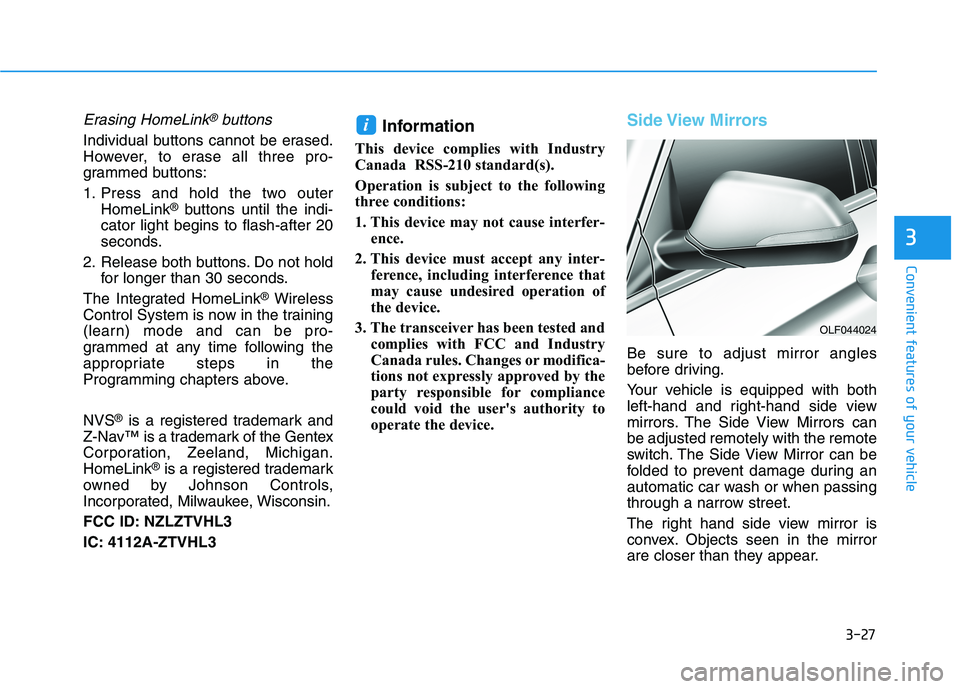
Be sure to adjust mirror angles
before driving.
Your vehicle is equipped with both
left-hand and right-hand side view
mirrors. The Side View Mirrors canbe adjusted remotely with the remote
switch. The Side View Mirror can be
folded to prevent damage during an
automatic car wash or when passing
through a narrow street.
The right hand side view mirror is
convex. Objects seen in the mirror
are closer than they appear.
i
OLF044024
Page 192 of 546
3-56
Convenient features of your vehicle
Instrument cluster control
Adjusting Instrument PanelIllumination
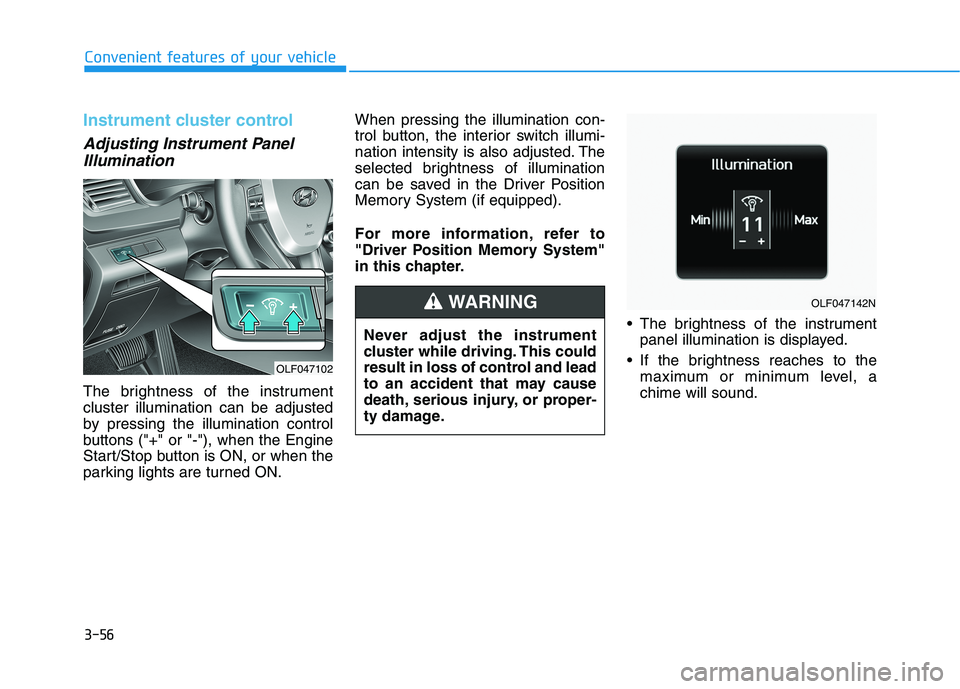
The brightness of the instrument cluster illumination can be adjusted
by pressing the illumination control
buttons ("+" or "-"), when the Engine
Start/Stop button is ON, or when the
parking lights are turned ON. When pressing the illumination con-
trol button, the interior switch illumi-
nation intensity is also adjusted. The
selected brightness of illumination
can be saved in the Driver Position
Memory System (if equipped).
For more information, refer to
"Driver Position Memory System"
in this chapter.
The brightness of the instrumentpanel illumination is displayed.
If the brightness reaches to the maximum or minimum level, achime will sound.
Never adjust the instrument
cluster while driving. This could
result in loss of control and lead
to an accident that may cause
death, serious injury, or proper-
ty damage.
WARNING
OLF047102
OLF047142N
Page 257 of 546
3-121
Convenient features of your vehicle
3
Information
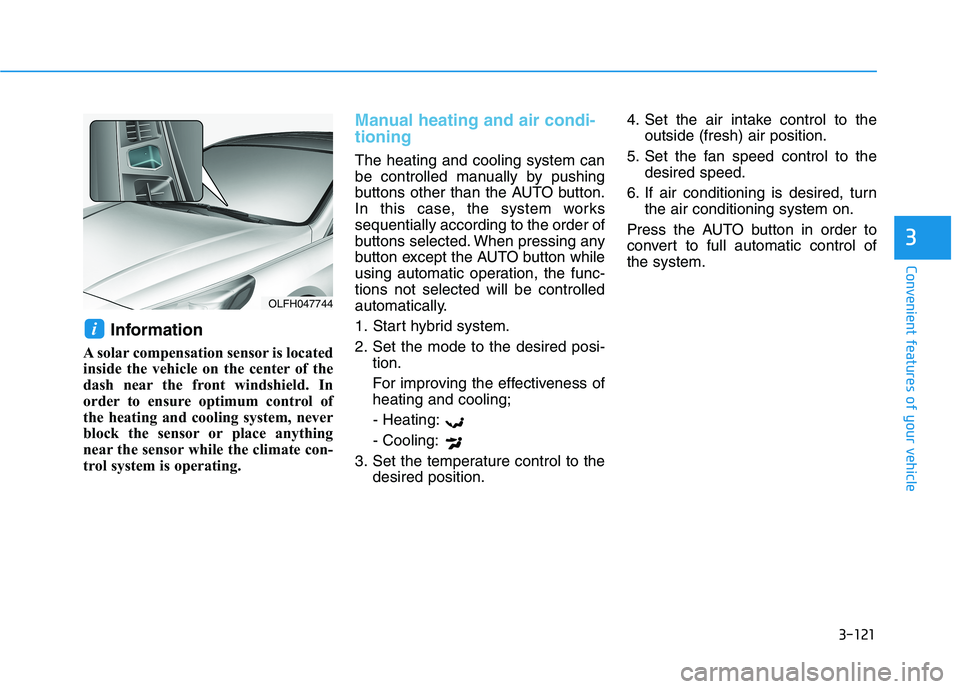
A solar compensation sensor is located
inside the vehicle on the center of the
dash near the front windshield. In
order to ensure optimum control of
the heating and cooling system, never
block the sensor or place anything
near the sensor while the climate con-
trol system is operating.
Manual heating and air condi- tioning
The heating and cooling system can
be controlled manually by pushing
buttons other than the AUTO button.
In this case, the system workssequentially according to the order of
buttons selected. When pressing any
button except the AUTO button while
using automatic operation, the func-tions not selected will be controlled
automatically.
1. Start hybrid system.
2. Set the mode to the desired posi- tion.
For improving the effectiveness of heating and cooling;
- Heating: - Cooling:
3. Set the temperature control to the desired position. 4. Set the air intake control to the
outside (fresh) air position.
5. Set the fan speed control to the desired speed.
6. If air conditioning is desired, turn the air conditioning system on.
Press the AUTO button in order to
convert to full automatic control ofthe system.
i
OLFH047744
Page 264 of 546
3-128
Convenient features of your vehicle
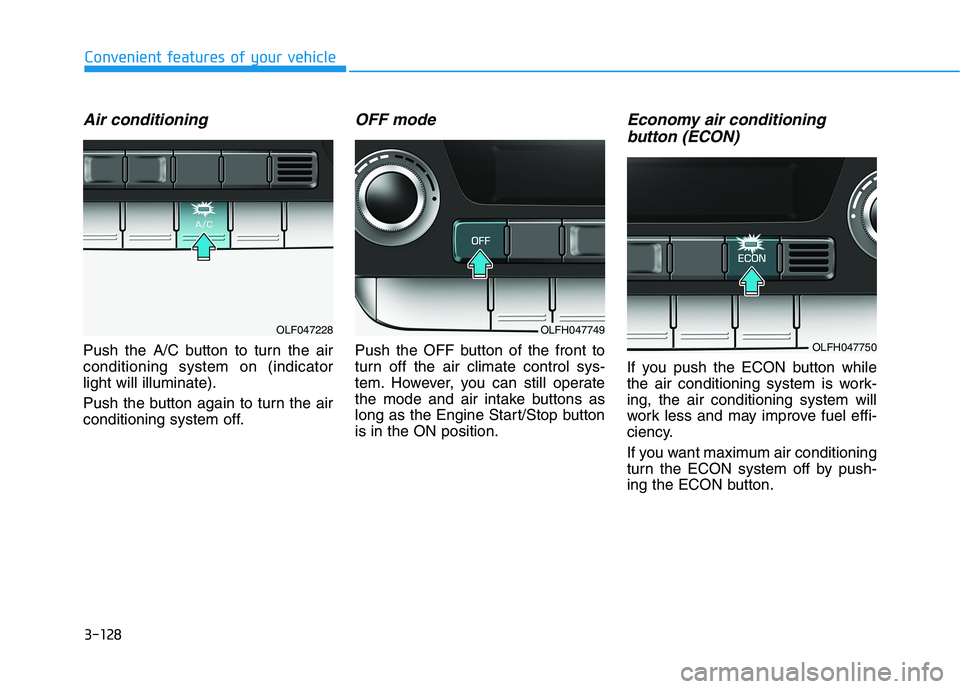
Air conditioning
Push the A/C button to turn the air conditioning system on (indicatorlight will illuminate).
Push the button again to turn the air
conditioning system off.
OFF mode
Push the OFF button of the front to
turn off the air climate control sys-
tem. However, you can still operate
the mode and air intake buttons as
long as the Engine Start/Stop buttonis in the ON position.
Economy air conditioning button (ECON)
If you push the ECON button while
the air conditioning system is work-ing, the air conditioning system will
work less and may improve fuel effi-
ciency.
If you want maximum air conditioning
turn the ECON system off by push-
ing the ECON button.
OLFH047749
OLFH047750
OLF047228
Page 286 of 546
4-3
Multimedia System
Do not clean the inside of therear window glass with a cleaner
or scraper to remove foreign
deposits as this may cause dam-
age to the antenna elements.
Avoid adding metallic coatings such as Ni, Cd, and so on. Thesecan degrade the receiving AM
and FM broadcast signals.
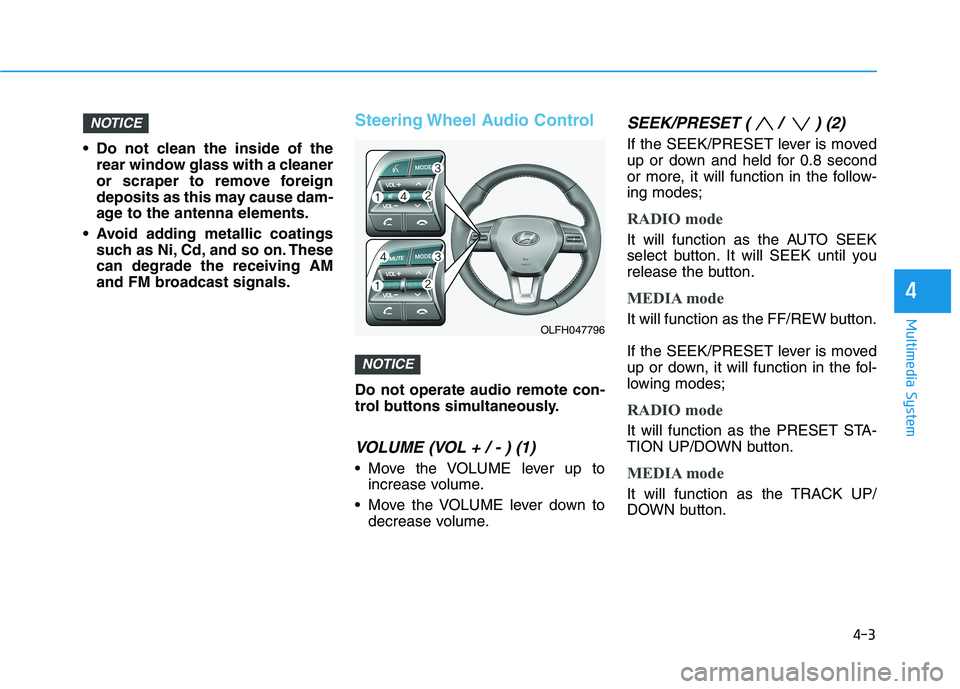
Steering Wheel Audio Control
Do not operate audio remote con-
trol buttons simultaneously.
VOLUME (VOL + / - ) (1)
Move the VOLUME lever up toincrease volume.
Move the VOLUME lever down to decrease volume.
SEEK/PRESET ( / ) (2)
If the SEEK/PRESET lever is moved
up or down and held for 0.8 second
or more, it will function in the follow-ing modes;
RADIO mode
It will function as the AUTO SEEK
select button. It will SEEK until you
release the button.
MEDIA mode
It will function as the FF/REW button.
If the SEEK/PRESET lever is moved
up or down, it will function in the fol-
lowing modes;
RADIO mode
It will function as the PRESET STA-
TION UP/DOWN button.
MEDIA mode
It will function as the TRACK UP/
DOWN button.
NOTICE
NOTICE
4
OLFH047796