warning HYUNDAI SONATA HYBRID 2020 Owners Manual
[x] Cancel search | Manufacturer: HYUNDAI, Model Year: 2020, Model line: SONATA HYBRID, Model: HYUNDAI SONATA HYBRID 2020Pages: 527, PDF Size: 64.14 MB
Page 154 of 527
Convenient Features
5-6
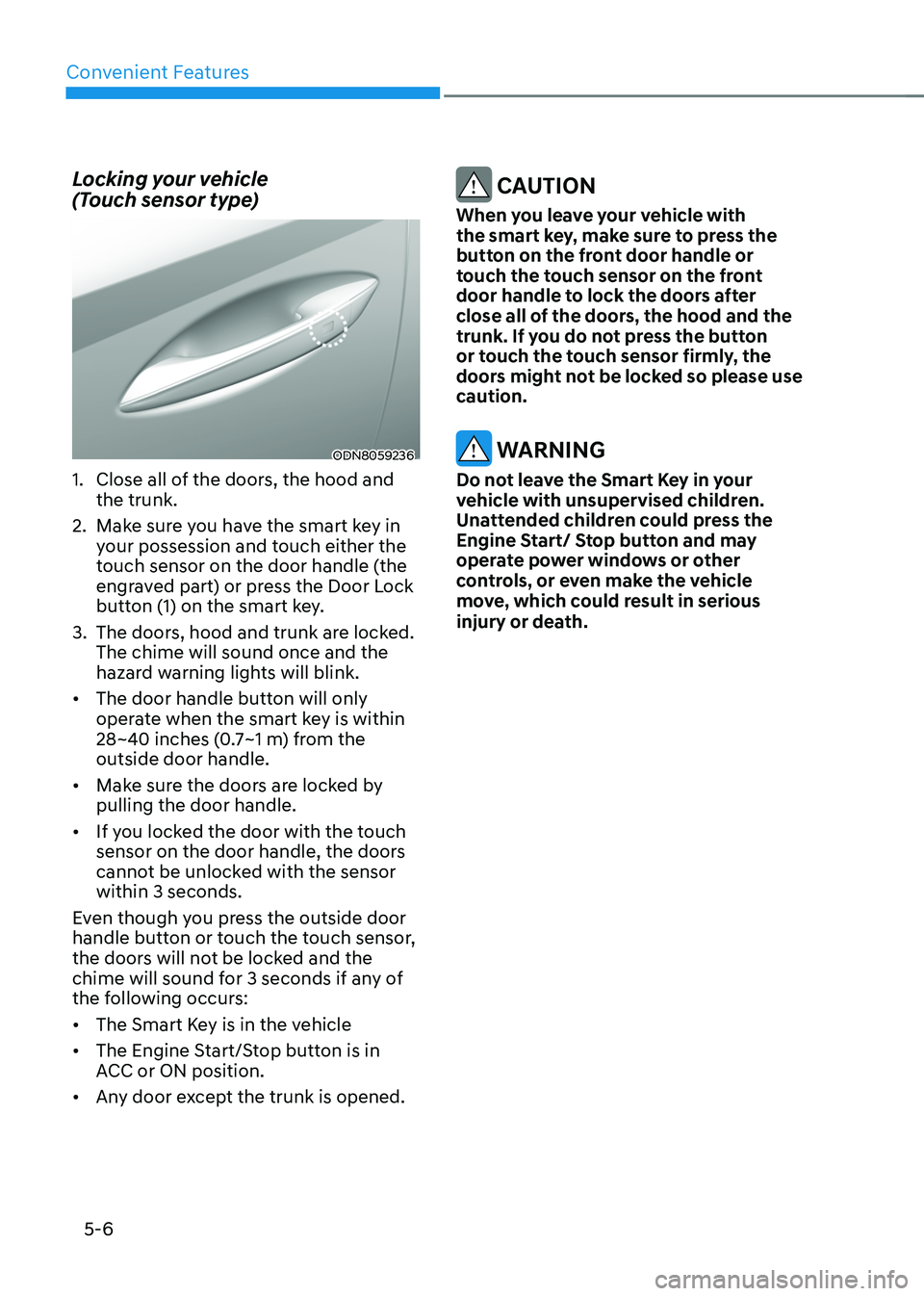
Locking your vehicle
(Touch sensor type)
ODN8059236
1. Close all of the doors, the hood and
the trunk.
2. Make sure you have the smart key in
your possession and touch either the
touch sensor on the door handle (the
engraved part) or press the Door Lock
button (1) on the smart key.
3. The doors, hood and trunk are locked.
The chime will sound once and the
hazard warning lights will blink.
• The door handle button will only
operate when the smart key is within
28~40 inches (0.7~1 m) from the
outside door handle.
• Make sure the doors are locked by
pulling the door handle.
• If you locked the door with the touch
sensor on the door handle, the doors
cannot be unlocked with the sensor
within 3 seconds.
Even though you press the outside door
handle button or touch the touch sensor,
the doors will not be locked and the
chime will sound for 3 seconds if any of
the following occurs:
• The Smart Key is in the vehicle
• The Engine Start/Stop button is in
ACC or ON position.
• Any door except the trunk is opened.
CAUTION
When you leave your vehicle with
the smart key, make sure to press the
button on the front door handle or
touch the touch sensor on the front
door handle to lock the doors after
close all of the doors, the hood and the
trunk. If you do not press the button
or touch the touch sensor firmly, the
doors might not be locked so please use
caution.
WARNING
Do not leave the Smart Key in your
vehicle with unsupervised children.
Unattended children could press the
Engine Start/ Stop button and may
operate power windows or other
controls, or even make the vehicle
move, which could result in serious
injury or death.
Page 155 of 527
05
5 -7
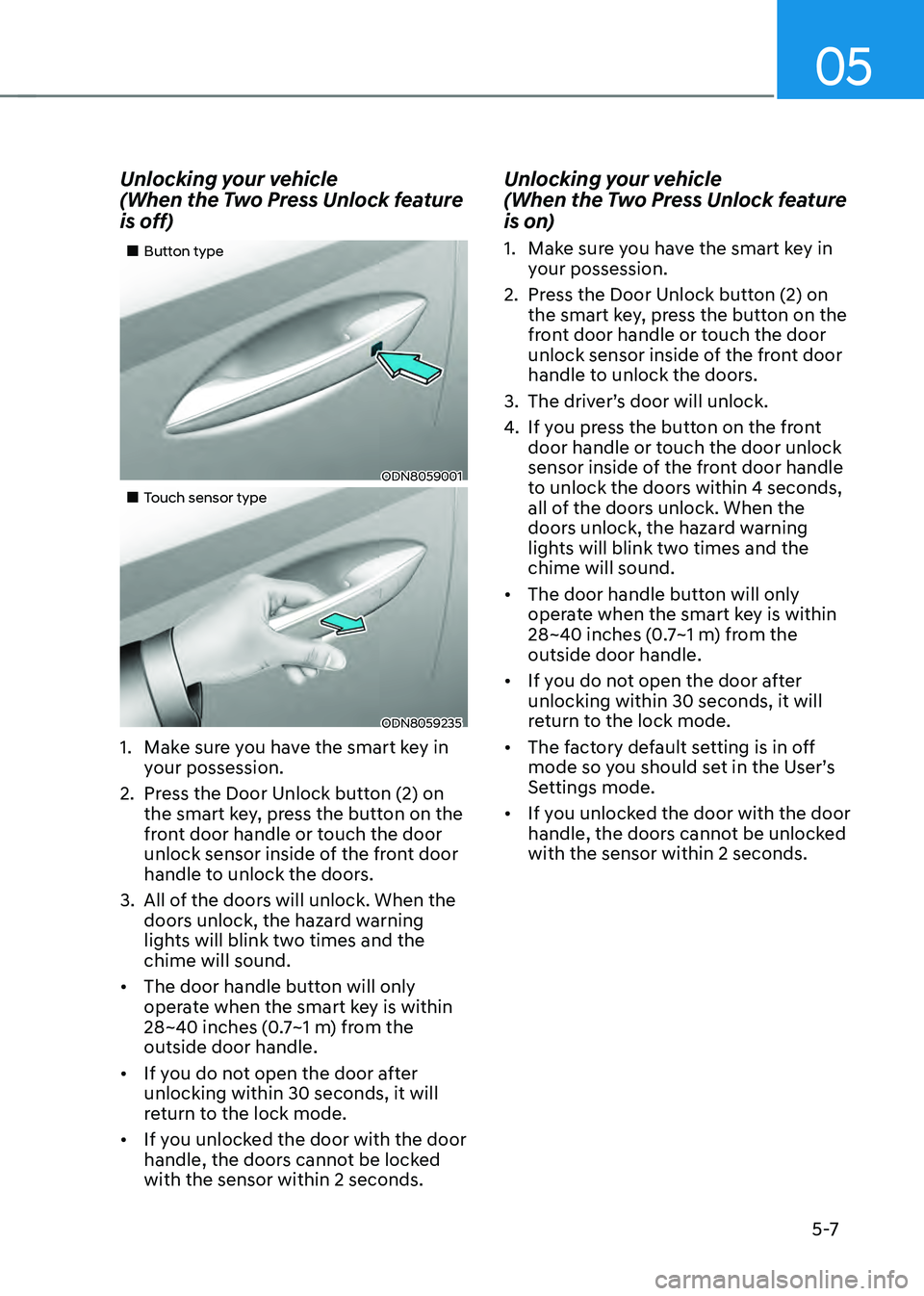
Unlocking your vehicle
(When the Two Press Unlock feature
is off)
„„Button type
ODN8059001
„„Touch sensor type
ODN8059235
1. Make sure you have the smart key in
your possession.
2. Press the Door Unlock button (2) on
the smart key, press the button on the
front door handle or touch the door
unlock sensor inside of the front door
handle to unlock the doors.
3. All of the doors will unlock. When the
doors unlock, the hazard warning
lights will blink two times and the
chime will sound.
• The door handle button will only
operate when the smart key is within
28~40 inches (0.7~1 m) from the
outside door handle.
• If you do not open the door after
unlocking within 30 seconds, it will
return to the lock mode.
• If you unlocked the door with the door
handle, the doors cannot be locked
with the sensor within 2 seconds.
Unlocking your vehicle
(When the Two Press Unlock feature
is on)
1. Make sure you have the smart key in
your possession.
2. Press the Door Unlock button (2) on
the smart key, press the button on the
front door handle or touch the door
unlock sensor inside of the front door
handle to unlock the doors.
3. The driver’s door will unlock.
4. If you press the button on the front
door handle or touch the door unlock
sensor inside of the front door handle
to unlock the doors within 4 seconds,
all of the doors unlock. When the
doors unlock, the hazard warning
lights will blink two times and the
chime will sound.
• The door handle button will only
operate when the smart key is within
28~40 inches (0.7~1 m) from the
outside door handle.
• If you do not open the door after
unlocking within 30 seconds, it will
return to the lock mode.
• The factory default setting is in off
mode so you should set in the User’s
Settings mode.
• If you unlocked the door with the door
handle, the doors cannot be unlocked
with the sensor within 2 seconds.
Page 156 of 527
Convenient Features
5-8
Two Press Unlock Feature
The priority for unlocking the driver door
only, or unlocking all the doors with
one press may be adjusted in the User
Settings mode in the cluster LCD display.
The Two Press Unlock feature, when
enabled, will require the user to press
the door unlock button once for driver
door only and twice for unlocking all the
doors.
Select or Deselect the Two Press Unlock
feature in the User Settings mode in the
cluster LCD display. The option can be
found under the following menu:
User Settings → Door → Two Press Unlock
The Two Press Unlock feature can also be
enabled or disabled by pressing the door
lock and unlock buttons simultaneously
on the Key FOB:
Press and hold both the Door Lock
button and the Door Unlock button
simultaneously until the hazard warning
lights blink.
This will enable or disable the Two Press
Unlock feature. Repeat this procedure to
enable/disable the mode again.
Information
If you press the front passenger outside
door handle with the smart key in your
possession, all the doors will unlock.
Smart Key Reminder
If the smart key is in the vehicle and
any door is opened, the doors will not
lock even though the lock button of the
central door lock switch is pressed.
Trunk opening
To open:
1. Make sure you have the smart key
in your possession and either press
inside the trunk emblem or press the
Trunk Unlock button (3) on the smart
key for more than one second.
2. Once the trunk is opened, the hazard
warning lights will blink two times.
• The trunk handle button will only
operate when the smart key is within
28~40 inches (0.7 ~1 m) from the trunk
handle.
• Once the trunk is opened and then
closed, the trunk will automatically
re-lock and the hazard warning will
blink once.
• If you leave the smart key and close
the trunk, the chime will sound for 5
seconds. In the case, the trunk cannot
be locked so open it with the trunk
handle button.
Panic button
Press and hold the Panic button (4) for
more than one second. The horn sounds
and hazard warning lights blink for about
30 seconds. To cancel the panic mode,
press any button on the Smart Key.
Page 157 of 527
05
5-9
Start-up
You can start the vehicle without
inserting the key.
For information, refer to the “Engine
Start/Stop Button” section in chapter 6.
NOTICE
To prevent damaging the smart key:
• Keep the smart key in a cool,
dry place to avoid damage or
malfunction. Exposure to moisture
or high temperature may cause
the internal circuit of the smart key
to malfunction which may not be
covered under warranty.
• Avoid dropping or throwing the
smart key.
• Protect the smart key from extreme
temperatures.
Remote start
You can start the vehicle using the
Remote Start button (5) of the smart key.
To start the vehicle remotely:
• Lock the doors by pressing the door
lock button within 32 feet (10 m)
distance from the vehicle.
• Press the remote start button for over
2 seconds within 4 seconds after
locking the doors and the hazard
warning will blink.
To turn off the remote start function,
press the remote start button once.
In case of the manual operation,
the climate control system will be
maintained even when the engine is
turned OFF. However, the automatic
operation is set to 72°F (22°C).
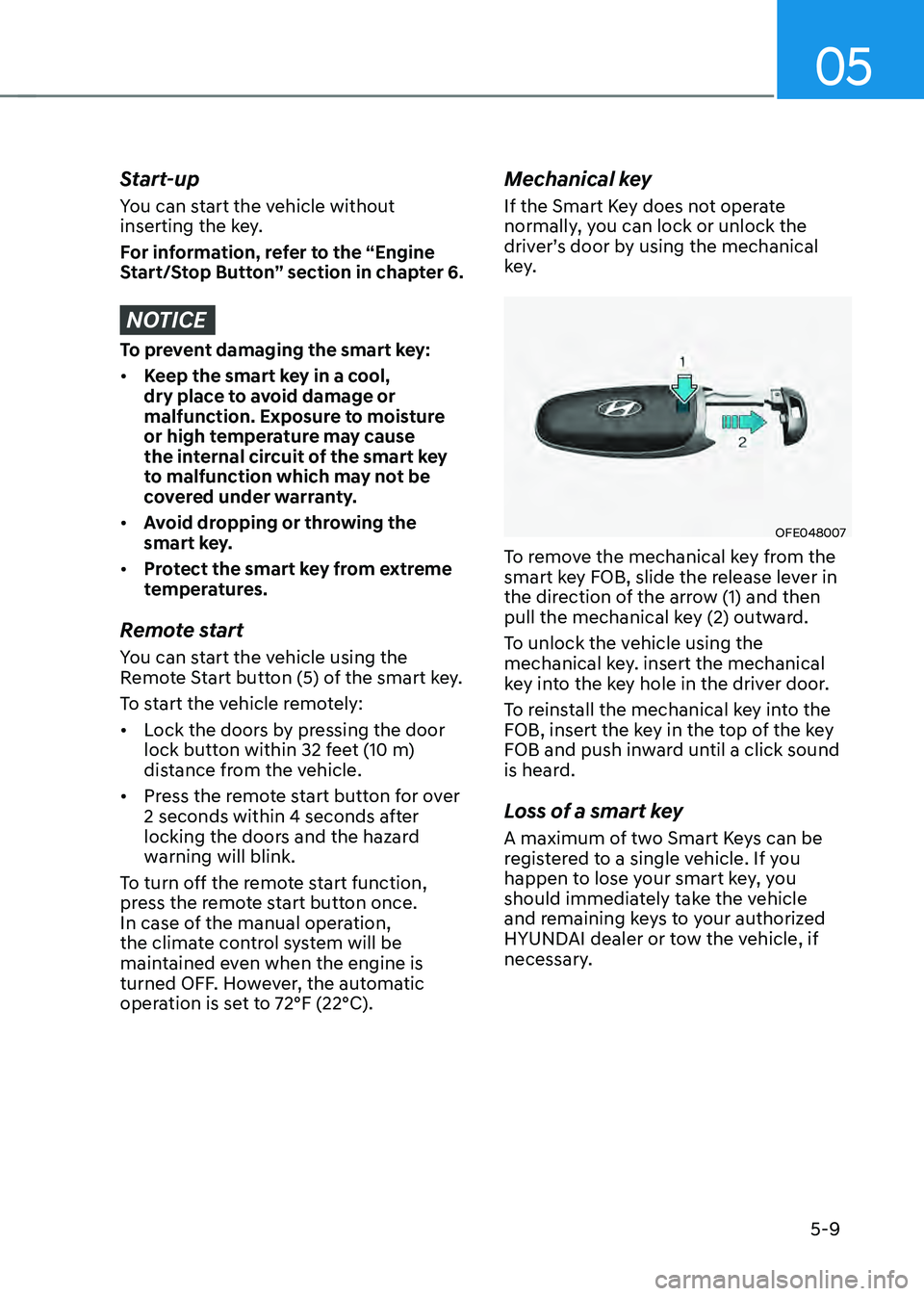
Mechanical key
If the Smart Key does not operate
normally, you can lock or unlock the
driver’s door by using the mechanical
key.
OFE048007
To remove the mechanical key from the
smart key FOB, slide the release lever in
the direction of the arrow (1) and then
pull the mechanical key (2) outward.
To unlock the vehicle using the
mechanical key. insert the mechanical
key into the key hole in the driver door.
To reinstall the mechanical key into the
FOB, insert the key in the top of the key
FOB and push inward until a click sound
is heard.
Loss of a smart key
A maximum of two Smart Keys can be
registered to a single vehicle. If you
happen to lose your smart key, you
should immediately take the vehicle
and remaining keys to your authorized
HYUNDAI dealer or tow the vehicle, if
necessary.
Page 160 of 527
Convenient Features
5-12
WARNING
In order to prevent theft of your
vehicle, do not leave spare keys
anywhere in your vehicle. Your
immobilizer password is a customer
unique password and should be kept
confidential.
NOTICE
The transponder in your key is an
important part of the immobilizer
system. It is designed to give years
of trouble-free service, however you
should avoid exposure to moisture,
static electricity and rough handling.
Immobilizer system malfunction could
occur.
Information
This device complies with Part 15 of the
FCC rules.
Operation is subject to the following three
conditions:
1. This device may not cause harmful
interference.
2. This device must accept any
interference received, including
interference that may cause undesired
operation.
3. Changes or modifications not expressly
approved by the party responsible
for compliance could void the user’s
authority to operate the device
Hyundai Digital Key (if equipped)
Digital Key Application
To use Hyundai Digital Key mobile app,
you should install Hyundai digital key
application. Search ‘Hyundai digital key’
in the Google Play Store and download
the app. Please refer to the detailed
manual of the digital key app. The option
can be found under the following app
menu:
Menu → Application Info → Tutorial
Please note the manual before using the
app.
ÃThis service is only available for
Android smartphones. Please confirm
supported/compatible devices on our
website.
WARNING
For used vehicle
If any of the digital key (smartphone key
or card key) is already registered when
you press ON button after unlocking the
doors, the message ‘Digital key(s) active’
appears on the instrument cluster once.
If you buy a used vehicle, you should
confirm the message and delete the
registered smartphone key and card key.
In addition, please notify the Hyundai
Customer Care Center.
If the card key does not work properly,
please delete the card key and register
the smartphone key and re-register the
card key.
For vehicle maintenance
If you need to have your Digital Key
System repaired or replaced please
ensure you Smartphone Key is still active.
You may have to pair your phone again.
In the case, re-initialize your Digital Keys
using the Hyundai Digital Key mobile
app.
Page 166 of 527
Convenient Features
5-18
CAUTION
• If metallic window tint was applied
to your vehicle, it may cause
bad Bluetooth connection or
performance degradation of the
digital key.
• If multiple users operate the remote
control function simultaneously, the
connection between the digital key
and the vehicle might result in failed
commands. Please connect and
operate the remote control function
only the necessary user.
• When using the remote control
operation, the driver (the remote
control user) should leave the vehicle
after confirming the door lock (the
chime sounds once and the hazard
warning lights blink).
• The remote functions of the Digital
Key app enables the vehicle to be
controlled from a set distance. If
the digital key or the vehicle goes
beyond the operable distance, the
remote control function might be
disconnected or cancelled.
• If the digital key (smartphone) is
connected with the vehicle for the
remote control, the driver with the
key goes far away from the vehicle,
the function might not work.
• If the remote control operation
is executed where the mobile
connection is weak, Bluetooth
connection is poor due to several
Bluetooth devices or there is an
object such as metal or concrete, it
might be delayed or the operable
distance might decrease. You should
not cover the smartphone with your
hand or place other devices which
can cause frequency interference. It
may result in poor performance.
• If the remote control function is not
available, please use NFC function to
lock or unlock the doors. Remote Start with Digital Key
•
When the shift button of your vehicle
is in P (Park) and all of the doors
including trunk and hood is locked
and the vehicle is off, press the Door
Lock button in the Hyundai Digital
Key app then press the Remote Start
button within 4 seconds.
You can confirm the engine is on if the
hazard warning lights blinks two times
and the chime sounds.
• If you want to turn off the engine,
press Remote Engine Stop. Air
Conditioner / Heating system
maintains the same status as when
you last used the vehicle.
• Unless you put the registered digital
key(smartphone) on the interior
authentication pad (wireless charger)
when the remote start function is on,
the engine will turn off.
• If you do not get on the vehicle within
10 minutes after the engine turns on,
the vehicle will turn off.
For more information, refer to the Engine
Start/Stop button in chapter 6.
Vehicle information Display
The digital key application displays
the vehicle information such as
driving or door conditions through the
communication with the vehicle.
• How to check : Select the vehicle
what you want to check and touch
the vehicle image, then vehicle
information display page will be
shown.
• Contents : accumulated odometer,
latest fuel economy, driving range,
fuel remaining, tire pressure, doors
lock/unlock status and last data
updated time.
ÃThe information displayed may differ
from the actual vehicle status.
ÃFor more information, please refer to
the ‘Tutorial’ on your Digital key app.
Page 172 of 527
Convenient Features
5-24
Start-up with Card key
After placing your registered card key
onto the interior authentication pad
(wireless charger), step on the brake and
press the Engine Start/Stop button.
WARNING
• If you do not place the digital key
(card key) onto the center of the
interior authentication pad (wireless
charger) exactly, the card key may
not be recognized. If the engine is
not turned on, adjust and place the
key again.
• If you overlap and use the key
with NFC-enabled cards such as
transportation card or credit card,
the card key may not be recognized.
• If the digital key (card key) does not
work, please detach the key around
4 inches (0.1 m) from the handle
authentication pad and retry to
contact.
• The card key may be damaged due to
impact. It would not work properly if
the key is damaged. You should buy a
new card and register again.
For more information, refer to the
Engine Start/Stop button in chapter 6.
„„Type A
ODN8A059133
„„Type B
ODN8A059247
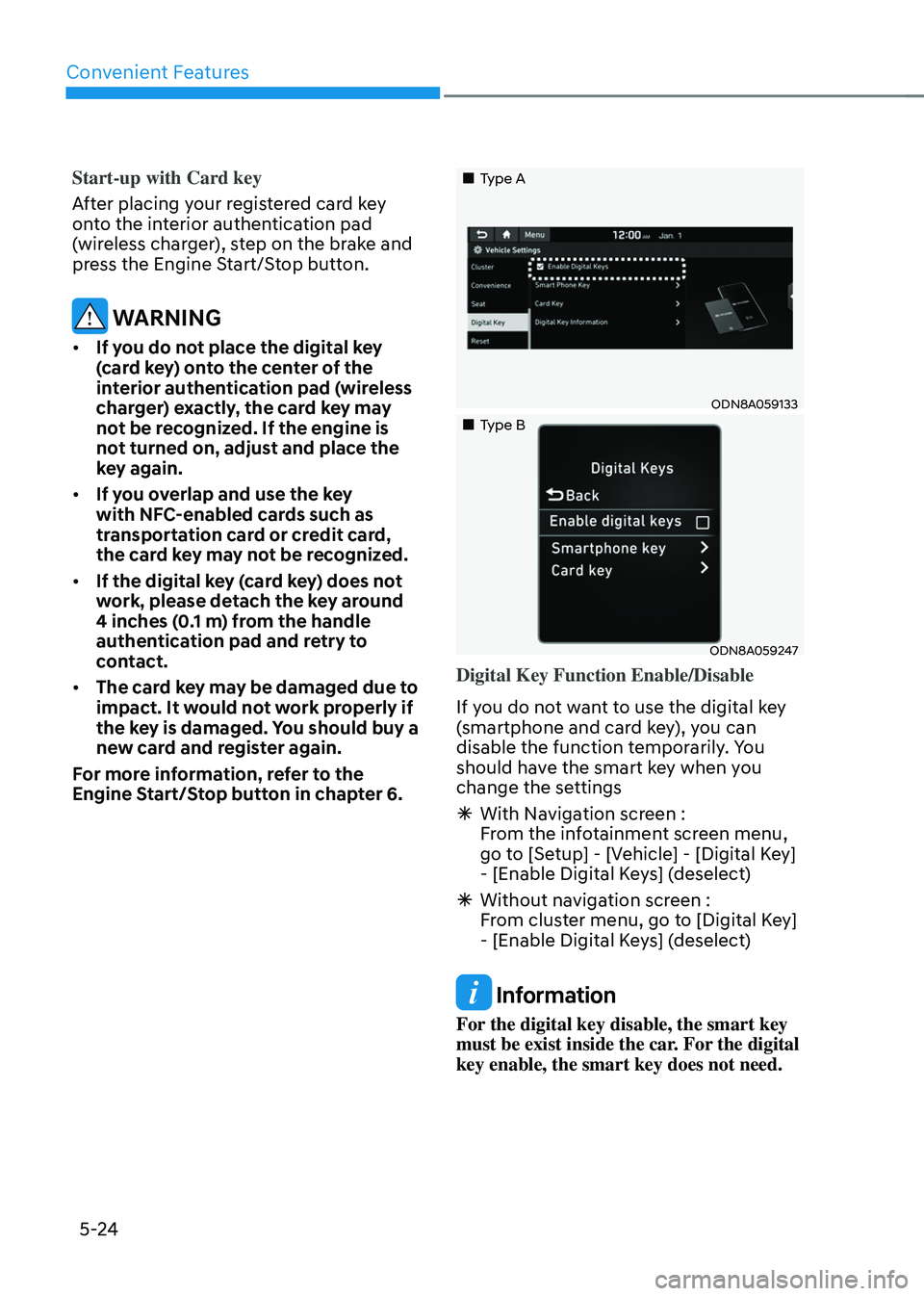
Digital Key Function Enable/Disable
If you do not want to use the digital key
(smartphone and card key), you can
disable the function temporarily. You
should have the smart key when you
change the settings
à With Navigation screen :
From the infotainment screen menu,
go to [Setup] - [Vehicle] - [Digital Key]
- [Enable Digital Keys] (deselect)
ÃWithout navigation screen :
From cluster menu, go to [Digital Key]
- [Enable Digital Keys] (deselect)
Information
For the digital key disable, the smart key
must be exist inside the car. For the digital
key enable, the smart key does not need.
Page 178 of 527
Convenient Features
5-30
With the central door lock switch
„„Driver’s door
ODN8A059013
„„Front passenger’s door
ODN8059014
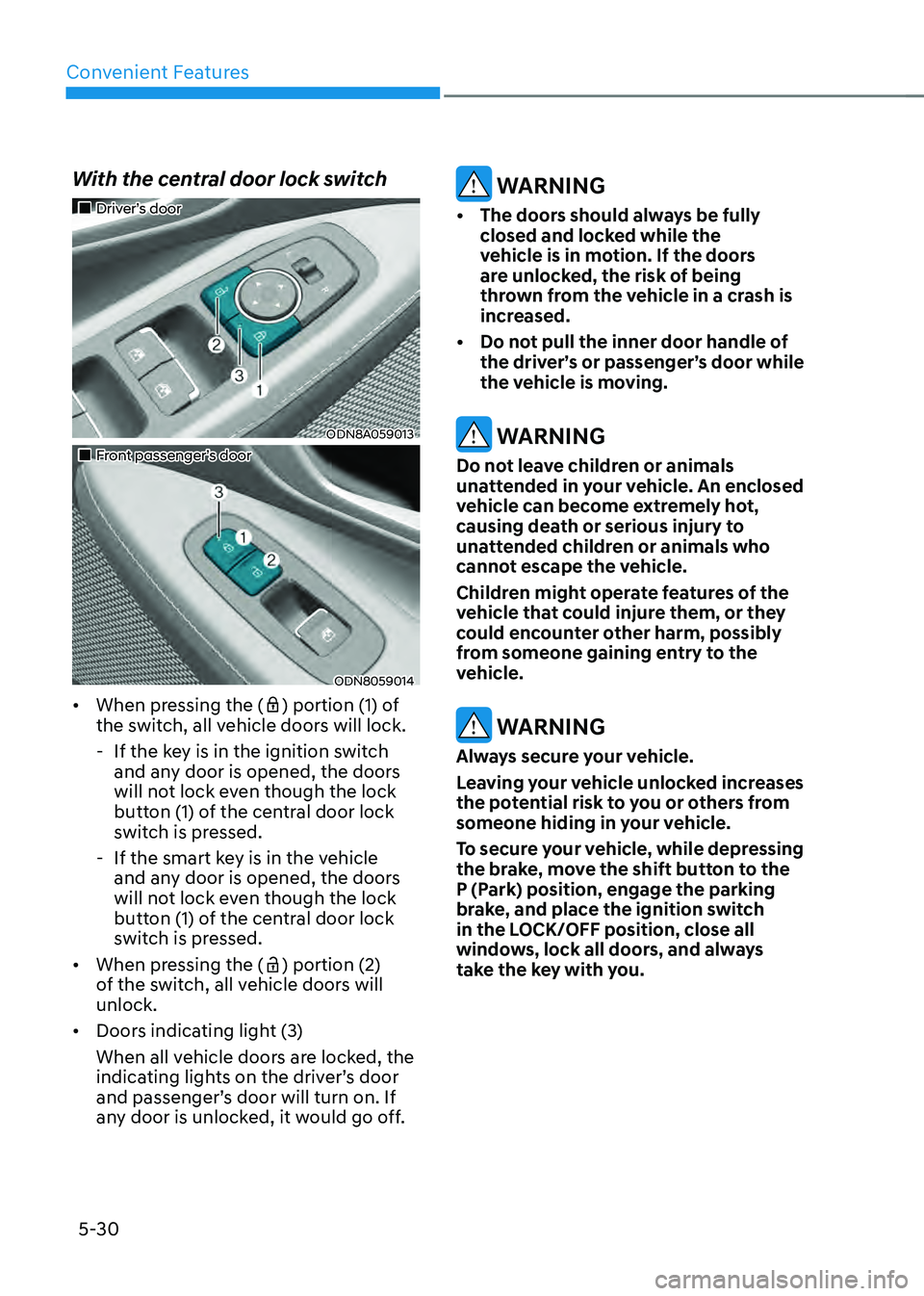
• When pressing the () portion (1) of
the switch, all vehicle doors will lock.
- If the key is in the ignition switch
and any door is opened, the doors
will not lock even though the lock
button (1) of the central door lock
switch is pressed.
-If the smart key is in the vehicle
and any door is opened, the doors
will not lock even though the lock
button (1) of the central door lock
switch is pressed.
• When pressing the (
) portion (2)
of the switch, all vehicle doors will
unlock.
• Doors indicating light (3)
When all vehicle doors are locked, the
indicating lights on the driver’s door
and passenger’s door will turn on. If
any door is unlocked, it would go off.
WARNING
• The doors should always be fully
closed and locked while the
vehicle is in motion. If the doors
are unlocked, the risk of being
thrown from the vehicle in a crash is
increased.
• Do not pull the inner door handle of
the driver’s or passenger’s door while
the vehicle is moving.
WARNING
Do not leave children or animals
unattended in your vehicle. An enclosed
vehicle can become extremely hot,
causing death or serious injury to
unattended children or animals who
cannot escape the vehicle.
Children might operate features of the
vehicle that could injure them, or they
could encounter other harm, possibly
from someone gaining entry to the
vehicle.
WARNING
Always secure your vehicle.
Leaving your vehicle unlocked increases
the potential risk to you or others from
someone hiding in your vehicle.
To secure your vehicle, while depressing
the brake, move the shift button to the
P (Park) position, engage the parking
brake, and place the ignition switch
in the LOCK/OFF position, close all
windows, lock all doors, and always
take the key with you.
Page 179 of 527
05
5-31
WARNING
If you stay in the vehicle for a long time
while the weather is very hot or cold,
there are risks of injuries or danger to
life. Do not lock the vehicle from the
outside when someone is in the vehicle.
WARNING
Opening a door when something is
approaching may cause damage or
injury. Be careful when opening doors
and watch for vehicles, motorcycles,
bicycles or pedestrians approaching the
vehicle in the path of the door.
Automatic Door Lock and Unlock
Features
Your vehicle is equipped with features
that will automatically lock or unlock
your vehicle based on settings you select
in the LCD cluster display.
Auto LOCK - Enable on Speed
When this feature is set in the LCD
cluster display, all the doors will be
locked automatically when the vehicle
exceeds 9 mph (15 kph).
Auto LOCK - Enable on Shift
When this feature is set in the LCD
cluster display, all the doors will be
locked automatically when the vehicle is
shifted out of P (Park) while the engine
is running. (Only when the engine is
running.)
Auto UNLOCK - Enable on Shift
When this feature is set in the LCD
cluster display, all the doors will be
unlocked automatically when the vehicle
is shifted back into P (Park). (Only when
the engine is running.)
For more information on these features,
refer to the LCD Display section later in
this chapter.
Additional Unlock Safety Feature -
Air Bag Deployment
As an additional safety feature, all doors
will be automatically unlocked when an
impact causes the air bags to deploy.
Page 180 of 527
Convenient Features
5-32
Rear Occupant Alert (ROA)
System
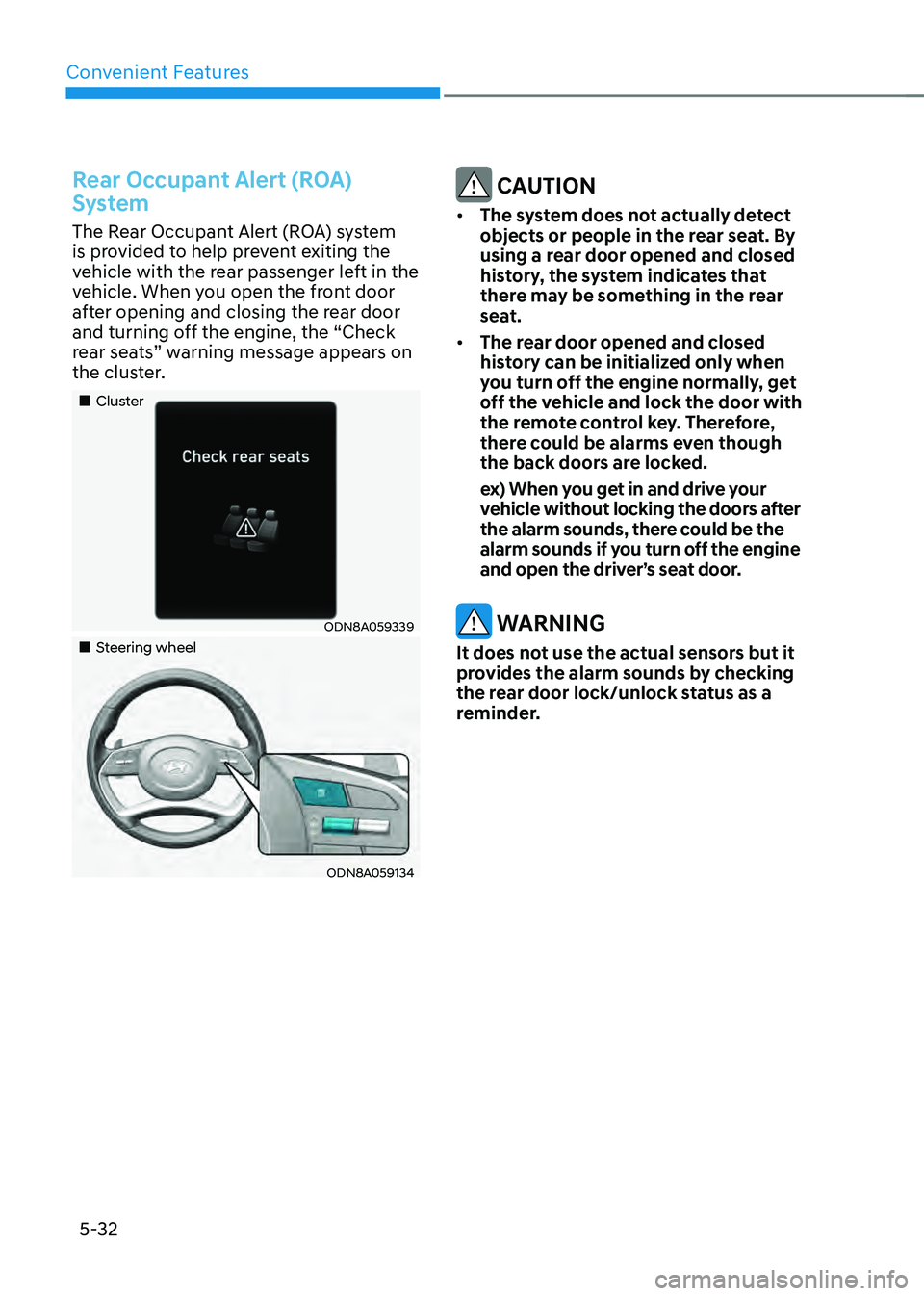
The Rear Occupant Alert (ROA) system
is provided to help prevent exiting the
vehicle with the rear passenger left in the
vehicle. When you open the front door
after opening and closing the rear door
and turning off the engine, the “Check
rear seats” warning message appears on
the cluster.
„„Cluster
ODN8A059339
„„Steering wheel
ODN8A059134
CAUTION
• The system does not actually detect
objects or people in the rear seat. By
using a rear door opened and closed
history, the system indicates that
there may be something in the rear
seat.
• The rear door opened and closed
history can be initialized only when
you turn off the engine normally, get
off the vehicle and lock the door with
the remote control key. Therefore,
there could be alarms even though
the back doors are locked.
ex) When you get in and drive your
vehicle without locking the doors after
the alarm sounds, there could be the
alarm sounds if you turn off the engine
and open the driver’s seat door.
WARNING
It does not use the actual sensors but it
provides the alarm sounds by checking
the rear door lock/unlock status as a
reminder.