navigation system HYUNDAI SONATA HYBRID 2020 User Guide
[x] Cancel search | Manufacturer: HYUNDAI, Model Year: 2020, Model line: SONATA HYBRID, Model: HYUNDAI SONATA HYBRID 2020Pages: 527, PDF Size: 64.14 MB
Page 185 of 527
05
5-37
NOTICE
• Reattempt to do the resetting
procedure again, when the resetting
procedure incompletely stops or the
notification sound do not stop.
• Make sure that there is no obstacle
around the driver’s seat in advance
of resetting the driver’s seat memory
system.
Easy Access Function
The system will move the driver’s seat
automatically as follows:
• It will move the driver’s seat rearward
when the Engine Start/Stop button is
pressed to the OFF position.
• It will move the driver’s seat forward
when the Engine Start/Stop button is
pressed to the ACC or START position.
You can activate or deactivate the Easy
Access Function from the User Settings
mode in the cluster LCD display.
‘Convenience → Seat Easy Access →
Off/Normal/Extended’.
For more information, refer to “LCD
Display” in chapter 4.If your vehicle is
equipped with additional navigation,
please refer to the infotainment system
manual separately supplied.
CAUTION
Driver should be cautious when using
this function to assure no injury to
passenger or child on the back seat.
In case of emergency the driver has to
stop movement of front seat (when easy
access feature is activated) by pressing
SET button or any of the driver seat
control switches.
Page 213 of 527
05
5-65
Smart Trunk with Auto Open
(if equipped)
ODN8059046L
On a vehicle equipped with a smart key,
the trunk can be opened using the Smart
Trunk with Auto Open system.
How to use the Smart Trunk with
Auto Open
The trunk can be opened with no-touch
activation satisfying all the conditions
below.
• After 15 seconds when all doors are
closed and locked
• Positioned in the detecting area for
more than 3 seconds.
Information
• The Smart Trunk with Auto Open does
not operate when:
-The smart key is detected within 15
seconds after the doors are closed
and locked, and is continuously
detected.
-The smart key is detected within 15
seconds after the doors are closed
and locked, and within 60 inches
(1.5 m) from the front door handles.
(for vehicles equipped with Welcome
Light)
-A door is not locked or closed.
-The smart key is in the vehicle.
1. Setting
To activate the Smart Trunk with Auto
Open, go to User Settings Mode and
select Smart Trunk on the LCD display.
For more information, refer to the “LCD
Display” section in this chapter. If your
vehicle is equipped with additional
navigation, please refer to the
infotainment system manual separately
supplied.
ODN8A059047
2. Detect and Alert
If you are positioned in the detecting
area (20~40 inches (50 ~100 cm) behind
the vehicle) carrying a smart key, the
hazard warning lights will blink and
chime will sound to alert you the smart
key has been detected and the trunk will
open.
Information
Do not approach the detecting area if you
do not want the trunk to open. If you have
unintentionally entered the detecting area
and the hazard warning lights and chime
starts to operate, leave the detecting area
with the smart key. The trunk will stay
closed.
Page 218 of 527
Convenient Features
5-70
HEAD UP DISPLAY (HUD) (IF EQUIPPED)
ODN8A059054
The Head-Up Display is an optional
feature that allows the driver to view
information projected onto a transparent
screen while still keeping your eyes
safely on the road ahead while driving.
Precautions while using the head up
display
It may sometimes be difficult to read
information on the head up display in the
following situations.
-The driver is improperly positioned in
the driver’s seat.
-The driver wears polarizing-filter
sunglasses.
-An object is located above the head
up display cover.
-The vehicle is driven on a wet road.
-Any improper lighting accessory is
installed inside the vehicle, or there
is incoming light from outside of the
vehicle.
-The driver wears glasses.
-The driver wears contact lenses.
When it is difficult to read the head up
display information, adjust the head
up display angle or the head up display
brightness level in the User Settings
mode. For more information, refer to
“LCD Display” in this chapter.
WARNING
• Do not tint the front windshield
glass or add other types of metallic
coating. Otherwise, the head up
display image may be invisible.
• Do not place any accessories on the
crash pad or attach any objects on
the windshield glass.
• The Blind-spot Collision Warning
system warnings on the head up
display are supplemental. Do not
solely depend on them to change
lanes. Always take a look around
before changing lanes.
NOTICE
When replacing the front windshield
glass of the vehicle equipped with
the head up display, replace it with
a windshield glass designed for the
head up display operation. Otherwise,
duplicated images may be displayed on
the windshield glass.
Head-up display ON/OFF
OIK047152N
To activate the head up display, select
‘Enable Head-Up Display’ on the User
Settings mode on the instrument cluster
LCD display.
If you do not select ‘Enable Head-Up
Display’, the head up display will be
deactivated.
If your vehicle is equipped with
additional navigation, please refer to the
infotainment system manual separately
supplied.
Page 219 of 527
05
5-71
Head-up display information
ODN8A059338
1. Turn-by-turn (TBT) navigation
information
2. Road information
3. Speedometer
4. Cruise system set speed
5. SCC Headway information
6. Lane Following Assist information
7. Lane Safety information
8. Blind-Spot Safety information
9. Highway Driving Assist information
The information provided may differ
depending on which functions are
applicable to your vehicle.
Information
If you select the Turn By Turn (TBT)
navigation information as Head-Up
Display contents, the Turn By Turn
(TBT) navigation information will not be
displayed in the instrument cluster LCD
display.
Head-up display setting
On the LCD display, you can change the
head up display settings as follows.
• Enable Head-up display
• Display Height
• Rotation
• Brightness
• Content Selection
• Speed Size
• Speed Color
For more information, refer to “LCD
Display” in chapter 4. If your vehicle is
equipped with additional navigation,
please refer to the infotainment system
manual separately supplied.
Page 229 of 527
05
5-81
Welcome System (if equipped)
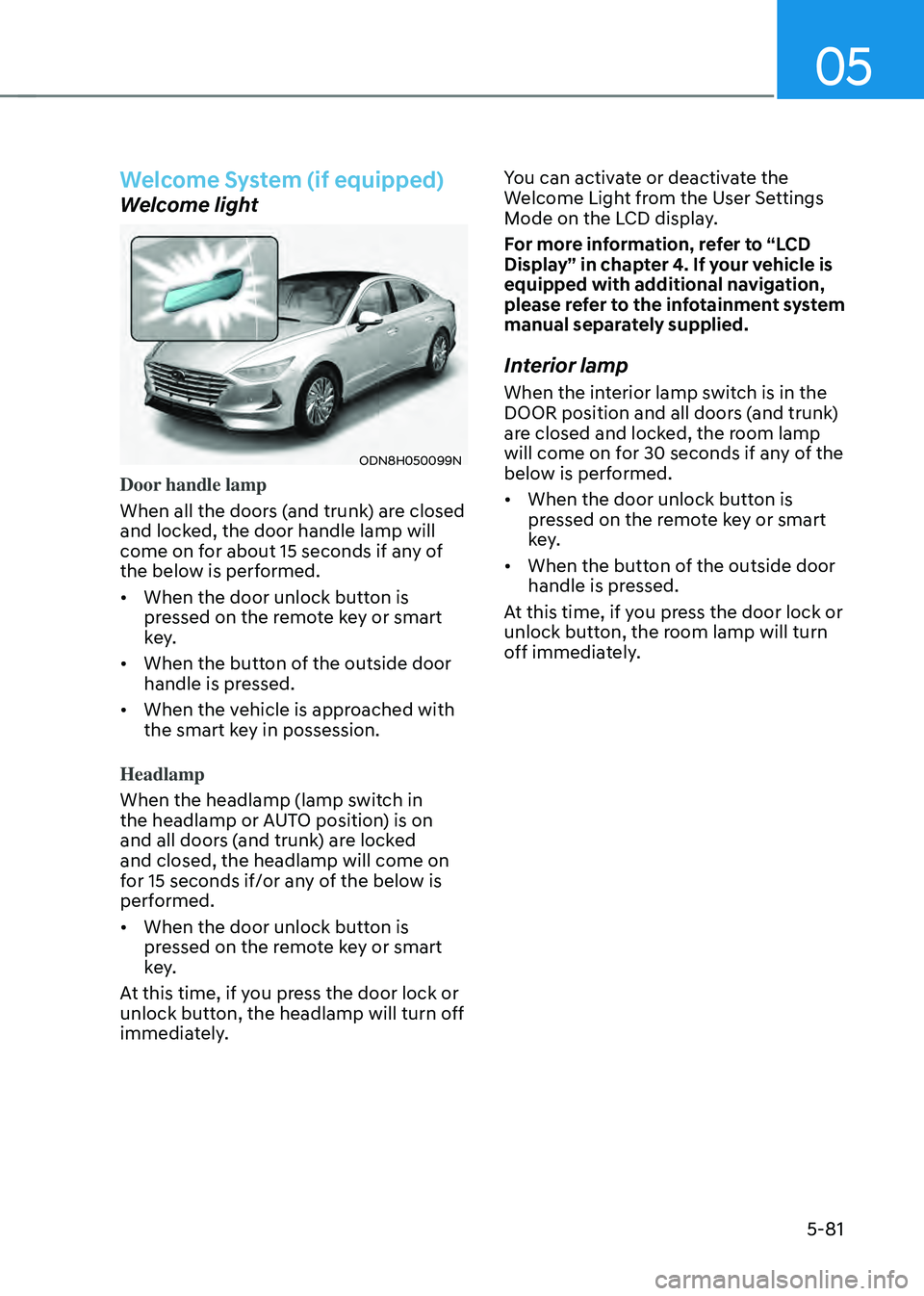
Welcome light
ODN8H050099N
Door handle lamp
When all the doors (and trunk) are closed
and locked, the door handle lamp will
come on for about 15 seconds if any of
the below is performed.
• When the door unlock button is
pressed on the remote key or smart
key.
• When the button of the outside door
handle is pressed.
• When the vehicle is approached with
the smart key in possession.
Headlamp
When the headlamp (lamp switch in
the headlamp or AUTO position) is on
and all doors (and trunk) are locked
and closed, the headlamp will come on
for 15 seconds if/or any of the below is
performed.
• When the door unlock button is
pressed on the remote key or smart
key.
At this time, if you press the door lock or
unlock button, the headlamp will turn off
immediately. You can activate or deactivate the
Welcome Light from the User Settings
Mode on the LCD display.
For more information, refer to “LCD
Display” in chapter 4. If your vehicle is
equipped with additional navigation,
please refer to the infotainment system
manual separately supplied.
Interior lamp
When the interior lamp switch is in the
DOOR position and all doors (and trunk)
are closed and locked, the room lamp
will come on for 30 seconds if any of the
below is performed.
•
When the door unlock button is
pressed on the remote key or smart
key.
• When the button of the outside door
handle is pressed.
At this time, if you press the door lock or
unlock button, the room lamp will turn
off immediately.
Page 276 of 527
Convenient Features
5-128
Bluetooth® Wireless Technology
Hands-Free
ODN8059230
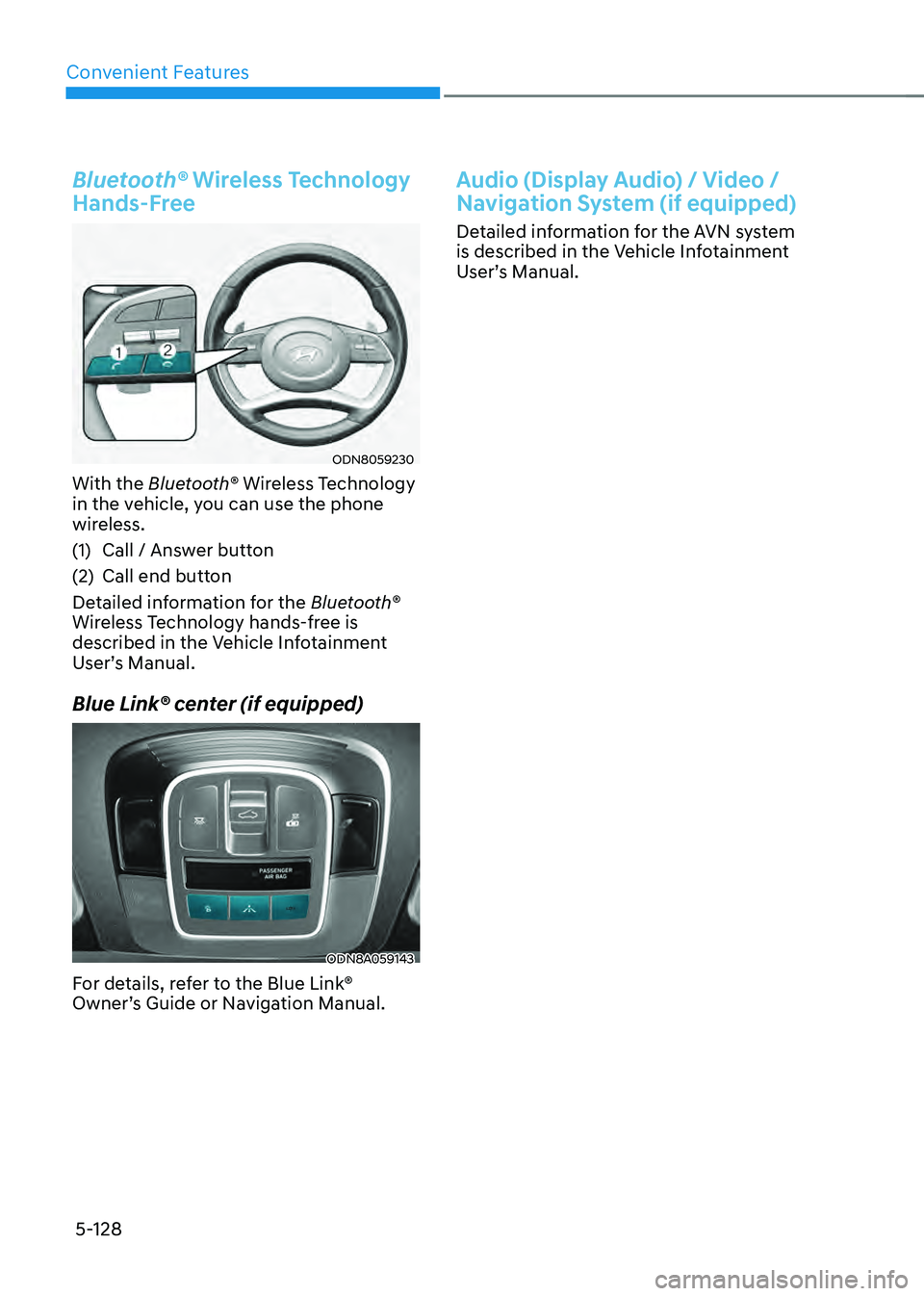
With the Bluetooth® Wireless Technology
in the vehicle, you can use the phone
wireless.
(1) Call / Answer button
(2) Call end button
Detailed information for the Bluetooth®
Wireless Technology hands-free is
described in the Vehicle Infotainment
User’s Manual.
Blue Link® center (if equipped)
ODN8A059143
For details, refer to the Blue Link®
Owner’s Guide or Navigation Manual.
Audio (Display Audio) / Video /
Navigation System (if equipped)
Detailed information for the AVN system
is described in the Vehicle Infotainment
User’s Manual.
Page 278 of 527
 ........................................................................\
......6-57LKA Operation ........................................................................\
..")
Lane Keeping Assist (LKA) ........................................................................\
......6-57LKA Operation ........................................................................\
...................................6-59
LKA System Function Change ........................................................................\
..........6-59
Warning Light and Message ........................................................................\
.............6-62
Limitations of the System ........................................................................\
.................6-63
Blind-Spot Collision Warning (BCW) /
Blind-Spot Collision-Avoidance Assist (BCA)
................................................6-65System Description ........................................................................\
...........................6-65
System Setting and Activation ........................................................................\
.........6-66
Warning and System Control ........................................................................\
............6-68
Detecting Sensors (Front view camera and Rear corner radar) ..............................6-70
Limitations of the System ........................................................................\
..................6-73
Declaration of Conformity ........................................................................\
.......6-77The radio frequency components (Rear Corner Radar) complies: .........................6-77
Driver Attention Warning (DAW) ....................................................................6-78System Setting and Operation ........................................................................\
..........6-78
Resetting the System ........................................................................\
........................6-80
System Standby ........................................................................\
..................................6-81
System Malfunction ........................................................................\
...........................6-81
Leading Vehicle Departure Alert ........................................................................\
......6-83
Blind-Spot View Monitor (BVM) .....................................................................6-86
Smart cruise control (SCC)
........................................................................\
.....6-87Smart Cruise Control Switch ........................................................................\
............6-88
To Convert to Cruise Control Mode ........................................................................\
.6-88
Smart Cruise Control Speed ........................................................................\
.............6-89
Smart Cruise Control Headway ........................................................................\
........6-95
Limitations of the System ........................................................................\
................6-100
Navigation-Based Smart Cruise Control (NSCC) .......................................6-104System Setting and Operation ........................................................................\
........6-104
Lane Following Assist (LFA) ........................................................................\
..6-108LFA Operation ........................................................................\
....................................6-110
Warning Message ........................................................................\
..............................6-110
Limitations of the System ........................................................................\
.................6-112
Highway Driving Assist (HDA) .......................................................................6-114System Setting and Operation ........................................................................\
.........6-115
Warning Message ........................................................................\
..............................6-117
6
Page 293 of 527

06
6-17
OOSH069019L
The coasting guide function informs the
driver when to take the foot off from the
accelerator by anticipating a decelerating
event* based on the analysis of driving
routes and road conditions of the
navigation. It encourages the driver to
remove foot from the pedal and allow
coasting down the road with EV motor
only. This helps prevent unnecessary
fuel consumption and increases fuel
efficiency.
Information
Example of a deceleration event is making
a right/left turn, driving through a rotary,
entering or exiting a highway (freeway),
etc.
Setting Coasting Guide function
Coasting Guide can be selected from
the User Settings mode in the cluster
LCD display by following the procedure
below.
1. Set the ignition switch in the ON
position.
2. Select ‘User Settings → Eco Vehicle → Coasting Guide’ in the cluster LCD display.
Operation conditions
After selecting the function from the
User Settings mode, the system enters
the ready status by following the
procedure below.
1. Enter your destination information in
the navigation system and select the
driving route.
2. Check that the vehicle is in ECO mode
by driving the vehicle in D (Drive).
3. Drive the vehicle between 25 mph (40
km/h) ~ 100 mph (160 km/h).
Information
The operating speed may vary due to
difference between instrument cluster and
navigation effected by tire inflation level.
Information
Coasting guide is only a supplemental
function to assist with fuel-efficient
driving. Thus, the operating conditions
may be different in accordance with
traffic/road conditions (i.e. driving in a
traffic jam, driving on a slope, driving
on a curve). Take the actual driving
conditions into consideration, such as
distances from the vehicles ahead/behind,
while referring to the coasting guide
function as guidance.
COASTING GUIDE (IF EQUIPPED)
Page 380 of 527
While Driving
6-104
Navigation-based Smart Cruise Control
system will help automatically adjust
your speed when a curved road is ahead
by receiving road information from
the navigation while the Smart Cruise
Control is operating.
WARNING
• Navigation-based Smart Cruise
Control system is not a substitute
for safe driving practices, but a
convenience function. It is the
responsibility of the driver to always
be aware of the surroundings and
drive safely.
• Navigation-based Smart Cruise
Control system relies entirely on
the road information provided by
the navigation system and may
accelerate above speed limit. It is the
responsibility of the driver to follow
traffic laws and avoid accidents.
• For your safety, please read the
owner's manual before using the
system.
Information
• Navigation-based Smart Cruise Control
system is available only on controlled
access road of certain highways.
ÃControlled access road indicates
roads with limited entrances and
exits that allow uninterrupted high
speed traffic flow. Only passenger
cars and motorcycles are allowed on
controlled access roads.
Available highway
(Controlled access road)
USA Select Interstate Highway
and U.S. (Federal) and State Highways
Canada Select Provincial and
Territorial Highways
• Additional highways may be expanded
by navigation updates.
System Setting and Operation
System setting
• With the Engine Start/Stop button in
the ON or START position, Navigation-
based Smart Cruise Control can
be activated by selecting 'Driver
Assistance
→ Highway Auto Curve
Slowdown' from the User Settings
mode on the infotainment system.
For detailed information, please refer
to the infotainment system manual
separately supplied.
• If the engine is turned off then on
again, the system maintains the last
setting.
NAVIGATION-BASED SMART CRUISE CONTROL (NSCC)
(IF EQUIPPPED)
Page 381 of 527
06
6-105
Operating conditions
Select 'Highway Auto Curve Slowdown'
from the Settings menu in the
infotainment system screen and satisfy
the following conditions for the system
to operate.
• Driving on the highway main line
• Smart Cruise Control is operating
If all the mentioned conditions are
satisfied, the system is ENABLED and
the 'AUTO' symbol on the cluster will
illuminate white.
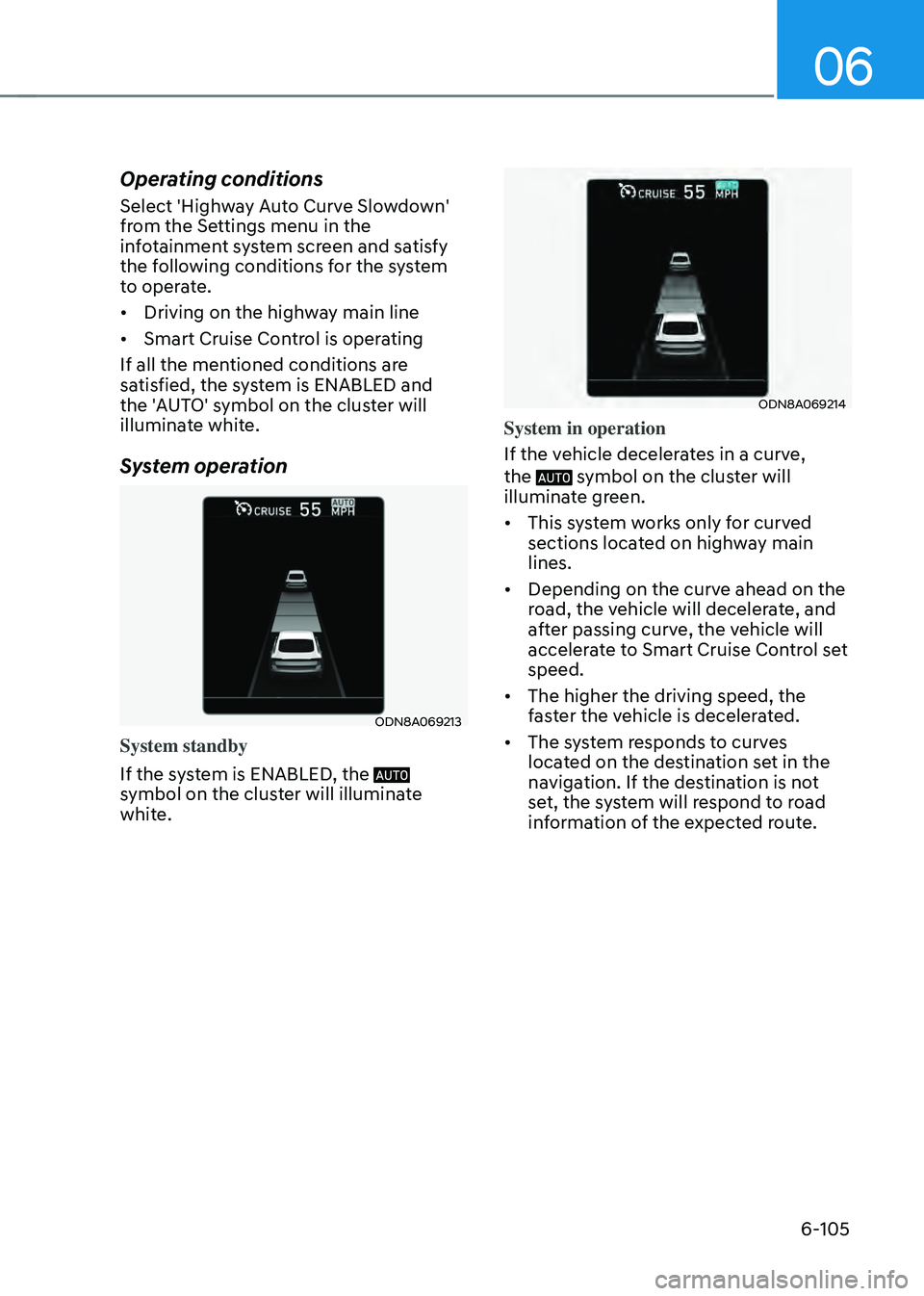
System operation
ODN8A069213
System standby
If the system is ENABLED, the
symbol on the cluster will illuminate
white.
ODN8A069214
System in operation
If the vehicle decelerates in a curve,
the
symbol on the cluster will illuminate green.
• This system works only for curved
sections located on highway main
lines.
• Depending on the curve ahead on the
road, the vehicle will decelerate, and
after passing curve, the vehicle will
accelerate to Smart Cruise Control set
speed.
• The higher the driving speed, the
faster the vehicle is decelerated.
• The system responds to curves
located on the destination set in the
navigation. If the destination is not
set, the system will respond to road
information of the expected route.