display HYUNDAI SONATA LIMITED 2016 Owners Manual
[x] Cancel search | Manufacturer: HYUNDAI, Model Year: 2016, Model line: SONATA LIMITED, Model: HYUNDAI SONATA LIMITED 2016Pages: 708, PDF Size: 25.96 MB
Page 339 of 708
4-91
Multimedia System
4
Answering Calls
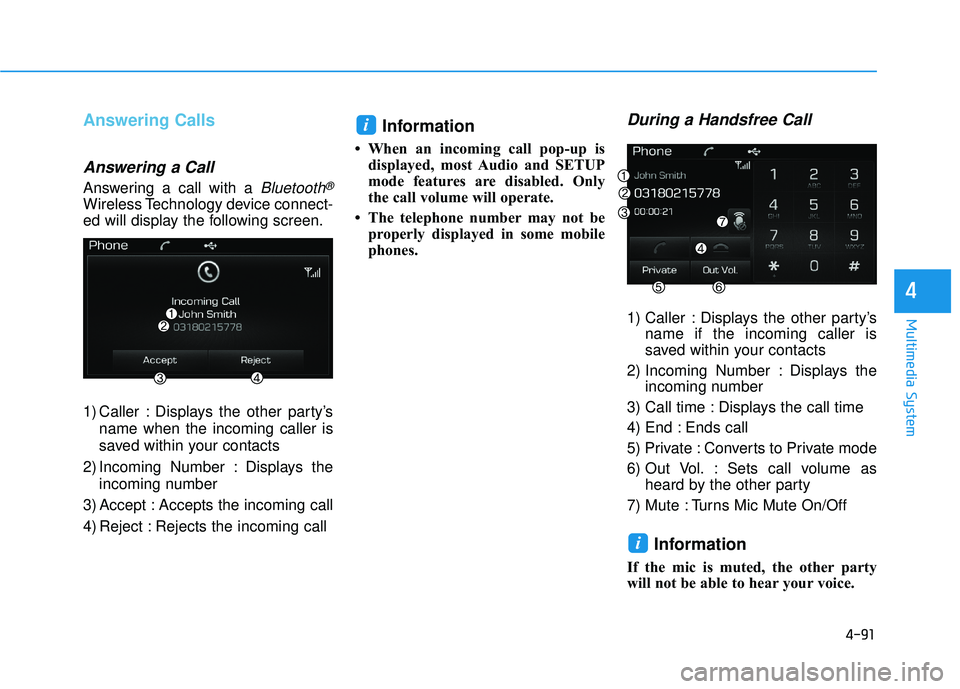
Answering a Call
Answering a call with a Bluetooth®
Wireless Technology device connect-
ed will display the following screen.
1) Caller : Displays the other party’sname when the incoming caller is
saved within your contacts
2) Incoming Number : Displays the incoming number
3) Accept : Accepts the incoming call
4) Reject : Rejects the incoming call
Information
• When an incoming call pop-up is displayed, most Audio and SETUP
mode features are disabled. Only
the call volume will operate.
• The telephone number may not be properly displayed in some mobile
phones.
During a Handsfree Call
1) Caller : Displays the other party’s name if the incoming caller is
saved within your contacts
2) Incoming Number : Displays the incoming number
3) Call time : Displays the call time
4) End : Ends call
5) Private : Converts to Private mode
6) Out Vol. : Sets call volume as heard by the other party
7) Mute : Turns Mic Mute On/Off
Information
If the mic is muted, the other party
will not be able to hear your voice.
i
i
Page 341 of 708
4-93
Multimedia System
4
Information- Before down-
loading contacts
• Only contacts within connected phones can be downloaded. Also
check to see that your mobile phone
supports the download feature.
• To learn more about whether your mobile phone supports contacts
downloads, refer to your mobile
phone user’s manual.
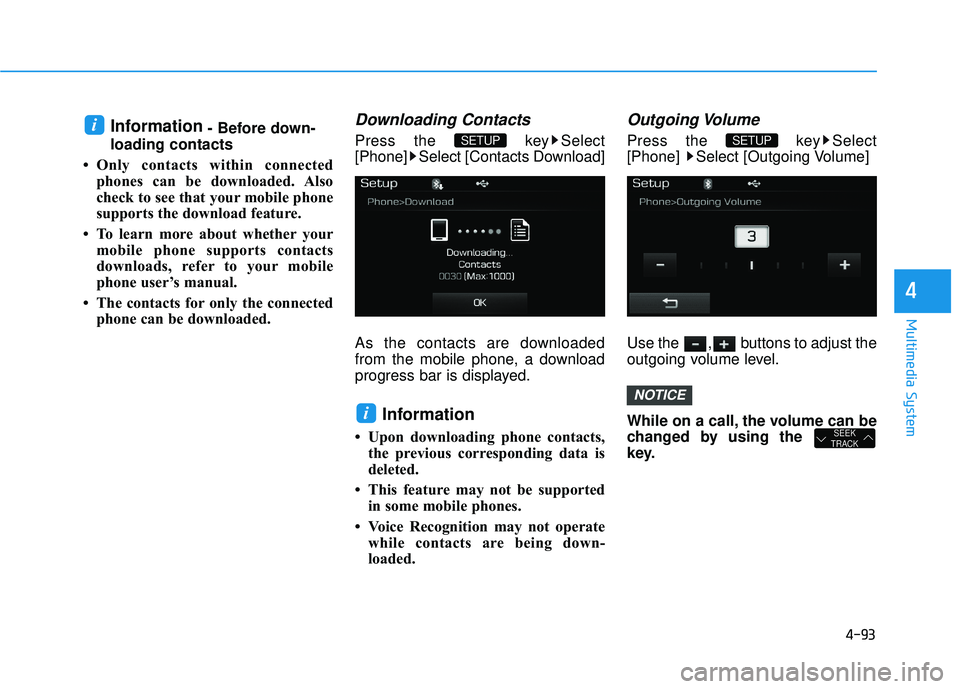
• The contacts for only the connected phone can be downloaded.Downloading Contacts
Press the key Select
[Phone] Select [Contacts Download]
As the contacts are downloaded
from the mobile phone, a download
progress bar is displayed.
Information
• Upon downloading phone contacts,the previous corresponding data is
deleted.
• This feature may not be supported in some mobile phones.
• Voice Recognition may not operate while contacts are being down-
loaded.
Outgoing Volume
Press the key Select
[Phone] Select [Outgoing Volume]
Use the , buttons to adjust the
outgoing volume level.
While on a call, the volume can be
changed by using the
key.
SEEK
TRACK
NOTICE
SETUP
i
SETUP i
Page 345 of 708
4-97
Multimedia System
4
CommandFunction
More Help Provides guidance on commands that can be
used anywhere in the system.
Help Provides guidance on commands that can be
used within the current mode.
Call
Ex) Call “John Smith”
Call
Ex) Call "John Smith" on Mobile
Call
Ex) Call "John Smith" in Office
Call
Ex) Call "John Smith" at Home
Call
Ex) Call "John Smith" on Other
Phone Provides guidance on Phone related com- mands. After saying this command, say
“Favorites”,“Dial Number”, “Call History” or
“Contacts” execute corresponding functions.
Favorites Displays the Favorite screen.
Call History Displays the Call History screen.
Command Function
Contacts Displays the Contacts screen. After saying this command, say the name of a contact
saved in the Contacts to automatically con-
nect the call.
Dial Number Displays the Dial number screen. After saying this command, you can say the number that
you want to call.
RedialConnects the last dialed call number.
Tutorial Provides guidance on how to use voice
recognition and Bluetooth®connections.
When listening to the radio, displays the
next radio screen. (FM1➟FM2➟AM➟XM1➟XM2➟XM3➟FM1)
Radio
When listening to a different mode, displays
the most recently played radio screen.
When currently listening to the FM radio,
maintains the current state.
When listening to a different mode, displaysthe most recently played FM screen.
FM1(FM One) Displays the FM1 screen.
FM2(FM Two) Displays the FM2 screen.
AM Displays the AM screen.
(Call by Name)
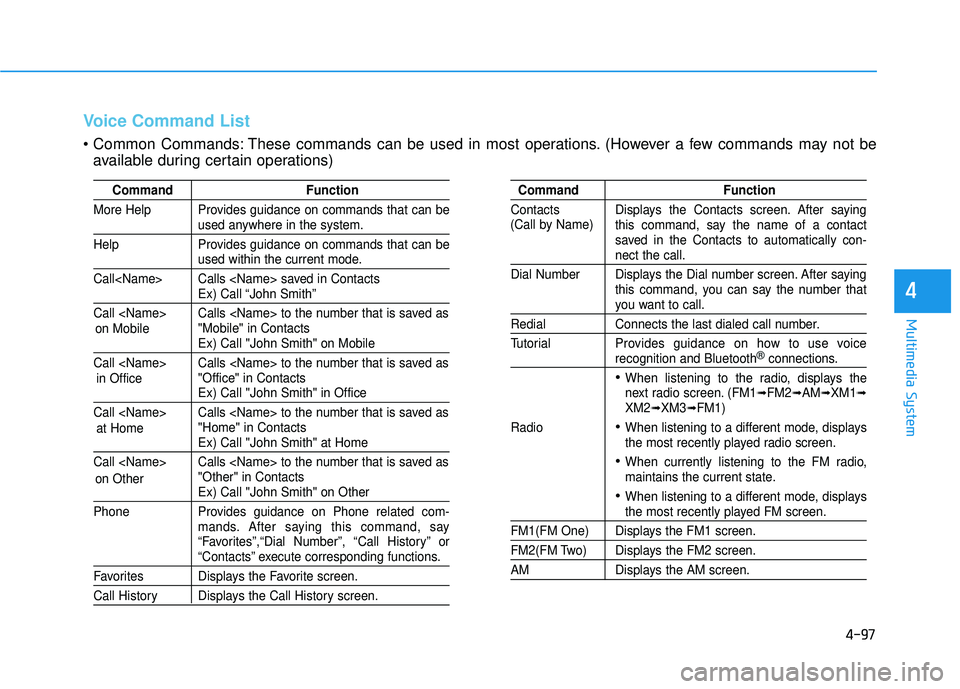
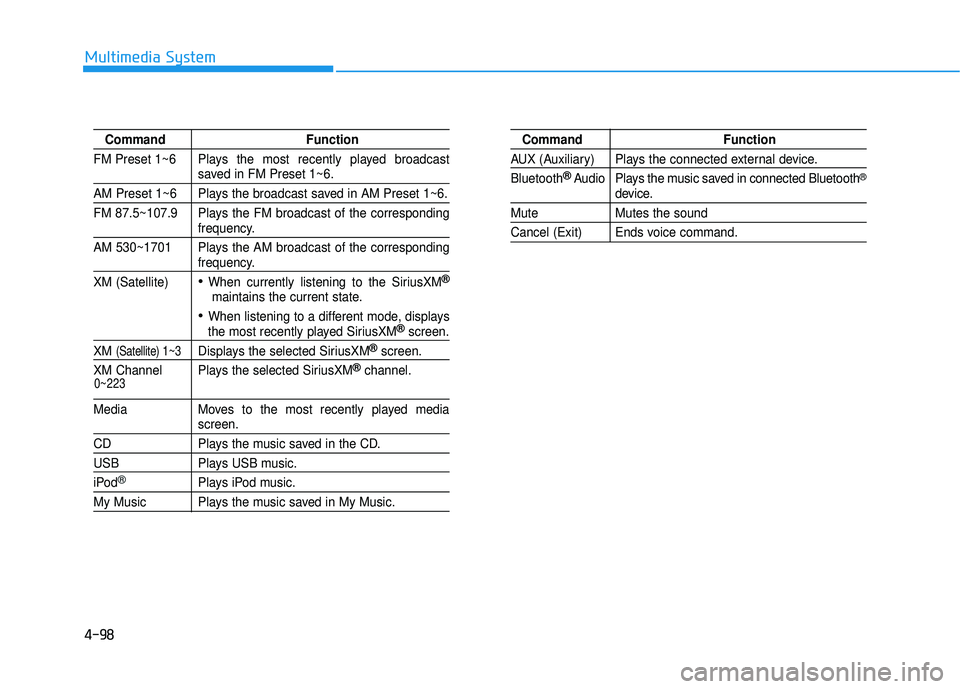
Voice Command List
These commands can be used in most operations. (However a few commands may not be
available during certain operations)
on Mobile
in Officeat Home
on Other
Page 346 of 708
4-98
Multimedia System
CommandFunction
FM Preset 1~6 Plays the most recently played broadcast
saved in FM Preset 1~6.
AM Preset 1~6 Plays the broadcast saved in AM Preset 1~6.
FM 87.5~107.9 Plays the FM broadcast of the corresponding
frequency.
AM 530~1701 Plays the AM broadcast of the corresponding
frequency.
XM (Satellite)
When currently listening to the SiriusXM®
maintains the current state.
When listening to a different mode, displaysthe most recently played SiriusXM®screen.
XM (Satellite) 1~3Displays the selected SiriusXM®screen.
XM Channel Plays the selected SiriusXM
®channel.
Media Moves to the most recently played mediascreen.
CD Plays the music saved in the CD.
USBPlays USB music.
iPod®Plays iPod music.
My Music Plays the music saved in My Music.
Command Function
AUX (Auxiliary) Plays the connected external device.
Bluetooth
®Audio Plays the music saved in connected Bluetooth®
device.
Mute Mutes the sound
Cancel (Exit) Ends voice command.
0~223
Page 347 of 708
4-99
Multimedia System
4
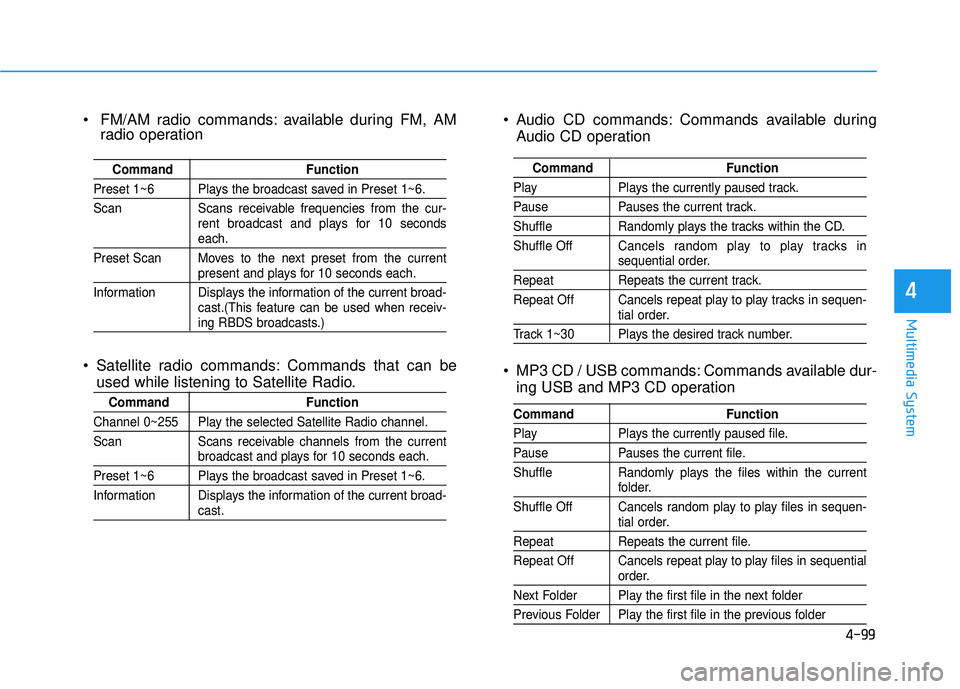
Audio CD commands: Commands available duringAudio CD operation
MP3 CD / USB commands: Commands available dur- ing USB and MP3 CD operation
Command Function
PlayPlays the currently paused track.
PausePauses the current track.
ShuffleRandomly plays the tracks within the CD.
Shuffle Off Cancels random play to play tracks in
sequential order.
Repeat Repeats the current track.
Repeat Off Cancels repeat play to play tracks in sequen-
tial order.
Track 1~30 Plays the desired track number.
Command Function
PlayPlays the currently paused file.
PausePauses the current file.
Shuffle Randomly plays the files within the current
folder.
Shuffle Off Cancels random play to play files in sequen-
tial order.
Repeat Repeats the current file.
Repeat Off Cancels repeat play to play files in sequential
order.
Next Folder Play the first file in the next folder
Previous Folder Play the first file in the previous folder
FM/AM radio commands: available during FM, AM radio operation
Satellite radio commands: Commands that can be used while listening to Satellite Radio.
Command Function
Preset 1~6 Plays the broadcast saved in Preset 1~6.
Scan Scans receivable frequencies from the cur-
rent broadcast and plays for 10 seconds
each.
Preset Scan Moves to the next preset from the current
present and plays for 10 seconds each.
Information Displays the information of the current broad- cast.(This feature can be used when receiv-
ing RBDS broadcasts.)
Command Function
Channel 0~255 Play the selected Satellite Radio channel.
Scan Scans receivable channels from the current
broadcast and plays for 10 seconds each.
Preset 1~6 Plays the broadcast saved in Preset 1~6.
Information Displays the information of the current broad-
cast.
Page 349 of 708
![HYUNDAI SONATA LIMITED 2016 Owners Manual 4-101
Multimedia System
4
S
SE
E T
T U
U P
P
Starting Mode
Press the key to display the
Setup screen.
You can select and control options
related to [Display], [Sound], [Phone]
and [System].
Display S](/img/35/56186/w960_56186-348.png "HYUNDAI SONATA LIMITED 2016 Owners Manual 4-101
Multimedia System
4
S
SE
E T
T U
U P
P
Starting Mode
Press the key to display the
Setup screen.
You can select and control options
related to [Display], [Sound], [Phone]
and [System].
Display S")
4-101
Multimedia System
4
S
SE
E T
T U
U P
P
Starting Mode
Press the key to display the
Setup screen.
You can select and control options
related to [Display], [Sound], [Phone]
and [System].
Display Settings
Adjusting the Brightness
Press the key Select
[Display] Select [Brightness]
Use the , buttons to adjust the
screen brightness or set the
Brightness on Automatic, Day, or
Night mode.
Press the button to reset.
1) Automatic : Adjusts the brightness
automatically
2) Day : Always maintains the bright- ness on high
3) Night : Always maintains the
brightness on low
Mode Pop up
Press the key Select
[Display] Select [Mode Pop up]
This feature is used to display the
Pop-up Mode screen when entering
radio and media modes.
When this feature is turned on,
pressing the or key
will display the Pop-up Mode screen.
Information
The media Pop-up Mode screen can
be displayed only when two or more
media modes have been connected.
i
MEDIA RADIO
SETUP
Default
SETUP SETUP
Page 350 of 708
![HYUNDAI SONATA LIMITED 2016 Owners Manual 4-102
Multimedia System
MP3 Information Display
Press the key Select
[Display] Select [Media Display]
This feature is used to change the
information displayed within USB
and MP3 CD modes.
1) Folder/](/img/35/56186/w960_56186-349.png "HYUNDAI SONATA LIMITED 2016 Owners Manual 4-102
Multimedia System
MP3 Information Display
Press the key Select
[Display] Select [Media Display]
This feature is used to change the
information displayed within USB
and MP3 CD modes.
1) Folder/")
4-102
Multimedia System
MP3 Information Display
Press the key Select
[Display] Select [Media Display]
This feature is used to change the
information displayed within USB
and MP3 CD modes.
1) Folder/File : Displays file nameand folder name
2) Album/Artist/Song : Displays album name/artist name/song
Sound Settings
Sound Settings
Press the key Select
[Sound] Select [Sound Setting] Use the , , , buttons to
adjust the Fader/Balance settings.
Use the , buttons to adjust the
Bass/Middle/Treble settings.
Press the button to reset.DefaultSETUP
SETUP
Page 352 of 708
![HYUNDAI SONATA LIMITED 2016 Owners Manual 4-104
Multimedia System
Touch Screen Beep
Press the key Select [Sound]Select [Touch Screen Beep]
This feature is used to turn the touch
screen beep on/off.
Blue Link Voice Volume
Press the key Sele](/img/35/56186/w960_56186-351.png "HYUNDAI SONATA LIMITED 2016 Owners Manual 4-104
Multimedia System
Touch Screen Beep
Press the key Select [Sound]Select [Touch Screen Beep]
This feature is used to turn the touch
screen beep on/off.
Blue Link Voice Volume
Press the key Sele")
4-104
Multimedia System
Touch Screen Beep
Press the key Select [Sound]Select [Touch Screen Beep]
This feature is used to turn the touch
screen beep on/off.
Blue Link Voice Volume
Press the key Select [Sound] Select [Blue Link Voice Vol.]
Turn the TUNE knob to adjust the
Blue Link Voice Volume.
❈ Blue Link
®may differ depending
on the selected audio.
System Setting
Memory Information
Press the key Select
[System] Select [Memory Information]
This feature displays information
related to system memory.
1) Using : Displays capacity currently in use
2) Capacity : Displays total capacity
SETUP
SETUP SETUP
Page 356 of 708

4-108
Multimedia System
6. Suspend Route
“Suspend Route” VR command
allows the user to suspend and
pause Turn by Turn(TBT) route guid-
ance while in the guidance mode.
7. Resume Route
“Resume Route” VR command
allows the user to resume Turn by
Turn(TBT) route guidance.
➂ (Blue Link
®for SOS)
In the case of an emergency,
requests for help to the Blue Link
®
center.
Call is connected to the Blue Link
®
emergency rescue center. Re-press-
ing the key will end the call.
If already on a Bluetooth
®phone call,
the call will end to connect you to the
Blue Link
®Emergency Rescue
Center.
Information
• You cannot talk simultaneously on the Bluetooth®phone and Blue
Link®phone.
• While on a Bluetooth®call, pressing
the key or key will dis-
play a message indicating that you
are currently on a call.
• A message will be displayed if you receive a Bluetooth
®Bluetooth®
Wireless Technology call while already
on a Blue Link®call. At this time,
press the key on the steering
wheel remote controller to accept the
call. The phone bell will not ring.
i
Page 359 of 708
4-111
Multimedia System
4
S
SY
Y S
ST
T E
EM
M
C
C O
O N
NT
TR
R O
O L
LL
LE
E R
R S
S
A
A N
N D
D
F
F U
U N
NC
CT
T I
IO
O N
NS
S
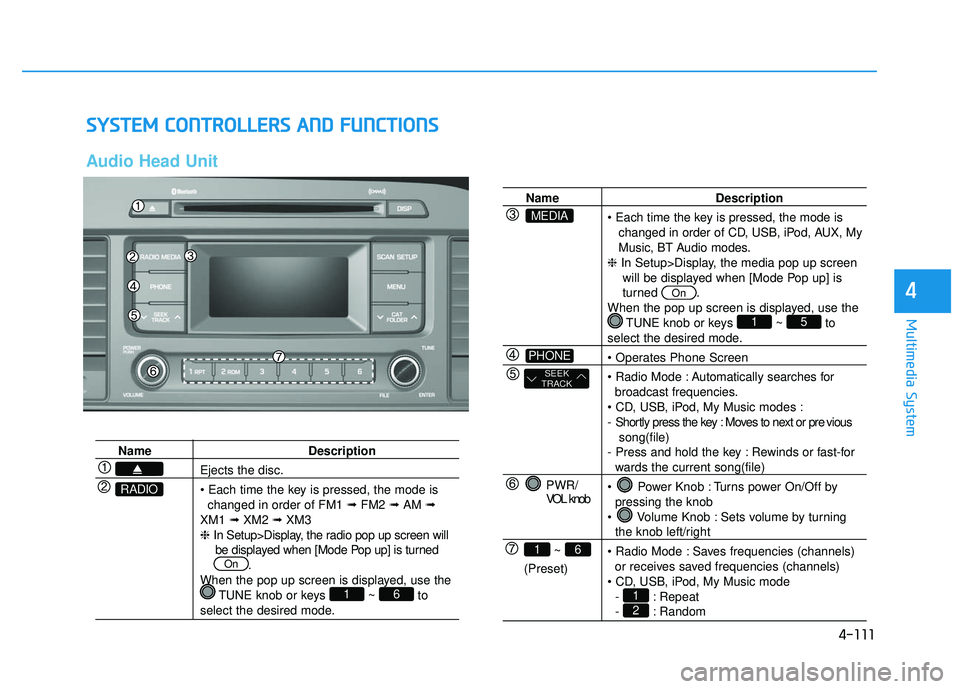
Audio Head Unit
Name Description
Ejects the disc.
• Each time the key is pressed, the mode is
changed in order of FM1 ➟FM2 ➟AM ➟
XM1 ➟XM2 ➟XM3
❈ In Setup>Display, the radio pop up screen will
be displayed when [Mode Pop up] is turned .
When the pop up screen is displayed, use the TUNE knob or keys ~ to
select the desired mode.
61
On
RADIO
Name Description
changed in order of CD, USB, iPod, AUX, My
Music, BT Audio modes.
❈ In Setup>Display, the media pop up screen
will be displayed when [Mode Pop up] is
turned .
When the pop up screen is displayed, use the TUNE knob or keys ~ to
select the desired mode.
Automatically searches for broadcast frequencies.
- Shortly press the key : Moves to next or pre vious song(file)
- Press and hold the key : Rewinds or fast-for
wards the current song(file)
Power Knob : Turns power On/Off by pressing the knob
Volume Knob : Sets volume by turning
the knob left/right
Saves frequencies (channels) or receives saved frequencies (channels)
- : Repeat
- : Random21
51
On
PWR/
VOL knob
~
(Preset)
61
SEEK
TRACK
PHONE
MEDIA