display HYUNDAI SONATA LIMITED 2016 Repair Manual
[x] Cancel search | Manufacturer: HYUNDAI, Model Year: 2016, Model line: SONATA LIMITED, Model: HYUNDAI SONATA LIMITED 2016Pages: 708, PDF Size: 25.96 MB
Page 298 of 708
4-50
Multimedia System
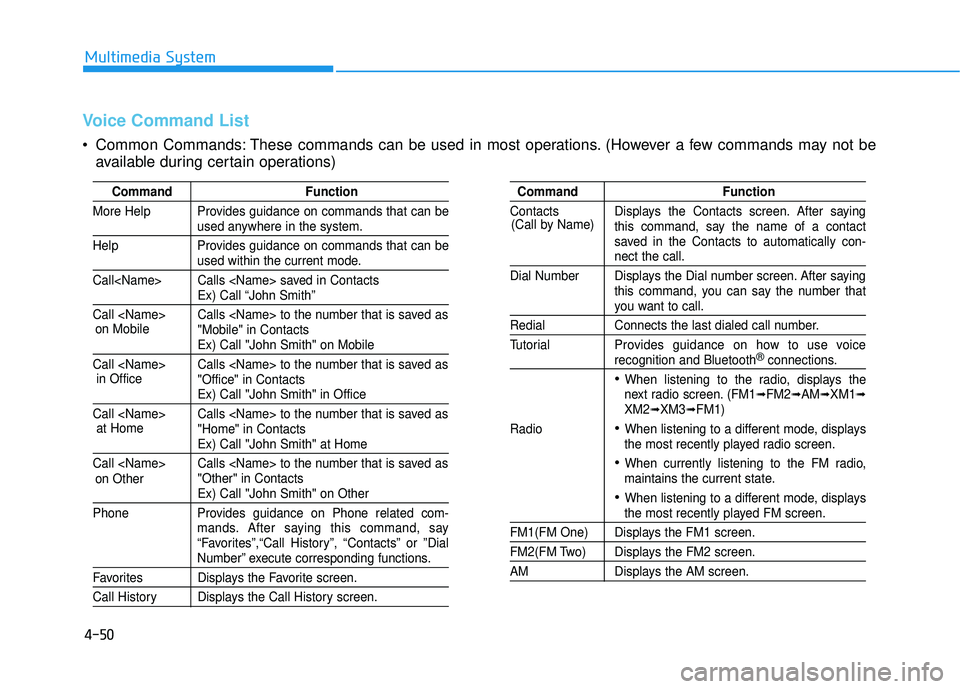
Voice Command List
Common Commands: These commands can be used in most operations. (However a few commands may not beavailable during certain operations)
Command Function
More Help Provides guidance on commands that can be
used anywhere in the system.
Help Provides guidance on commands that can be
used within the current mode.
Call
Ex) Call “John Smith”
Call
Ex) Call "John Smith" on Mobile
Call
Ex) Call "John Smith" in Office
Call
Ex) Call "John Smith" at Home
Call
Ex) Call "John Smith" on Other
Phone Provides guidance on Phone related com- mands. After saying this command, say
“Favorites”,“Call History”, “Contacts” or ”Dial
Number” execute corresponding functions.
Favorites Displays the Favorite screen.
Call History Displays the Call History screen.
Command Function
Contacts Displays the Contacts screen. After saying this command, say the name of a contact
saved in the Contacts to automatically con-
nect the call.
Dial Number Displays the Dial number screen. After saying this command, you can say the number that
you want to call.
Redial Connects the last dialed call number.
Tutorial Provides guidance on how to use voice
recognition and Bluetooth®connections.
When listening to the radio, displays the
next radio screen. (FM1➟FM2➟AM➟XM1➟XM2➟XM3➟FM1)
Radio
When listening to a different mode, displays
the most recently played radio screen.
When currently listening to the FM radio,
maintains the current state.
When listening to a different mode, displaysthe most recently played FM screen.
FM1(FM One) Displays the FM1 screen.
FM2(FM Two) Displays the FM2 screen.
AM Displays the AM screen.
(Call by Name)
on Mobile
in Officeat Home
on Other
Page 299 of 708
4-51
Multimedia System
4
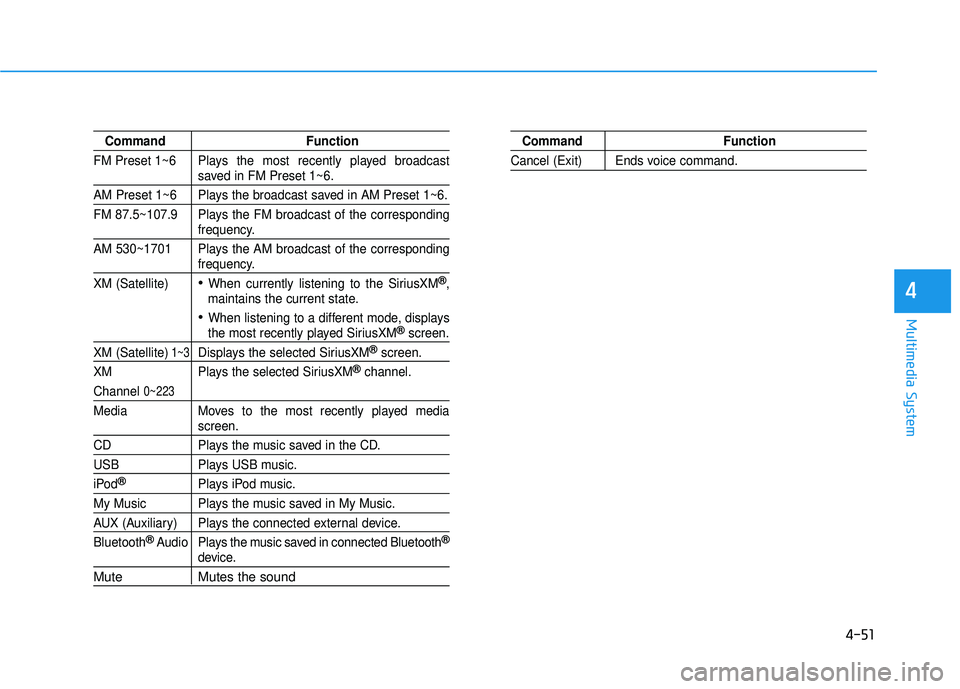
CommandFunction
FM Preset 1~6 Plays the most recently played broadcast
saved in FM Preset 1~6.
AM Preset 1~6 Plays the broadcast saved in AM Preset 1~6.
FM 87.5~107.9 Plays the FM broadcast of the corresponding
frequency.
AM 530~1701 Plays the AM broadcast of the corresponding
frequency.
XM (Satellite)
When currently listening to the SiriusXM®,
maintains the current state.
When listening to a different mode, displaysthe most recently played SiriusXM®screen.
XM (Satellite)1~3Displays the selected SiriusXM®screen.
XM Plays the selected SiriusXM
®channel.
Channel 0~223
Media Moves to the most recently played mediascreen.
CD Plays the music saved in the CD.
USBPlays USB music.
iPod®Plays iPod music.
My Music Plays the music saved in My Music.
AUX (Auxiliary) Plays the connected external device.
Bluetooth
®Audio Plays the music saved in connected Bluetooth®
device.
Mute Mutes the sound
Command Function
Cancel (Exit) Ends voice command.
Page 300 of 708
4-52
Multimedia System
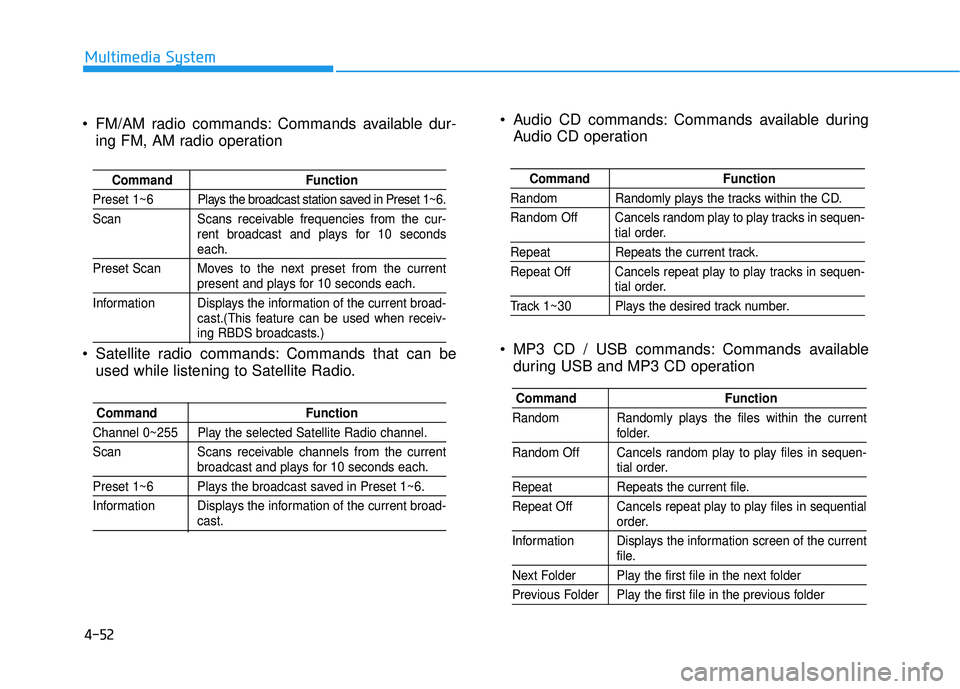
Audio CD commands: Commands available duringAudio CD operation
MP3 CD / USB commands: Commands available during USB and MP3 CD operation
Command Function
Random Randomly plays the tracks within the CD.
Random Off Cancels random play to play tracks in sequen-
tial order.
RepeatRepeats the current track.
Repeat Off Cancels repeat play to play tracks in sequen-
tial order.
Track 1~30 Plays the desired track number.
Command Function
Random Randomly plays the files within the current
folder.
Random Off Cancels random play to play files in sequen-
tial order.
Repeat Repeats the current file.
Repeat Off Cancels repeat play to play files in sequential
order.
Information Displays the information screen of the current
file.
Next Folder Play the first file in the next folder
Previous Folder Play the first file in the previous folder
FM/AM radio commands: Commands available dur- ing FM, AM radio operation
Satellite radio commands: Commands that can be used while listening to Satellite Radio.
Command Function
Preset 1~6 Plays the broadcast station saved in Preset 1~6.
Scan Scans receivable frequencies from the cur- rent broadcast and plays for 10 seconds
each.
Preset Scan Moves to the next preset from the current
present and plays for 10 seconds each.
Information Displays the information of the current broad- cast.(This feature can be used when receiv-
ing RBDS broadcasts.)
Command Function
Channel 0~255 Play the selected Satellite Radio channel.
Scan Scans receivable channels from the current
broadcast and plays for 10 seconds each.
Preset 1~6 Plays the broadcast saved in Preset 1~6.
Information Displays the information of the current broad-
cast.
Page 303 of 708
4-55
Multimedia System
4
S
SY
Y S
ST
T E
EM
M
C
C O
O N
NT
TR
R O
O L
LL
LE
E R
R S
S
A
A N
N D
D
F
F U
U N
NC
CT
T I
IO
O N
NS
S
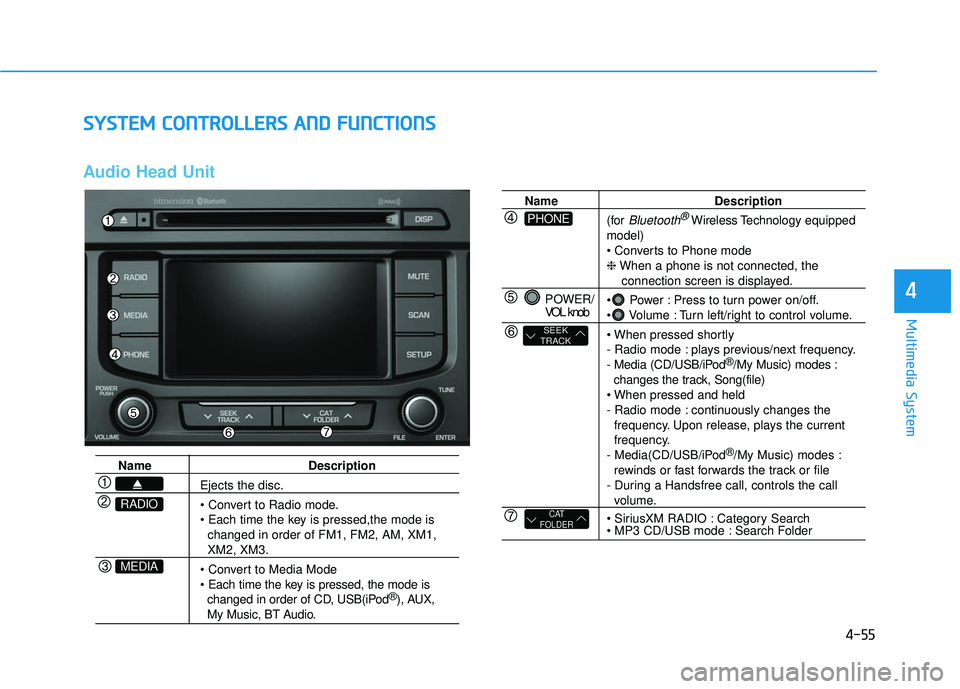
Audio Head Unit
Name Description
Ejects the disc.
changed in order of FM1, FM2, AM, XM1,
XM2, XM3.
changed in order of CD, USB(iPod
®), AUX, My Music, BT Audio.
MEDIA
RADIO
Name Description
(for
Bluetooth®Wireless Technology equipped
model)
❈ When a phone is not connected, the
connection screen is displayed.
Power : Press to turn power on/off.
Volume : Turn left/right to control volume.
- Radio mode : plays previous/next frequency.
- Media (CD/USB/iPod
®/My Music) modes :
changes the track, Song(file)
- Radio mode : continuously changes the frequency. Upon release, plays the current
frequency.
- Media(CD/USB/iPod
®/My Music) modes :
rewinds or fast forwards the track or file
- During a Handsfree call, controls the call
volume.
Category Search
Search Folder
POWER/
VOL knob
CAT
FOLDER
SEEK
TRACK
PHONE
Page 304 of 708

4-56
Multimedia System
No will be shown if the feature is
not supported.
Name Description
When the button is pressed, stops sound and
"Audio Mute" is displayed on LCD.
previews all receivable broad
casts for 5 seconds each
previews all receivable broadcasts for 10 seconds each. broadcastsfor 10 seconds each
previews each song (file) for 10 seconds
each.
Converts to Setup mode.
turn to change broadcast frquencies.
: tur n to change
broadcast channels
®/My Music) modes :turn to search tracks/ channels/files.
TUNE
knob
SETUP
SCAN
MUTE
DISP
Page 306 of 708
4-58
Multimedia System
NameDescription
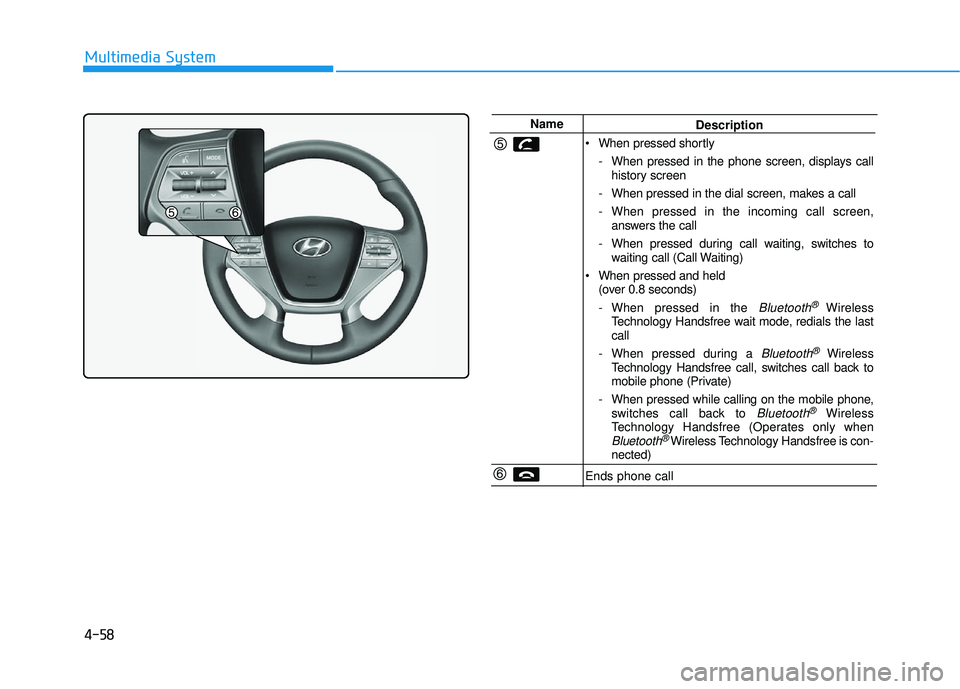
When pressed shortly - When pressed in the phone screen, displays callhistory screen
- When pressed in the dial screen, makes a call
- When pressed in the incoming call screen, answers the call
- When pressed during call waiting, switches to waiting call (Call Waiting)
When pressed and held (over 0.8 seconds)
- When pressed in the
Bluetooth® Wireless
Technology Handsfree wait mode, redials the last
call
- When pressed during a
Bluetooth®Wireless
Technology Handsfree call, switches call back to
mobile phone (Private)
- When pressed while calling on the mobile phone, switches call back to
Bluetooth®Wireless
Technology Handsfree (Operates only when
Bluetooth®Wireless Technology Handsfree is con-
nected)
Ends phone call
Page 307 of 708
4-59
Multimedia System
4
R
RA
A D
DI
IO
O
M
M O
OD
DE
E
Basic Mode Screen
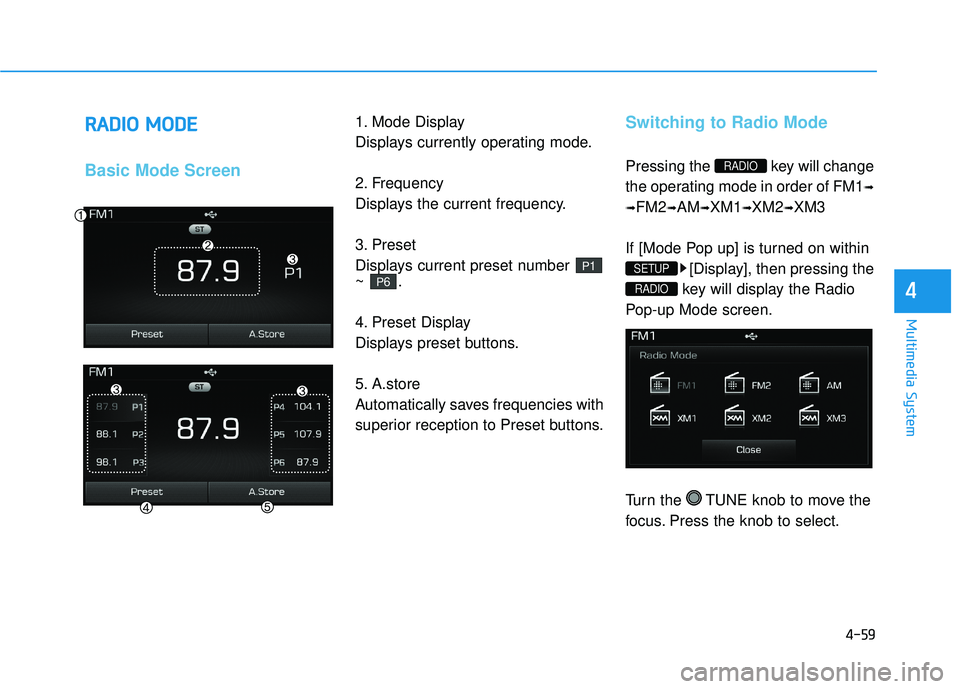
1. Mode Display
Displays currently operating mode.
2. Frequency
Displays the current frequency.
3. Preset
Displays current preset number
~ .
4. Preset Display
Displays preset buttons.
5. A.store
Automatically saves frequencies with
superior reception to Preset buttons.Switching to Radio Mode
Pressing the key will change
the operating mode in order of FM1
➟
➟
FM2➟AM➟XM1➟XM2➟XM3
If [Mode Pop up] is turned on within [Display], then pressing the
key will display the Radio
Pop-up Mode screen.
Turn the TUNE knob to move the
focus. Press the knob to select.
RADIO
SETUP
RADIO
P6
P1
Page 308 of 708
4-60
Multimedia System
Searching Radio Frequencies
Using Seek
Press the key to play the
previous/next frequency.
Using TUNE
Turn the TUNE knob to select the
desired frequency.
: Increases/decreased by200kHz
Increased/decreased by 9 (Only GUAM), 10kHz
Using Radio Mode
Selecting Presets/Saving Presets
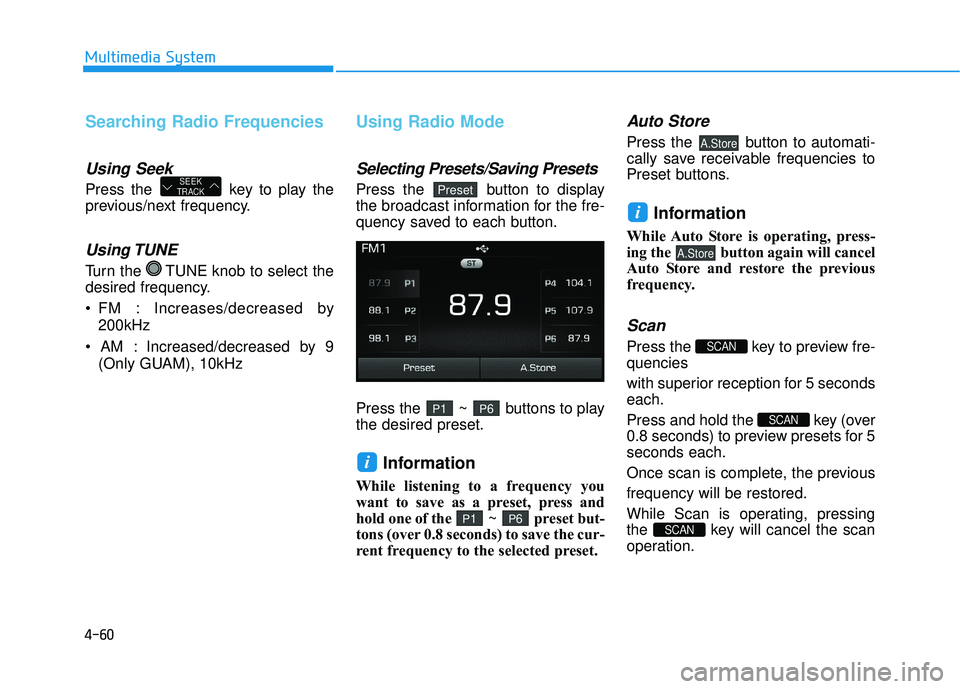
Press the button to display
the broadcast information for the fre-
quency saved to each button.
Press the ~ buttons to play
the desired preset.
Information
While listening to a frequency you
want to save as a preset, press and
hold one of the ~ preset but-
tons (over 0.8 seconds) to save the cur-
rent frequency to the selected preset.
Auto Store
Press the button to automati-
cally save receivable frequencies to
Preset buttons.
Information
While Auto Store is operating, press-
ing the button again will cancel
Auto Store and restore the previous
frequency.
Scan
Press the key to preview fre-
quencies
with superior reception for 5 seconds
each.
Press and hold the key (over
0.8 seconds) to preview presets for 5
seconds each.
Once scan is complete, the previous
frequency will be restored.
While Scan is operating, pressing
the key will cancel the scan
operation.
SCAN
SCAN
SCAN
A.Store
i
A.Store
P6P1
i
P6P1
PresetSEEK
TRACK
Page 311 of 708
4-63
Multimedia System
4
S
Si
ir
r i
iu
u s
sX
X M
M R
RA
A D
DI
IO
O
M
M O
OD
DE
E
Basic Mode Screen
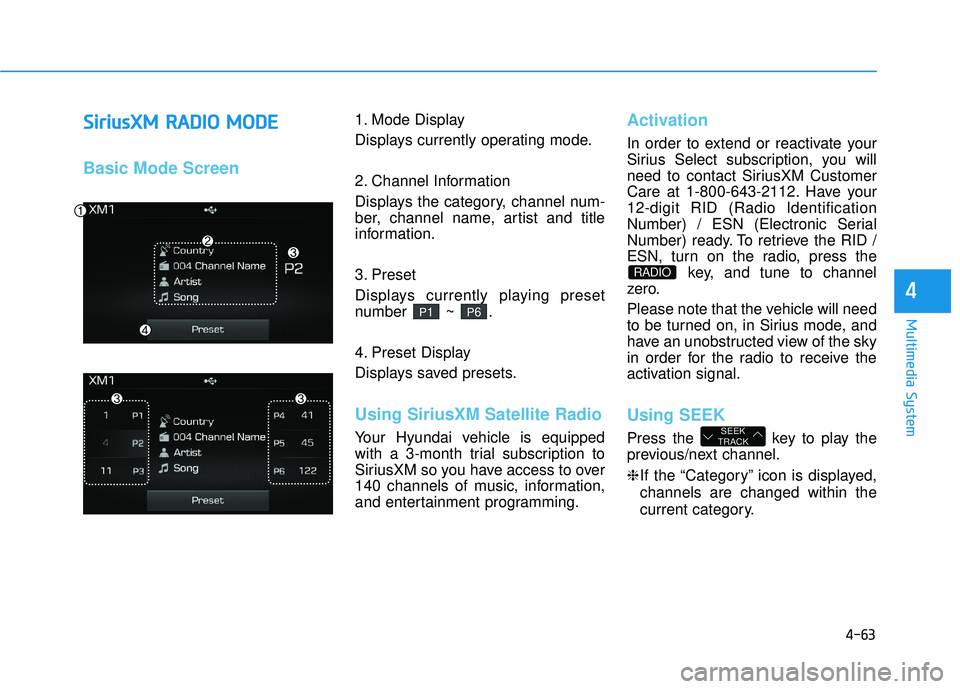
1. Mode Display
Displays currently operating mode.
2. Channel Information
Displays the category, channel num-
ber, channel name, artist and title
information.
3. Preset
Displays currently playing preset
number ~ .
4. Preset Display
Displays saved presets.
Using SiriusXM Satellite Radio
Your Hyundai vehicle is equipped
with a 3-month trial subscription to
SiriusXM so you have access to over
140 channels of music, information,
and entertainment programming.
Activation
In order to extend or reactivate your
Sirius Select subscription, you will
need to contact SiriusXM Customer
Care at 1-800-643-2112. Have your
12-digit RID (Radio Identification
Number) / ESN (Electronic Serial
Number) ready. To retrieve the RID /
ESN, turn on the radio, press the
key, and tune to channel
zero.
Please note that the vehicle will need
to be turned on, in Sirius mode, and
have an unobstructed view of the sky
in order for the radio to receive the
activation signal.
Using SEEK
Press the key to play the
previous/next channel.
❈ If the “Category” icon is displayed,
channels are changed within the
current category.SEEK
TRACK
RADIO
P6P1
Page 312 of 708
4-64
Multimedia System
SCAN
Press the key to scan all
channels with superior reception for
5 seconds each.
Once scan is complete, the previous-
ly played channel will be restored.
During Scan, pressing the
key again will cancel the scan opera-
tion and restore the previously
played channel.
If the “Category” icon is displayed,
channels are changed within the cur-
rent category.
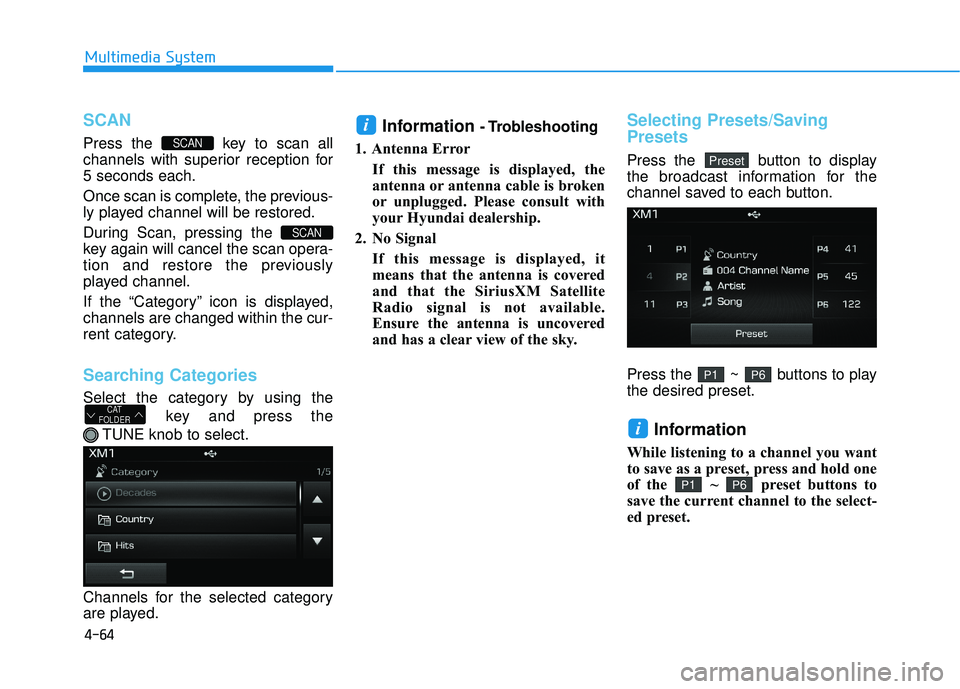
Searching Categories
Select the category by using thekey and press the
TUNE knob to select.
Channels for the selected category
are played.
Information - Trobleshooting
1. Antenna Error If this message is displayed, the
antenna or antenna cable is broken
or unplugged. Please consult with
your Hyundai dealership.
2. No Signal If this message is displayed, it
means that the antenna is covered
and that the SiriusXM Satellite
Radio signal is not available.
Ensure the antenna is uncovered
and has a clear view of the sky.Selecting Presets/Saving
Presets
Press the button to display
the broadcast information for the
channel saved to each button.
Press the ~ buttons to play
the desired preset.
Information
While listening to a channel you want
to save as a preset, press and hold one
of the ~ preset buttons to
save the current channel to the select-
ed preset.
P6P1
i
P6P1
Preset
i
CAT
FOLDER
SCAN
SCAN