ECO mode HYUNDAI SONATA LIMITED 2016 User Guide
[x] Cancel search | Manufacturer: HYUNDAI, Model Year: 2016, Model line: SONATA LIMITED, Model: HYUNDAI SONATA LIMITED 2016Pages: 708, PDF Size: 25.96 MB
Page 167 of 708
3-72
Convenient features of your vehicle
Immobilizer Indicator
This indicator illuminates up to 30
seconds:
When the vehicle detects thesmart key in the vehicle properly
while the Engine Start/Stop button
is in the ACC or ON position.
- You can start the vehicle.
- The indicator light goes off afterstarting the vehicle.
This indicator blinks for a few sec-
onds:
When the smart key is not in the vehicle.
- You cannot start the vehicle.
This indicator illuminates for 2 sec-
onds and goes off:
When the Smart Key is not detect-ed inside the vehicle, when the
Engine Start/Stop button is in the
ON position.
In this case, have the vehicle
inspected by an authorized
HYUNDAI dealer.
This indicator blinks:
When the Smart Key battery isweak.
- In this case, you cannot start theengine. However, by pressing the
Engine Start/Stop button with the
smart key, you may start the
engine. (For more information,
refer to “Starting the Engine” in
the chapter 5).
When there is a malfunction with the immobilizer system.
In this case, have the vehicle
inspected by an authorized
HYUNDAI dealer.
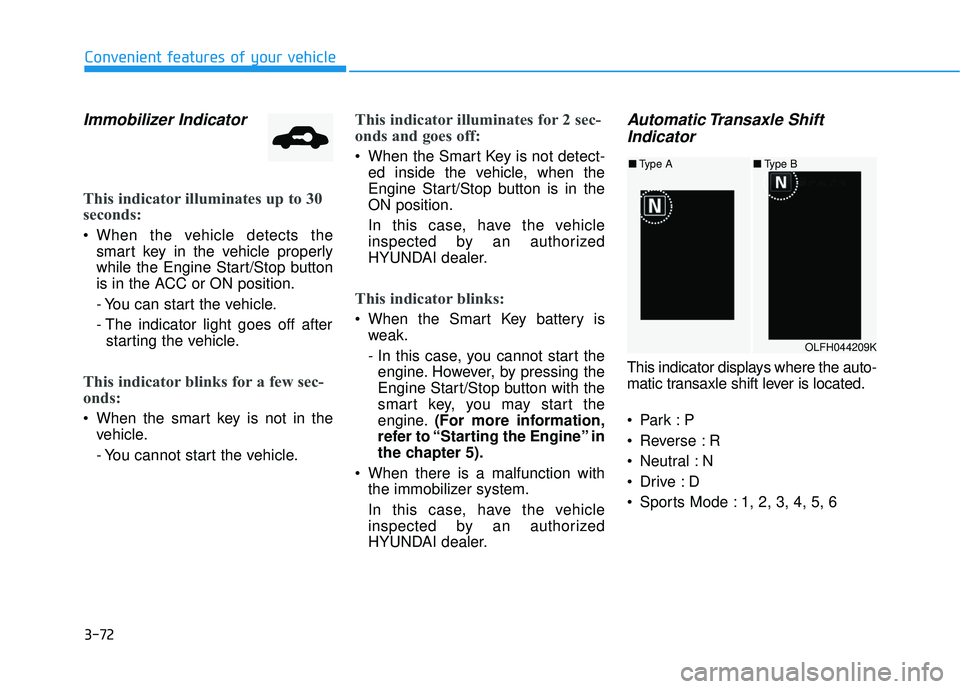
Automatic Transaxle ShiftIndicator
This indicator displays where the auto-
matic transaxle shift lever is located.
Reverse : R
Neutral : N
Sports Mode : 1, 2, 3, 4, 5, 6
OLFH044209K
■ Type A ■Type B
Page 170 of 708
3-75
Convenient features of your vehicle
3
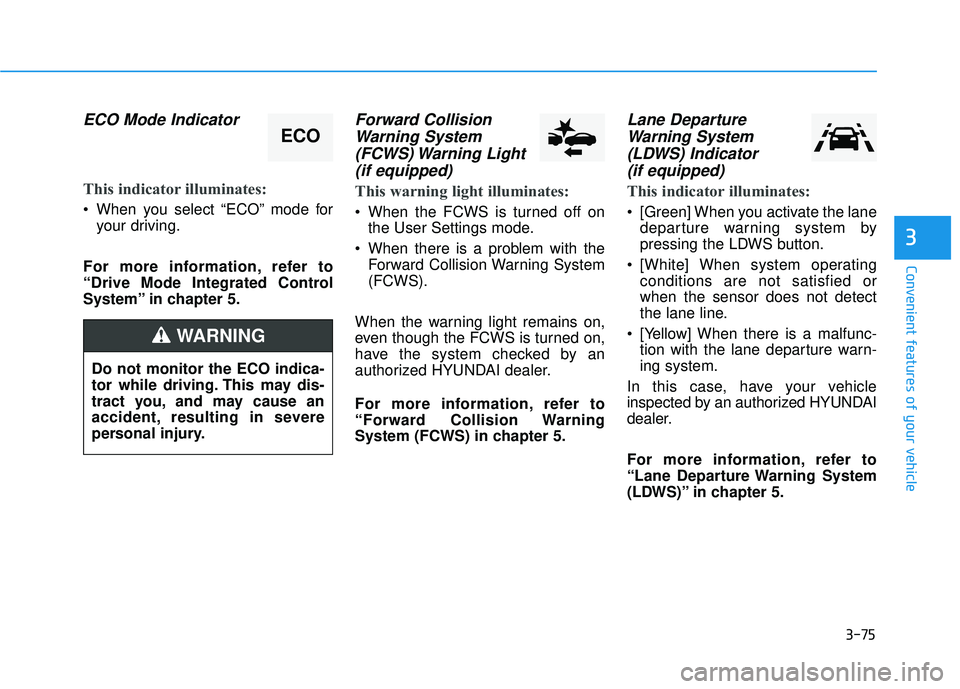
ECO Mode Indicator
This indicator illuminates:
When you select “ECO” mode foryour driving.
For more information, refer to
“Drive Mode Integrated Control
System” in chapter 5.
Forward Collision Warning System(FCWS) Warning Light(if equipped)
This warning light illuminates:
When the FCWS is turned off on
the User Settings mode.
When there is a problem with the Forward Collision Warning System
(FCWS).
When the warning light remains on,
even though the FCWS is turned on,
have the system checked by an
authorized HYUNDAI dealer.
For more information, refer to
“Forward Collision Warning
System (FCWS) in chapter 5.
Lane Departure Warning System(LDWS) Indicator (if equipped)
This indicator illuminates:
[Green] When you activate the lane
departure warning system by
pressing the LDWS button.
[White] When system operating conditions are not satisfied or
when the sensor does not detect
the lane line.
[Yellow] When there is a malfunc- tion with the lane departure warn-
ing system.
In this case, have your vehicle
inspected by an authorized HYUNDAI
dealer.
For more information, refer to
“Lane Departure Warning System
(LDWS)” in chapter 5.
ECO
Do not monitor the ECO indica-
tor while driving. This may dis-
tract you, and may cause an
accident, resulting in severe
personal injury.
WARNING
Page 176 of 708
3-81
Convenient features of your vehicle
3
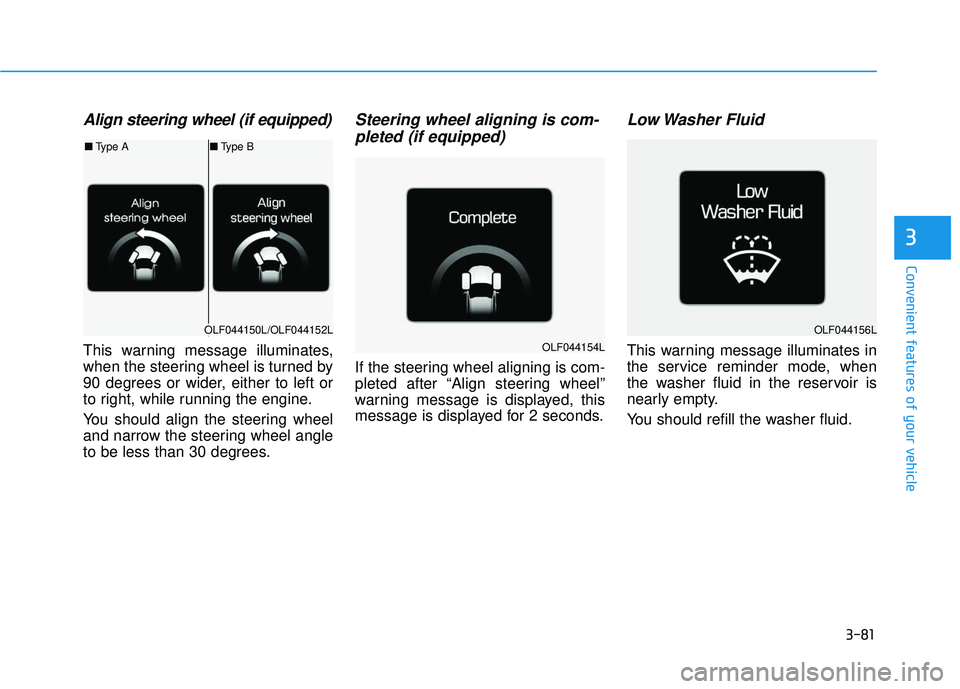
Align steering wheel (if equipped)
This warning message illuminates,
when the steering wheel is turned by
90 degrees or wider, either to left or
to right, while running the engine.
You should align the steering wheel
and narrow the steering wheel angle
to be less than 30 degrees.
Steering wheel aligning is com-pleted (if equipped)
If the steering wheel aligning is com-
pleted after “Align steering wheel”
warning message is displayed, this
message is displayed for 2 seconds.
Low Washer Fluid
This warning message illuminates in
the service reminder mode, when
the washer fluid in the reservoir is
nearly empty.
You should refill the washer fluid.
OLF044150L/OLF044152L
■ Type A ■Type B
OLF044154L
OLF044156L
Page 182 of 708
3-87
Convenient features of your vehicle
3
Information
Coasting guide is only a supplemental
system to assist with fuel-efficient driv-
ing. Thus, the operating conditions
may be different in accordance with
traffic/road conditions (i.e. driving in a
traffic jam, driving on a slope, driving
on a curve). Thus, take the actual driv-
ing conditions into consideration, such
as distances from the vehicles ahead/
behind, while referring to the coasting
guide system as guidance.
i■Type B
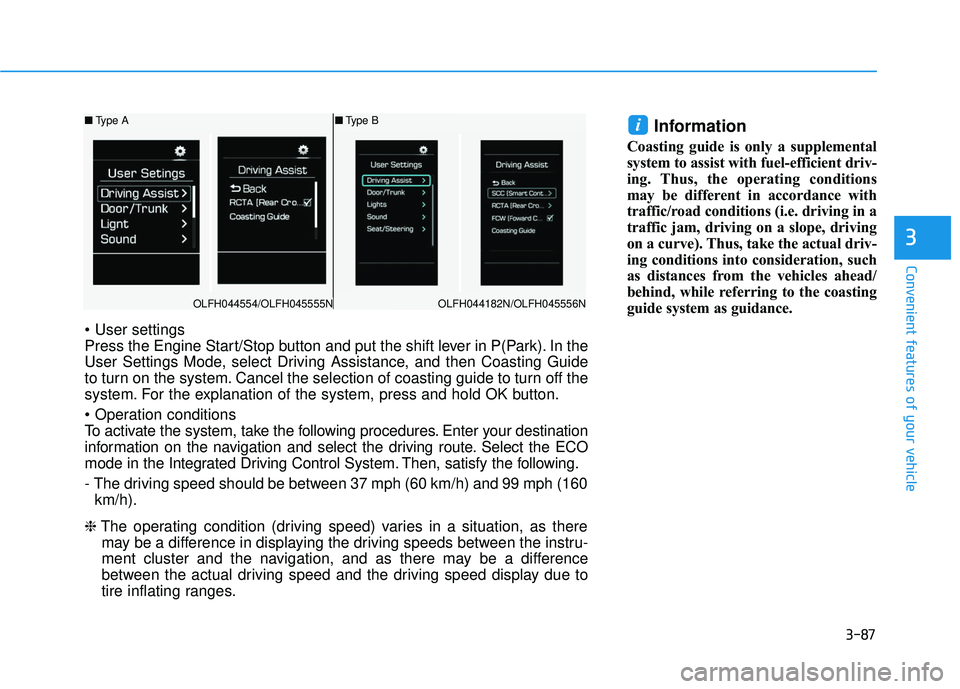
Press the Engine Start/Stop button and put the shift lever in P(Park). In the
User Settings Mode, select Driving Assistance, and then Coasting Guide
to turn on the system. Cancel the selection of coasting guide to turn off the
system. For the explanation of the system, press and hold OK button.
To activate the system, take the following procedures. Enter your destination
information on the navigation and select the driving route. Select the ECO
mode in the Integrated Driving Control System. Then, satisfy the following.
- The driving speed should be between 37 mph (60 km/h) and 99 mph (160
km/h).
❈ The operating condition (driving speed) varies in a situation, as there
may be a difference in displaying the driving speeds between the instru-
ment cluster and the navigation, and as there may be a difference
between the actual driving speed and the driving speed display due to
tire inflating ranges.
OLFH044554/OLFH045555N
■ Type A
OLFH044182N/OLFH045556N
Page 183 of 708
3-88
Convenient features of your vehicle
LCD Display
LCD display control
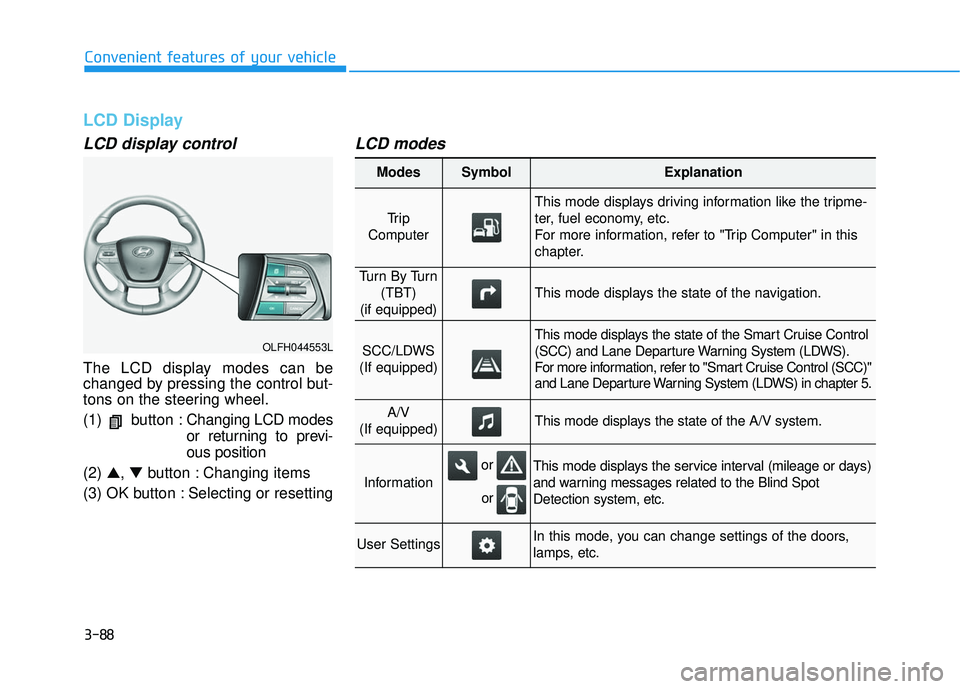
The LCD display modes can be
changed by pressing the control but-
tons on the steering wheel.
(1) button :Changing LCD modes
or returning to previ-
ous position
(2) ▲, ▼button : Changing items
(3) OK button : Selecting or resetting
LCD modes
OLFH044553L
Modes SymbolExplanation
Tr i p
Computer
This mode displays driving information like the tripme-
ter, fuel economy, etc.
For more information, refer to "Trip Computer" in this
chapter.
Tu r n B y Tu r n (TBT)
(if equipped)
This mode displays the state of the navigation.
SCC/LDWS
(If equipped)
This mode displays the state of the Smart Cruise Control
(SCC) and Lane Departure Warning System (LDWS).
For more information, refer to "Smart Cruise Control (SCC)"
and Lane Departure Warning System (LDWS) in chapter 5.
A/V
(If equipped)This mode displays the state of the A/V system.
Information
This mode displays the service interval (mileage or days)
and warning messages related to the Blind Spot
Detection system, etc.
User SettingsIn this mode, you can change settings of the doors,
lamps, etc.
or
or
Page 184 of 708
3-89
Convenient features of your vehicle
3
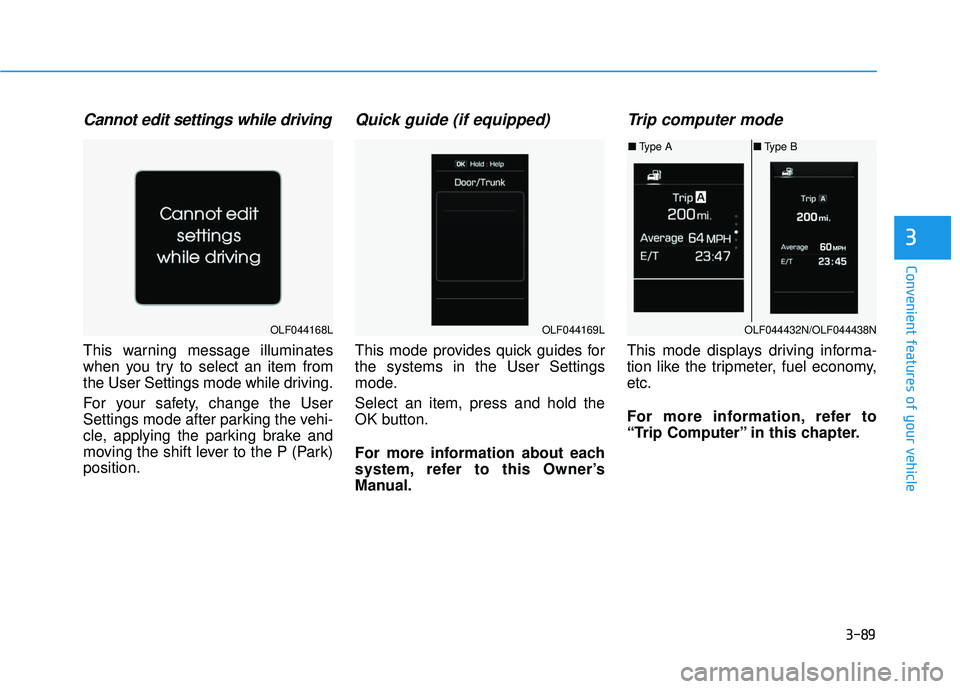
Cannot edit settings while driving
This warning message illuminates
when you try to select an item from
the User Settings mode while driving.
For your safety, change the User
Settings mode after parking the vehi-
cle, applying the parking brake and
moving the shift lever to the P (Park)
position.
Quick guide (if equipped)
This mode provides quick guides for
the systems in the User Settings
mode.
Select an item, press and hold the
OK button.
For more information about each
system, refer to this Owner’s
Manual.
Trip computer mode
This mode displays driving informa-
tion like the tripmeter, fuel economy,
etc.
For more information, refer to
“Trip Computer” in this chapter.
OLF044168LOLF044169LOLF044432N/OLF044438N
■Type A ■Type B
Page 186 of 708
3-91
Convenient features of your vehicle
3
Information mode
This mode displays the service inter-
val (mileage and days).
For the setting of the service inter-
val, refer to "User Settings Mode"
of the LCD display.
Warning Message
If one of followings occurs, warning
messages will be displayed in the infor-
mation mode for about 10 seconds.
- Malfunction of the Forward CollisionWarning System (FCWS)
- Malfunction of the Smart Cruise Control (SCC)
- Malfunction of the Lane Departure Warning System (LDWS)
- Malfunction of the Blind Spot Detection (BSD)
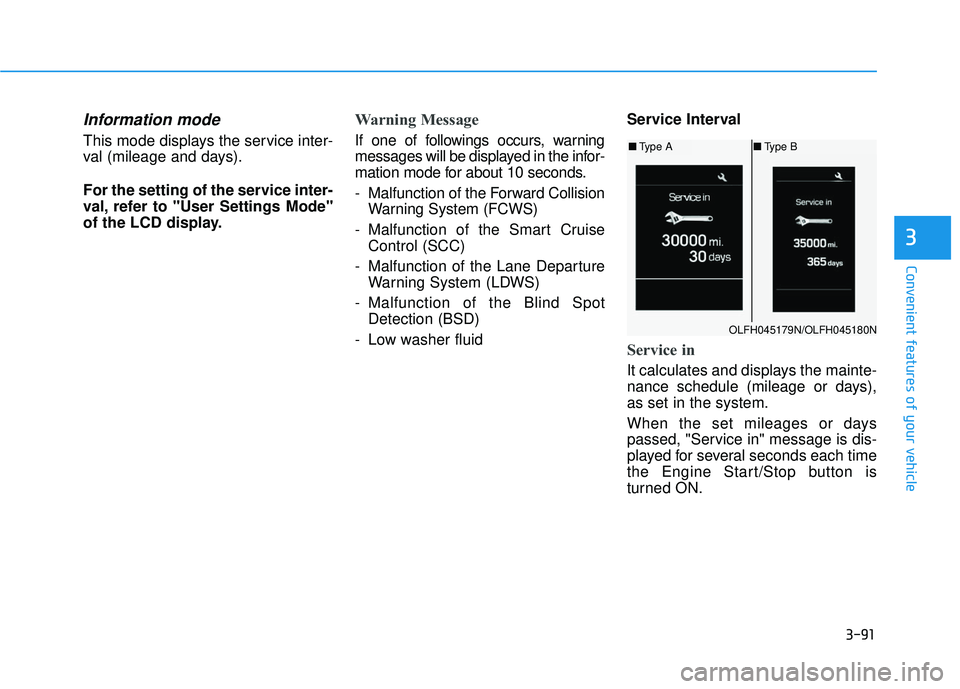
- Low washer fluid Service Interval
Service in
It calculates and displays the mainte-
nance schedule (mileage or days),
as set in the system.
When the set mileages or days
passed, "Service in" message is dis-
played for several seconds each time
the Engine Start/Stop button is
turned ON.
OLFH045179N/OLFH045180N
■
Type A ■Type B
Page 193 of 708
3-98
Convenient features of your vehicle
Trip computer
The trip computer is a driving infor-
mation system controlled by a micro-
computer. This displays driving-relat-
ed information.
Information
Some driving information, stored in
the trip computer (i.e. average vehicle
speed) is reset when the battery is dis-
connected
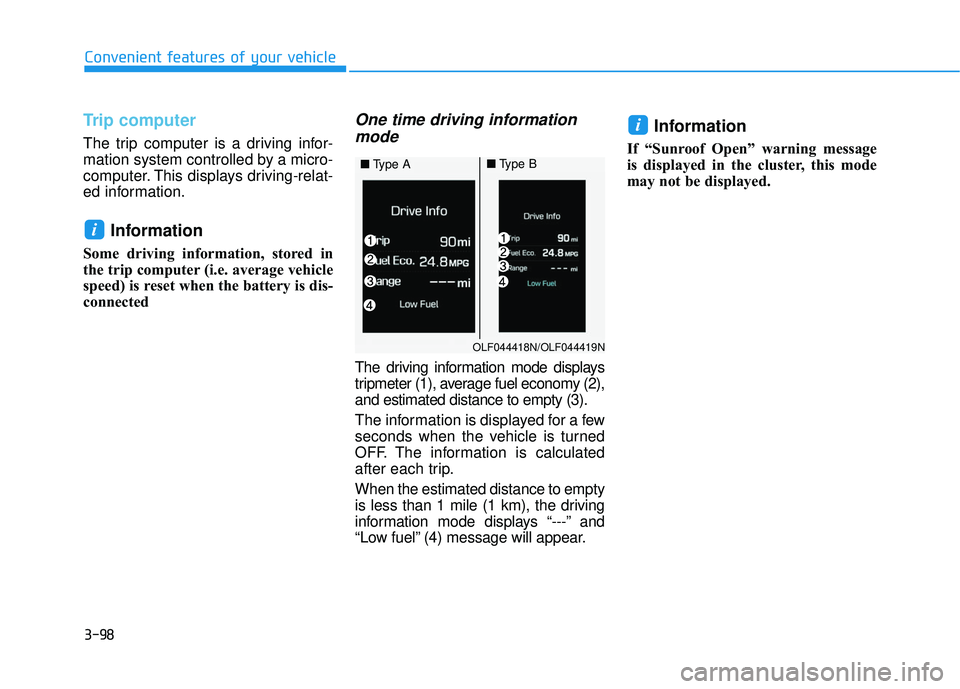
One time driving informationmode
The driving information mode displays
tripmeter (1), average fuel economy (2),
and estimated distance to empty (3).
The information is displayed for a few
seconds when the vehicle is turned
OFF. The information is calculated
after each trip.
When the estimated distance to empty
is less than 1 mile (1 km), the driving
information mode displays “---” and
“Low fuel” (4) message will appear.
Information
If “Sunroof Open” warning message
is displayed in the cluster, this mode
may not be displayed.
i
i
OLF044418N/OLF044419N
■ Type A■Type B
Page 194 of 708
3-99
Convenient features of your vehicle
3
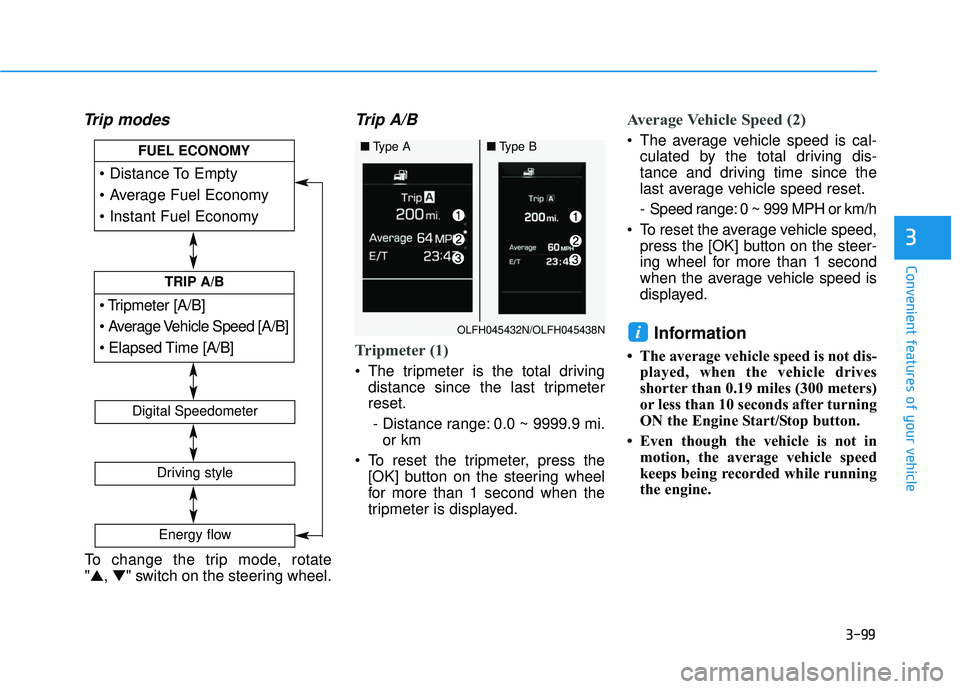
Trip modesTrip A/B
Tripmeter (1)
The tripmeter is the total driving
distance since the last tripmeter
reset.
- Distance range: 0.0 ~ 9999.9 mi. or km
To reset the tripmeter, press the [OK] button on the steering wheel
for more than 1 second when the
tripmeter is displayed.
Average Vehicle Speed (2)
The average vehicle speed is cal-culated by the total driving dis-
tance and driving time since the
last average vehicle speed reset.
- Speed range: 0 ~ 999 MPH or km/h
To reset the average vehicle speed, press the [OK] button on the steer-
ing wheel for more than 1 second
when the average vehicle speed is
displayed.
Information
• The average vehicle speed is not dis- played, when the vehicle drives
shorter than 0.19 miles (300 meters)
or less than 10 seconds after turning
ON the Engine Start/Stop button.
• Even though the vehicle is not in motion, the average vehicle speed
keeps being recorded while running
the engine.
i
[A/B]
TRIP A/B
FUEL ECONOMY
Digital Speedometer
Driving style
Energy flow
OLFH045432N/OLFH045438N
■Type A■Type B
To change the trip mode, rotate
"▲, ▼" switch on the steering wheel.
Page 196 of 708
3-101
Convenient features of your vehicle
3
Average Fuel Economy (2)
The average fuel economy is calcu-lated by the total driving distance
and fuel consumption since the last
average fuel economy reset.
- Fuel economy range: 0.0 ~ 99.9MPG or L/100km or km/L
The average fuel economy can be reset both manually and automati-
cally.
Manual reset
To manually reset the average fuel
economy, press the OK button on the
steering wheel for more than 1 sec-
ond, when the average fuel economy
is displayed.
For more information about the
OK button, refer to "LCD Display
Control" in this chapter.
Automatic reset
To automatically reset the average fuel
economy after refueling, select the
"Auto Reset" mode in User Settings
menu on the LCD display (Refer to
"LCD Display“ in this chapter).
In "Auto Reset" mode, the average fuel
economy will be reset to zero (---),
when driving speed exceeds 1 km/h,
after adding 1.6 gallons (6 liters) of fuel
or more.
Information
The average fuel economy may be
inaccurate when the vehicle drives
shorter than 0.19 miles (300 meters)
after turning ON the Engine Start/Stop
button.
Instant Fuel Economy (3)
This mode displays the instant fueleconomy during the last few sec-
onds when vehicle speed exceeds
6.2 MPH (10 km/h).
- Fuel economy range:0 ~ 50 MPG or 0 ~ 30 L/100km
i