ESP HYUNDAI SONATA LIMITED 2016 Owner's Manual
[x] Cancel search | Manufacturer: HYUNDAI, Model Year: 2016, Model line: SONATA LIMITED, Model: HYUNDAI SONATA LIMITED 2016Pages: 708, PDF Size: 25.96 MB
Page 271 of 708
4-23
Multimedia System
4
R
RA
A D
DI
IO
O
:
:
F
F M
M ,
,
A
A M
M ,
,
S
S i
ir
r i
iu
u s
sX
X M
M
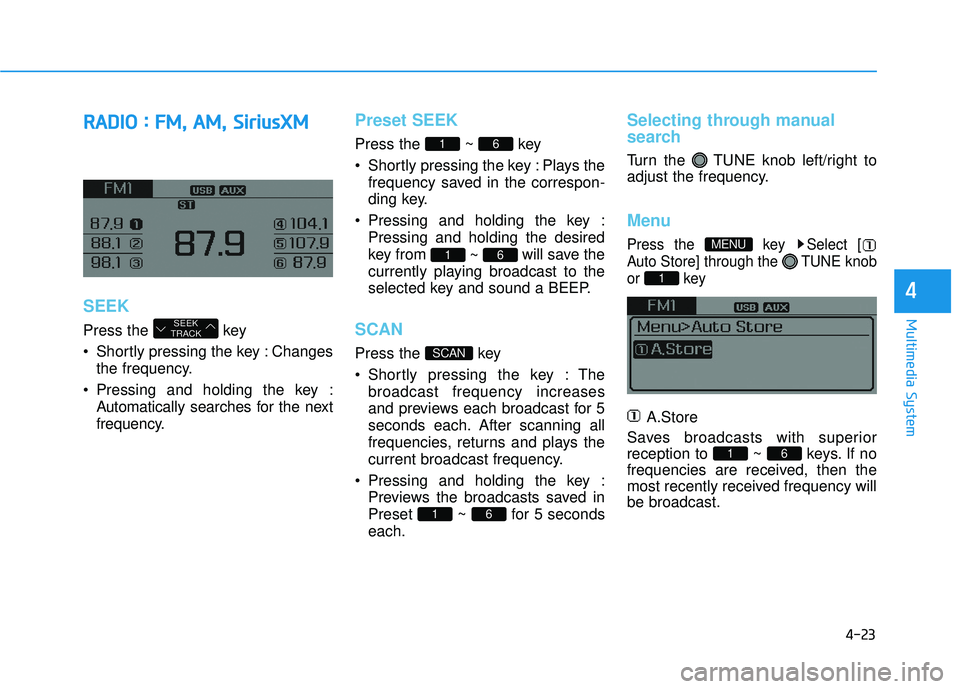
SEEK
Press the key
Shortly pressing the key : Changes
the frequency.
Pressing and holding the key : Automatically searches for the next
frequency.
Preset SEEK
Press the ~ key
Shortly pressing the key : Plays thefrequency saved in the correspon-
ding key.
Pressing and holding the key : Pressing and holding the desired
key from ~ will save the
currently playing broadcast to the
selected key and sound a BEEP.
SCAN
Press the key
Shortly pressing the key : The broadcast frequency increases
and previews each broadcast for 5
seconds each. After scanning all
frequencies, returns and plays the
current broadcast frequency.
Pressing and holding the key : Previews the broadcasts saved in
Preset ~ for 5 seconds
each.
Selecting through manual
search
Turn the TUNE knob left/right to
adjust the frequency.
Menu
Press the key Select [
Auto Store] through the TUNE knob
or key
A.Store
Saves broadcasts with superior
reception to ~ keys. If no
frequencies are received, then the
most recently received frequency will
be broadcast.
61
1
MENU
61
SCAN
61
61
SEEK
TRACK
Page 275 of 708
4-27
Multimedia System
4
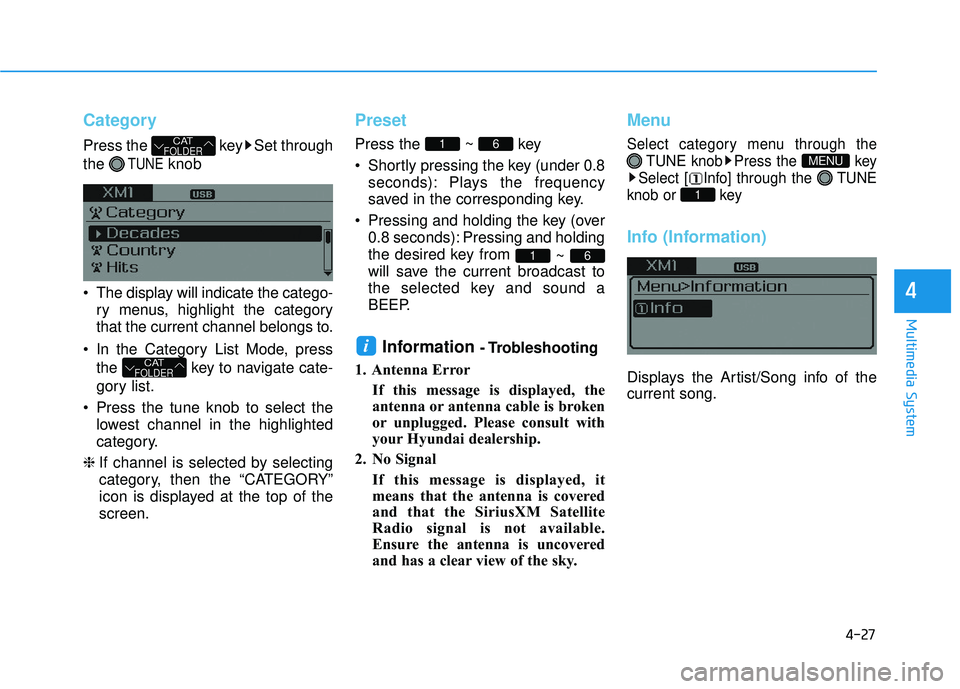
Category
Press the key Set through
the
TUNEknob
The display will indicate the catego- ry menus, highlight the category
that the current channel belongs to.
In the Category List Mode, press the key to navigate cate-
gory list.
Press the tune knob to select the lowest channel in the highlighted
category.
❈ If channel is selected by selecting
category, then the “CATEGORY”
icon is displayed at the top of the
screen.
Preset
Press the ~ key
Shortly pressing the key (under 0.8
seconds): Plays the frequency
saved in the corresponding key.
Pressing and holding the key (over 0.8 seconds): Pressing and holding
the desired key from ~
will save the current broadcast to
the selected key and sound a
BEEP.
Information - Trobleshooting
1. Antenna Error If this message is displayed, the
antenna or antenna cable is broken
or unplugged. Please consult with
your Hyundai dealership.
2. No Signal If this message is displayed, it
means that the antenna is covered
and that the SiriusXM Satellite
Radio signal is not available.
Ensure the antenna is uncovered
and has a clear view of the sky.
Menu
Select category menu through the TUNE knob Press the key
Select [ Info] through the TUNE
knob or key
Info (Information)
Displays the Artist/Song info of the
current song.
1
MENU
i
61
61
CATFOLDER
CATFOLDER
Page 283 of 708
4-35
Multimedia System
4
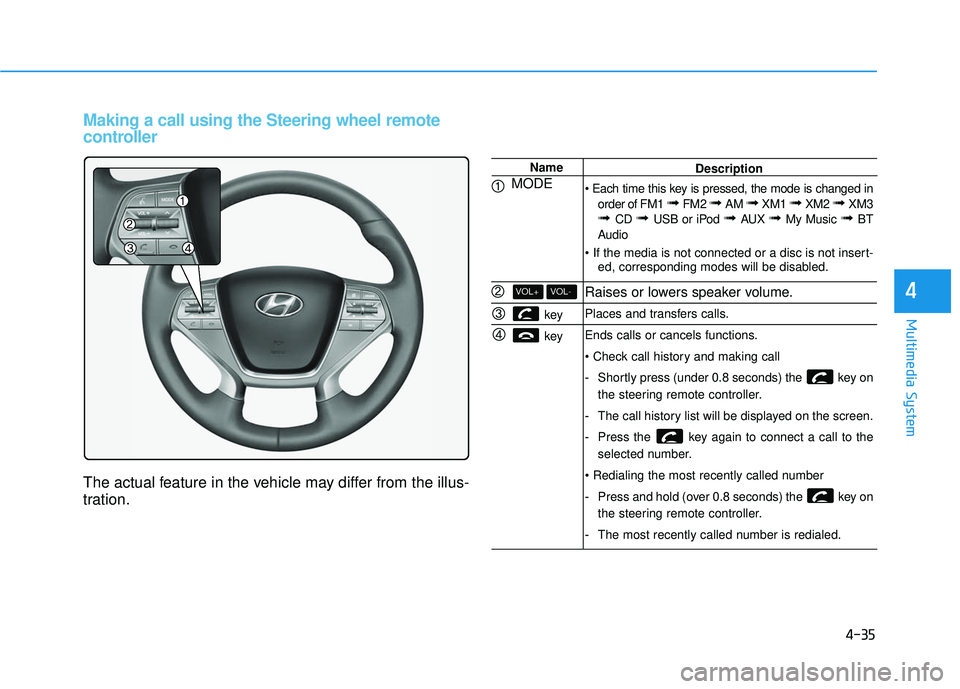
Making a call using the Steering wheel remote
controller
The actual feature in the vehicle may differ from the illus-
tration.
Name
MODE
key
key
VOL-VOL+
Description
order of FM1
➟ FM2 ➟ AM ➟ XM1 ➟ XM2 ➟ XM3➟ CD ➟ USB or iPod ➟ AUX ➟ My Music ➟ BT
Audio
ed, corresponding modes will be disabled.
Raises or lowers speaker volume.
Places and transfers calls.
Ends calls or cancels functions.
-Shortly press (under 0.8 seconds) the key on
the steering remote controller.
- The call history list will be displayed on the screen.
- Press the key again to connect a call to the
selected number.
- Press and hold (over 0.8 seconds) the key on
the steering remote controller.
- The most recently called number is redialed.
Page 284 of 708
4-36
Multimedia System
B
Bl
lu
u e
et
to
o o
ot
th
h®
®W
W i
ir
r e
e l
le
e s
ss
s
T
T e
ec
ch
h n
no
o l
lo
o g
gy
y
Pairing a Bluetooth®Wireless
Technology Device
What is Bluetooth®Wireless
Technology Pairing?
Pairing refers to the process of syn-
chronizing your
Bluetooth®Wireless
Technology phone or device with the
car audio system for connection.
Pairing is necessary to connect and
use the
Bluetooth®Wireless
Technology feature.
Phone (if equipped)
Before using the
Bluetooth®
Wireless Technology phone
features
In order to use Bluetooth®Wireless
Technology phone, you must first
pair and connect the
Bluetooth®
Wireless Technology mobile phone.
If the mobile phone is not paired or connected, it is not possible to
enter Phone mode. Once a phone
is paired or connected, the guid-
ance screen will be displayed.
If Priority is set upon vehicle igni- tion(IGN/ACC ON), the
Bluetooth®
Wireless Technology phone will be
automatically connected. Even if
you are outside, the first
Bluetooth®
Wireless Technology phone will be
automatically connected once you
are in the vicinity of the vehicle. If you
do not want automatic
Bluetooth®
Wireless Technology phone connec-
tion, set the
Bluetooth®Wireless
Technology power to OFF.
Driving while distracted can
result in a loss of vehicle con-
trol that may lead to an acci-
dent, severe personal injury,
and death. The driver’s primary
responsibility is in the safe and
legal operation of a vehicle, and
use of any handheld devices,
other equipment, or vehicle sys-
tems which take the driver’s
eyes, attention and focus away
from the safe operation of a
vehicle or which are not permis-
sible by law should never be
used during operation of the
vehicle.
WARNING
Page 286 of 708
![HYUNDAI SONATA LIMITED 2016 Owners Manual 4-38
Multimedia System
Pairing through [PHONE]
Setup
Press the key Select
[Phone] Select [Pair Phone]
Select TUNE knob
1.The following steps are the sameas those described in the section
"When No D](/img/35/56186/w960_56186-285.png "HYUNDAI SONATA LIMITED 2016 Owners Manual 4-38
Multimedia System
Pairing through [PHONE]
Setup
Press the key Select
[Phone] Select [Pair Phone]
Select TUNE knob
1.The following steps are the sameas those described in the section
\"When No D")
4-38
Multimedia System
Pairing through [PHONE]
Setup
Press the key Select
[Phone] Select [Pair Phone]
Select TUNE knob
1.The following steps are the sameas those described in the section
"When No Devices have been
Paired" on the previous page.
Information
•Bluetooth®Wireless Technology fea-
tures supported within the vehicle
are as follows. Some features may
not be supported depending on your
Bluetooth
®Wireless Technology
device.
- Outgoing/Incoming Handsfree calls (Continued)(Continued)
- Operations during a call (Switch toPrivate, Switch to call waiting, MIC
on/off)
- Downloading Call History
- Downloading Mobile Contacts
- Bluetooth
®Wireless Technology
device auto connection
- Bluetooth Audio Streaming
• Up to five Bluetooth
®Wireless
Technology devices can be paired to
the Car Handsfree system.
• Only one Bluetooth
®Wireless
Technology device can be connected
at a time.
• Other devices cannot be paired while a Bluetooth
®Wireless
Technology device is connected.
• Only Bluetooth
®Wireless
Technology Handsfree and
Bluetooth audio related features are
supported.
• Bluetooth related operations are possible only within devices that
support Handsfree or audio fea-
tures, such as a Bluetooth
®Wireless
Technology mobile phone or a
Bluetooth audio device.
(Continued)(Continued)
• If a connected Bluetooth
®Wireless
Technology device becomes discon-
nected due to being out of communi-
cation range, turning the device
OFF, or a Bluetooth
®Wireless
Technology communication error,
corresponding Bluetooth
®Wireless
Technology devices are automatical-
ly searched and reconnected.
• If the system becomes unstable due to communication errors between
the car Handsfree and the
Bluetooth
®Wireless Technology
device, reset the device by turning
off and back on again. Upon reset-
ting Bluetooth
®Wireless Technology
device, the system will be restored.
• After pairing is complete, a contacts download request is sent once to the
mobile phone. Some mobile phones
may require confirmation upon
receiving a download request,
ensure your mobile phone accepts
the connection. Refer to your
phones user’s manual for additional
information regarding phone pair-
ing and connections.
i
SETUP
Page 291 of 708
![HYUNDAI SONATA LIMITED 2016 Owners Manual 4-43
Multimedia System
4
Downloading Contacts
Press the key Select
[Phone] Select [Contacts Download]
As the contacts are downloaded
from the mobile phone, a download
progress bar is displayed.
Infor](/img/35/56186/w960_56186-290.png "HYUNDAI SONATA LIMITED 2016 Owners Manual 4-43
Multimedia System
4
Downloading Contacts
Press the key Select
[Phone] Select [Contacts Download]
As the contacts are downloaded
from the mobile phone, a download
progress bar is displayed.
Infor")
4-43
Multimedia System
4
Downloading Contacts
Press the key Select
[Phone] Select [Contacts Download]
As the contacts are downloaded
from the mobile phone, a download
progress bar is displayed.
Information
• Upon downloading phone contacts,the previous corresponding data is
deleted.
• This feature may not be supported in some mobile phones.
• Voice Recognition may not operate while contacts are being down-
loaded.
Outgoing Volume
Press the key Select
[Phone] Select [Outgoing Volume]
Use TUNE knob to adjust the out-
going volume level.
Information
While on a call, the volume can be
changed by using the key.
Turning Bluetooth System Off
Press the key Select
[Phone] Select [Bluetooth System
Off]
Once
Bluetooth®Wireless Technology
is turned off,
Bluetooth®Wireless
Technology related features will not be
supported within the audio system.
Information
To turn Bluetooth®Wireless
Technology back on, go to
[Phone] and select “Yes”.SETUP
i
SETUP
SEEK
TRACK
i
SETUP
i
SETUP
Page 298 of 708
4-50
Multimedia System
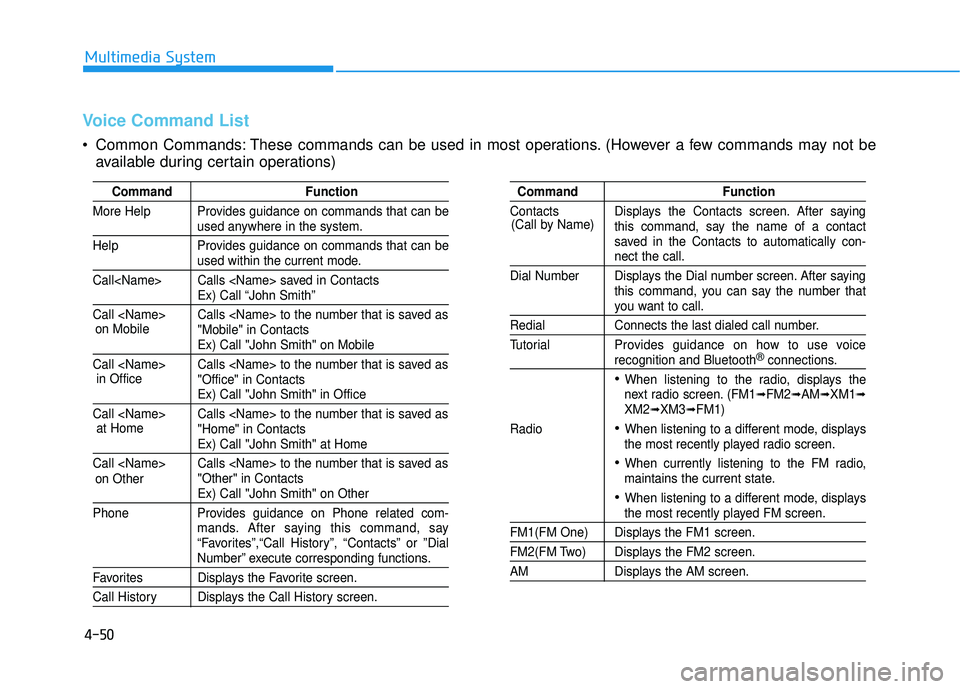
Voice Command List
Common Commands: These commands can be used in most operations. (However a few commands may not beavailable during certain operations)
Command Function
More Help Provides guidance on commands that can be
used anywhere in the system.
Help Provides guidance on commands that can be
used within the current mode.
Call
Ex) Call “John Smith”
Call
Ex) Call "John Smith" on Mobile
Call
Ex) Call "John Smith" in Office
Call
Ex) Call "John Smith" at Home
Call
Ex) Call "John Smith" on Other
Phone Provides guidance on Phone related com- mands. After saying this command, say
“Favorites”,“Call History”, “Contacts” or ”Dial
Number” execute corresponding functions.
Favorites Displays the Favorite screen.
Call History Displays the Call History screen.
Command Function
Contacts Displays the Contacts screen. After saying this command, say the name of a contact
saved in the Contacts to automatically con-
nect the call.
Dial Number Displays the Dial number screen. After saying this command, you can say the number that
you want to call.
Redial Connects the last dialed call number.
Tutorial Provides guidance on how to use voice
recognition and Bluetooth®connections.
When listening to the radio, displays the
next radio screen. (FM1➟FM2➟AM➟XM1➟XM2➟XM3➟FM1)
Radio
When listening to a different mode, displays
the most recently played radio screen.
When currently listening to the FM radio,
maintains the current state.
When listening to a different mode, displaysthe most recently played FM screen.
FM1(FM One) Displays the FM1 screen.
FM2(FM Two) Displays the FM2 screen.
AM Displays the AM screen.
(Call by Name)
on Mobile
in Officeat Home
on Other
Page 299 of 708
4-51
Multimedia System
4
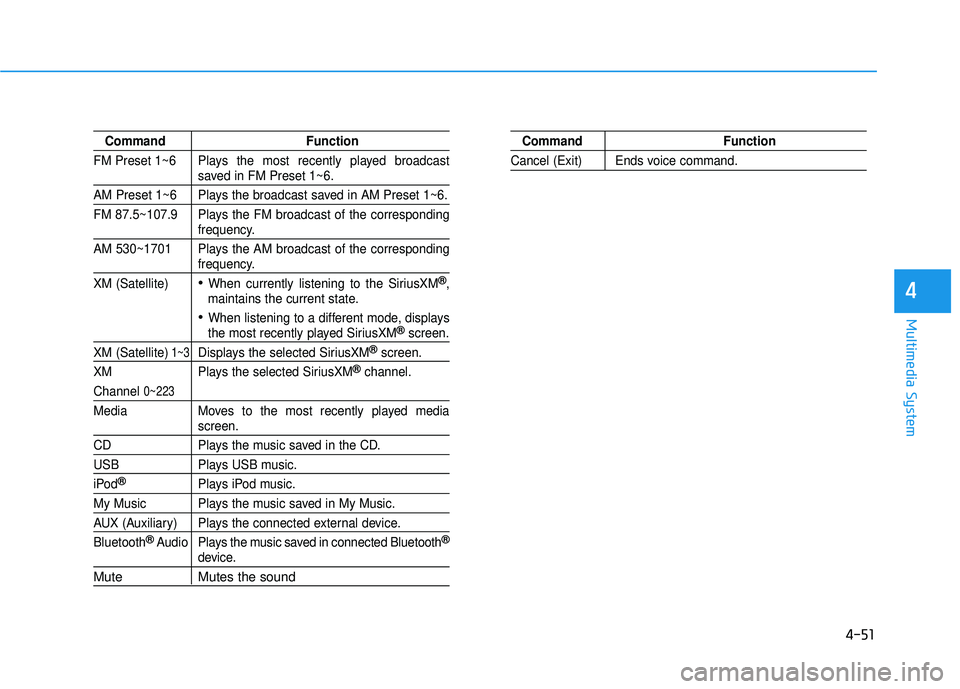
CommandFunction
FM Preset 1~6 Plays the most recently played broadcast
saved in FM Preset 1~6.
AM Preset 1~6 Plays the broadcast saved in AM Preset 1~6.
FM 87.5~107.9 Plays the FM broadcast of the corresponding
frequency.
AM 530~1701 Plays the AM broadcast of the corresponding
frequency.
XM (Satellite)
When currently listening to the SiriusXM®,
maintains the current state.
When listening to a different mode, displaysthe most recently played SiriusXM®screen.
XM (Satellite)1~3Displays the selected SiriusXM®screen.
XM Plays the selected SiriusXM
®channel.
Channel 0~223
Media Moves to the most recently played mediascreen.
CD Plays the music saved in the CD.
USBPlays USB music.
iPod®Plays iPod music.
My Music Plays the music saved in My Music.
AUX (Auxiliary) Plays the connected external device.
Bluetooth
®Audio Plays the music saved in connected Bluetooth®
device.
Mute Mutes the sound
Command Function
Cancel (Exit) Ends voice command.
Page 302 of 708
4-54
Multimedia System
Information
iPod®is a registered trademark of
Apple Inc. iPod®mobile digital device
sold separately. The Bluetooth®word
mark and logos are registered trade-
marks owned by Bluetooth
®SIG, Inc.
and any use of such marks by
Hyundai is under license. SiriusXM
services require a subscription sold
separately, or as a package, by Sirius
XM Radio Inc. If you decide to con-
tinue service after your trial, the sub-
scription plan you choose will auto-
matically renew thereafter and you
will be charged according to your cho-
sen payment method at thencurrent
rates. Fees and taxes apply. To cancel
you must call SiriusXM at 1-866-635-
2349. See SiriusXM Customer
Agreement for complete terms at
www.siriusxm.com. SiriusXM U.S.
satellite and data services are avail-
able only in the 48 contiguous USA,
DC and PR (with coverage limita-
tions). SiriusXM satellite service is
also available in Canada; see www.sir-
iusxm.ca. All fees and programming
subject to change.
(Continued)(Continued)
Sirius, XM and all related marks and
logos are trademarks of Sirius XM
Radio Inc. Android™ is a trademark
of Google, Inc. BlackBerry is a regis-
tered trademark of Research In
Motion Limited (RIM). All other
marks, channel names and logos are
the property of their respective own-
ers. All rights reserved.
i
Page 305 of 708
4-57
Multimedia System
4
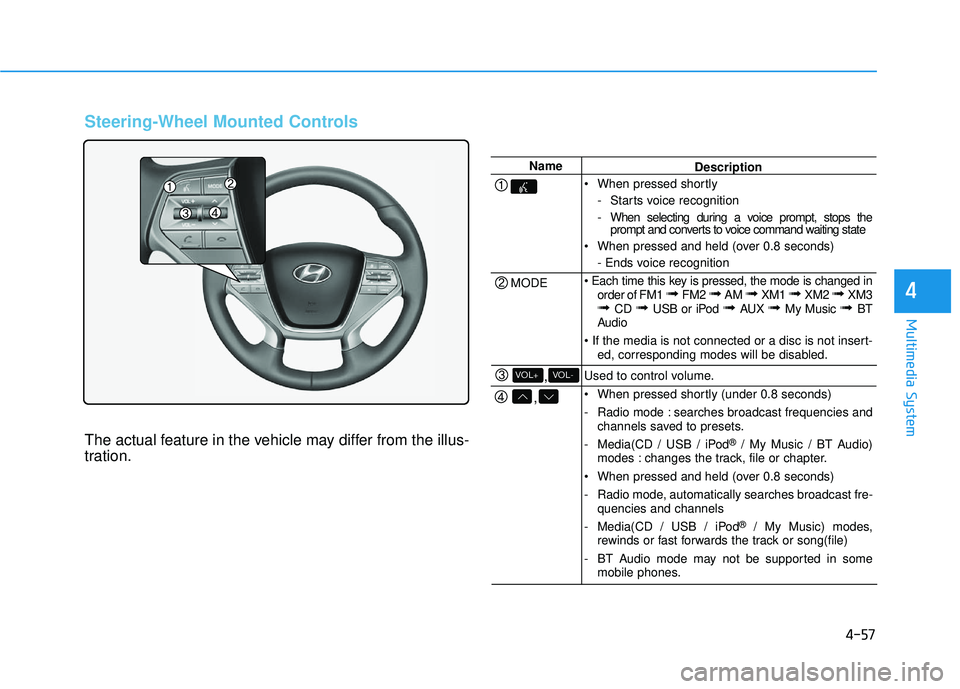
Steering-Wheel Mounted Controls
The actual feature in the vehicle may differ from the illus-
tration.
Name
MODE
,
,VOL-VOL+
Description
When pressed shortly - Starts voice recognition
- When selecting during a voice prompt, stops theprompt and converts to voice command waiting state
When pressed and held (over 0.8 seconds) - Ends voice recognition
order of FM1
➟ FM2 ➟ AM ➟ XM1 ➟ XM2 ➟ XM3➟ CD ➟ USB or iPod ➟ AUX ➟ My Music ➟ BT
Audio
ed, corresponding modes will be disabled.
Used to control volume.
When pressed shortly (under 0.8 seconds)
- Radio mode : searches broadcast frequencies and channels saved to presets.
- Media(CD / USB / iPod
®/ My Music / BT Audio)
modes : changes the track, file or chapter.
When pressed and held (over 0.8 seconds)
- Radio mode, automatically searches broadcast fre- quencies and channels
- Media(CD / USB / iPod
®/ My Music) modes,
rewinds or fast forwards the track or song(file)
- BT Audio mode may not be supported in some mobile phones.