key Hyundai Sonata
[x] Cancel search | Manufacturer: HYUNDAI, Model Year: , Model line: , Model:Pages: 411, PDF Size: 8.68 MB
Page 220 of 411
Features of your vehicle138
4BASIC METHOD OF USE :
Audio CD / MP3 CD / USB /
iPod / My MusicPress the key to change the mod
mode in order of CD
➟USB(iPod)
➟AUX
➟My Music
➟BT Audio.
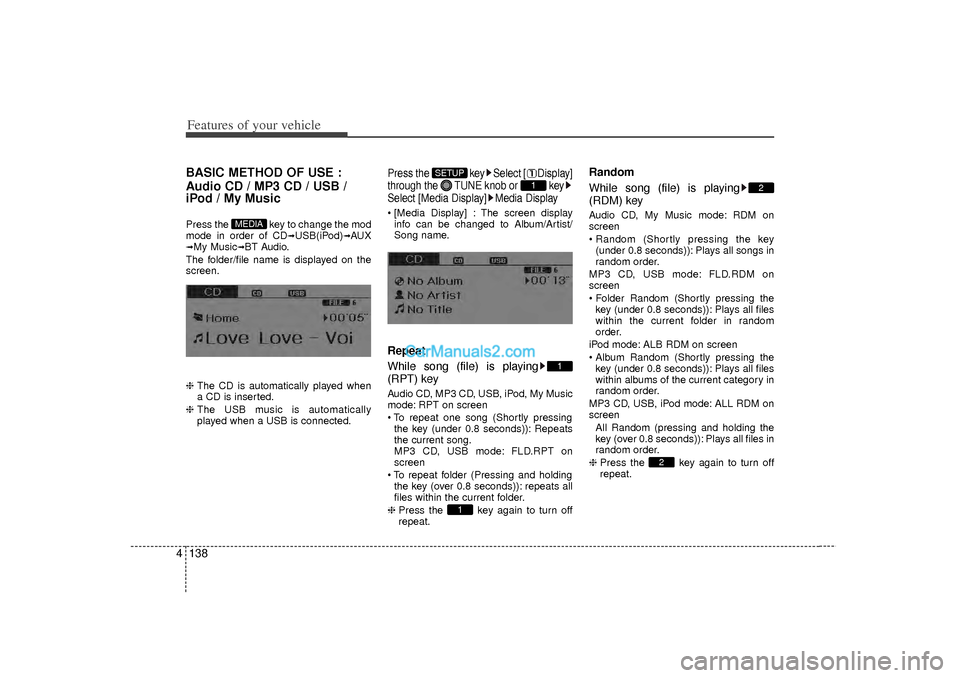
The folder/file name is displayed on the
screen.
❈ The CD is automatically played when
a CD is inserted.
❈ The USB music is automatically
played when a USB is connected.
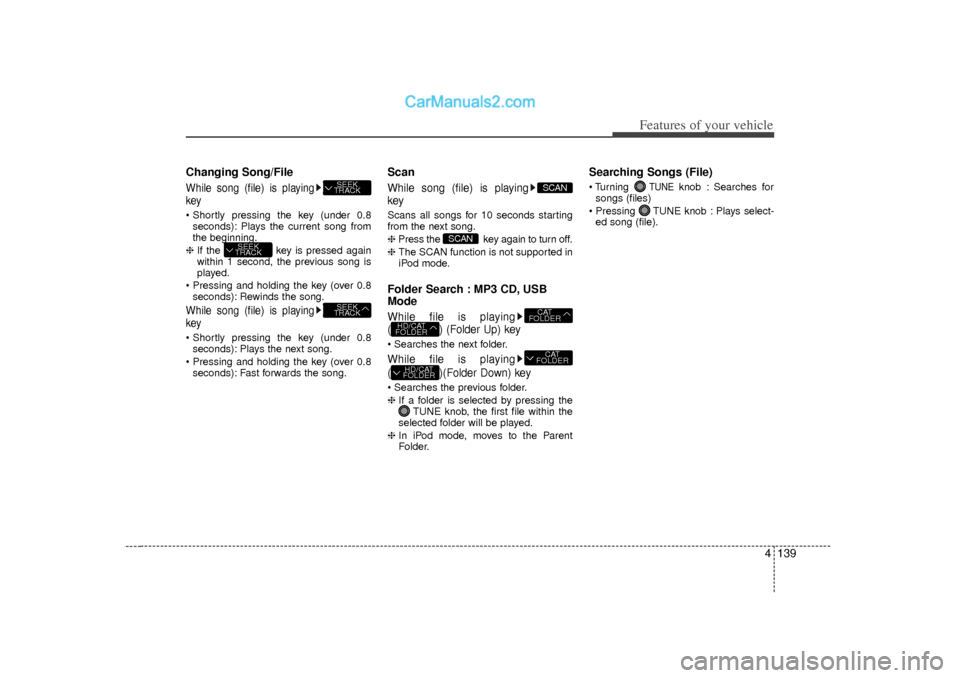
Press the key Select [ Display]
through the TUNE knob or key
Select [Media Display] Media Display [Media Display] : The screen display
info can be changed to Album/Artist/
Song name.Repeat
While song (file) is playing
(RPT) keyAudio CD, MP3 CD, USB, iPod, My Music
mode: RPT on screen
To repeat one song (Shortly pressingthe key (under 0.8 seconds)): Repeats
the current song.
MP3 CD, USB mode: FLD.RPT on
screen
To repeat folder (Pressing and holding the key (over 0.8 seconds)): repeats all
files within the current folder.
❈ Press the key again to turn off
repeat.
Random
While song (file) is playing
(RDM) keyAudio CD, My Music mode: RDM on
screen
Random (Shortly pressing the key
(under 0.8 seconds)): Plays all songs in
random order.
MP3 CD, USB mode: FLD.RDM on
screen
Folder Random (Shortly pressing the key (under 0.8 seconds)): Plays all files
within the current folder in random
order.
iPod mode: ALB RDM on screen
Album Random (Shortly pressing the key (under 0.8 seconds)): Plays all files
within albums of the current category in
random order.
MP3 CD, USB, iPod mode: ALL RDM on
screen All Random (pressing and holding thekey (over 0.8 seconds)): Plays all files in
random order.
❈ Press the key again to turn off
repeat.
2
2
1
1
1
SETUP
MEDIA
Page 221 of 411
4 139
Features of your vehicle
Changing Song/FileWhile song (file) is playing
key Shortly pressing the key (under 0.8seconds): Plays the current song from
the beginning.
❈ If the key is pressed again
within 1 second, the previous song is
played.
Pressing and holding the key (over 0.8 seconds): Rewinds the song.While song (file) is playing
key Shortly pressing the key (under 0.8seconds): Plays the next song.
Pressing and holding the key (over 0.8 seconds): Fast forwards the song.
ScanWhile song (file) is playing
keyScans all songs for 10 seconds starting
from the next song.
❈ Press the key again to turn off.
❈ The SCAN function is not supported in
iPod mode.Folder Search : MP3 CD, USB
ModeWhile file is playing
( ) (Folder Up) key Searches the next folder.While file is playing
( )(Folder Down) key Searches the previous folder.
❈ If a folder is selected by pressing the
TUNE knob, the first file within the
selected folder will be played.
❈ In iPod mode, moves to the Parent
Folder.
Searching Songs (File) Turning
TUNE
knob : Searches for
songs (files)
Pressing TUNE knob : Plays select- ed song (file).
HD/CAT
FOLDER
CAT
FOLDER
HD/CAT
FOLDER
CAT
FOLDER
SCAN
SCAN
SEEK
TRACK
SEEK
TRACK
SEEK
TRACK
Page 222 of 411
![Hyundai Sonata Features of your vehicle140
4MENU : Audio CDPress the CD MP3 mode key to
set the Repeat, Random, Information
features.Repeat
Press the key Set [ RPT]
through the
TUNE
knob or
key to repeat the cur](/img/35/16810/w960_16810-221.png "Hyundai Sonata Features of your vehicle140
4MENU : Audio CDPress the CD MP3 mode key to
set the Repeat, Random, Information
features.Repeat
Press the key Set [ RPT]
through the
TUNE
knob or
key to repeat the cur")
Features of your vehicle140
4MENU : Audio CDPress the CD MP3 mode key to
set the Repeat, Random, Information
features.Repeat
Press the key Set [ RPT]
through the
TUNE
knob or
key to repeat the current song.
❈ Press RPT again to turn off.Random
Press the key Set [ RDM]
through the
TUNE
knob or
key to randomly play songs within
the current folder.
❈ Press RDM again to turn off.
Information
Press the key Set [ Info]
through the
TUNE
knob or
key to display information of the cur-
rent song.
❈ Press the key to turn off info
display.
MENU
3
MENU
2
MENU
1
MENU
MENU
Page 223 of 411
4 141
Features of your vehicle
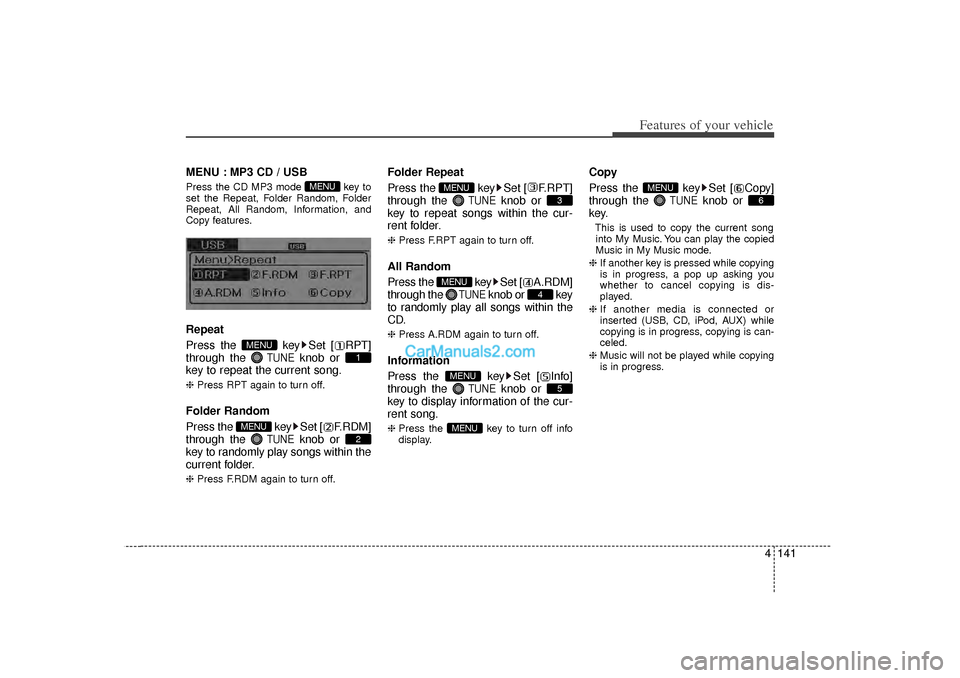
MENU : MP3 CD / USBPress the CD MP3 mode key to
set the Repeat, Folder Random, Folder
Repeat, All Random, Information, and
Copy features.Repeat
Press the key Set [ RPT]
through the
TUNE
knob or
key to repeat the current song.
❈ Press RPT again to turn off.Folder Random
Press the key Set [ F.RDM]
through the
TUNE
knob or
key to randomly play songs within the
current folder.
❈ Press F.RDM again to turn off.
Folder Repeat
Press the key Set [ F.RPT]
through the
TUNE
knob or
key to repeat songs within the cur-
rent folder.
❈ Press F.RPT again to turn off.All Random
Press the key Set [ A.RDM]
through the
TUNE
knob or key
to randomly play all songs within the
CD.
❈ Press A.RDM again to turn off.Information
Press the key Set [ Info]
through the
TUNE
knob or
key to display information of the cur-
rent song.
❈ Press the key to turn off info
display.
Copy
Press the key Set [ Copy]
through the
TUNE
knob or
key.
This is used to copy the current song into My Music. You can play the copied
Music in My Music mode.
❈ If another key is pressed while copying
is in progress, a pop up asking you
whether to cancel copying is dis-
played.
❈ If another media is connected or
inserted (USB, CD, iPod, AUX) while
copying is in progress, copying is can-
celed.
❈ Music will not be played while copying
is in progress.
6
MENU
MENU
5
MENU
4
MENU
3
MENU
2
MENU
1
MENU
MENU
Page 224 of 411
![Hyundai Sonata Features of your vehicle142
4MENU : iPodIn iPod mode, press the key to
set the Repeat, Album Random, All
Random, and Information features.Repeat
Press the key Set [ RPT]
through the
TUNE
knob or
k](/img/35/16810/w960_16810-223.png "Hyundai Sonata Features of your vehicle142
4MENU : iPodIn iPod mode, press the key to
set the Repeat, Album Random, All
Random, and Information features.Repeat
Press the key Set [ RPT]
through the
TUNE
knob or
k")
Features of your vehicle142
4MENU : iPodIn iPod mode, press the key to
set the Repeat, Album Random, All
Random, and Information features.Repeat
Press the key Set [ RPT]
through the
TUNE
knob or
key to repeat the current song.
❈ Press RPT again to turn repeat off.Album RandomPress the key Set [ Alb.RDM]
through the TUNEknob or key.Plays albums within the currently playing
category in random order.
❈ Press Alb.RDM again to turn off.
All RandomPress the key Set [ A.RDM]
through the TUNEknob or
key.Plays all songs within the currently play-
ing category in random order.
❈ Press A.RDM again to turn off.Information
Press the key Set [ Info]
through the
TUNE
knob or
key.
Displays information of the current song.
❈ Press the key to turn off info
display.
MENU
4
MENU
3
MENU
2
MENU
1
MENU
MENU
Page 225 of 411
4 143
Features of your vehicle
MENU : My Music ModeIn My Music mode, press the key
to set the Repeat, Random, Information,
Delete, Delete All, and Delete Selection
features.RepeatPress the key Set [ RPT]
through the TUNEknob or
key.Repeats the currently playing song.
❈ Press RPT again to turn repeat off.RandomPress the key Set [ RDM]
through the TUNEknob or key.Plays all songs within the currently play-
ing folder in random order.
❈ Press RDM again to turn random off.
Information
Press the key Set [ Info]
through the
TUNE
knob or
key.
Displays information of the current song.
❈ Press the key to turn off info
display.DeletePress the key Set [ Delete]
through the TUNEknob or
key. Deletes currently playing file
In the play screen, pressing delete will
delete the currently playing song.
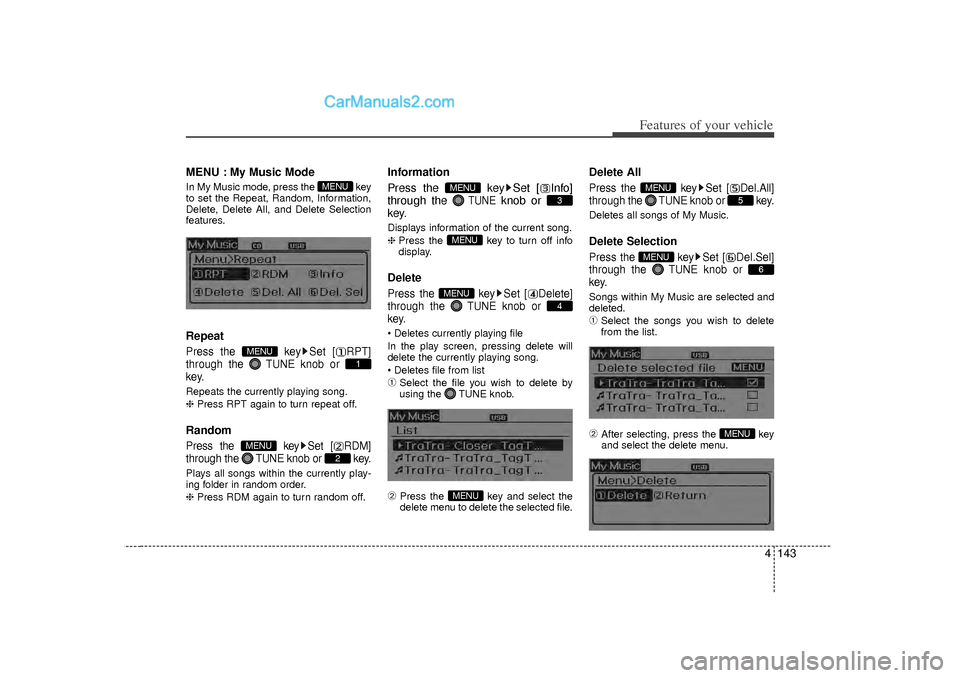
Deletes file from list➀
Select the file you wish to delete by
using the TUNE knob.
➁
Press the key and select the
delete menu to delete the selected file.
Delete AllPress the key Set [ Del.All]
through the TUNEknob or key.Deletes all songs of My Music.Delete SelectionPress the key Set [ Del.Sel]
through the TUNEknob or
key.Songs within My Music are selected and
deleted.➀
Select the songs you wish to delete
from the list.
➁
After selecting, press the key
and select the delete menu.
MENU
6
MENU
5
MENU
MENU
4
MENUMENU
3
MENU
2
MENU
1
MENU
MENU
Page 226 of 411
Features of your vehicle144
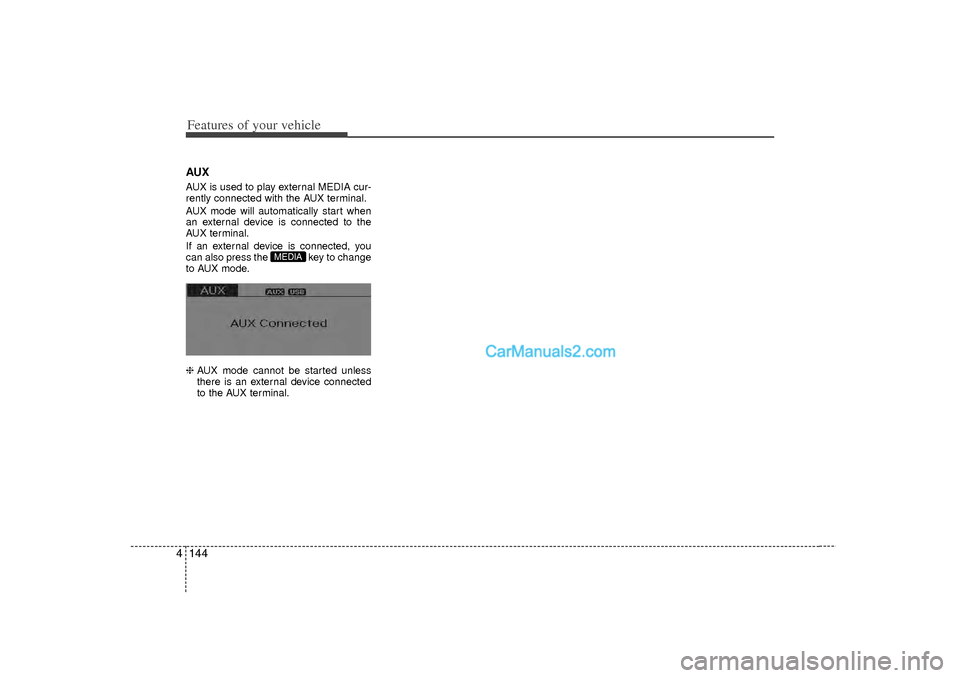
4AUXAUX is used to play external MEDIA cur-
rently connected with the AUX terminal.
AUX mode will automatically start when
an external device is connected to the
AUX terminal.
If an external device is connected, you
can also press the key to change
to AUX mode.
❈ AUX mode cannot be started unless
there is an external device connected
to the AUX terminal.
MEDIA
Page 229 of 411
4 147
Features of your vehicle
Bluetooth
®Audio
Before using Bluetooth
®
audio fea-
tures
Bluetooth
®audio may not be supported
depending on the compatibility of your
Bluetooth®mobile phone.
In order to use Bluetooth
®audio, you
must first pair and connect the
Bluetooth
®mobile phone.
Bluetooth®
audio can be used only
when the [Audio Streaming] of Phone is
turned .
❈ Setting Bluetooth
®Audio Streaming :
Press the key Select [Phone]
through the tune knob or key
Select [Audio Streaming] through the TUNE knob Set
/
Starting Bluetooth
®Audio
Press the key to change themode in order of CD
➟USB
➟AUX
➟My
Music
➟BT Audio.
If BT Audio is selected, Bluetooth
®
audio will start playing.
❈ Audio may not automatically start play-
ing in some mobile phones.
Using the Bluetooth
®audio fea-
tures
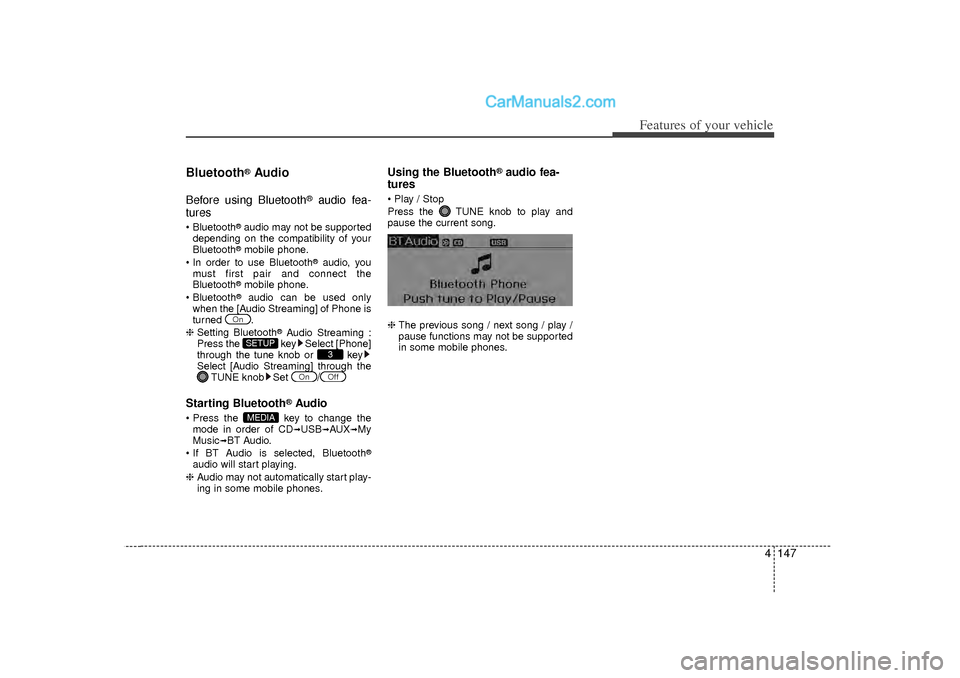
Play / Stop
Press the TUNE knob to play and
pause the current song.
❈ The previous song / next song / play /
pause functions may not be supported
in some mobile phones.
MEDIA
Off
On
3
SETUP
On
Page 230 of 411
Features of your vehicle148
4PHONEBefore using the Bluetooth
®
phone
features
In order to use Bluetooth
®phone, you
must first pair and connect the
Bluetooth
®mobile phone.
If the mobile phone is not paired or con- nected, it is not possible to enter Phone
mode. Once a phone is paired or con-
nected, the guidance screen will be dis-
played.
If Priority is set upon vehicle ignition (IGN/ACC ON), the Bluetooth
®phone
will be automatically connected. Even if
you are outside, the Bluetooth®phone
will be automatically connected once
you are in the vicinity of the vehicle. If
you do not want automatic Bluetooth
®
phone connection, set the Bluetooth
®
power to OFF.
Making a call using the steering
wheel remote controller Check call history and making call➀
Shortly press (under 0.8 seconds) the key on the steering remote con-
troller .
➁
The call history list will be displayed
on the screen.
➂
Press the key again to connect a
call to the selected number.
Redialing the most recently called num- ber
➀
Press and hold (over 0.8 seconds) the key on the steering remote con-
troller.
➁
The most recently called number is
redialed. ❈
If call history does not exist, a screen
asking whether to download call histo-
ry is displayed. (The download feature
may not be supported in some mobile
phones)
Page 231 of 411
![Hyundai Sonata 4 149
Features of your vehicle
Phone MENUPress the key to display three
menus (Call History, Contacts, Phone
Setup).
Call historyPress the key Set [ Call
History] through the TUNEknob or
key.The cal](/img/35/16810/w960_16810-230.png "Hyundai Sonata 4 149
Features of your vehicle
Phone MENUPress the key to display three
menus (Call History, Contacts, Phone
Setup).
Call historyPress the key Set [ Call
History] through the TUNEknob or
key.The cal")
4 149
Features of your vehicle
Phone MENUPress the key to display three
menus (Call History, Contacts, Phone
Setup).
Call historyPress the key Set [ Call
History] through the TUNEknob or
key.The call history is displayed and can be
used to select a number and make a call.
If call history does not exist, a screen
asking whether to download call history
is displayed. (The download feature may
not be supported in some mobile
phones) Contacts
Press the key Set [ Contacts]
through the
TUNEknob or key.The Contacts are displayed and can be
used to select a number and make a call.
❈ If more than one number is saved to
one contact, then a screen showing
the mobile phone number, house and
office number are displayed. Select the
desired number to make the call.
❈ If Contacts do not exist, a screen ask-
ing whether to download Contacts is
displayed. (The download feature may
not be supported in some mobile
phones)
Phone SetupPress the key Set [ Phone
Setup] through the TUNEknob or
key.The Bluetooth
®
mobile phone setup
screen is displayed. For more informa-
tion, refer to “Phone Setup”.
3
PHONE
2
PHONE
1
PHONEPHONE