key HYUNDAI TUCSON 2014 Service Manual
[x] Cancel search | Manufacturer: HYUNDAI, Model Year: 2014, Model line: TUCSON, Model: HYUNDAI TUCSON 2014Pages: 542, PDF Size: 7.59 MB
Page 236 of 542
4-25
Multimedia System
4
XXMM RR AA DDIIOO
Using XM satellite™ Radio
Your vehicle is equipped with a 3
month complimentary period of XM
Satellite™ Radio. XM provides
access to over 130 channels of
music, information, and entertain-
ment programming.
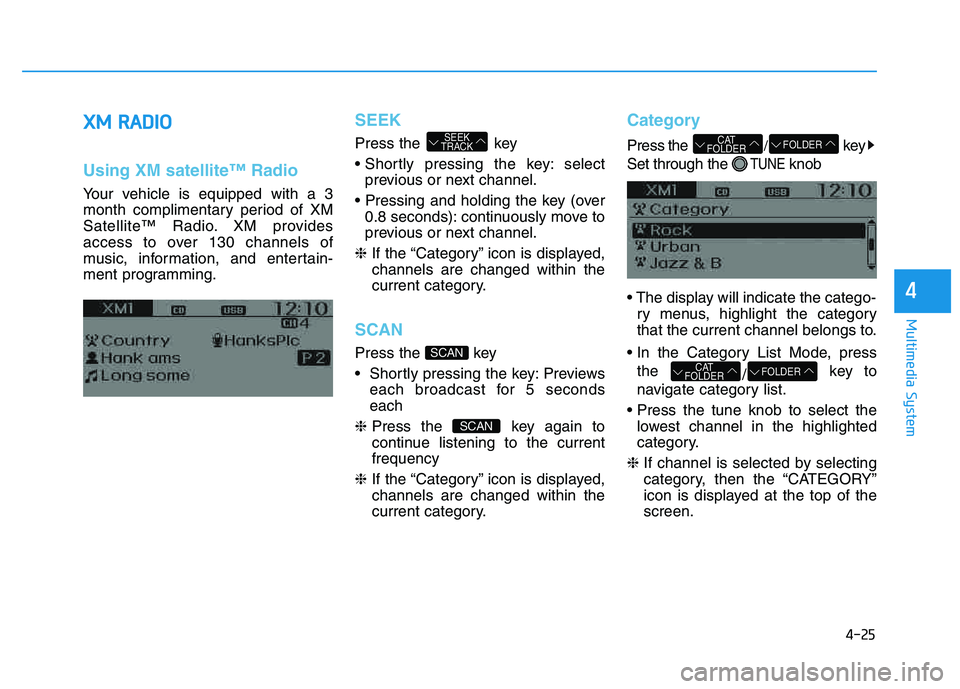
SEEK
Press the key
select
previous or next channel.
0.8 seconds): continuously move to
previous or next channel.
❈ If the “Category” icon is displayed,channels are changed within the
current category.
SCAN
Press the key
Previews
each broadcast for 5 seconds each
❈ Press the key again to
continue listening to the currentfrequency
❈ If the “Category” icon is displayed,channels are changed within the
current category.
Category
Press the /key
Set through the
TUNEknob
ry menus, highlight the category
that the current channel belongs to.
the /key to
navigate category list.
lowest channel in the highlighted
category.
❈ If channel is selected by selecting
category, then the “CATEGORY”
icon is displayed at the top of thescreen.
FOLDERCAT
FOLDER
FOLDERCAT
FOLDER
SCAN
SCAN
SEEK
TRACK
Page 237 of 542
4-26
Multimedia System
Preset
Press the ~ key
Plays the frequency saved in the correspon-
ding key.
0.8 seconds): Pressing and holding
the desired key from ~
will save the current broadcast to
the selected key and sound a
BEEP.
Tune
Rotate TUNE knob : Changes thechannel number or scrolls category list.
TUNE knob : Selects the menu.
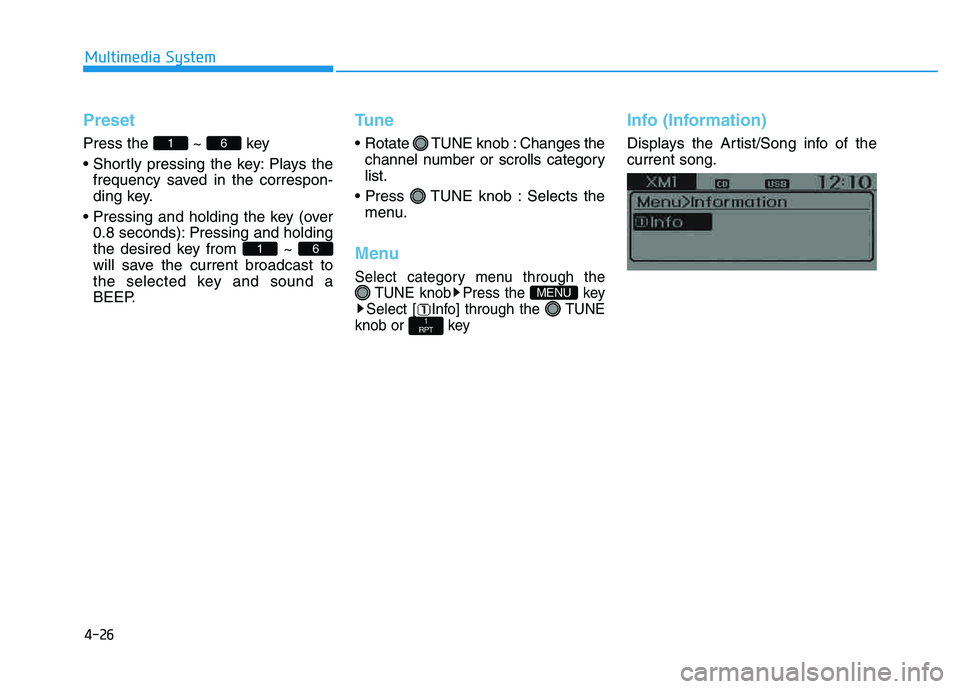
Menu
Select category menu through the TUNE knob Press the key
Select [ Info] through the TUNE
knob or key
Info (Information)
Displays the Artist/Song info of the current song.
1
RPT
MENU
61
61
Page 238 of 542
4-27
Multimedia System
4
BBAA SSIICC MM EETT HH OO DD OO FF UU SSEE ::
A
A uuddiioo CC DD // MM PP33 CC DD // UU SSBB //
i
i PP oodd ®®
// MM yy MM uussiicc
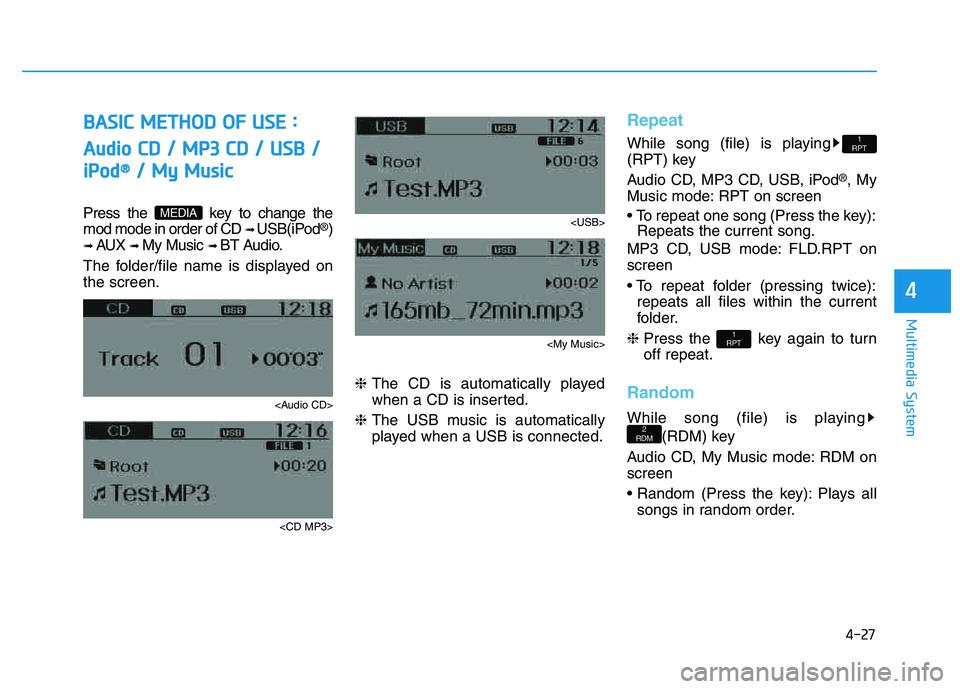
Press the key to change the mod mode in order of CD ➟ USB(iPod®)
➟ AUX ➟ My Music ➟ BT Audio.
The folder/file name is displayed on the screen.
Page 239 of 542
4-28
Multimedia System
MP3 CD, USB mode: FLD.RDM on screen
Plays all files within the current fold-
er in random order.
iPod
®mode: ALB RDM on screen
Plays all files within albums of the
current category in random order.
MP3 CD, USB, iPod mode: ALL RDMon screen
Plays all files in random order.
❈ Press the key again to turn off repeat.
Changing Song/File
While song (file) is playing key
Plays the
current song from the beginning.
❈ If the key is pressed
again within 3 second, the previ-
ous song is played.
0.8 seconds): Rewinds the song.
While song (file) is playing key
Plays the next song.
0.8 seconds): Fast forwards the song.
Scan
While song (file) is playing key
Scans all
songs from the next song for 10seconds each.
❈ Press the key again to turn
off.
❈ The SCAN function is not support-
ed in iPod
®mode.
Folder Search : MP3 CD, USB Mode
While file is playing / (Folder Up) key
While file is playing / (Folder Down) key
❈
If a folder is selected by pressing
the TUNE knob, the first file
within the selected folder will be
played.
❈ In iPod
®mode, moves to the
Parent Folder.
Searching Songs (File)
TUNEknob : Searches
for songs (files)
TUNE knob : Plays selected song (file).
FOLDER
CAT
FOLDER
FOLDER
CAT
FOLDER
SCAN
SCAN
SEEK
TRACK
SEEK
TRACK
SEEK
TRACK
2
RDM
Page 240 of 542
![HYUNDAI TUCSON 2014 Service Manual 4-29
Multimedia System
4
MENU : Audio CD
Press the CD MP3 mode key to set the Repeat, Random,
Information features.
Repeat
Press the key Set [ RPT] through the TUNEknob or
key to repeat the current](/img/35/56203/w960_56203-239.png "HYUNDAI TUCSON 2014 Service Manual 4-29
Multimedia System
4
MENU : Audio CD
Press the CD MP3 mode key to set the Repeat, Random,
Information features.
Repeat
Press the key Set [ RPT] through the TUNEknob or
key to repeat the current")
4-29
Multimedia System
4
MENU : Audio CD
Press the CD MP3 mode key to set the Repeat, Random,
Information features.
Repeat
Press the key Set [ RPT] through the TUNEknob or
key to repeat the current song. ❈ Press RPT again to turn off.
Random
Press the key Set [ RDM] through the
TUNEknob or
key to randomly play songs within
the current folder. ❈ Press RDM again to turn off.
Information
Press the key Set [ Info] through the
TUNEknob or
key to display information of the cur-rent song. ❈ Press the key to turn off
info display
.
MENU : MP3 CD / USB
Press the CD MP3 mode key
to set the Repeat, Folder Random,
Folder Repeat, All Random,
Information, and Copy features.
Repeat
Press the key Set [ RPT] through the
TUNEknob or
key to repeat the current song. ❈ Press RPT again to turn off.1
RPTMENU
MENU
MENU
3
MENU
2 RDM
MENU
1 RPT
MENU
MENU
Page 241 of 542
![HYUNDAI TUCSON 2014 Service Manual 4-30
Multimedia System
Folder Random
Press the key Set [ F.RDM] through the
TUNEknob or
key to randomly play songs within the
current folder. ❈ Press F.RDM again to turn off.
Folder Repeat
Press](/img/35/56203/w960_56203-240.png "HYUNDAI TUCSON 2014 Service Manual 4-30
Multimedia System
Folder Random
Press the key Set [ F.RDM] through the
TUNEknob or
key to randomly play songs within the
current folder. ❈ Press F.RDM again to turn off.
Folder Repeat
Press")
4-30
Multimedia System
Folder Random
Press the key Set [ F.RDM] through the
TUNEknob or
key to randomly play songs within the
current folder. ❈ Press F.RDM again to turn off.
Folder Repeat
Press the key Set [ F.RPT] through the
TUNEknob or
key to repeat songs within the cur-
rent folder. ❈ Press F.RPT again to turn off.
All Random
Press the key Set [ A.RDM] through the
TUNEknob or key
to randomly play all songs within the
CD. ❈ Press A.RDM again to turn off.
Information
Press the key Set [ Info] through the
TUNEknob or
key to display information of the cur-rent song. ❈ Press the key to turn off
info display.
Copy
Press the key Set [ Copy] through the
TUNEknob or
key.
song into My Music. You can play the copied Music in My Music
mode.
❈ If another key is pressed while
copying is in progress, a pop up
asking you whether to cancel
copying is displayed.
❈ If another media is connected or
inserted (USB, CD, iPod
®, AUX)
while copying is in progress, copy- ing is canceled.
❈ Music will not be played while
copying is in progress.
MENU : iPod®
In iPod®mode, press the key
to set the Repeat, Album Random, All
Random, Information and Search fea-
tures.
Repeat
Press the key Set [ RPT] through the
TUNEknob or
key to repeat the current song. ❈ Press RPT again to turn repeat off.
Album Random
Press the key Set [ Alb.RDM] through the TUNEknob or key.
Plays albums within the currently
playing category in random order. ❈ Press Alb.RDM again to turn off.
2
RDMMENU
1
RPTMENU
MENU
6
MENU
MENU
5
MENU
4
MENU
3
MENU
2
RDMMENU
Page 242 of 542
![HYUNDAI TUCSON 2014 Service Manual 4-31
Multimedia System
4
All Random
Press the key Set [ A.RDM] through the TUNEknob
or key.
Plays all songs within the currently
playing category in random order. ❈ Press A.RDM again to turn off](/img/35/56203/w960_56203-241.png "HYUNDAI TUCSON 2014 Service Manual 4-31
Multimedia System
4
All Random
Press the key Set [ A.RDM] through the TUNEknob
or key.
Plays all songs within the currently
playing category in random order. ❈ Press A.RDM again to turn off")
4-31
Multimedia System
4
All Random
Press the key Set [ A.RDM] through the TUNEknob
or key.
Plays all songs within the currently
playing category in random order. ❈ Press A.RDM again to turn off.
Information
Press the key Set [ Info] through the
TUNEknob or
key.
Displays information of the current song. ❈ Press the key to turn off
info display.
Search
Press the key Set [ Search] through the
TUNEknob or
key.
Displays iPod
®category list.
❈ Searching iPod
®category is
key pressed, move to par-
ent category.MENU
5
MENU
MENU
4
MENU
3
MENU
Page 243 of 542
4-32
Multimedia System
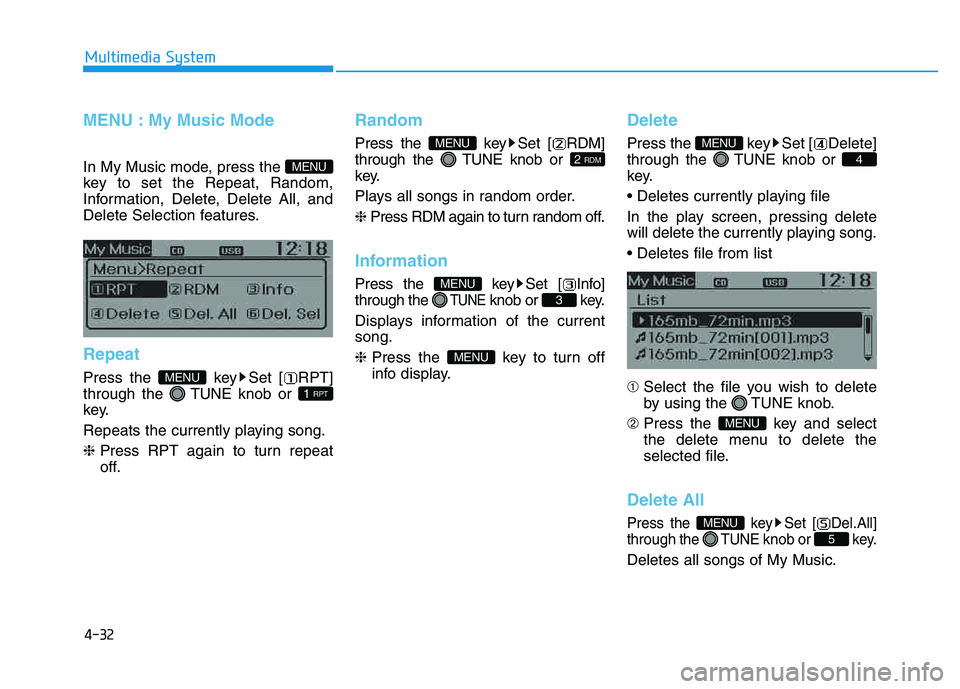
MENU : My Music Mode
In My Music mode, press the
key to set the Repeat, Random,
Information, Delete, Delete All, and
Delete Selection features.
Repeat
Press the key Set [ RPT] through the TUNEknob or
key.
Repeats the currently playing song.❈ Press RPT again to turn repeat
off.
Random
Press the key Set [ RDM] through the TUNEknob or
key.
Plays all songs in random order.❈ Press RDM again to turn random off.
Information
Press the key Set [ Info] through the
TUNEknob or key.
Displays information of the currentsong. ❈ Press the key to turn off
info display.
Delete
Press the key Set [ Delete] through the TUNEknob or
key.
In the play screen, pressing delete
will delete the currently playing song. ➀ Select the file you wish to delete
by using the TUNE knob.
➁ Press the key and select
the delete menu to delete the
selected file.
Delete All
Press the key Set [ Del.All] through the TUNEknob or key.
Deletes all songs of My Music.
5
MENU
MENU
4
MENU
MENU
3
MENU
2 RDM
MENU
1 RPT
MENU
MENU
Page 244 of 542
![HYUNDAI TUCSON 2014 Service Manual 4-33
Multimedia System
4
Delete Selection
Press the key Set [ Del.Sel] through the TUNEknob or
key.
Songs within My Music are selected and deleted. ➀ Select the songs you wish to delete from the](/img/35/56203/w960_56203-243.png "HYUNDAI TUCSON 2014 Service Manual 4-33
Multimedia System
4
Delete Selection
Press the key Set [ Del.Sel] through the TUNEknob or
key.
Songs within My Music are selected and deleted. ➀ Select the songs you wish to delete from the")
4-33
Multimedia System
4
Delete Selection
Press the key Set [ Del.Sel] through the TUNEknob or
key.
Songs within My Music are selected and deleted. ➀ Select the songs you wish to delete from the list.
➁ After selecting, press the key and
select the delete menu.
✽✽
NOTICE - USING THE My Music
Even if memory is available, a
maximum of 6,000 songs can be
stored.
The same song can be copied up to 1,000 times.
Memory info can be checked in the System menu of Setup.
AUX
AUX is used to play external MEDIA
currently connected with the AUX
terminal.
AUX mode will automatically start
when an external device is connect-
ed with the AUX terminal.
If an external device is connected,
you can also press the key to
change to AUX mode. ❈ AUX mode cannot be started
unless there is an external device
connected to the AUX terminal.
✽✽
NOTICE - USING THE AUX
Fully insert the AUX cable into the
AUX terminal for use.
MEDIA
6
MENU
Page 245 of 542
4-34
Multimedia System
Bluetooth®Wireless Technology
AUDIO
What is Bluetooth®Wireless
Technology
?
Bluetooth®Wireless Technology allows
devices to be connected in a short dis-
tance, including hands-free devices,
stereo headsets, wireless remote con-
trollers, etc. For more information, visit
the Bluetooth®Wireless Technology
website at www.Bluetooth.com
Before using Bluetooth®Wireless
Technology audio features
Bluetooth®Wireless Technology
audio may not be supported depending on the compatibility of
your
Bluetooth®Wireless Technology
mobile phone.
Bluetooth®Wireless
Technology audio, you must first
pair and connect the
Bluetooth®
Wireless Technology mobile phone.
The
Bluetooth®word mark and
logos are registered trademarks
owned by
Bluetooth®SIG, Inc. and
any use of such marks is under
license. Other trademarks and trade
names are those of their respective
owners. A
Bluetooth®enabled cell
phone is required to use
Bluetooth®
Wireless Technology.
Bluetooth®Wireless Technology
audio can be used only when the
[Audio Streaming] of Phone is
turned .
❈ Setting Bluetooth®Wireless
Technology
Audio Streaming : Press
the key Select [Phone]
through the tune knob or key
Select [Audio Streaming] through
the TUNE knob Set
/OffOn
4
SETUP
On
Driving while distracted can result in a loss of vehicle con-
trol that may lead to an acci-
dent, severe personal injury,
and death. The driver’s primary
responsibility is in the safeand legal operation of a vehi-
cle, and use of any handheld
devices, other equipment, or
vehicle systems which take
the driver’s eyes, attention and
focus away from the safe oper-
ation of a vehicle or which are
not permissible by law should
never be used during opera-
tion of the vehicle.
WARNING