key HYUNDAI TUCSON 2014 Repair Manual
[x] Cancel search | Manufacturer: HYUNDAI, Model Year: 2014, Model line: TUCSON, Model: HYUNDAI TUCSON 2014Pages: 542, PDF Size: 7.59 MB
Page 259 of 542
4-48
Multimedia System
1) Connect/Disconnect Phone :Connect/ disconnects currently selected phone
2) Change Priority : Sets currently selected phone to highest connec-
tion priority
3) Delete : Deletes the currently selected phone
4) Return : Moves to the previous screen
✽✽ NOTICE BEFORE DOWN-
LOADING CONTACTS
To learn more about whether your mobile phone supports contacts
downloads, refer to your mobile
phone user’s manual.
The contacts for only the connect- ed phone can be downloaded.
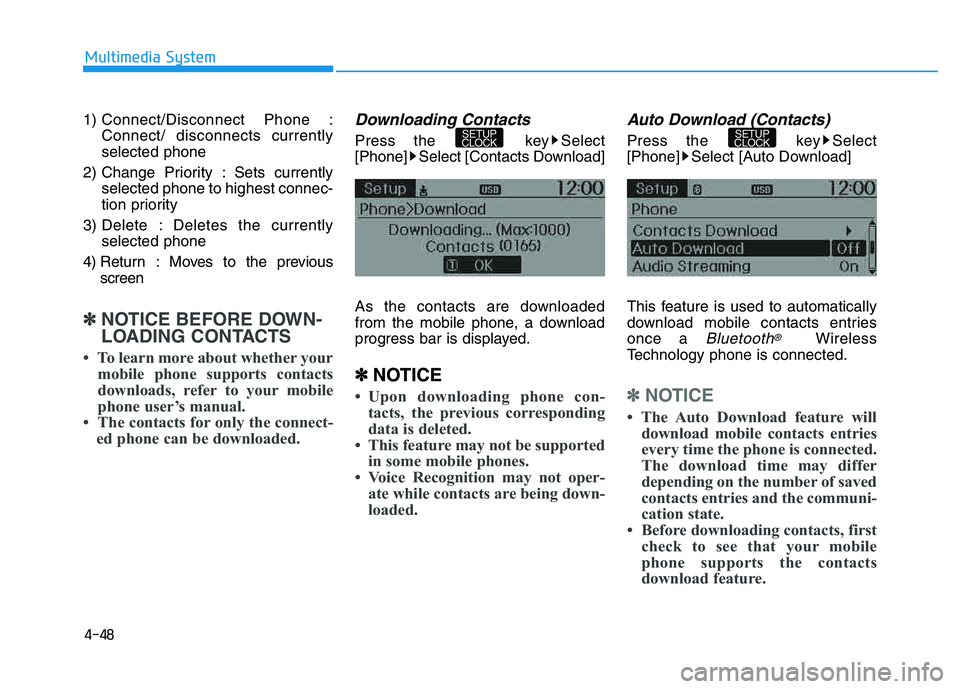
Downloading Contacts
Press the key Select
[Phone] Select [Contacts Download]
As the contacts are downloaded
from the mobile phone, a download
progress bar is displayed.
✽✽ NOTICE
Upon downloading phone con-
tacts, the previous corresponding
data is deleted.
This feature may not be supported in some mobile phones.
Voice Recognition may not oper- ate while contacts are being down-
loaded.
Auto Download (Contacts)
Press the key Select
[Phone] Select [Auto Download]
This feature is used to automatically
download mobile contacts entriesonce a
Bluetooth®Wireless
Technology phone is connected.
✽✽ NOTICE
The Auto Download feature will
download mobile contacts entries
every time the phone is connected.
The download time may differ
depending on the number of saved
contacts entries and the communi-
cation state.
Before downloading contacts, first check to see that your mobile
phone supports the contacts
download feature.
SETUP
CLOCKSETUP
CLOCK
Page 260 of 542
![HYUNDAI TUCSON 2014 Repair Manual 4-49
Multimedia System
4
Audio Streaming
Press the key Select
[Phone] Select [Audio Streaming]
When Audio Streaming is turned on,
you can play music files saved in your
Bluetooth®Wireless Technolo](/img/35/56203/w960_56203-259.png "HYUNDAI TUCSON 2014 Repair Manual 4-49
Multimedia System
4
Audio Streaming
Press the key Select
[Phone] Select [Audio Streaming]
When Audio Streaming is turned on,
you can play music files saved in your
Bluetooth®Wireless Technolo")
4-49
Multimedia System
4
Audio Streaming
Press the key Select
[Phone] Select [Audio Streaming]
When Audio Streaming is turned on,
you can play music files saved in your
Bluetooth®Wireless Technology device
through the audio system.
Outgoing Volume
Press the key Select
[Phone] Select [Outgoing Volume]
Use TUNE knob to adjust the out-
going volume level.
✽✽ NOTICE
While on a call, the volume can be
changed by using the key.
Turning Bluetooth System Off
Press the key Select
[Phone] Select [Bluetooth SystemOff] Once
Bluetooth®Wireless Technology
is turned off,
Bluetooth®Wireless
Technology related features will not
be supported within the audio system.
✽✽ NOTICE
To turn Bluetooth®
Wireless
Technology back on, go to
[Phone] and select “Yes”.
SETUP
CLOCK
SETUP
CLOCK
SEEK
TRACK
SETUP
CLOCKSETUP
CLOCK
Page 261 of 542
4-50
Multimedia System
VVOO IICC EE RR EECCOO GGNN IITT IIOO NN
Using Voice Recognition
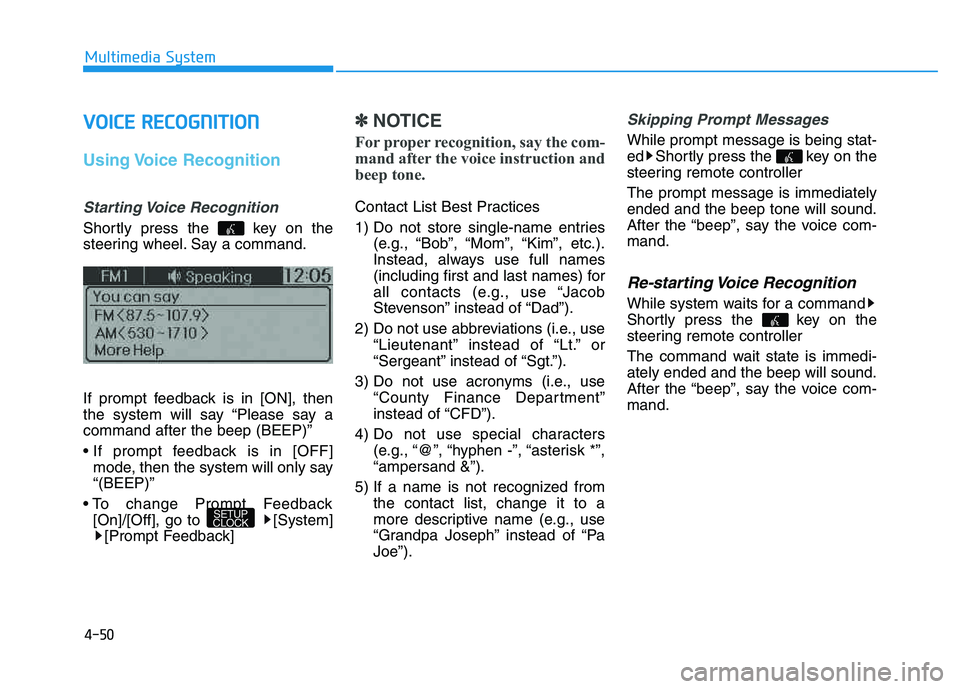
Starting Voice Recognition
Shortly press the key on the
steering wheel. Say a command.
If prompt feedback is in [ON], then
the system will say “Please say acommand after the beep (BEEP)”
mode, then the system will only say “(BEEP)”
[On]/[Off], go to [System] [Prompt Feedback]
✽✽ NOTICE
For proper recognition, say the com-
mand after the voice instruction and
beep tone.
Contact List Best Practices
1) Do not store single-name entries (e.g., “Bob”, “Mom”, “Kim”, etc.).
Instead, always use full names
(including first and last names) for
all contacts (e.g., use “Jacob
Stevenson” instead of “Dad”).
2) Do not use abbreviations (i.e., use “Lieutenant” instead of “Lt.” or
“Sergeant” instead of “Sgt.”).
3) Do not use acronyms (i.e., use “County Finance Department”
instead of “CFD”).
4) Do not use special characters (e.g., “@”, “hyphen -”, “asterisk *”,“ampersand &”).
5) If a name is not recognized from the contact list, change it to a
more descriptive name (e.g., use
“Grandpa Joseph” instead of “PaJoe”).
Skipping Prompt Messages
While prompt message is being stat-
ed Shortly press the key on the
steering remote controller The prompt message is immediately ended and the beep tone will sound.
After the “beep”, say the voice com-mand.
Re-starting Voice Recognition
While system waits for a command
Shortly press the key on the
steering remote controller
The command wait state is immedi- ately ended and the beep will sound.
After the “beep”, say the voice com-mand.
SETUP
CLOCK
Page 262 of 542
4-51
Multimedia System
4
EENN DDIINN GG VV OO IICC EE RR EECCOO GGNN IITT IIOO NN
While Voice Recognition is operating
Press and hold the key on the
steering remote controller
✽✽ NOTICE
While using voice command, pressing any steering wheel con-
trol or a different key will end
voice command.
When the system is waiting for a voice command, say “cancel” or
“end” to end voice command.
When the system is waiting for a voice command, press and hold
the key on the steering wheel
to end voice command.
Page 263 of 542
4-52
Multimedia System
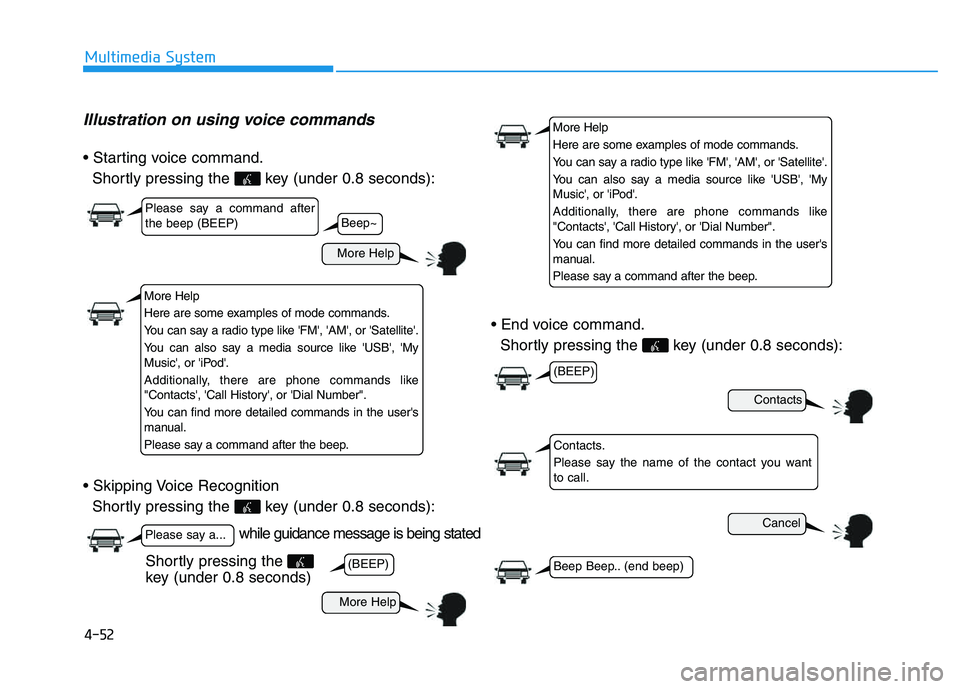
Illustration on using voice commands
Shortly pressing the key (under 0.8 seconds):
Shortly pressing the key (under 0.8 seconds):
Shortly pressing the key (under 0.8 seconds):
while guidance message is being stated
More Help
Contacts
Cancel
More Help
Please say a command after the beep (BEEP)
Please say a...
Contacts.
Please say the name of the contact you want to call.
(BEEP)
(BEEP)
Beep Beep.. (end beep)
Shortly pressing the
key (under 0.8 seconds)
Beep~
More Help
Here are some examples of mode commands.
You can say a radio type like 'FM', 'AM', or 'Satellite'.
You can also say a media source like 'USB', 'My
Music', or 'iPod'.
Additionally, there are phone commands like
"Contacts', 'Call History', or 'Dial Number".
You can find more detailed commands in the user's
manual.
Please say a command after the beep.
More Help
Here are some examples of mode commands.
You can say a radio type like 'FM', 'AM', or 'Satellite'.
You can also say a media source like 'USB', 'My
Music', or 'iPod'.
Additionally, there are phone commands like
"Contacts', 'Call History', or 'Dial Number".
You can find more detailed commands in the user's
manual.
Please say a command after the beep.
Page 275 of 542
4-64
Multimedia System
RRAA DDIIOO MM OODDEE
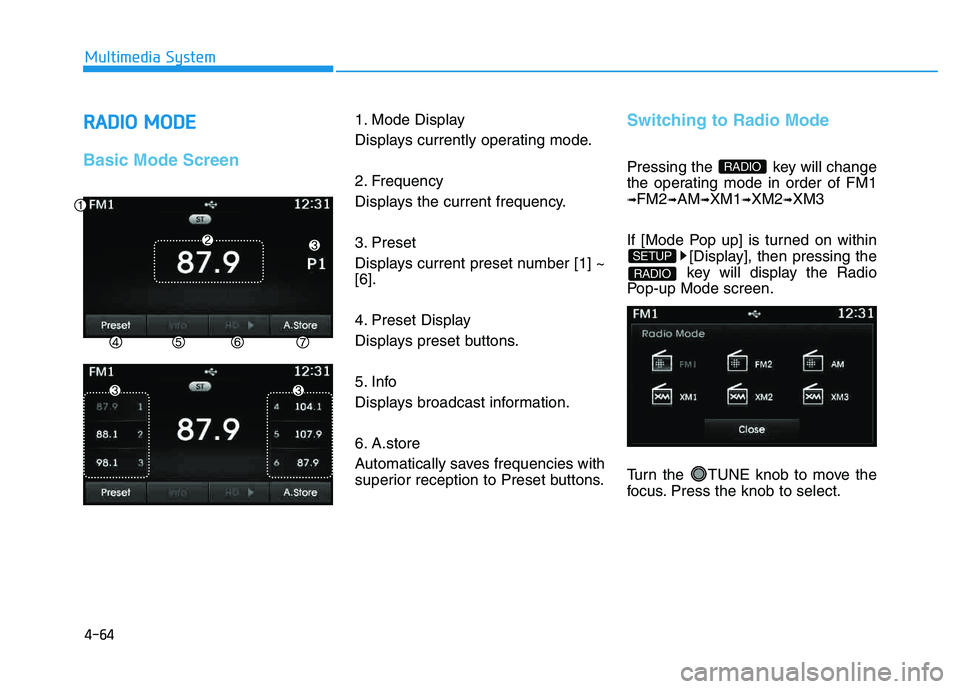
Basic Mode Screen
1. Mode Display
Displays currently operating mode.
2. Frequency
Displays the current frequency.
3. Preset
Displays current preset number [1] ~ [6].
4. Preset Display
Displays preset buttons.
5. Info
Displays broadcast information.
6. A.store
Automatically saves frequencies with
superior reception to Preset buttons.Switching to Radio Mode
Pressing the key will change
the operating mode in order of FM1
➟FM2➟AM➟XM1➟XM2➟XM3
If [Mode Pop up] is turned on within [Display], then pressing the
key will display the Radio
Pop-up Mode screen.
Turn the TUNE knob to move the
focus. Press the knob to select.
RADIO
SETUP
RADIO
Page 276 of 542
4-65
Multimedia System
4
Searching Radio Frequencies
Using Seek
Press the key to play the
previous/next frequency.
Using TUNE
Turn the TUNE knob to select the
desired frequency.
: Increases/decreased by200kHz
: Increases/decreased by 10kHz
Using Radio Mode
Selecting Presets/Saving
Presets
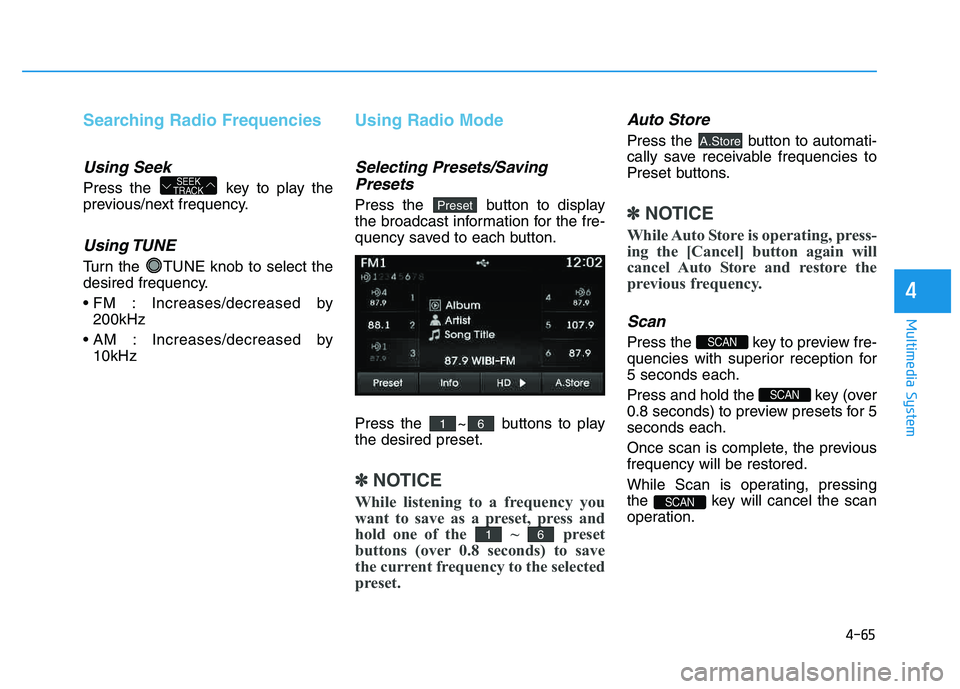
Press the button to display
the broadcast information for the fre-
quency saved to each button.
Press the ~ buttons to play the desired preset.
✽✽ NOTICE
While listening to a frequency you
want to save as a preset, press and
hold one of the ~ preset
buttons (over 0.8 seconds) to save
the current frequency to the selected
preset.
Auto Store
Press the button to automati-
cally save receivable frequencies to
Preset buttons.
✽✽ NOTICE
While Auto Store is operating, press-
ing the [Cancel] button again will
cancel Auto Store and restore the
previous frequency.
Scan
Press the key to preview fre-
quencies with superior reception for5 seconds each.
Press and hold the key (over
0.8 seconds) to preview presets for 5seconds each.
Once scan is complete, the previous frequency will be restored.
While Scan is operating, pressing
the key will cancel the scan
operation.
SCAN
SCAN
SCAN
A.Store
61
61
Preset
SEEK
TRACK
Page 279 of 542
4-68
Multimedia System
Using SEEK
Press the key to play the
previous/next channel. ❈If the “Category” icon is displayed, channels are changed within the
current category.
Using Tune
Turn the TUNE knob to select the desired channel.
SCAN
Press the key to scan all
channels with superior reception for5 seconds each.
Once scan is complete, the previous-
ly played channel will be restored.
During Scan, pressing the
key again will cancel the scan opera-
tion and restore the previously
played channel.
If the “Category” icon is displayed, channels are changed within the cur-
rent category.
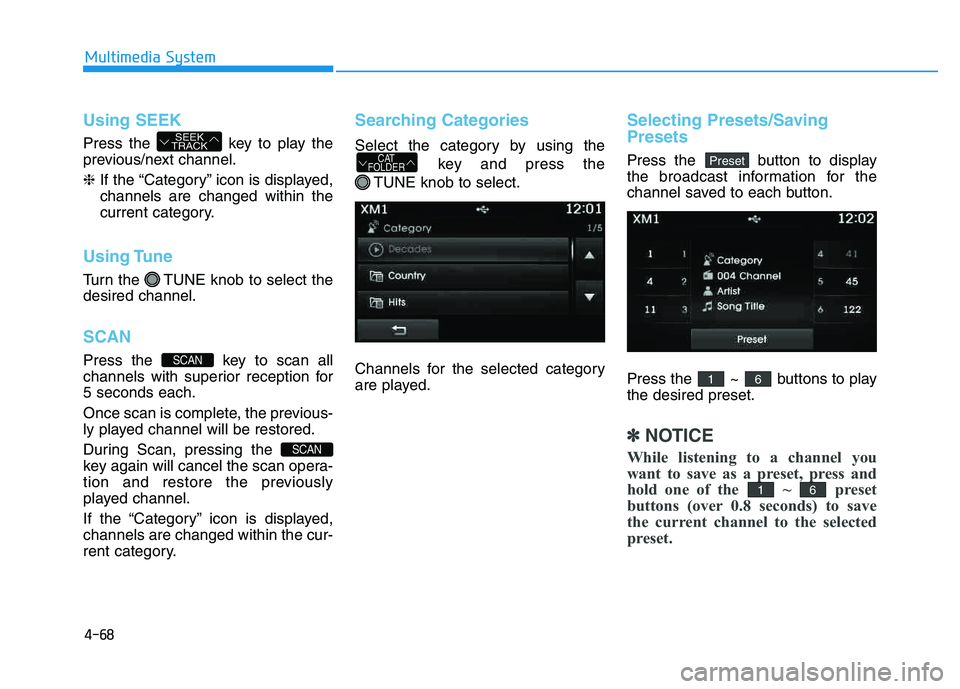
Searching Categories
Select the category by using the
key and press the
TUNE knob to select.
Channels for the selected category
are played.
Selecting Presets/Saving Presets
Press the button to display
the broadcast information for the
channel saved to each button.
Press the ~ buttons to play the desired preset.
✽✽ NOTICE
While listening to a channel you
want to save as a preset, press and
hold one of the ~ preset
buttons (over 0.8 seconds) to save
the current channel to the selected
preset.
61
61
PresetCAT
FOLDER
SCAN
SCAN
SEEK
TRACK
Page 281 of 542
![HYUNDAI TUCSON 2014 Repair Manual 4-70
Multimedia System
MMEEDD IIAA MM OODDEE
Pressing the key will change
the operating mode in order ofCD
➟USB(iPod®)➟AUX➟My Music ➟
BT Audio.
If [Mode Pop up] is turned on within
[Disp](/img/35/56203/w960_56203-280.png "HYUNDAI TUCSON 2014 Repair Manual 4-70
Multimedia System
MMEEDD IIAA MM OODDEE
Pressing the key will change
the operating mode in order ofCD
➟USB(iPod®)➟AUX➟My Music ➟
BT Audio.
If [Mode Pop up] is turned on within
[Disp")
4-70
Multimedia System
MMEEDD IIAA MM OODDEE
Pressing the key will change
the operating mode in order ofCD
➟USB(iPod®)➟AUX➟My Music ➟
BT Audio.
If [Mode Pop up] is turned on within
[Display], then pressing the
key will display the Media
Pop-up Mode screen.
Turn the TUNE knob to move the
focus. Press the knob to select.
✽✽ NOTICE
The media mode pop up screen can
be displayed only when there are two
or more media modes turned on.
Title Icon
When a Bluetooth®Wireless
Technology, iPod®, USB, or AUX
device is connected or a CD is
inserted, the corresponding mode
icon will be displayed.
Icon Title
Bluetooth®Wireless Technology
CD
iPod®
USB
AUX
MEDIA
SETUP
MEDIA
Page 283 of 542
4-72
Multimedia System
Using Audio CD Mode
Playing/Pausing CD Tracks
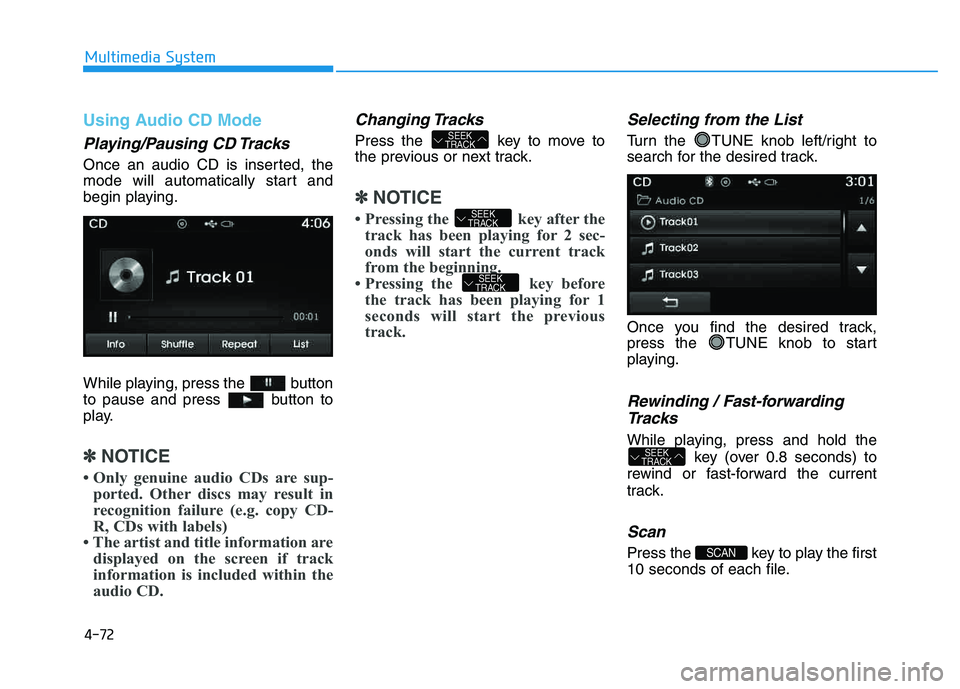
Once an audio CD is inserted, the
mode will automatically start and
begin playing.
While playing, press the button
to pause and press button to
play.
✽✽NOTICE
Only genuine audio CDs are sup- ported. Other discs may result in
recognition failure (e.g. copy CD-
R, CDs with labels)
The artist and title information are displayed on the screen if track
information is included within the
audio CD.
Changing Tracks
Press the key to move to
the previous or next track.
✽✽ NOTICE
Pressing the key after the track has been playing for 2 sec-
onds will start the current track
from the beginning.
Pressing the key before the track has been playing for 1
seconds will start the previous
track.
Selecting from the List
Turn the TUNE knob left/right to
search for the desired track.
Once you find the desired track,
press the TUNE knob to start
playing.
Rewinding / Fast-forwarding
Tracks
While playing, press and hold the key (over 0.8 seconds) to
rewind or fast-forward the current
track.
Scan
Press the key to play the first
10 seconds of each file.SCAN
SEEK
TRACK
SEEK
TRACK
SEEK
TRACK
SEEK
TRACK