Esc HYUNDAI TUCSON 2015 User Guide
[x] Cancel search | Manufacturer: HYUNDAI, Model Year: 2015, Model line: TUCSON, Model: HYUNDAI TUCSON 2015Pages: 653, PDF Size: 8.45 MB
Page 186 of 653
3-100
Convenient features of your vehicle
✽✽NOTICE
When using the air conditioning system, monitor the engine temper-
ature gauge closely while driving
up hills or in heavy traffic when
outside temperatures are high. Air
conditioning system operation may
cause engine overheating.
Continue to use the blower fan but
turn the air conditioning system off
if the engine temperature gauge
indicates engine overheating.
When opening the windows in humid weather, air conditioning
may create water droplets inside
the vehicle. Since excessive water
droplets may cause damage to
electrical equipment, air condi-
tioning should only be operated
with the windows closed. Air conditioning system operation
tips
If the vehicle has been parked in
direct sunlight during hot weather,
open the windows for a short time
to let the hot air inside the vehicle
escape.
To help reduce moisture inside of the windows on rainy or humid
days, decrease the humidity inside
the vehicle by operating the airconditioning system.
During air conditioning system operation, you may occasionallynotice a slight change in enginespeed as the air conditioning com-
pressor cycles. This is a normal
system operation characteristic.
Use the air conditioning system every month for a few minutes to
ensure maximum system perform-
ance. When using the air conditioning
system, you may notice clear water
dripping (or even puddling) on the
ground under the passenger side
of the vehicle. This is a normal sys-
tem operation characteristic.
Operating the air conditioning sys- tem in the recirculated air position
provides maximum cooling, how-
ever, continual operation in this
mode may cause the air inside the
vehicle to become stale.
During cooling operation, you may occasionally notice a misty air flow
because of rapid cooling and
humid air intake. This is a normal
system operation characteristics.
Page 214 of 653
4-3
Multimedia System
Steering wheel audio control (if equipped)
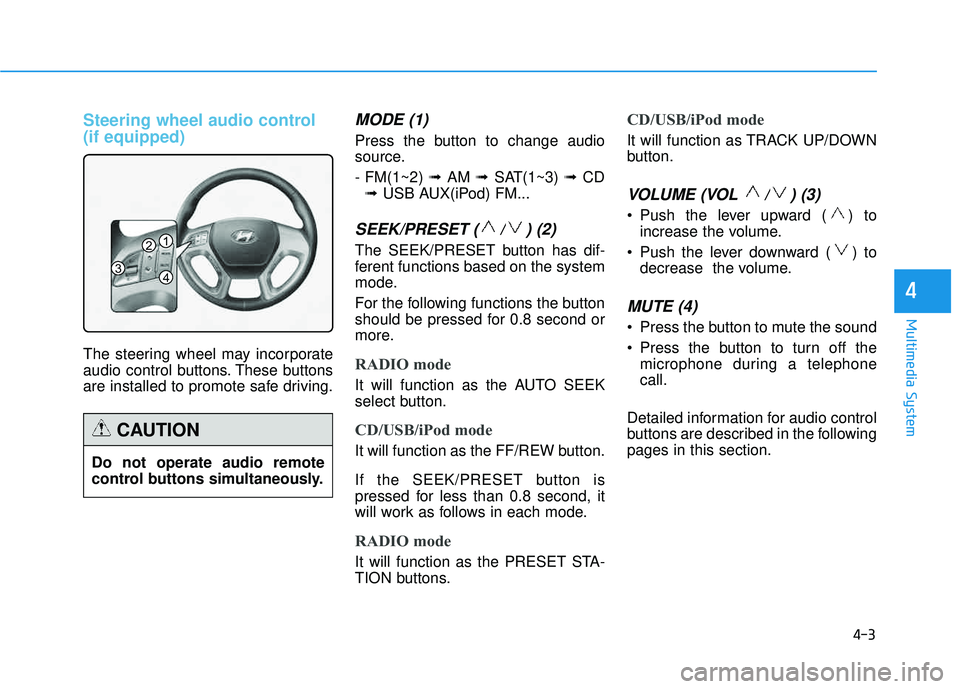
The steering wheel may incorporate
audio control buttons. These buttons
are installed to promote safe driving.
MODE (1)
Press the button to change audio
source. - FM(1~2) ➟ AM ➟ SAT(1~3) ➟ CD
➟ USB AUX(iPod) FM...
SEEK/PRESET ( / ) (2)
The SEEK/PRESET button has dif-
ferent functions based on the system
mode.
For the following functions the button
should be pressed for 0.8 second or
more.
RADIO mode
It will function as the AUTO SEEK
select button.
CD/USB/iPod mode
It will function as the FF/REW button.
If the SEEK/PRESET button is
pressed for less than 0.8 second, it
will work as follows in each mode.
RADIO mode
It will function as the PRESET STA-
TION buttons.
CD/USB/iPod mode
It will function as TRACK UP/DOWN
button.
VOLUME (VOL / ) (3)
• Push the lever upward ( ) to
increase the volume.
Push the lever downward ( ) to decrease the volume.
MUTE (4)
Press the button to mute the sound
Press the button to turn off themicrophone during a telephone call.
Detailed information for audio control
buttons are described in the followingpages in this section.
4
1
3
2
4
Do not operate audio remote
control buttons simultaneously.
CAUTION
Page 236 of 653
4-25
Multimedia System
4
XXMM RR AA DDIIOO
Using XM satellite™ Radio
Your vehicle is equipped with a 3
month complimentary period of XM
Satellite™ Radio. XM provides
access to over 130 channels of
music, information, and entertain-
ment programming.
SEEK
Press the key
select
previous or next channel.
0.8 seconds): continuously move to
previous or next channel.
❈ If the “Category” icon is displayed,channels are changed within the
current category.
SCAN
Press the key
Previews
each broadcast for 5 seconds each
❈ Press the key again to
continue listening to the currentfrequency
❈ If the “Category” icon is displayed,channels are changed within the
current category.
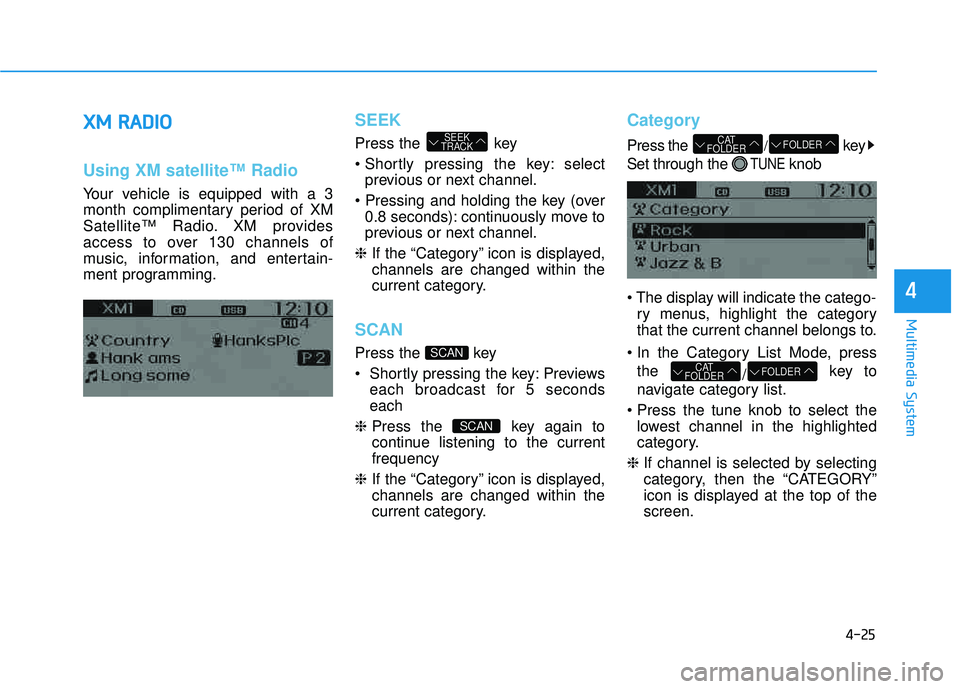
Category
Press the /key
Set through the
TUNEknob
ry menus, highlight the category
that the current channel belongs to.
the /key to
navigate category list.
lowest channel in the highlighted
category.
❈ If channel is selected by selecting
category, then the “CATEGORY”
icon is displayed at the top of thescreen.
FOLDERCAT
FOLDER
FOLDERCAT
FOLDER
SCAN
SCAN
SEEK
TRACK
Page 250 of 653
4-39
Multimedia System
4
✽✽NOTICE
If Bluetooth ®
Wireless Technology
devices are paired but none are cur-
rently connected, pressing the key or the key on the
steering wheel displays the following
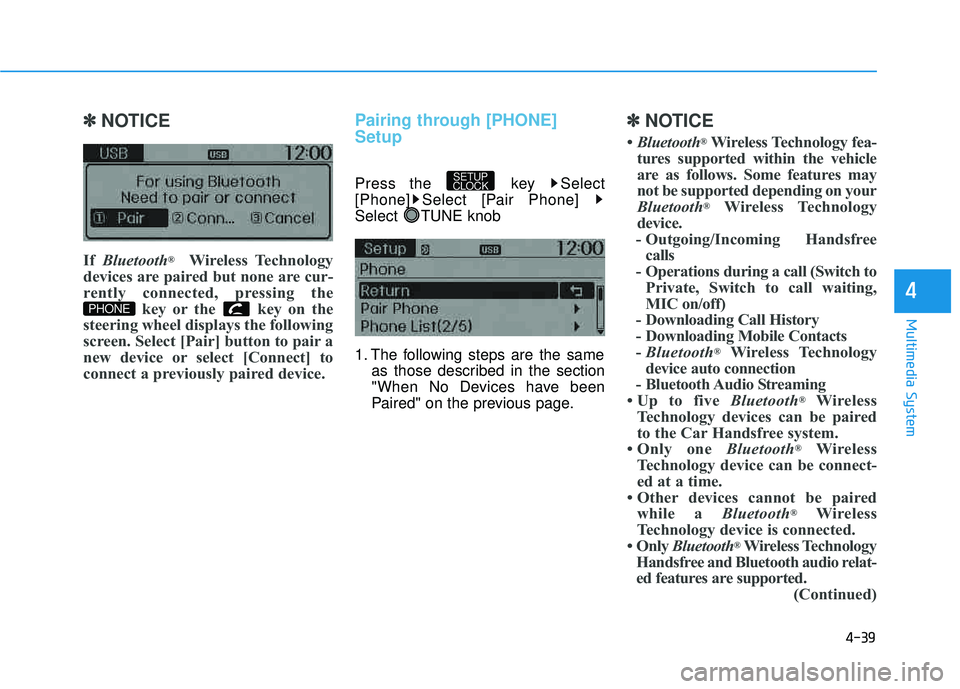
screen. Select [Pair] button to pair a
new device or select [Connect] to
connect a previously paired device.Pairing through [PHONE] Setup
Press the key Select
[Phone] Select [Pair Phone]
Select TUNE knob
1. The following steps are the same as those described in the section
"When No Devices have been
Paired" on the previous page.
✽✽ NOTICE
Bluetooth ®
Wireless Technology fea-
tures supported within the vehicle
are as follows. Some features may
not be supported depending on your
Bluetooth ®
Wireless Technology
device.
- Outgoing/Incoming Handsfree calls
- Operations during a call (Switch to Private, Switch to call waiting,
MIC on/off)
- Downloading Call History
- Downloading Mobile Contacts- Bluetooth ®
Wireless Technology
device auto connection
- Bluetooth Audio Streaming
Up to five Bluetooth®
Wireless
Technology devices can be paired
to the Car Handsfree system.
Only one Bluetooth®
Wireless
Technology device can be connect-
ed at a time.
Other devices cannot be paired while a Bluetooth®
Wireless
Technology device is connected.
Only Bluetooth ®
Wireless Technology
Handsfree and Bluetooth audio relat-
ed features are supported. (Continued)
SETUP
CLOCK
PHONE
Page 261 of 653
4-50
Multimedia System
VVOO IICC EE RR EECCOO GGNN IITT IIOO NN
Using Voice Recognition
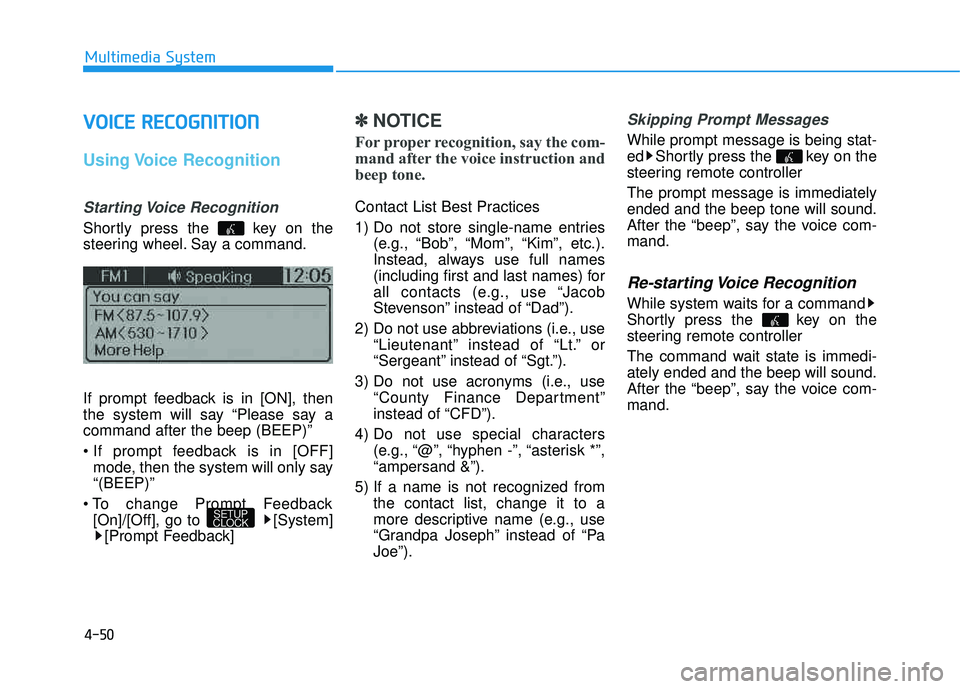
Starting Voice Recognition
Shortly press the key on the
steering wheel. Say a command.
If prompt feedback is in [ON], then
the system will say “Please say acommand after the beep (BEEP)”
mode, then the system will only say “(BEEP)”
[On]/[Off], go to [System] [Prompt Feedback]
✽✽ NOTICE
For proper recognition, say the com-
mand after the voice instruction and
beep tone.
Contact List Best Practices
1) Do not store single-name entries (e.g., “Bob”, “Mom”, “Kim”, etc.).
Instead, always use full names
(including first and last names) for
all contacts (e.g., use “Jacob
Stevenson” instead of “Dad”).
2) Do not use abbreviations (i.e., use “Lieutenant” instead of “Lt.” or
“Sergeant” instead of “Sgt.”).
3) Do not use acronyms (i.e., use “County Finance Department”
instead of “CFD”).
4) Do not use special characters (e.g., “@”, “hyphen -”, “asterisk *”,“ampersand &”).
5) If a name is not recognized from the contact list, change it to a
more descriptive name (e.g., use
“Grandpa Joseph” instead of “PaJoe”).
Skipping Prompt Messages
While prompt message is being stat-
ed Shortly press the key on the
steering remote controller The prompt message is immediately ended and the beep tone will sound.
After the “beep”, say the voice com-mand.
Re-starting Voice Recognition
While system waits for a command
Shortly press the key on the
steering remote controller
The command wait state is immedi- ately ended and the beep will sound.
After the “beep”, say the voice com-mand.
SETUP
CLOCK
Page 307 of 653
![HYUNDAI TUCSON 2015 User Guide 4-96
Multimedia System
[Non SSP supported device]
(SSP: Secure Simple Pairing)
4. After a few moments, a screen isdisplayed where the passkey is entered.
Hear, enter the passkey “0000” to
pair yo](/img/35/56202/w960_56202-306.png "HYUNDAI TUCSON 2015 User Guide 4-96
Multimedia System
[Non SSP supported device]
(SSP: Secure Simple Pairing)
4. After a few moments, a screen isdisplayed where the passkey is entered.
Hear, enter the passkey “0000” to
pair yo")
4-96
Multimedia System
[Non SSP supported device]
(SSP: Secure Simple Pairing)
4. After a few moments, a screen isdisplayed where the passkey is entered.
Hear, enter the passkey “0000” to
pair your
Bluetooth®Wireless
Technology device with the caraudio system.
[SSP supported device]
4. After a few moments, a screen is displayed 6 digits passkey.
Hear, check the passkey on your
Bluetooth®Wireless Technology
device and confirm.
5. Once pairing is complete, the fol- lowing screen is displayed.
✽✽ NOTICE
If Bluetooth ®
Wireless Technology
devices are paired but none are cur-
rently connected, pressing the key or the key on the
steering wheel displays the following
screen. Press the [Pair] button to
pair a new device or press the
[Connect] to connect a previously
paired device.Pairing through [PHONE] Setup
Press the key Select
[Phone] Select [Pair Phone]
Select TUNE knob
1. The following steps are the same as those described in the section
"When No Devices have been
Paired" on the previous page.SETUP
PHONE
Page 319 of 653
4-108
Multimedia System
VVOO IICC EE RR EECCOO GGNN IITT IIOO NN
Using Voice Recognition
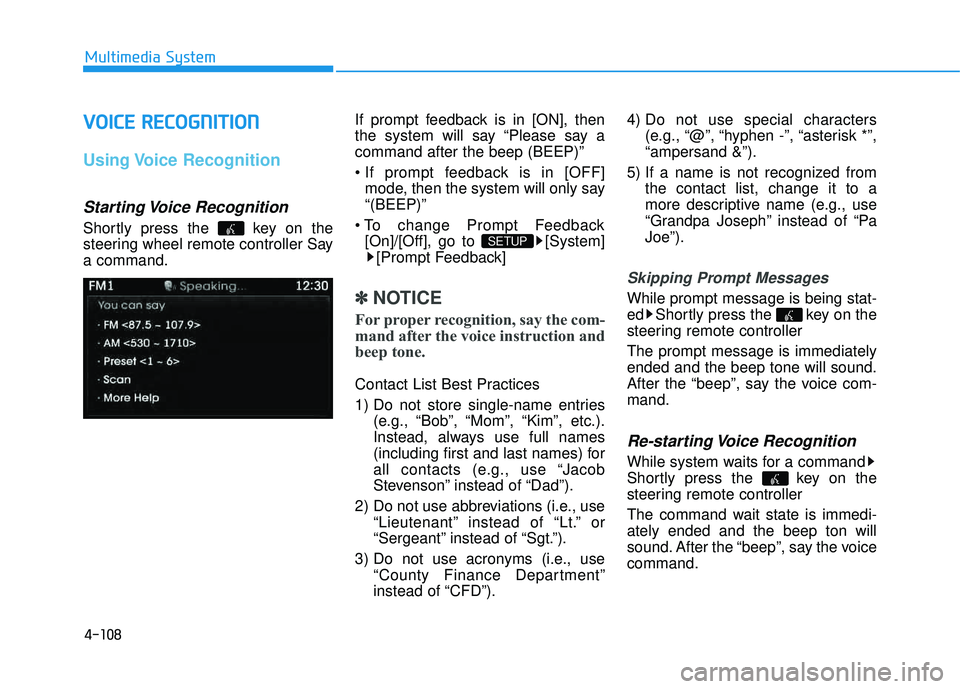
Starting Voice Recognition
Shortly press the key on the
steering wheel remote controller Saya command. If prompt feedback is in [ON], then
the system will say “Please say acommand after the beep (BEEP)”
mode, then the system will only say “(BEEP)”
[On]/[Off], go to [System] [Prompt Feedback]
✽✽ NOTICE
For proper recognition, say the com-
mand after the voice instruction and
beep tone.
Contact List Best Practices
1) Do not store single-name entries (e.g., “Bob”, “Mom”, “Kim”, etc.).
Instead, always use full names
(including first and last names) for
all contacts (e.g., use “Jacob
Stevenson” instead of “Dad”).
2) Do not use abbreviations (i.e., use “Lieutenant” instead of “Lt.” or
“Sergeant” instead of “Sgt.”).
3) Do not use acronyms (i.e., use “County Finance Department”
instead of “CFD”). 4) Do not use special characters
(e.g., “@”, “hyphen -”, “asterisk *”,“ampersand &”).
5) If a name is not recognized from the contact list, change it to a
more descriptive name (e.g., use
“Grandpa Joseph” instead of “PaJoe”).
Skipping Prompt Messages
While prompt message is being stat-
ed Shortly press the key on the
steering remote controller The prompt message is immediately ended and the beep tone will sound.
After the “beep”, say the voice com-mand.
Re-starting Voice Recognition
While system waits for a command
Shortly press the key on the
steering remote controller
The command wait state is immedi- ately ended and the beep ton will
sound. After the “beep”, say the voicecommand.
SETUP
Page 333 of 653
4-122
Multimedia System
BBlluu ee LL iinn kk ®®
Hyundai aims to offer differentiated
customer values through a ‘Connected
Car Life,’ which is to provide con-
sumers with fast and reliable IT tech-
nology. As consumers’ lifestylesbecome more and more mobile in
thanks to remarkable advances in
smart phones, tablet PCs and overall
wireless telecommunication, new
lifestyle patterns demand seamless
connection between one’s office,
home, outdoors and automobiles.
Automobile companies are now faced
with the task of shifting their paradigm
from vehicle-centered services to cus-
tomer value-centered services, with
the ultimate goal of securing global
leadership in the field of vehicle IT and
telematics. Hyundai Motor plans to achieve this
by realizing a terminal platform flexi-
ble to changes in IT technology,
cooperating with global IT compa-
nies, creating an eco-system and
providing the latest contents & serv-
ices based on an open environment.
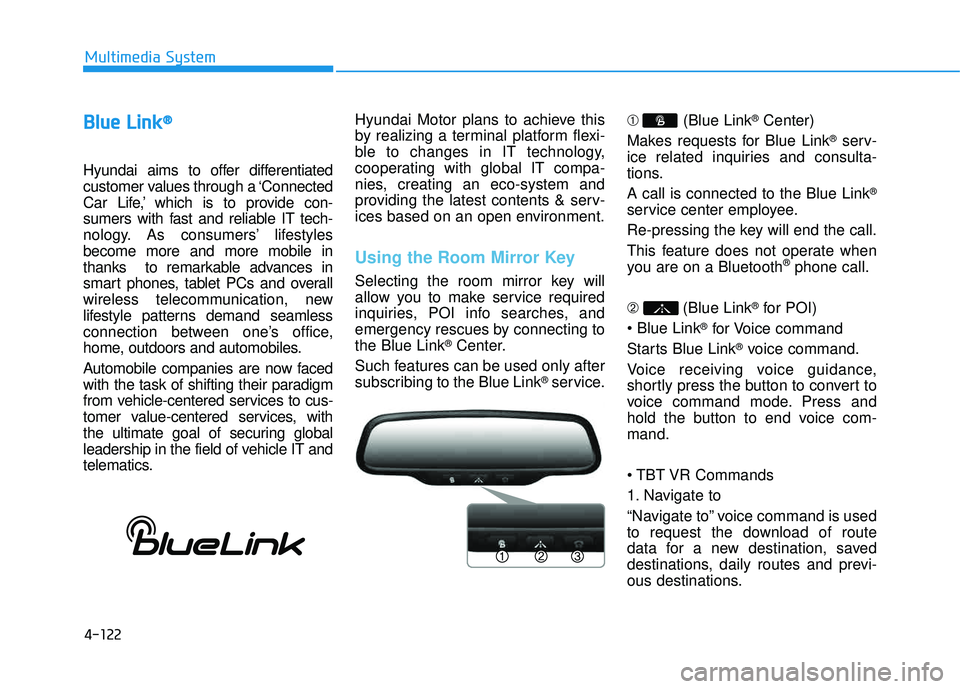
Using the Room Mirror Key
Selecting the room mirror key will
allow you to make service required
inquiries, POI info searches, and
emergency rescues by connecting tothe Blue Link
®Center.
Such features can be used only after
subscribing to the Blue Link
®service. ➀
(Blue Link
®Center)
Makes requests for Blue Link
®serv-
ice related inquiries and consulta-
tions. A call is connected to the Blue Link
®
service center employee.
Re-pressing the key will end the call.
This feature does not operate when
you are on a Bluetooth
®phone call.
➁ (Blue Link
®for POI)
®for Voice command
Starts Blue Link
®voice command.
Voice receiving voice guidance,
shortly press the button to convert to
voice command mode. Press and
hold the button to end voice com-mand.
Commands
1. Navigate to
“Navigate to” voice command is used
to request the download of route
data for a new destination, saved
destinations, daily routes and previ-
ous destinations.
Page 334 of 653
4-123
Multimedia System
4
2. Save Destination
“Save Destination” VR command is
used to assign a voice tag to the last
downloaded destination and store it
in a destination directory.
NOTE:
The Turn by Turn(TBT) feature sup-
ports the store of ten(10) destina-
tions in the TBT destinations
directory.
3. Route Preview
“Route Preview” VR command allows
the user to preview the route instruc-
tions (upcoming maneuver instruc-
tions) at any time during the route
guidance.
4. Destinations List
“Destinations List” VR command
allows the user to preview and deletethe stored destinations with their
associated voice tags in the Turn by
Turn destinations directory.5. Voice Guidance
“Voice Guidance” VR command allows
the user to mute/unmute the Turn by
Turn(TBT) direction announcements.
6. Suspend Route
“Suspend Route” VR command
allows the user to suspend and
pause Turn by Turn(TBT) route guid-
ance while in the guidance mode.
7. Resume Route
“Resume Route” VR command
allows the user to resume Turn by
Turn(TBT) route guidance. ➂
(Blue Link
®for SOS)
In the case of an emergency,
requests for help to the Blue Link
®
center. Call is connected to the Blue Link
®
emergency rescue center. Re-press-
ing the key will end the call. If already on a Bluetooth
®phone call,
the call will end to connect you to the Blue Link
®Emergency Rescue Center.
You cannot talk simultaneous-
ly on the Bluetooth®phone
and Blue Link®phone.
While on a Bluetooth®call,
pressing the key or
key will display a message
indicating that you are cur-
rently on a call.
A message will be displayed if
you receive a
Bluetooth®
Wireless Technology call while
already on a Blue Link®call. At
this time, press the key onthe steering wheel remote con-
troller to accept the call. Thering tone on the phone will notsound.
CAUTION
Page 346 of 653
4-135
Multimedia System
4
XXMM RR AA DDIIOO
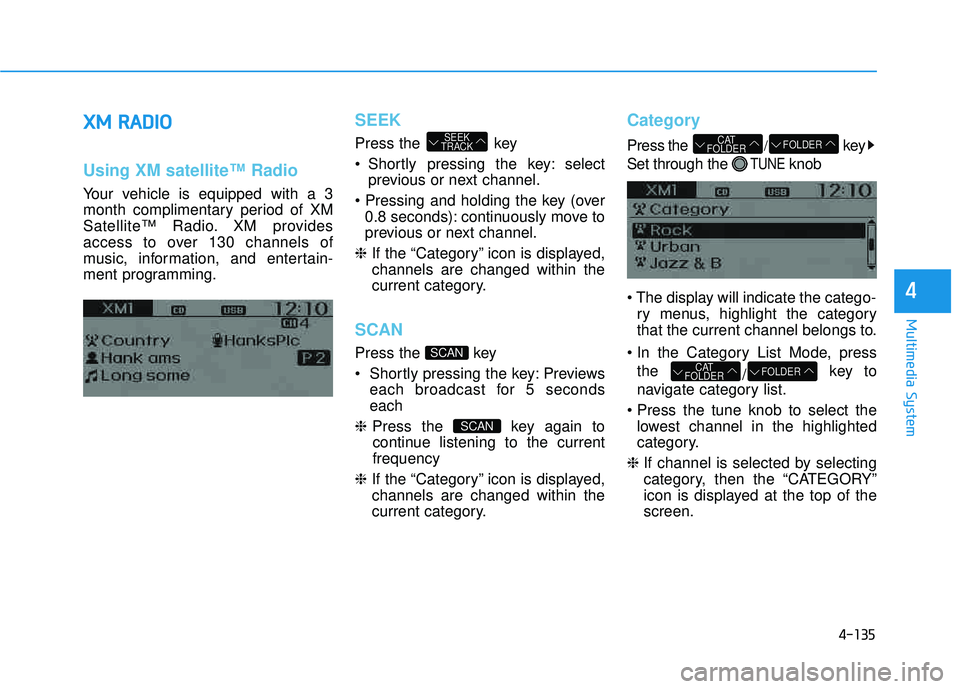
Using XM satellite™ Radio
Your vehicle is equipped with a 3
month complimentary period of XM
Satellite™ Radio. XM provides
access to over 130 channels of
music, information, and entertain-
ment programming.
SEEK
Press the key
Shortly pressing the key: select
previous or next channel.
0.8 seconds): continuously move to
previous or next channel.
❈ If the “Category” icon is displayed,channels are changed within the
current category.
SCAN
Press the key
Previews
each broadcast for 5 seconds each
❈ Press the key again to
continue listening to the currentfrequency
❈ If the “Category” icon is displayed,channels are changed within the
current category.
Category
Press the /key
Set through the
TUNEknob
ry menus, highlight the category
that the current channel belongs to.
the /key to
navigate category list.
lowest channel in the highlighted
category.
❈ If channel is selected by selecting
category, then the “CATEGORY”
icon is displayed at the top of thescreen.
FOLDERCAT
FOLDER
FOLDERCAT
FOLDER
SCAN
SCAN
SEEK
TRACK