Esc HYUNDAI TUCSON 2015 Owner's Manual
[x] Cancel search | Manufacturer: HYUNDAI, Model Year: 2015, Model line: TUCSON, Model: HYUNDAI TUCSON 2015Pages: 653, PDF Size: 8.45 MB
Page 360 of 653
4-149
Multimedia System
4
✽✽NOTICE
If Bluetooth ®
Wireless Technology
devices are paired but none are cur-
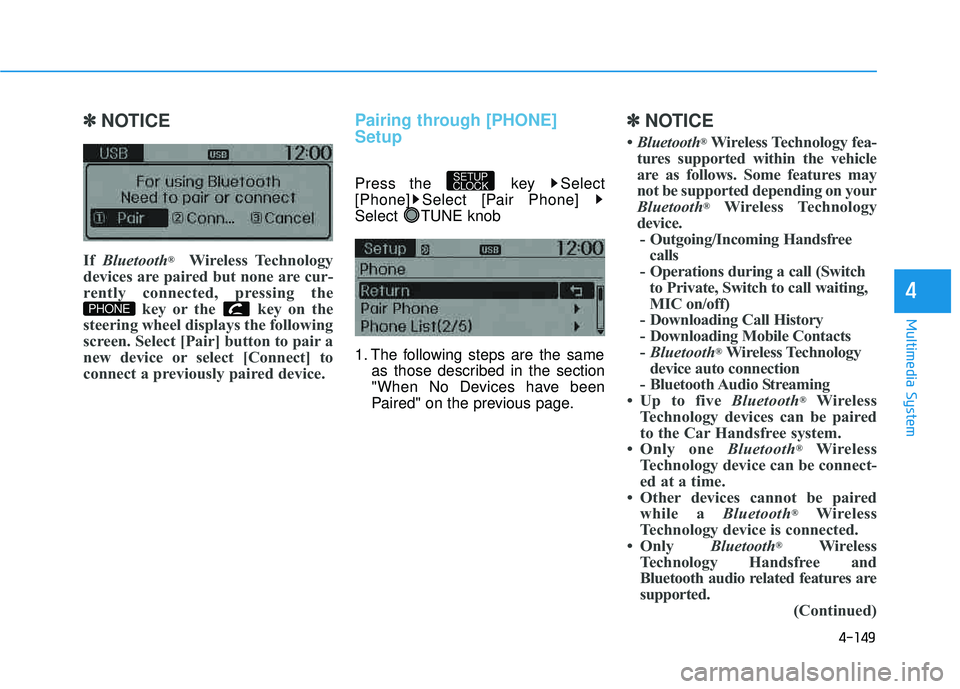
rently connected, pressing the key or the key on the
steering wheel displays the following
screen. Select [Pair] button to pair a
new device or select [Connect] to
connect a previously paired device.Pairing through [PHONE] Setup
Press the key Select
[Phone] Select [Pair Phone]
Select TUNE knob
1. The following steps are the same as those described in the section
"When No Devices have been
Paired" on the previous page.
✽✽ NOTICE
Bluetooth ®
Wireless Technology fea-
tures supported within the vehicle
are as follows. Some features may
not be supported depending on your
Bluetooth ®
Wireless Technology
device. - Outgoing/Incoming Handsfree calls
- Operations during a call (Switch to Private, Switch to call waiting,
MIC on/off)
- Downloading Call History
- Downloading Mobile Contacts- Bluetooth ®
Wireless Technology
device auto connection
- Bluetooth Audio Streaming
Up to five Bluetooth®
Wireless
Technology devices can be paired
to the Car Handsfree system.
Only one Bluetooth®
Wireless
Technology device can be connect-
ed at a time.
Other devices cannot be paired while a Bluetooth®
Wireless
Technology device is connected.
Only Bluetooth®
Wireless
Technology Handsfree and
Bluetooth audio related features are
supported. (Continued)
SETUP
CLOCK
PHONE
Page 371 of 653
4-160
Multimedia System
VVOO IICC EE RR EECCOO GGNN IITT IIOO NN
Using Voice Recognition
Starting Voice Recognition
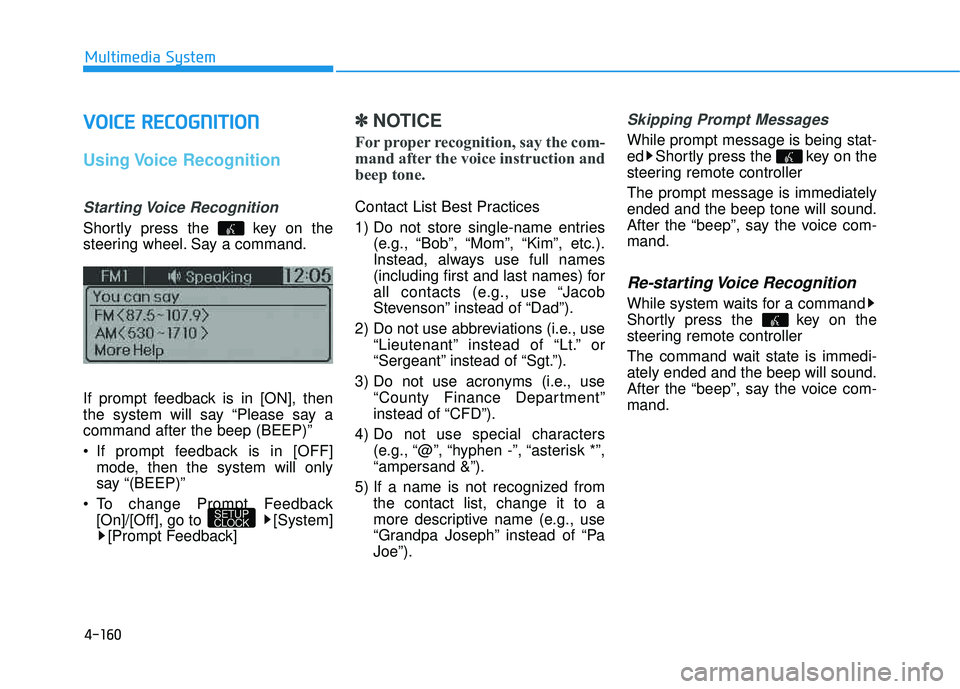
Shortly press the key on the
steering wheel. Say a command.
If prompt feedback is in [ON], then
the system will say “Please say acommand after the beep (BEEP)”
If prompt feedback is in [OFF]
mode, then the system will only
say “(BEEP)”
To change Prompt Feedback [On]/[Off], go to [System][Prompt Feedback]
✽✽ NOTICE
For proper recognition, say the com-
mand after the voice instruction and
beep tone.
Contact List Best Practices
1) Do not store single-name entries (e.g., “Bob”, “Mom”, “Kim”, etc.).
Instead, always use full names
(including first and last names) for
all contacts (e.g., use “Jacob
Stevenson” instead of “Dad”).
2) Do not use abbreviations (i.e., use “Lieutenant” instead of “Lt.” or
“Sergeant” instead of “Sgt.”).
3) Do not use acronyms (i.e., use “County Finance Department”
instead of “CFD”).
4) Do not use special characters (e.g., “@”, “hyphen -”, “asterisk *”,“ampersand &”).
5) If a name is not recognized from the contact list, change it to a
more descriptive name (e.g., use
“Grandpa Joseph” instead of “PaJoe”).
Skipping Prompt Messages
While prompt message is being stat-
ed Shortly press the key on the
steering remote controller The prompt message is immediately ended and the beep tone will sound.
After the “beep”, say the voice com-mand.
Re-starting Voice Recognition
While system waits for a command
Shortly press the key on the
steering remote controller
The command wait state is immedi- ately ended and the beep will sound.
After the “beep”, say the voice com-mand.
SETUP
CLOCK
Page 417 of 653
![HYUNDAI TUCSON 2015 Owners Manual 4-206
Multimedia System
[Non SSP supported device]
(SSP: Secure Simple Pairing)
4. After a few moments, a screen isdisplayed where the passkey is entered.
Hear, enter the passkey “0000” to
pair y](/img/35/56202/w960_56202-416.png "HYUNDAI TUCSON 2015 Owners Manual 4-206
Multimedia System
[Non SSP supported device]
(SSP: Secure Simple Pairing)
4. After a few moments, a screen isdisplayed where the passkey is entered.
Hear, enter the passkey “0000” to
pair y")
4-206
Multimedia System
[Non SSP supported device]
(SSP: Secure Simple Pairing)
4. After a few moments, a screen isdisplayed where the passkey is entered.
Hear, enter the passkey “0000” to
pair your
Bluetooth®Wireless
Technology device with the caraudio system.
[SSP supported device]
4. After a few moments, a screen is displayed 6 digits passkey.
Hear, check the passkey on your
Bluetooth®Wireless Technology
device and confirm.
5. Once pairing is complete, the fol- lowing screen is displayed.
✽✽ NOTICE
If Bluetooth ®
Wireless Technology
devices are paired but none are cur-
rently connected, pressing the key or the key on the
steering wheel displays the following
screen. Press the [Pair] button to
pair a new device or press the
[Connect] to connect a previously
paired device.Pairing through [PHONE] Setup
Press the key Select
[Phone] Select [Pair Phone]
Select TUNE knob
1. The following steps are the same as those described in the section
"When No Devices have been
Paired" on the previous page.SETUP
PHONE
Page 429 of 653
4-218
Multimedia System
VVOO IICC EE RR EECCOO GGNN IITT IIOO NN
Using Voice Recognition
Starting Voice Recognition
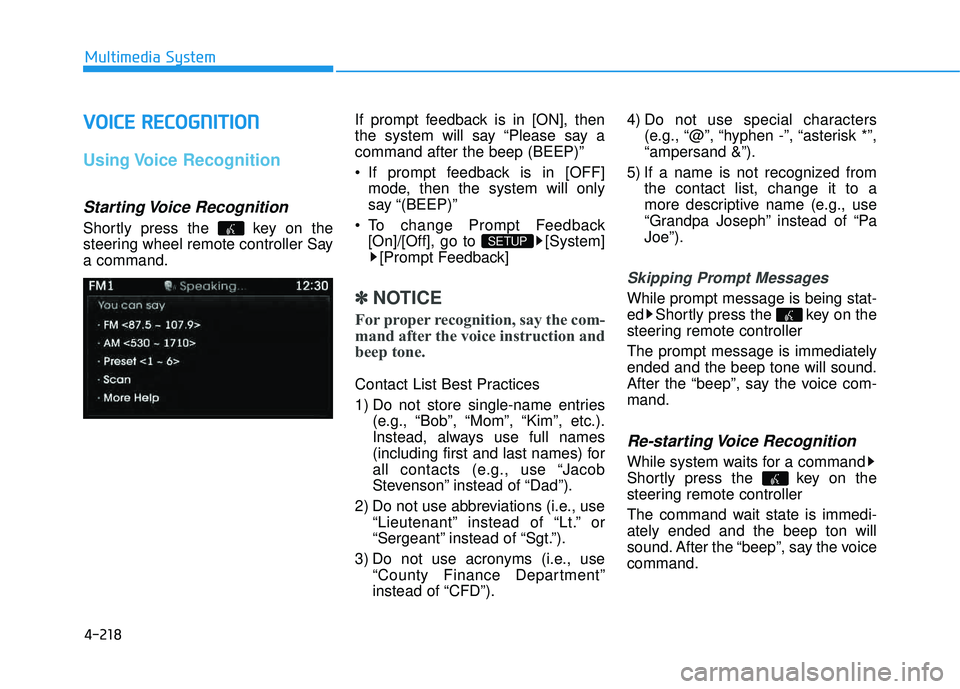
Shortly press the key on the
steering wheel remote controller Saya command. If prompt feedback is in [ON], then
the system will say “Please say acommand after the beep (BEEP)”
If prompt feedback is in [OFF]
mode, then the system will only
say “(BEEP)”
To change Prompt Feedback [On]/[Off], go to [System][Prompt Feedback]
✽✽ NOTICE
For proper recognition, say the com-
mand after the voice instruction and
beep tone.
Contact List Best Practices
1) Do not store single-name entries (e.g., “Bob”, “Mom”, “Kim”, etc.).
Instead, always use full names
(including first and last names) for
all contacts (e.g., use “Jacob
Stevenson” instead of “Dad”).
2) Do not use abbreviations (i.e., use “Lieutenant” instead of “Lt.” or
“Sergeant” instead of “Sgt.”).
3) Do not use acronyms (i.e., use “County Finance Department”
instead of “CFD”). 4) Do not use special characters
(e.g., “@”, “hyphen -”, “asterisk *”,“ampersand &”).
5) If a name is not recognized from the contact list, change it to a
more descriptive name (e.g., use
“Grandpa Joseph” instead of “PaJoe”).
Skipping Prompt Messages
While prompt message is being stat-
ed Shortly press the key on the
steering remote controller The prompt message is immediately ended and the beep tone will sound.
After the “beep”, say the voice com-mand.
Re-starting Voice Recognition
While system waits for a command
Shortly press the key on the
steering remote controller
The command wait state is immedi- ately ended and the beep ton will
sound. After the “beep”, say the voicecommand.
SETUP
Page 443 of 653
4-232
Multimedia System
BBlluu ee LL iinn kk ®®
Hyundai aims to offer differentiated
customer values through a ‘Connected
Car Life,’ which is to provide con-
sumers with fast and reliable IT tech-
nology. As consumers’ lifestylesbecome more and more mobile in
thanks to remarkable advances in
smart phones, tablet PCs and overall
wireless telecommunication, new
lifestyle patterns demand seamless
connection between one’s office,
home, outdoors and automobiles.
Automobile companies are now faced
with the task of shifting their paradigm
from vehicle-centered services to cus-
tomer value-centered services, with
the ultimate goal of securing global
leadership in the field of vehicle IT and
telematics. Hyundai Motor plans to achieve this
by realizing a terminal platform flexi-
ble to changes in IT technology,
cooperating with global IT compa-
nies, creating an eco-system and
providing the latest contents & serv-
ices based on an open environment.
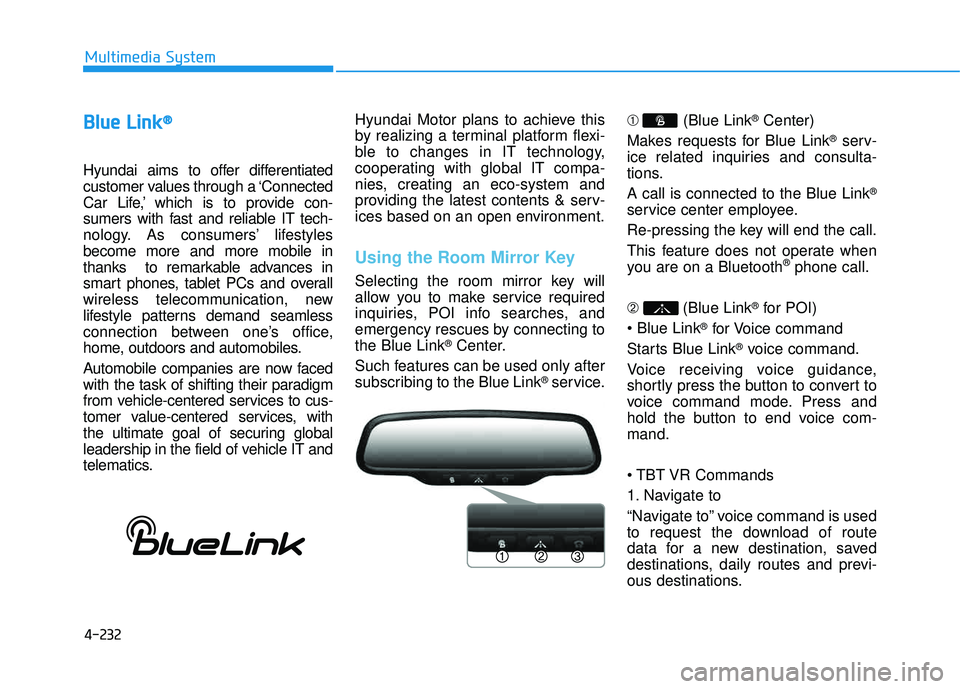
Using the Room Mirror Key
Selecting the room mirror key will
allow you to make service required
inquiries, POI info searches, and
emergency rescues by connecting tothe Blue Link
®Center.
Such features can be used only after
subscribing to the Blue Link
®service. ➀
(Blue Link
®Center)
Makes requests for Blue Link
®serv-
ice related inquiries and consulta-
tions. A call is connected to the Blue Link
®
service center employee.
Re-pressing the key will end the call.
This feature does not operate when
you are on a Bluetooth
®phone call.
➁ (Blue Link
®for POI)
®for Voice command
Starts Blue Link
®voice command.
Voice receiving voice guidance,
shortly press the button to convert to
voice command mode. Press and
hold the button to end voice com-mand.
Commands
1. Navigate to
“Navigate to” voice command is used
to request the download of route
data for a new destination, saved
destinations, daily routes and previ-
ous destinations.
Page 444 of 653
4-233
Multimedia System
4
2. Save Destination
“Save Destination” VR command is
used to assign a voice tag to the last
downloaded destination and store it
in a destination directory.
NOTE:
The Turn by Turn(TBT) feature sup-
ports the store of ten(10) destina-
tions in the TBT destinations
directory.
3. Route Preview
“Route Preview” VR command allows
the user to preview the route instruc-
tions (upcoming maneuver instruc-
tions) at any time during the route
guidance.
4. Destinations List
“Destinations List” VR command
allows the user to preview and deletethe stored destinations with their
associated voice tags in the Turn by
Turn destinations directory.5. Voice Guidance
“Voice Guidance” VR command allows
the user to mute/unmute the Turn by
Turn(TBT) direction announcements.
6. Suspend Route
“Suspend Route” VR command
allows the user to suspend and
pause Turn by Turn(TBT) route guid-
ance while in the guidance mode.
7. Resume Route
“Resume Route” VR command
allows the user to resume Turn by
Turn(TBT) route guidance. ➂
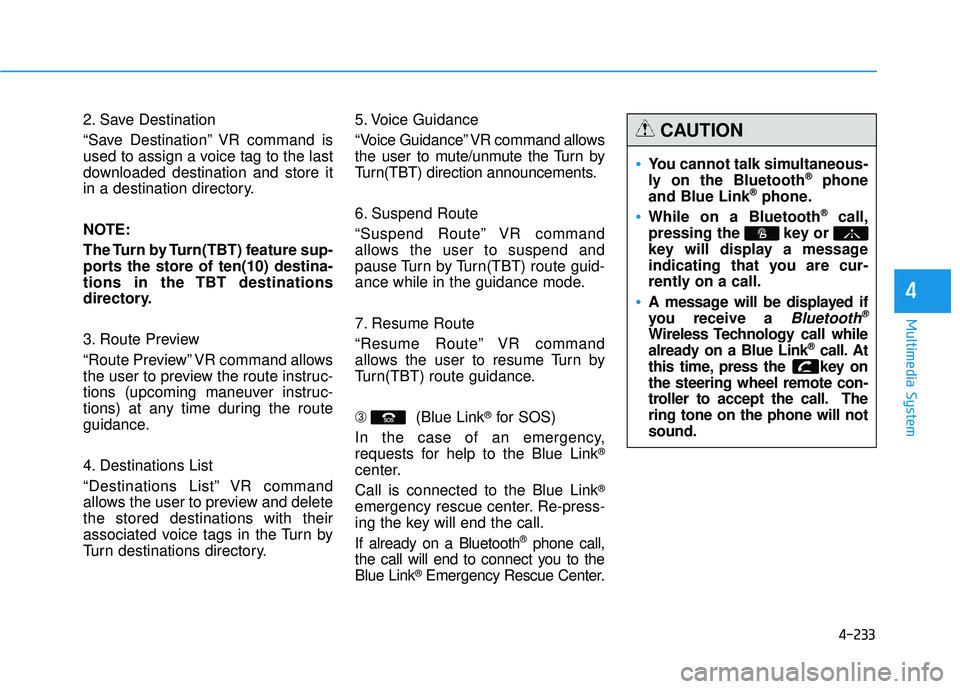
(Blue Link
®for SOS)
In the case of an emergency,
requests for help to the Blue Link
®
center. Call is connected to the Blue Link
®
emergency rescue center. Re-press-
ing the key will end the call. If already on a Bluetooth
®phone call,
the call will end to connect you to the Blue Link
®Emergency Rescue Center.
You cannot talk simultaneous-
ly on the Bluetooth®phone
and Blue Link®phone.
While on a Bluetooth®call,
pressing the key or
key will display a message
indicating that you are cur-
rently on a call.
A message will be displayed if
you receive a
Bluetooth®
Wireless Technology call while
already on a Blue Link®call. At
this time, press the key onthe steering wheel remote con-
troller to accept the call. Thering tone on the phone will notsound.
CAUTION
Page 447 of 653
Driving your vehicle
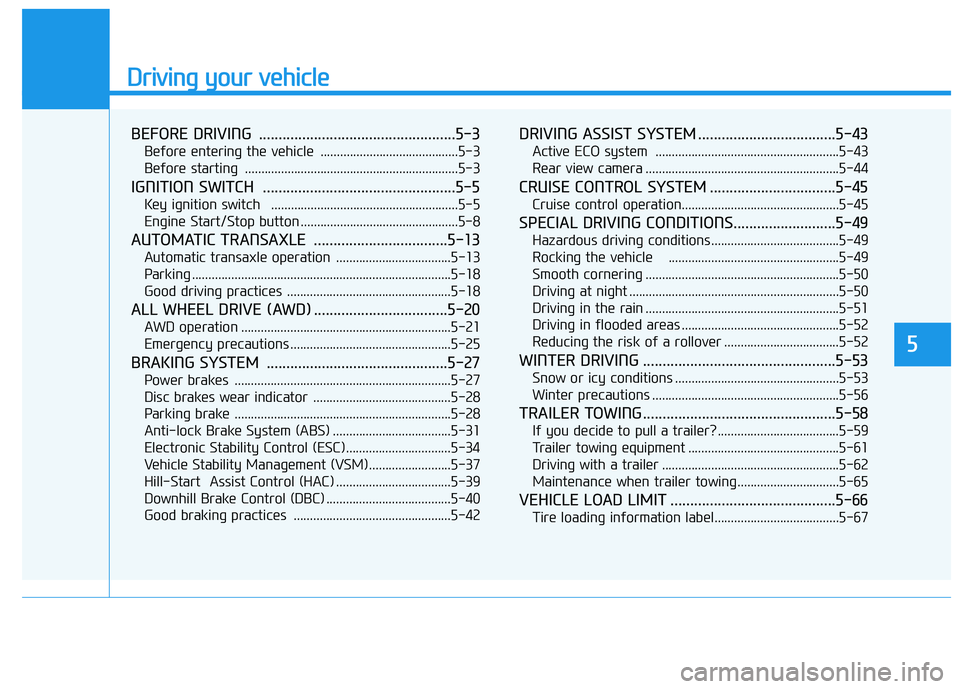
BEFORE DRIVING ..................................................5-3
Before entering the vehicle ..........................................5-3
Before starting .................................................................5-3
IGNITION SWITCH .................................................5-5
Key ignition switch .........................................................5-5
Engine Start/Stop button ................................................5-8
AUTOMATIC TRANSAXLE ..................................5-13
Automatic transaxle operation ...................................5-13
Parking ...............................................................................5-18
Good driving practices ..................................................5-18
ALL WHEEL DRIVE (AWD) ..................................5-20
AWD operation ................................................................5-21
Emergency precautions .................................................5-25
BRAKING SYSTEM ..............................................5-27
Power brakes ..................................................................5-27
Disc brakes wear indicator ..........................................5-28
Parking brake ..................................................................5-28
Anti-lock Brake System (ABS) ....................................5-31
Electronic Stability Control (ESC) ................................5-34
Vehicle Stability Management (VSM).........................5-37
Hill-Start Assist Control (HAC) ...................................5-39
Downhill Brake Control (DBC) ......................................5-40
Good braking practices ................................................5-42
DRIVING ASSIST SYSTEM ...................................5-43
Active ECO system ........................................................5-43
Rear view camera ...........................................................5-44
CRUISE CONTROL SYSTEM ................................5-45
Cruise control operation................................................5-45
SPECIAL DRIVING CONDITIONS..........................5-49
Hazardous driving conditions.......................................5-49
Rocking the vehicle ....................................................5-49
Smooth cornering ...........................................................5-50
Driving at night ................................................................5-50
Driving in the rain ...........................................................5-51
Driving in flooded areas ................................................5-52
Reducing the risk of a rollover ...................................5-52
WINTER DRIVING .................................................5-53
Snow or icy conditions ..................................................5-53
Winter precautions .........................................................5-56
TRAILER TOWING.................................................5-58
If you decide to pull a trailer? .....................................5-59
Trailer towing equipment ..............................................5-61
Driving with a trailer ......................................................5-62
Maintenance when trailer towing ...............................5-65
VEHICLE LOAD LIMIT ..........................................5-66
Tire loading information label......................................5-67
5
Page 467 of 653
5-21
Driving your vehicle
5
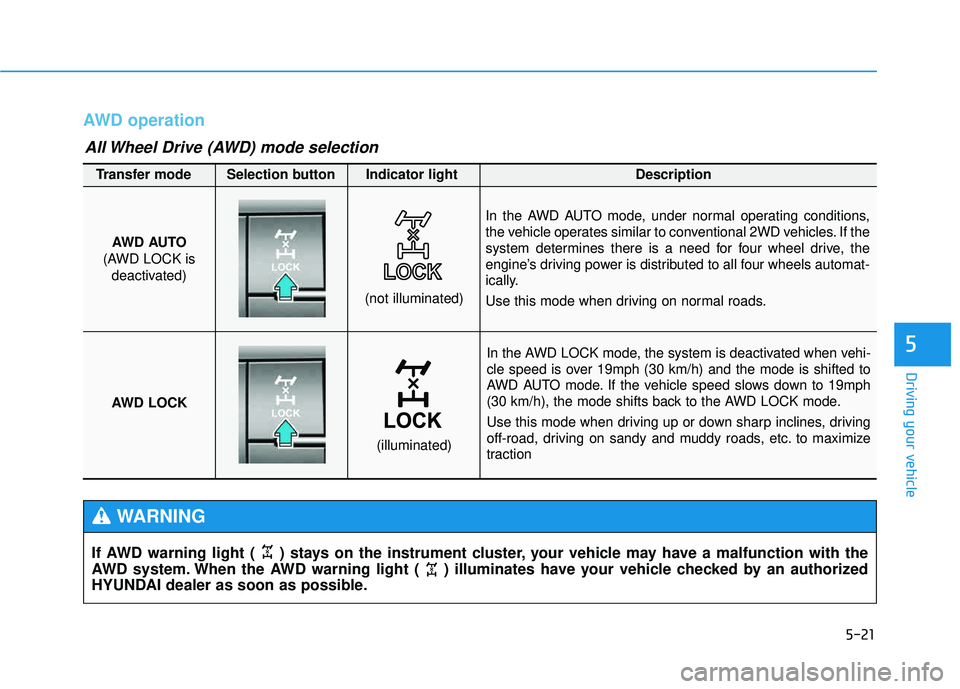
AWD operation
In the AWD LOCK mode, the system is deactivated when vehi-
cle speed is over 19mph (30 km/h) and the mode is shifted to
AWD AUTO mode. If the vehicle speed slows down to 19mph
(30 km/h), the mode shifts back to the AWD LOCK mode.
Use this mode when driving up or down sharp inclines, driving
off-road, driving on sandy and muddy roads, etc. to maximize
traction
AWD AUTO
(AWD LOCK is deactivated)
(not illuminated)
Transfer mode Selection button Indicator light Description
In the AWD AUTO mode, under normal operating conditions,
the vehicle operates similar to conventional 2WD vehicles. If the
system determines there is a need for four wheel drive, the
engine’s driving power is distributed to all four wheels automat-
ically.
Use this mode when driving on normal roads.
AWD LOCK
(illuminated)
All Wheel Drive (AWD) mode selection
If AWD warning light ( ) stays on the instrument cluster, your vehicle may have a malfunction with the
AWD system. When the AWD warning light ( ) illuminates have your vehicle checked by an authorized
HYUNDAI dealer as soon as possible.
WARNING
Page 473 of 653
5-27
Driving your vehicle
5
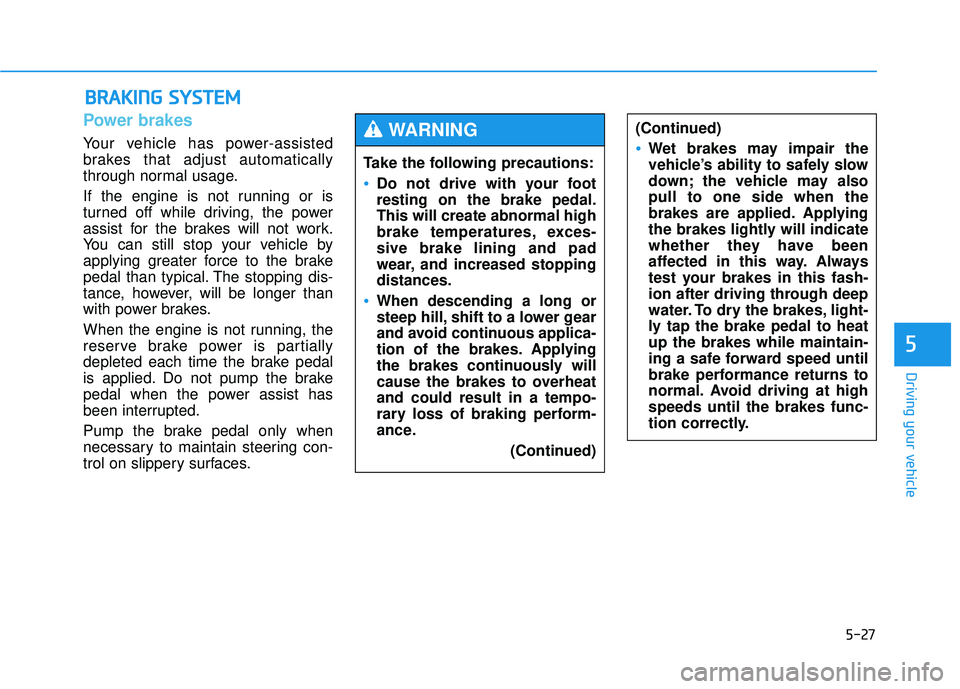
Power brakes
Your vehicle has power-assisted
brakes that adjust automatically
through normal usage.
If the engine is not running or is
turned off while driving, the power
assist for the brakes will not work.
You can still stop your vehicle by
applying greater force to the brake
pedal than typical. The stopping dis-
tance, however, will be longer than
with power brakes.
When the engine is not running, the
reserve brake power is partially
depleted each time the brake pedal
is applied. Do not pump the brake
pedal when the power assist has
been interrupted.
Pump the brake pedal only when
necessary to maintain steering con-
trol on slippery surfaces.
BBRRAA KKIINN GG SS YY SSTT EEMM
Take the following precautions:
Do not drive with your foot resting on the brake pedal.This will create abnormal high
brake temperatures, exces-sive brake lining and pad
wear, and increased stoppingdistances.
When descending a long or
steep hill, shift to a lower gear
and avoid continuous applica-
tion of the brakes. Applying
the brakes continuously will
cause the brakes to overheatand could result in a tempo-
rary loss of braking perform-
ance.
(Continued)
(Continued)
Wet brakes may impair the
vehicle’s ability to safely slow
down; the vehicle may alsopull to one side when the
brakes are applied. Applying
the brakes lightly will indicate
whether they have been
affected in this way. Always
test your brakes in this fash-
ion after driving through deep
water. To dry the brakes, light-
ly tap the brake pedal to heatup the brakes while maintain-
ing a safe forward speed until
brake performance returns to
normal. Avoid driving at highspeeds until the brakes func-
tion correctly.
WARNING
Page 477 of 653
5-31
Driving your vehicle
5
If the Parking Brake Warning Light
remains on after the parking brake is
released while engine is running,
there may be a malfunction in the
brake system. Immediate attention is
necessary.
If at all possible, cease driving the
vehicle immediately. If that is not pos-
sible, use extreme caution while
operating the vehicle and only con-
tinue to drive the vehicle until you
can reach a safe location.Anti-lock Brake System (ABS)
An Anti-Lock Braking System
(ABS) or an Electronic Stability
Control (ESC) system will not
prevent accidents due to
improper or dangerous driving
maneuvers. Even though vehi-
cle control is improved during
emergency braking, always
maintain a safe distance
between you and objects ahead
of you. Vehicle speeds should
always be reduced during
extreme road conditions. The
braking distance for cars
equipped with ABS or ESC may
be longer than for those without
these systems in the road con-
ditions described below.(Continued)
(Continued)
Drive your vehicle at reduced
speeds during the followingconditions:
Rough, gravel or snow-cov-
ered roads.
On roads where the road sur-
face is pitted or has differentsurface height.
Tire chains are installed on
your vehicle.
The safety features of an ABS
or ESC equipped vehicle should
not be tested by high speed
driving or cornering. This could
endanger the safety of yourself
or others.
WARNING