clock HYUNDAI TUCSON 2015 User Guide
[x] Cancel search | Manufacturer: HYUNDAI, Model Year: 2015, Model line: TUCSON, Model: HYUNDAI TUCSON 2015Pages: 653, PDF Size: 8.45 MB
Page 200 of 653
3-114
Convenient features of your vehicle
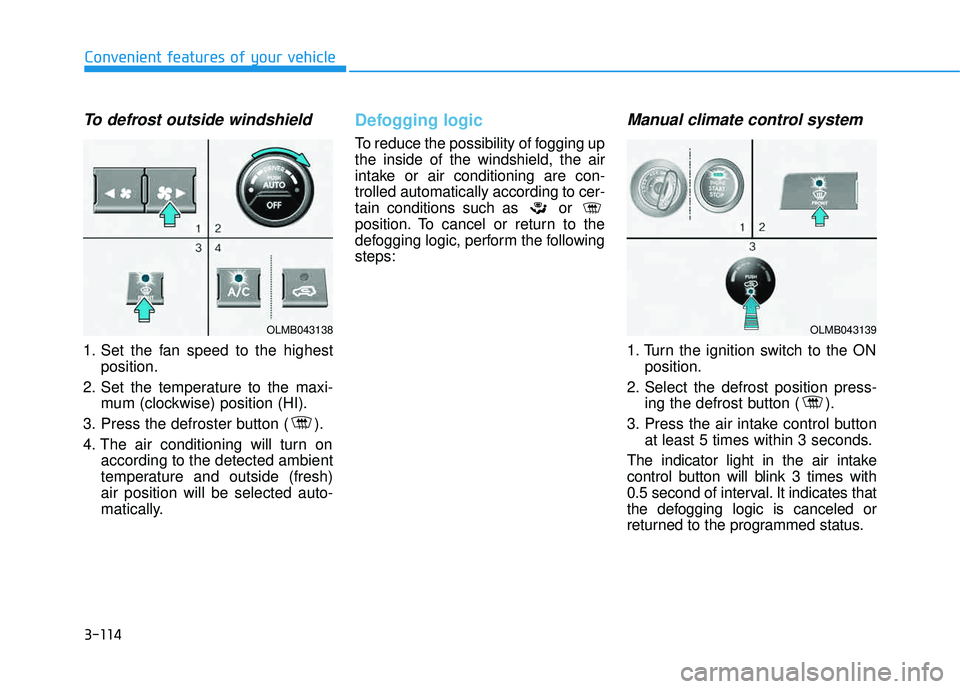
To defrost outside windshield
1. Set the fan speed to the highestposition.
2. Set the temperature to the maxi- mum (clockwise) position (HI).
3. Press the defroster button ( ).
4. The air conditioning will turn on according to the detected ambient
temperature and outside (fresh)air position will be selected auto-
matically.
Defogging logic
To reduce the possibility of fogging up the inside of the windshield, the air
intake or air conditioning are con-trolled automatically according to cer-
tain conditions such as or
position. To cancel or return to the
defogging logic, perform the followingsteps:
Manual climate control system
1. Turn the ignition switch to the ONposition.
2. Select the defrost position press- ing the defrost button ( ).
3. Press the air intake control button at least 5 times within 3 seconds.
The indicator light in the air intake
control button will blink 3 times with
0.5 second of interval. It indicates that
the defogging logic is canceled or
returned to the programmed status.
OLMB043138OLMB043139
Page 207 of 653
3-121
Convenient features of your vehicle
3
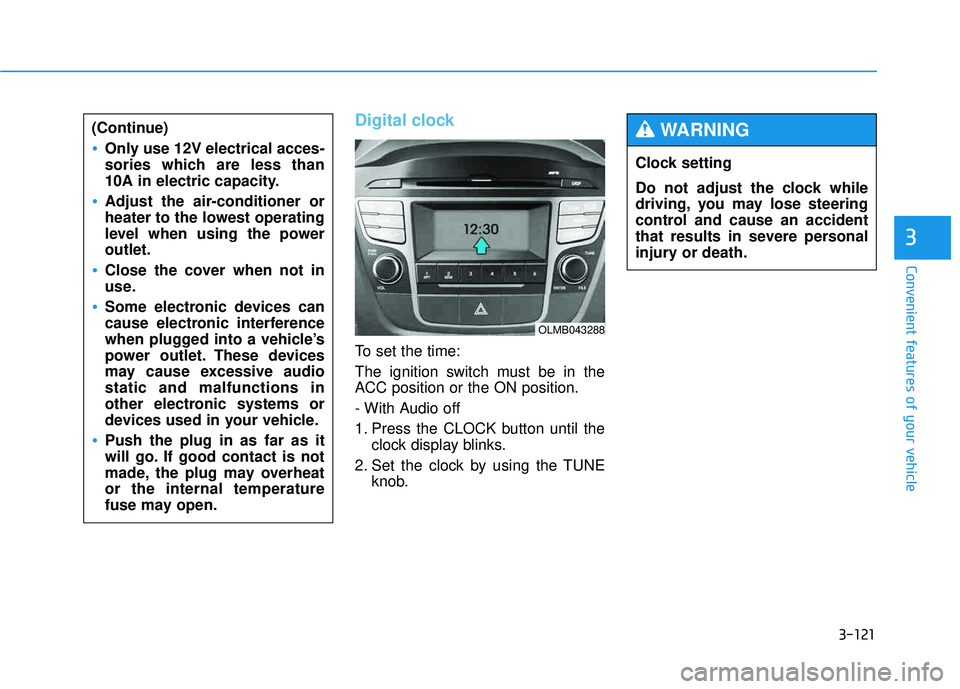
Digital clock
To set the time:
The ignition switch must be in the
ACC position or the ON position.
- With Audio off
1. Press the CLOCK button until theclock display blinks.
2. Set the clock by using the TUNE knob.
(Continue)
Only use 12V electrical acces-
sories which are less than
10A in electric capacity.
Adjust the air-conditioner or
heater to the lowest operating
level when using the poweroutlet.
Close the cover when not in
use.
Some electronic devices can
cause electronic interference
when plugged into a vehicle’s
power outlet. These devices
may cause excessive audiostatic and malfunctions in
other electronic systems or
devices used in your vehicle.
Push the plug in as far as it
will go. If good contact is not
made, the plug may overheator the internal temperature
fuse may open.
OLMB043288
Clock setting
Do not adjust the clock while
driving, you may lose steering
control and cause an accident
that results in severe personal
injury or death.
WARNING
Page 213 of 653
4-2
✽✽NOTICE
If you install an aftermarket HID headlamp, your vehicle's audio
and electronic device may mal-
function.
Prevent chemicals such as per- fume, cosmetic oil, sun cream,
hand cleaner, and air freshener
from contacting the interior parts
because they may cause damage
or discoloration. Antenna
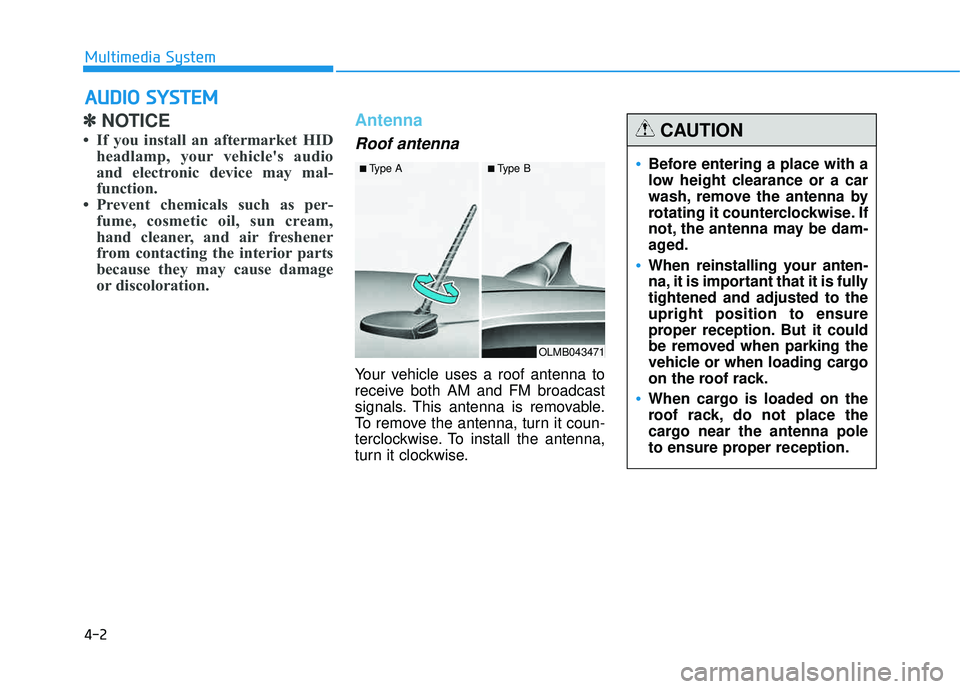
Roof antenna
Your vehicle uses a roof antenna to
receive both AM and FM broadcast
signals. This antenna is removable.
To remove the antenna, turn it coun-
terclockwise. To install the antenna,
turn it clockwise.
AAUU DDIIOO SS YY SSTT EEMM
Multimedia System
OLMB043471
■
Type A ■Type B
•Before entering a place with a
low height clearance or a car
wash, remove the antenna by
rotating it counterclockwise. If
not, the antenna may be dam-
aged.
When reinstalling your anten-
na, it is important that it is fullytightened and adjusted to theupright position to ensure
proper reception. But it could
be removed when parking the
vehicle or when loading cargo
on the roof rack.
When cargo is loaded on the
roof rack, do not place the
cargo near the antenna pole
to ensure proper reception.
CAUTION
Page 229 of 653
4-18
Multimedia System
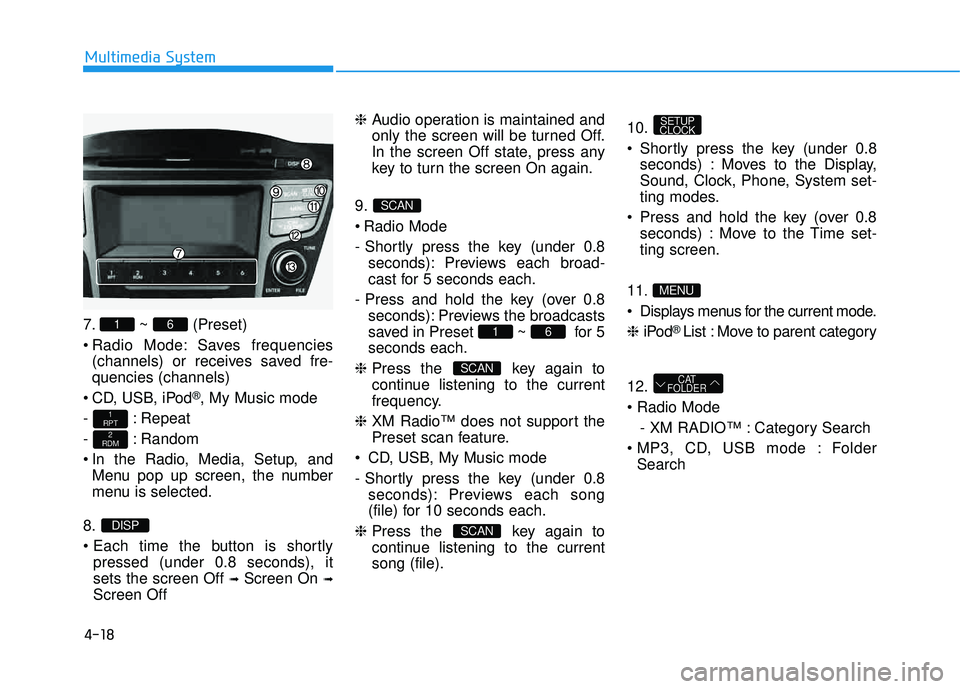
7. ~ (Preset)
Radio Mode: Saves frequencies(channels) or receives saved fre- quencies (channels)
CD, USB, iPod
®, My Music mode
- : Repeat
- : Random
In the Radio, Media, Setup, and Menu pop up screen, the number
menu is selected.
8.
pressed (under 0.8 seconds), it sets the screen Off ➟Screen On ➟
Screen Off ❈
Audio operation is maintained and
only the screen will be turned Off.
In the screen Off state, press any
key to turn the screen On again.
9.
Radio Mode
- Shortly press the key (under 0.8 seconds): Previews each broad-
cast for 5 seconds each.
- Press and hold the key (over 0.8 seconds): Previews the broadcasts
saved in Preset ~ for 5seconds each.
❈ Press the key again to
continue listening to the current
frequency.
❈ XM Radio™ does not support the
Preset scan feature.
CD, USB, My Music mode
- Shortly press the key (under 0.8 seconds): Previews each song
(file) for 10 seconds each.
❈ Press the key again to
continue listening to the currentsong (file). 10.
Shortly press the key (under 0.8
seconds) : Moves to the Display,
Sound, Clock, Phone, System set-
ting modes.
Press and hold the key (over 0.8 seconds) : Move to the Time set-ting screen.
11
.
Displays menus for the current mode. ❈ iPod
® List : Move to parent category
12.
- XM RADIO™ : Category Search
Folder Search
CAT
FOLDER
MENU
SETUP
CLOCK
SCAN
SCAN
61
SCAN
DISP
2
RDM
1
RPT
61
Page 231 of 653
![HYUNDAI TUCSON 2015 User Guide 4-20
Multimedia System
SSEE TT UU PP
D
D iiss pp llaa yy SS eettttiinn ggss
Press the key Select
[Display] through TUNE knob or
key Select menu through
Mode Pop up
[Mode Pop up] Changes / selec](/img/35/56202/w960_56202-230.png "HYUNDAI TUCSON 2015 User Guide 4-20
Multimedia System
SSEE TT UU PP
D
D iiss pp llaa yy SS eettttiinn ggss
Press the key Select
[Display] through TUNE knob or
key Select menu through
Mode Pop up
[Mode Pop up] Changes / selec")
4-20
Multimedia System
SSEE TT UU PP
D
D iiss pp llaa yy SS eettttiinn ggss
Press the key Select
[Display] through TUNE knob or
key Select menu through
Mode Pop up
[Mode Pop up] Changes / selection mode
or key to display the mode change pop up screen.
Text Scroll
[Text Scroll] Set /
Maintains scroll
: Scrolls only one (1) time.
Media Display
When playing an MP3 file, select the
desired display info from ‘Folder/File’
or ‘Album/Artist/Song’.
SS oouunn dd SS eettttiinn ggss
Press the key Select [Sound]
through TUNE knob or key
Select menu through 2
RDM
SETUP
CLOCK
Off
On
OffOn
MEDIA
RADIO
OffOn
1
RPT
SETUP
CLOCK
TUNE knob
TUNE knob
Page 233 of 653
![HYUNDAI TUCSON 2015 User Guide 4-22
Multimedia System
CClloo cckk SS eetttt iinn ggss
Press the key Select [Clock]
through TUNE knob or key
Select menu through TUNE knob
Clock Settings
This menu is used to set the time.
Se](/img/35/56202/w960_56202-232.png "HYUNDAI TUCSON 2015 User Guide 4-22
Multimedia System
CClloo cckk SS eetttt iinn ggss
Press the key Select [Clock]
through TUNE knob or key
Select menu through TUNE knob
Clock Settings
This menu is used to set the time.
Se")
4-22
Multimedia System
CClloo cckk SS eetttt iinn ggss
Press the key Select [Clock]
through TUNE knob or key
Select menu through TUNE knob
Clock Settings
This menu is used to set the time.
Select [Clock Settings] Set through
TUNEknob Press TUNEknob
❈ Adjust the number currently in
focus to set the [hour] and press
the tune knob to set the [minute].
Calendar Settings
This menu is used to set the date.
Select [Calendar Settings]] Set through TUNE knob Press
TUNE knob ❈
Adjust the number currently in
focus to make the settings and
press the tune knob to move to the
next setting. (Set in order of
Year/Month/Day)
Time Format
This function is used to set the 12/24
hour time format of the audio system.
Select [Time Format] Set 12Hr / 24Hr through
TUNEknob
Clock Display when Power is OFF
Select [Clock Disp.(Pwr Off)] Set
/ through TUNE knob
: Displays time/date on screen
Turn off.
Off
On
OffOn
3
SETUP
CLOCK
Page 234 of 653
![HYUNDAI TUCSON 2015 User Guide 4-23
Multimedia System
4
SSYY SSTT EEMM SS EE TT TT IINN GGSS
Press the key Select [System] through tune knob or
key Select menu through TUNEknob
Memory Information
Displays currently used memory](/img/35/56202/w960_56202-233.png "HYUNDAI TUCSON 2015 User Guide 4-23
Multimedia System
4
SSYY SSTT EEMM SS EE TT TT IINN GGSS
Press the key Select [System] through tune knob or
key Select menu through TUNEknob
Memory Information
Displays currently used memory")
4-23
Multimedia System
4
SSYY SSTT EEMM SS EE TT TT IINN GGSS
Press the key Select [System] through tune knob or
key Select menu through TUNEknob
Memory Information
Displays currently used memory and
total system memory.
Select [Memory Information] OK
The currently used memory is dis-
played on the left side while the total
system memory is displayed on the
right side.
Prompt Feedback
This feature is used to change voice
command feedback between Normal
and Expert modes.
Select [Prompt Feedback] Set
through TUNE knob
This mode is for beginner
users and provides detailed
instructions during voice command
operation. This mode is for expert users
and omits some information during
voice command operation. (When
using Expert mode, guidance
instructions can be heard through
the [Help] or [Menu] commands.
Language
This menu is used to set the display
and voice recognition language.
Select [Language] Set through TUNE knob ❈ The system will reboot after the language is changed.
❈ Language support by region
- English, Francais, Espanol
5
SETUP
CLOCK
Page 250 of 653
4-39
Multimedia System
4
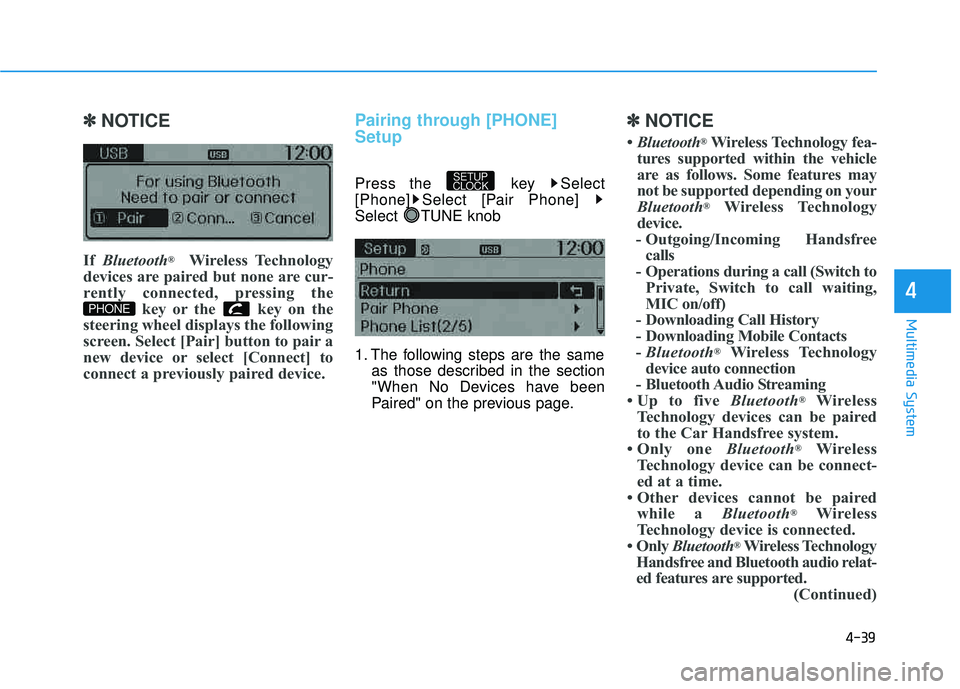
✽✽NOTICE
If Bluetooth ®
Wireless Technology
devices are paired but none are cur-
rently connected, pressing the key or the key on the
steering wheel displays the following
screen. Select [Pair] button to pair a
new device or select [Connect] to
connect a previously paired device.Pairing through [PHONE] Setup
Press the key Select
[Phone] Select [Pair Phone]
Select TUNE knob
1. The following steps are the same as those described in the section
"When No Devices have been
Paired" on the previous page.
✽✽ NOTICE
Bluetooth ®
Wireless Technology fea-
tures supported within the vehicle
are as follows. Some features may
not be supported depending on your
Bluetooth ®
Wireless Technology
device.
- Outgoing/Incoming Handsfree calls
- Operations during a call (Switch to Private, Switch to call waiting,
MIC on/off)
- Downloading Call History
- Downloading Mobile Contacts- Bluetooth ®
Wireless Technology
device auto connection
- Bluetooth Audio Streaming
Up to five Bluetooth®
Wireless
Technology devices can be paired
to the Car Handsfree system.
Only one Bluetooth®
Wireless
Technology device can be connect-
ed at a time.
Other devices cannot be paired while a Bluetooth®
Wireless
Technology device is connected.
Only Bluetooth ®
Wireless Technology
Handsfree and Bluetooth audio relat-
ed features are supported. (Continued)
SETUP
CLOCK
PHONE
Page 252 of 653
![HYUNDAI TUCSON 2015 User Guide 4-41
Multimedia System
4
Connecting a Device
Press the key Select
[Phone] Select [Paired Phone List]
1) Connected Phone : Device that iscurrently connected
2) Paired Phone : Device that is paired](/img/35/56202/w960_56202-251.png "HYUNDAI TUCSON 2015 User Guide 4-41
Multimedia System
4
Connecting a Device
Press the key Select
[Phone] Select [Paired Phone List]
1) Connected Phone : Device that iscurrently connected
2) Paired Phone : Device that is paired")
4-41
Multimedia System
4
Connecting a Device
Press the key Select
[Phone] Select [Paired Phone List]
1) Connected Phone : Device that iscurrently connected
2) Paired Phone : Device that is paired but not connected From the paired phone list, select the
device you want to connect andselect [Connect].
Changing Priority
What is Priority?
It is possible to pair up to five
Bluetooth®Wireless Technology
devices with the car audio system.
The "Change Priority" feature is used
to set the connection priority of
paired phones.
Press the key Select
[Phone] Select [Paired Phone List]
SETUP
CLOCK
SETUP
CLOCK
Page 254 of 653
![HYUNDAI TUCSON 2015 User Guide 4-43
Multimedia System
4
Disconnecting a Device
Press the key Select
[Phone] Select [Paired Phone List]
From the paired phone list, select the
currently connected device and
select [Disconnect] bu](/img/35/56202/w960_56202-253.png "HYUNDAI TUCSON 2015 User Guide 4-43
Multimedia System
4
Disconnecting a Device
Press the key Select
[Phone] Select [Paired Phone List]
From the paired phone list, select the
currently connected device and
select [Disconnect] bu")
4-43
Multimedia System
4
Disconnecting a Device
Press the key Select
[Phone] Select [Paired Phone List]
From the paired phone list, select the
currently connected device and
select [Disconnect] button.
Deleting a Device
Press the key Select
[Phone] Select [Paired Phone List]
From the paired phone list, select the
device you want to delete and select
[Delete] button.
✽✽NOTICE
When deleting the currently con- nected device, the device will auto-
matically be disconnected to pro-
ceed with the deleting process.
If a paired Bluetooth®
Wireless
Technology device is deleted, the
device’s call history and contacts
data will also be deleted.
To re-use a deleted device, you must pair the device again.
SETUP
CLOCKSETUP
CLOCK