USB port Hyundai Tucson 2019 Owner's Manual - RHD (UK, Australia)
[x] Cancel search | Manufacturer: HYUNDAI, Model Year: 2019, Model line: Tucson, Model: Hyundai Tucson 2019Pages: 685, PDF Size: 17.76 MB
Page 266 of 685
3-174
Convenient features of your vehicle
(Continued)
• Some electronic devices can cause electronic interference
when plugged into a vehicle’s
power outlet. These devices may
cause excessive audio static
and malfunctions in other elec-
tronic systems or devices used
in your vehicle.
• Push the plug in as far as it will go. If good contact is not made,
the plug may overheat and the
fuse may open.
• Plug in battery equipped electrical/ electronic devices with reverse
current protection. The current
from the battery may flow into the
vehicle's electrical/electronic sys-
tem and cause system malfunc-
tion.
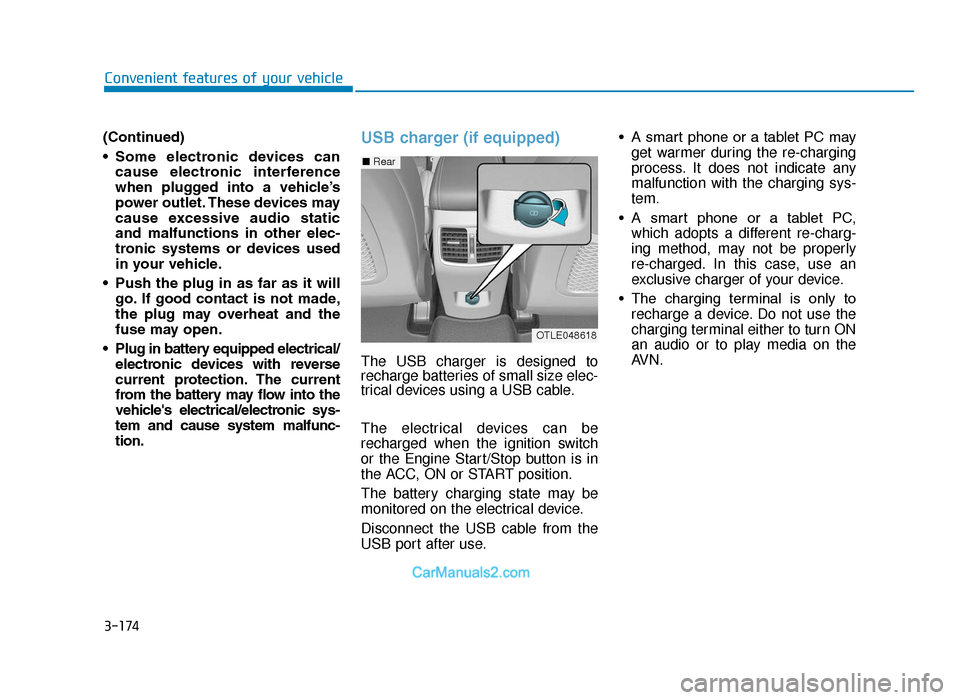
USB charger (if equipped)
The USB charger is designed to
recharge batteries of small size elec-
trical devices using a USB cable.
The electrical devices can be
recharged when the ignition switch
or the Engine Start/Stop button is in
the ACC, ON or START position.
The battery charging state may be
monitored on the electrical device.
Disconnect the USB cable from the
USB port after use. • A smart phone or a tablet PC may
get warmer during the re-charging
process. It does not indicate any
malfunction with the charging sys-
tem.
• A smart phone or a tablet PC, which adopts a different re-charg-
ing method, may not be properly
re-charged. In this case, use an
exclusive charger of your device.
• The charging terminal is only to recharge a device. Do not use the
charging terminal either to turn ON
an audio or to play media on the
AVN.
■ Rear
OTLE048618
TLe UK 3b(110~).qxp 6/12/2018 2:42 PM Page 174
Page 276 of 685
Multimedia System
Multimedia system .................................................4-2
AUX, USB and iPod®port ...............................................4-2
Antenna ........................................................................\
.......4-3
Steering wheel audio control .........................................4-4
Audio / Video / Navigation system (AVN) ..................4-5
Bluetooth®Wireless Technology hands-free ............4-5
How Vehicle Audio Works ...............................................4-6
Audio (without touch screen) ............................4-15
System layout - control panel.....................................4-15
System layout - steering wheel remote control.....4-17
Turning the system on or off ......................................4-20
Turning the display on or off ......................................4-20
Getting to know the basic operations .......................4-21
Radio ......................................................................4-\
22
Turning on the radio ......................................................4-22
Changing the radio mode ..............................................4-23
Scanning for available radio stations.........................4-23
Searching for radio stations ........................................4-24
Saving radio stations ......................................................4-24
Listening to saved radio stations ................................4-24
Media player .........................................................4-25
Using the media player..................................................4-25
Using the USB mode ......................................................4-26
Using the iPod mode ......................................................4-28
Using the AUX mode ......................................................4-31
Bluetooth...............................................................4-32
Connecting Bluetooth devices .....................................4-32
Using a Bluetooth audio device...................................4-35
Using a Bluetooth phone ..............................................4-37
Setup ......................................................................4-\
43
Display........................................................................\
........4-43
Sound ........................................................................\
.........4-43
Date/Time ........................................................................\
.4-44
Bluetooth ........................................................................\
...4-44
System ........................................................................\
.......4-44
System status icons .............................................4-45
Audio system specifications...............................4-46
USB ........................................................................\
.............4-46
Bluetooth ........................................................................\
...4-47
Trademarks ...........................................................4-48
Declaration of conformity ..................................4-49
CE RED for EU .................................................................4-49
4
TLe UK 4.qxp 5/10/2018 12:03 PM Page 1
Page 277 of 685
Information
• If you install an aftermarket HIDheadlamp, your vehicle’s audio and
electronic device may malfunction.
• Prevent chemicals such as perfume, cosmetic oil, sun cream, hand clean-
er, and air freshener from contacting
the interior parts because they may
cause damage or discolouration.
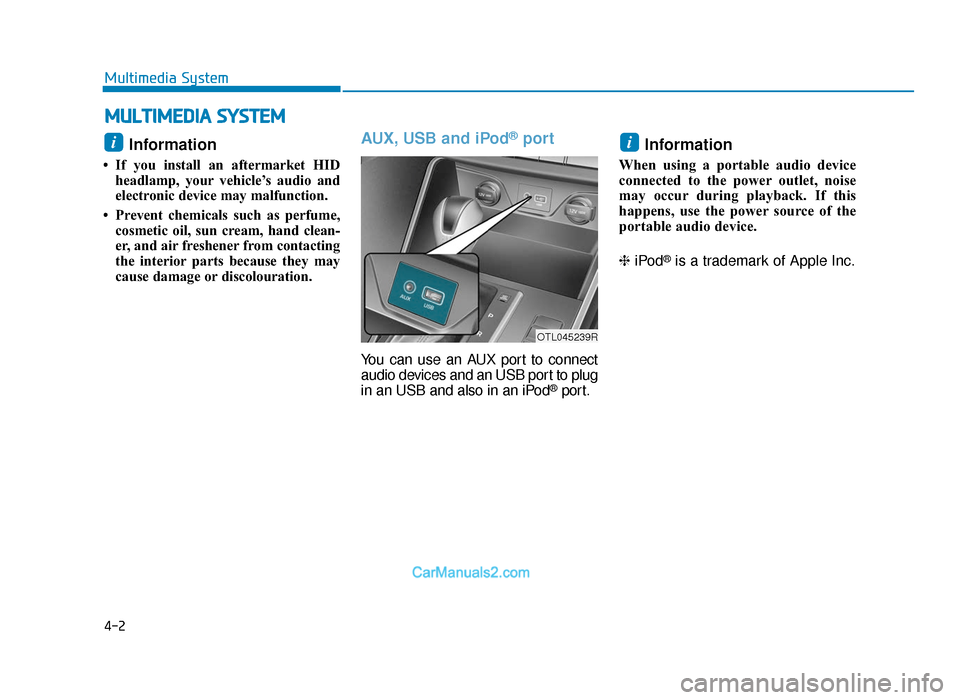
AUX, USB and iPod®port
You can use an AUX port to connect
audio devices and an USB port to plug
in an USB and also in an iPod
®port.
Information
When using a portable audio device
connected to the power outlet, noise
may occur during playback. If this
happens, use the power source of the
portable audio device.
❈ iPod
®is a trademark of Apple Inc.
ii
MULTIMEDIA SYSTEM
4-2
Multimedia System
OTL045239R
TLe UK 4.qxp 5/10/2018 12:03 PM Page 2
Page 285 of 685
4-10
Multimedia System
Information-Using the USB
device
• Connect the USB device after turning on the engine. The USB device may
become damaged if it is already con-
nected when the ignition is turned
on.The USB device may not operate
properly if the car ignition is turned
on or off with the USB device con-
nected.
• Heed caution to static electricity when connecting/disconnecting USB
devices.
• Encoded MP3 Players will not be recognised when connected as an
external device.
• When connecting an external USB device, the device may not properly
recognise the USB is in some states.
• Only products formatted with byte/sectors under 64Kbyte will be
recognised.
• This device recognises USB devices formatted in FAT 12/16/32 file for-
mats. This device does not recognise
files in NTFS file format.
• Some USB devices may not be sup- ported due to compatibility issues.
(Continued)(Continued)
• Avoid contact between the USB con- nector with bodily parts or foreign
objects.
• Repeated connecting/disconnecting of USB devices within short periods
of time may result in product mal-
function.
• A strange noise may occur when dis- connecting the USB.
• Make sure to connect/disconnect external USB devices with the audio
power turned off.
• The amount of time required to recognise the USB device may differ
depending on the type, size or file for-
mats stored in the USB. Such differ-
ences in time are not indications of
malfunctions.
• The device only supports USB devices used to play music files.
• USB images and videos are not sup- ported.
• Do not use the USB I/F to charge batteries or USB accessories that
generate heat. Such acts may lead to
worsened performance or damage
to the device.
(Continued)(Continued)
• The device may not recognise the USB device if separately purchased
USB hubs and extension cables are
being used. Connect the USB direct-
ly with the multimedia terminal of
the vehicle.
• When using mass storage USB devices with separate logical drives,
only files saved to the root drive can
be played.
• Files may not properly operate if application programs are installed
to the USBs.
• The device may not operate normal- ly if MP3 Players, mobile phones,
digital cameras, or other electronic
devices (USB devices not recognised
as portable disk drives) are connect-
ed with the device.
• Charging through the USB may not work for some mobile devices.
• The device may not support normal operation when using a USB memo-
ry type besides (Metal Cover Type)
USB Memory.
(Continued)i
TLe UK 4.qxp 5/10/2018 12:04 PM Page 10
Page 286 of 685
4-11
Multimedia System
4
(Continued)
• The device may not support normaloperation when using formats such
as HDD Type, CF, or SD Memory.
• The device will not support files locked by DRM (Digital Rights
Management.)
• USB memory sticks used by con- necting an Adaptor (SD Type or CF
Type) may not be properly recog-
nised.
• The device may not operate proper- ly when using USB HDDs or USBs
subject to connection failures
caused by vehicle vibrations. (e.g. i-
stick type)
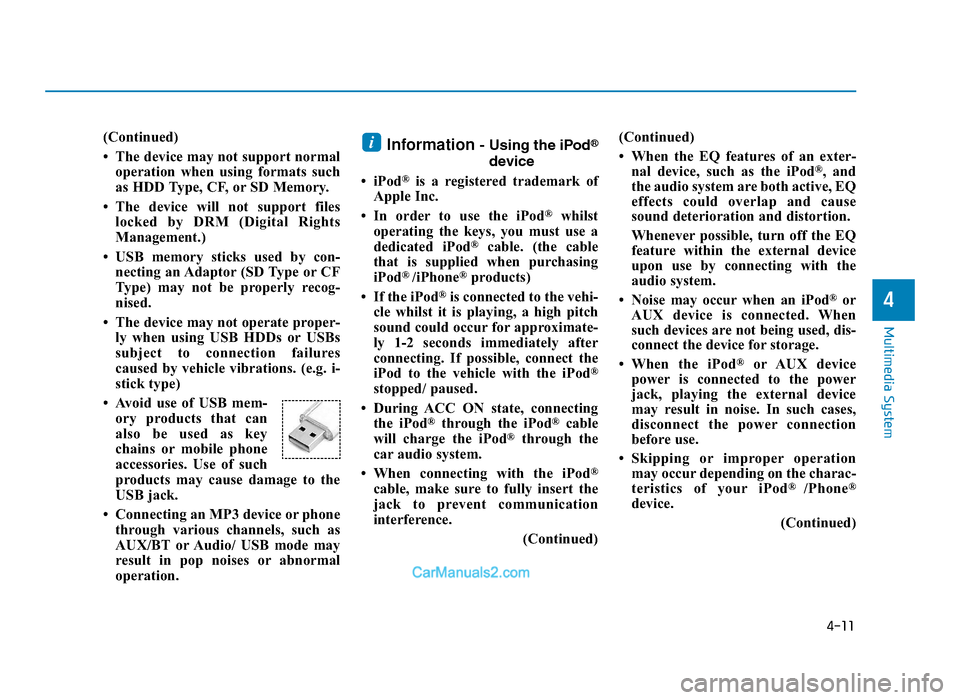
• Avoid use of USB mem- ory products that can
also be used as key
chains or mobile phone
accessories. Use of such
products may cause damage to the
USB jack.
• Connecting an MP3 device or phone through various channels, such as
AUX/BT or Audio/ USB mode may
result in pop noises or abnormal
operation.Information- Using the iPod®
device
• iPod
®is a registered trademark of
Apple Inc.
• In order to use the iPod
®whilst
operating the keys, you must use a
dedicated iPod
®cable. (the cable
that is supplied when purchasing
iPod
® /iPhone®products)
• If the iPod
®is connected to the vehi-
cle whilst it is playing, a high pitch
sound could occur for approximate-
ly 1-2 seconds immediately after
connecting. If possible, connect the
iPod to the vehicle with the iPod
®
stopped/ paused.
• During ACC ON state, connecting the iPod
®through the iPod®cable
will charge the iPod®through the
car audio system.
• When connecting with the iPod
®
cable, make sure to fully insert the
jack to prevent communication
interference. (Continued)(Continued)
• When the EQ features of an exter-
nal device, such as the iPod
®, and
the audio system are both active, EQ
effects could overlap and cause
sound deterioration and distortion.
Whenever possible, turn off the EQ
feature within the external device
upon use by connecting with the
audio system.
• Noise may occur when an iPod
®or
AUX device is connected. When
such devices are not being used, dis-
connect the device for storage.
• When the iPod
®or AUX device
power is connected to the power
jack, playing the external device
may result in noise. In such cases,
disconnect the power connection
before use.
• Skipping or improper operation may occur depending on the charac-
teristics of your iPod
® /Phone®
device.
(Continued)
i
TLe UK 4.qxp 5/10/2018 12:04 PM Page 11
Page 287 of 685
4-12
Multimedia System
(Continued)
• If your iPhone
®is connected to both
the Bluetooth®Wireless Technology
and USB, the sound may not be
properly played. In your iPhone
®,
select the Dock connector or
Bluetooth
®Wireless Technology to
change the sound output (source).
• iPod mode cannot be operated when the iPod
®cannot be recognised due
to versions that do not support com-
munication protocols.
• For fifth generation iPod
®Nano
devices, the iPod®may not be recog-
nised when the battery level is low.
Please charge the iPod
®for use.
• Search/play orders shown within the iPod
®device may differ with the
orders shown within the audio sys-
tem.
• If the iPod
®malfunctions due to an
iPod®device defect, reset the iPod®
and try again. (To learn more, refer to
your iPod®manual)
(Continued) (Continued)
• Some iPod
®s may not sync with the
System depending on its version. If
the Media is removed before the
Media is recognised, then the system
may not properly restore the previ-
ously operated mode. (iPod
®charg-
ing is not supported.)
Information- Using the AUX
device
• If an external device connector is connected with the AUX terminal,
then AUX mode will automatically
operate. Once the connector is dis-
connected, the previous mode will
be restored.
• AUX mode can be used only when an external audio player (cam-
corder, car VCR, etc.) has been con-
nected.
• The AUX volume can be controlled separately from other audio modes.
• Connecting a connector jack to the AUX terminal without an external
device will convert the system to
AUX mode, but only output noise.
When an external device is not
being used, also remove the connec-
tor jack.
• When the external device power is connected to the power jack, play-
ing the external device may output
noise. In such cases, disconnect the
power connection before use.
• Fully insert the AUX cable to the AUX jack upon use.i
TLe UK 4.qxp 5/10/2018 12:04 PM Page 12
Page 300 of 685
4-25
Multimedia System
4
Using the media player
You can play music stored in various
media storage devices, such as USB
storage devices, smartphones, and
iPods.
1. Connect a device to the USB portor the AUX port in your vehicle.
• Playback may start immediatelydepending on the device that
you connect to the system.
2. On the control panel, press the [MEDIA] button.
• If you have multiple media stor-age devices, press the [MEDIA]
button again and press the cor-
responding number button to
select the desired mode. • When you connect an Apple
device, playback does not start
automatically. To start the media
player in the iPod mode, press
the [MEDIA] button on the con-
trol panel.
• You can also change the mode by press the [MODE] button
repeatedly on the steering
wheel.
• Make sure to connect or discon- nect external USB devices with
the system power turned off.
• Depending on vehicle models and specifications, available
buttons or the appearance and
layout of the USB/AUX ports in
your vehicle may vary.
• Do not connect a smartphone or an MP3 device to the system via
multiple methods such as USB,
Bluetooth, and AUX, simultane-
ously. Doing so may cause a dis-
torted noise or a system mal-
function.
(Continued)(Continued)
• When the equaliser function of
the connected device and
Equaliser (Tone) settings of the
system are both activated, the
effects may interfere with each
other and may lead to sound
degradation or distortion.
Deactivate the device’s equalis-
er function if possible.
• Noise may occur when an Apple device or AUX device is con-
nected. When such devices are
not being used, disconnect the
device for storage.
• When the Apple device or AUX device power is connected to
the power jack, playing the
external device may result in
noise. In such cases, disconnect
the power connection before
use.
NOTICE
MEDIA PLAYER
TLe UK 4.qxp 5/10/2018 12:05 PM Page 25
Page 301 of 685
4-26
Multimedia System
Using the USB mode
You can play media files stored in
portable devices, such as USB stor-
age devices and MP3 players. Check
compatible USB storage devices and
file specifications before using the
USB mode.
Connect your USB device to the
USB port in the vehicle.
• Playback starts immediately.
• If a USB device is already connect-ed to the system, press the
[MEDIA] button and press the [ 1]
button to select USB from the
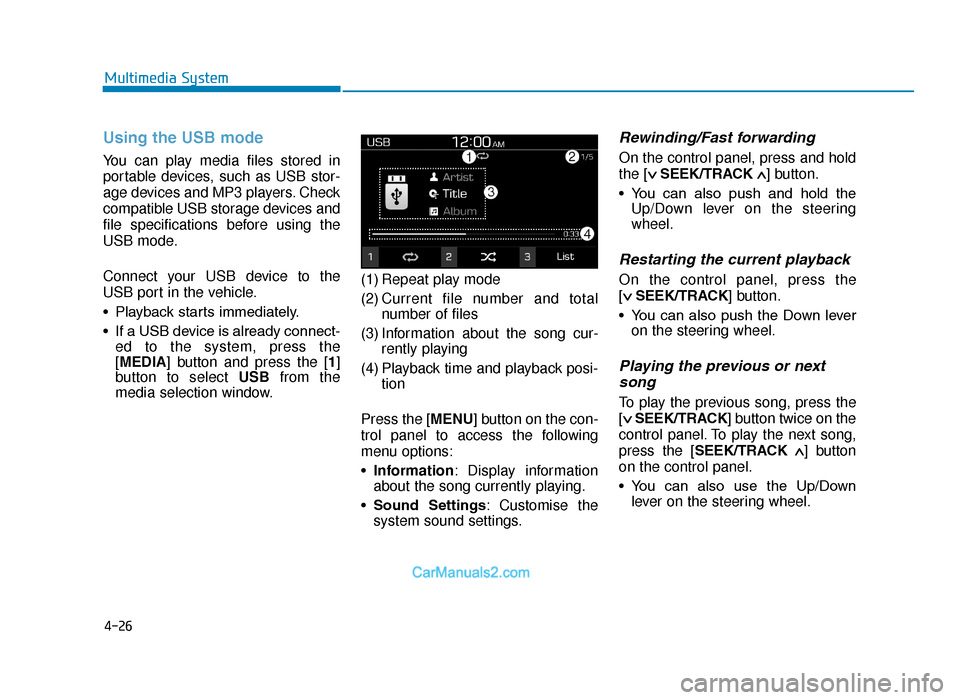
media selection window. (1) Repeat play mode
(2) Current file number and total
number of files
(3) Information about the song cur- rently playing
(4) Playback time and playback posi- tion
Press the [MENU] button on the con-
trol panel to access the following
menu options:
• Information: Display information
about the song currently playing.
• Sound Settings : Customise the
system sound settings.
Rewinding/Fast forwarding
On the control panel, press and hold
the [ ∨
SEEK/TRACK ∧] button.
• You can also push and hold the Up/Down lever on the steering
wheel.
Restarting the current playback
On the control panel, press the
[∨
SEEK/TRACK] button.
• You can also push the Down lever on the steering wheel.
Playing the previous or nextsong
To play the previous song, press the
[ ∨
SEEK/TRACK] button twice on the
control panel. To play the next song,
press the [SEEK/TRACK ∧
] button
on the control panel.
• You can also use the Up/Down lever on the steering wheel.
TLe UK 4.qxp 5/10/2018 12:05 PM Page 26
Page 302 of 685
![Hyundai Tucson 2019 Owners Manual - RHD (UK, Australia) 4-27
Multimedia System
4
• On the control panel, turn the[FILE] knob to find the desired
song and press the knob within
five seconds to play the file.
• If no control is detected](/img/35/19695/w960_19695-301.png "Hyundai Tucson 2019 Owners Manual - RHD (UK, Australia) 4-27
Multimedia System
4
• On the control panel, turn the[FILE] knob to find the desired
song and press the knob within
five seconds to play the file.
• If no control is detected")
4-27
Multimedia System
4
• On the control panel, turn the[FILE] knob to find the desired
song and press the knob within
five seconds to play the file.
• If no control is detected within five seconds, the search is can-
celled and the screen displays
information about the song cur-
rently playing.
Playing repeatedly
On the control panel, press the [ 1]
button. The repeat play mode
changes each time you press it. The
corresponding mode icon will be dis-
played on the screen.
Playing in random order
On the control panel, press the [ 2]
button. The shuffle play mode is acti-
vated or deactivated each time you
press it. When you activate the shuf-
fle mode, the corresponding mode
icon will be displayed on the screen.
Searching for music files on a file list
1. On the control panel, press the [ 3]
button to select List.
2. Turn the [TUNE] knob to select the desired category and file, and
then press the knob to play the
music file.
Information
• Start the engine of your vehiclebefore connecting a USB device to
your system. Starting the engine
with a USB device connected to the
system may damage the USB device.
• Be careful of static electricity when connecting or disconnecting a USB
device. A static discharge may cause
a system malfunction.
• Be careful not to let your body or external objects contact the USB
port. Doing so may cause an acci-
dent or a system malfunction.
• Do not connect and disconnect a USB connector repeatedly in a short
time. Doing so may cause an error in
the device or a system malfunction.
• Do not use a USB device for purpos- es other than playing files. Using
USB accessories for charging or
heating may cause poor perform-
ance or a system malfunction.
iNOTICE
TLe UK 4.qxp 5/10/2018 12:05 PM Page 27
Page 303 of 685
4-28
Multimedia System
• When connecting a USB storage device, do not use an extension
cable. Connect it directly to the
USB port. If you use a USB hub
or an extension cable, the device
may not be recognised.
• Fully insert a USB connector into the USB port. Failure to do
so may cause a communication
error.
• When you disconnect a USB storage device, a distorted noise
may occur.
• The system can play only files encoded in a standard format.
• The following types of USB devices may not be recognised
or work correctly:
- Encrypted MP3 players
- USB devices not recognisedas removable disks
• A USB device may not be recog- nised depending on its condi-
tion.
• Some USB devices may be incompatible with your system.
(Continued)(Continued)
• Depending on the USB device’s
type, capacity, or the format of
files, USB recognition time may
be longer.
• Image and video playback are not supported.
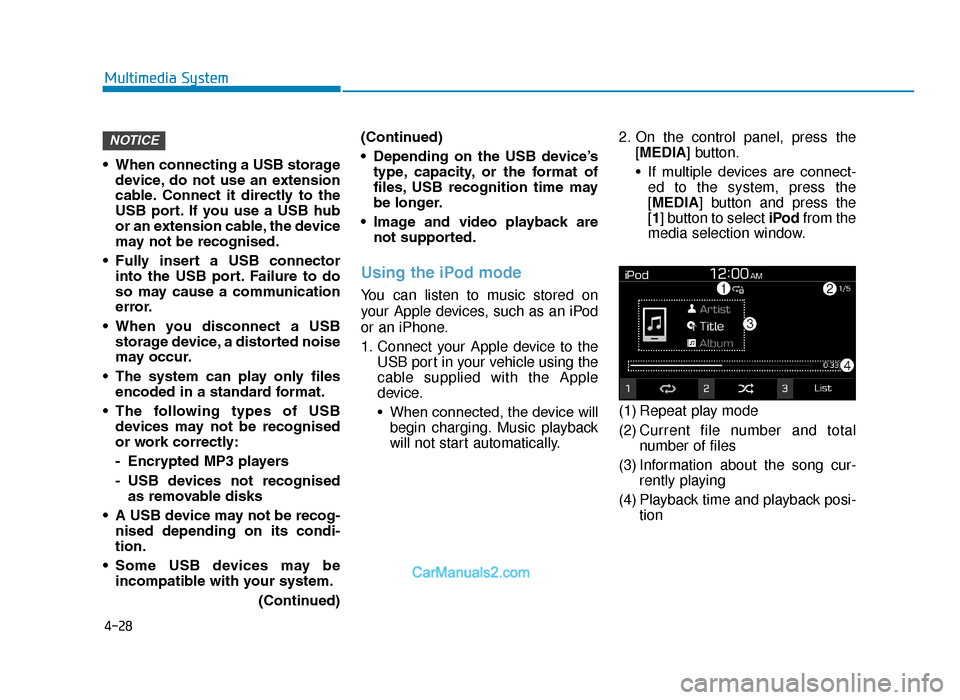
Using the iPod mode
You can listen to music stored on
your Apple devices, such as an iPod
or an iPhone.
1. Connect your Apple device to the USB port in your vehicle using the
cable supplied with the Apple
device.
• When connected, the device willbegin charging. Music playback
will not start automatically. 2. On the control panel, press the
[MEDIA] button.
• If multiple devices are connect-ed to the system, press the
[MEDIA] button and press the
[1] button to select iPod from the
media selection window.
(1) Repeat play mode
(2) Current file number and total number of files
(3) Information about the song cur- rently playing
(4) Playback time and playback posi- tion
NOTICE
TLe UK 4.qxp 5/10/2018 12:05 PM Page 28