change HYUNDAI TUCSON 2022 Owners Manual
[x] Cancel search | Manufacturer: HYUNDAI, Model Year: 2022, Model line: TUCSON, Model: HYUNDAI TUCSON 2022Pages: 638, PDF Size: 82.3 MB
Page 467 of 638
Driver assistance system7-104
Information
• You may change settings from the
instrument cluster (User Settings) or
infotainment system (Vehicle Settings),
whichever option that is provided with
your vehicle. For more details, see
"User Settings" section in chapter 4, or
"Vehicle Settings" section in supplied
Infotainment Manual.
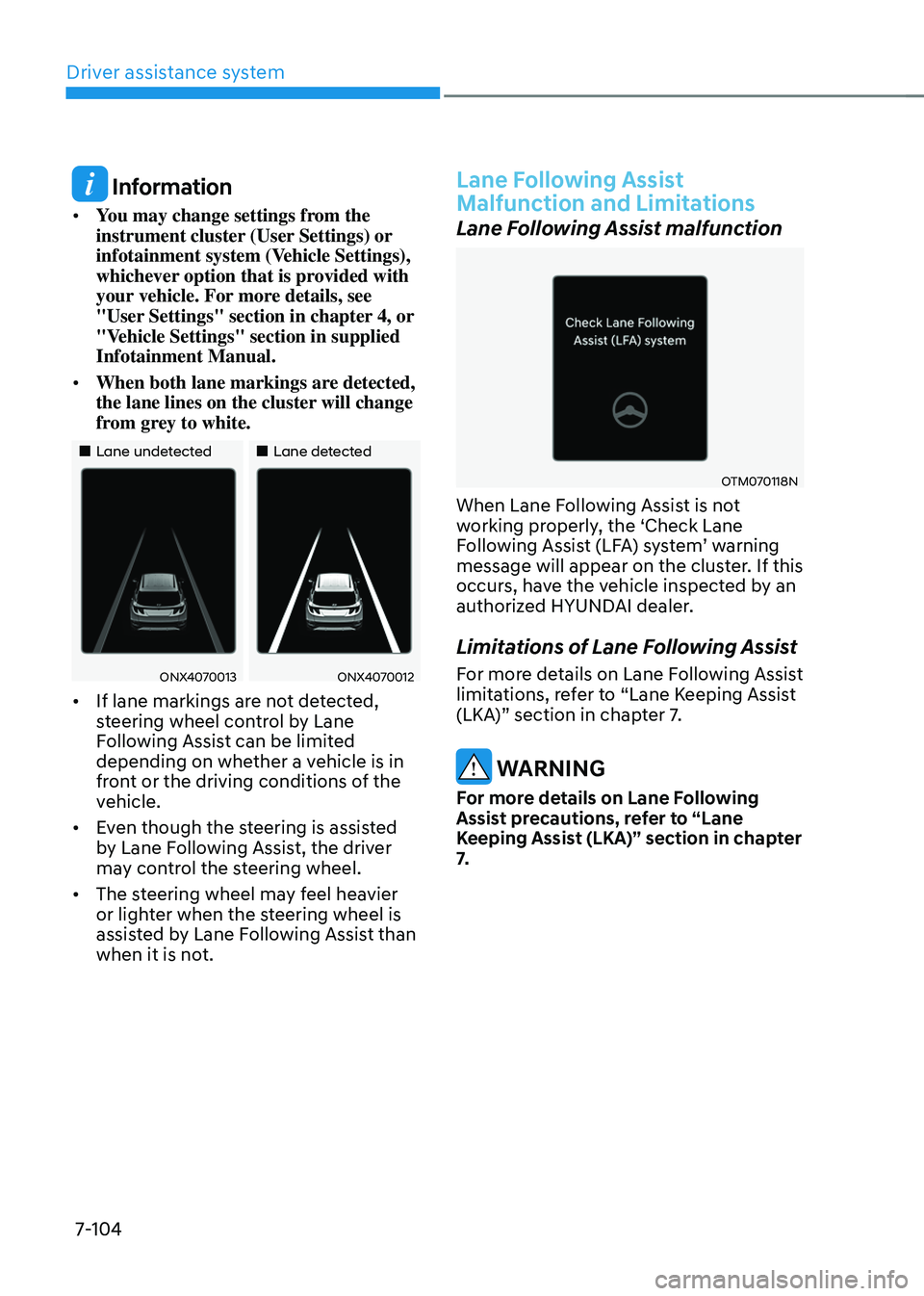
• When both lane markings are detected,
the lane lines on the cluster will change
from grey to white.
„„Lane undetected„„Lane detected
ONX4070013ONX4070012
• If lane markings are not detected,
steering wheel control by Lane
Following Assist can be limited
depending on whether a vehicle is in
front or the driving conditions of the
vehicle.
• Even though the steering is assisted
by Lane Following Assist, the driver
may control the steering wheel.
• The steering wheel may feel heavier
or lighter when the steering wheel is
assisted by Lane Following Assist than
when it is not.
Lane Following Assist
Malfunction and Limitations
Lane Following Assist malfunction
OTM070118N
When Lane Following Assist is not
working properly, the ‘Check Lane
Following Assist (LFA) system’ warning message will appear on the cluster. If this
occurs, have the vehicle inspected by an
authorized HYUNDAI dealer.
Limitations of Lane Following Assist
For more details on Lane Following Assist
limitations, refer to “Lane Keeping Assist
(LKA)” section in chapter 7.
WARNING
For more details on Lane Following
Assist precautions, refer to “Lane
Keeping Assist (LKA)” section in chapter
7.
Page 469 of 638
Driver assistance system
7-106
Highway Driving Assist Settings
Setting features
Highway Driving Assist
With the engine on, select or deselect
‘Driver Assistance → Driving Convenience’ from the Settings menu to set whether or
not to use the following function(s).
-If ‘Highway Driving Assist’ (or ‘HDA (Motorway Driving Assist)’) is selected, it helps maintain distance from the
vehicle ahead, maintain the set speed,
and helps center the vehicle in the
lane.
Information
• If there is a problem with the
function(s), the settings cannot be
changed. We recommend that the
vehicle be inspected by an authorized
HYUNDAI dealer.
• If the engine is restarted, the function(s)
will maintain the last setting.
WARNING
For your safety, change the Settings
after parking the vehicle at a safe
location.
OTM070141N
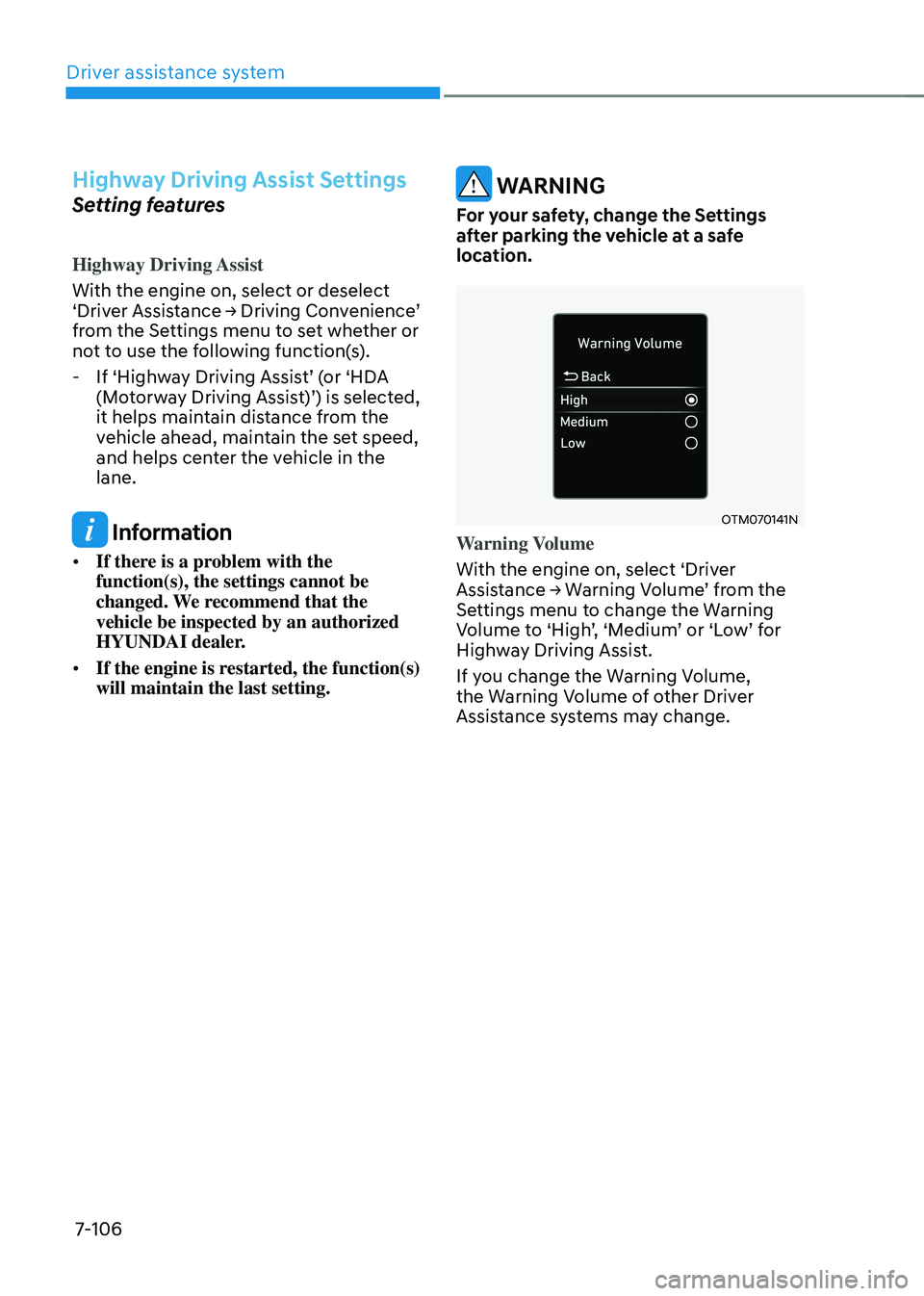
Warning Volume
With the engine on, select ‘Driver
Assistance → Warning Volume’ from the Settings menu to change the Warning Volume to ‘High’, ‘Medium’ or ‘Low’ for Highway Driving Assist.
If you change the Warning Volume,
the Warning Volume of other Driver
Assistance systems may change.
Page 472 of 638
07
7-109
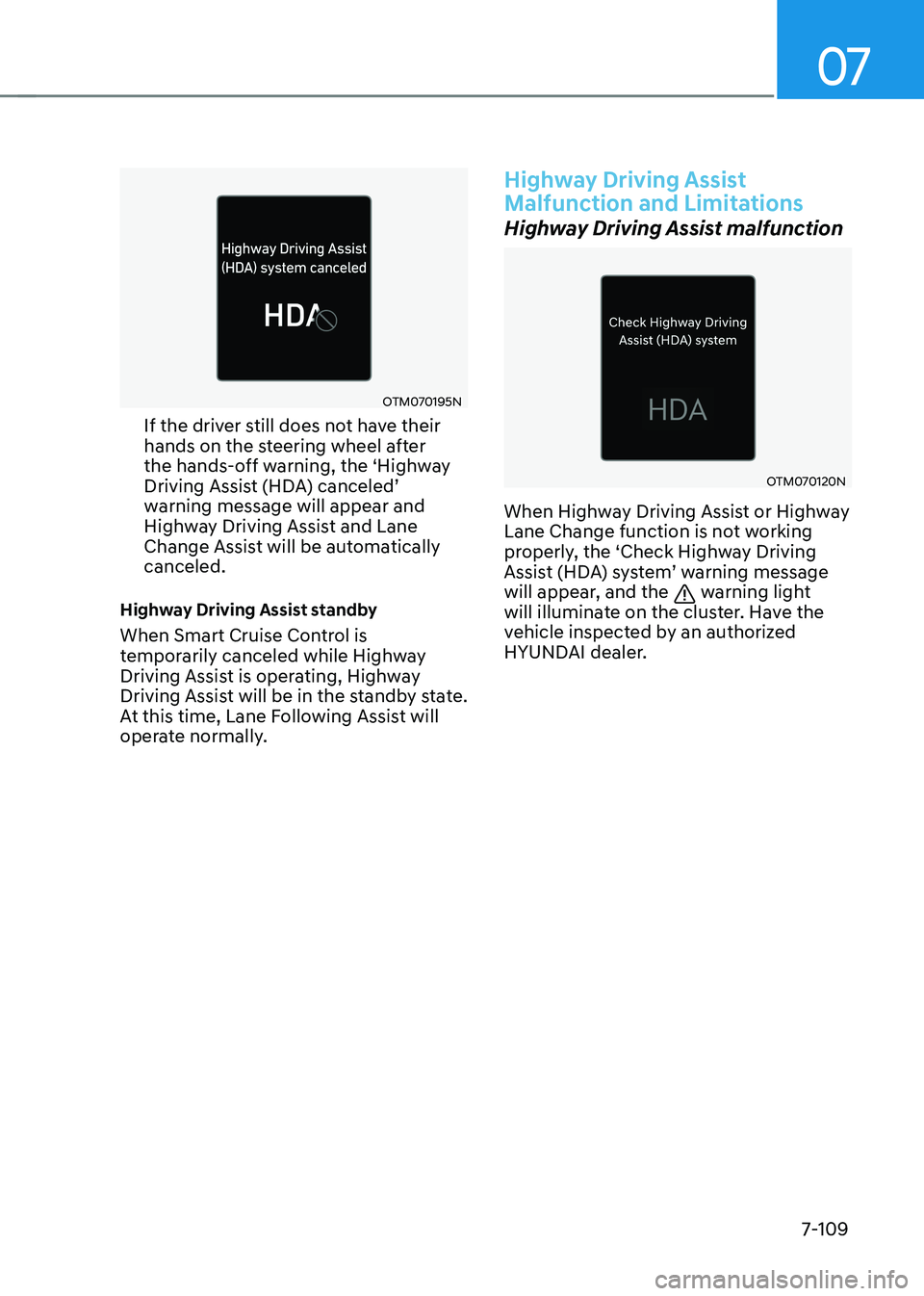
OTM070195N
If the driver still does not have their
hands on the steering wheel after
the hands-off warning, the ‘Highway
Driving Assist (HDA) canceled’ warning message will appear and
Highway Driving Assist and Lane
Change Assist will be automatically
canceled.
Highway Driving Assist standby
When Smart Cruise Control is
temporarily canceled while Highway
Driving Assist is operating, Highway
Driving Assist will be in the standby state.
At this time, Lane Following Assist will
operate normally.
Highway Driving Assist
Malfunction and Limitations
Highway Driving Assist malfunction
OTM070120N
When Highway Driving Assist or Highway
Lane Change function is not working
properly, the ‘Check Highway Driving
Assist (HDA) system’ warning message will appear, and the warning light
will illuminate on the cluster. Have the
vehicle inspected by an authorized
HYUNDAI dealer.
Page 474 of 638
07
7-111
Limitations of Highway Driving
Assist
Highway Driving Assist may not operate
normally, or may not operate under the
following circumstances:
• The map information and the
actual road is different because the
navigation is not updated
• The map information and the actual
road is different because of real-time
GPS data or map information error
• The infotainment system is overloaded
by simultaneously performing
functions such as route search, video
playback, voice recognition, etc.
• GPS signals are blocked in areas such
as a tunnel
• The driver goes off course or the
route to the destination is changed or
canceled by resetting the navigation
• The vehicle enters a service station or
rest area
• Android Auto or Car Play is operating
• The navigation cannot detect the
current vehicle position (ex: elevated
roads including overpass adjacent to
general roads or nearby roads exist in
a parallel way)
Information
For more details on the limitations of
the front view camera, front radar, front
corner radar and rear corner radar, refer
to “Forward Collision-Avoidance Assist
(FCA)” section in chapter 7.
Information
This device complies with Part 15 of the
FCC rules.
Operation is subject to the following three
conditions:
1. This device may not cause harmful
interference, and
2. This device must accept any
interference received, including
interference that may cause undesired
operation.
3. Changes or modifications not expressly
approved by the party responsible
for compliance could void the user's
authority to operate the device.
Information
Radio frequency radiation exposure
information:
This equipment complies with FCC
radiation exposure limits set forth for an
uncontrolled environment.
This equipment should be installed and
operated with minimum distance of 8 in.
(20 cm) between the radiator (antenna)
and your body.
This transmitter must not be co-located or
operating in conjunction with any other
antenna or transmitter.
Page 476 of 638
07
7-113
Rear View Monitor Settings
Camera settings
OTM070210L
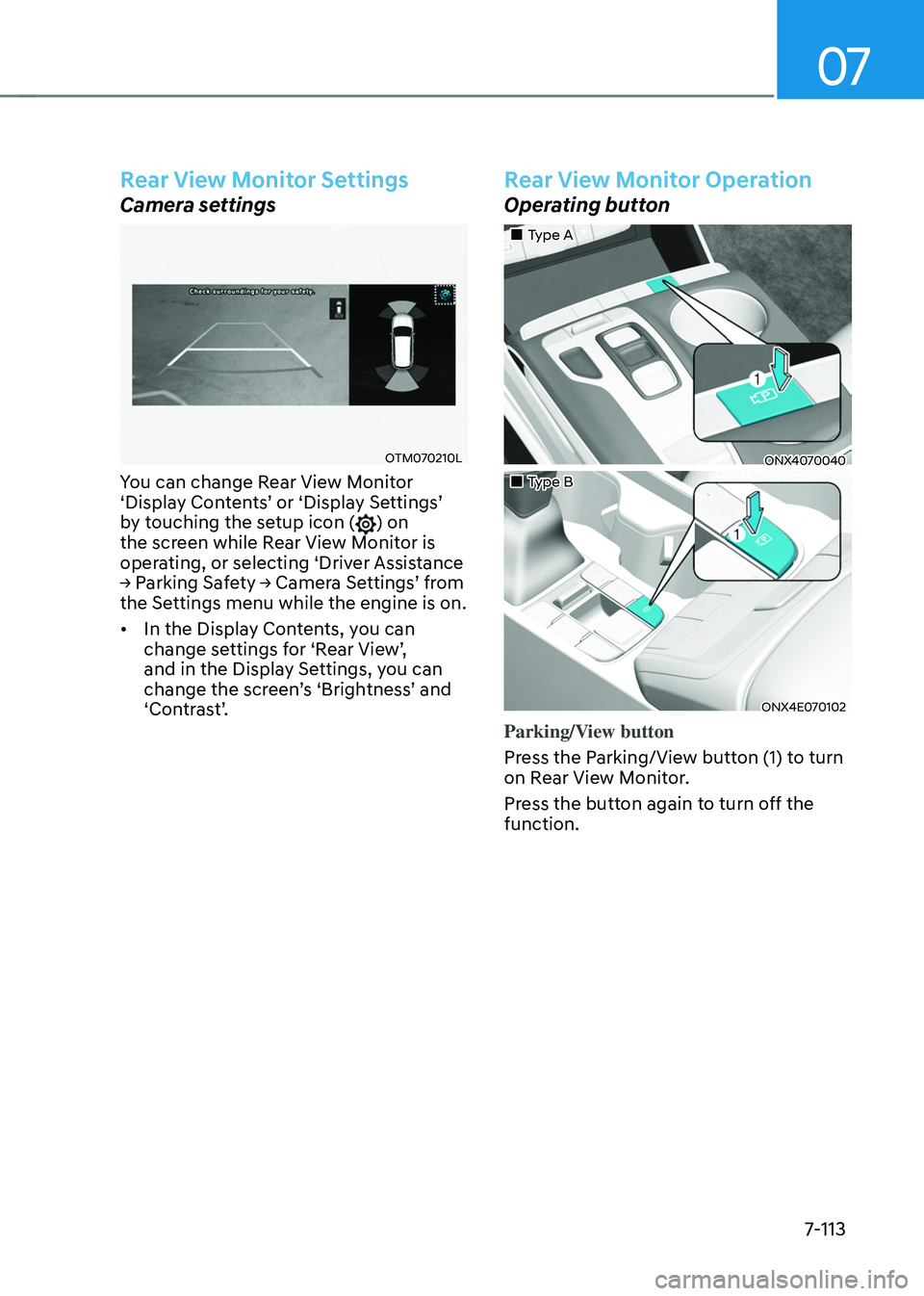
You can change Rear View Monitor ‘Display Contents’ or ‘Display Settings’ by touching the setup icon () on
the screen while Rear View Monitor is
operating, or selecting ‘Driver Assistance
→ Parking Safety → Camera Settings’ from the Settings menu while the engine is on.
• In the Display Contents, you can
change settings for ‘Rear View’, and in the Display Settings, you can change the screen’s ‘Brightness’ and ‘Contrast’.
Rear View Monitor Operation
Operating button
„„Type A
ONX4070040
„„Type B
ONX4E070102
Parking/View button
Press the Parking/View button (1) to turn
on Rear View Monitor.
Press the button again to turn off the
function.
Page 480 of 638
07
7-117
Surround View Monitor Settings
Camera settings
OTM070213L
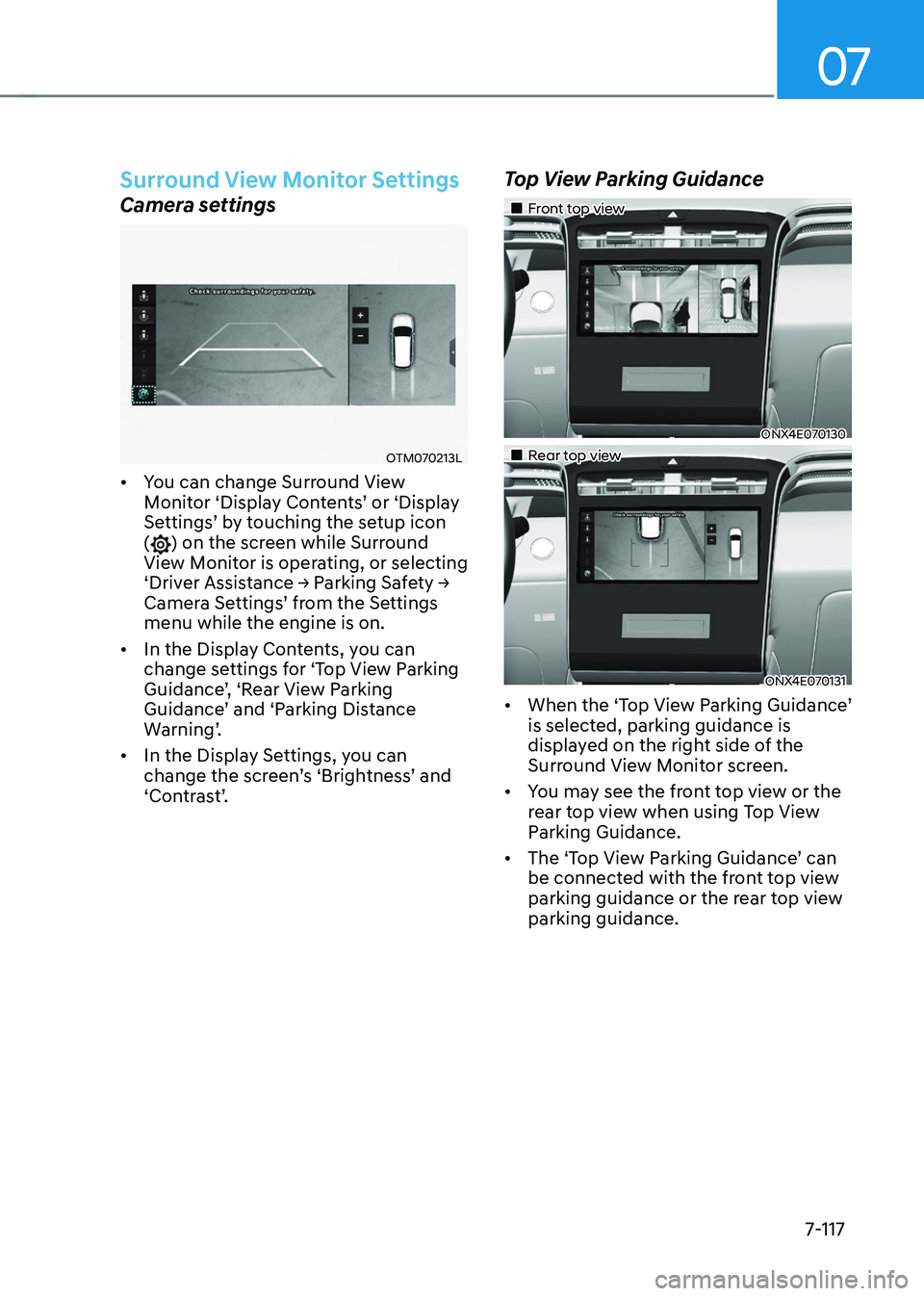
• You can change Surround View Monitor ‘Display Contents’ or ‘Display Settings’ by touching the setup icon () on the screen while Surround
View Monitor is operating, or selecting
‘Driver Assistance → Parking Safety → Camera Settings’ from the Settings menu while the engine is on.
• In the Display Contents, you can
change settings for ‘Top View Parking
Guidance’, ‘Rear View Parking Guidance’ and ‘Parking Distance Warning’.
• In the Display Settings, you can
change the screen’s ‘Brightness’ and ‘Contrast’.
Top View Parking Guidance
„„Front top view
ONX4E070130
„„Rear top view
ONX4E070131
• When the ‘Top View Parking Guidance’ is selected, parking guidance is
displayed on the right side of the
Surround View Monitor screen.
• You may see the front top view or the
rear top view when using Top View
Parking Guidance.
•
The ‘Top View Parking Guidance’ can be connected with the front top view
parking guidance or the rear top view
parking guidance.
Page 482 of 638
07
7-119
Surround View Monitor
Operation
Operating button
„„Type A„„Type B
ONX4070040ONX4E070102
ONX4E070132
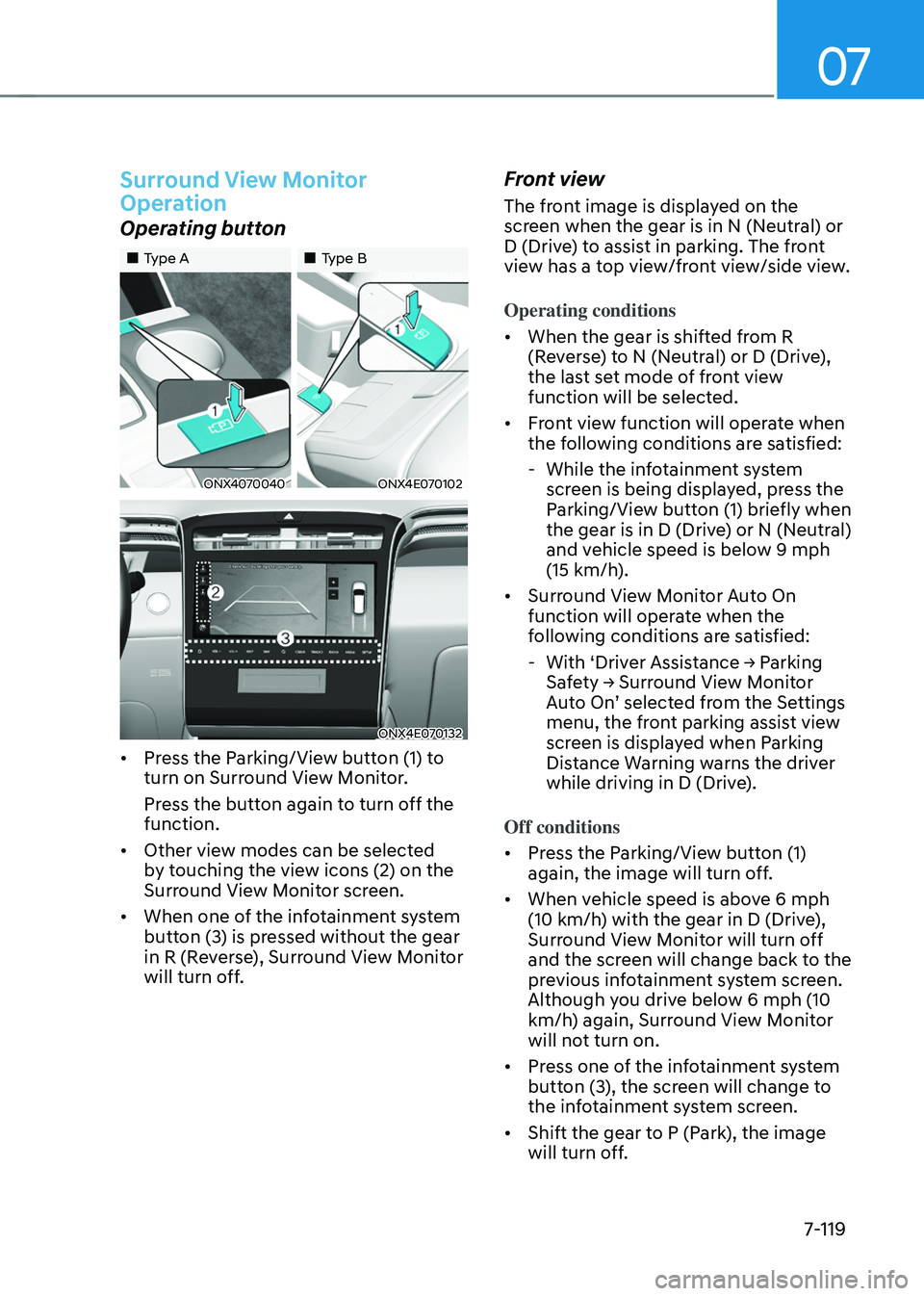
• Press the Parking/View button (1) to
turn on Surround View Monitor.
Press the button again to turn off the
function.
• Other view modes can be selected
by touching the view icons (2) on the
Surround View Monitor screen.
• When one of the infotainment system
button (3) is pressed without the gear
in R (Reverse), Surround View Monitor
will turn off.
Front view
The front image is displayed on the
screen when the gear is in N (Neutral) or
D (Drive) to assist in parking. The front
view has a top view/front view/side view.
Operating conditions
• When the gear is shifted from R
(Reverse) to N (Neutral) or D (Drive),
the last set mode of front view
function will be selected.
• Front view function will operate when
the following conditions are satisfied:
-While the infotainment system
screen is being displayed, press the
Parking/View button (1) briefly when
the gear is in D (Drive) or N (Neutral)
and vehicle speed is below 9 mph
(15 km/h).
• Surround View Monitor Auto On
function will operate when the
following conditions are satisfied:
-With ‘Driver Assistance → Parking Safety → Surround View Monitor Auto On’ selected from the Settings menu, the front parking assist view
screen is displayed when Parking
Distance Warning warns the driver
while driving in D (Drive).
Off conditions
• Press the Parking/View button (1)
again, the image will turn off.
• When vehicle speed is above 6 mph
(10 km/h) with the gear in D (Drive),
Surround View Monitor will turn off
and the screen will change back to the
previous infotainment system screen.
Although you drive below 6 mph (10
km/h) again, Surround View Monitor
will not turn on.
• Press one of the infotainment system
button (3), the screen will change to
the infotainment system screen.
• Shift the gear to P (Park), the image
will turn off.
Page 486 of 638
07
7-123
Rear Cross-Traffic Safety System
Settings
Setting features
OTM070194N
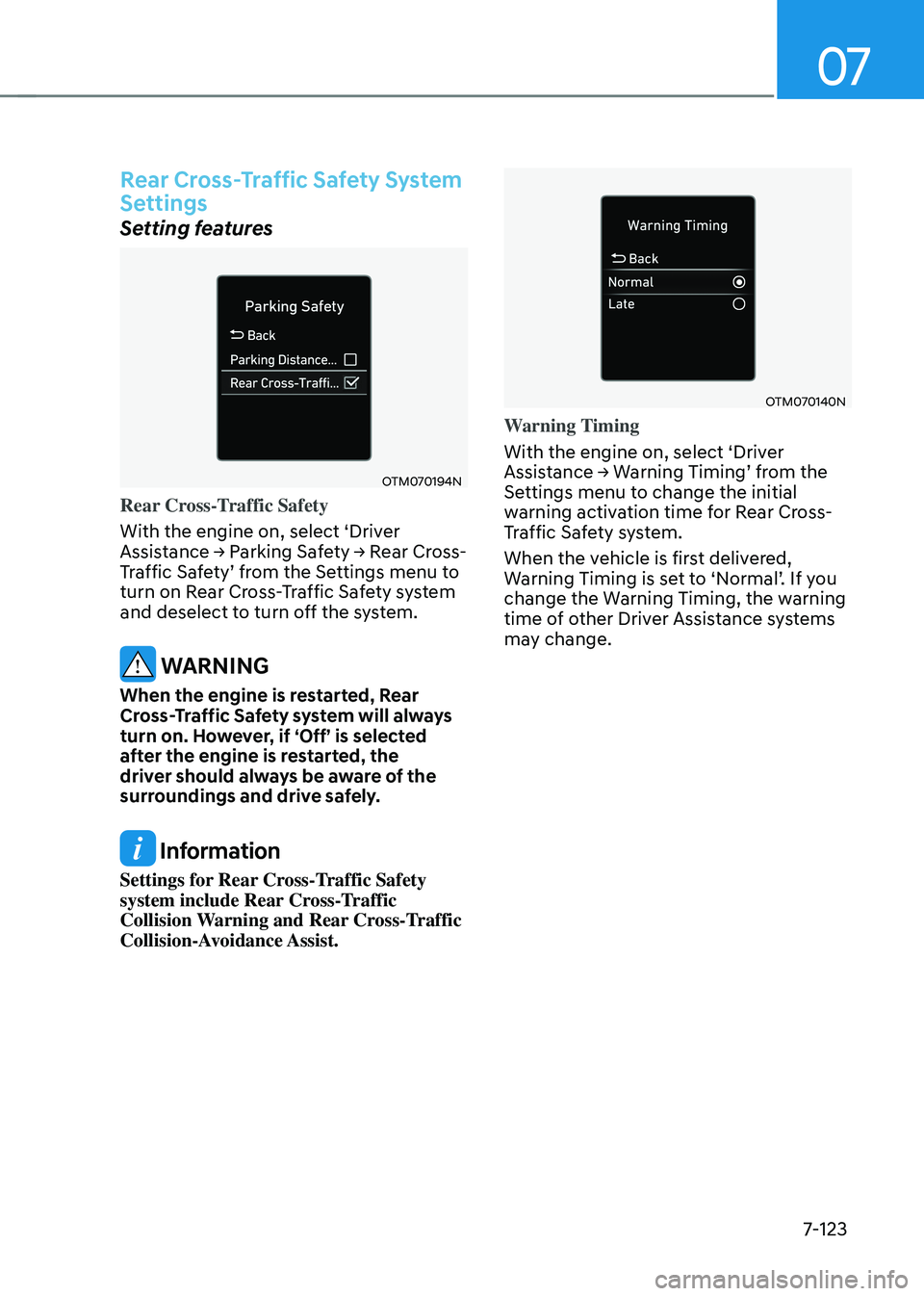
Rear Cross-Traffic Safety
With the engine on, select ‘Driver
Assistance → Parking Safety → Rear Cross-Traffic Safety’ from the Settings menu to turn on Rear Cross-Traffic Safety system
and deselect to turn off the system.
WARNING
When the engine is restarted, Rear
Cross-Traffic Safety system will always
turn on. However, if ‘Off’ is selected
after the engine is restarted, the
driver should always be aware of the
surroundings and drive safely.
Information
Settings for Rear Cross-Traffic Safety
system include Rear Cross-Traffic
Collision Warning and Rear Cross-Traffic
Collision-Avoidance Assist.
OTM070140N
Warning Timing
With the engine on, select ‘Driver
Assistance → Warning Timing’ from the Settings menu to change the initial
warning activation time for Rear Cross-
Traffic Safety system.
When the vehicle is first delivered,
Warning Timing is set to ‘Normal’. If you change the Warning Timing, the warning
time of other Driver Assistance systems
may change.
Page 487 of 638
Driver assistance system
7-124
OTM070141N
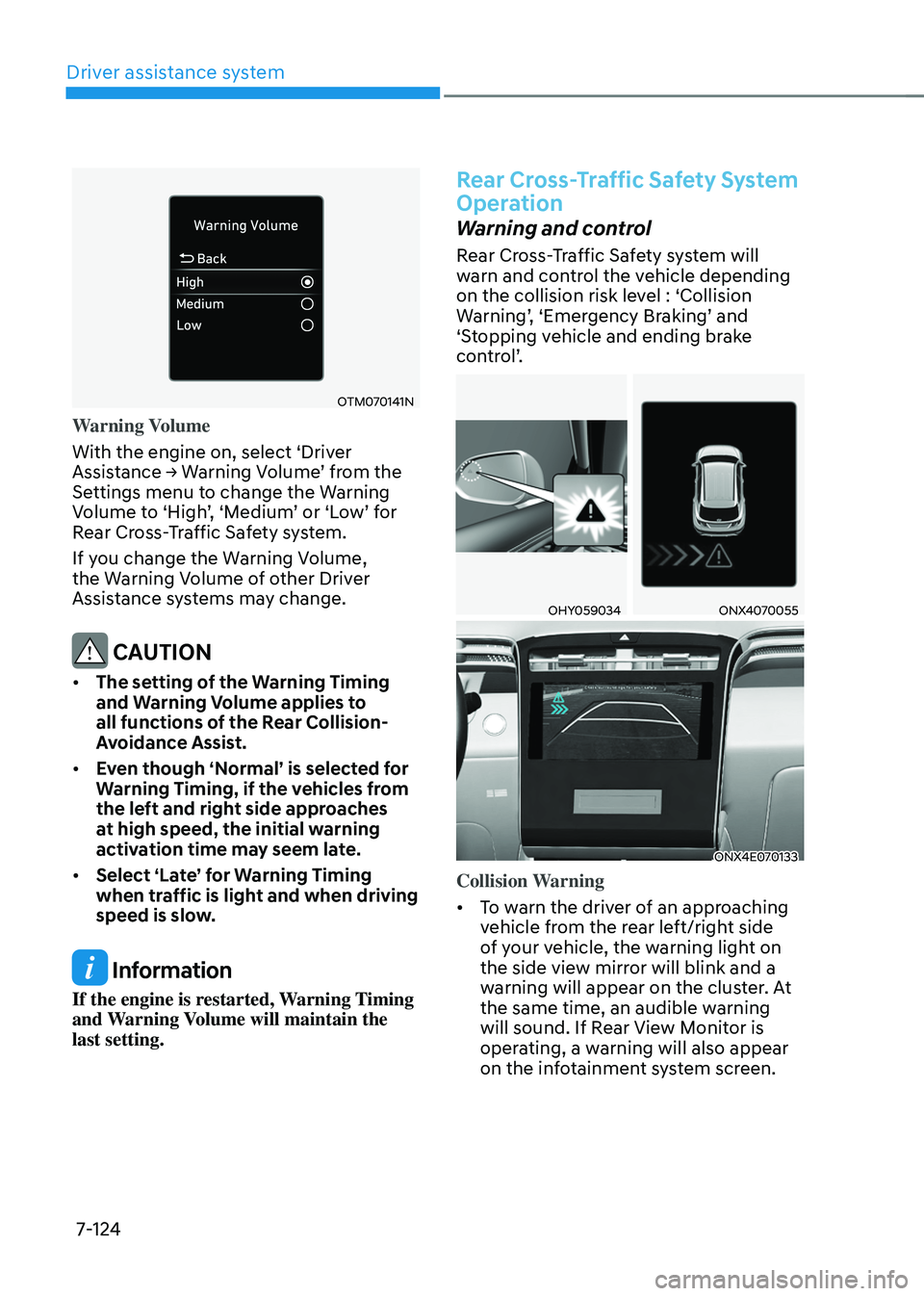
Warning Volume
With the engine on, select ‘Driver
Assistance → Warning Volume’ from the Settings menu to change the Warning Volume to ‘High’, ‘Medium’ or ‘Low’ for Rear Cross-Traffic Safety system.
If you change the Warning Volume,
the Warning Volume of other Driver
Assistance systems may change.
CAUTION
• The setting of the Warning Timing
and Warning Volume applies to
all functions of the Rear Collision-
Avoidance Assist.
• Even though ‘Normal’ is selected for
Warning Timing, if the vehicles from
the left and right side approaches
at high speed, the initial warning
activation time may seem late.
• Select ‘Late’ for Warning Timing
when traffic is light and when driving
speed is slow.
Information
If the engine is restarted, Warning Timing
and Warning Volume will maintain the
last setting.
Rear Cross-Traffic Safety System
Operation
Warning and control
Rear Cross-Traffic Safety system will
warn and control the vehicle depending
on the collision risk level : ‘Collision
Warning’, ‘Emergency Braking’ and ‘Stopping vehicle and ending brake
control’.
OHY059034ONX4070055
ONX4E070133
Collision Warning
• To warn the driver of an approaching
vehicle from the rear left/right side
of your vehicle, the warning light on
the side view mirror will blink and a
warning will appear on the cluster. At
the same time, an audible warning
will sound. If Rear View Monitor is
operating, a warning will also appear
on the infotainment system screen.
Page 490 of 638
07
7-127
WARNING
Take the following precautions when
using Rear Cross-Traffic Safety system:
• For your safety, change the Settings
after parking the vehicle at a safe
location.
• If any other system’s warning
message is displayed or audible
warning is generated, Rear Cross-
Traffic Safety system’s warning
message may not be displayed
and audible warning may not be
generated.
• You may not hear the warning sound
of Rear Cross-Traffic Safety system if
the surrounding is noisy.
• Rear Cross-Traffic Safety system may
not operate if the driver applies the
brake pedal to avoid collision.
• During Rear Cross-Traffic Safety
system operation, the vehicle may
stop suddenly injuring passengers
and shifting loose objects. Always
have the seat belt on and keep loose
objects secured.
• Even if there is a problem with Rear
Cross-Traffic Safety system, the
vehicle’s basic braking performance
will operate normally.
• When Rear Cross-Traffic Safety
system is operating, braking control
by the system will automatically
cancel when the driver excessively
depresses the accelerator pedal.
• Rear Cross-Traffic Safety system does
not operate in all situations or cannot
avoid all collisions.
• Rear Cross-Traffic Safety system may
warn the driver late or may not warn
the driver depending on the road and
driving conditions. •
The driver is solely responsible to
operate the vehicle in a safe manner.
Do not solely depend on Rear
Cross-Traffic Safety system. Rather,
maintain a safe braking distance, and
if necessary, depress the brake pedal
to reduce driving speed or to stop
the vehicle.
• Never deliberately operate Rear
Cross-Traffic Safety system on
people, animal, objects, etc. It may
cause serious injury or death.
CAUTION
The brake control may not operate
properly depending on the status of
ESC (Electronic Stability Control).
There will only be a warning when:
-The ESC (Electronic Stability Control)
warning light is on
-ESC (Electronic Stability Control) is
engaged in a different function
Information
If the system assists you with braking,
the driver must immediately depress
the brake pedal and check vehicle
surroundings.
-Brake control will end when the driver
depresses the brake pedal with sufficient
power.
-After shifting the gear to R (Reverse),
braking control will operate once for left
and right vehicle approach.