change HYUNDAI TUCSON 2022 Owners Manual
[x] Cancel search | Manufacturer: HYUNDAI, Model Year: 2022, Model line: TUCSON, Model: HYUNDAI TUCSON 2022Pages: 638, PDF Size: 82.3 MB
Page 425 of 638
Driver assistance system
7-62
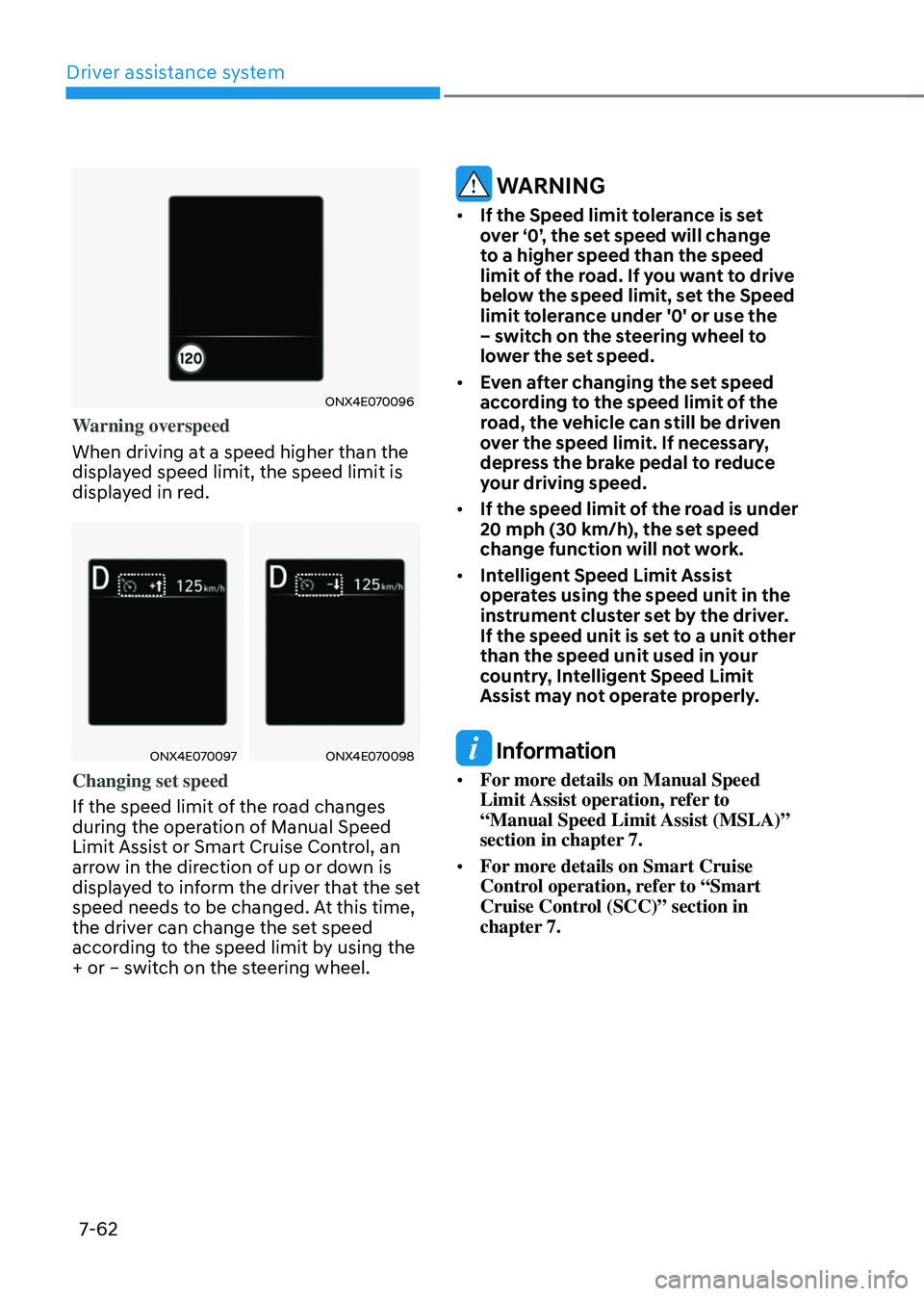
ONX4E070096
Warning overspeed
When driving at a speed higher than the
displayed speed limit, the speed limit is
displayed in red.
ONX4E070097ONX4E070098
Changing set speed
If the speed limit of the road changes
during the operation of Manual Speed
Limit Assist or Smart Cruise Control, an
arrow in the direction of up or down is
displayed to inform the driver that the set
speed needs to be changed. At this time,
the driver can change the set speed
according to the speed limit by using the
+ or – switch on the steering wheel.
WARNING
• If the Speed limit tolerance is set
over ‘0’, the set speed will change
to a higher speed than the speed
limit of the road. If you want to drive
below the speed limit, set the Speed
limit tolerance under '0' or use the
– switch on the steering wheel to
lower the set speed.
• Even after changing the set speed
according to the speed limit of the
road, the vehicle can still be driven
over the speed limit. If necessary,
depress the brake pedal to reduce
your driving speed.
• If the speed limit of the road is under
20 mph (30 km/h), the set speed
change function will not work.
• Intelligent Speed Limit Assist
operates using the speed unit in the
instrument cluster set by the driver.
If the speed unit is set to a unit other
than the speed unit used in your
country, Intelligent Speed Limit
Assist may not operate properly.
Information
• For more details on Manual Speed
Limit Assist operation, refer to
“Manual Speed Limit Assist (MSLA)”
section in chapter 7.
• For more details on Smart Cruise
Control operation, refer to “Smart
Cruise Control (SCC)” section in
chapter 7.
Page 427 of 638
Driver assistance system
7-64
Limitations of Intelligent Speed
Limit Assist
Intelligent Speed Limit Assist may not
operate or may not provide correct
information under the following
circumstances:
• The road sign is contaminated or
indistinguishable
-The road sign is difficult to see due
to bad weather, such as rain, snow,
fog, etc.
-The road sign is not clear or
damaged
-The road sign is partially obscured
by surrounding objects or shadow
• The road signs do not conform to the
standard
-The text or picture on the road sign
is different from the standard
-The road sign is installed between
the main line and the exit road or
between diverging roads
-There is no conditional road signs
on the road sign located on the exit
road
-A sign is attached to another vehicle
• The brightness changes suddenly, for
example when entering or exiting a
tunnel or passing under a bridge
• Headlamps are not used or the
brightness of the headlamps are weak
at night or in the tunnel
• Road signs are difficult to recognize
due to the reflection of sunlight, street
lights, or oncoming vehicles
• The distance between the driving lane
and the road sign is far
• Luminous road signs
• There is a similar object or text which
is in the road sign or an object like a
road sign
• There is an error in the navigation map
data or GPS data
• The vehicle does not drive based on
the route guidance •
The field of view of the front view
camera is obstructed by sun glare
• Driving on a road that is sharply
curved or continuously curved
• Driving through speed bumps, or
driving up and down or left to right on
steep inclines
• The vehicle is shaking heavily
Information
For more details on the limitations of the
front view camera, refer to “Forward
Collision-Avoidance Assist (FCA)” section
in chapter 7.
WARNING
• Intelligent Speed Limit Assist is a
supplemental function that helps the
driver to comply with the speed limit
on the road, and may not display the
correct speed limit or control the
driving speed properly.
• Always set the vehicle speed to the
speed limit in your country.
Page 429 of 638
Driver assistance system
7-66
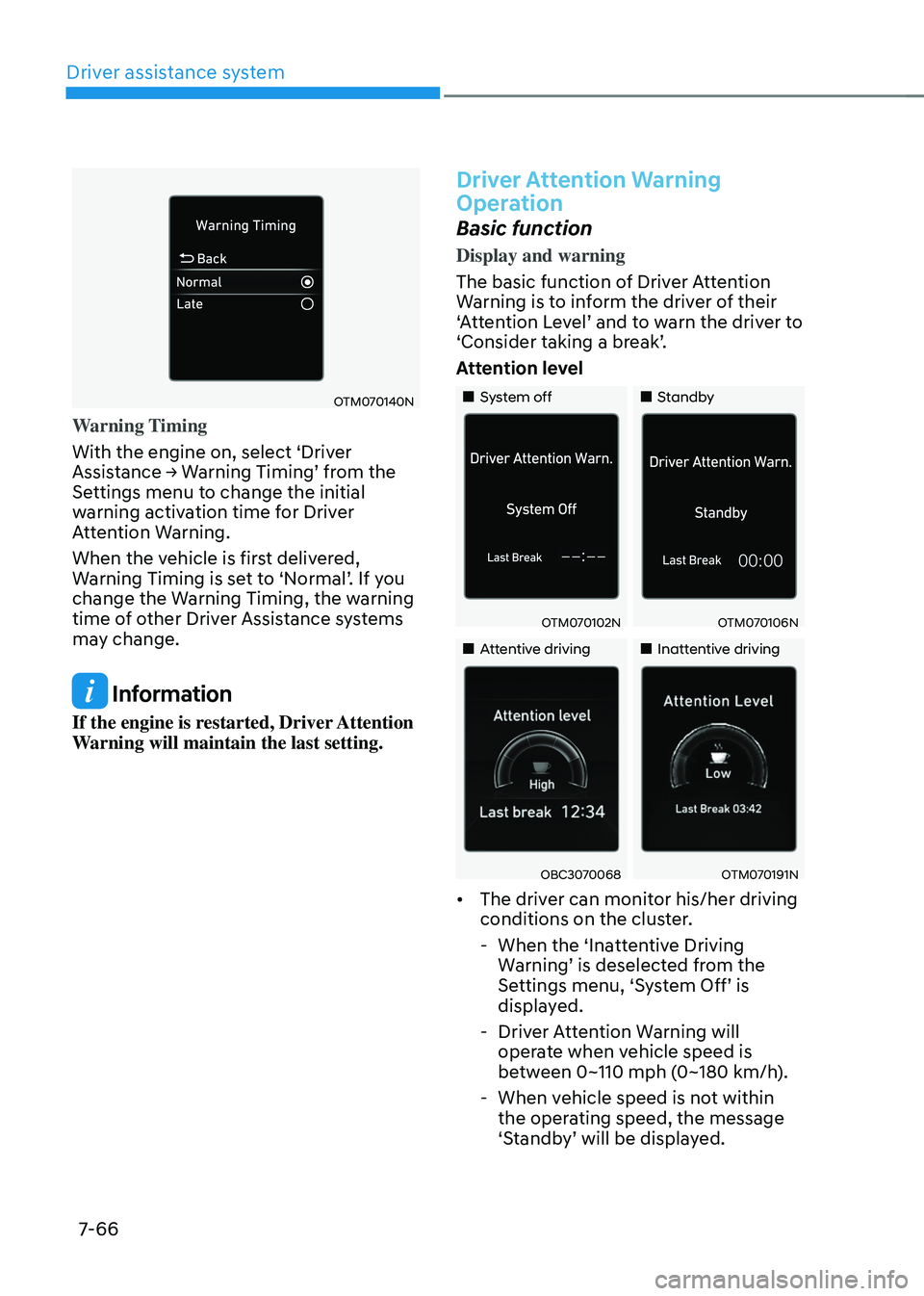
OTM070140N
Warning Timing
With the engine on, select ‘Driver
Assistance → Warning Timing’ from the Settings menu to change the initial
warning activation time for Driver
Attention Warning.
When the vehicle is first delivered,
Warning Timing is set to ‘Normal’. If you change the Warning Timing, the warning
time of other Driver Assistance systems
may change.
Information
If the engine is restarted, Driver Attention
Warning will maintain the last setting.
Driver Attention Warning
Operation
Basic function
Display and warning
The basic function of Driver Attention
Warning is to inform the driver of their
‘Attention Level’ and to warn the driver to ‘Consider taking a break’.
Attention level
„„System off„„Standby
OTM070102NOTM070106N
„„Attentive driving„„Inattentive driving
OBC3070068OTM070191N
• The driver can monitor his/her driving
conditions on the cluster.
-When the ‘Inattentive Driving Warning’ is deselected from the Settings menu, ‘System Off’ is displayed.
-Driver Attention Warning will
operate when vehicle speed is
between 0~110 mph (0~180 km/h).
-When vehicle speed is not within
the operating speed, the message
‘Standby’ will be displayed.
Page 430 of 638
07
7-67
• The driver’s attention lev el is display ed on the scale of 1 to 5. The lower the
level is, the more inattentive the driver
is.
• The level decreases when the driver
does not take a break for a certain
period of time.
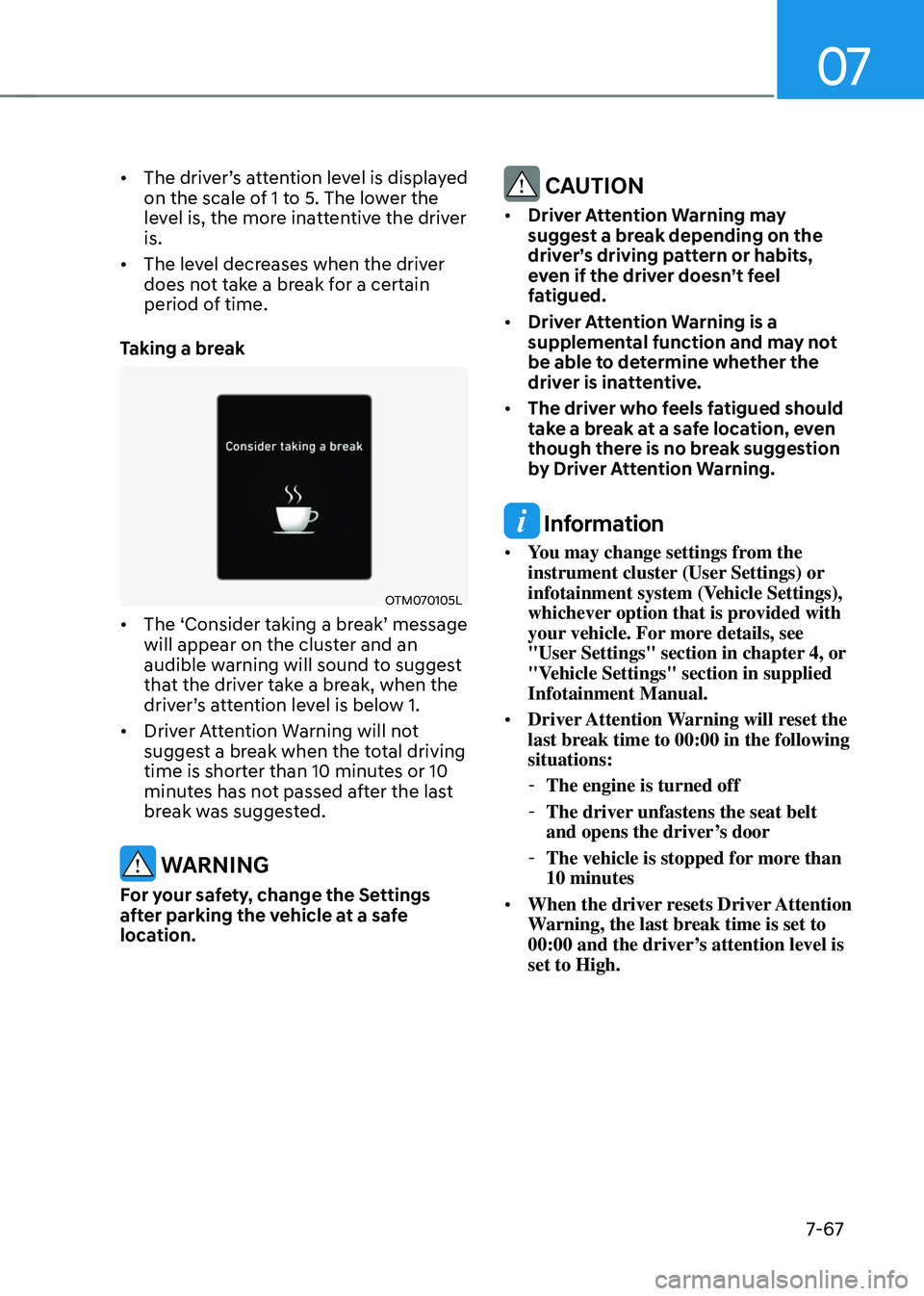
Taking a break
OTM070105L
• The ‘Consider taking a break’ message will appear on the cluster and an
audible warning will sound to suggest
that the driver take a break, when the
driver’s attention level is below 1.
• Driver Attention Warning will not
suggest a break when the total driving
time is shorter than 10 minutes or 10
minutes has not passed after the last
break was suggested.
WARNING
For your safety, change the Settings
after parking the vehicle at a safe
location.
CAUTION
• Driver Attention Warning may
suggest a break depending on the
driver’s driving pattern or habits,
even if the driver doesn’t feel
fatigued.
• Driver Attention Warning is a
supplemental function and may not
be able to determine whether the
driver is inattentive.
• The driver who feels fatigued should
take a break at a safe location, even
though there is no break suggestion
by Driver Attention Warning.
Information
• You may change settings from the
instrument cluster (User Settings) or
infotainment system (Vehicle Settings),
whichever option that is provided with
your vehicle. For more details, see
"User Settings" section in chapter 4, or
"Vehicle Settings" section in supplied
Infotainment Manual.
• Driver Attention Warning will reset the
last break time to 00:00 in the following
situations:
-The engine is turned off
-The driver unfastens the seat belt
and opens the driver’s door
-The vehicle is stopped for more than
10 minutes
• When the driver resets Driver Attention
Warning, the last break time is set to
00:00 and the driver’s attention level is
set to High.
Page 434 of 638
07
7-7 1
BLIND-SPOT VIEW MONITOR (BVM) (IF EQUIPPED)
„„Left side„„Right side
ONX4070080ONX4070081
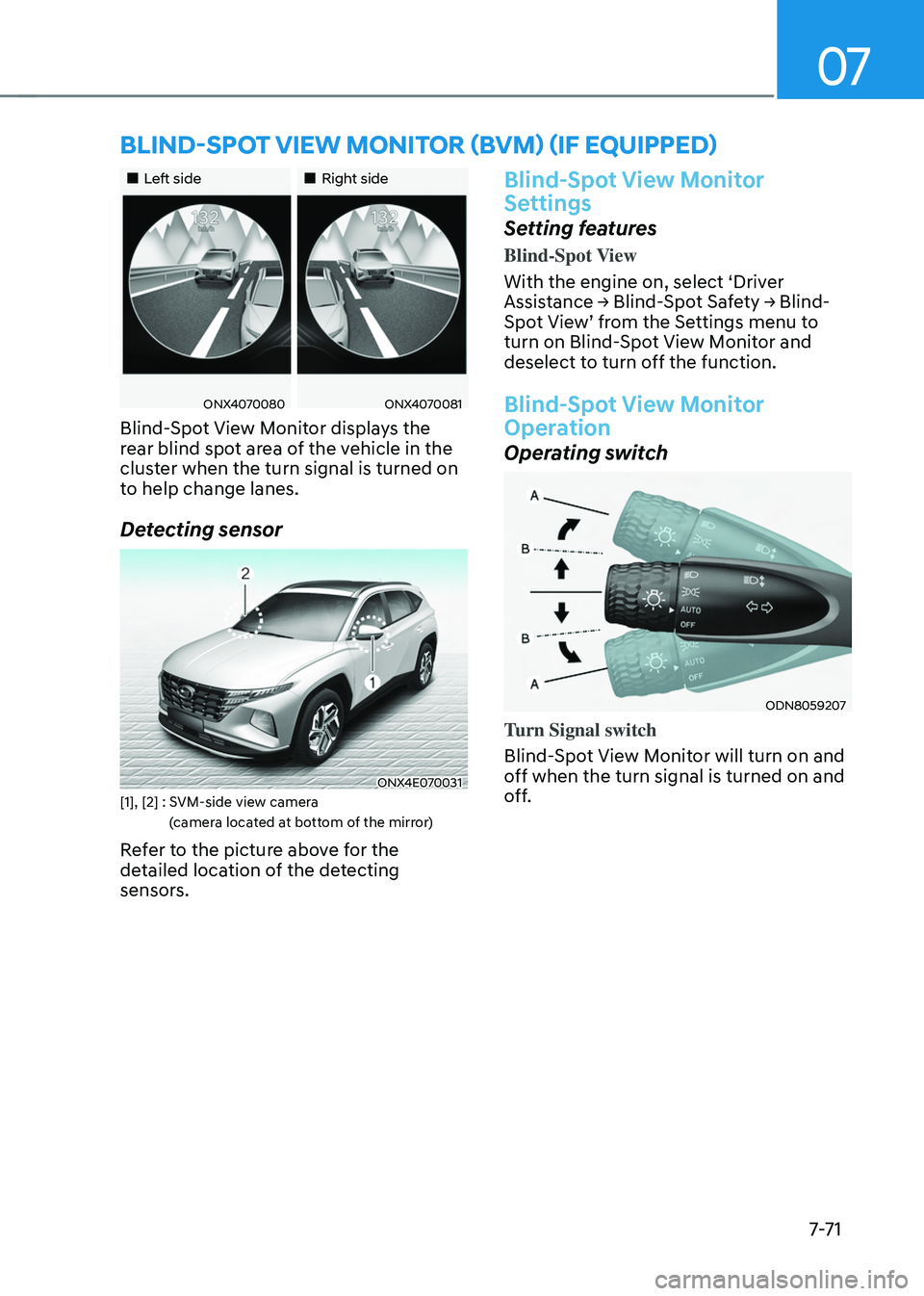
Blind-Spot View Monitor displays the
rear blind spot area of the vehicle in the
cluster when the turn signal is turned on
to help change lanes.
Detecting sensor
ONX4E070031[1], [2] : SVM-side view camera
(camera located at bottom of the mirror)
Refer to the picture above for the
detailed location of the detecting
sensors.
Blind-Spot View Monitor
Settings
Setting features
Blind-Spot View
With the engine on, select ‘Driver
Assistance → Blind-Spot Safety → Blind-Spot View’ from the Settings menu to turn on Blind-Spot View Monitor and
deselect to turn off the function.
Blind-Spot View Monitor
Operation
Operating switch
ODN8059207
Turn Signal switch
Blind-Spot View Monitor will turn on and
off when the turn signal is turned on and
off.
Page 441 of 638
Driver assistance system
7-7 8
Smart Cruise Control Settings
Setting features
ONX4070032
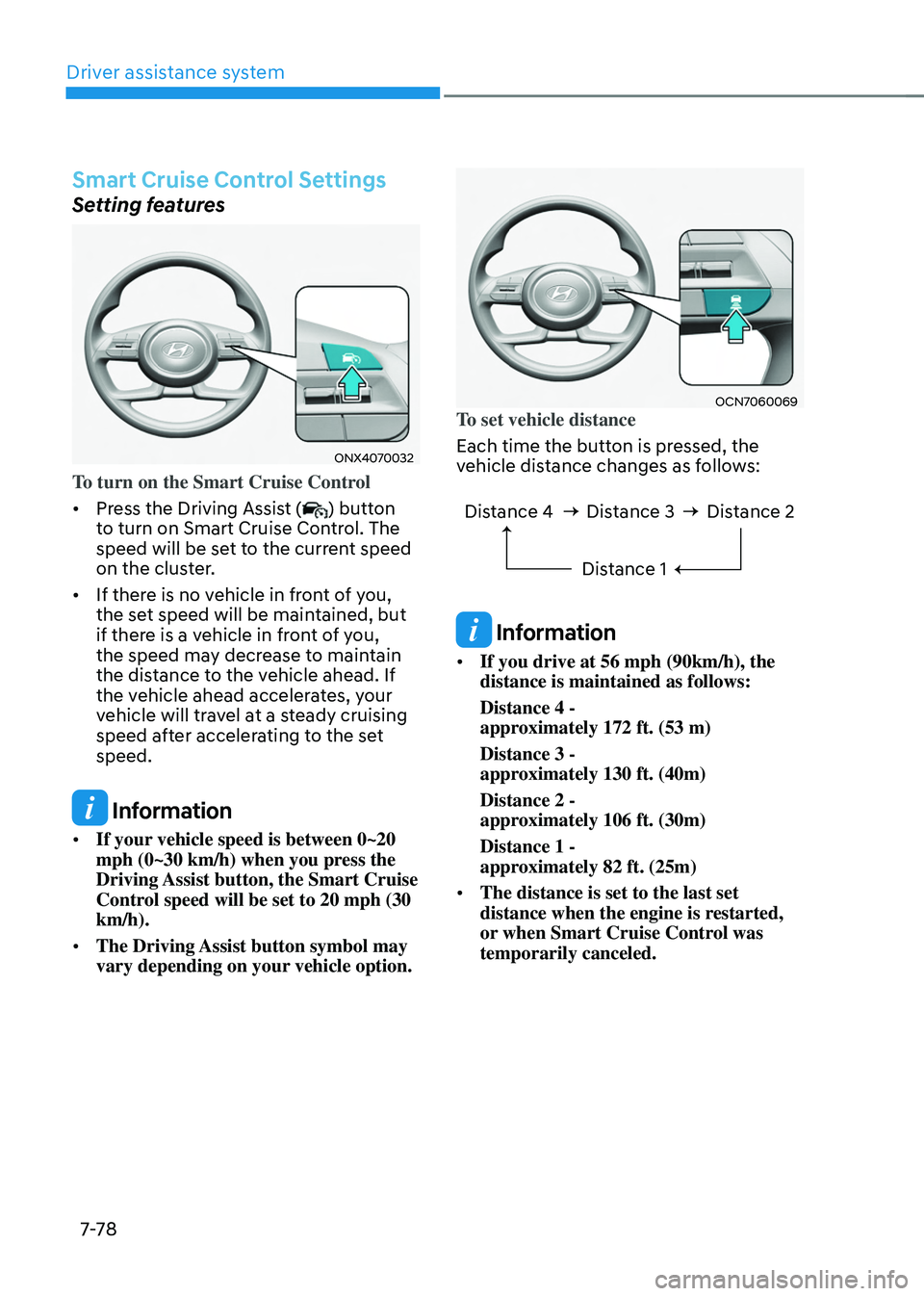
To turn on the Smart Cruise Control
• Press the Driving Assist (
) button
to turn on Smart Cruise Control. The
speed will be set to the current speed
on the cluster.
• If there is no vehicle in front of you,
the set speed will be maintained, but
if there is a vehicle in front of you,
the speed may decrease to maintain
the distance to the vehicle ahead. If
the vehicle ahead accelerates, your
vehicle will travel at a steady cruising
speed after accelerating to the set
speed.
Information
• If your vehicle speed is between 0~20
mph (0~30 km/h) when you press the
Driving Assist button, the Smart Cruise
Control speed will be set to 20 mph (30
km/h).
• The Driving Assist button symbol may
vary depending on your vehicle option.
OCN7060069To set vehicle distance
Each time the button is pressed, the
vehicle distance changes as follows:
Distance 4 Distance 3
Distance 1Distance 2
Information
• If you drive at 56 mph (90km/h), the
distance is maintained as follows:
Distance 4 -
approximately 172 ft. (53 m)
Distance 3 -
approximately 130 ft. (40m)
Distance 2 -
approximately 106 ft. (30m)
Distance 1 -
approximately 82 ft. (25m)
• The distance is set to the last set
distance when the engine is restarted,
or when Smart Cruise Control was
temporarily canceled.
Page 444 of 638
07
7-81
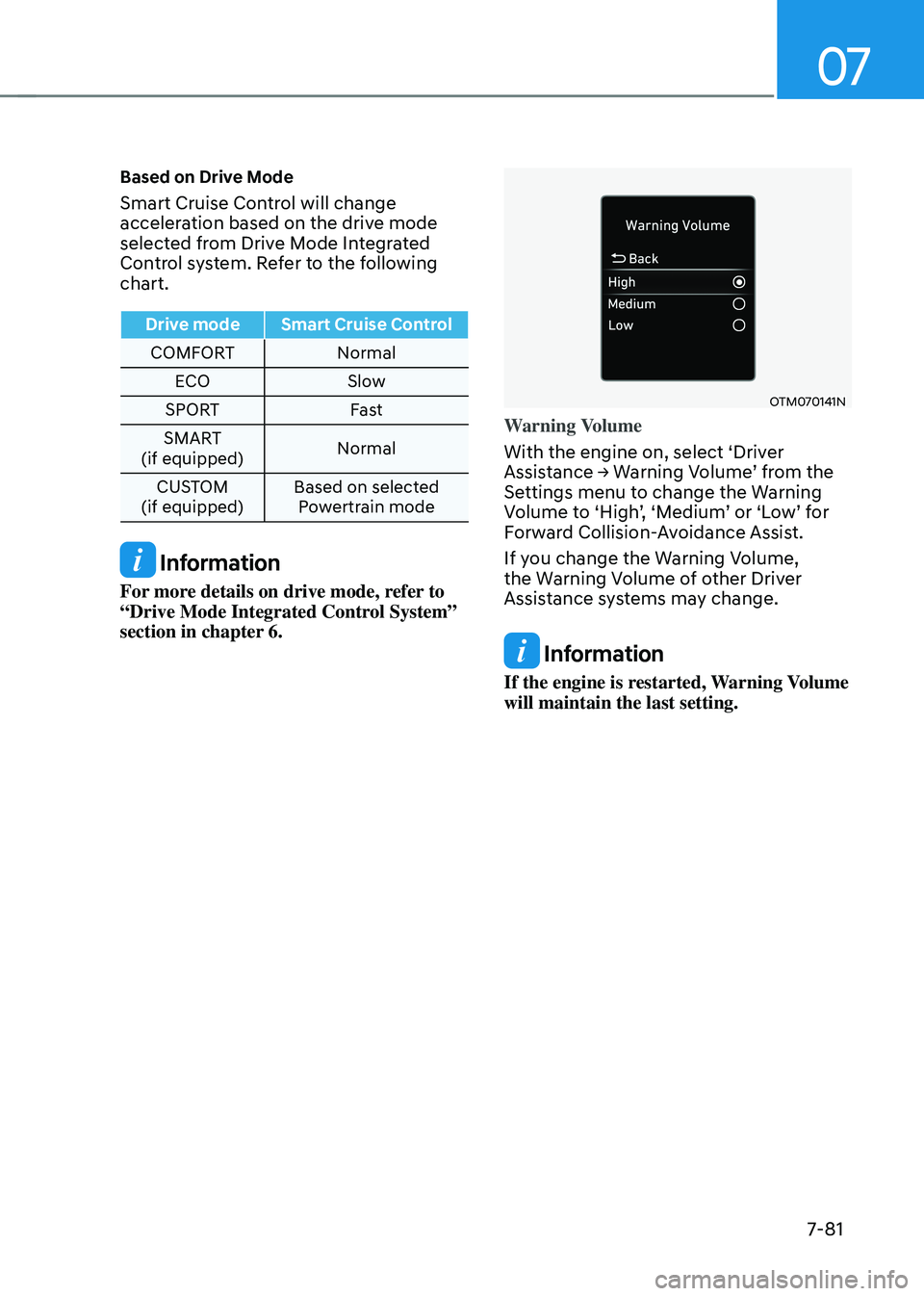
Based on Drive Mode
Smart Cruise Control will change
acceleration based on the drive mode
selected from Drive Mode Integrated
Control system. Refer to the following
chart.
Drive modeSmart Cruise Control
COMFORT Normal
ECO Slow
SPORT Fast
SMART
(if equipped) Normal
CUSTOM
(if equipped) Based on selected
Powertrain mode
Information
For more details on drive mode, refer to
“Drive Mode Integrated Control System”
section in chapter 6.
OTM070141N
Warning Volume
With the engine on, select ‘Driver
Assistance → Warning Volume’ from the Settings menu to change the Warning Volume to ‘High’, ‘Medium’ or ‘Low’ for Forward Collision-Avoidance Assist.
If you change the Warning Volume,
the Warning Volume of other Driver
Assistance systems may change.
Information
If the engine is restarted, Warning Volume
will maintain the last setting.
Page 446 of 638
07
7-83
Smart Cruise Control Display and
Control
Basic function
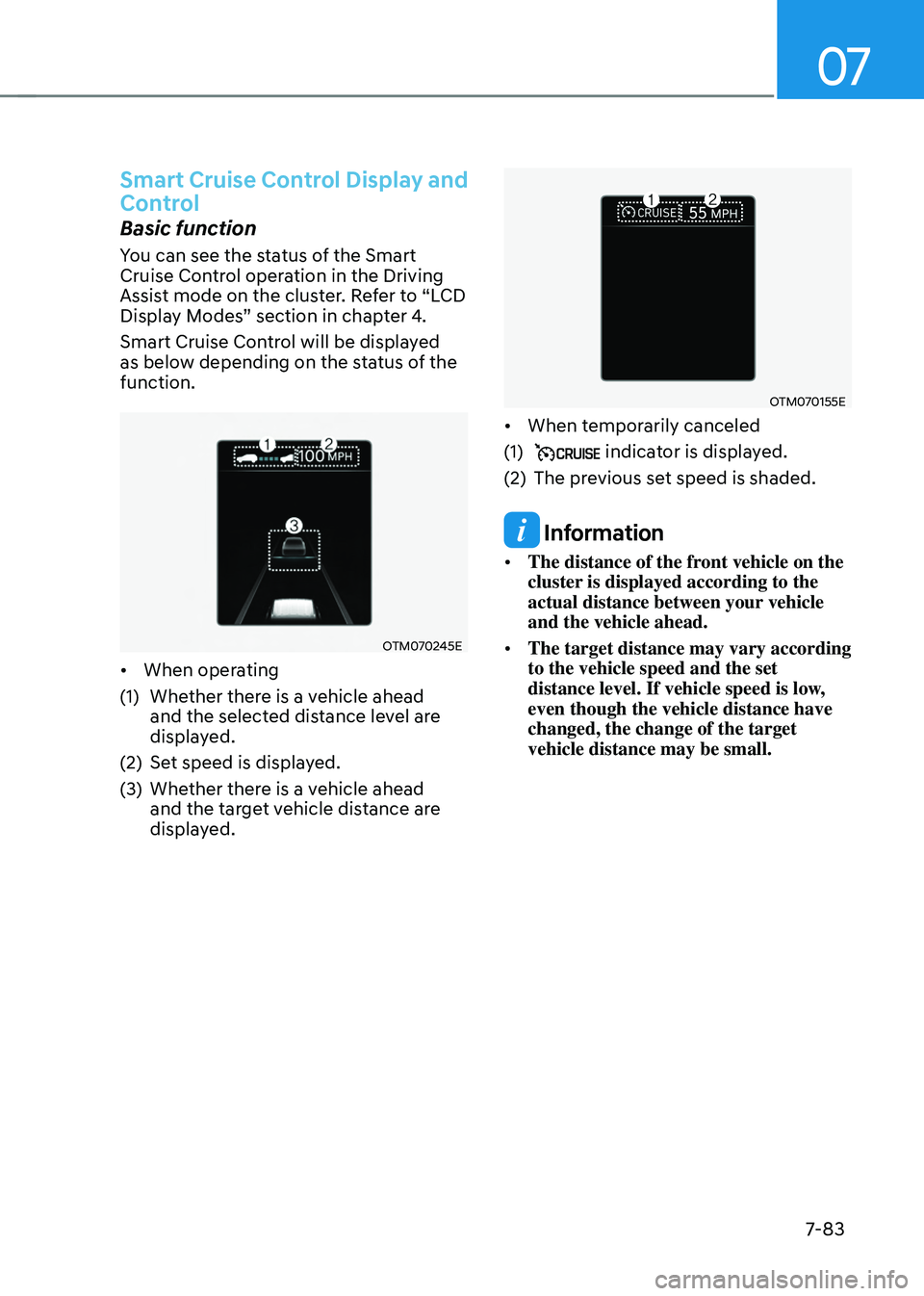
You can see the status of the Smart
Cruise Control operation in the Driving
Assist mode on the cluster. Refer to “LCD
Display Modes” section in chapter 4.
Smart Cruise Control will be displayed
as below depending on the status of the
function.
OTM070245E
• When operating
(1) Whether there is a vehicle ahead
and the selected distance level are
displayed.
(2) Set speed is displayed.
(3) Whether there is a vehicle ahead
and the target vehicle distance are
displayed.
OTM070155E
• When temporarily canceled
(1) indicator is displayed.
(2) The previous set speed is shaded.
Information
• The distance of the front vehicle on the
cluster is displayed according to the
actual distance between your vehicle
and the vehicle ahead.
• The target distance may vary according
to the vehicle speed and the set
distance level. If vehicle speed is low,
even though the vehicle distance have
changed, the change of the target
vehicle distance may be small.
Page 450 of 638
07
7-87
WARNING
Take the following precautions when
using Smart Cruise Control:
• Smart Cruise Control does not
substitute for proper and safe
driving. It is the responsibility of the
driver to always check the speed and
distance to the vehicle ahead.
• Smart Cruise Control may not
recognize unexpected and sudden
situations or complex driving
situations, so always pay attention to
driving conditions and control your
vehicle speed.
• Keep Smart Cruise Control off when
the function is not in use to avoid
inadvertently setting a speed.
• Do not open the door or leave the
vehicle when Smart Cruise Control
is operating, even if the vehicle is
stopped.
• Always be aware of the selected
speed and vehicle distance.
• Keep a safe distance according to
road conditions and vehicle speed.
If the vehicle distance is too close
during high-speed driving, a serious
collision may result.
• When maintaining distance with
the vehicle ahead, if the front
vehicle disappears, Smart Cruise
Control may suddenly accelerate to
the set speed. Always be aware of
unexpected and sudden situations
from occurring.
• Vehicle speed may decrease on an
upward slope and increase on a
downward slope.
• Always be aware of situations such
as when a vehicle cuts in suddenly.
• When you are towing a trailer or
another vehicle, we recommend that
Smart Cruise Control is turned off
due to safety reasons.
• Turn off Smart Cruise Control when
your vehicle is being towed. •
Smart Cruise Control may not
operate normally if interfered by
strong electromagnetic waves.
• Smart Cruise Control may not
detect an obstacle in front and lead
to a collision. Always look ahead
cautiously to prevent unexpected
and sudden situations from
occurring.
• Vehicles moving in front of you with
a frequent lane change may cause
a delay in Smart Cruise Control
reaction or may cause Smart Cruise
Control to react to a vehicle actually
in an adjacent lane. Always drive
cautiously to prevent unexpected
and sudden situations from
occurring.
• Always be aware of the surroundings
and drive safely, even though a
warning message does not appear or
an audible warning does not sound.
• If any other system’s warning
message is displayed or warning
sound is generated, Smart Cruise
Control warning message may not
be displayed and warning sound may
not be generated.
• You may not hear the warning sound
of Forward Collision-Avoidance
Assist if the surrounding is noisy.
• The vehicle manufacturer is not
responsible for any traffic violation
or accidents caused by the driver.
• Always set the vehicle speed to the
speed limit in your country.
Information
• Smart Cruise Control may not operate
for 15 seconds after the vehicle is
started or the front view camera or
front radar is initialized.
• You may hear a sound when the brake
is controlled by Smart Cruise Control.
Page 452 of 638
07
7-89
Limitations of Smart Cruise Control
Smart Cruise Control may not operate
normally, or it may operate unexpectedly
under the following circumstances:
• The detecting sensor or the
surroundings are contaminated or
damaged
• Washer fluid is continuously sprayed,
or the wiper is on
• The camera lens is contaminated due
to tinted, filmed or coated windshield,
damaged glass, or sticky foreign
material (sticker, bug, etc.) on the
glass
• Moisture is not removed or frozen on
the windshield
• The field of view of the front view
camera is obstructed by sun glare
• Street light or light from an oncoming
vehicle is reflected on the wet road
surface, such as a puddle on the road
• The temperature around the front
view camera is high or low
• An object is placed on the dashboard
• The surrounding is very bright
• The surrounding is very dark, such as
in a tunnel, etc.
• The brightness changes suddenly, for
example when entering or exiting a
tunnel
• The brightness outside is low, and the
headlamps are not on or are not bright
• Driving in heavy rain or snow, or thick
fog
• Driving through steam, smoke or
shadow •
Only part of the vehicle is detected
• The vehicle in front has no tail lights,
tail lights are located unusually, etc.
• The brightness outside is low, and the
tail lamps are not on or are not bright
• The rear of the front vehicle is small
or does not look normal (i.e. tilted,
overturned, etc.)
•
The front vehicle’s ground clearance is low or high
• A vehicle suddenly cuts in front
• Your vehicle is being towed
• Driving through a tunnel or iron bridge
• Driving near areas containing metal
substances, such as a construction
zone, railroad, etc.
• A material is near that reflects very
well on the front radar, such as a
guardrail, nearby vehicle, etc.
• The bumper around the front radar is
impacted, damaged or the front radar
is out of position
• The temperature around the front
radar is high or low
• Driving in large areas where there are
few vehicles or structures (i.e. desert,
meadow, suburb, etc.)
• The vehicle in front is made of
material that does not reflect on the
front radar
• Driving near a highway (or motorway)
interchange or tollgate
• Driving on a slippery surface due to
snow, water puddle, ice, etc.
• Driving on a curved road
• The vehicle in front is detected late
• The vehicle in front is suddenly
blocked by a obstacle
• The vehicle in front suddenly changes
lane or suddenly reduces speed