auto stop HYUNDAI TUCSON 2022 User Guide
[x] Cancel search | Manufacturer: HYUNDAI, Model Year: 2022, Model line: TUCSON, Model: HYUNDAI TUCSON 2022Pages: 638, PDF Size: 82.3 MB
Page 137 of 638
04
4-39
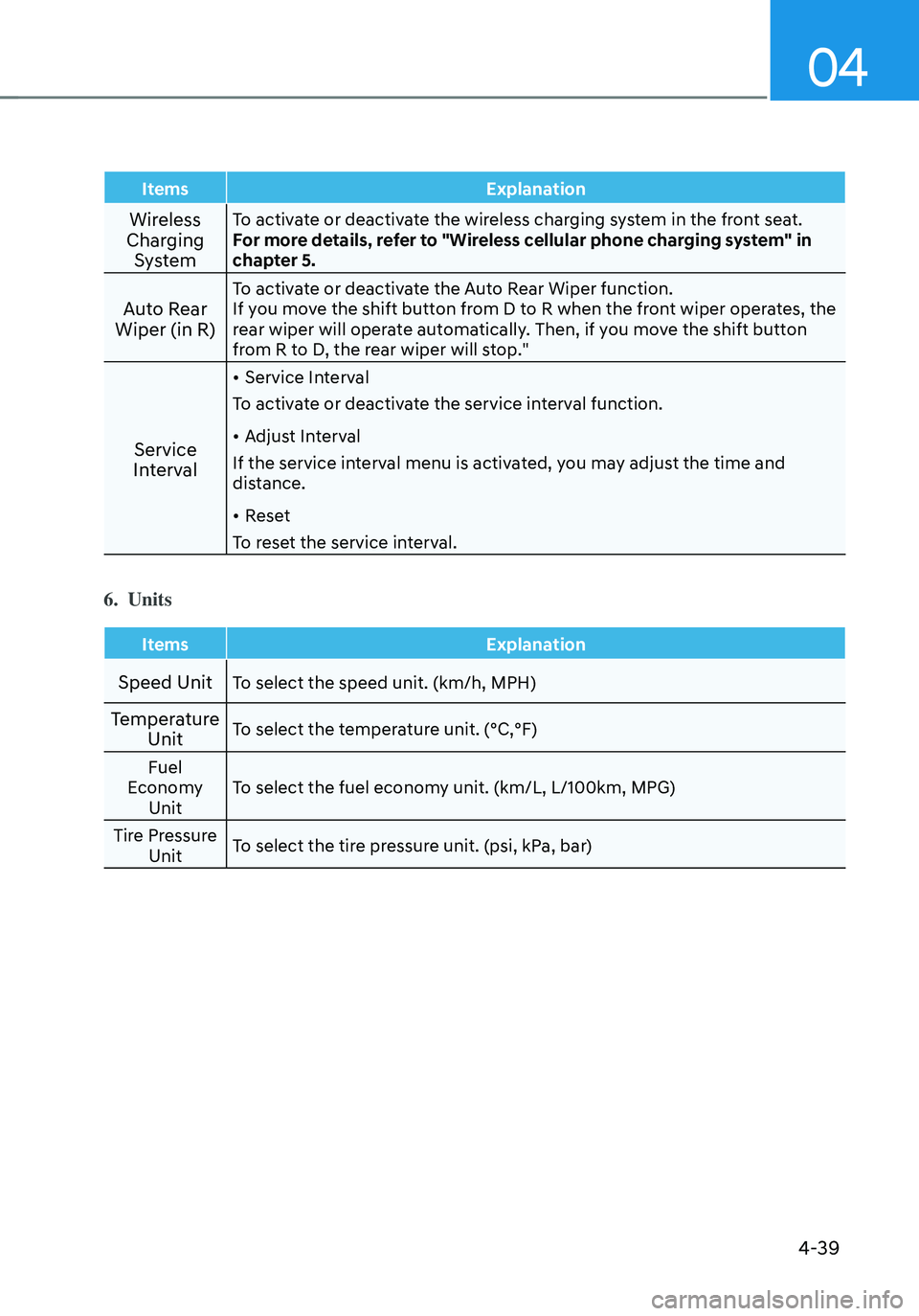
ItemsExplanation
Wireless
Charging SystemTo activate or deactivate the wireless charging system in the front seat.
For more details, refer to "Wireless cellular phone charging system" in
chapter 5.
Auto Rear
Wiper (in R)To activate or deactivate the Auto Rear Wiper function.
If you move the shift button from D to R when the front wiper operates, the
rear wiper will operate automatically. Then, if you move the shift button
from R to D, the rear wiper will stop."
Service
Interval
• Service Interval
To activate or deactivate the service interval function.
• Adjust Interval
If the service interval menu is activated, you may adjust the time and
distance.
• Reset
To reset the service interval.
6. Units
Items Explanation
Speed UnitTo select the speed unit. (km/h, MPH)
Temperature
UnitTo select the temperature unit. (°C,°F)
Fuel
Economy Unit To select the fuel economy unit. (km/L, L/100km, MPG)
Tire Pressure Unit To select the tire pressure unit. (psi, kPa, bar)
Page 138 of 638
Instrument cluster
4-40
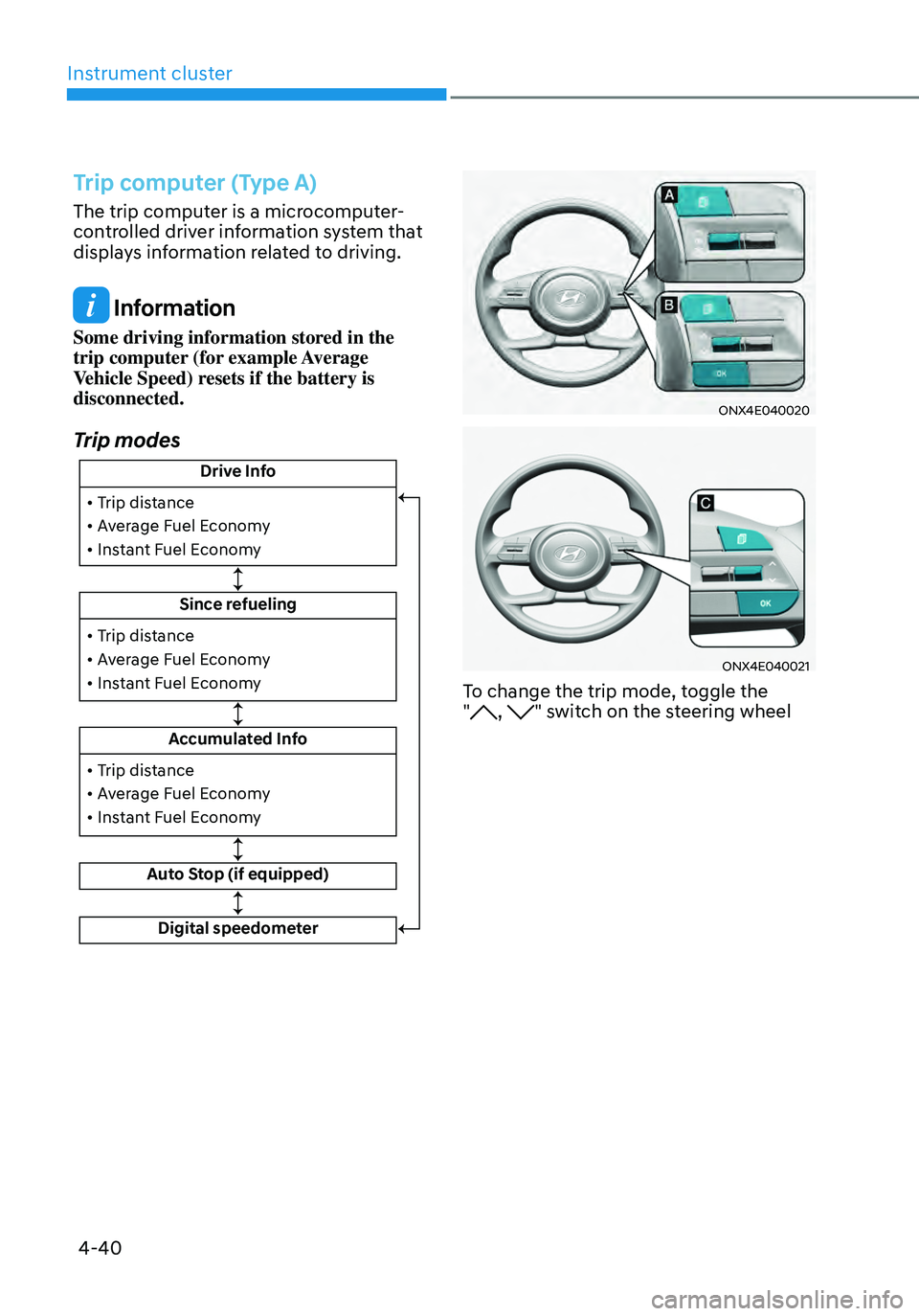
Trip computer (Type A)
The trip computer is a microcomputer-
controlled driver information system that
displays information related to driving.
Information
Some driving information stored in the
trip computer (for example Average
Vehicle Speed) resets if the battery is
disconnected.
Trip modes
Drive Info
Since refueling
Accumulated Info
Auto Stop (if equipped)
• Trip distance
• Average Fuel Economy
• Instant Fuel Economy
• Trip distance
• Average Fuel Economy
• Instant Fuel Economy
Digital speedometer
• Trip distance
• Average Fuel Economy
• Instant Fuel Economy
ONX4E040020
ONX4E040021
To change the trip mode, toggle the
", " switch on the steering wheel
Page 140 of 638
Instrument cluster
4-42
„„Type A„„Type B
OTMA040009OTMA040010
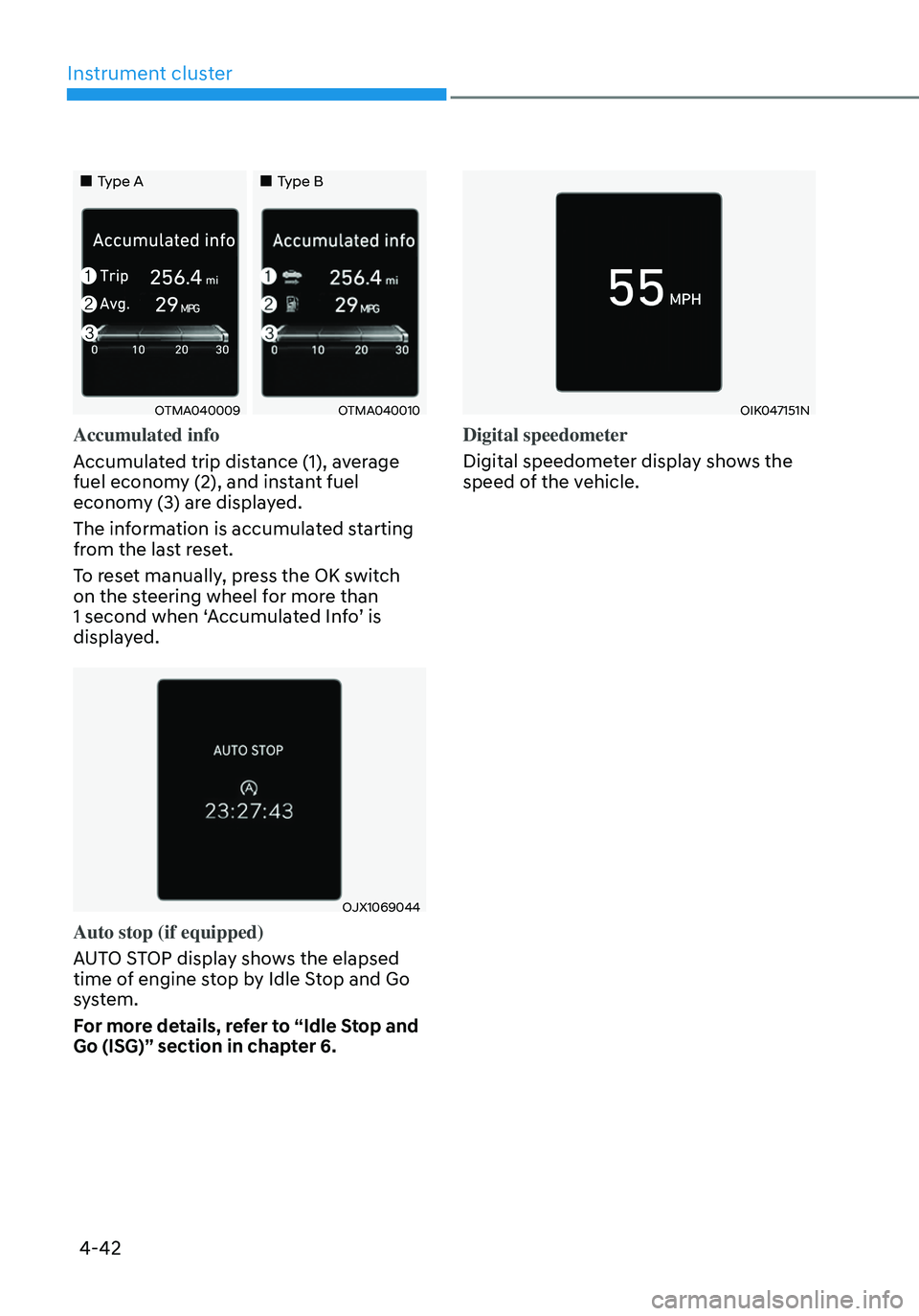
Accumulated info
Accumulated trip distance (1), average
fuel economy (2), and instant fuel
economy (3) are displayed.
The information is accumulated starting
from the last reset.
To reset manually, press the OK switch
on the steering wheel for more than
1 second when ‘Accumulated Info’ is
displayed.
OJX1069044
Auto stop (if equipped)
AUTO STOP display shows the elapsed
time of engine stop by Idle Stop and Go
system.
For more details, refer to “Idle Stop and
Go (ISG)” section in chapter 6.
OIK047151N
Digital speedometer
Digital speedometer display shows the
speed of the vehicle.
Page 141 of 638
04
4-43
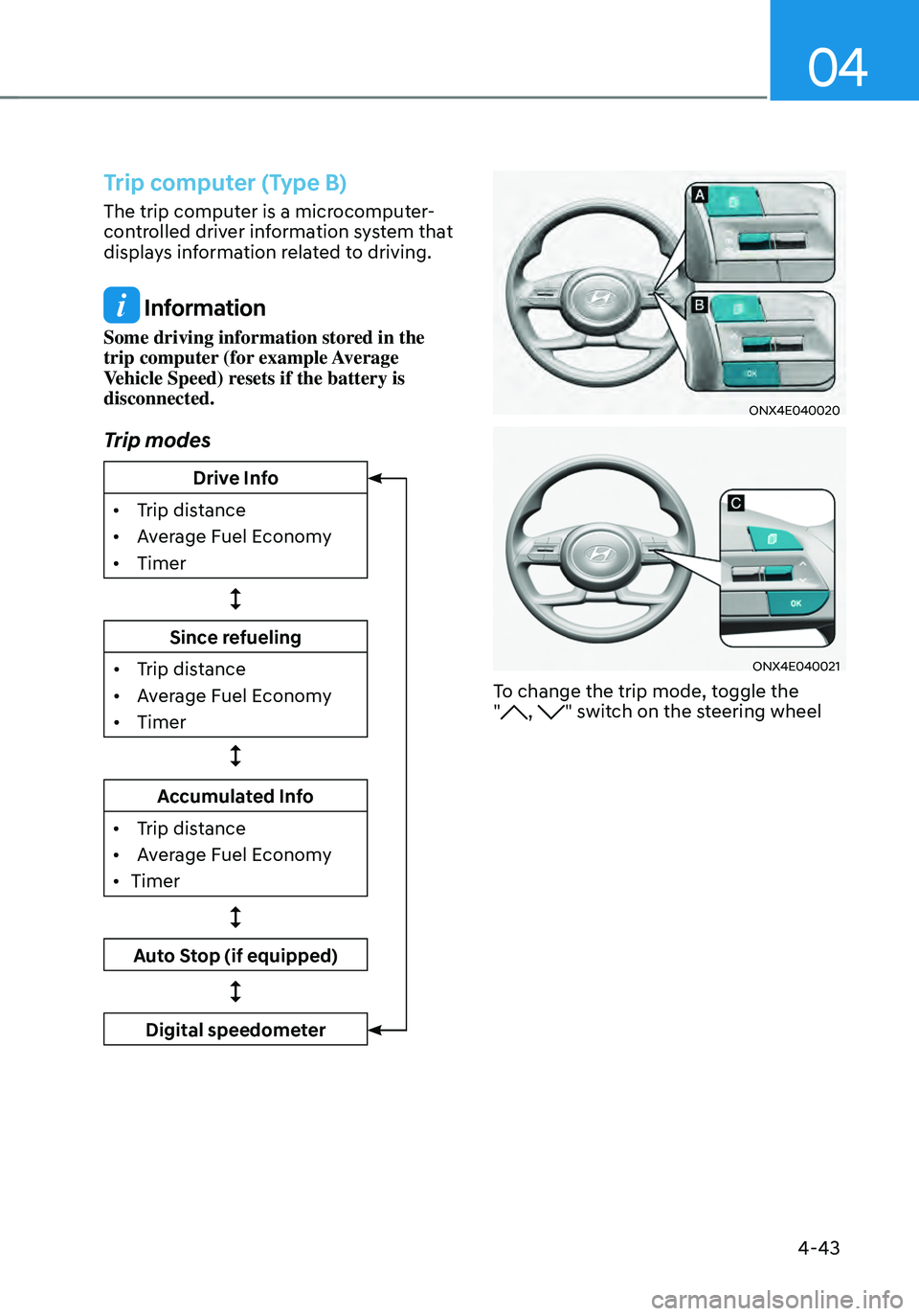
Trip computer (Type B)
The trip computer is a microcomputer-
controlled driver information system that
displays information related to driving.
Information
Some driving information stored in the
trip computer (for example Average
Vehicle Speed) resets if the battery is
disconnected.
Trip modes
Drive Info
•
Trip dis
tance
•
Av
erage Fuel Economy
•
Timer
Since refueling
•
Trip dis
tance
•
Av
erage Fuel Economy
•
Timer
Accumulated Info
•
Trip dis
tance
•
Av
erage Fuel Economy
•
Timer
Auto Stop (if equipped)
Digital speedometer
ONX4E040020
ONX4E040021
To change the trip mode, toggle the
", " switch on the steering wheel
Page 143 of 638
04
4-45
„„Type A„„Type B
OTMA040016OTMA040017
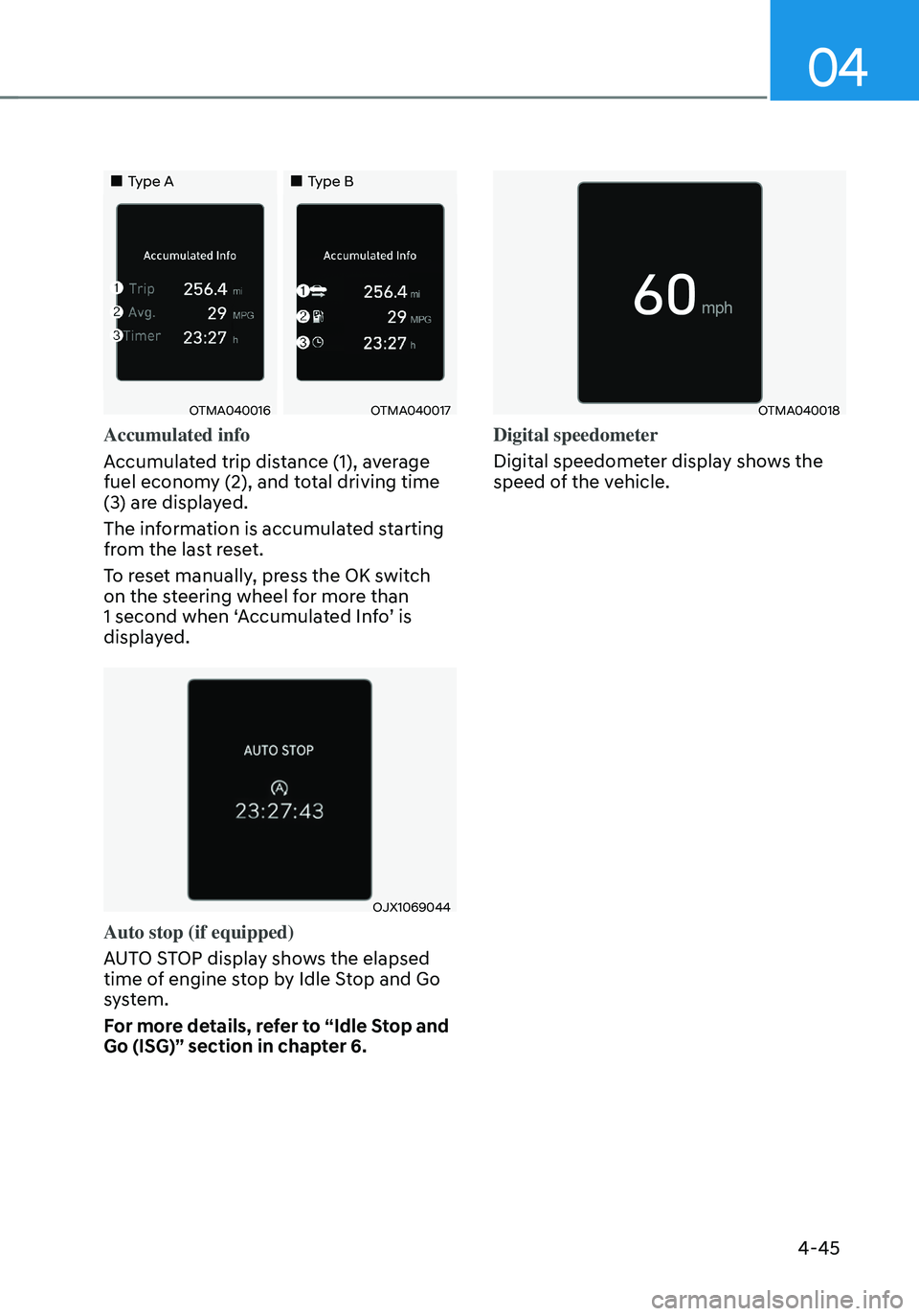
Accumulated info
Accumulated trip distance (1), average
fuel economy (2), and total driving time
(3) are displayed.
The information is accumulated starting
from the last reset.
To reset manually, press the OK switch
on the steering wheel for more than
1 second when ‘Accumulated Info’ is
displayed.
OJX1069044
Auto stop (if equipped)
AUTO STOP display shows the elapsed
time of engine stop by Idle Stop and Go
system.
For more details, refer to “Idle Stop and
Go (ISG)” section in chapter 6.
OTMA040018
Digital speedometer
Digital speedometer display shows the
speed of the vehicle.
Page 148 of 638
Convenient features
5-4
Remote key (if equipped)
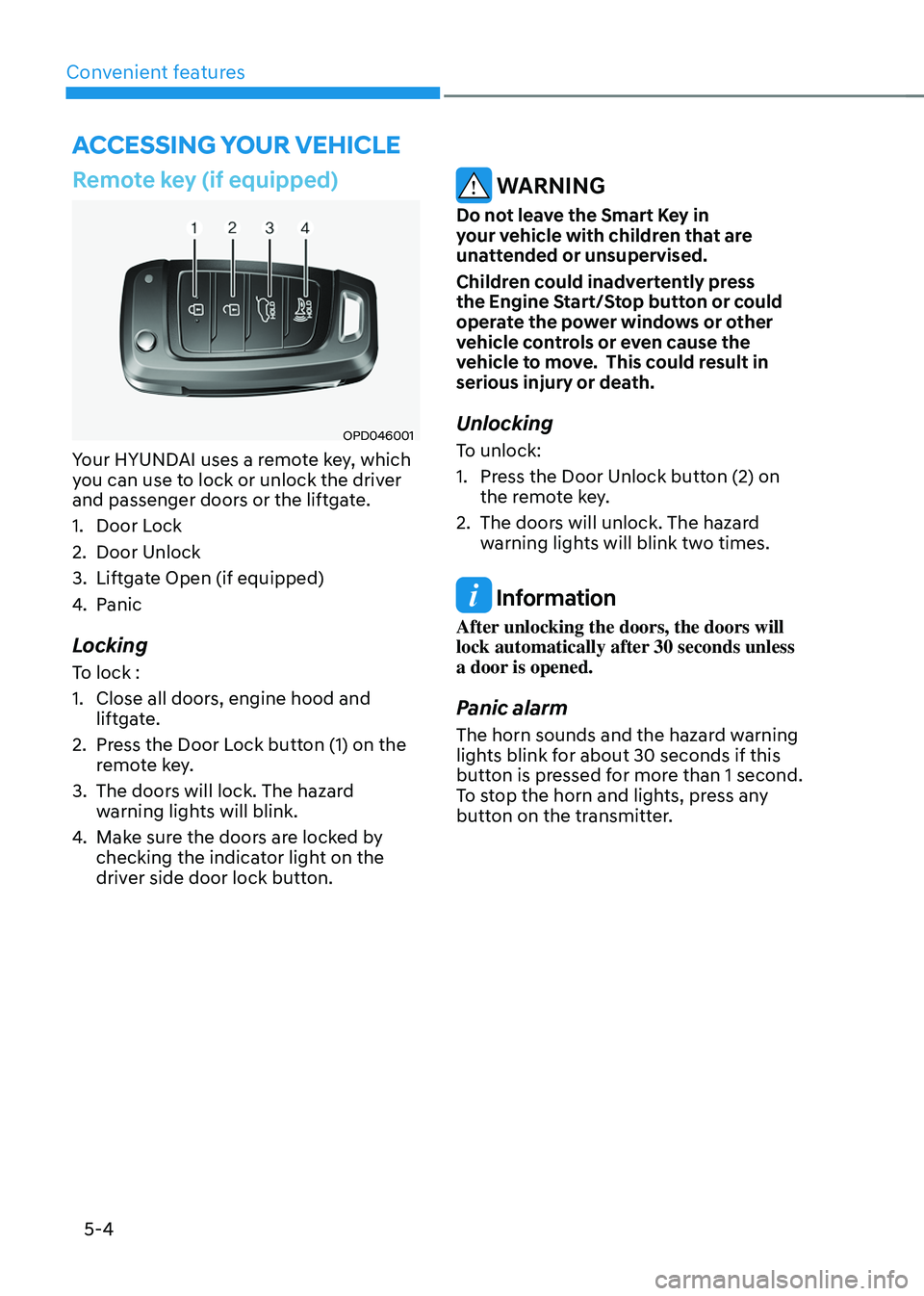
OPD046001
Your HYUNDAI uses a remote key, which
you can use to lock or unlock the driver
and passenger doors or the liftgate.
1. Door Lock
2. Door Unlock
3. Liftgate Open (if equipped)
4. Panic
Locking
To lock :
1. Close all doors, engine hood and
liftgate.
2. Press the Door Lock button (1) on the
remote key.
3. The doors will lock. The hazard
warning lights will blink.
4. Make sure the doors are locked by
checking the indicator light on the
driver side door lock button.
WARNING
Do not leave the Smart Key in
your vehicle with children that are
unattended or unsupervised.
Children could inadvertently press
the Engine Start/Stop button or could
operate the power windows or other
vehicle controls or even cause the
vehicle to move. This could result in
serious injury or death.
Unlocking
To unlock:
1. Press the Door Unlock button (2) on
the remote key.
2. The doors will unlock. The hazard
warning lights will blink two times.
Information
After unlocking the doors, the doors will
lock automatically after 30 seconds unless
a door is opened.
Panic alarm
The horn sounds and the hazard warning
lights blink for about 30 seconds if this
button is pressed for more than 1 second.
To stop the horn and lights, press any
button on the transmitter.
ACCESSING YOUR VEHICLE
Page 163 of 638
05
5-19
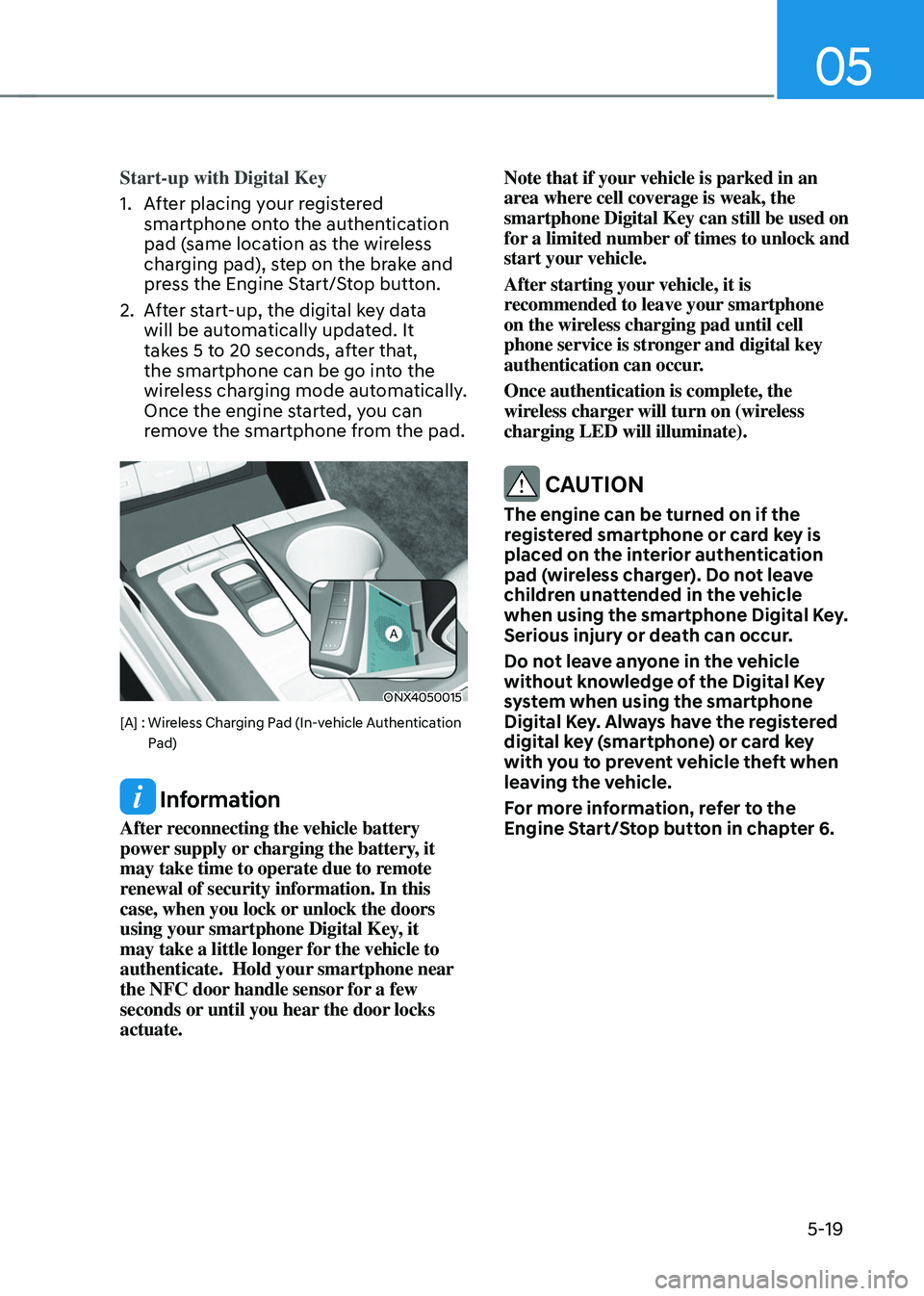
Start-up with Digital Key
1. After placing your registered
smartphone onto the authentication
pad (same location as the wireless
charging pad), step on the brake and
press the Engine Start/Stop button.
2. After start-up, the digital key data
will be automatically updated. It
takes 5 to 20 seconds, after that,
the smartphone can be go into the
wireless charging mode automatically.
Once the engine started, you can
remove the smartphone from the pad.
ONX4050015
[A] : Wireless Charging Pad (In-vehicle Authentication Pad)
Information
After reconnecting the vehicle battery
power supply or charging the battery, it
may take time to operate due to remote
renewal of security information. In this
case, when you lock or unlock the doors
using your smartphone Digital Key, it
may take a little longer for the vehicle to
authenticate. Hold your smartphone near
the NFC door handle sensor for a few
seconds or until you hear the door locks
actuate. Note that if your vehicle is parked in an
area where cell coverage is weak, the
smartphone Digital Key can still be used on
for a limited number of times to unlock and
start your vehicle.
After starting your vehicle, it is
recommended to leave your smartphone
on the wireless charging pad until cell
phone service is stronger and digital key
authentication can occur.
Once authentication is complete, the
wireless charger will turn on (wireless
charging LED will illuminate).
CAUTION
The engine can be turned on if the
registered smartphone or card key is
placed on the interior authentication
pad (wireless charger). Do not leave
children unattended in the vehicle
when using the smartphone Digital Key.
Serious injury or death can occur.
Do not leave anyone in the vehicle
without knowledge of the Digital Key
system when using the smartphone
Digital Key. Always have the registered
digital key (smartphone) or card key
with you to prevent vehicle theft when
leaving the vehicle.
For more information, refer to the
Engine Start/Stop button in chapter 6.
Page 164 of 638
Convenient features
5-20
Remote Control with Digital Key
To use the remote control function with
your android smartphone, Bluetooth
must be turned on.
Remote Control Connection with Digital
Key
1. Open the Hyundai digital key
application on your smart phone.
Select your vehicle within the App.
2. Approach with the activated
smartphone app to your vehicle
and you can check whether the
connection is available. If it enables
your smartphone to connect, connect
with your vehicle by pressing the
connect button. The remote control
function is activated after completing
the process.
Remote Control Operation with Digital
Key
You can execute the remote control
operation including door lock/unlock,
panic on/off, remote start / remote
stop and trunk opening. The icon for
each function will be highlighted and
alarm/vibration also provided when the
operation is performed.
Note that you cannot lock your vehicle
using the Hyundai digital key app if any
of the following occurs:
• The POWER button is in ACC or ON
position.
• Any doors are open.
When the smartphone and the vehicle
are connected by the Bluetooth function
but the remote control command
cannot be received over 5 minutes, the
remote control connection is cancelled
automatically.
CAUTION
• If metallic window tint was applied
to your vehicle, it may cause
bad Bluetooth connection or
performance degradation of the
digital key.
• If multiple users operate the remote
control function simultaneously, the
connection between the digital key
and the vehicle might result in failed
commands. Please connect and
operate the remote control function
only the necessary user.
• When using the remote control
operation, the driver (the remote
control user) should leave the vehicle
after confirming the door lock (the
chime sounds once and the hazard
warning lights blink).
• The remote functions of the Digital
Key app enables the vehicle to be
controlled from a set distance. If
the digital key or the vehicle goes
beyond the operable distance, the
remote control function might be
disconnected or cancelled.
• If the digital key (smartphone) is
connected with the vehicle for the
remote control, the driver with the
key goes far away from the vehicle,
the function might not work.
• If the remote control operation
is executed where the mobile
connection is weak, Bluetooth
connection is poor due to several
Bluetooth devices or there is an
object such as metal or concrete, it
might be delayed or the operable
distance might decrease. You should
not cover the smartphone with your
hand or place other devices which
can cause frequency interference. It
may result in poor performance.
• If the remote control function is not
available, please use NFC function to
lock or unlock the doors.
Page 165 of 638
05
5-21
Remote Start with Digital Key
• Using the Hyundai Digital Key app
on your phone, press the Door Lock
button and then press the Remote
Start button (buttons must be pressed
within about 4 seconds). If all the
doors of your vehicle are closed
(including the hood and the liftgate),
the engine will be automatically
started.
Note that when the remote start
feature is activated, the hazard
warning lights will blink two times
and a chime will sound before engine
startup. Also note the following:
• The climate control system will come
on using the same settings from when
you last used the vehicle
• To turn off the engine, press the
Remote Engine Stop button within the
Hyundai Digital Key app.
• The engine will remain running for
approximately 10 minutes, and then
engine will automatically shut OFF.
• To keep the engine running, access
the vehicle and place the smartphone
on the wireless charging pad
(authentication pad) while the engine
is still in remote engine-ON mode.
For more information, refer to the Engine
Start/Stop button in chapter 6. Vehicle information Display
The digital key application displays
the vehicle information such as
driving or door conditions through the
communication with the vehicle.
•
How to check : Select the vehicle
what you want to check and touch
the vehicle image, then vehicle
information display page will be
shown.
• Contents : accumulated odometer,
latest fuel economy, driving range,
fuel remaining, tire pressure, doors
lock/unlock status and last data
updated time.
ÃNote that displayed vehicle data may
be slightly different from the current
vehicle condition
ÃFor more information, please refer to
the ‘Tutorial’ on your Digital key app.
Page 172 of 638
Convenient features
5-28
CAUTION
If you uncheck Enable digital keys, it is
impossible to lock or unlock the doors
or start up the vehicle with digital keys
such as smartphone and card key. If
you check Enable digital keys again, the
registered digital keys(smartphone and
card key) are available. Even though
you stop the digital key function, the
registered keys (smartphone and card
key) are not deleted.
Personalized profile and vehicle
settings
You have the ability to set the registered
digital key with one of two personalized
profiles. Then, when you use the digital
card key or the Digital Key App, the
vehicle will be set to the user-defined
personalized profile (which includes
such items as driver settings, audio
preferences, etc.).
There are two profile connections and
personalization settings available for
Driver 1 and Driver 2.Profile link/unlinked
Profile link
1. Select Setup → User Profile → Profile Settings → Link Digital Key (Smartphone) on the infotainment
system menu.
2. Unlock and place your smartphone on the wireless charger according to a
message and it automatically starts to
interwork.
3. It begins the pro
file link with a message.
4. If you select Link, the registered phone number’s digital key and the
user’s profile are linked.
5. The interconnection process is completed with a message.
Profile unlink
1. Select Digital Ke y information on infotainment Vehicle Settings menu. It
is possible to unlink only if the profile
is interconnected.
2. Profile unlink is completed with a message.
Information
If you connect both Driver 1 and Driver 2
with a single smartphone, the smartphone
digital key always works as Driver 1.
If you unlink the Driver 1, personalization
function will operate as Driver 2.