navigation HYUNDAI TUCSON 2022 User Guide
[x] Cancel search | Manufacturer: HYUNDAI, Model Year: 2022, Model line: TUCSON, Model: HYUNDAI TUCSON 2022Pages: 638, PDF Size: 82.3 MB
Page 174 of 638
Convenient features
5-30
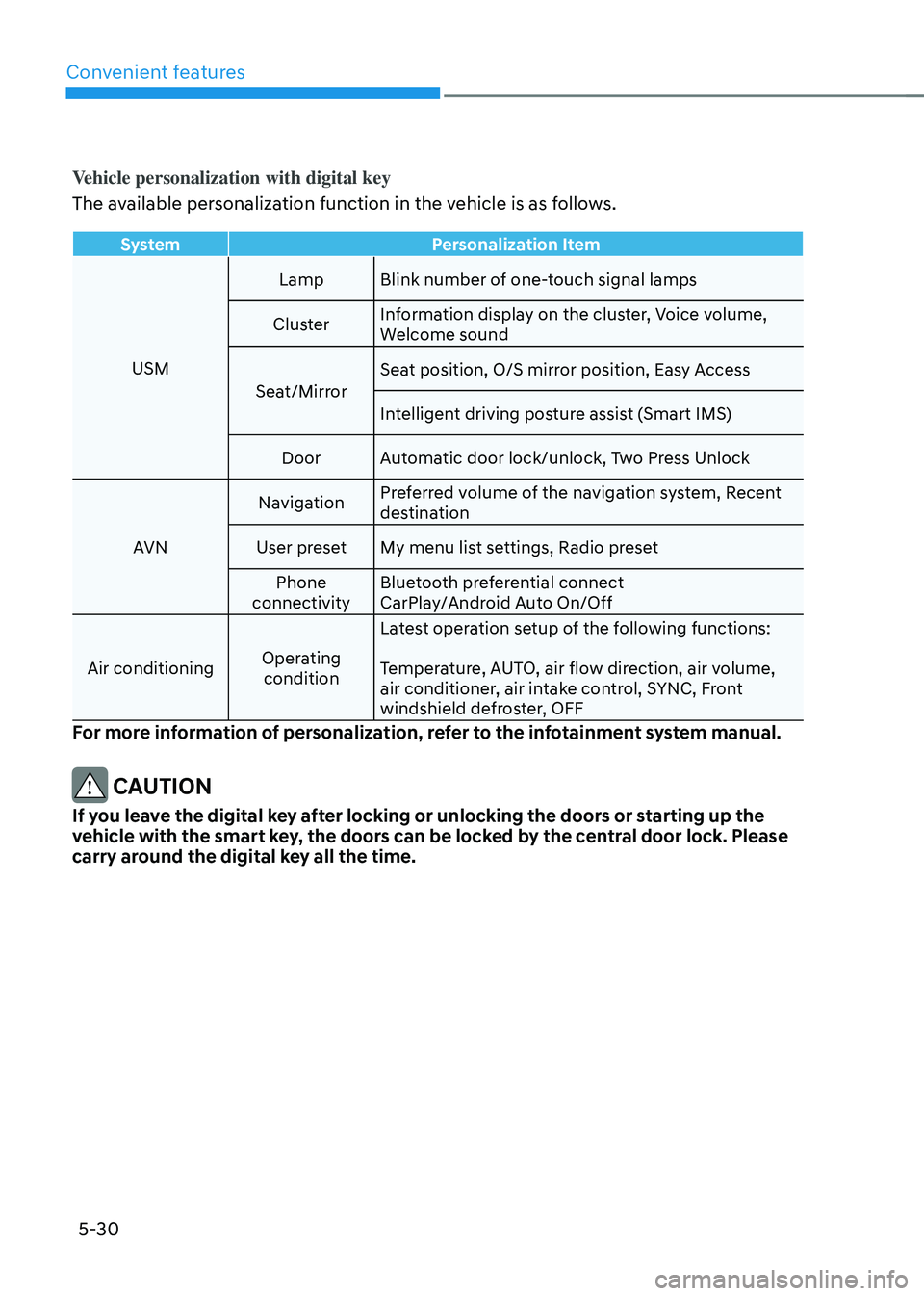
Vehicle personalization with digital key
The available personalization function in the vehicle is as follows.
SystemPersonalization Item
USM Lamp
Blink number of one-touch signal lamps
Cluster Information display on the cluster, Voice volume,
Welcome sound
Seat/Mirror Seat position, O/S mirror position, Easy Access
Intelligent driving posture assist (Smart IMS)
Door Automatic door lock/unlock, Two Press Unlock
AVN Navigation
Preferred volume of the navigation system, Recent
destination
User preset My menu list settings, Radio preset
Phone
connectivity Bluetooth preferential connect
CarPlay/Android Auto On/Off
Air conditioning Operating
condition Latest operation setup of the following functions:
Temperature, AUTO, air flow direction, air volume,
air conditioner, air intake control, SYNC, Front
windshield defroster, OFF
For more information of personalization, refer to the infotainment system manual.
CAUTION
If you leave the digital key after locking or unlocking the doors or starting up the
vehicle with the smart key, the doors can be locked by the central door lock. Please
carry around the digital key all the time.
Page 183 of 638
05
5-39
NOTICE
• While integrated memory system
is being reset, if the resetting
and notification sound stops
incompletely, restart the resetting
procedure again.
• Before performing the IMS memory
reset operation, make sure there are
no objects on or around the driver’s
seat.
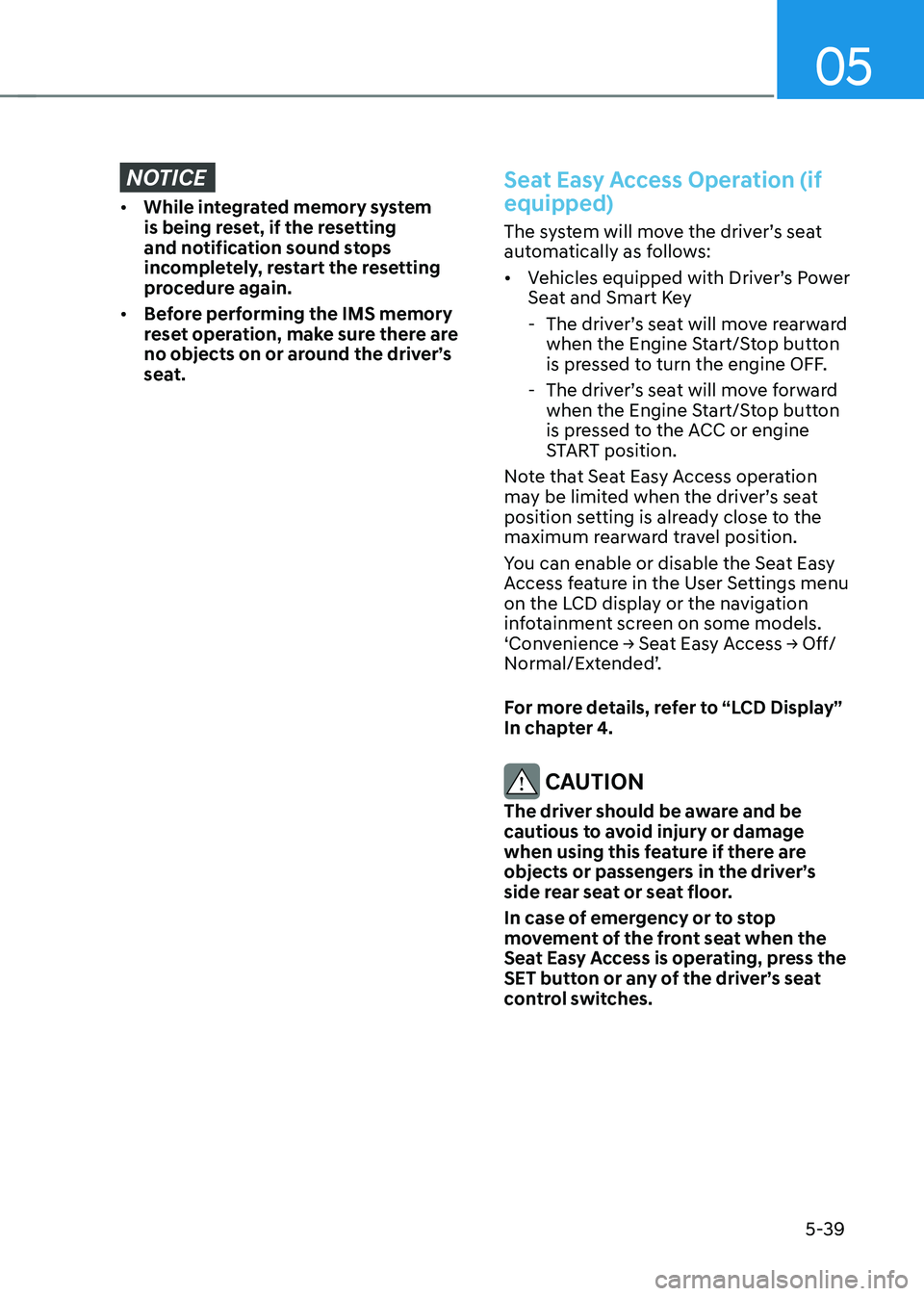
Seat Easy Access Operation (if
equipped)
The system will move the driver’s seat
automatically as follows:
• Vehicles equipped with Driver’s Power
Seat and Smart Key
-The driver’s seat will move rearward
when the Engine Start/Stop button
is pressed to turn the engine OFF.
-The driver’s seat will move forward
when the Engine Start/Stop button
is pressed to the ACC or engine
START position.
Note that Seat Easy Access operation
may be limited when the driver’s seat
position setting is already close to the
maximum rearward travel position.
You can enable or disable the Seat Easy
Access feature in the User Settings menu
on the LCD display or the navigation
infotainment screen on some models.
‘Convenience → Seat Easy Access → Off/Normal/Extended’.
For more details, refer to “LCD Display”
In chapter 4.
CAUTION
The driver should be aware and be
cautious to avoid injury or damage
when using this feature if there are
objects or passengers in the driver’s
side rear seat or seat floor.
In case of emergency or to stop
movement of the front seat when the
Seat Easy Access is operating, press the
SET button or any of the driver’s seat
control switches.
Page 186 of 638
Convenient features
5-42
• Auto Comfort Control for Driver (if
equipped)
The Automatic Comfort Control
feature can control the steering
wheel heater operation according
to the ambient temperature and
the set climate control temperature
while the engine is running.
If the heated steering wheel switch
is pressed while the Automatic
Comfort Control feature is
operating, then the heated steering
wheel operation will be controlled
manually.
The Auto Comfort Control feature
is enabled from the Vehicle
Settings menu on the navigation
infotainment screen.
-The heated steering wheel defaults
to the OFF position whenever the
ignition switch is ON. However, if
the Auto Comfort Control function
is ON, the heated steering wheel
will turn on and off depending on
the ambient temperature and the
set climate control temperature.
For more details, we recommend that
you contact an authorized HYUNDAI
dealer.
Information
The heated steering wheel will turn off
automatically approximately 30 minutes
after the heated steering wheel is turned
on.
NOTICE
Do not install any cover or accessory
on the steering wheel. This cover or
accessory could cause damage to the
heated steering wheel system.
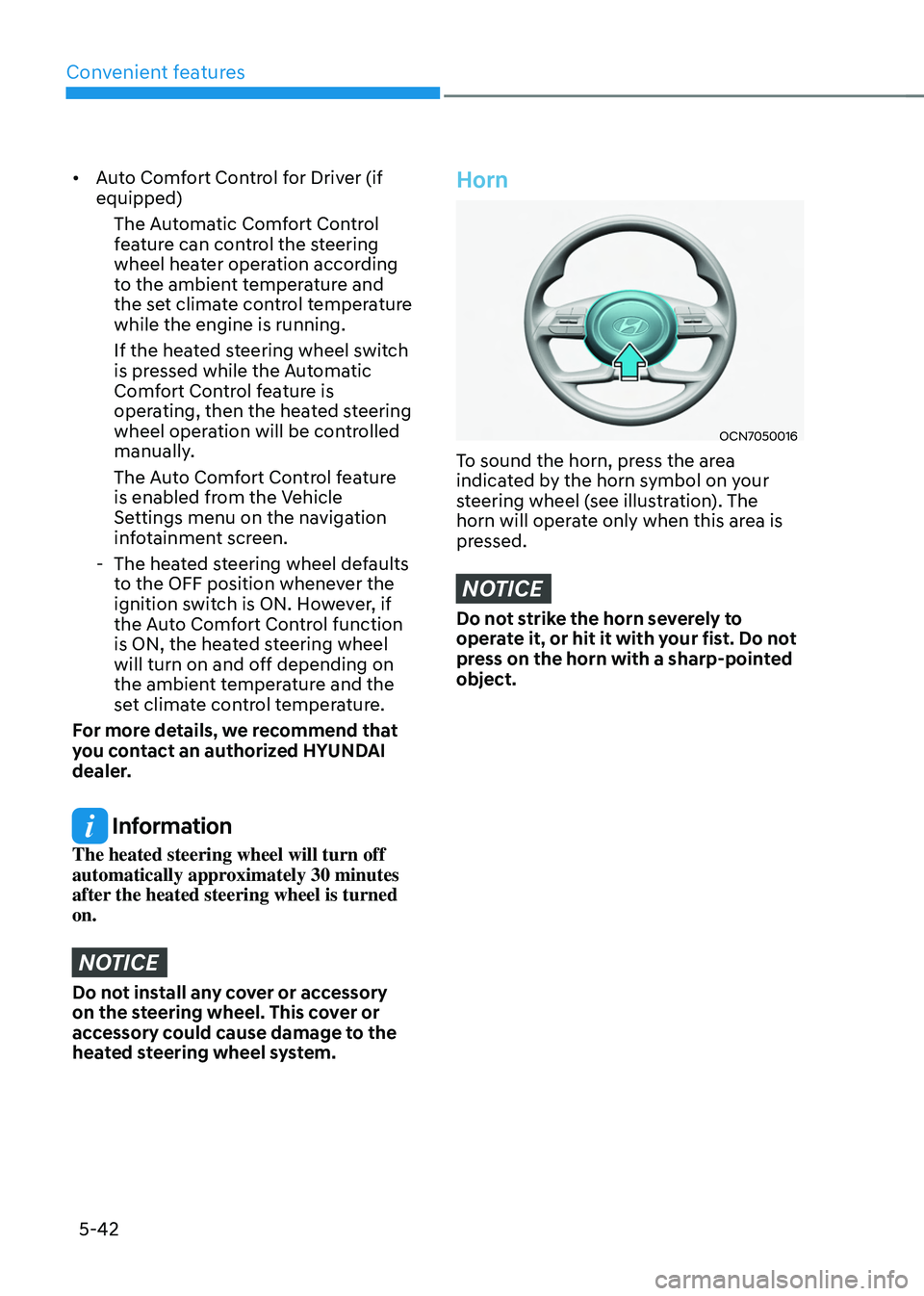
Horn
OCN7050016
To sound the horn, press the area
indicated by the horn symbol on your
steering wheel (see illustration). The
horn will operate only when this area is
pressed.
NOTICE
Do not strike the horn severely to
operate it, or hit it with your fist. Do not
press on the horn with a sharp-pointed
object.
Page 364 of 638
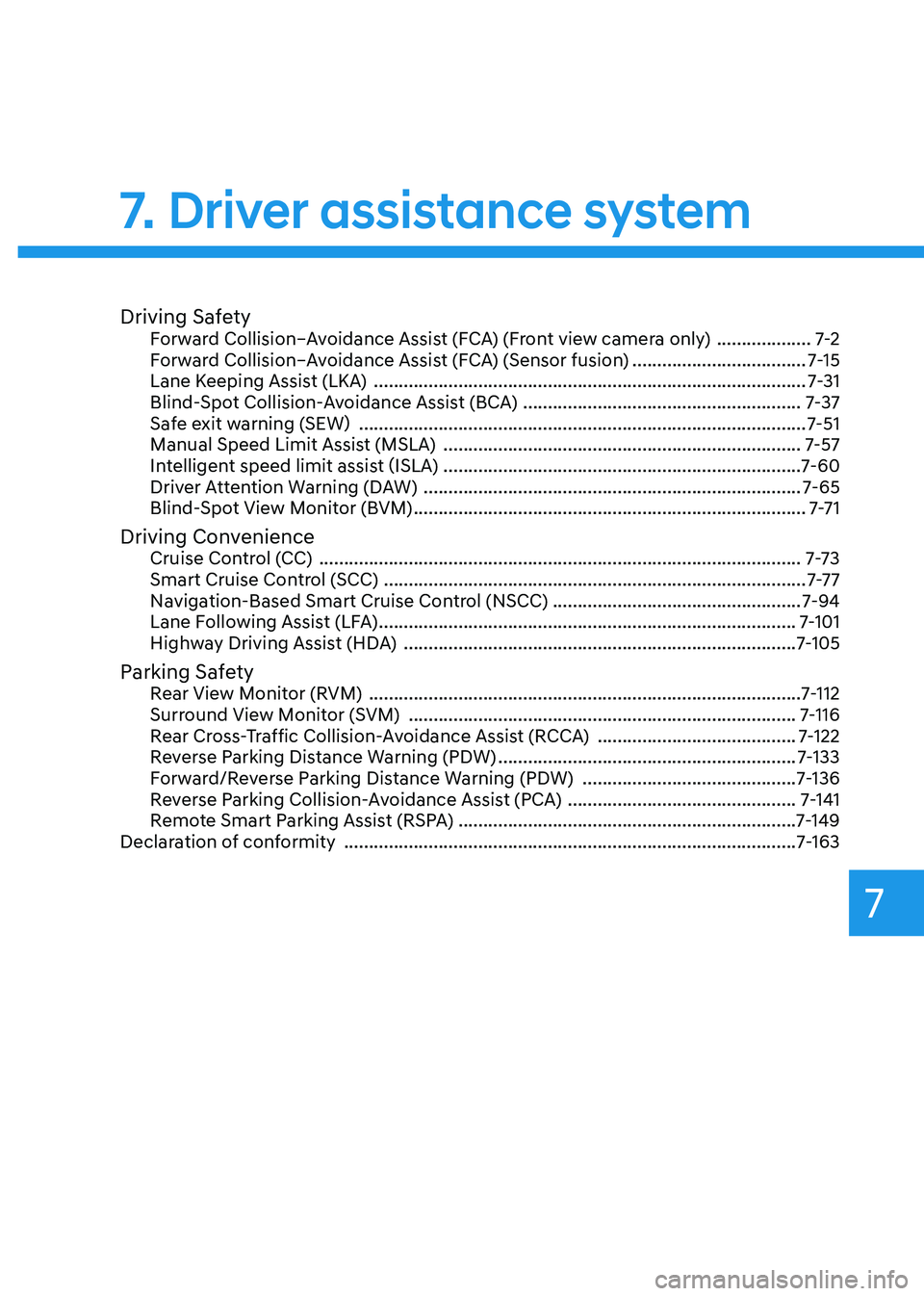
Driving SafetyForward Collision–Avoidance Assist (FCA) (Front view camera only) ...................7-2
Forward Collision–Avoidance Assist (FCA) (Sensor fusion) ...................................7-15
Lane Keeping Assist (LKA) ........................................................................\
...............7-31
Blind-Spot Collision-Avoidance Assist (BCA) ........................................................7-37
Safe exit warning ( SEW) ........................................................................\
..................7-51
Manual Speed Limit Assist (MSLA) ........................................................................\
7-57
Intelligent speed limit assist (ISLA ) ........................................................................\
7-60
Driver Attention Warning (DAW) ........................................................................\
....7-65
Blind-Spot View Monitor (BVM) ........................................................................\
.......7-7 1
Driving ConvenienceCruise Control (CC) ........................................................................\
.........................7-7 3
Smart Cruise Control (SCC) ........................................................................\
.............7-7 7
Navigation-Based Smart Cruise Control (NSCC) ..................................................7-94
Lane Following Assist (LFA) ........................................................................\
............7-101
Highway Driving Assist (HDA) ........................................................................\
.......7-105
Parking SafetyRear View Monitor (RVM) ........................................................................\
...............7-112
Surround View Monitor (SVM) ........................................................................\
......7-116
Rear Cross-Traffic Collision-Avoidance Assist (RCCA) ........................................7-122
Reverse Parking Distance Warning (PDW) ............................................................7-133
Forward/Reverse Parking Distance Warning (PDW) ...........................................7-136
Reverse Parking Collision-Avoidance Assist (PCA) ..............................................7-141
Remote Smart Parking Assist (RSPA) ....................................................................7-149
Declaration of conformity ........................................................................\
...................7-163
7. Driver assistance system
Driver assistance system
7
Page 423 of 638
Driver assistance system7-60
INTELLIGENT SPEED LIMIT ASSIST (ISLA) (IF EQUIPPED)
Intelligent Speed Limit Assist uses
information from the detected road sign
and navigation system to inform the
driver of the speed limit and additional
information of the current road. Also,
Intelligent Speed Limit Assist helps the
driver to maintain within the speed limit
of the road.
CAUTION
Intelligent Speed Limit Assist may not
operate properly if the function is used
in other countries.
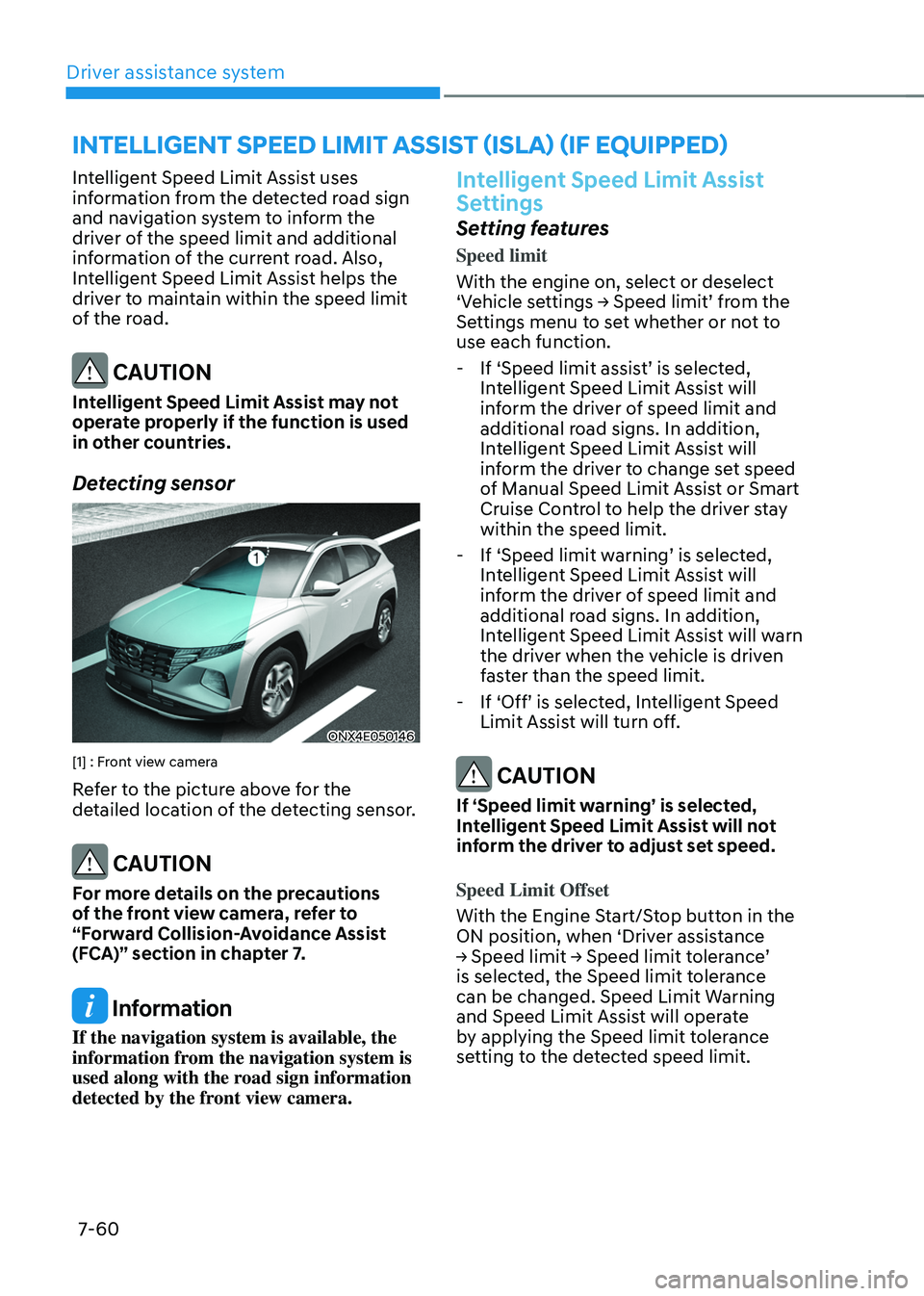
Detecting sensor
ONX4E050146
[1] : Front view camera
Refer to the picture above for the
detailed location of the detecting sensor.
CAUTION
For more details on the precautions
of the front view camera, refer to
“Forward Collision-Avoidance Assist
(FCA)” section in chapter 7.
Information
If the navigation system is available, the
information from the navigation system is
used along with the road sign information
detected by the front view camera.
Intelligent Speed Limit Assist
Settings
Setting features
Speed limit
With the engine on, select or deselect
‘Vehicle settings → Speed limit’ from the Settings menu to set whether or not to
use each function.
-If ‘Speed limit assist’ is selected, Intelligent Speed Limit Assist will
inform the driver of speed limit and
additional road signs. In addition,
Intelligent Speed Limit Assist will
inform the driver to change set speed
of Manual Speed Limit Assist or Smart
Cruise Control to help the driver stay
within the speed limit.
-If ‘Speed limit warning’ is selected, Intelligent Speed Limit Assist will
inform the driver of speed limit and
additional road signs. In addition,
Intelligent Speed Limit Assist will warn
the driver when the vehicle is driven
faster than the speed limit.
-If ‘Off’ is selected, Intelligent Speed Limit Assist will turn off.
CAUTION
If ‘Speed limit warning’ is selected,
Intelligent Speed Limit Assist will not
inform the driver to adjust set speed.
Speed Limit Offset
With the Engine Start/Stop button in the
ON position, when ‘Driver assistance
→ Speed limit → Speed limit tolerance’ is selected, the Speed limit tolerance
can be changed. Speed Limit Warning
and Speed Limit Assist will operate
by applying the Speed limit tolerance
setting to the detected speed limit.
Page 424 of 638
07
7-61
WARNING
• For your safety, change the Settings
after parking the vehicle at a safe
location.
• Speed Limit Assist function operates
based on the Speed limit tolerance
setting added to the speed limit. If
you want to change the set speed
according to the speed limit, adjust
the offset to ‘0’.
• Speed Limit Warning function warns
the driver when driving speed
exceeds the speed at which the set
Speed limit tolerance is added to
speed limit. If you want Speed limit
warning to warn you immediately
when the driving speed exceeds the
speed limit, adjust the offset to ‘0’.
• Navigation-based Smart Cruise
Control (NSCC) function does not
reflect Speed Limit Tolerance set-up.
Intelligent Speed Limit Assist
Operation
Warning and control
Intelligent Speed Limit Assist will warn
and control the vehicle by ‘Displaying
speed limit’, ‘Warning overspeed’ and ‘Changing set speed’.
Information
Intelligent Speed Limit Assist warning and
control are described based on the Offset
adjust to '0'. For details on Offset setting,
refer to the “Intelligent Speed Limit Assist
Settings”.
ONX4E070094ONX4E070095
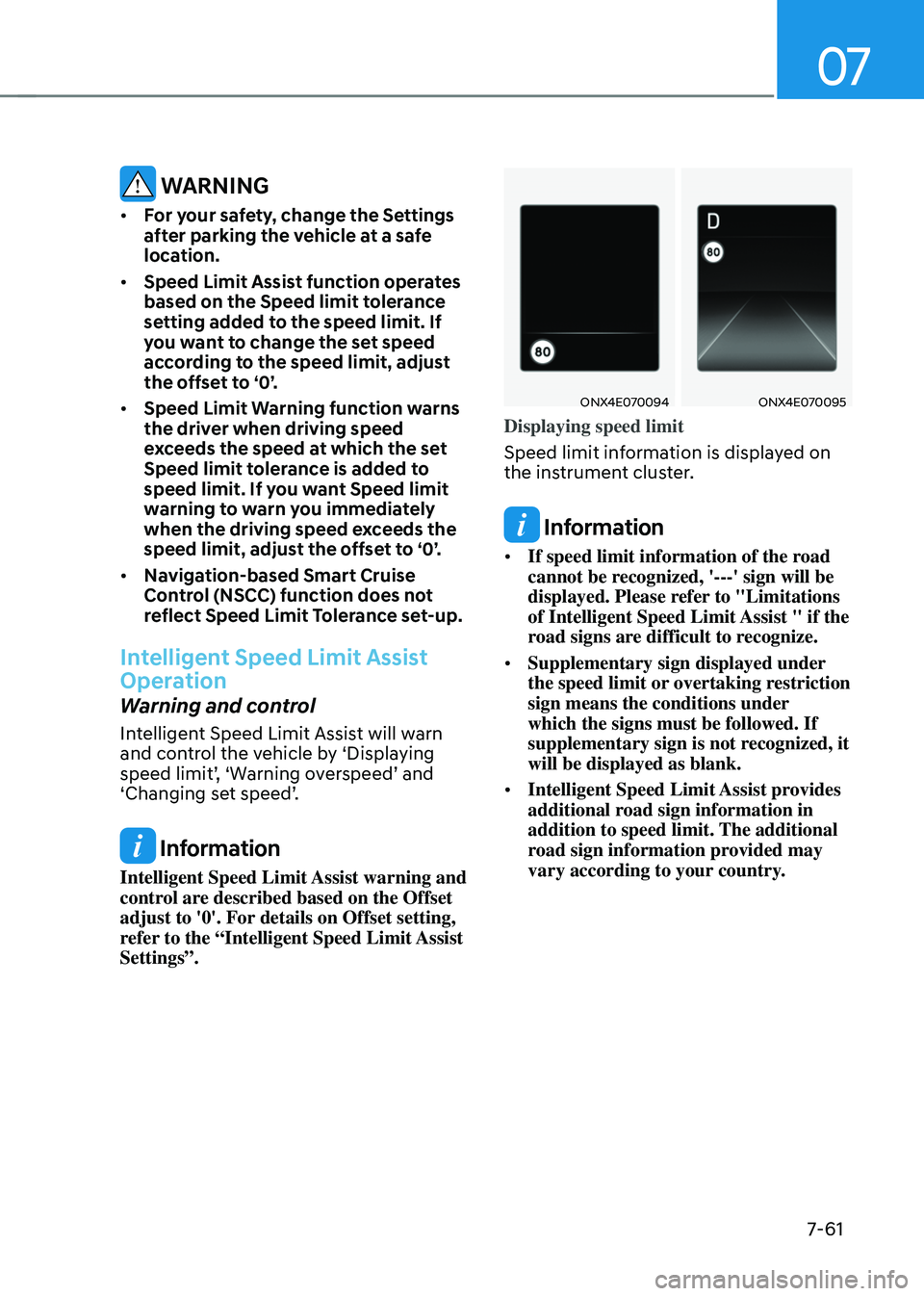
Displaying speed limit
Speed limit information is displayed on
the instrument cluster.
Information
• If speed limit information of the road
cannot be recognized, '---' sign will be
displayed. Please refer to "Limitations
of Intelligent Speed Limit Assist " if the
road signs are difficult to recognize.
• Supplementary sign displayed under
the speed limit or overtaking restriction
sign means the conditions under
which the signs must be followed. If
supplementary sign is not recognized, it
will be displayed as blank.
• Intelligent Speed Limit Assist provides
additional road sign information in
addition to speed limit. The additional
road sign information provided may
vary according to your country.
Page 427 of 638
Driver assistance system
7-64
Limitations of Intelligent Speed
Limit Assist
Intelligent Speed Limit Assist may not
operate or may not provide correct
information under the following
circumstances:
• The road sign is contaminated or
indistinguishable
-The road sign is difficult to see due
to bad weather, such as rain, snow,
fog, etc.
-The road sign is not clear or
damaged
-The road sign is partially obscured
by surrounding objects or shadow
• The road signs do not conform to the
standard
-The text or picture on the road sign
is different from the standard
-The road sign is installed between
the main line and the exit road or
between diverging roads
-There is no conditional road signs
on the road sign located on the exit
road
-A sign is attached to another vehicle
• The brightness changes suddenly, for
example when entering or exiting a
tunnel or passing under a bridge
• Headlamps are not used or the
brightness of the headlamps are weak
at night or in the tunnel
• Road signs are difficult to recognize
due to the reflection of sunlight, street
lights, or oncoming vehicles
• The distance between the driving lane
and the road sign is far
• Luminous road signs
• There is a similar object or text which
is in the road sign or an object like a
road sign
• There is an error in the navigation map
data or GPS data
• The vehicle does not drive based on
the route guidance •
The field of view of the front view
camera is obstructed by sun glare
• Driving on a road that is sharply
curved or continuously curved
• Driving through speed bumps, or
driving up and down or left to right on
steep inclines
• The vehicle is shaking heavily
Information
For more details on the limitations of the
front view camera, refer to “Forward
Collision-Avoidance Assist (FCA)” section
in chapter 7.
WARNING
• Intelligent Speed Limit Assist is a
supplemental function that helps the
driver to comply with the speed limit
on the road, and may not display the
correct speed limit or control the
driving speed properly.
• Always set the vehicle speed to the
speed limit in your country.
Page 457 of 638
Driver assistance system7-94
NAVIGATION-BASED SMART CRUISE CONTROL (NSCC)
(IF EQUIPPED)
Navigation-based Smart Cruise Control
will help drive at a safe speed according
to the road conditions when driving on
highways (or motorways) by using road
information from the navigation system
while Smart Cruise Control is operating.
Information
• Navigation-based Smart Cruise Control
is available only on controlled access
road of certain highways.
ÃControlled access road indicates
roads with limited entrances and
exits that allow uninterrupted high
speed traffic flow. Only passenger
cars and motorcycles are allowed on
controlled access roads.
• Additional highways may be expanded
by future navigation updates.
Information
Navigation-based Smart Cruise Control
operates on main roads of highways (or
motorways), and does not operate on
interchanges or junctions.
Highway Curve Zone Auto Slowdown
If vehicle speed is high, Highway Curve
Zone Auto Slowdown function will
temporarily decelerate your vehicle
or limit acceleration to help you drive
safely on a curve based on the curve
information from the navigation.
Highway Set Speed Auto Change
Highway Set Speed Auto Change
function automatically changes Smart
Cruise Control set speed based on
the speed limit information from the
navigation.
Navigation-based Smart Cruise
Control Settings
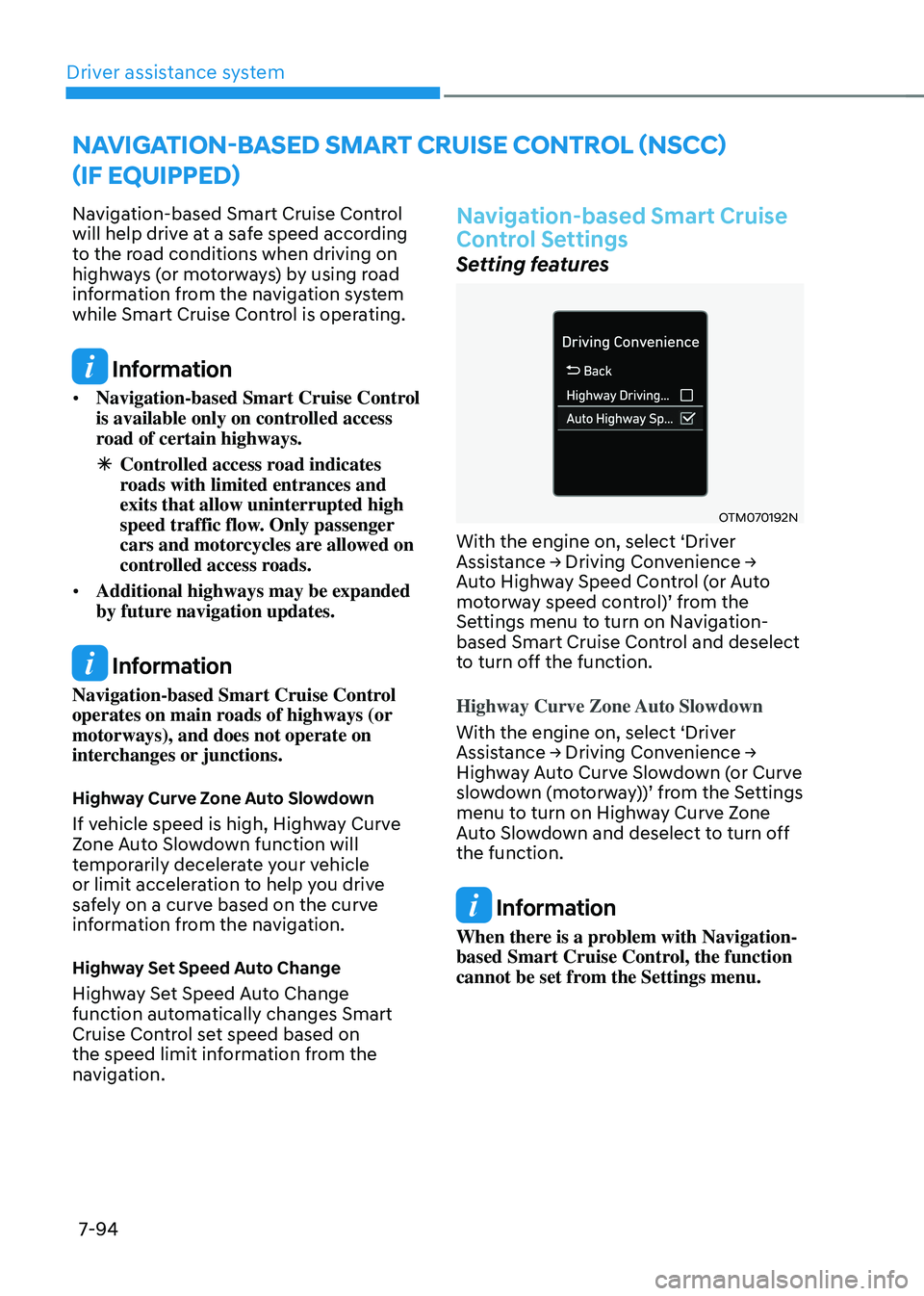
Setting features
OTM070192N
With the engine on, select ‘Driver Assistance → Driving Convenience → Auto Highway Speed Control (or Auto motorway speed control)’ from the Settings menu to turn on Navigation-
based Smart Cruise Control and deselect
to turn off the function.
Highway Curve Zone Auto Slowdown
With the engine on, select ‘Driver
Assistance → Driving Convenience → Highway Auto Curve Slowdown (or Curve slowdown (motorway))’ from the Settings menu to turn on Highway Curve Zone
Auto Slowdown and deselect to turn off
the function.
Information
When there is a problem with Navigation-
based Smart Cruise Control, the function
cannot be set from the Settings menu.
Page 458 of 638
07
7-95
Navigation-based Smart Cruise
Control Operation
Operating conditions
Navigation-based Smart Cruise Control
is ready to operate if all of the following
conditions are satisfied:
• Smart Cruise Control is operating
• Driving on main roads of highways (or
motorways)
Information
For more details on how to operate Smart
Cruise Control, refer to “Smart Cruise
Control (SCC)” section in chapter 7.
Navigation-based Smart Cruise
Control display and control
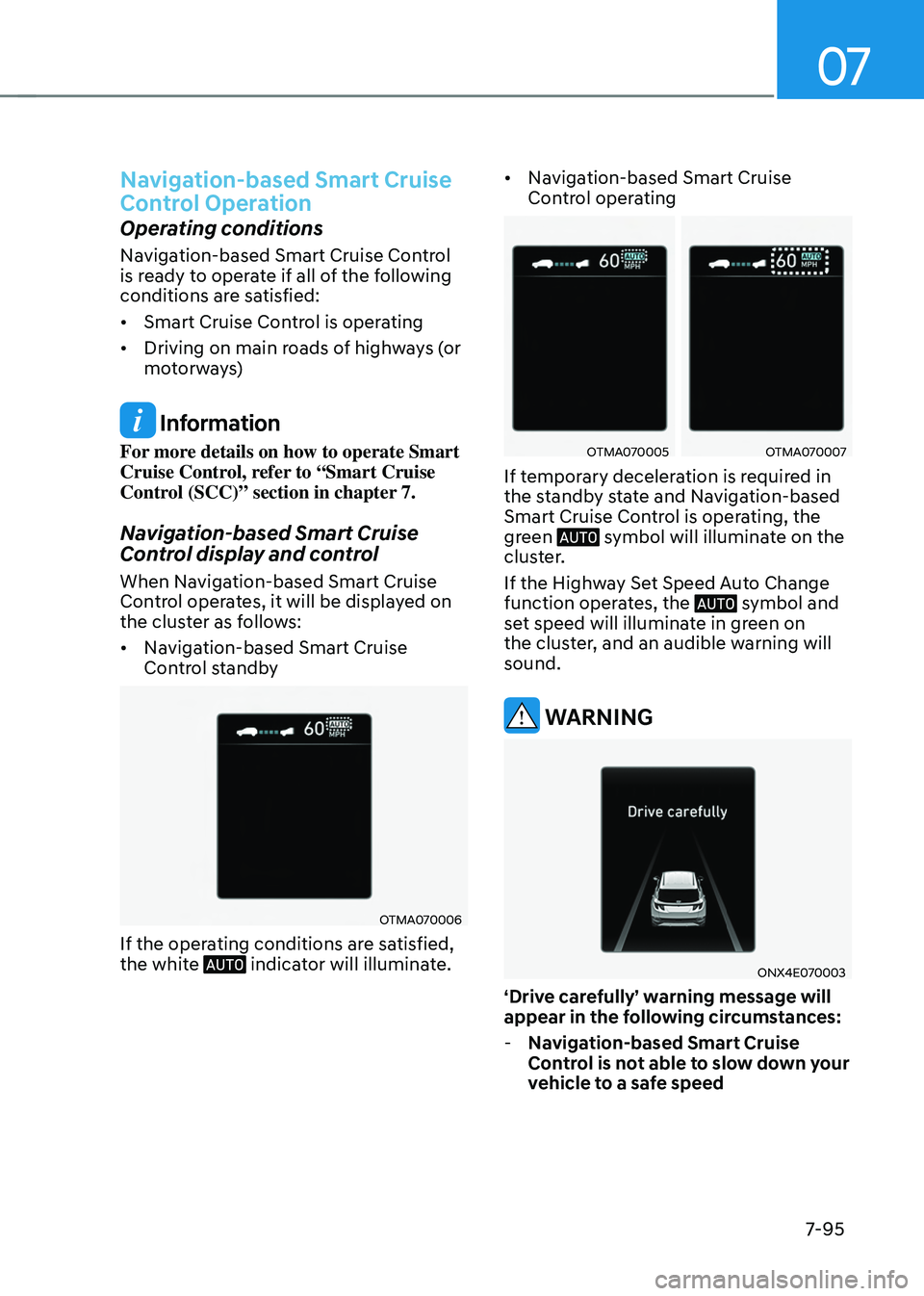
When Navigation-based Smart Cruise
Control operates, it will be displayed on
the cluster as follows:
• Navigation-based Smart Cruise
Control standby
OTMA070006
If the operating conditions are satisfied,
the white indicator will illuminate.
• Navigation-based Smart Cruise
Control operating
OTMA070005OTMA070007
If temporary deceleration is required in
the standby state and Navigation-based
Smart Cruise Control is operating, the
green
symbol will illuminate on the cluster.
If the Highway Set Speed Auto Change
function operates, the
symbol and set speed will illuminate in green on
the cluster, and an audible warning will
sound.
WARNING
ONX4E070003
‘Drive carefully’ warning message will
appear in the following circumstances:
-Navigation-based Smart Cruise
Control is not able to slow down your
vehicle to a safe speed
Page 459 of 638
Driver assistance system
7-96
Information
Highway Curve Zone Auto Slowdown and
Highway Set Speed Auto Change function
uses the same
symbol.
Highway Curve Zone Auto Slowdown
• Depending on the curve ahead on the
highway (or motorway), the vehicle
will decelerate, and after passing the
curve, the vehicle will accelerate to
Smart Cruise Control set speed.
• Vehicle deceleration time may differ
depending on the vehicle speed
and the degree of the curve on the
road. The higher the driving speed,
deceleration will start faster.
Highway Set Speed Auto Change
• Highway Set Speed Auto Change
function will operate when Smart
Cruise Control set speed and the
highway (or motorway) speed limit is
matched.
• While Highway Set Speed Auto
Change function is operating, when
the highway (or motorway) speed limit
changes, Smart Cruise Control set
speed automatically changes to the
changed speed limit.
• If Smart Cruise Control set speed is
adjusted different from the speed
limit, Highway Set Speed Auto Change
function will be in the standby state.
• If Highway Set Speed Auto Change
function has changed to the standby
state by driving on a road other than
the highway (or motorway) main road,
Highway Set Speed Auto Change
function will operate again when you
drive on the main road again without
setting the set speed. •
If Highway Set Speed Auto Change
function has changed to the standby
state by depressing the brake pedal
or pressing the switch on the steering wheel, press the switch to restart the function.
• Highway Set Speed Auto Change
function does not operate on highway
interchanges or junctions.
Information
• Highway Set Speed Auto Change
function only operates based on
the speed limits of the highway (or
motorway), it does not work with speed
cameras.
• When Highway Set Speed Auto Change
function is operating, the vehicle
automatically accelerates or decelerates
when the highway (or motorway) speed
limit changes.
• The maximum set speed for Highway
Set Speed Auto Change function is 86
mph (140 km/h).
• If the speed limit of a new road is not
updated in the navigation, Highway Set
Speed Auto Change function may not
operate properly.
• If the speed unit is set to a unit other
than the speed unit used in your
country, Highway Set Speed Auto
Change function may not operate
properly.