display HYUNDAI TUCSON 2022 Owner's Manual
[x] Cancel search | Manufacturer: HYUNDAI, Model Year: 2022, Model line: TUCSON, Model: HYUNDAI TUCSON 2022Pages: 638, PDF Size: 82.3 MB
Page 126 of 638
Instrument cluster
4-28
Check Forward Collision-Avoidance
Assist system
This warning message is displayed
if there is a problem with Forward
Collision-Avoidance Assist. Have the
vehicle inspected by an authorized
HYUNDAI dealer.
For more details, refer to “Forward
Collision-Avoidance Assist (FCA)” in
chapter 6.
Check Lane Keeping Assist system
This warning message is displayed if
there is a problem with Lane Keeping
Assist. Have the vehicle inspected by an
authorized HYUNDAI dealer.
For more details, refer to “Lane Keeping
Assist (LKA)” in chapter 6.
Check Blind-Spot Collision Warning
system (if equipped)
This warning message is displayed
if there is a problem with Blind-Spot
Collision Warning. Have the vehicle
inspected by an authorized HYUNDAI
dealer.
For more details, refer to “Blind-Spot
Collision Warning (BCW) ” in chapter 6.
Check Driver Attention Warning
system
This warning message is displayed if
there is a problem with Driver Attention
Warning. Have the vehicle inspected by
an authorized HYUNDAI dealer.
For more details, refer to “Driver
Attention Warning (DAW)” in chapter 6.
Check High Beam Assist system
This warning message is displayed if
there is a problem with the High Beam
Assist. Have the vehicle inspected by an
authorized HYUNDAI dealer.
For more details, refer to “High Beam
Assist (HBA)” in chapter 5.
Check Smart Cruise Control system
(if equipped)
This warning message is displayed if
there is a problem with Smart Cruise
Control. Have the vehicle inspected by
an authorized HYUNDAI dealer.
For more details, refer to “Smart Cruise
Control (SCC)” in chapter 6.
Page 127 of 638
04
4-29
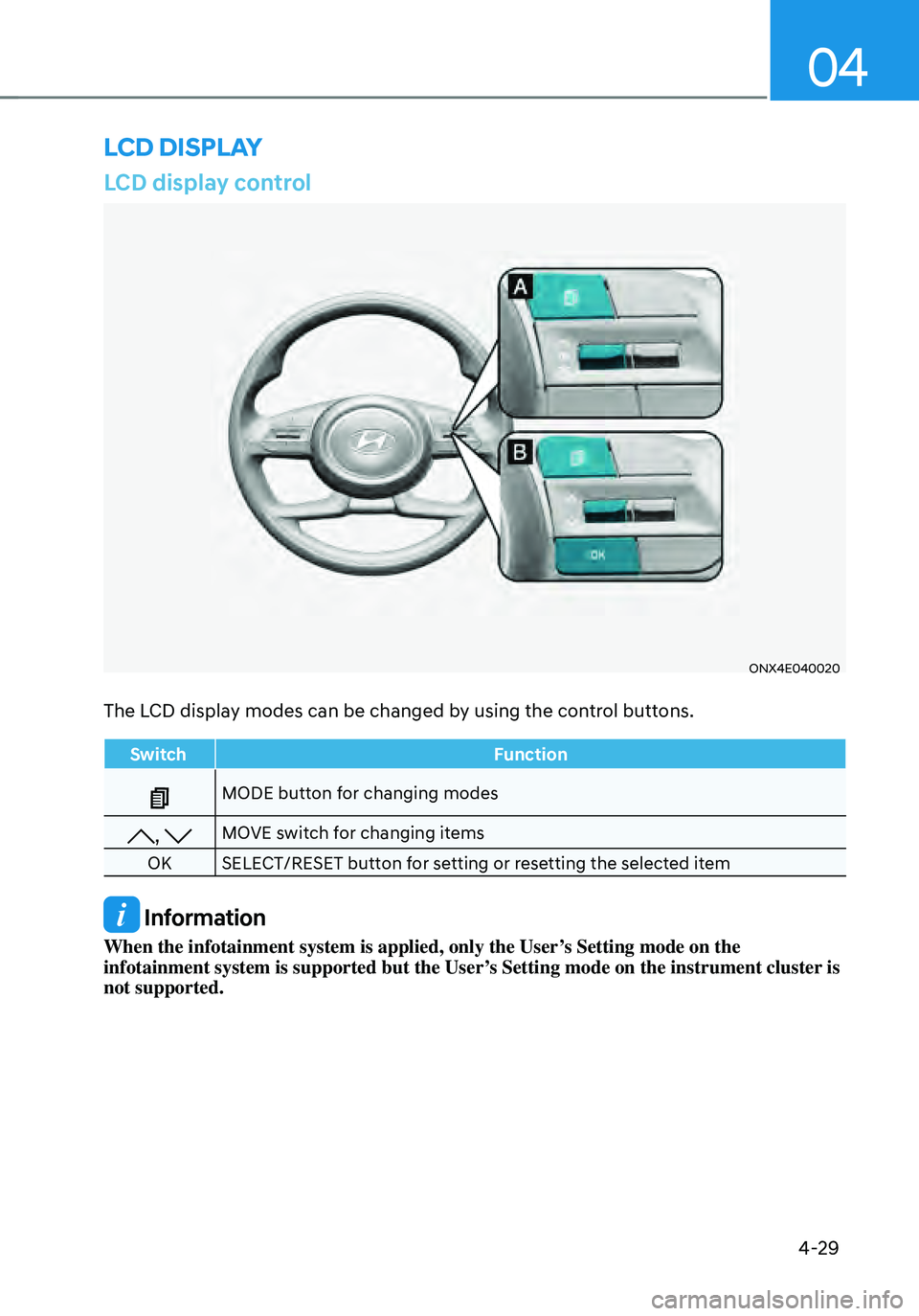
LCD display control
ONX4E040020
The LCD display modes can be changed by using the control buttons.
SwitchFunction
MODE button for changing modes
, MOVE switch for changing items
OK SELECT/RESET button for setting or resetting the selected item
Information
When the infotainment system is applied, only the User’s Setting mode on the
infotainment system is supported but the User’s Setting mode on the instrument cluster is
not supported.
LCD DISPLAY
Page 128 of 638
Instrument cluster
4-30
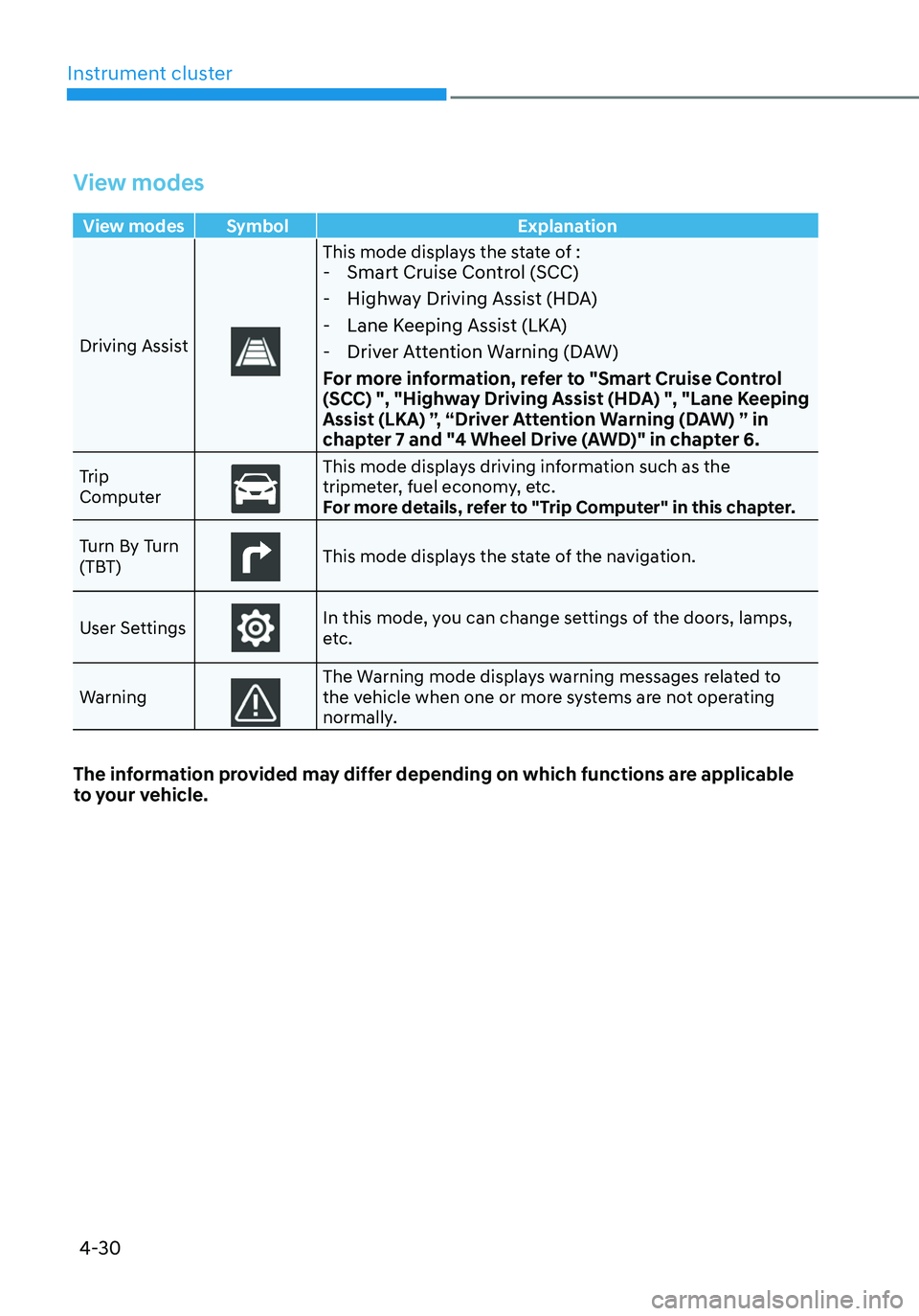
View modes
View modes Symbol Explanation
Driving Assist
This mode displays the state of : - Smart Cruise Control (SCC)
-Highway Driving Assist (HDA)
-Lane Keeping Assist (LKA)
-Driver Attention Warning (DAW)
For more information, refer to "Smart Cruise Control
(SCC) ", "Highway Driving Assist (HDA) ", "Lane Keeping
Assist (LKA) ”, “Driver Attention Warning (DAW) ” in
chapter 7 and "4 Wheel Drive (AWD)" in chapter 6.
Trip
ComputerThis mode displays driving information such as the tripmeter, fuel economy, etc.
For more details, refer to "Trip Computer" in this chapter.
Turn By Turn
(TBT)
This mode displays the state of the navigation.
User Settings
In this mode, you can change settings of the doors, lamps,
etc.
Warning
The Warning mode displays warning messages related to the vehicle when one or more systems are not operating
normally.
The information provided may differ depending on which functions are applicable
to your vehicle.
Page 129 of 638
04
4-31
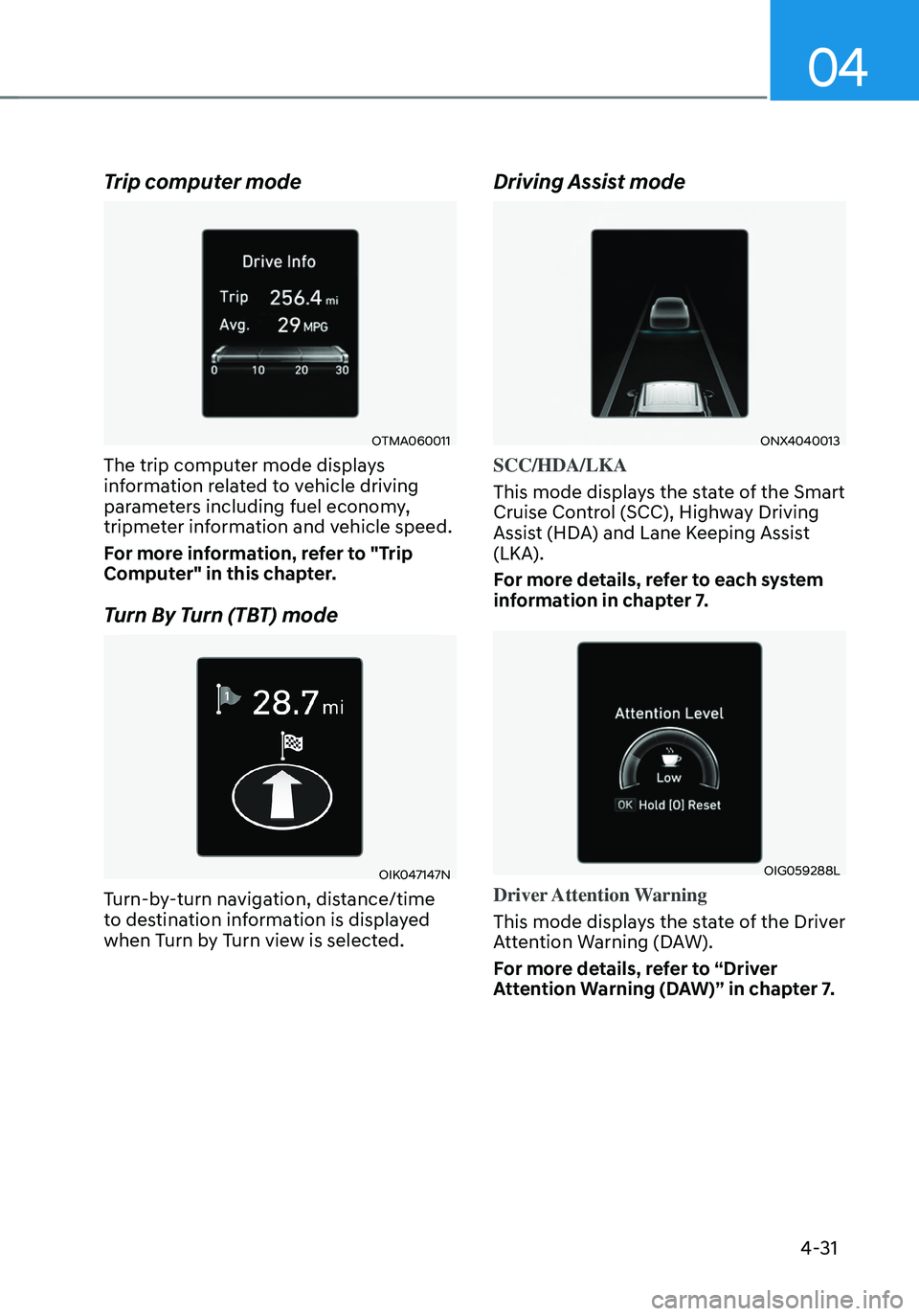
Trip computer mode
OTMA060011
The trip computer mode displays
information related to vehicle driving
parameters including fuel economy,
tripmeter information and vehicle speed.
For more information, refer to "Trip
Computer" in this chapter.
Turn By Turn (TBT) mode
OIK047147N
Turn-by-turn navigation, distance/time
to destination information is displayed
when Turn by Turn view is selected.
Driving Assist mode
ONX4040013
SCC/HDA/LKA
This mode displays the state of the Smart
Cruise Control (SCC), Highway Driving
Assist (HDA) and Lane Keeping Assist
(LKA).
For more details, refer to each system
information in chapter 7.
OIG059288L
Driver Attention Warning
This mode displays the state of the Driver
Attention Warning (DAW).
For more details, refer to “Driver
Attention Warning (DAW)” in chapter 7.
Page 130 of 638
Instrument cluster
4-32
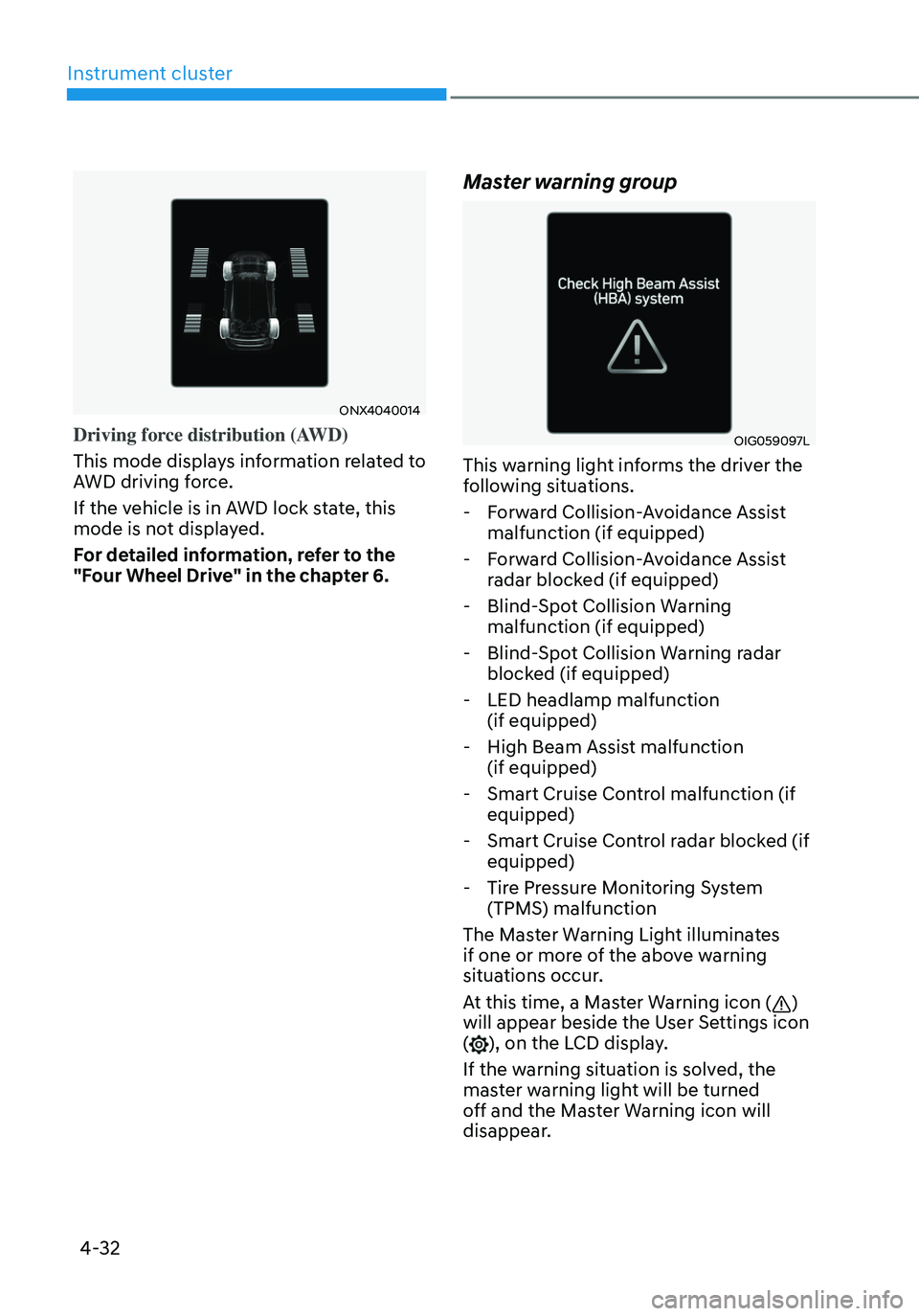
ONX4040014
Driving force distribution (AWD)
This mode displays information related to
AWD driving force.
If the vehicle is in AWD lock state, this
mode is not displayed.
For detailed information, refer to the
"Four Wheel Drive" in the chapter 6.
Master warning group
OIG059097L
This warning light informs the driver the
following situations.
-Forward Collision-Avoidance Assist
malfunction (if equipped)
-Forward Collision-Avoidance Assist
radar blocked (if equipped)
-Blind-Spot Collision Warning
malfunction (if equipped)
-Blind-Spot Collision Warning radar
blocked (if equipped)
-LED headlamp malfunction
(if equipped)
-High Beam Assist malfunction
(if equipped)
-Smart Cruise Control malfunction (if
equipped)
-Smart Cruise Control radar blocked (if
equipped)
-Tire Pressure Monitoring System
(TPMS) malfunction
The Master Warning Light illuminates
if one or more of the above warning
situations occur.
At this time, a Master Warning icon (
)
will appear beside the User Settings icon
(
), on the LCD display.
If the warning situation is solved, the
master warning light will be turned
off and the Master Warning icon will
disappear.
Page 131 of 638
04
4-33
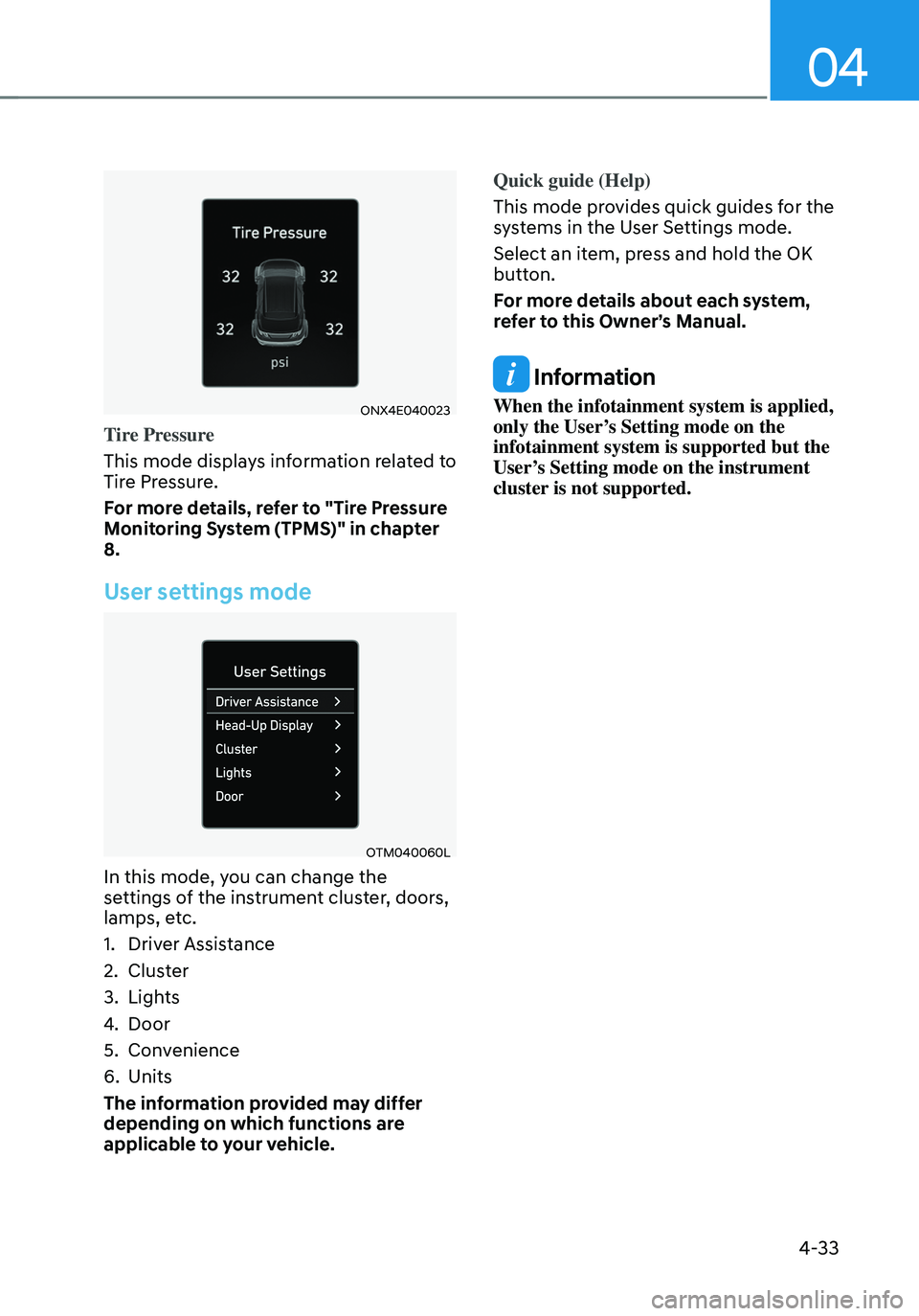
ONX4E040023
Tire Pressure
This mode displays information related to
Tire Pressure.
For more details, refer to "Tire Pressure
Monitoring System (TPMS)" in chapter
8.
User settings mode
OTM040060L
In this mode, you can change the
settings of the instrument cluster, doors,
lamps, etc.
1. Driver Assistance
2. Cluster
3. Lights
4. Door
5. Convenience
6. Units
The information provided may differ
depending on which functions are
applicable to your vehicle. Quick guide (Help)
This mode provides quick guides for the
systems in the User Settings mode.
Select an item, press and hold the OK
button.
For more details about each system,
refer to this Owner’s Manual.
Information
When the infotainment system is applied,
only the User’s Setting mode on the
infotainment system is supported but the
User’s Setting mode on the instrument
cluster is not supported.
Page 134 of 638
Instrument cluster
4-36
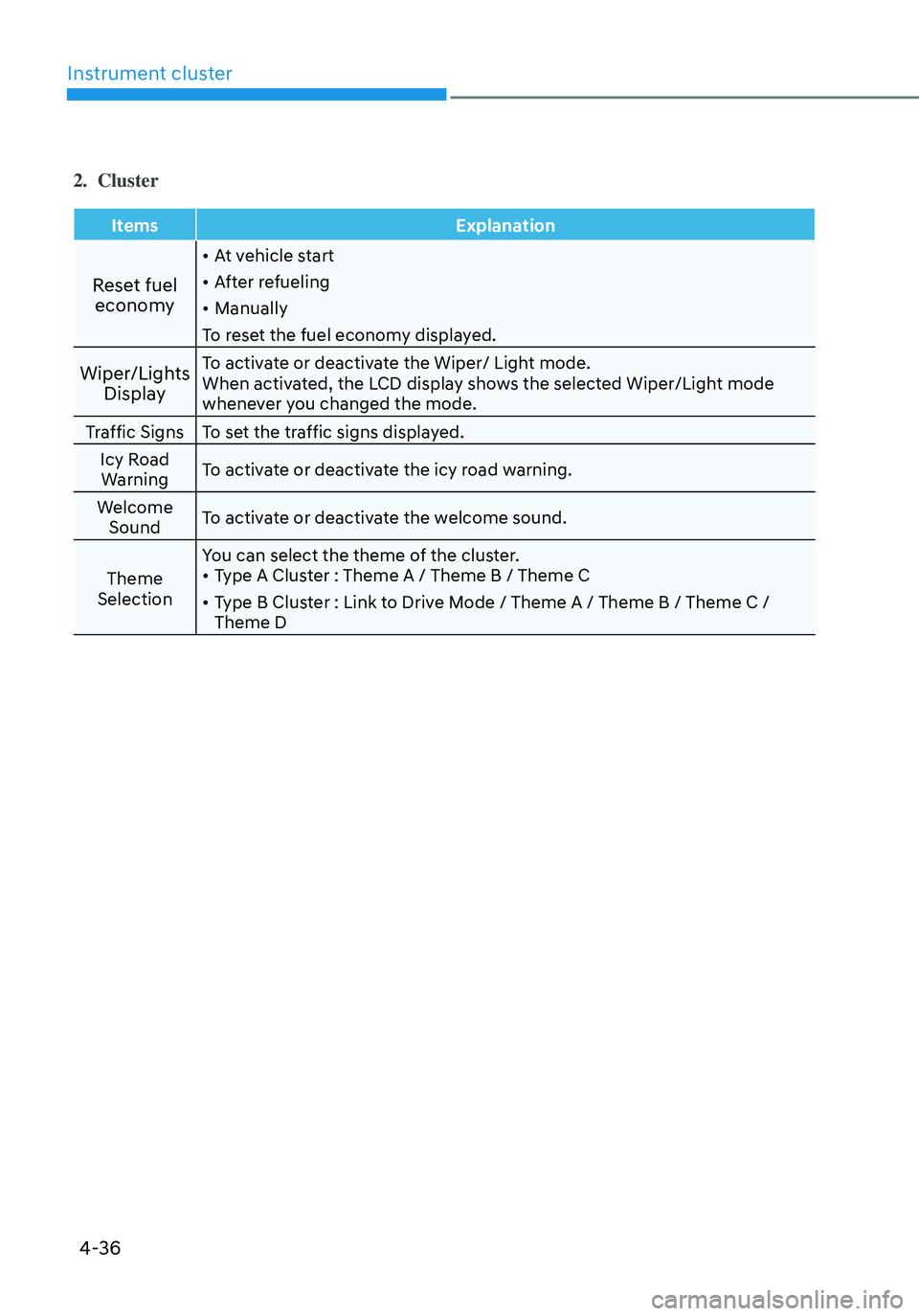
2. Cluster
ItemsExplanation
Reset fuel
economy
• At vehicle start
• After refueling
• Manually
To reset the fuel economy displayed.
Wiper/Lights DisplayTo activate or deactivate the Wiper/ Light mode.
When activated, the LCD display shows the selected Wiper/Light mode
whenever you changed the mode.
Traffic Signs To set the traffic signs displayed.
Icy Road Warning To activate or deactivate the icy road warning.
Welcome Sound To activate or deactivate the welcome sound.
Theme
Selection You can select the theme of the cluster.
• Type A Cluster : Theme A / Theme B / Theme C
• Type B Cluster : Link to Drive Mode / Theme A / Theme B / Theme C /
Theme D
Page 138 of 638
Instrument cluster
4-40
Trip computer (Type A)
The trip computer is a microcomputer-
controlled driver information system that
displays information related to driving.
Information
Some driving information stored in the
trip computer (for example Average
Vehicle Speed) resets if the battery is
disconnected.
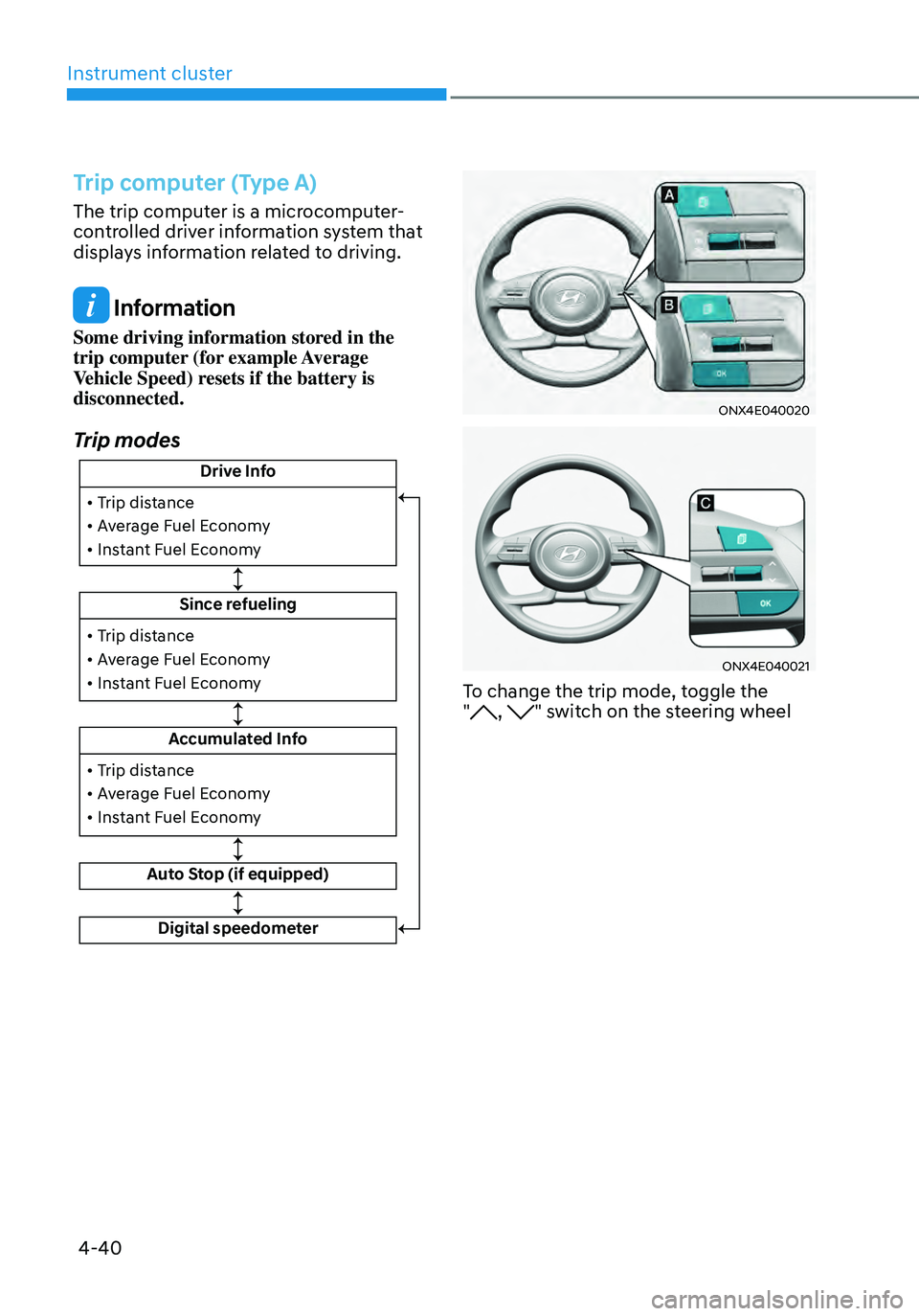
Trip modes
Drive Info
Since refueling
Accumulated Info
Auto Stop (if equipped)
• Trip distance
• Average Fuel Economy
• Instant Fuel Economy
• Trip distance
• Average Fuel Economy
• Instant Fuel Economy
Digital speedometer
• Trip distance
• Average Fuel Economy
• Instant Fuel Economy
ONX4E040020
ONX4E040021
To change the trip mode, toggle the
", " switch on the steering wheel
Page 139 of 638
04
4-41
• Manual reset
To clear the average fuel economy
manually, press the OK switch on the
steering wheel for more than 1 second
when the Average Fuel Economy is
displayed.
• Automatic reset
To automatically reset the average
fuel economy, select between ‘After
Ignition’ or ‘After Refueling’ from
the Settings menu in the instrument
cluster.
-After Ignition: When the engine has
been OFF for 3 minutes or longer
the average fuel economy will reset
automatically.
-After Refueling: The average fuel
economy will reset automatically
after adding 6 liters (1.6 gallons) of
fuel or more and after driving speed
exceeds 1 mph (1 km/h).
à For 10.25-inch instrument cluster, you
can check the fuel economy in the
center bottom of the cluster.
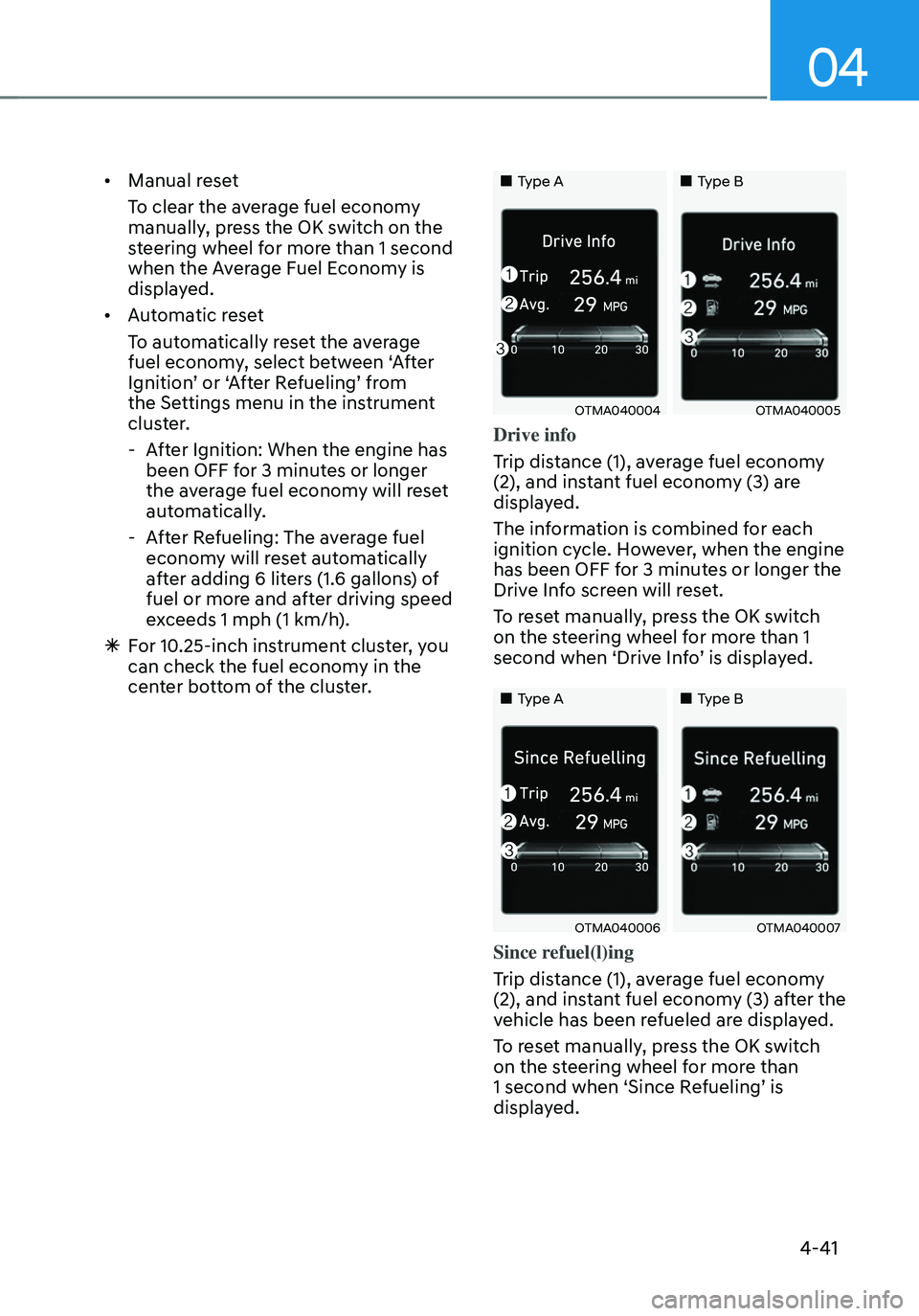
„„Type A„„Type B
OTMA040004OTMA040005
Drive info
Trip distance (1), average fuel economy
(2), and instant fuel economy (3) are
displayed.
The information is combined for each
ignition cycle. However, when the engine
has been OFF for 3 minutes or longer the
Drive Info screen will reset.
To reset manually, press the OK switch
on the steering wheel for more than 1
second when ‘Drive Info’ is displayed.
„„Type A„„Type B
OTMA040006OTMA040007
Since refuel(l)ing
Trip distance (1), average fuel economy
(2), and instant fuel economy (3) after the
vehicle has been refueled are displayed.
To reset manually, press the OK switch
on the steering wheel for more than
1 second when ‘Since Refueling’ is
displayed.
Page 140 of 638
Instrument cluster
4-42
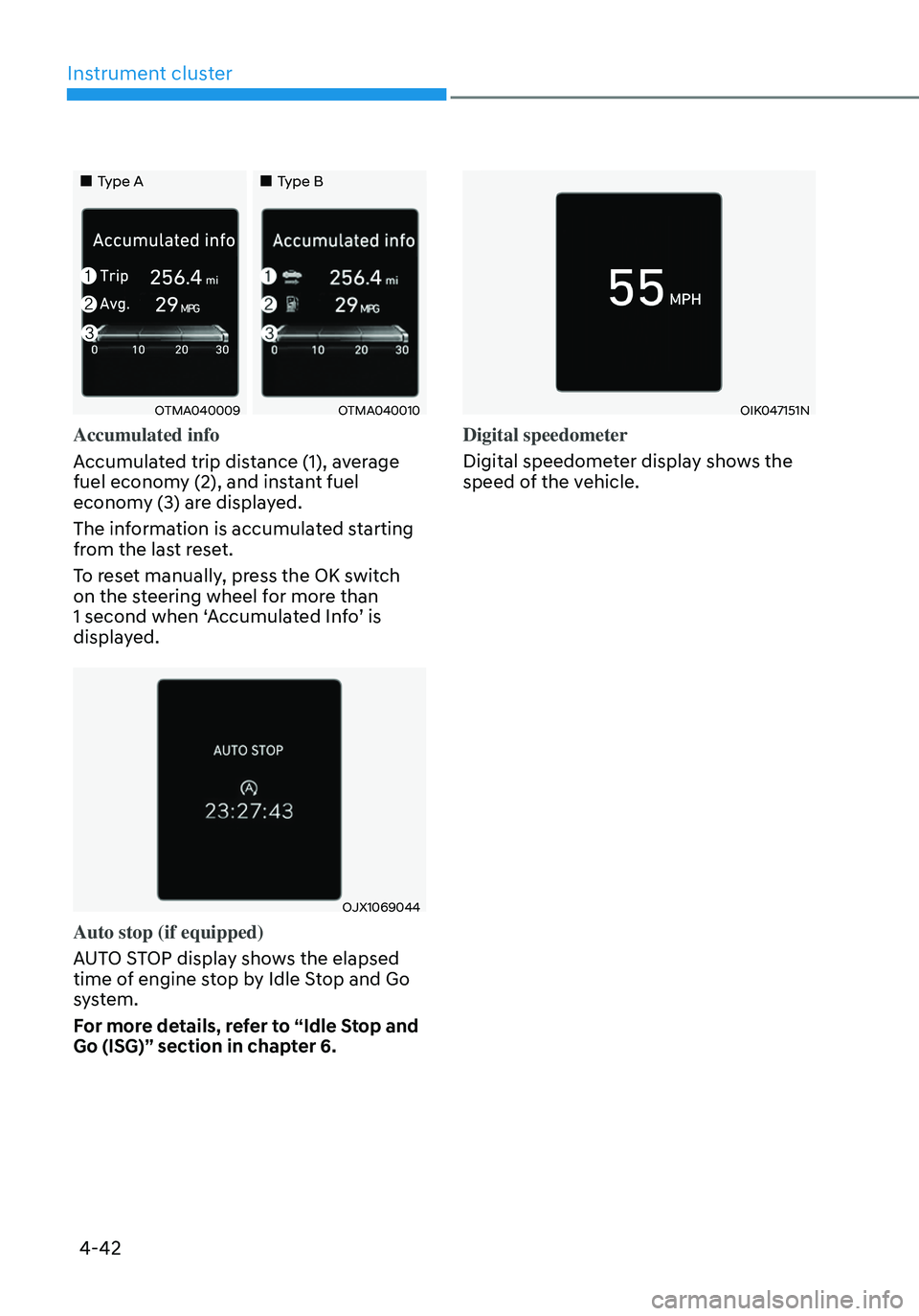
„„Type A„„Type B
OTMA040009OTMA040010
Accumulated info
Accumulated trip distance (1), average
fuel economy (2), and instant fuel
economy (3) are displayed.
The information is accumulated starting
from the last reset.
To reset manually, press the OK switch
on the steering wheel for more than
1 second when ‘Accumulated Info’ is
displayed.
OJX1069044
Auto stop (if equipped)
AUTO STOP display shows the elapsed
time of engine stop by Idle Stop and Go
system.
For more details, refer to “Idle Stop and
Go (ISG)” section in chapter 6.
OIK047151N
Digital speedometer
Digital speedometer display shows the
speed of the vehicle.