Information system HYUNDAI TUCSON 2022 Owner's Guide
[x] Cancel search | Manufacturer: HYUNDAI, Model Year: 2022, Model line: TUCSON, Model: HYUNDAI TUCSON 2022Pages: 638, PDF Size: 82.3 MB
Page 130 of 638
Instrument cluster
4-32
ONX4040014
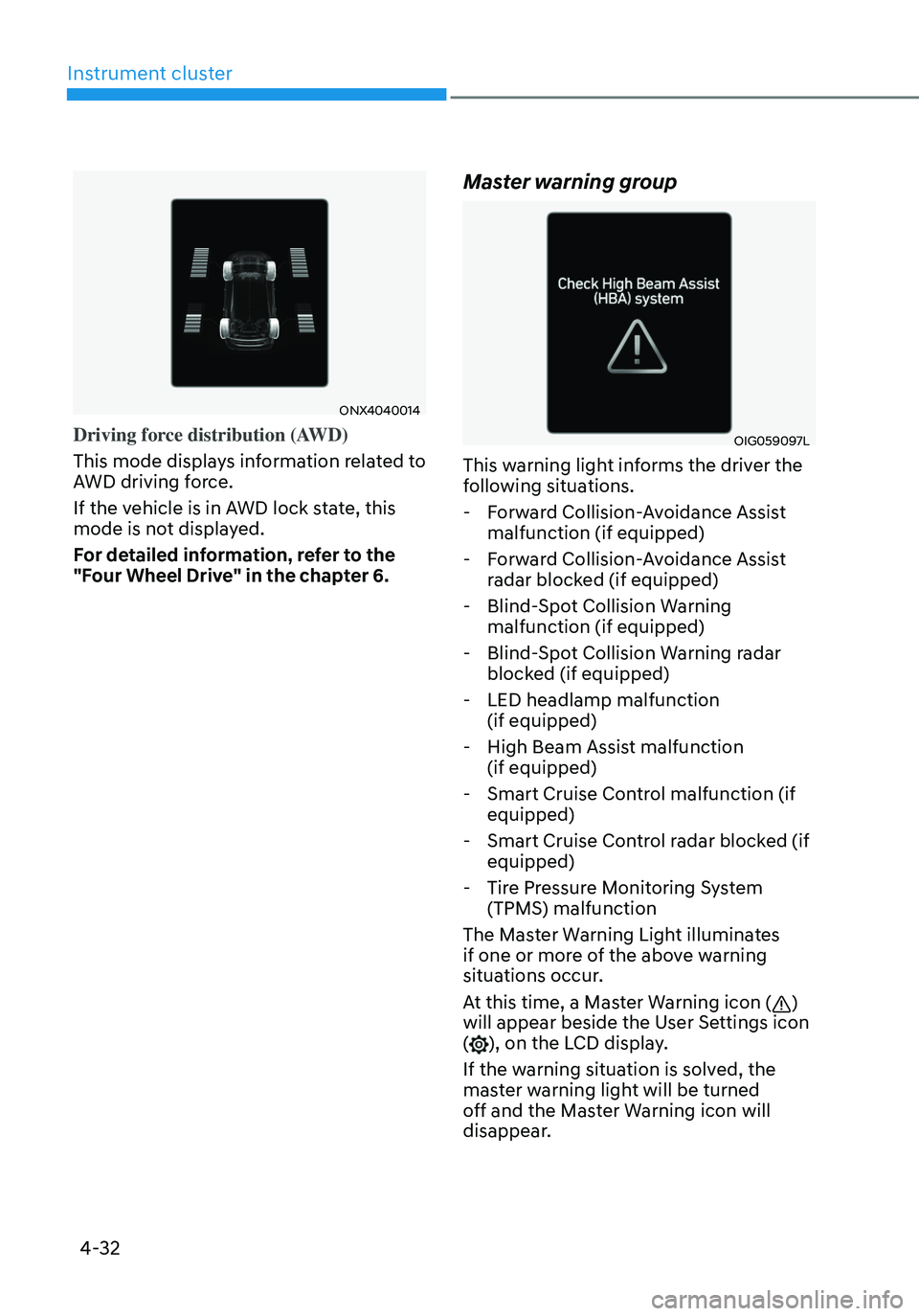
Driving force distribution (AWD)
This mode displays information related to
AWD driving force.
If the vehicle is in AWD lock state, this
mode is not displayed.
For detailed information, refer to the
"Four Wheel Drive" in the chapter 6.
Master warning group
OIG059097L
This warning light informs the driver the
following situations.
-Forward Collision-Avoidance Assist
malfunction (if equipped)
-Forward Collision-Avoidance Assist
radar blocked (if equipped)
-Blind-Spot Collision Warning
malfunction (if equipped)
-Blind-Spot Collision Warning radar
blocked (if equipped)
-LED headlamp malfunction
(if equipped)
-High Beam Assist malfunction
(if equipped)
-Smart Cruise Control malfunction (if
equipped)
-Smart Cruise Control radar blocked (if
equipped)
-Tire Pressure Monitoring System
(TPMS) malfunction
The Master Warning Light illuminates
if one or more of the above warning
situations occur.
At this time, a Master Warning icon (
)
will appear beside the User Settings icon
(
), on the LCD display.
If the warning situation is solved, the
master warning light will be turned
off and the Master Warning icon will
disappear.
Page 131 of 638
04
4-33
ONX4E040023
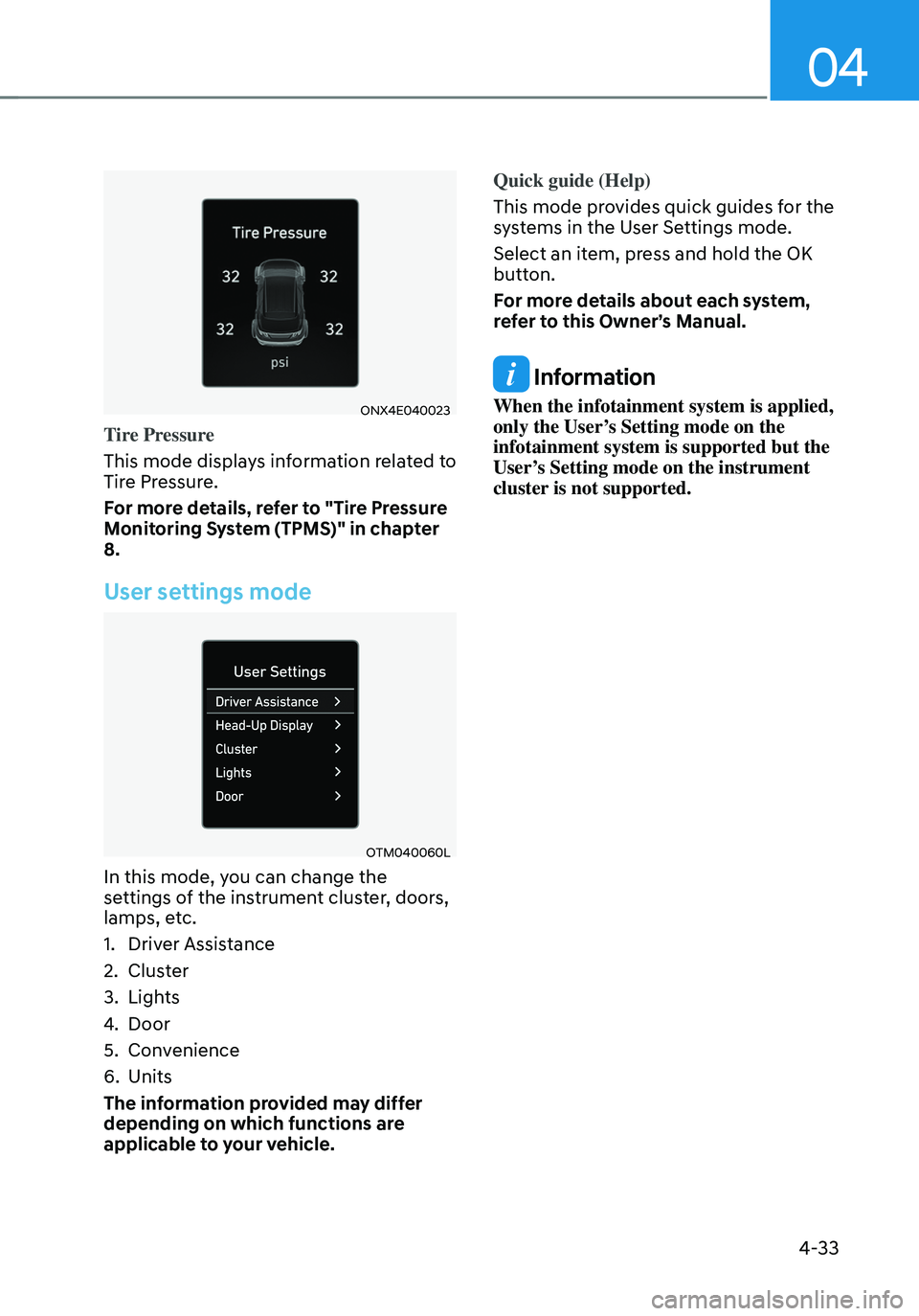
Tire Pressure
This mode displays information related to
Tire Pressure.
For more details, refer to "Tire Pressure
Monitoring System (TPMS)" in chapter
8.
User settings mode
OTM040060L
In this mode, you can change the
settings of the instrument cluster, doors,
lamps, etc.
1. Driver Assistance
2. Cluster
3. Lights
4. Door
5. Convenience
6. Units
The information provided may differ
depending on which functions are
applicable to your vehicle. Quick guide (Help)
This mode provides quick guides for the
systems in the User Settings mode.
Select an item, press and hold the OK
button.
For more details about each system,
refer to this Owner’s Manual.
Information
When the infotainment system is applied,
only the User’s Setting mode on the
infotainment system is supported but the
User’s Setting mode on the instrument
cluster is not supported.
Page 138 of 638
Instrument cluster
4-40
Trip computer (Type A)
The trip computer is a microcomputer-
controlled driver information system that
displays information related to driving.
Information
Some driving information stored in the
trip computer (for example Average
Vehicle Speed) resets if the battery is
disconnected.
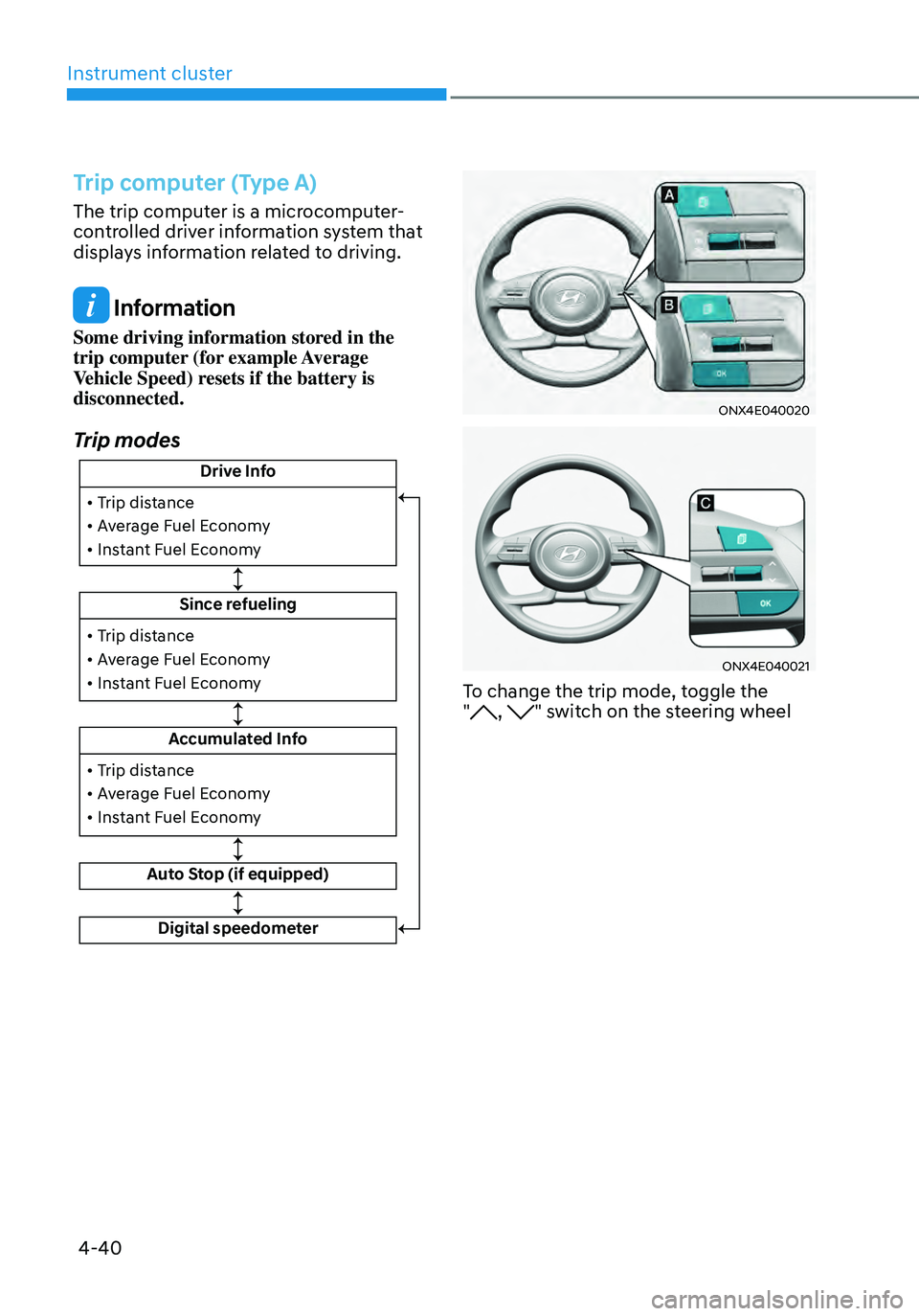
Trip modes
Drive Info
Since refueling
Accumulated Info
Auto Stop (if equipped)
• Trip distance
• Average Fuel Economy
• Instant Fuel Economy
• Trip distance
• Average Fuel Economy
• Instant Fuel Economy
Digital speedometer
• Trip distance
• Average Fuel Economy
• Instant Fuel Economy
ONX4E040020
ONX4E040021
To change the trip mode, toggle the
", " switch on the steering wheel
Page 140 of 638
Instrument cluster
4-42
„„Type A„„Type B
OTMA040009OTMA040010
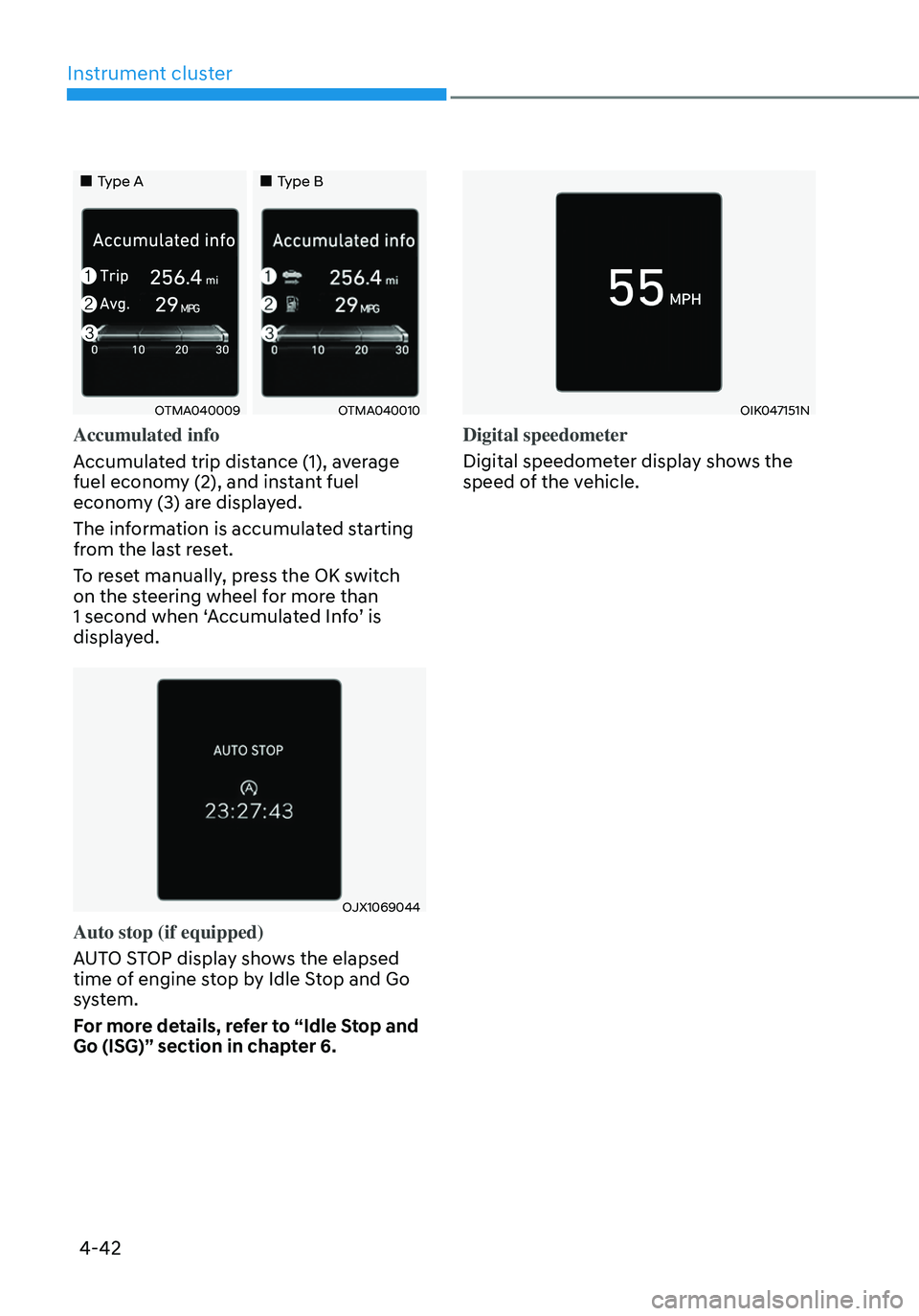
Accumulated info
Accumulated trip distance (1), average
fuel economy (2), and instant fuel
economy (3) are displayed.
The information is accumulated starting
from the last reset.
To reset manually, press the OK switch
on the steering wheel for more than
1 second when ‘Accumulated Info’ is
displayed.
OJX1069044
Auto stop (if equipped)
AUTO STOP display shows the elapsed
time of engine stop by Idle Stop and Go
system.
For more details, refer to “Idle Stop and
Go (ISG)” section in chapter 6.
OIK047151N
Digital speedometer
Digital speedometer display shows the
speed of the vehicle.
Page 141 of 638
04
4-43
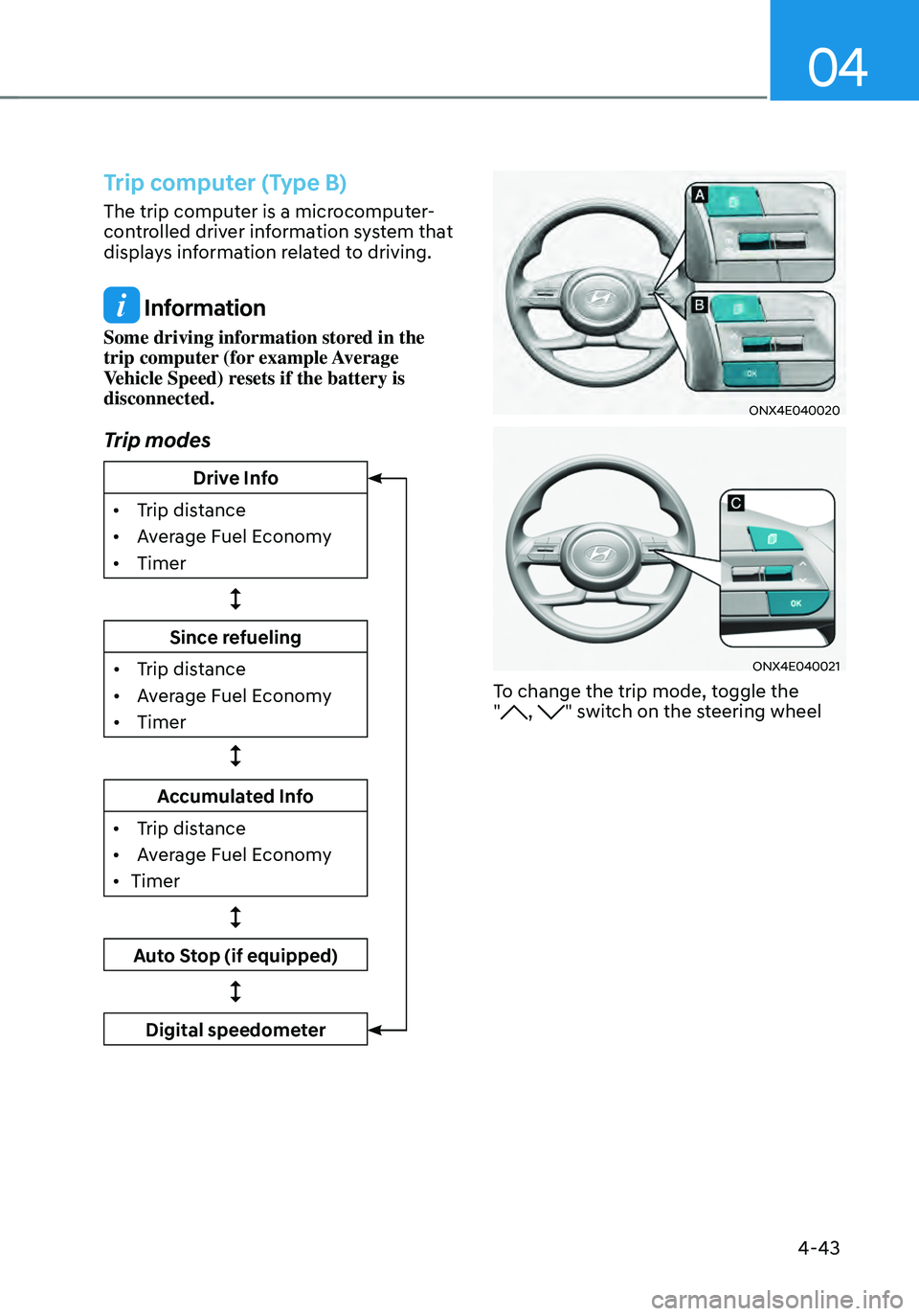
Trip computer (Type B)
The trip computer is a microcomputer-
controlled driver information system that
displays information related to driving.
Information
Some driving information stored in the
trip computer (for example Average
Vehicle Speed) resets if the battery is
disconnected.
Trip modes
Drive Info
•
Trip dis
tance
•
Av
erage Fuel Economy
•
Timer
Since refueling
•
Trip dis
tance
•
Av
erage Fuel Economy
•
Timer
Accumulated Info
•
Trip dis
tance
•
Av
erage Fuel Economy
•
Timer
Auto Stop (if equipped)
Digital speedometer
ONX4E040020
ONX4E040021
To change the trip mode, toggle the
", " switch on the steering wheel
Page 143 of 638
04
4-45
„„Type A„„Type B
OTMA040016OTMA040017
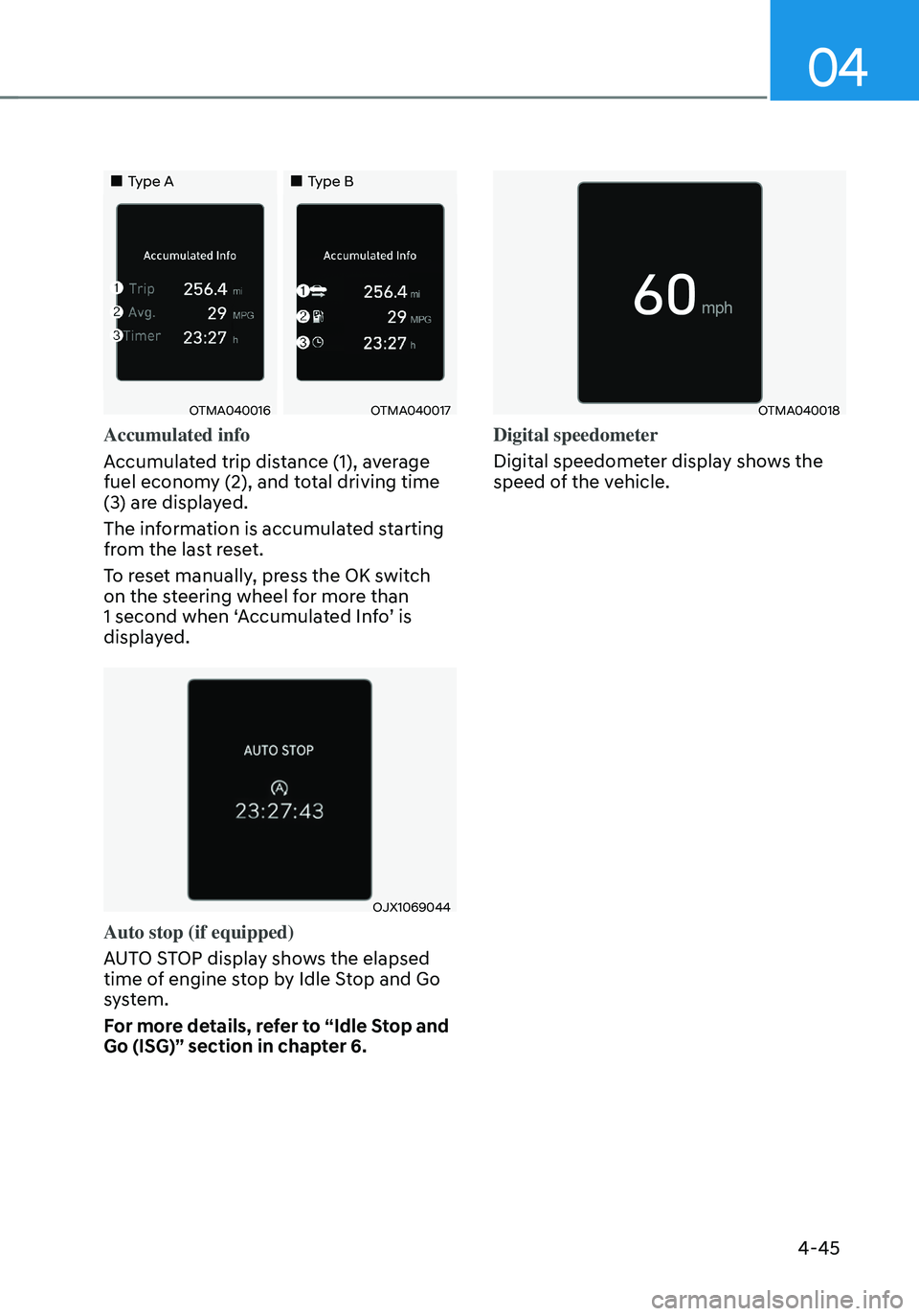
Accumulated info
Accumulated trip distance (1), average
fuel economy (2), and total driving time
(3) are displayed.
The information is accumulated starting
from the last reset.
To reset manually, press the OK switch
on the steering wheel for more than
1 second when ‘Accumulated Info’ is
displayed.
OJX1069044
Auto stop (if equipped)
AUTO STOP display shows the elapsed
time of engine stop by Idle Stop and Go
system.
For more details, refer to “Idle Stop and
Go (ISG)” section in chapter 6.
OTMA040018
Digital speedometer
Digital speedometer display shows the
speed of the vehicle.
Page 144 of 638
Instrument cluster
4-46
ONX4E040028
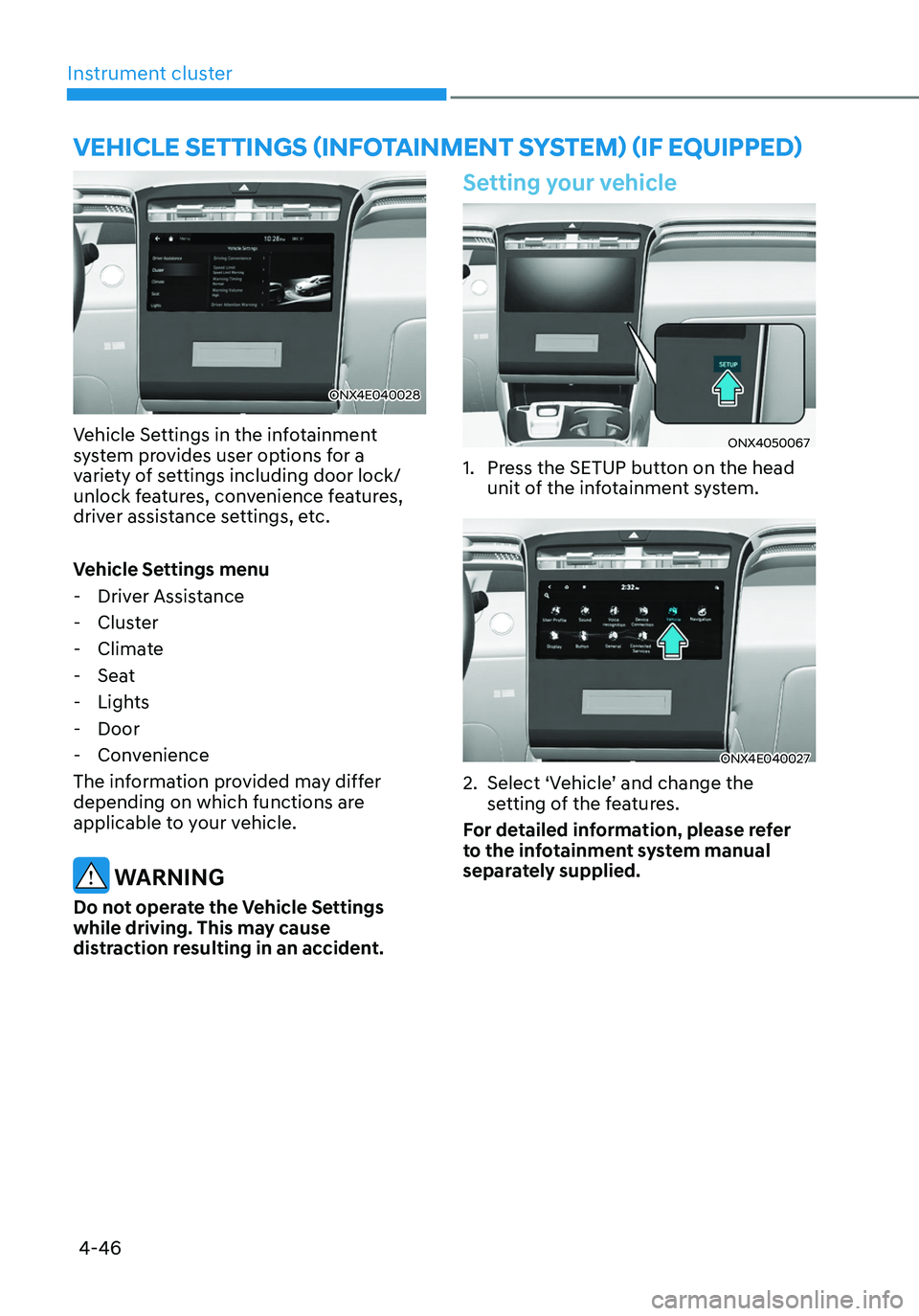
Vehicle Settings in the infotainment
system provides user options for a
variety of settings including door lock/
unlock features, convenience features,
driver assistance settings, etc.
Vehicle Settings menu
-Driver Assistance
-Cluster
-Climate
-Seat
-Lights
-Door
-Convenience
The information provided may differ
depending on which functions are
applicable to your vehicle.
WARNING
Do not operate the Vehicle Settings
while driving. This may cause
distraction resulting in an accident.
Setting your vehicle
ONX4050067
1. Press the SETUP button on the head
unit of the infotainment system.
ONX4E040027
2. Select ‘Vehicle’ and change the
setting of the features.
For detailed information, please refer
to the infotainment system manual
separately supplied.
VEHICLE SETTINGS (INFOTAINMENT SYSTEM) (IF EQUIPPED)
Page 158 of 638
Convenient features
5-14
Immobilizer system
The immobilizer system helps protect
your vehicle from theft. If an improperly
coded key (or other device) is used, the
engine’s fuel system is disabled.
When the Engine Start/Stop button
is pressed to the ON position, the
immobilizer system indicator should
come on briefly, then go off. If the
indicator starts to blink, the system does
not recognize the coding of the key.
Press the Engine Start/Stop button to
the OFF position, then press the Engine
Start/Stop button to the ON position
again.
The system may not recognize your
key’s coding if another immobilizer key
or other metal object (i.e., key chain) is
near the key. The engine may not start
because the metal may interrupt the
transponder signal from transmitting
normally.
If the system repeatedly does not
recognize the coding of the key, it is
recommended that you contact your
HYUNDAI dealer.
Do not attempt to alter this system
or add other devices to it. Electrical
problems could result that may make
your vehicle inoperable. WARNING
In order to prevent theft of your
vehicle, do not leave spare keys
anywhere in your vehicle. Your
immobilizer password is a customer
unique password and should be kept
confidential.
NOTICE
The transponder in your key is an
important part of the immobilizer
system. It is designed to give years
of trouble-free service, however you
should avoid exposure to moisture,
static electricity and rough handling.
Immobilizer system malfunction could
occur.
Information
This device complies with Part 15 of the
FCC rules.
Operation is subject to the following three
conditions:
1. This device may not cause harmful
interference.
2. This device must accept any
interference received, including
interference that may cause undesired
operation.
3. Changes or modifications not expressly
approved by the party responsible
for compliance could void the user’s
authority to operate the device.
Page 159 of 638
05
5-15
Hyundai Digital Key
(if equipped)
Digital Key Application
To use Hyundai Digital Key mobile app,
you should install the Hyundai Digital
Key application on your Android phone.
Search ‘Hyundai digital key’ in the
Google Play Store and download the app.
Please refer to the detailed manual of the
digital key app. The option can be found
under the following app menu:
Menu → Application Info → Tutorial
Please review the contents of the manual
before using the app.
ÃThis service is only available for
Android smartphones. Please confirm
supported/compatible devices on our
website.
WARNING
Delete Digital Key Settings When
Purchasing a Used Vehicle
If any of the digital key (smartphone key
or card key) is already registered when
you press ON button after unlocking
the doors, the message ‘Digital key(s)
active’ appears on the instrument
cluster once. If you sell your vehicle
or purchase a used Hyundai vehicle
equipped with the Digital Key feature,
you should confirm the message and
delete the registered smartphone key
and card key. For more information,
please contact the Hyundai Customer
Care Center. If the card key does not
work properly, please delete the card
key and register the smartphone key
and re-register the card key.
For vehicle maintenance
If you need to have your Digital Key
System repaired or replaced please
ensure your Smartphone Key is still
active. You may have to pair your phone
again.
In the case, re-initialize your Digital Keys
using the Hyundai Digital Key mobile app.
Digital key (smartphone) NFC
function
You can use the smartphone Digital Key
feature once Near Field Communication
(NFC) setting has been enabled on your
phone.
To enable NFC, go to Settings on your
smart phone.
In addition, your smart phone screen
should be unlocked when using the
Digital Key feature.
ÃTo enable the user settings for NFC on
your smart phone, go to the Settings
app on your phone. For further
assistance, refer to your smart phone
manual.
Page 163 of 638
05
5-19
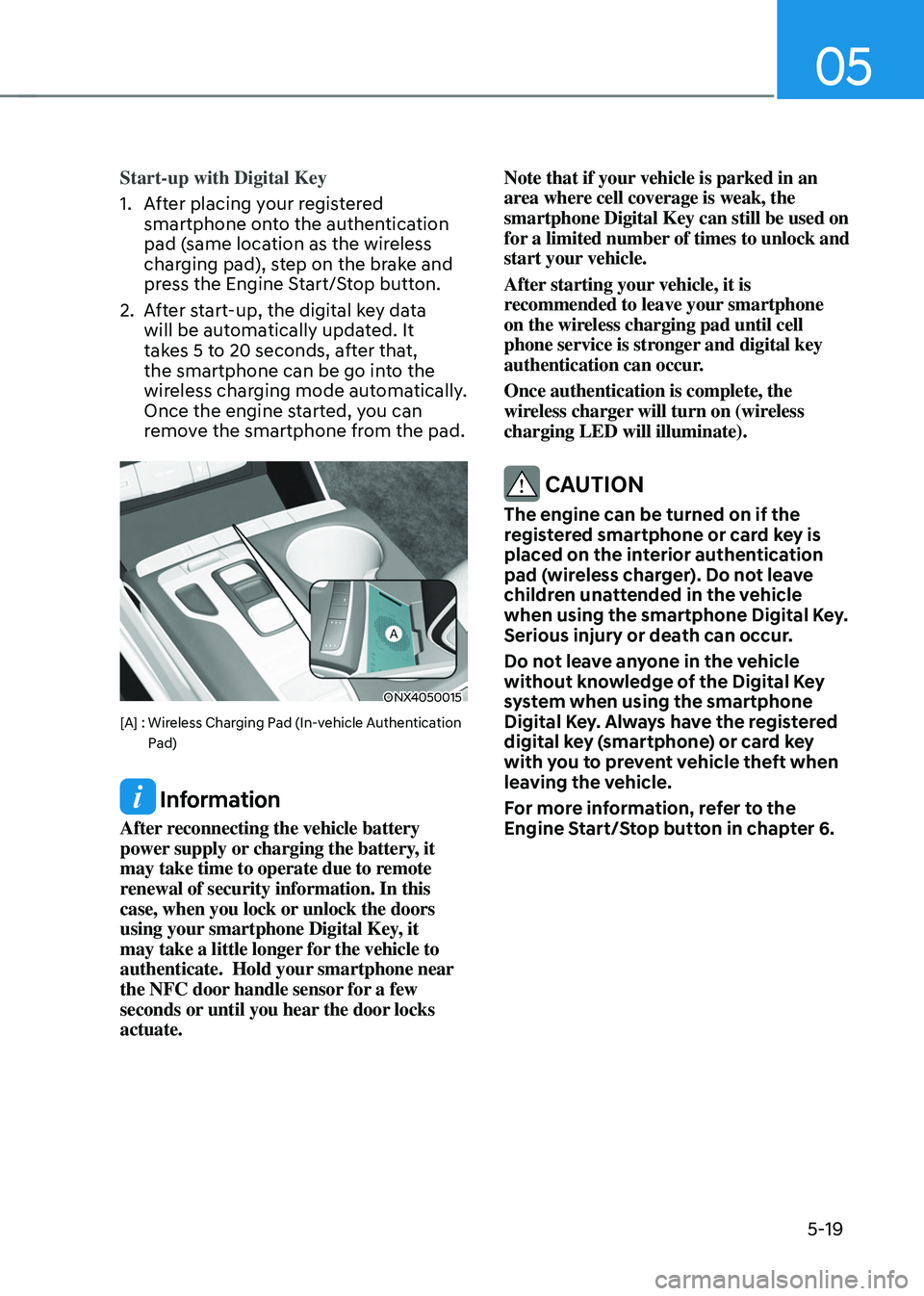
Start-up with Digital Key
1. After placing your registered
smartphone onto the authentication
pad (same location as the wireless
charging pad), step on the brake and
press the Engine Start/Stop button.
2. After start-up, the digital key data
will be automatically updated. It
takes 5 to 20 seconds, after that,
the smartphone can be go into the
wireless charging mode automatically.
Once the engine started, you can
remove the smartphone from the pad.
ONX4050015
[A] : Wireless Charging Pad (In-vehicle Authentication Pad)
Information
After reconnecting the vehicle battery
power supply or charging the battery, it
may take time to operate due to remote
renewal of security information. In this
case, when you lock or unlock the doors
using your smartphone Digital Key, it
may take a little longer for the vehicle to
authenticate. Hold your smartphone near
the NFC door handle sensor for a few
seconds or until you hear the door locks
actuate. Note that if your vehicle is parked in an
area where cell coverage is weak, the
smartphone Digital Key can still be used on
for a limited number of times to unlock and
start your vehicle.
After starting your vehicle, it is
recommended to leave your smartphone
on the wireless charging pad until cell
phone service is stronger and digital key
authentication can occur.
Once authentication is complete, the
wireless charger will turn on (wireless
charging LED will illuminate).
CAUTION
The engine can be turned on if the
registered smartphone or card key is
placed on the interior authentication
pad (wireless charger). Do not leave
children unattended in the vehicle
when using the smartphone Digital Key.
Serious injury or death can occur.
Do not leave anyone in the vehicle
without knowledge of the Digital Key
system when using the smartphone
Digital Key. Always have the registered
digital key (smartphone) or card key
with you to prevent vehicle theft when
leaving the vehicle.
For more information, refer to the
Engine Start/Stop button in chapter 6.