Speed HYUNDAI TUCSON 2023 Owners Manual
[x] Cancel search | Manufacturer: HYUNDAI, Model Year: 2023, Model line: TUCSON, Model: HYUNDAI TUCSON 2023Pages: 638, PDF Size: 26.51 MB
Page 463 of 638

Driver assistance system
7-100
• After you pass through a tollgate on a
highway (or motorway), Navigation-
based Smart Cruise Control will
operate based on the first lane. If
you enter one of the other lanes,
Navigation-based Smart Cruise
Control may not operate properly.
• The vehicle will accelerate if the
driver depresses the accelerator
pedal while Navigation-based Smart
Cruise Control is operating, and
the function will not decelerate the
vehicle. However, if the accelerator
pedal is depressed insufficiently, the
vehicle may decelerate.
• If the driver accelerates and
releases the accelerator pedal while
Navigation-based Smart Cruise
Control is operating, the vehicle may
not decelerate sufficiently or may
rapidly decelerate to a safe speed.
• If the curve is too large or too small,
Navigation-based Smart Cruise
Control may not operate.
Information
• The time gap could occur between
the navigation’s guidance and when
Navigation-based Smart Cruise Control
operation starts and ends.
• The speed information on the cluster
and navigation may differ.
• Even if you are driving at a speed lower
than Smart Cruise Control set speed,
acceleration may be limited by the
curve sections ahead.
• If Navigation-based Smart Cruise
Control is operating while leaving the
main road to enter an interchange,
junction, rest area, etc., the function
may operate for a certain period of
time.
• Deceleration by Navigation-based
Smart Cruise Control may feel it is not
sufficient due to road conditions such
as uneven road surfaces, narrow lanes,
etc.
Information
This device complies with Part 15 of the
FCC rules.
Operation is subject to the following three
conditions:
1. This device may not cause harmful
interference, and
2. This device must accept any
interference received, including
interference that may cause undesired
operation.
3. Changes or modifications not expressly
approved by the party responsible
for compliance could void the user's
authority to operate the device.
Information
Radio frequency radiation exposure
information:
This equipment complies with FCC
radiation exposure limits set forth for an
uncontrolled environment.
This equipment should be installed and
operated with minimum distance of 8 in.
(20 cm) between the radiator (antenna)
and your body.
This transmitter must not be co-located or
operating in conjunction with any other
antenna or transmitter.
Page 465 of 638
Driver assistance system
7-102
OTM070141N
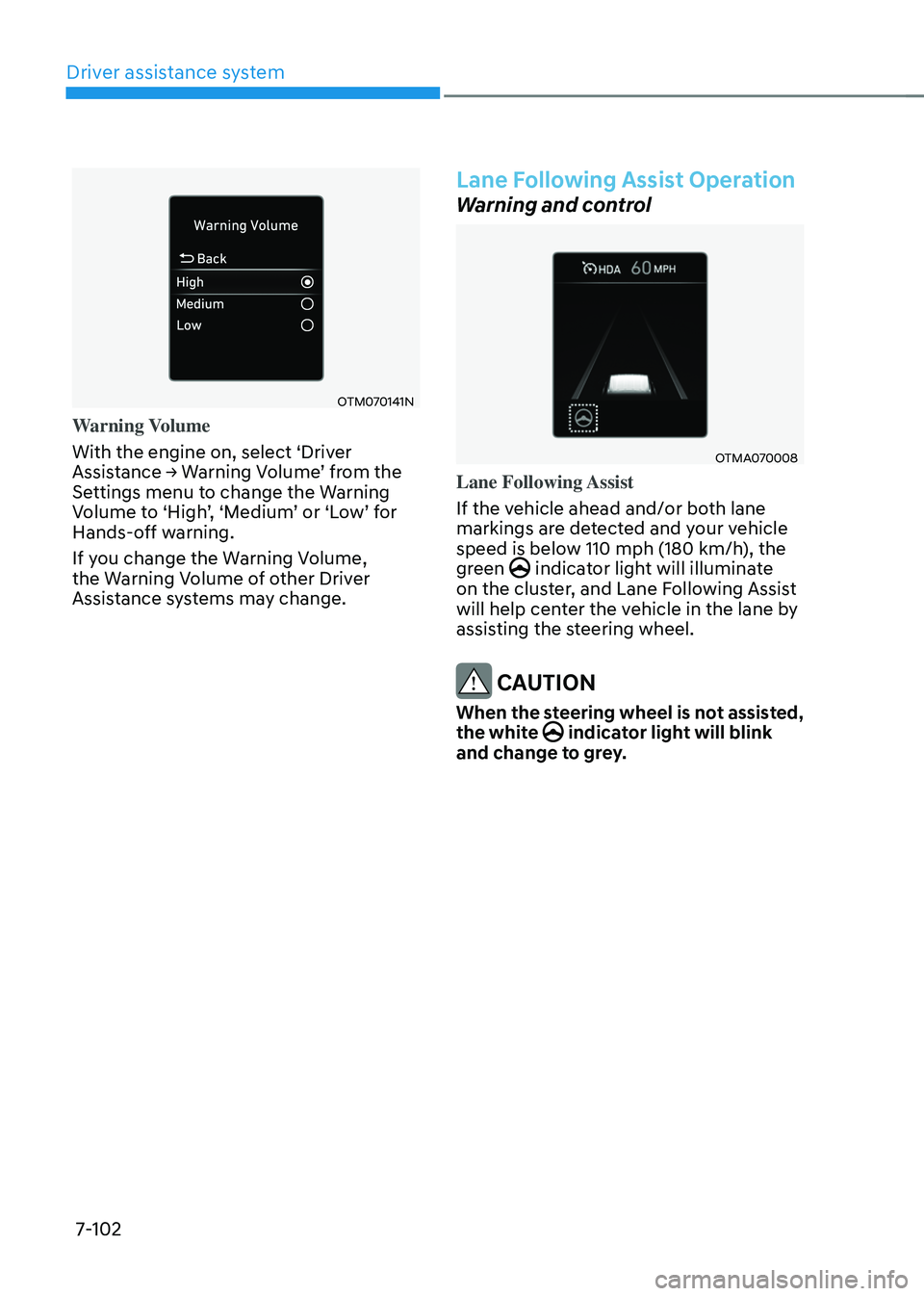
Warning Volume
With the engine on, select ‘Driver
Assistance → Warning Volume’ from the Settings menu to change the Warning Volume to ‘High’, ‘Medium’ or ‘Low’ for Hands-off warning.
If you change the Warning Volume,
the Warning Volume of other Driver
Assistance systems may change.
Lane Following Assist Operation
Warning and control
OTMA070008
Lane Following Assist
If the vehicle ahead and/or both lane
markings are detected and your vehicle
speed is below 110 mph (180 km/h), the
green
indicator light will illuminate on the cluster, and Lane Following Assist
will help center the vehicle in the lane by
assisting the steering wheel.
CAUTION
When the steering wheel is not assisted,
the white indicator light will blink and change to grey.
Page 468 of 638
07
7-105
HIGHWAY DRIVING ASSIST (HDA) (IF EQUIPPED)
Highway Driving Assist is designed to
help detect vehicles and lanes ahead,
and help maintain distance from the
vehicle ahead, maintain the set speed,
and help center the vehicle in the
lane while driving on the highway (or
motorway).
OADAS035
Information
• The Highway Driving Assist is available
only on controlled access road of
certain highways.
ÃControlled access road indicates
roads with limited entrances and
exits that allow uninterrupted high
speed traffic flow. Only passenger
cars and motorcycles are allowed on
controlled access roads.
• Additional highways may be expanded
by future navigation updates.
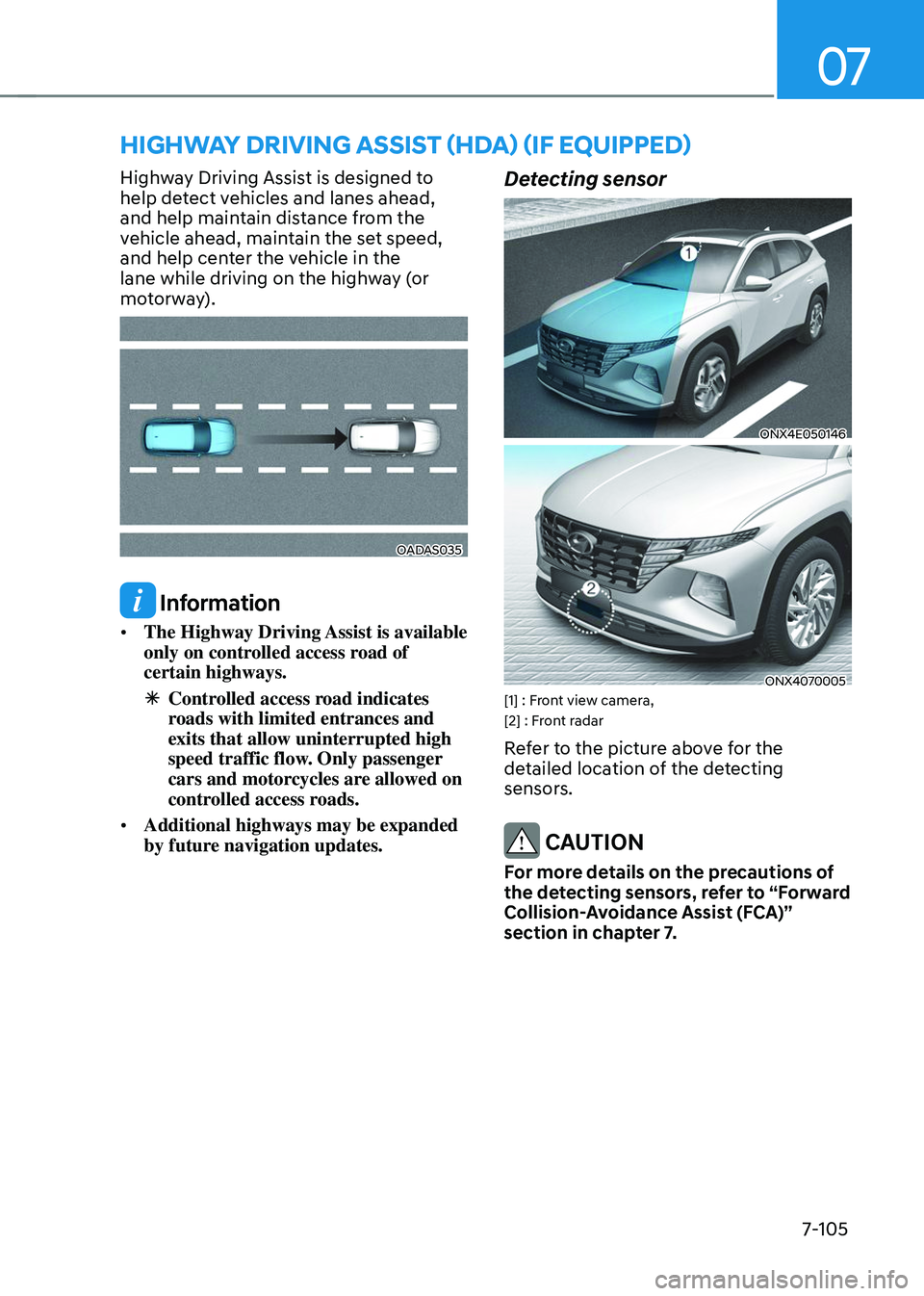
Detecting sensor
ONX4E050146
ONX4070005[1] : Front view camera,
[2] : Front radar
Refer to the picture above for the
detailed location of the detecting
sensors.
CAUTION
For more details on the precautions of
the detecting sensors, refer to “Forward
Collision-Avoidance Assist (FCA)”
section in chapter 7.
Page 469 of 638
Driver assistance system
7-106
Highway Driving Assist Settings
Setting features
Highway Driving Assist
With the engine on, select or deselect
‘Driver Assistance → Driving Convenience’ from the Settings menu to set whether or
not to use the following function(s).
-If ‘Highway Driving Assist’ (or ‘HDA (Motorway Driving Assist)’) is selected, it helps maintain distance from the
vehicle ahead, maintain the set speed,
and helps center the vehicle in the
lane.
Information
• If there is a problem with the
function(s), the settings cannot be
changed. We recommend that the
vehicle be inspected by an authorized
HYUNDAI dealer.
• If the engine is restarted, the function(s)
will maintain the last setting.
WARNING
For your safety, change the Settings
after parking the vehicle at a safe
location.
OTM070141N
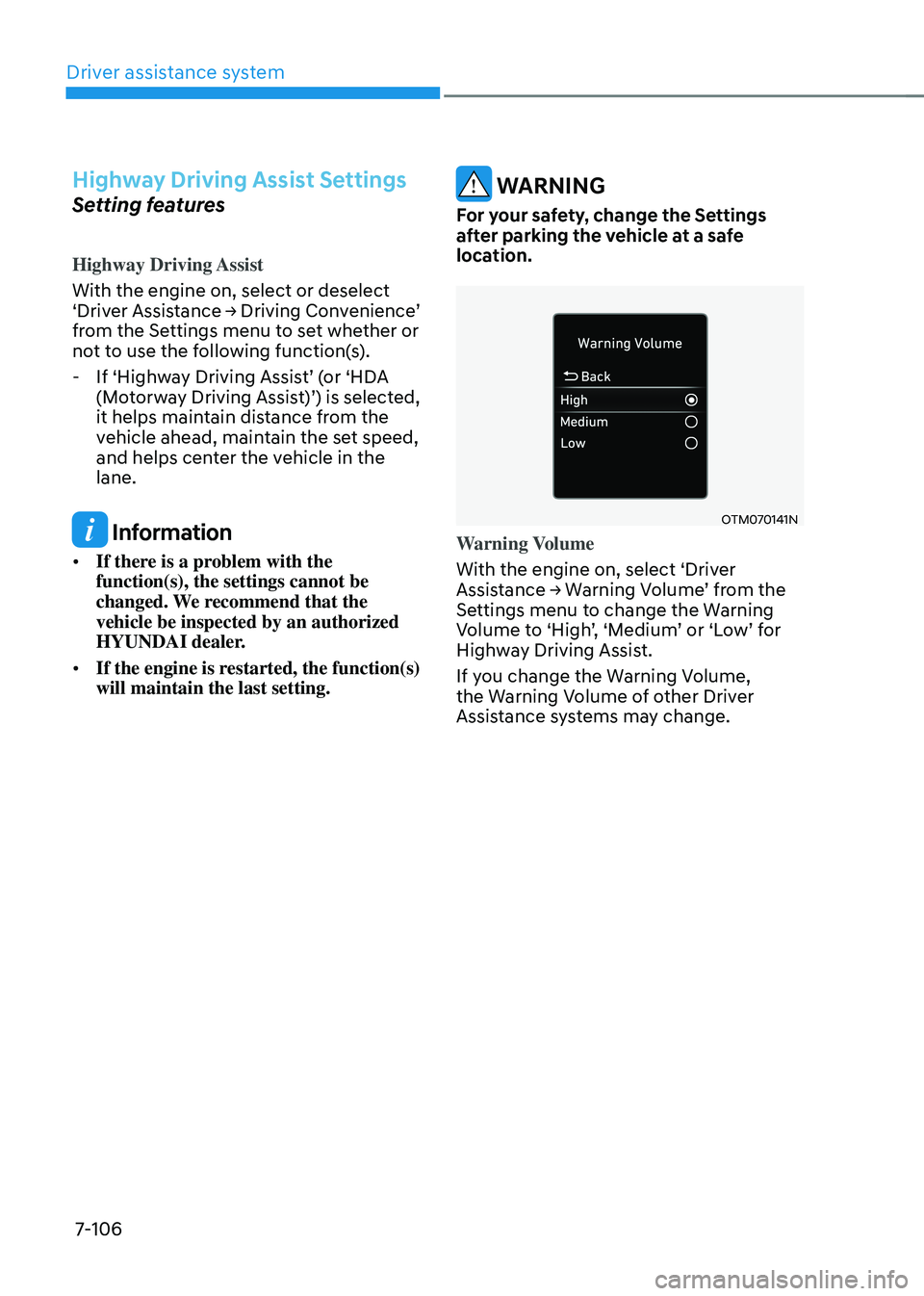
Warning Volume
With the engine on, select ‘Driver
Assistance → Warning Volume’ from the Settings menu to change the Warning Volume to ‘High’, ‘Medium’ or ‘Low’ for Highway Driving Assist.
If you change the Warning Volume,
the Warning Volume of other Driver
Assistance systems may change.
Page 470 of 638
07
7-107
Highway Driving Assist
Operation
Highway Driving Assist display and
control
You can see the status of the Highway
Driving Assist operation in the Driving
Assist mode on the cluster. Refer to “LCD
Display Modes” section in chapter 4.
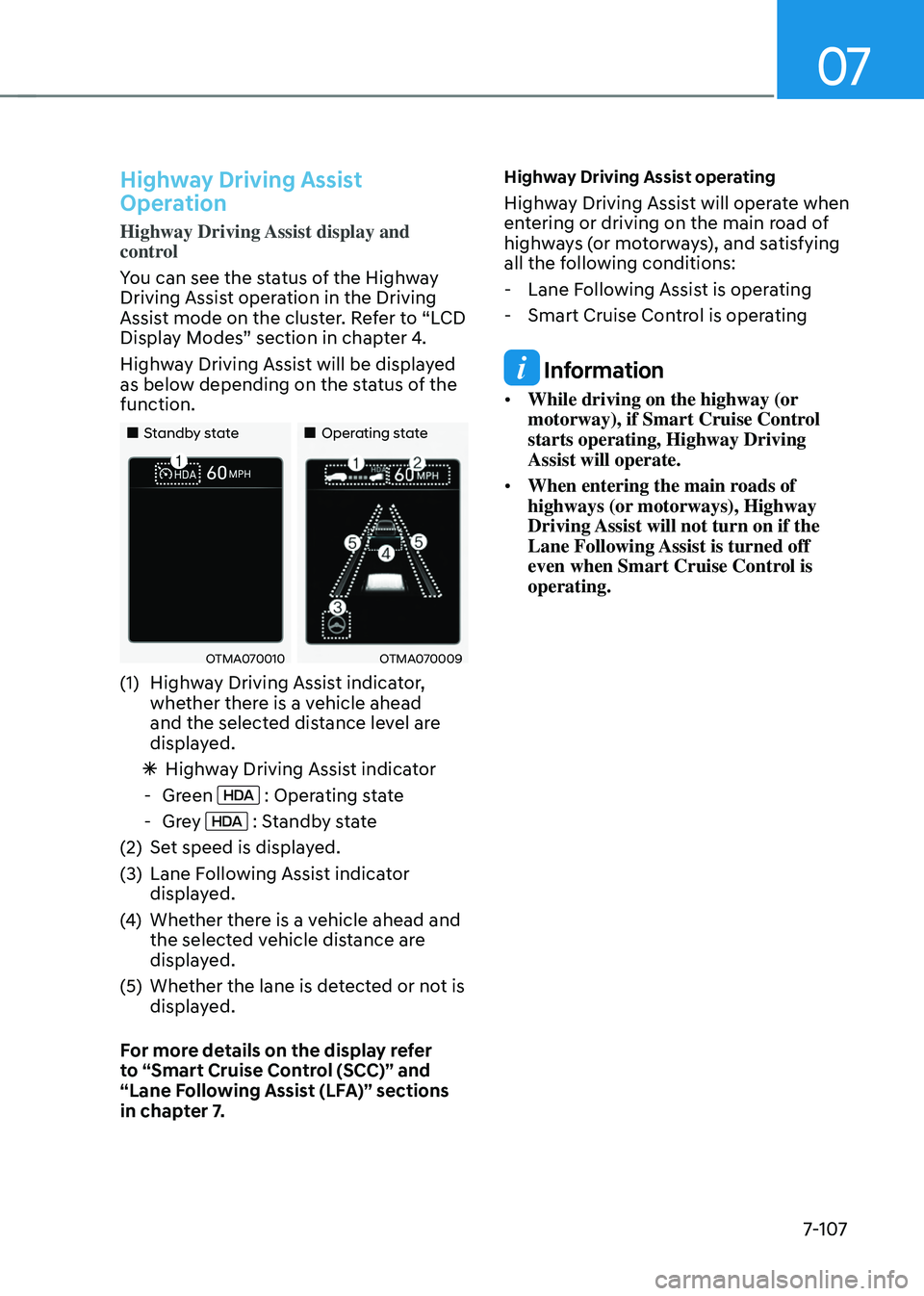
Highway Driving Assist will be displayed
as below depending on the status of the
function.
„„Standby state„„Operating state
OTMA070010OTMA070009
(1) Highway Driving Assist indicator,
whether there is a vehicle ahead
and the selected distance level are
displayed.
ÃHighway Driving Assist indicator
-Green : Operating state
-Grey : Standby state
(2) Set speed is displayed.
(3) Lane Following Assist indicator
displayed.
(4) Whether there is a vehicle ahead and
the selected vehicle distance are
displayed.
(5) Whether the lane is detected or not is
displayed.
For more details on the display refer
to “Smart Cruise Control (SCC)” and
“Lane Following Assist (LFA)” sections
in chapter 7.
Highway Driving Assist operating
Highway Driving Assist will operate when
entering or driving on the main road of
highways (or motorways), and satisfying
all the following conditions:
- Lane Following Assist is operating
-Smart Cruise Control is operating
Information
• While driving on the highway (or
motorway), if Smart Cruise Control
starts operating, Highway Driving
Assist will operate.
• When entering the main roads of
highways (or motorways), Highway
Driving Assist will not turn on if the
Lane Following Assist is turned off
even when Smart Cruise Control is
operating.
Page 473 of 638
Driver assistance system
7-110
WARNING
• The driver is responsible for
controlling the vehicle for safe
driving.
• Always have your hands on the
steering wheel while driving.
• Highway Driving Assist is a
supplemental function that assists
the driver in driving the vehicle
and is not a complete autonomous
driving system. Always check road
conditions, and if necessary, take
appropriate actions to drive safely.
• Always have your eyes on the road,
and it is the responsibility of the
driver to avoid violating traffic laws.
The vehicle manufacturer is not
responsible for any traffic violation
or accidents caused by the driver.
• Highway Driving Assist may not
be able to recognize all traffic
situations. Highway Driving Assist
may not detect possible collisions
due to limitations of the function.
Always be aware of the limitations
of the function. Obstacles such as
vehicles, motorcycles, bicycles,
pedestrians, or unspecified objects
or structures such as guardrails,
tollgate, etc. that may collide with
the vehicle may not be detected.
• Highway Driving Assist will turn off
automatically under the following
situations:
-Driving on roads that Highway
Driving Assist does not operate,
such as a rest area, intersection,
junction, etc.
-The navigation does not operate
properly such as when the
navigation is being updated or
restarted •
Highway Driving Assist may
inadvertently operate or turn off
depending on road conditions
(navigation information) and
surroundings.
• Lane Following Assist function may
be temporarily disabled when the
front view camera cannot detect
lanes properly or the hands-off
warning is on.
• You may not hear the warning sound
of Highway Driving Assist if the
surrounding is noisy.
• If the vehicle is driven at high speed
above a certain speed at a curve,
your vehicle may drive to one side or
may depart from the driving lane.
• When you are towing a trailer or
another vehicle, we recommend that
Highway Driving Assist is turned off
due to safety reasons.
• The hands–off warning message
may appear early or late depending
on how the steering wheel is held or
road conditions. Always have your
hands on the steering wheel while
driving.
• For your safety, please read the
owner's manual before using the
Highway Driving Assist.
• Highway Driving Assist will not
operate when the engine is started,
or when the detecting sensors or
navigation is being initialized.
Page 477 of 638
Driver assistance system
7-114
Rear view
Operating conditions
• Shift the gear to R (Reverse), the
image will appear on the screen.
• Press the Parking/View button (1)
while the gear is in P (Park), the image
will appear on the screen.
Off conditions
• The rear view cannot be turned off
when the gear is in R (Reverse).
• Press the Parking/View button (1)
again while the gear is in P (Park) with
the rear view on the screen, the rear
view will turn off.
• Shift the gear from R (Reverse) to P
(Park), the rear view will turn off.
Extended rear view function
The rear view will maintain showing on
the screen to help you when parking.
Operating conditions
Shift the gear from R (Reverse) to N
(Neutral) or D (Drive), the rear view will
appear on the screen.
Off conditions
• When vehicle speed is above 6 mph
(10 km/h), the rear view will turn off.
• Shift the gear to P (Park), the rear view
will turn off.
• If you press the Parking/View button,
the screen is off.
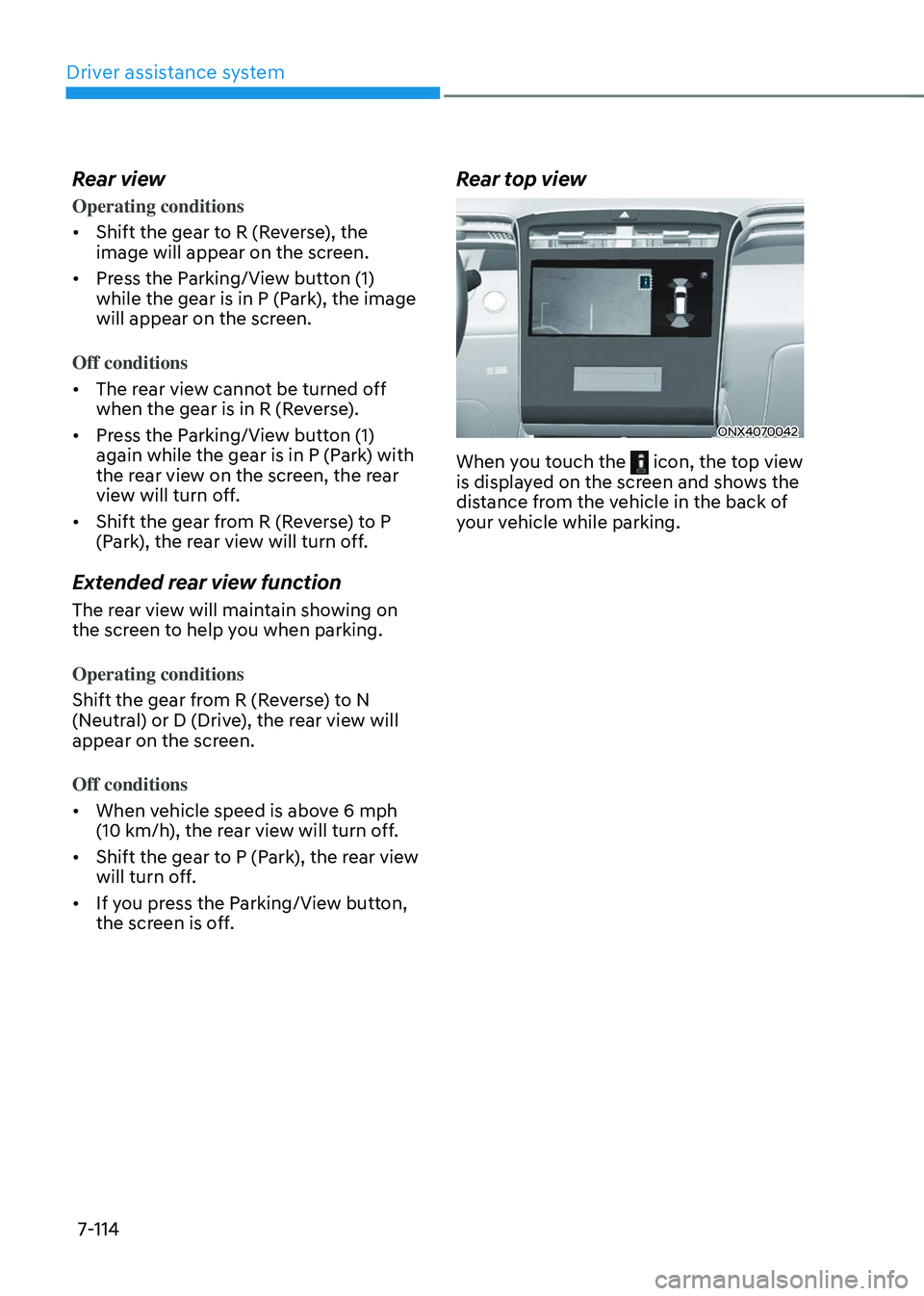
Rear top view
ONX4070042
When you touch the icon, the top view is displayed on the screen and shows the
distance from the vehicle in the back of
your vehicle while parking.
Page 482 of 638
07
7-119
Surround View Monitor
Operation
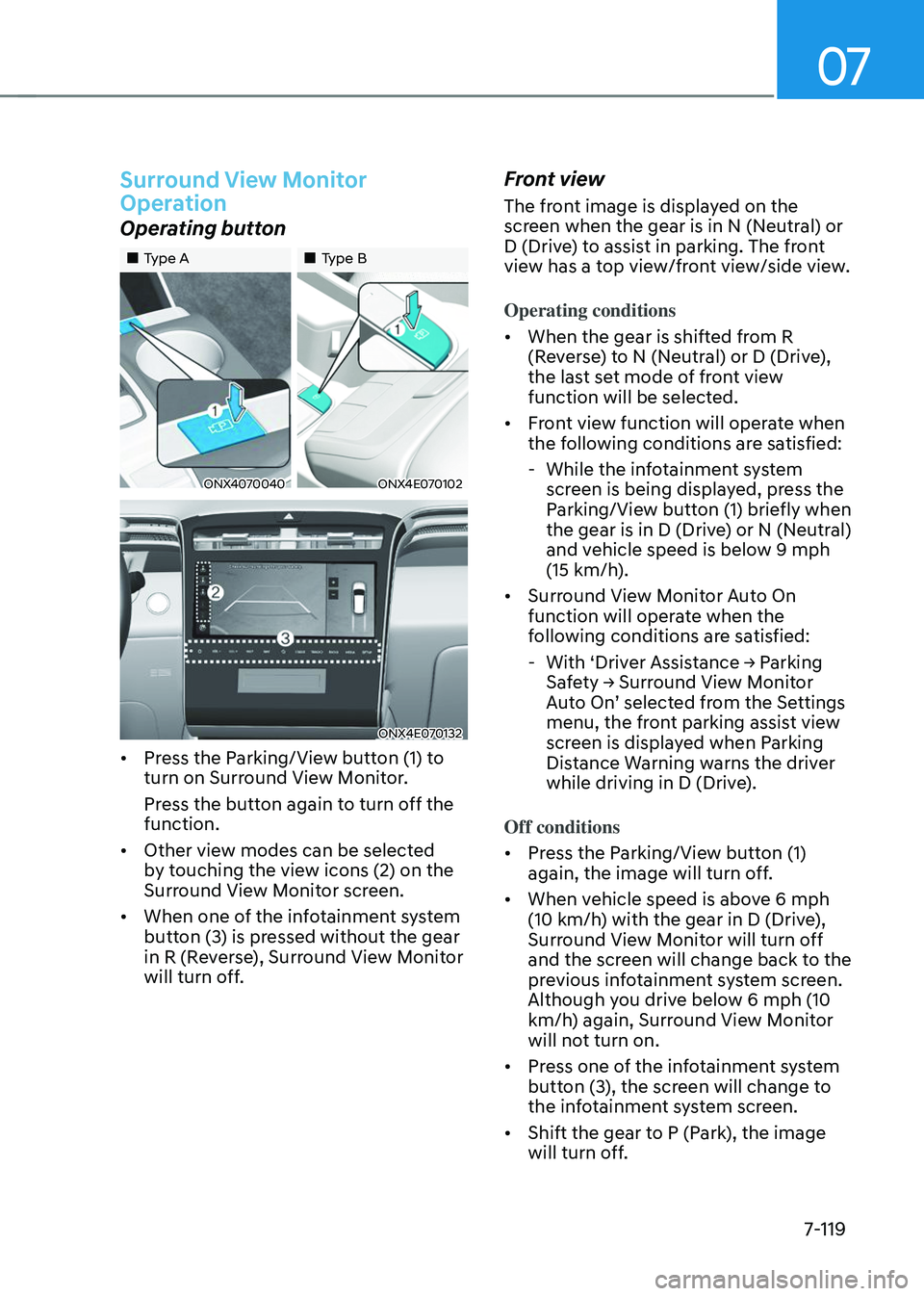
Operating button
„„Type A„„Type B
ONX4070040ONX4E070102
ONX4E070132
• Press the Parking/View button (1) to
turn on Surround View Monitor.
Press the button again to turn off the
function.
• Other view modes can be selected
by touching the view icons (2) on the
Surround View Monitor screen.
• When one of the infotainment system
button (3) is pressed without the gear
in R (Reverse), Surround View Monitor
will turn off.
Front view
The front image is displayed on the
screen when the gear is in N (Neutral) or
D (Drive) to assist in parking. The front
view has a top view/front view/side view.
Operating conditions
• When the gear is shifted from R
(Reverse) to N (Neutral) or D (Drive),
the last set mode of front view
function will be selected.
• Front view function will operate when
the following conditions are satisfied:
-While the infotainment system
screen is being displayed, press the
Parking/View button (1) briefly when
the gear is in D (Drive) or N (Neutral)
and vehicle speed is below 9 mph
(15 km/h).
• Surround View Monitor Auto On
function will operate when the
following conditions are satisfied:
-With ‘Driver Assistance → Parking Safety → Surround View Monitor Auto On’ selected from the Settings menu, the front parking assist view
screen is displayed when Parking
Distance Warning warns the driver
while driving in D (Drive).
Off conditions
• Press the Parking/View button (1)
again, the image will turn off.
• When vehicle speed is above 6 mph
(10 km/h) with the gear in D (Drive),
Surround View Monitor will turn off
and the screen will change back to the
previous infotainment system screen.
Although you drive below 6 mph (10
km/h) again, Surround View Monitor
will not turn on.
• Press one of the infotainment system
button (3), the screen will change to
the infotainment system screen.
• Shift the gear to P (Park), the image
will turn off.
Page 484 of 638
07
7-121
WARNING
• ALWAYS look around your vehicle
to make sure there are no objects
or obstacles before moving the
vehicle. What you see on the screen
may differ from the actual vehicle’s
location.
• The image shown on the screen may
differ from the actual distance of the
object. Make sure to directly check
the vehicle's surroundings for safety.
• Surround View Monitor is designed
to be used on a flat surface.
Therefore, if used on roads with
different heights such as curbs
and speed bumps, the image in the
screen my not look correct.
• Always keep the camera lens clean.
If the lens is covered with foreign
material, it may adversely affect
camera performance and Surround
View Monitor may not operate
normally. However, do not use
chemical solvents such as strong
detergents containing high alkaline
or volatile organic solvents (gasoline,
acetone etc.). This may damage the
camera lens.
Page 485 of 638
Driver assistance system
7-122
REAR CROSS-TRAFFIC COLLISION-AVOIDANCE ASSIST
(RCCA) (IF EQUIPPED)
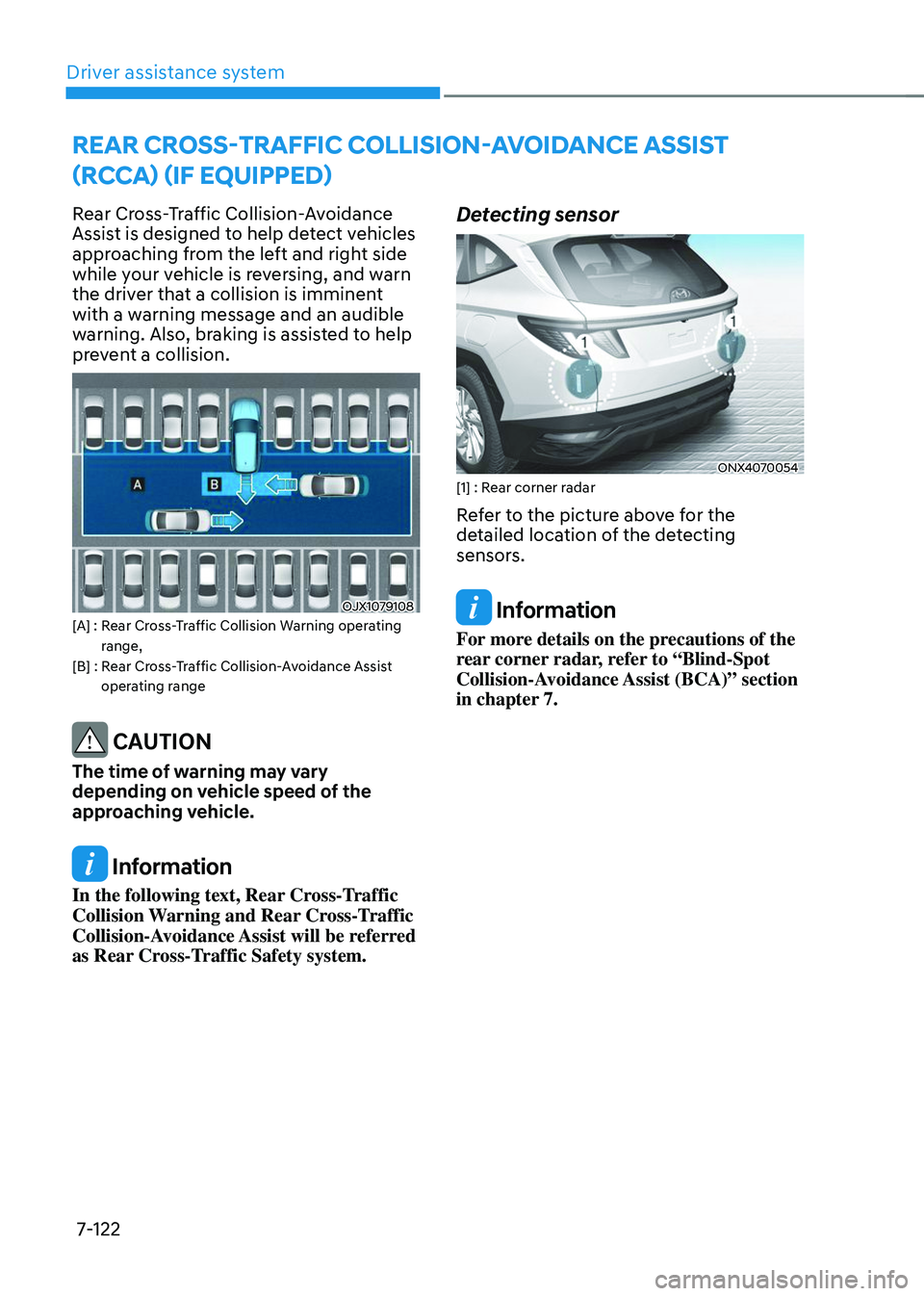
Rear Cross-Traffic Collision-Avoidance
Assist is designed to help detect vehicles
approaching from the left and right side
while your vehicle is reversing, and warn
the driver that a collision is imminent
with a warning message and an audible
warning. Also, braking is assisted to help
prevent a collision.
OJX1079108[A] : Rear Cross-Traffic Collision Warning operating range,[B] : Rear Cross-Traffic Collision-Avoidance Assist operating range
CAUTION
The time of warning may vary
depending on vehicle speed of the
approaching vehicle.
Information
In the following text, Rear Cross-Traffic
Collision Warning and Rear Cross-Traffic
Collision-Avoidance Assist will be referred
as Rear Cross-Traffic Safety system.
Detecting sensor
ONX4070054[1] : Rear corner radar
Refer to the picture above for the
detailed location of the detecting
sensors.
Information
For more details on the precautions of the
rear corner radar, refer to “Blind-Spot
Collision-Avoidance Assist (BCA)” section
in chapter 7.