audio HYUNDAI TUCSON LIMITED 2017 Workshop Manual
[x] Cancel search | Manufacturer: HYUNDAI, Model Year: 2017, Model line: TUCSON LIMITED, Model: HYUNDAI TUCSON LIMITED 2017Pages: 642, PDF Size: 9.78 MB
Page 366 of 642
![HYUNDAI TUCSON LIMITED 2017 Workshop Manual 4-103
Multimedia System
4
Calling by Dialing a Number
Press the key Select [Dial Number]
1) Dial Pad : Use the dial pad to enterthe phome number directly.
2) Call : If a number has been entered, cal](/img/35/56197/w960_56197-365.png "HYUNDAI TUCSON LIMITED 2017 Workshop Manual 4-103
Multimedia System
4
Calling by Dialing a Number
Press the key Select [Dial Number]
1) Dial Pad : Use the dial pad to enterthe phome number directly.
2) Call : If a number has been entered, cal")
4-103
Multimedia System
4
Calling by Dialing a Number
Press the key Select [Dial Number]
1) Dial Pad : Use the dial pad to enterthe phome number directly.
2) Call : If a number has been entered, calls the number. If no
number has been entered, switch-
es to call history screen
3) End : Deletes the entered phone number
4) Delete : Deletes entered numbers one digit at a time
Answering Calls
Answering a Call
Answering a call with a Bluetooth®
Wireless Technology device connect-
ed will display the following screen.
1) Caller : Displays the other party’sname when the incoming caller is
saved within your contacts
2) Incoming Number : Displays the incoming number
3) Accept : Accepts the incoming call
4) Reject : Rejects the incoming call
Information
When an incoming call pop-up is displayed, most Audio and SETUP
mode features are disabled. Only
the call volume will operate.
The telephone number may not be properly displayed in some mobile
phones.
When a call is answered with the mobile phone, the call mode will
automatically revert to Private
mode.
i
PHONE
Page 368 of 642
![HYUNDAI TUCSON LIMITED 2017 Workshop Manual 4-105
Multimedia System
4
Contacts
Press the key Select [Contacts]
The list of saved phone book entries
is displayed. Press the but-
ton to download the call history.1) Contacts List :
- Displays](/img/35/56197/w960_56197-367.png "HYUNDAI TUCSON LIMITED 2017 Workshop Manual 4-105
Multimedia System
4
Contacts
Press the key Select [Contacts]
The list of saved phone book entries
is displayed. Press the but-
ton to download the call history.1) Contacts List :
- Displays")
4-105
Multimedia System
4
Contacts
Press the key Select [Contacts]
The list of saved phone book entries
is displayed. Press the but-
ton to download the call history.1) Contacts List :
- Displays downloaded contactsentries
- Connects call upon selection
2) Sort by : Find a contact in an alphabetical order.
3) Download : Download contacts entries
Information
Up to 1,000 contacts saved in yourBluetooth®Wireless Technology
phone can be downloaded into the
car contacts. Contacts that have
been downloaded to the car cannot
be edited or deleted on the phone.
Mobile phone contacts are managed separately for each paired
Bluetooth
®Wireless Technology
device (max 5 devices x 1,000 con-
tacts each). Previously downloaded
data is maintained even if the
Bluetooth
®Wireless Technology
device has been disconnected.
(However, the contacts and call histo-
ry saved to the phone will be deleted
if a paired phone is deleted.)
(Continued)(Continued)
It is possible to download contacts
during Bluetooth streaming audio.
When downloading contacts, the icon will be displayed within the sta-
tus bar.
It is not possible to begin download- ing a contact list when the contact
download feature has been turned
off within the Bluetooth
®Wireless
Technology device. In addition,
some devices may require device
authorization upon attempting to
download contacts. If downloading
does not normally occur, check the
Bluetooth
®Wireless Technology
device settings or the screen state.
The contacts download feature may not be supported in some mobile
phones. For more information of
supported Bluetooth
®devices and
function support, refer to your
phone’s user manual.
i
Download
PHONE
Page 369 of 642
![HYUNDAI TUCSON LIMITED 2017 Workshop Manual 4-106
Multimedia System
Bluetooth®Wireless
Technology Setting
Pairing a New Device
Press the key Select
[Phone] Select [Pair Phone]
( ❈ the screen can be different by region.)
Bluetooth®Wireless](/img/35/56197/w960_56197-368.png "HYUNDAI TUCSON LIMITED 2017 Workshop Manual 4-106
Multimedia System
Bluetooth®Wireless
Technology Setting
Pairing a New Device
Press the key Select
[Phone] Select [Pair Phone]
( ❈ the screen can be different by region.)
Bluetooth®Wireless")
4-106
Multimedia System
Bluetooth®Wireless
Technology Setting
Pairing a New Device
Press the key Select
[Phone] Select [Pair Phone]
( ❈ the screen can be different by region.)
Bluetooth®Wireless Technology
devices can be paired with the audiosystem.
For more information, refer to the
“Pairing through Phone Setup” sec-tion within
Bluetooth®Wireless
Technology.
Viewing Paired Phone List
Press the key Select
[Phone] Select [Paired Phone List]
This feature is used to view mobile
phones that have been paired with
the audio system. Upon selecting a
paired phone, the setup menu is dis-
played.
For more information, refer to the “Setting
Bluetooth®Wireless
Technology Connection” section with-in
Bluetooth®Wireless Technology. 1) : Moves to the previous
screen
2) Connect/Disconnect Phone : Connect/disconnects currently selected phone
3) Delete : Deletes the currently selected phone
4) Change Priority : Sets currently selected phone to highest connec-
tion priority
SETUP
SETUP
Page 371 of 642
![HYUNDAI TUCSON LIMITED 2017 Workshop Manual 4-108
Multimedia System
Turning Bluetooth System Off
Press the key Select
[Phone] Select [Bluetooth System Off] Once
Bluetooth®Wireless Technology
is turned off,
Bluetooth®Wireless
Technology re](/img/35/56197/w960_56197-370.png "HYUNDAI TUCSON LIMITED 2017 Workshop Manual 4-108
Multimedia System
Turning Bluetooth System Off
Press the key Select
[Phone] Select [Bluetooth System Off] Once
Bluetooth®Wireless Technology
is turned off,
Bluetooth®Wireless
Technology re")
4-108
Multimedia System
Turning Bluetooth System Off
Press the key Select
[Phone] Select [Bluetooth System Off] Once
Bluetooth®Wireless Technology
is turned off,
Bluetooth®Wireless
Technology related features will not be
supported within the audio system. To turn
Bluetooth®Wireless
Technology back on, go to [Phone] and press “Yes”SETUP
NOTICE
SETUP
Page 375 of 642
4-112
Multimedia System
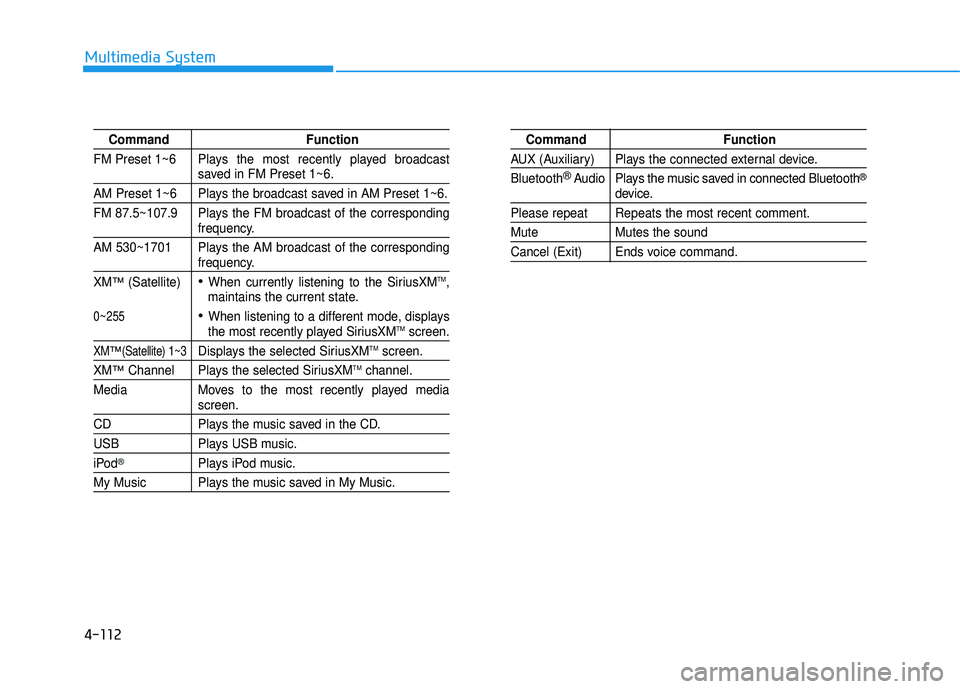
Command Function
FM Preset 1~6 Plays the most recently played broadcast
saved in FM Preset 1~6.
AM Preset 1~6 Plays the broadcast saved in AM Preset 1~6.
FM 87.5~107.9 Plays the FM broadcast of the corresponding
frequency.
AM 530~1701 Plays the AM broadcast of the corresponding
frequency.
XM
™(Satellite)When currently listening to the SiriusXMTM,
maintains the current state.
When listening to a different mode, displaysthe most recently played SiriusXMTMscreen.
XM™(Satellite) 1~3Displays the selected SiriusXMTMscreen.
XM™Channel Plays the selected SiriusXMTMchannel.
Media Moves to the most recently played media
screen.
CD Plays the music saved in the CD.
USB Plays USB music.
iPod®Plays iPod music.
My Music Plays the music saved in My Music.
Command Function
AUX (Auxiliary) Plays the connected external device. Bluetooth
®Audio Plays the music saved in connected Bluetooth®
device.
Please repeat Repeats the most recent comment.
Mute Mutes the sound
Cancel (Exit) Ends voice command.
0~255
Page 376 of 642
4-113
Multimedia System
4
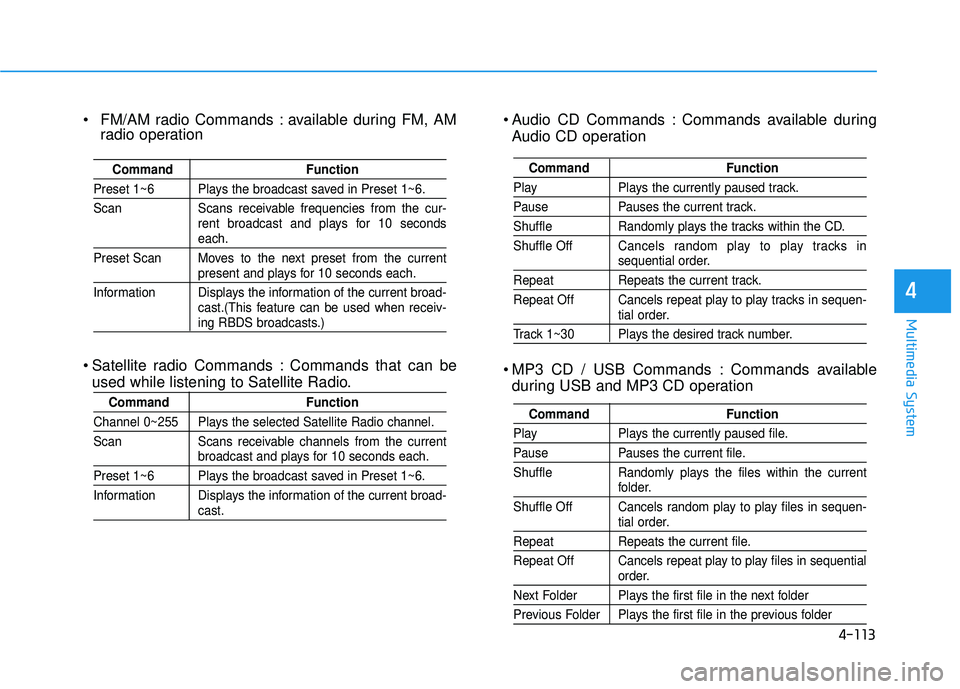
Audio CD Commands : Commands available duringAudio CD operation
MP3 CD / USB Commands : Commands available during USB and MP3 CD operation
Command Function
Play Plays the currently paused track.
Pause Pauses the current track.
Shuffle Randomly plays the tracks within the CD. Shuffle Off Cancels random play to play tracks in
sequential order.
Repeat Repeats the current track.
Repeat Off Cancels repeat play to play tracks in sequen-
tial order.
Track 1~30 Plays the desired track number.
Command Function
Play Plays the currently paused file.
Pause Pauses the current file.
Shuffle Randomly plays the files within the current
folder.
Shuffle Off Cancels random play to play files in sequen-
tial order.
Repeat Repeats the current file.
Repeat Off Cancels repeat play to play files in sequential
order.
Next Folder Plays the first file in the next folder
Previous Folder Plays the first file in the previous folder
FM/AM radio Commands : available during FM, AM radio operation
Satellite radio Commands : Commands that can be used while listening to Satellite Radio.
Command Function
Preset 1~6 Plays the broadcast saved in Preset 1~6.
Scan Scans receivable frequencies from the cur- rent broadcast and plays for 10 seconds
each.
Preset Scan Moves to the next preset from the current
present and plays for 10 seconds each.
Information Displays the information of the current broad- cast.(This feature can be used when receiv-
ing RBDS broadcasts.)
Command Function
Channel 0~255 Plays the selected Satellite Radio channel.
Scan Scans receivable channels from the current
broadcast and plays for 10 seconds each.
Preset 1~6 Plays the broadcast saved in Preset 1~6.
Information Displays the information of the current broad-
cast.
Page 383 of 642
![HYUNDAI TUCSON LIMITED 2017 Workshop Manual 4-120
Multimedia System
Clock Display
Press the key Select [Clock
/Calendar] Select [Clock Display
(Power off)]
This feature is used to display a clock on the screen when the audio sys-
tem is turn](/img/35/56197/w960_56197-382.png "HYUNDAI TUCSON LIMITED 2017 Workshop Manual 4-120
Multimedia System
Clock Display
Press the key Select [Clock
/Calendar] Select [Clock Display
(Power off)]
This feature is used to display a clock on the screen when the audio sys-
tem is turn")
4-120
Multimedia System
Clock Display
Press the key Select [Clock
/Calendar] Select [Clock Display
(Power off)]
This feature is used to display a clock on the screen when the audio sys-
tem is turned off.
System Setting
Memory Information
Press the key Select
[System] Select [Memory Information]
This feature displays information
related to system memory.
1) Using : Displays capacity currentlyin use
2) Capacity : Displays total capacity
Prompt Feedback
Press the key Select
[System] Select [Prompt Feedback]
This feature is used to select the
desired prompt feedback option from
ON and OFF.
1) ON : When using voice recogni- tion, provides detailed guidance prompts
2) OFF : When using voice recogni- tion, omits some guidancepromptsSETUP
SETUP
SETUP
Page 560 of 642
7-47
7
Maintenance
By jump starting
After a jump start from a good bat-
tery, drive the vehicle for 20-30 min-
utes before it is shutoff. The vehicle
may not restart if you shut it off
before the battery had a chance to
adequately recharge. See "Jump
Starting" in chapter 6 for more infor-
mation on jump starting procedures.
Information
An inappropriately disposedbattery can be harmful to
the environment and human
health.
Dispose the battery according to your
local law(s) or regulation.
Reset features
Some items need to be reset after
the battery has been discharged or
the battery has been disconnected.
See chapter 3 for:
Power Windows
Trip Computer
Climate Control System
Clock
Audio System
Sunroof
Integrated Memory System
i
(Continued)
Watch the battery during
charging, and stop or reduce
the charging rate if the battery
cells begin boiling violently.
The negative battery cable
must be removed first and
installed last when the battery
is disconnected. Disconnect
the battery charger in the fol-
lowing order:
(1) Turn off the battery charg- er main switch.
(2) Unhook the negative
clamp from the negative
battery terminal.
(3) Unhook the positive clamp from the positive batteryterminal.
Always use a genuine
HYUNDAI approved battery
when you replace the battery.
Page 579 of 642
7-66
Maintenance
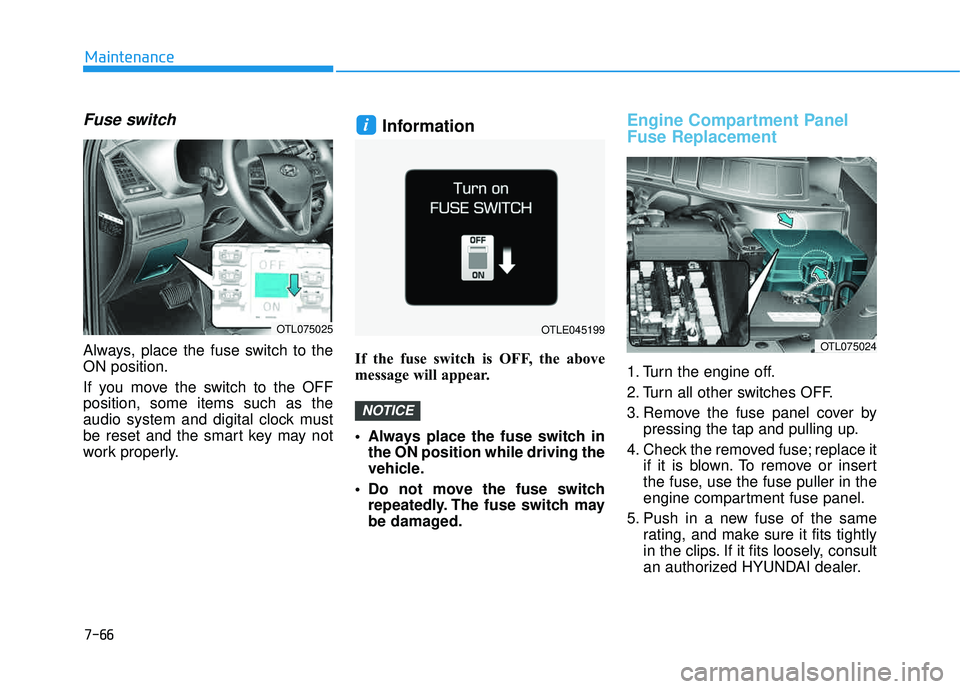
Fuse switch
Always, place the fuse switch to the ON position.
If you move the switch to the OFF position, some items such as the
audio system and digital clock must
be reset and the smart key may not
work properly.
Information
If the fuse switch is OFF, the above
message will appear.
Always place the fuse switch inthe ON position while driving the
vehicle.
Do not move the fuse switch repeatedly. The fuse switch may
be damaged.
Engine Compartment Panel Fuse Replacement
1. Turn the engine off.
2. Turn all other switches OFF.
3. Remove the fuse panel cover by pressing the tap and pulling up.
4. Check the removed fuse; replace it if it is blown. To remove or insert
the fuse, use the fuse puller in the
engine compartment fuse panel.
5. Push in a new fuse of the same rating, and make sure it fits tightly
in the clips. If it fits loosely, consult
an authorized HYUNDAI dealer.
NOTICE
i
OTLE045199OTL075025
OTL075024
Page 583 of 642
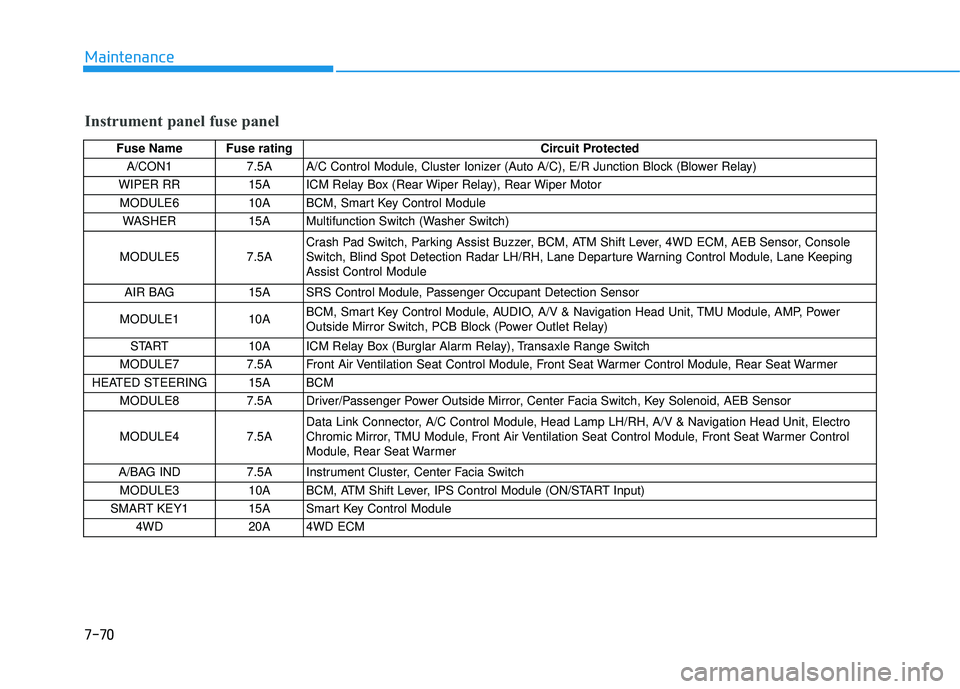
7-70
Maintenance
Instrument panel fuse panel
Fuse Name Fuse ratingCircuit Protected
A/CON1 7.5A A/C Control Module, Cluster Ionizer (Auto A/C), E/R Junction Block (Blower Relay)
WIPER RR 15A ICM Relay Box (Rear Wiper Relay), Rear Wiper Motor MODULE6 10A BCM, Smart Key Control Module WASHER 15A Multifunction Switch (Washer Switch)
MODULE5 7.5A Crash Pad Switch, Parking Assist Buzzer, BCM, ATM Shift Lever, 4WD ECM, AEB Sensor, Console
Switch, Blind Spot Detection Radar LH/RH, Lane Departure Warning Control Module, Lane KeepingAssist Control Module
AIR BAG 15A SRS Control Module, Passenger Occupant Detection Sensor
MODULE1 10A BCM, Smart Key Control Module, AUDIO, A/V & Navigation Head Unit, TMU Module, AMP, Power
Outside Mirror Switch, PCB Block (Power Outlet Relay)
START 10A ICM Relay Box (Burglar Alarm Relay), Transaxle Range Switch
MODULE7 7.5A Front Air Ventilation Seat Control Module, Front Seat Warmer Control Module, Rear Seat Warmer
HEATED STEERING 15A BCM MODULE8 7.5A Driver/Passenger Power Outside Mirror, Center Facia Switch, Key Solenoid, AEB Sensor MODULE4 7.5A Data Link Connector, A/C Control Module, Head Lamp LH/RH, A/V & Navigation Head Unit, Electro
Chromic Mirror, TMU Module, Front Air Ventilation Seat Control Module, Front Seat Warmer Control
Module, Rear Seat Warmer
A/BAG IND 7.5A Instrument Cluster, Center Facia Switch MODULE3 10A BCM, ATM Shift Lever, IPS Control Module (ON/START Input)
SMART KEY1 15A Smart Key Control Module 4WD 20A 4WD ECM