radio HYUNDAI VELOSTER 2011 Owners Manual
[x] Cancel search | Manufacturer: HYUNDAI, Model Year: 2011, Model line: VELOSTER, Model: HYUNDAI VELOSTER 2011Pages: 386, PDF Size: 7.79 MB
Page 2 of 386
F2
Your Hyundai should not be modified in any way. Such modifications may adversely affect the per-
formance, safety or durability of your Hyundai and may, in addition, violate conditions of the limited
warranties covering the vehicle. Certain modifications may also be in violation of regulations estab-
lished by the Department of Transportation and other government agencies in your country.
Your vehicle is equipped with electronic fuel injection and other electronic components. It is possible
for an improperly installed/adjusted two-way radio or cellular telephone to adversely affect electronic
systems. For this reason, we recommend that you carefully follow the radio manufacturer's instruc-
tions or consult your Hyundai dealer for precautionary measures or special instructions if you choose
to install one of these devices.
CAUTION: MODIFICATIONS TO YOUR HYUNDAI
TWO-WAY RADIO OR CELLULAR TELEPHONE INSTALLATION
procarmanuals.com
Page 80 of 386
Features of your vehicle
6 4
Transmitter precautions
✽NOTICE
The transmitter may not work if any of
following occur:
• The ignition key is in ignition switch.
• You exceed the operating distance
limit (about 10 m [30 feet]).
• The battery in the transmitter is
weak.
• Other vehicles or objects may be
blocking the signal.
• The weather is extremely cold.
• The transmitter is close to a radio
transmitter such as a radio station or
an airport which can interfere with
normal operation of the transmitter.
When the transmitter does not work
properly, open and close the door with
the ignition key. If you have a problem
with the transmitter, contact an author-
ized HYUNDAI dealer.
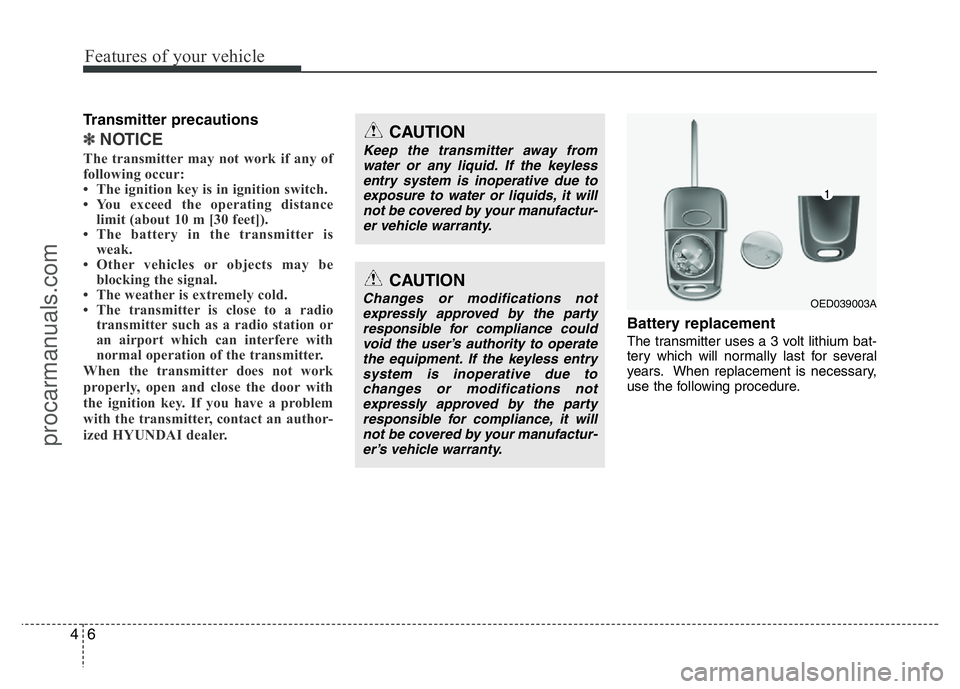
Battery replacement
The transmitter uses a 3 volt lithium bat-
tery which will normally last for several
years. When replacement is necessary,
use the following procedure.
OED039003A
CAUTION
Keep the transmitter away from
water or any liquid. If the keyless
entry system is inoperative due to
exposure to water or liquids, it will
not be covered by your manufactur-
er vehicle warranty.
CAUTION
Changes or modifications not
expressly approved by the party
responsible for compliance could
void the user’s authority to operate
the equipment. If the keyless entry
system is inoperative due to
changes or modifications not
expressly approved by the party
responsible for compliance, it will
not be covered by your manufactur-
er’s vehicle warranty.
procarmanuals.com
Page 83 of 386
49
Features of your vehicle
Tailgate unlocking
If you are within 0.7 m (28 in.) from the
outside tailgate handle, with your smart
key in possession, the tailgate will unlock
and open when you press the tailgate
handle switch.
The hazard warning lights will blink twice
to indicate that the tailgate is unlocked.
Also, once the tailgate is opened and
then closed, the tailgate will lock auto-
matically.
Start-up
You can start the engine without inserting
the key. For detailed information refer to
“Starting the engine with a smart key” in
section 5.
Smart key precautions
✽NOTICE
• If, for some reason, you happen to lose
your smart key, you will not be able to
start the engine. Tow the vehicle, if
necessary, and contact an authorized
HYUNDAI dealer.
• A maximum of 2 smart keys can be
registered to a single vehicle. If you
lose a smart key, you should immedi-
ately take the vehicle and key to your
authorized HYUNDAI dealer to pro-
tect it from potential theft.
• The smart key will not work if any of
the following occurs:
- The smart key is close to a radio
transmitter such as a radio station or
an airport which can interfere with
normal operation of the smart key.
- The smart key is near a mobile two-
way radio system or a cellular
phone.
- Another vehicle’s smart key is being
operated close to your vehicle.
When the smart key does not work
properly, open and close the door with
the mechanical key. If you have a
problem with the smart key, contact
an authorized HYUNDAI dealer.
CAUTION
Keep the smart key away from
water or any liquid. If the keyless
entry system is inoperative due to
exposure to water or liquids, it will
not be covered by your manufactur-
er’s vehicle warranty.
procarmanuals.com
Page 192 of 386
Features of your vehicle
118 4
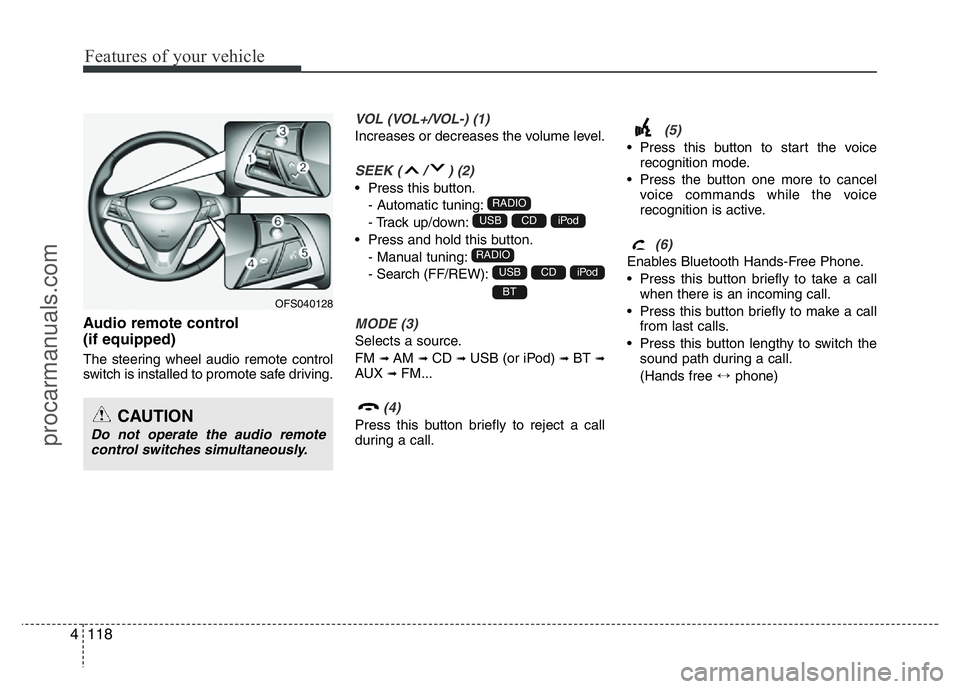
Audio remote control
(if equipped)
The steering wheel audio remote control
switch is installed to promote safe driving.
VOL (VOL+/VOL-) (1)
Increases or decreases the volume level.
SEEK ( / ) (2)
• Press this button.
- Automatic tuning:
- Track up/down:
• Press and hold this button.
- Manual tuning:
- Search (FF/REW):
MODE (3)
Selects a source.
FM
➟AM ➟CD ➟USB (or iPod) ➟BT ➟AUX ➟FM...
(4)
Press this button briefly to reject a call
during a call.
(5)
• Press this button to start the voice
recognition mode.
• Press the button one more to cancel
voice commands while the voice
recognition is active.
(6)
Enables Bluetooth Hands-Free Phone.
• Press this button briefly to take a call
when there is an incoming call.
• Press this button briefly to make a call
from last calls.
• Press this button lengthy to switch the
sound path during a call.
(Hands free ↔phone)
BT
iPodCDUSB
RADIO
iPodCDUSB
RADIO
CAUTION
Do not operate the audio remote
control switches simultaneously.
OFS040128
procarmanuals.com
Page 193 of 386
4119
Features of your vehicle
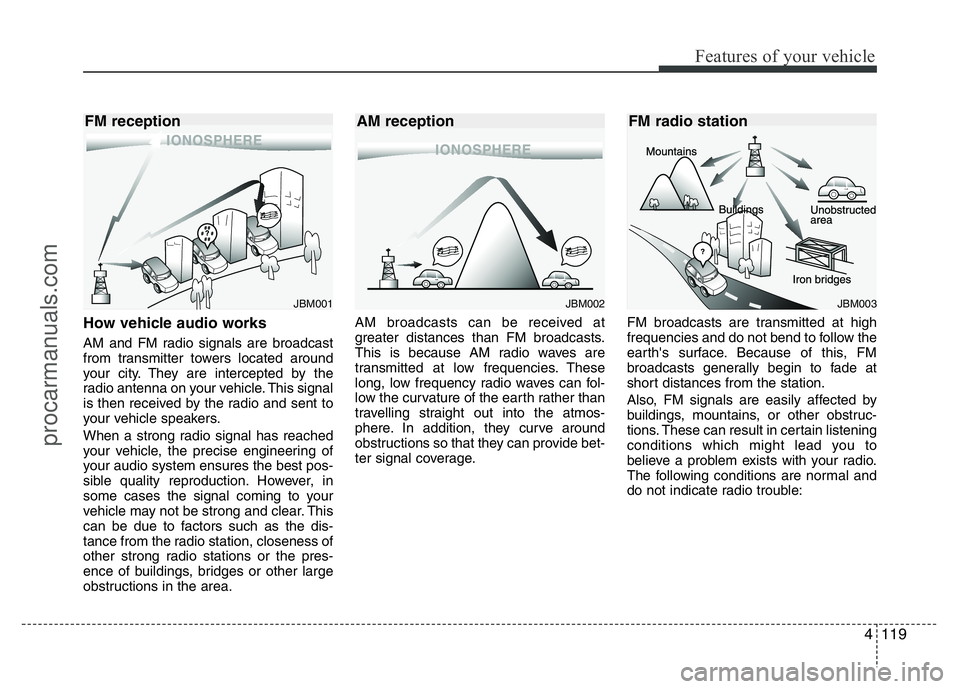
How vehicle audio works
AM and FM radio signals are broadcast
from transmitter towers located around
your city. They are intercepted by the
radio antenna on your vehicle. This signal
is then received by the radio and sent to
your vehicle speakers.
When a strong radio signal has reached
your vehicle, the precise engineering of
your audio system ensures the best pos-
sible quality reproduction. However, in
some cases the signal coming to your
vehicle may not be strong and clear. This
can be due to factors such as the dis-
tance from the radio station, closeness of
other strong radio stations or the pres-
ence of buildings, bridges or other large
obstructions in the area.AM broadcasts can be received at
greater distances than FM broadcasts.
This is because AM radio waves are
transmitted at low frequencies. These
long, low frequency radio waves can fol-
low the curvature of the earth rather than
travelling straight out into the atmos-
phere. In addition, they curve around
obstructions so that they can provide bet-
ter signal coverage.FM broadcasts are transmitted at high
frequencies and do not bend to follow the
earth's surface. Because of this, FM
broadcasts generally begin to fade at
short distances from the station.
Also, FM signals are easily affected by
buildings, mountains, or other obstruc-
tions. These can result in certain listening
conditions which might lead you to
believe a problem exists with your radio.
The following conditions are normal and
do not indicate radio trouble:
JBM002
AM reception
JBM001
FM reception
JBM003
FM radio station
procarmanuals.com
Page 194 of 386
Features of your vehicle
120 4
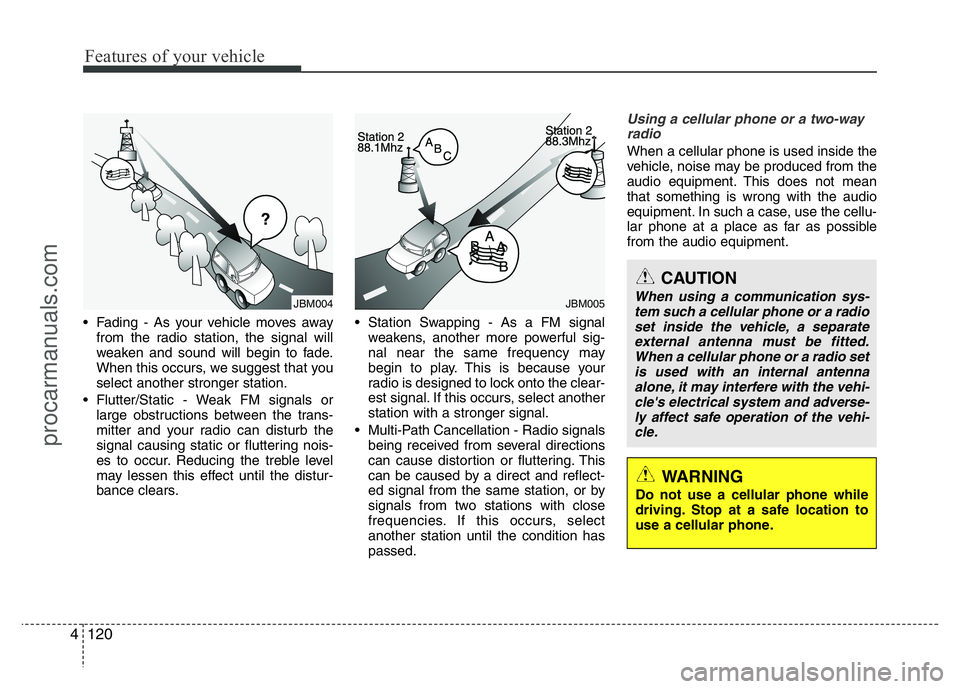
• Fading - As your vehicle moves away
from the radio station, the signal will
weaken and sound will begin to fade.
When this occurs, we suggest that you
select another stronger station.
• Flutter/Static - Weak FM signals or
large obstructions between the trans-
mitter and your radio can disturb the
signal causing static or fluttering nois-
es to occur. Reducing the treble level
may lessen this effect until the distur-
bance clears.• Station Swapping - As a FM signal
weakens, another more powerful sig-
nal near the same frequency may
begin to play. This is because your
radio is designed to lock onto the clear-
est signal. If this occurs, select another
station with a stronger signal.
• Multi-Path Cancellation - Radio signals
being received from several directions
can cause distortion or fluttering. This
can be caused by a direct and reflect-
ed signal from the same station, or by
signals from two stations with close
frequencies. If this occurs, select
another station until the condition has
passed.
Using a cellular phone or a two-way
radio
When a cellular phone is used inside the
vehicle, noise may be produced from the
audio equipment. This does not mean
that something is wrong with the audio
equipment. In such a case, use the cellu-
lar phone at a place as far as possible
from the audio equipment.
JBM005JBM004
CAUTION
When using a communication sys-
tem such a cellular phone or a radio
set inside the vehicle, a separate
external antenna must be fitted.
When a cellular phone or a radio set
is used with an internal antenna
alone, it may interfere with the vehi-
cle's electrical system and adverse-
ly affect safe operation of the vehi-
cle.
WARNING
Do not use a cellular phone while
driving. Stop at a safe location to
use a cellular phone.
procarmanuals.com
Page 197 of 386
4123
Features of your vehicle
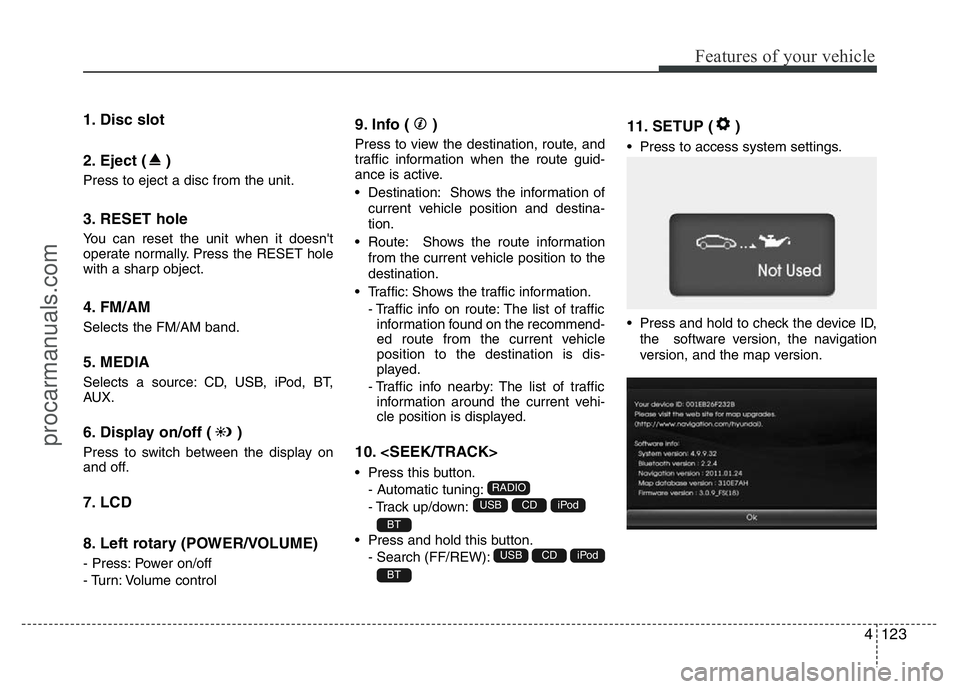
1. Disc slot
2. Eject ( )
Press to eject a disc from the unit.
3. RESET hole
You can reset the unit when it doesn't
operate normally. Press the RESET hole
with a sharp object.
4. FM/AM
Selects the FM/AM band.
5. MEDIA
Selects a source: CD, USB, iPod, BT,
AUX.
6. Display on/off ( )
Press to switch between the display on
and off.
7. LCD
8. Left rotary (POWER/VOLUME)
- Press: Power on/off
- Turn: Volume control
9. Info ( )
Press to view the destination, route, and
traffic information when the route guid-
ance is active.
• Destination: Shows the information of
current vehicle position and destina-
tion.
• Route: Shows the route information
from the current vehicle position to the
destination.
• Traffic: Shows the traffic information.
- Traffic info on route: The list of traffic
information found on the recommend-
ed route from the current vehicle
position to the destination is dis-
played.
- Traffic info nearby: The list of traffic
information around the current vehi-
cle position is displayed.
10.
• Press this button.
- Automatic tuning:
- Track up/down:
• Press and hold this button.
- Search (FF/REW):
11. SETUP ( )
• Press to access system settings.
• Press and hold to check the device ID,
the software version, the navigation
version, and the map version.
BT
iPodCDUSB
BT
iPodCDUSB
RADIO
procarmanuals.com
Page 198 of 386
Features of your vehicle
124 4
12. Right rotary (TUNE)
Rotate it clockwise/counterclockwise.
• Searches the previous or next radio
frequency.
- Manual tuning
• Skips a track/file up/down in all list
screen.
• ZOOM IN/ ZOOM OUT
- Rotate to change the map scale on
the map screen.
Repeat voice guidance
Press to repeat the voice guidance.
13. PHONE ( )
Use to enable Bluetooth Hands-Free
Phone.
14. NAV
Press to enter a destination menu.
Various methods for entering a destina-
tion are available.
15. MAP
Press to display the current location map
screen.
16. CD indicator light (CD-IN)
When a disc is inserted, the indicator is
illuminated.
17. Clock ( )
• Press to display the digital/analog
clock and outside temperature in
power on/off status.
• Press and hold to move to the [Clock]
menu.
procarmanuals.com
Page 205 of 386
4131
Features of your vehicle
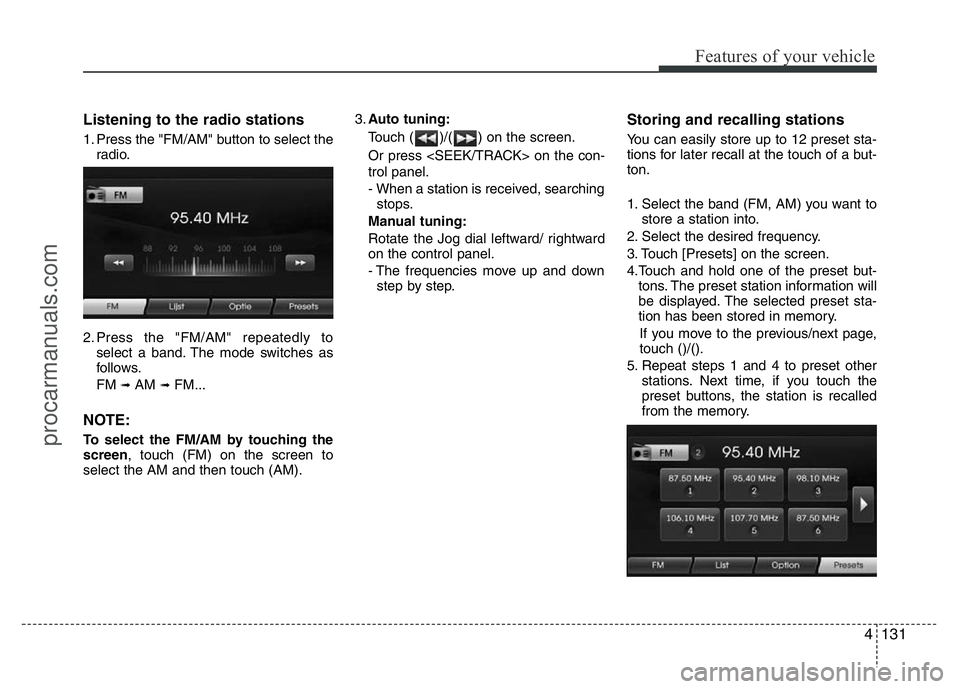
Listening to the radio stations
1. Press the "FM/AM" button to select the
radio.
2. Press the "FM/AM" repeatedly to
select a band. The mode switches as
follows.
FM
➟AM ➟FM...
NOTE:
To select the FM/AM by touching the
screen, touch (FM) on the screen to
select the AM and then touch (AM).3.Auto tuning:
Touch ( )/( ) on the screen.
Or press
trol panel.
- When a station is received, searching
stops.
Manual tuning:
Rotate the Jog dial leftward/ rightward
on the control panel.
- The frequencies move up and down
step by step.
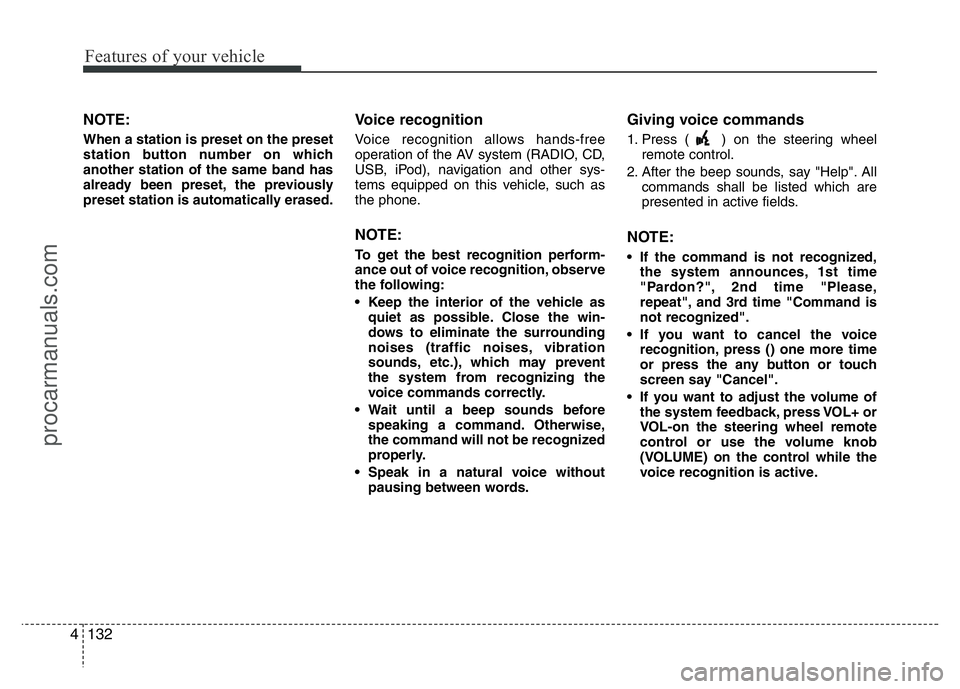
Storing and recalling stations
You can easily store up to 12 preset sta-
tions for later recall at the touch of a but-
ton.
1. Select the band (FM, AM) you want to
store a station into.
2. Select the desired frequency.
3. Touch [Presets] on the screen.
4.Touch and hold one of the preset but-
tons. The preset station information will
be displayed. The selected preset sta-
tion has been stored in memory.
If you move to the previous/next page,
touch ()/().
5. Repeat steps 1 and 4 to preset other
stations. Next time, if you touch the
preset buttons, the station is recalled
from the memory.
procarmanuals.com
Page 206 of 386
Features of your vehicle
132 4
NOTE:
When a station is preset on the preset
station button number on which
another station of the same band has
already been preset, the previously
preset station is automatically erased.
Voice recognition
Voice recognition allows hands-free
operation of the AV system (RADIO, CD,
USB, iPod), navigation and other sys-
tems equipped on this vehicle, such as
the phone.
NOTE:
To get the best recognition perform-
ance out of voice recognition, observe
the following:
• Keep the interior of the vehicle as
quiet as possible. Close the win-
dows to eliminate the surrounding
noises (traffic noises, vibration
sounds, etc.), which may prevent
the system from recognizing the
voice commands correctly.
• Wait until a beep sounds before
speaking a command. Otherwise,
the command will not be recognized
properly.
• Speak in a natural voice without
pausing between words.
Giving voice commands
1. Press ( ) on the steering wheel
remote control.
2. After the beep sounds, say "Help". All
commands shall be listed which are
presented in active fields.
NOTE:
• If the command is not recognized,
the system announces, 1st time
"Pardon?", 2nd time "Please,
repeat", and 3rd time "Command is
not recognized".
• If you want to cancel the voice
recognition, press () one more time
or press the any button or touch
screen say "Cancel".
• If you want to adjust the volume of
the system feedback, press VOL+ or
VOL-on the steering wheel remote
control or use the volume knob
(VOLUME) on the control while the
voice recognition is active.
procarmanuals.com