display HYUNDAI VELOSTER 2012 User Guide
[x] Cancel search | Manufacturer: HYUNDAI, Model Year: 2012, Model line: VELOSTER, Model: HYUNDAI VELOSTER 2012Pages: 385, PDF Size: 24.4 MB
Page 154 of 385
475
Features of your vehicle
✽ ✽
NOTICE
This system can only sense objects with-
in the range and location of the sensors;
it can not detect objects in other areas
where sensors are not installed. Also,
small or slim objects, such as poles or
objects located between sensors may not
be detected by the sensors.
Always visually check behind the vehi-
cle when backing up.
Be sure to inform any drivers of the
vehicle that may be unfamiliar with the
system regarding the systems capabili-
ties and limitations.
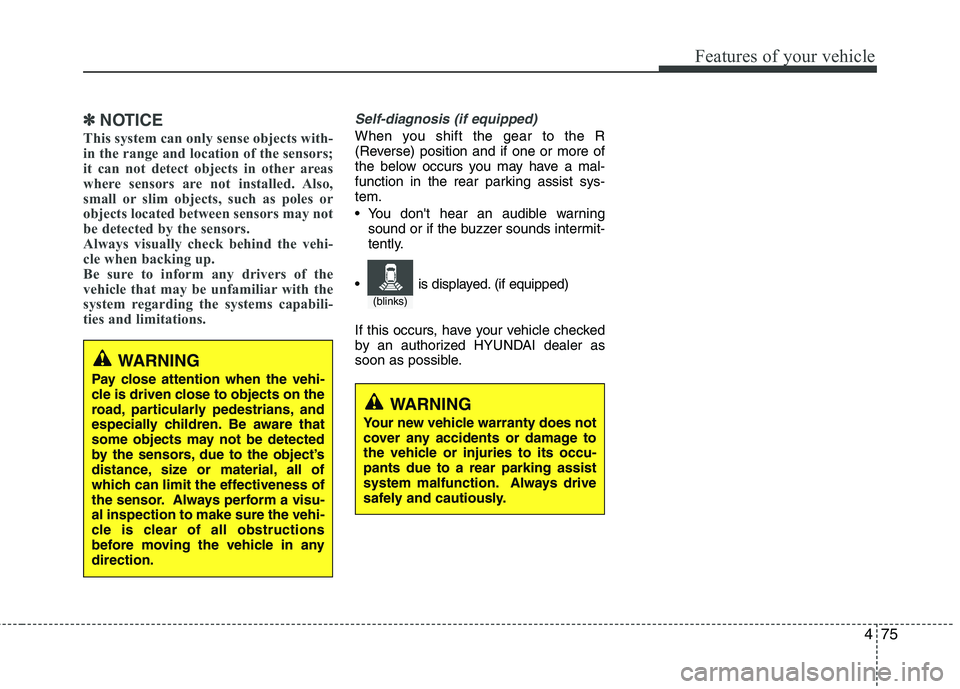
Self-diagnosis (if equipped)
When you shift the gear to the R
(Reverse) position and if one or more of
the below occurs you may have a mal-
function in the rear parking assist sys-
tem.
You don't hear an audible warning
sound or if the buzzer sounds intermit-
tently.
If this occurs, have your vehicle checked
by an authorized HYUNDAI dealer as
soon as possible.
WARNING
Pay close attention when the vehi-
cle is driven close to objects on the
road, particularly pedestrians, and
especially children. Be aware that
some objects may not be detected
by the sensors, due to the object’s
distance, size or material, all of
which can limit the effectiveness of
the sensor. Always perform a visu-
al inspection to make sure the vehi-
cle is clear of all obstructions
before moving the vehicle in any
direction.
WARNING
Your new vehicle warranty does not
cover any accidents or damage to
the vehicle or injuries to its occu-
pants due to a rear parking assist
system malfunction. Always drive
safely and cautiously.
(blinks)
is displayed. (if equipped)
Page 184 of 385
4105
Features of your vehicle
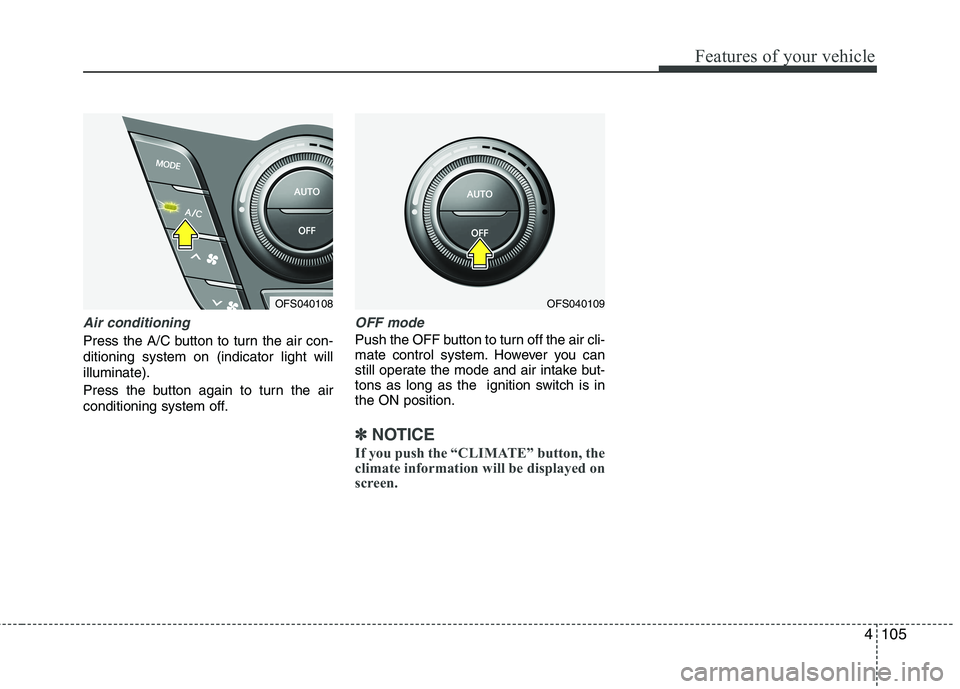
Air conditioning
Press the A/C button to turn the air con-
ditioning system on (indicator light will
illuminate).
Press the button again to turn the air
conditioning system off.
OFF mode
Push the OFF button to turn off the air cli-
mate control system. However you can
still operate the mode and air intake but-
tons as long as the ignition switch is in
the ON position.
✽ ✽
NOTICE
If you push the “CLIMATE” button, the
climate information will be displayed on
screen.
OFS040109OFS040108
Page 187 of 385
Features of your vehicle
108 4
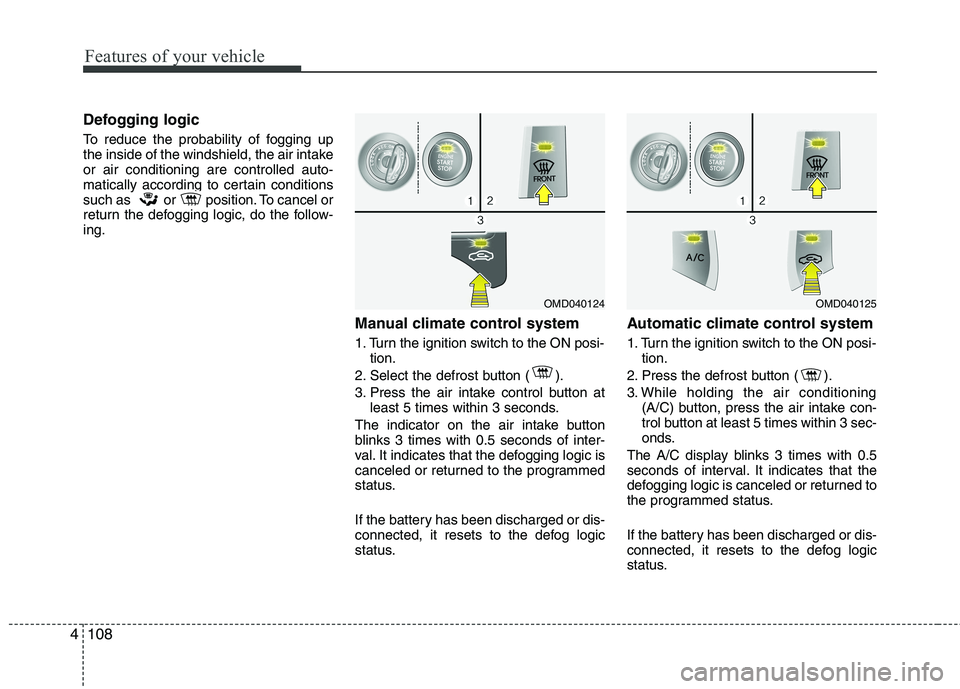
Defogging logic
To reduce the probability of fogging up
the inside of the windshield, the air intake
or air conditioning are controlled auto-
matically according to certain conditions
such as or position. To cancel or
return the defogging logic, do the follow-
ing.
Manual climate control system
1. Turn the ignition switch to the ON posi-
tion.
2. Select the defrost button ( ).
3. Press the air intake control button at
least 5 times within 3 seconds.
The indicator on the air intake button
blinks 3 times with 0.5 seconds of inter-
val. It indicates that the defogging logic is
canceled or returned to the programmed
status.
If the battery has been discharged or dis-
connected, it resets to the defog logic
status.
Automatic climate control system
1. Turn the ignition switch to the ON posi-
tion.
2. Press the defrost button ( ).
3. While holding the air conditioning
(A/C) button, press the air intake con-
trol button at least 5 times within 3 sec-
onds.
The A/C display blinks 3 times with 0.5
seconds of interval. It indicates that the
defogging logic is canceled or returned to
the programmed status.
If the battery has been discharged or dis-
connected, it resets to the defog logic
status.
OMD040125OMD040124
Page 203 of 385
Features of your vehicle
124 4
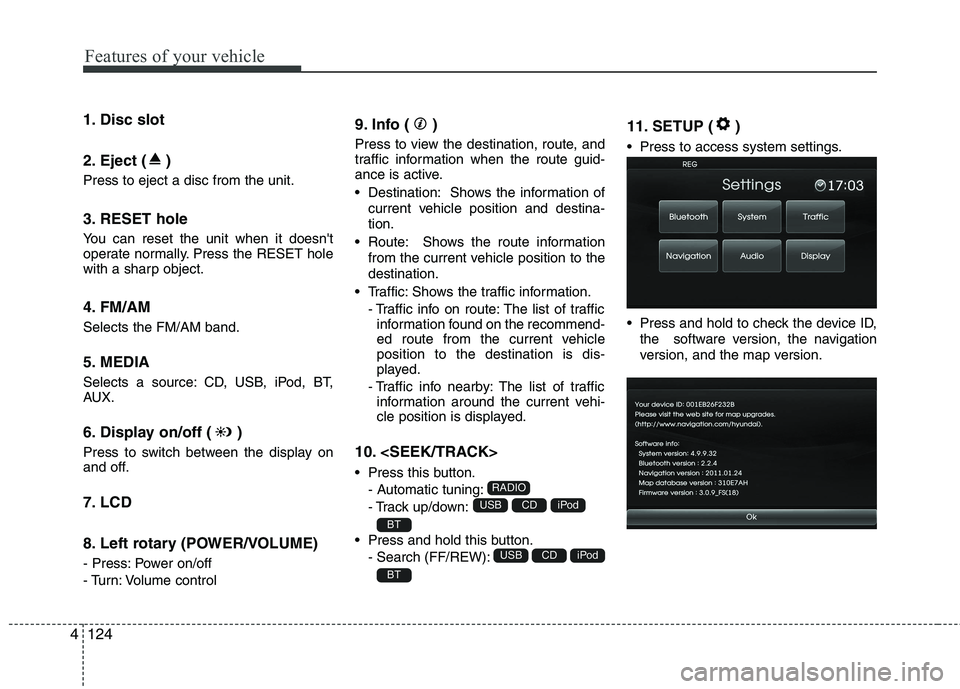
1. Disc slot
2. Eject ( )
Press to eject a disc from the unit.
3. RESET hole
You can reset the unit when it doesn't
operate normally. Press the RESET hole
with a sharp object.
4. FM/AM
Selects the FM/AM band.
5. MEDIA
Selects a source: CD, USB, iPod, BT,
AUX.
6. Display on/off ( )
Press to switch between the display on
and off.
7. LCD
8. Left rotary (POWER/VOLUME)
- Press: Power on/off
- Turn: Volume control
9. Info ( )
Press to view the destination, route, and
traffic information when the route guid-
ance is active.
• Destination: Shows the information of
current vehicle position and destina-
tion.
Route: Shows the route information
from the current vehicle position to the
destination.
Traffic: Shows the traffic information.
- Traffic info on route: The list of traffic
information found on the recommend-
ed route from the current vehicle
position to the destination is dis-
played.
- Traffic info nearby: The list of traffic
information around the current vehi-
cle position is displayed.
10.
Press this button.
- Automatic tuning:
- Track up/down:
Press and hold this button.
- Search (FF/REW):
11. SETUP ( )
Press to access system settings.
Press and hold to check the device ID,
the software version, the navigation
version, and the map version.
BT
iPodCDUSB
BT
iPodCDUSB
RADIO
Page 204 of 385
4125
Features of your vehicle
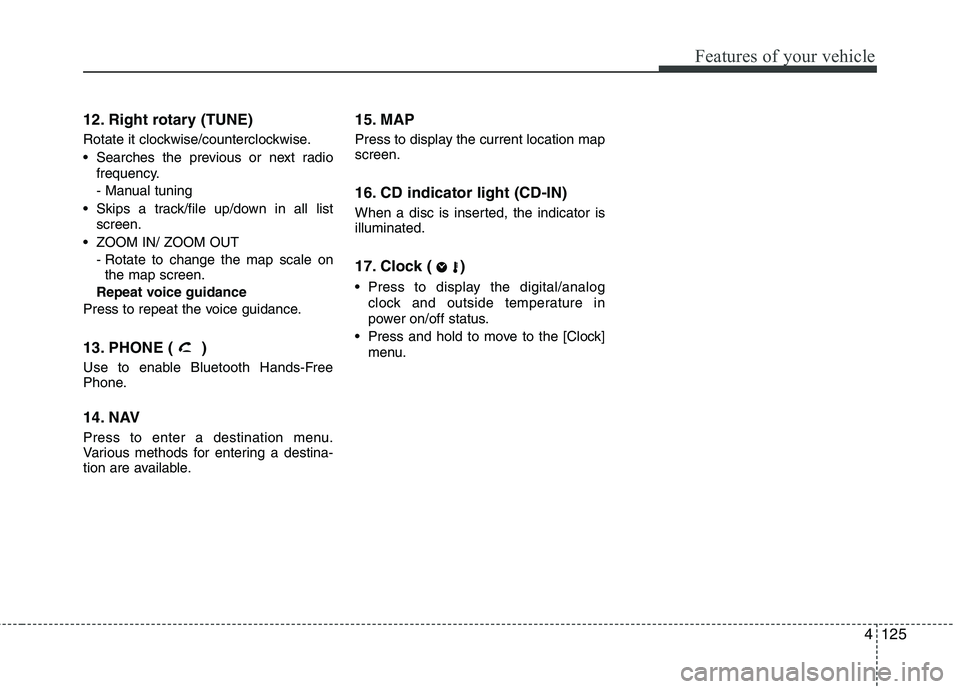
12. Right rotary (TUNE)
Rotate it clockwise/counterclockwise.
Searches the previous or next radio
frequency.
- Manual tuning
Skips a track/file up/down in all list
screen.
ZOOM IN/ ZOOM OUT
- Rotate to change the map scale on
the map screen.
Repeat voice guidance
Press to repeat the voice guidance.
13. PHONE ( )
Use to enable Bluetooth Hands-Free
Phone.
14. NAV
Press to enter a destination menu.
Various methods for entering a destina-
tion are available.
15. MAP
Press to display the current location map
screen.
16. CD indicator light (CD-IN)
When a disc is inserted, the indicator is
illuminated.
17. Clock ( )
Press to display the digital/analog
clock and outside temperature in
power on/off status.
Press and hold to move to the [Clock]
menu.
Page 208 of 385
4129
Features of your vehicle
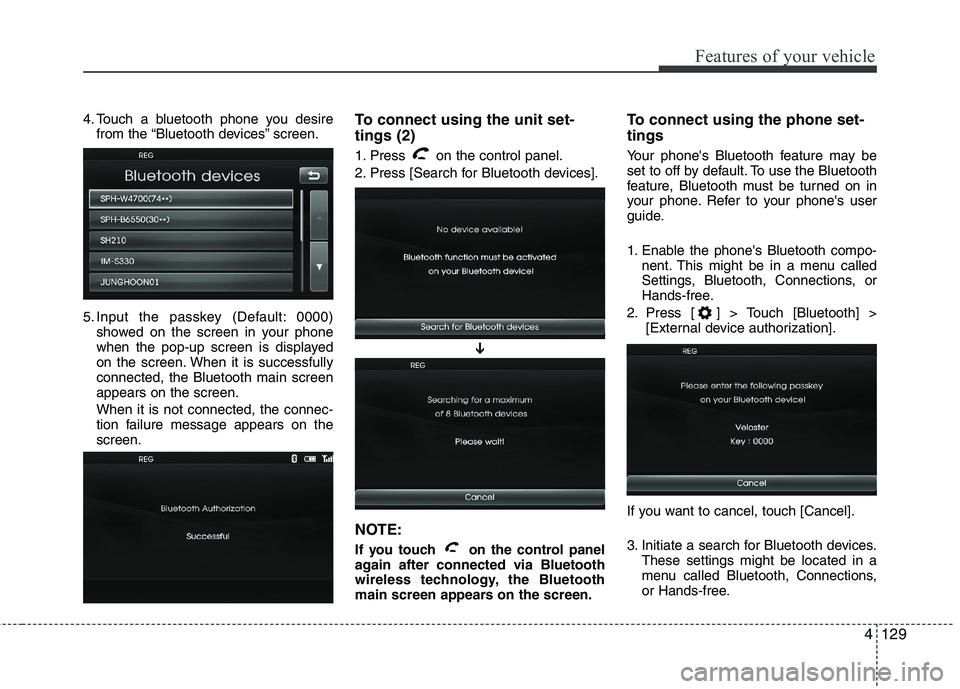
4. Touch a bluetooth phone you desire
from the “Bluetooth devices” screen.
5. Input the passkey (Default: 0000)
showed on the screen in your phone
when the pop-up screen is displayed
on the screen. When it is successfully
connected, the Bluetooth main screen
appears on the screen.
When it is not connected, the connec-
tion failure message appears on the
screen.To connect using the unit set-
tings (2)
1. Press on the control panel.
2. Press [Search for Bluetooth devices].
NOTE:
If you touch on the control panel
again after connected via Bluetooth
wireless technology, the Bluetooth
main screen appears on the screen.
To connect using the phone set-
tings
Your phone's Bluetooth feature may be
set to off by default. To use the Bluetooth
feature, Bluetooth must be turned on in
your phone. Refer to your phone's user
guide.
1. Enable the phone's Bluetooth compo-
nent. This might be in a menu called
Settings, Bluetooth, Connections, or
Hands-free.
2. Press [ ] > Touch [Bluetooth] >
[External device authorization].
If you want to cancel, touch [Cancel].
3. Initiate a search for Bluetooth devices.
These settings might be located in a
menu called Bluetooth, Connections,
or Hands-free.
➔
Page 209 of 385
Features of your vehicle
130 4
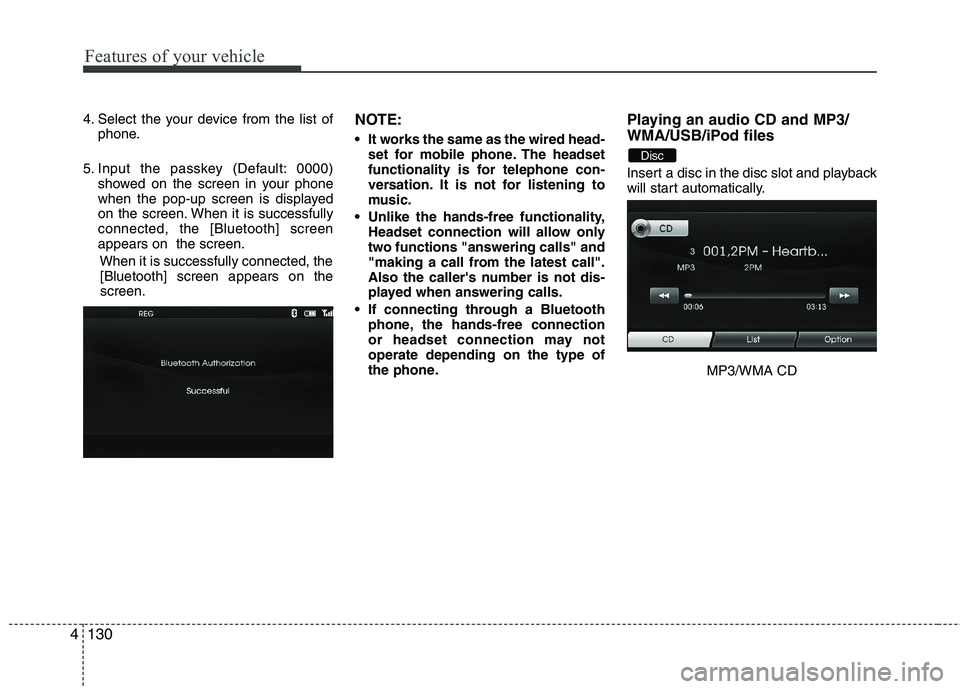
4. Select the your device from the list of
phone.
5. Input the passkey (Default: 0000)
showed on the screen in your phone
when the pop-up screen is displayed
on the screen. When it is successfully
connected, the [Bluetooth] screen
appears on the screen.
When it is successfully connected, the
[Bluetooth] screen appears on the
screen.NOTE:
It works the same as the wired head-
set for mobile phone. The headset
functionality is for telephone con-
versation. It is not for listening to
music.
Unlike the hands-free functionality,
Headset connection will allow only
two functions "answering calls" and
"making a call from the latest call".
Also the caller's number is not dis-
played when answering calls.
If connecting through a Bluetooth
phone, the hands-free connection
or headset connection may not
operate depending on the type of
the phone.
Playing an audio CD and MP3/
WMA/USB/iPod files
Insert a disc in the disc slot and playback
will start automatically.
MP3/WMA CD
Disc
Page 211 of 385
Features of your vehicle
132 4
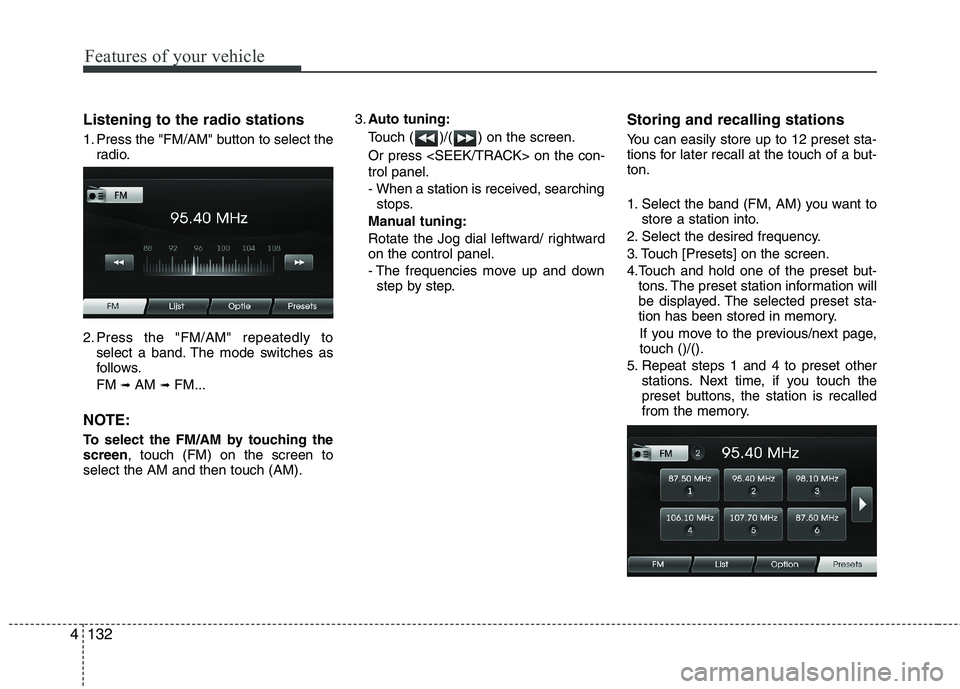
Listening to the radio stations
1. Press the "FM/AM" button to select the
radio.
2. Press the "FM/AM" repeatedly to
select a band. The mode switches as
follows.
FM
➟AM ➟FM...
NOTE:
To select the FM/AM by touching the
screen, touch (FM) on the screen to
select the AM and then touch (AM).3.Auto tuning:
Touch ( )/( ) on the screen.
Or press
trol panel.
- When a station is received, searching
stops.
Manual tuning:
Rotate the Jog dial leftward/ rightward
on the control panel.
- The frequencies move up and down
step by step.
Storing and recalling stations
You can easily store up to 12 preset sta-
tions for later recall at the touch of a but-
ton.
1. Select the band (FM, AM) you want to
store a station into.
2. Select the desired frequency.
3. Touch [Presets] on the screen.
4.Touch and hold one of the preset but-
tons. The preset station information will
be displayed. The selected preset sta-
tion has been stored in memory.
If you move to the previous/next page,
touch ()/().
5. Repeat steps 1 and 4 to preset other
stations. Next time, if you touch the
preset buttons, the station is recalled
from the memory.
Page 229 of 385
Driving your vehicle
16 5
For smooth operation, depress the brake
pedal when shifting from N (Neutral) to a
forward or reverse gear.
WARNING
Always check the surrounding
areas near your vehicle for peo-
ple, especially children, before
shifting a car into D (Drive) or R
(Reverse).
Before leaving the driver’s seat,
always make sure the shift lever
is in the P (Park) position; then
set the parking brake fully and
shut the engine off. Unexpected
and sudden vehicle movement
can occur if these precautions
are not followed in the order iden-
tified.
WARNING
An overload of the clutch is indi-
cated by a longitudinal judder
and a blinking display. To exclude
a clutch-damage, the clutch is
opened and the torque flow inter-
rupted. If the clutch is opened,
apply the foot brake and wait
some seconds before driving
again.
Ignoring the warnings can lead to
severe injuries and damage on
the car.
If the LCD warning is active, the
foot brake has to be applied.
When the problem of gear system
occurs, the transaxle indicator
will blink. For your safety, take
your vehicle to an authorized
HYUNDAI dealer and have the
system checked.
When the clutch is overheated,
the safe protection mode oper-
ates. According to the safe pro-
tection mode, the transaxle indi-
cator blinks with buzzer sound.
In this time, the LCD warning
about safe protection mode also
displays.
(Continued)
(Continued)
In this condition, the driving may
not be smoothly. If you ignore
this warning, the vehicle may not
drive smoothly and the system
may have problem. For the good
condition of vehicle, apply the
parking brake and stop the vehi-
cle for few seconds before driv-
ing off.
If the vehicle is held by applying
accelerator pedal at the hill, the
transmission and clutch will be
damaged. To hold at the hill, use
the parking brake or foot brake.
While shifting the gear automati-
cally, you may feel a correspon-
ding shifting of gear. However, it
is not malfunction.
Page 287 of 385
What to do in an emergency
22 6
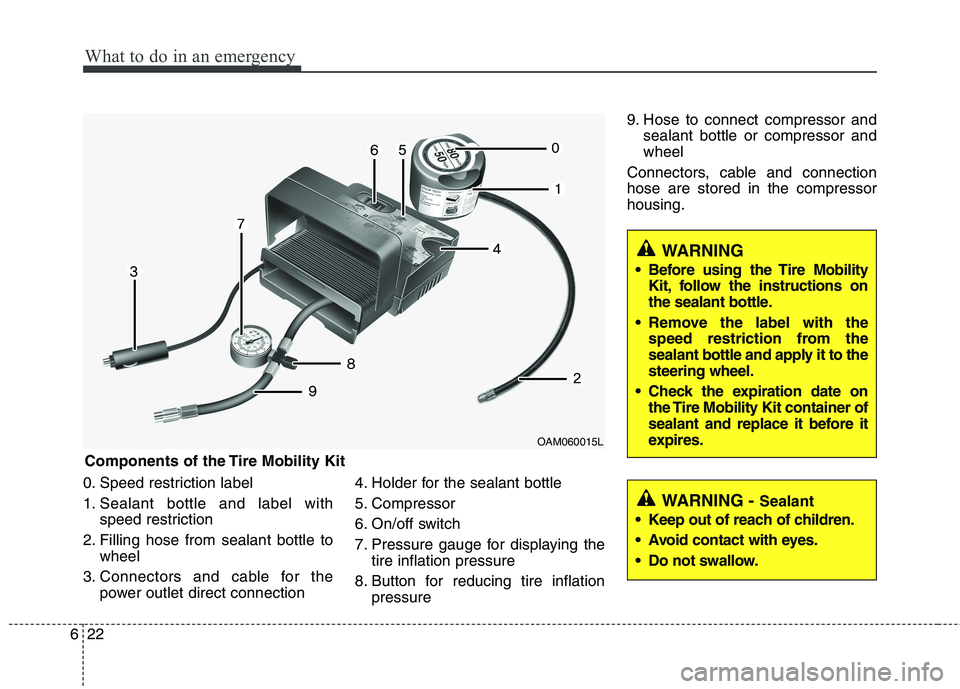
0. Speed restriction label
1. Sealant bottle and label with
speed restriction
2. Filling hose from sealant bottle to
wheel
3. Connectors and cable for the
power outlet direct connection4. Holder for the sealant bottle
5. Compressor
6. On/off switch
7. Pressure gauge for displaying the
tire inflation pressure
8. Button for reducing tire inflation
pressure9. Hose to connect compressor and
sealant bottle or compressor and
wheel
Connectors, cable and connection
hose are stored in the compressor
housing.
WARNING
Before using the Tire Mobility
Kit, follow the instructions on
the sealant bottle.
Remove the label with the
speed restriction from the
sealant bottle and apply it to the
steering wheel.
Check the expiration date on
the Tire Mobility Kit container of
sealant and replace it before it
expires.
WARNING - Sealant
Keep out of reach of children.
Avoid contact with eyes.
Do not swallow.
Components of the Tire Mobility Kit
OAM060015L