navigation HYUNDAI VELOSTER 2019 Owners Manual
[x] Cancel search | Manufacturer: HYUNDAI, Model Year: 2019, Model line: VELOSTER, Model: HYUNDAI VELOSTER 2019Pages: 491, PDF Size: 15.17 MB
Page 16 of 491
I
IN
N S
ST
T R
R U
U M
M E
EN
N T
T
P
P A
A N
N E
EL
L
O
O V
VE
ER
R V
V I
IE
E W
W
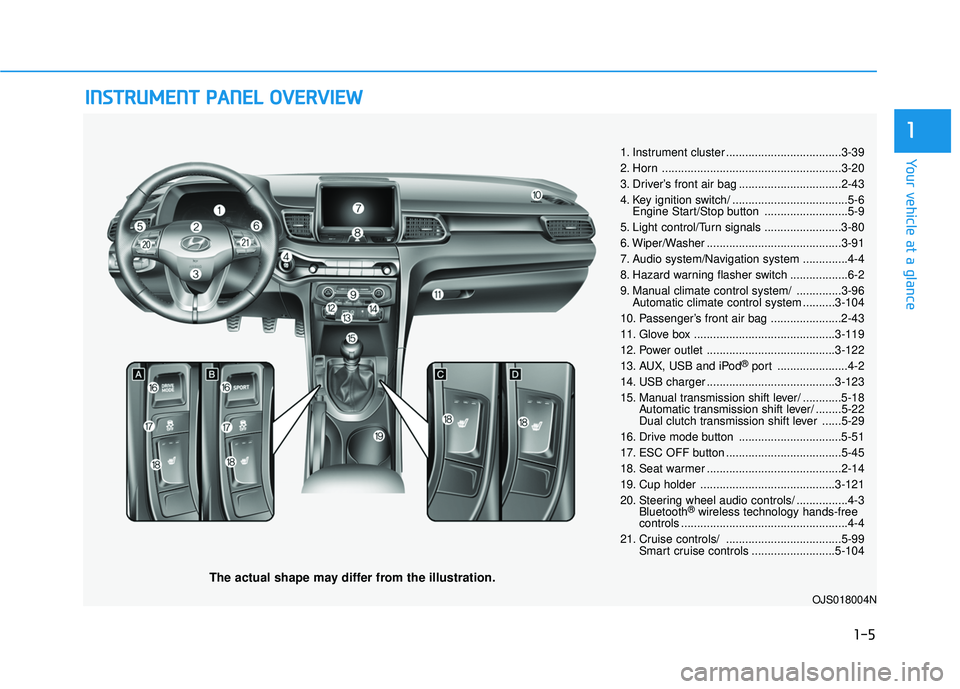
The actual shape may differ from the illustration.
1-5
Your vehicle at a glance
1
1. Instrument cluster ....................................3-39
2. Horn ........................................................3-20
3. Driver’s front air bag ................................2-43
4. Key ignition switch/ ....................................5-6
Engine Start/Stop button ..........................5-9
5. Light control/Turn signals ........................3-80
6. Wiper/Washer ..........................................3-91
7. Audio system/Navigation system ..............4-4
8. Hazard warning flasher switch ..................6-2
9. Manual climate control system/ ..............3-96 Automatic climate control system ..........3-104
10. Passenger’s front air bag ......................2-43
11. Glove box ............................................3-119
12. Power outlet ........................................3-122
13. AUX, USB and iPod
®port ......................4-2
14. USB charger ........................................3-123
15. Manual transmission shift lever/ ............5-18 Automatic transmission shift lever/ ........5-22
Dual clutch transmission shift lever ......5-29
16. Drive mode button ................................5-51
17. ESC OFF button ....................................5-45
18. Seat warmer ..........................................2-14
19. Cup holder ..........................................3-121
20. Steering wheel audio controls/ ................4-3 Bluetooth
®wireless technology hands-free
controls ....................................................4-4
21. Cruise controls/ ....................................5-99 Smart cruise controls ..........................5-104
OJS018004N
Page 102 of 491
3-22
Convenient features of your vehicle
Blue Link®center (if equipped)
For details, refer to the Blue Link®
Owner's Guide, Navigation Manual
or Audio Manual.
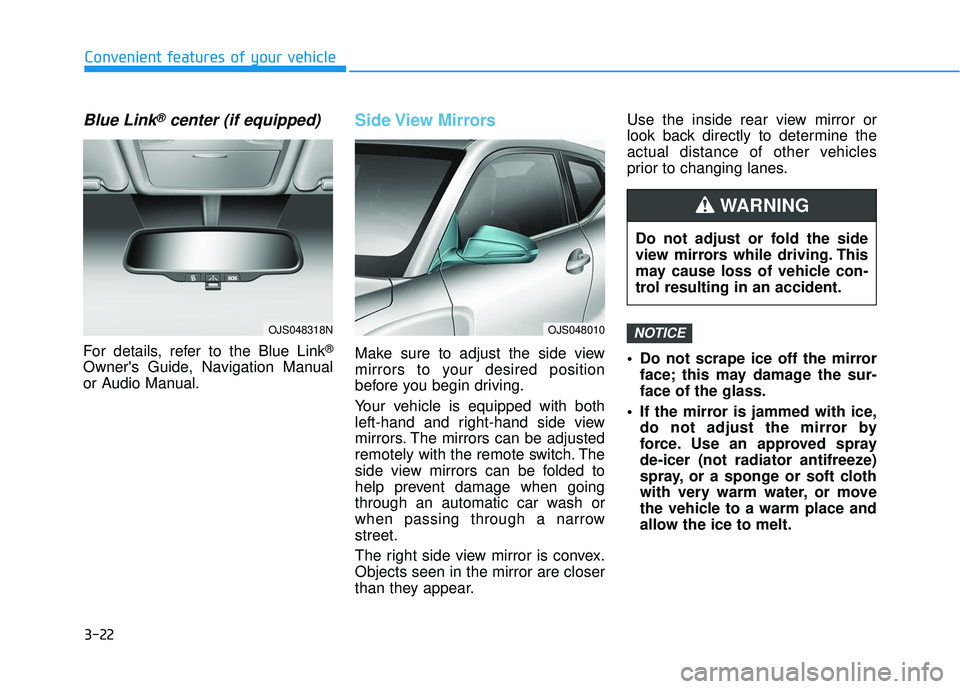
Side View Mirrors
Make sure to adjust the side view
mirrors to your desired position
before you begin driving.
Your vehicle is equipped with both
left-hand and right-hand side view
mirrors. The mirrors can be adjusted
remotely with the remote switch. The
side view mirrors can be folded to
help prevent damage when going
through an automatic car wash or
when passing through a narrow
street.
The right side view mirror is convex.
Objects seen in the mirror are closer
than they appear.Use the inside rear view mirror or
look back directly to determine the
actual distance of other vehicles
prior to changing lanes.
Do not scrape ice off the mirror
face; this may damage the sur-
face of the glass.
If the mirror is jammed with ice, do not adjust the mirror by
force. Use an approved spray
de-icer (not radiator antifreeze)
spray, or a sponge or soft cloth
with very warm water, or move
the vehicle to a warm place and
allow the ice to melt.
NOTICEOJS048010
Do not adjust or fold the side
view mirrors while driving. This
may cause loss of vehicle con-
trol resulting in an accident.
WARNING
OJS048318N
Page 120 of 491

3-40
Convenient features of your vehicle
Instrument Cluster Control
Adjusting instrument clusterillumination
When the vehicle's position lights or
headlights are on, press the illumina-
tion control button to adjust the
brightness of the instrument panel
illumination.
When pressing the illumination con-
trol button, the interior switch illumi-
nation intensity is also adjusted. The brightness of the instrument
panel illumination is displayed.
If the brightness reaches the maxi- mum or minimum level, a chime
will sound.
For information regarding the illu-
mination setting on your audio dis-
play, refer to the "Setup" section of
your Audio or Navigation manual.
Never adjust the instrument
cluster while driving. Doing so
could lead to driver distraction
which may cause an accident
and lead to vehicle damage,
serious injury, or death.
WARNING
OJS048110L
OJS048026
Page 143 of 491
3-63
Convenient features of your vehicle
3
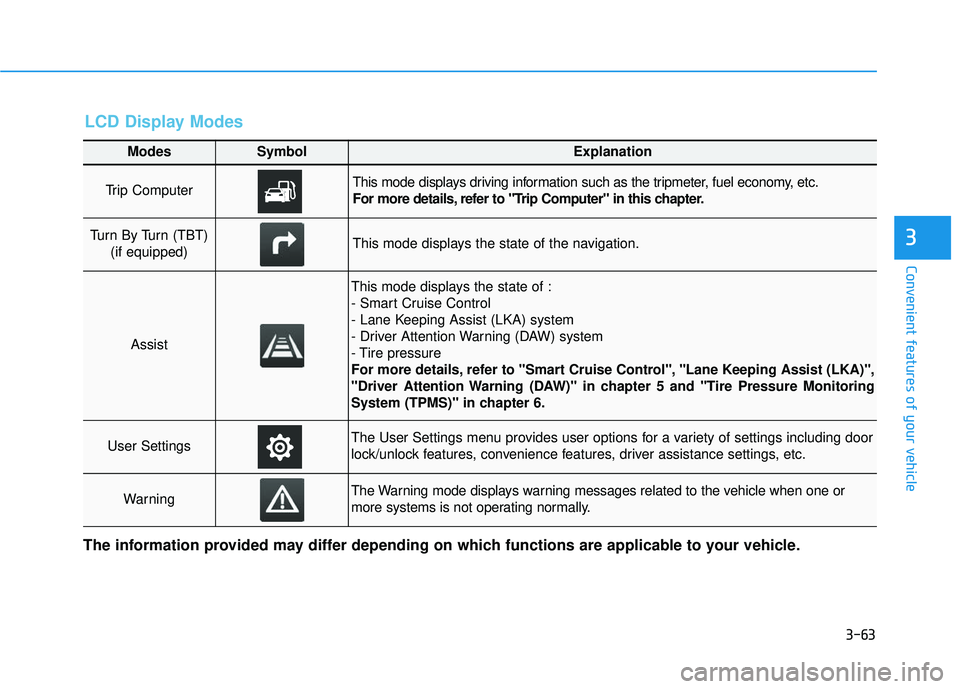
Modes SymbolExplanation
Trip Computer This mode displays driving information such as the tripmeter, fuel economy, etc.
For more details, refer to "Trip Computer" in this chapter.
Turn By Turn (TBT) (if equipped)This mode displays the state of the navigation.
Assist
This mode displays the state of :
- Smart Cruise Control
- Lane Keeping Assist (LKA) system
- Driver Attention Warning (DAW) system
- Tire pressure
For more details, refer to "Smart Cruise Control", "Lane Keeping Assist (LKA)",
"Driver Attention Warning (DAW)" in chapter 5 and "Tire Pressure Monitoring
System (TPMS)" in chapter 6.
User SettingsThe User Settings menu provides user options for a variety of settings including door
lock/unlock features, convenience features, driver assistance settings, etc.
WarningThe Warning mode displays warning messages related to the vehicle when one or
more systems is not operating normally.
The information provided may differ depending on which functions are applicable to your vehicle.
LCD Display Modes
Page 144 of 491
3-64
Convenient features of your vehicle
Shift to P to edit settings
This warning message appears if
you try to adjust the User Settings
while driving.
- Manual transmission
For your safety, change the User
Settings after parking the vehicle,
applying the parking brake and mov-
ing the shift lever to neutral.
- Automatic transmission / dual clutch transmission
For your safety, change the User
Settings after parking the vehicle,
applying the parking brake and mov-
ing the shift lever to P (Park).
Quick guide help
This mode provides quick guides for
the systems in the User Settings
mode.
Select an item, press and hold the OK
button.
For more details about each sys-
tem, refer to this Owner's Manual.
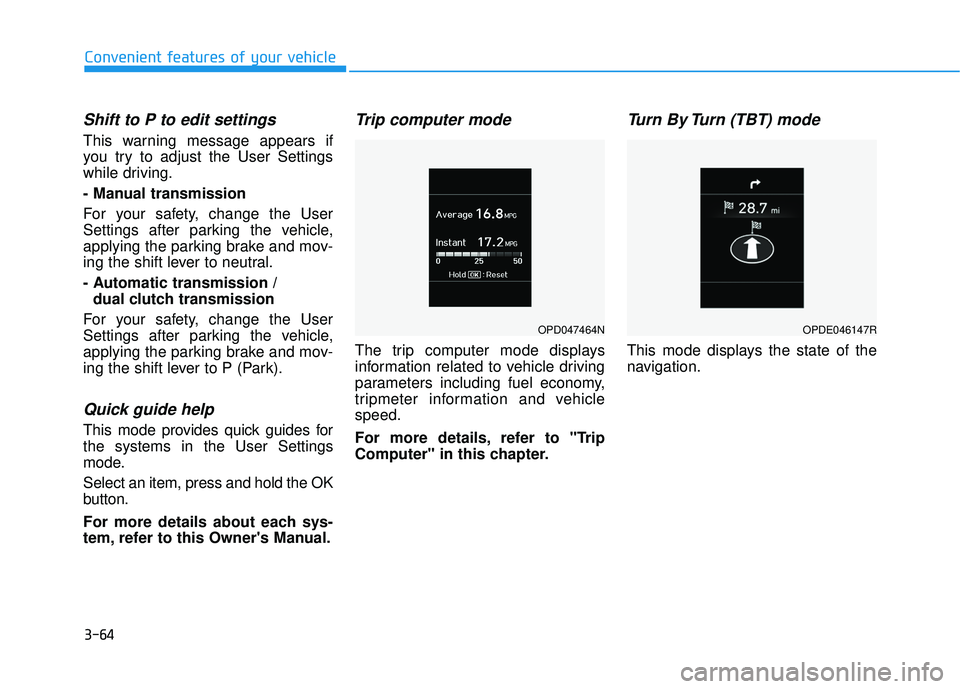
Trip computer mode
The trip computer mode displays
information related to vehicle driving
parameters including fuel economy,
tripmeter information and vehicle
speed.
For more details, refer to "Trip
Computer" in this chapter.
Turn By Turn (TBT) mode
This mode displays the state of the
navigation.
OPD047464NOPDE046147R
Page 159 of 491

3-79
Convenient features of your vehicle
3
Head Up Display Information
1. Turn By Turn (TBT) navigationinformation
2. Road signs
3. Speedometer
4. Cruise Control SET Indicator
5. Smart Cruise Control information (if equipped)
6. Blind-spot Collision Warning (BCW) system information (if equipped)
7. Warning lights (Low Fuel, etc.)
8. Audio Station Info 1. Revolutions per minute (rpm)
2. Road signs
3. Speedometer
4. Blind-spot Collision Warning (BCW)
system information(if equipped)
5. Warning lights and Audio/Video information
6. Transmission shift indicator
This information is displayed on the
cluster of the vehicle equipped with
Gamma 1.6 turbo-GDI engine. To
display this information, go to 'Head-
up display ➝SPORT display' in the
cluster and choose 'Enable in
SPORT mode' or 'Enable in manual
shift mode'. Then, activate the mode
by selecting the SPORT button.
Information
If you select the Turn By Turn (TBT)
navigation information as HUD con-
tents, the Turn By Turn (TBT) naviga-
tion information will not be displayed
on the LCD Display.
Head Up Display Setting
On the LCD display, you can change
the head up display settings as fol-
lows.
Display Height
Rotation
Brightness
Content Selection
Speed Size
Speed Color
For more details, refer to "LCD
Display" in this chapter.
i
OJS048317N
■ Type A
OJS048062N
■Type B
Page 206 of 491
3-126
Convenient features of your vehicle
Some magnetic items like credit cards, phone cards or rail tickets
may be damaged if left with the
cellular phone during the charg-
ing process.
If the cellular phone without the wireless charging function or
the metallic items are placed on
the charging pad, it may cause
slight noise. This noise does not
affect the cellular phone and the
vehicle, because this noise is an
operating sound during deter-
mining the item on the charging
pad.
If the ignition switch is OFF, the charging also stops.
Information
This device complies with part 15 of
the FCC Rules.
Operation is subject to the following
two conditions:
1. This device may not cause harmful interference, and
2. This device must accept any inter- ference received, including interfer-
ence that may cause undesired
operation.
Clock
Vehicles with Audio system
Select the [SETUP] button on the
audio system ➟ Select [Date/Time].
Set time: Set the time displayed on the audio screen.
Time format: Choose between 12- hour and 24-hour time formats.
Vehicles with Navigation system
Select the Settings menu on the
Navigation system ➟Select
[Date/Time].
GPS time: Displays time according to the received GNSS time.
24-hour: Switches to 12 hour or 24 hour.
i
Do not attempt to adjust the
clock while driving. Doing so
may result in distracted driving
which may lead to an accident
involving personal injury or
death.
WARNING
Page 209 of 491
Multimedia System
Multimedia System.................................................4-2
AUX, USB and iPod®Port ...............................................4-2
Antenna ........................................................................\
.......4-2
Steering Wheel Audio Controls ......................................4-3
Bluetooth®Wireless Technology Hands-Free ...........4-4
Audio (Display Audio) / Video /
Navigation System (AVN).................................................4-4
4
Page 212 of 491
4-4
Multimedia System
Bluetooth®Wireless
Technology Hands-Free
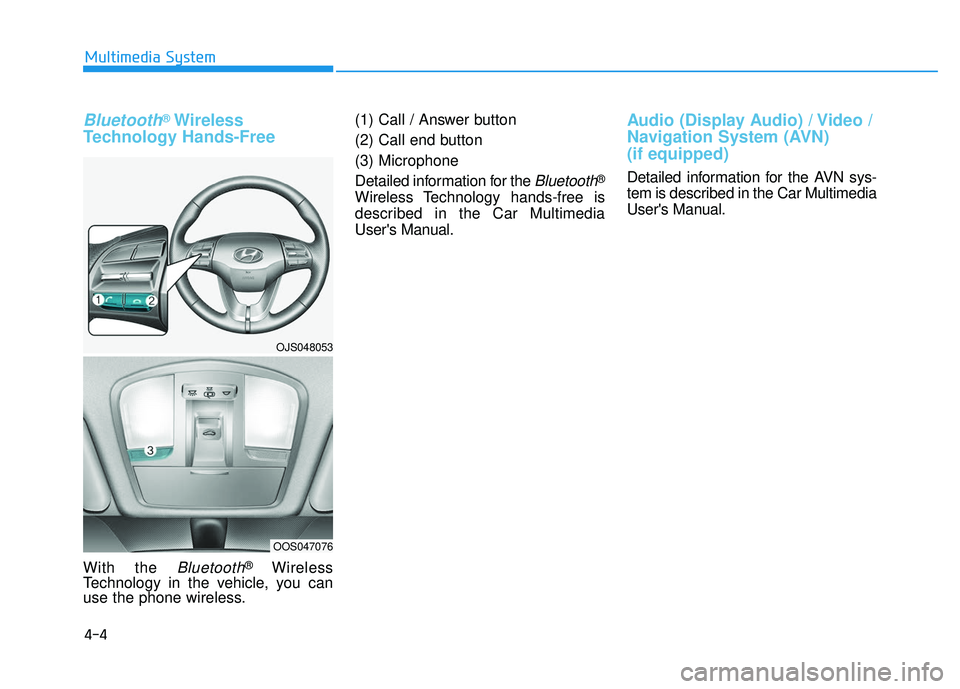
With the Bluetooth®Wireless
Technology in the vehicle, you can
use the phone wireless. (1) Call / Answer button
(2) Call end button
(3) Microphone
Detailed information for the
Bluetooth®
Wireless Technology hands-free is
described in the Car Multimedia
User's Manual.
Audio (Display Audio) / Video /
Navigation System (AVN)
(if equipped)
Detailed information for the AVN sys-
tem is described in the Car Multimedia
User's Manual.
OJS048053
OOS047076
Page 356 of 491
6-12
What to do in an emergency
The TPMS Malfunction Indicator
may illuminate after blinking for
one minute if the vehicle is near
electric power supply cables or
radio transmitters such as police
stations, government and public
offices, broadcasting stations,
military installations, airports,
transmitting towers, etc.
Additionally, the TPMS Malfunction
Indicator may illuminate if snow
chains are used or electronic
devices such as computers, charg-
ers, remote starters, navigation,
etc. This may interfere with normal
operation of the TPMS.
Changing a Tire with TPMS
If you have a flat tire, the Low Tire
Pressure and LCD position indicator
will come on. Have the flat tire
repaired by an authorized HYUNDAI
dealer as soon as possible or
replace the flat tire with the spare
tire.
The spare tire does not come with a
tire pressure monitoring sensor.
When the low pressure tire or the flat
tire is replaced with the spare tire,
the Low Tire Pressure LCD position
indicator will remain on. Also, the
TPMS Malfunction Indicator will illu-
minate after blinking for one minute if
the vehicle is driven at speed above
15.5 mph (25 km/h) for approximate-
ly 20 minutes. Once the original tire equipped with
a tire pressure monitoring sensor is
reinflated to the recommended pres-
sure and reinstalled on the vehicle,
the Low Tire Pressure LCD position
indicator and TPMS Malfunction
Indicator will go off within a few min-
utes of driving.
If the indicators do not disappear
after a few minutes, please visit an
authorized HYUNDAI dealer.
Each wheel is equipped with a tire
pressure sensor mounted inside the
tire behind the valve stem (except for
the spare tire). You must use TPMS
specific wheels. It is recommended
that you always have your tires serv-
iced by an authorized HYUNDAI
dealer.
NOTICE
Never use a puncture-repairing
agent not approved by HYUNDAI
dealer to repair and/or inflate a
low pressure tire. Tire sealant
not approved by HYUNDAI deal-
er may damage the tire pressure
sensor.
CAUTION