light HYUNDAI VELOSTER 2020 Owners Manual
[x] Cancel search | Manufacturer: HYUNDAI, Model Year: 2020, Model line: VELOSTER, Model: HYUNDAI VELOSTER 2020Pages: 480, PDF Size: 6.16 MB
Page 310 of 480
5-92
Driving your vehicle
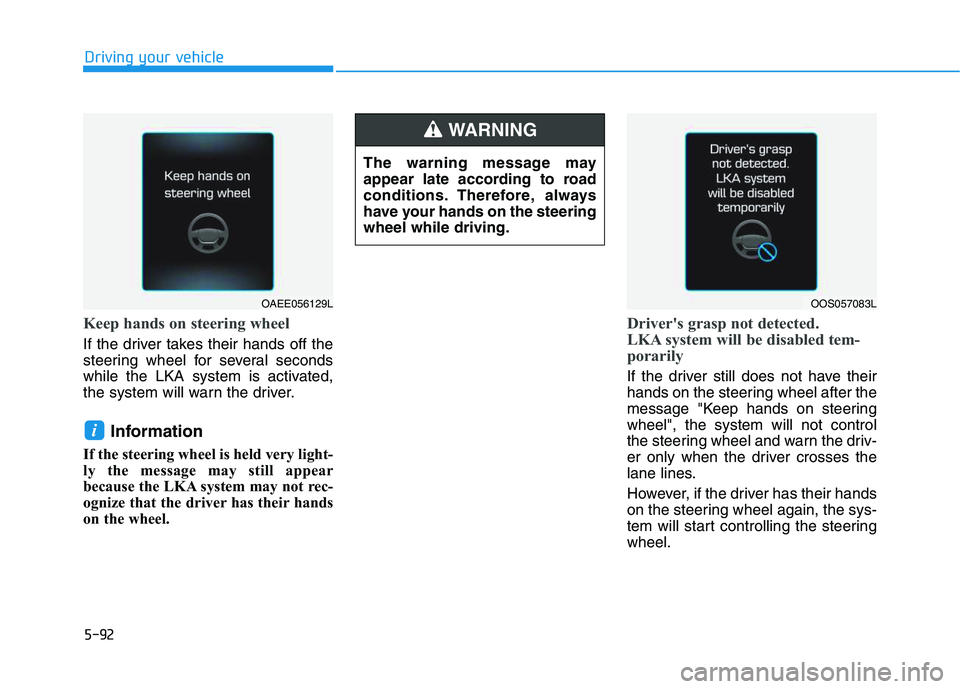
Keep hands on steering wheel
If the driver takes their hands off the
steering wheel for several seconds
while the LKA system is activated,
the system will warn the driver.
Information
If the steering wheel is held very light-
ly the message may still appear
because the LKA system may not rec-
ognize that the driver has their hands
on the wheel.
Driver's grasp not detected.
LKA system will be disabled tem-
porarily
If the driver still does not have their
hands on the steering wheel after the
message "Keep hands on steering
wheel", the system will not control
the steering wheel and warn the driv-
er only when the driver crosses the
lane lines.
However, if the driver has their hands
on the steering wheel again, the sys-
tem will start controlling the steering
wheel.
i
The warning message may
appear late according to road
conditions. Therefore, always
have your hands on the steering
wheel while driving.
WARNING
OOS057083LOAEE056129L
Page 311 of 480
5-93
Driving your vehicle
5
Information
• Even though the steering is assisted
by the system, the driver can still
steer to control the steering wheel.
• The steering wheel may feel heavier
when the steering wheel is assisted
by the system than when it is not.
Warning Light and Message
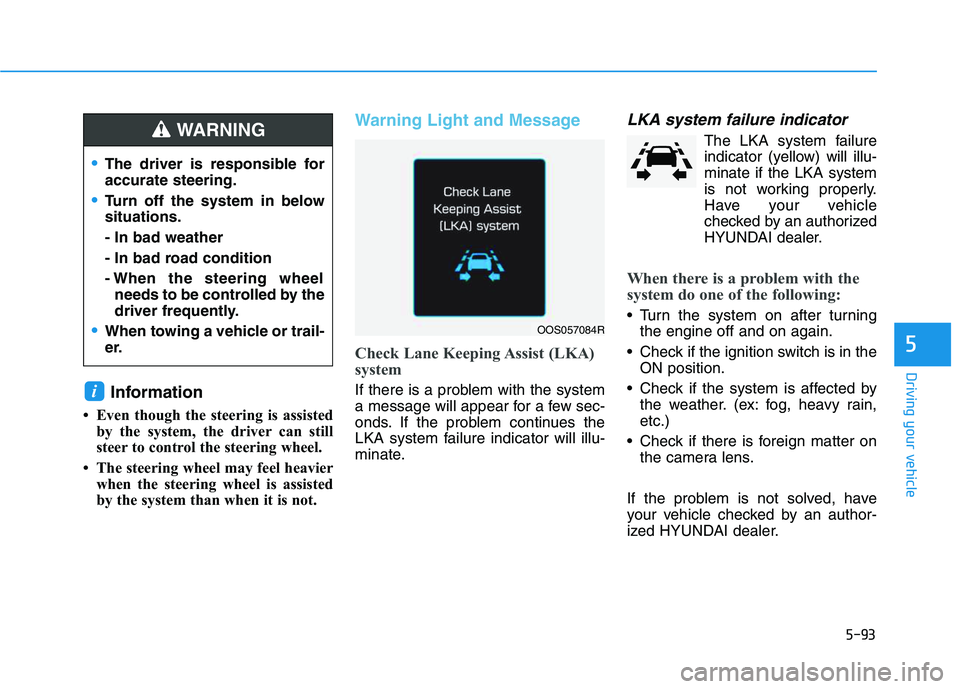
Check Lane Keeping Assist (LKA)
system
If there is a problem with the system
a message will appear for a few sec-
onds. If the problem continues the
LKA system failure indicator will illu-
minate.
LKA system failure indicator
The LKA system failure
indicator (yellow) will illu-
minate if the LKA system
is not working properly.
Have your vehicle
checked by an authorized
HYUNDAI dealer.
When there is a problem with the
system do one of the following:
Turn the system on after turning
the engine off and on again.
Check if the ignition switch is in the
ON position.
Check if the system is affected by
the weather. (ex: fog, heavy rain,
etc.)
Check if there is foreign matter on
the camera lens.
If the problem is not solved, have
your vehicle checked by an author-
ized HYUNDAI dealer.
i
OOS057084R
The driver is responsible for
accurate steering.
Turn off the system in below
situations.
- In bad weather
- In bad road condition
- When the steering wheel
needs to be controlled by the
driver frequently.
When towing a vehicle or trail-
er.
WARNING
Page 313 of 480
5-95
Driving your vehicle
5
There is a boundary structure in
the roadway such as a concrete
barrier, guardrail and reflector post
that is inadvertently being detected
by the camera.
When light coming from a street
light or an oncoming vehicle is
reflected on a wet road surface
such as a puddle in the road.
Road surface is not evenness.
The field of view in front is
obstructed by sun glare.
There is not enough distance
between you and the vehicle in
front to be able to detect the lane
line or the vehicle ahead is driving
on the lane line.
Driving on a steep grade, over a
hill, or when driving on a curved
road.
The adverse road conditions cause
excessive vehicle vibrations while
driving.
The surrounding of the inside rear
view mirror temperature is high
due to direct sunlight and etc.When front visibility is poor
The windshield or the LKA system
camera lens is blocked with dirt or
debris.
The windshield glass is fogged up;
a clear view of the road is obstruct-
ed.
Placing objects on the dashboard,
etc.
LKA system Function Change
The driver can change LKA to Lane
Departure Warning (LDW) system or
change the LKA system mode
between Standard LKA and Active
LKA from the LCD display. Go to the
'User Settings →Driver Assistance →
Lane Keeping Assist →Lane
Departure Warning/Standard
LKA/Active LKA'.
Lane Departure Warning
LDW system alerts the driver with a
visual warning and a warning alarm
when the system detects the vehicle
departing the lane. The steering
wheel will not be controlled.
Standard LKA
The Standard LKA mode guides the
driver to help keep the vehicle within
the lanes. It rarely controls the steer-
ing wheel, when the vehicle drives
well inside the lanes. However, it
starts to control the steering wheel,
when the vehicle is about to deviate
out of the lanes.
Active LKA
The Active LKA mode provides more
frequent steering wheel control in
comparison with the Standard LKA
mode. Active LKA can help reduce
the driver's fatigue to assist the
steering for maintaining the vehicle
in the middle of the lane.
Page 317 of 480
5-99
Driving your vehicle
5
The Driver Attention Warning sys-
tem utilizes the camera sensor on
the front windshield for its opera-
tion. To keep the camera sensor in
the best condition, you should
observe the followings:
NEVER install any accessories
or stickers on the front wind-
shield, nor tint the front wind-
shield.
NEVER locate any reflective
objects (i.e. white paper, mirror)
over the dashboard. Any light
reflection may cause a malfunc-
tion of the Driver Attention Alert
(DAW) system.
Pay extreme caution to keep the
camera sensor out of water.
NEVER arbitrarily disassemble
the camera assembly, nor apply
any impact on the camera
assembly.
NOTICE
The Driver Attention Warning
(DAW) system may not properly
operate with limited alerting in
the following situations:
The lane detection perform-
ance is limited. (For more
details, refer to "Lane Keeping
Assist (LKA) system" in this
chapter.)
The vehicle is violently driven
or is abruptly turned for obsta-
cle avoidance (e.g. construc-
tion area, other vehicles, fallen
objects, bumpy road).
Forward drivability of the vehi-
cle is severely undermined
(possibly due to wide variation
in tire pressures, uneven tire
wear-out, toe-in/toe-out align-
ment).
The vehicle drives on a curvy
road.
The vehicle drives on a bumpy
road.
The vehicle drives through a
windy area.
The vehicle is controlled by the
following driving assist sys-
tems:
- Lane Keeping Assist (LKA)
system
- Forward Collision-avoidance
Assist (FCA) systemCAUTION
Playing the vehicle audio sys-
tem at high volume may offset
the Driver Attention Warning
(DAW) system warning sounds.
CAUTION
Page 318 of 480
5-100
Driving your vehicle
Cruise Control operation
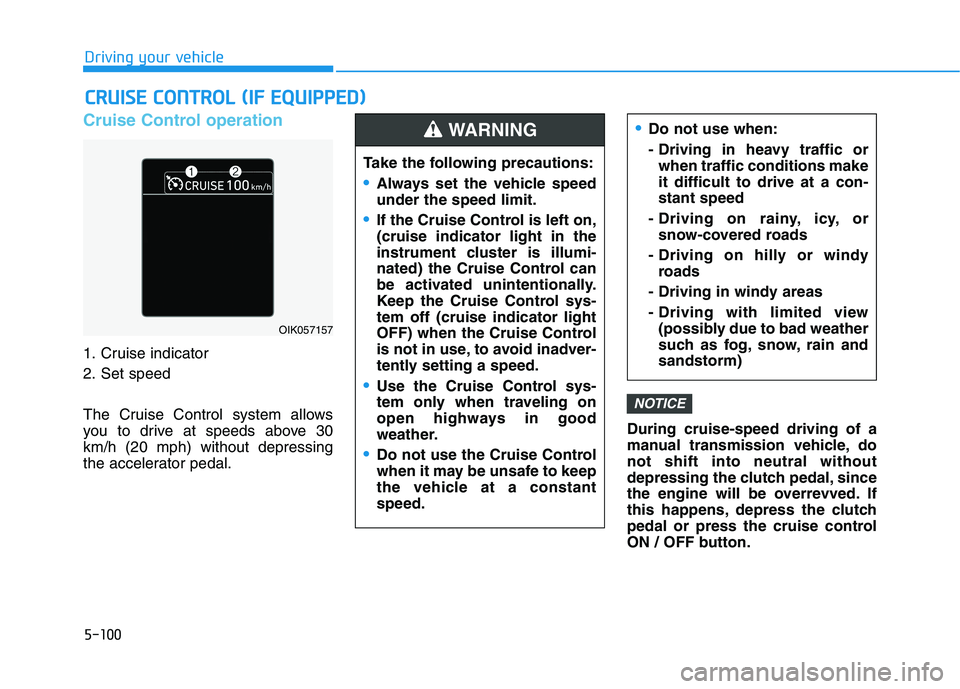
1. Cruise indicator
2. Set speed
The Cruise Control system allows
you to drive at speeds above 30
km/h (20 mph) without depressing
the accelerator pedal.During cruise-speed driving of a
manual transmission vehicle, do
not shift into neutral without
depressing the clutch pedal, since
the engine will be overrevved. If
this happens, depress the clutch
pedal or press the cruise control
ON / OFF button.
NOTICE
C CR
RU
UI
IS
SE
E
C
CO
ON
NT
TR
RO
OL
L
(
(I
IF
F
E
EQ
QU
UI
IP
PP
PE
ED
D)
)
Do not use when:
- Driving in heavy traffic or
when traffic conditions make
it difficult to drive at a con-
stant speed
- Driving on rainy, icy, or
snow-covered roads
- Driving on hilly or windy
roads
- Driving in windy areas
- Driving with limited view
(possibly due to bad weather
such as fog, snow, rain and
sandstorm)
Take the following precautions:
Always set the vehicle speed
under the speed limit.
If the Cruise Control is left on,
(cruise indicator light in the
instrument cluster is illumi-
nated) the Cruise Control can
be activated unintentionally.
Keep the Cruise Control sys-
tem off (cruise indicator light
OFF) when the Cruise Control
is not in use, to avoid inadver-
tently setting a speed.
Use the Cruise Control sys-
tem only when traveling on
open highways in good
weather.
Do not use the Cruise Control
when it may be unsafe to keep
the vehicle at a constant
speed.
WARNING
OIK057157
Page 319 of 480
5-101
Driving your vehicle
5
Information
• During normal cruise control opera-
tion, when the SET switch is activat-
ed or reactivated after applying the
brakes, the cruise control will ener-
gize after approximately 3 seconds.
This delay is normal.
• Before activating the cruise control
function, the system will check to
verify that the brake switch is oper-
ating normally. Depress the brake
pedal at least once after turning ON
the ignition or starting the engine.
To set Cruise Control speed
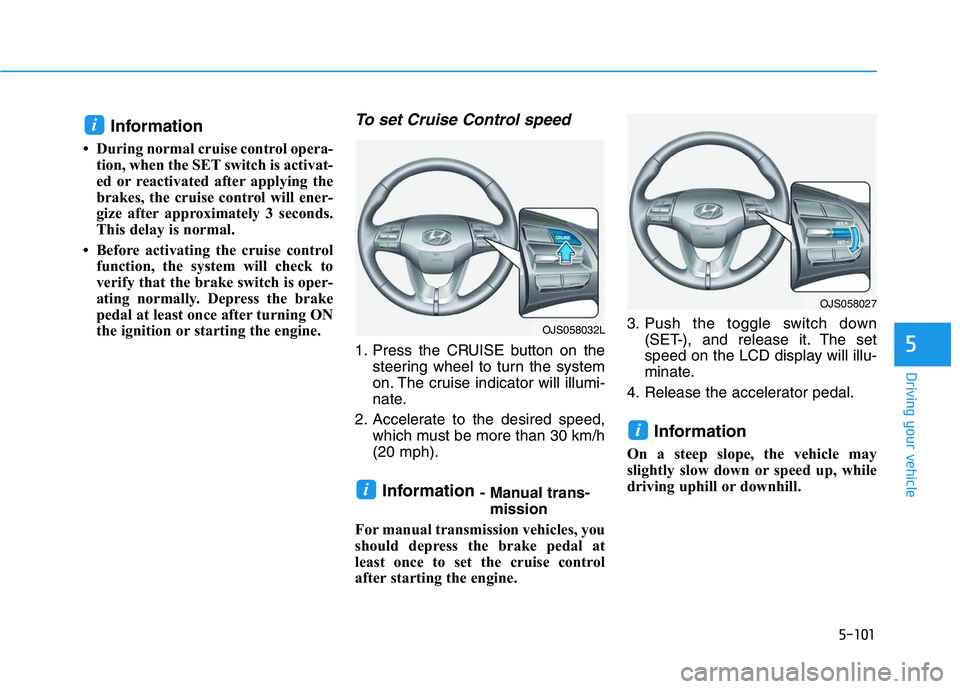
1. Press the CRUISE button on the
steering wheel to turn the system
on. The cruise indicator will illumi-
nate.
2. Accelerate to the desired speed,
which must be more than 30 km/h
(20 mph).
Information - Manual trans-
mission
For manual transmission vehicles, you
should depress the brake pedal at
least once to set the cruise control
after starting the engine.3. Push the toggle switch down
(SET-), and release it. The set
speed on the LCD display will illu-
minate.
4. Release the accelerator pedal.
Information
On a steep slope, the vehicle may
slightly slow down or speed up, while
driving uphill or downhill.
i
i
i
OJS058027
OJS058032L
Page 320 of 480
5-102
Driving your vehicle
To increase Cruise Control
speed
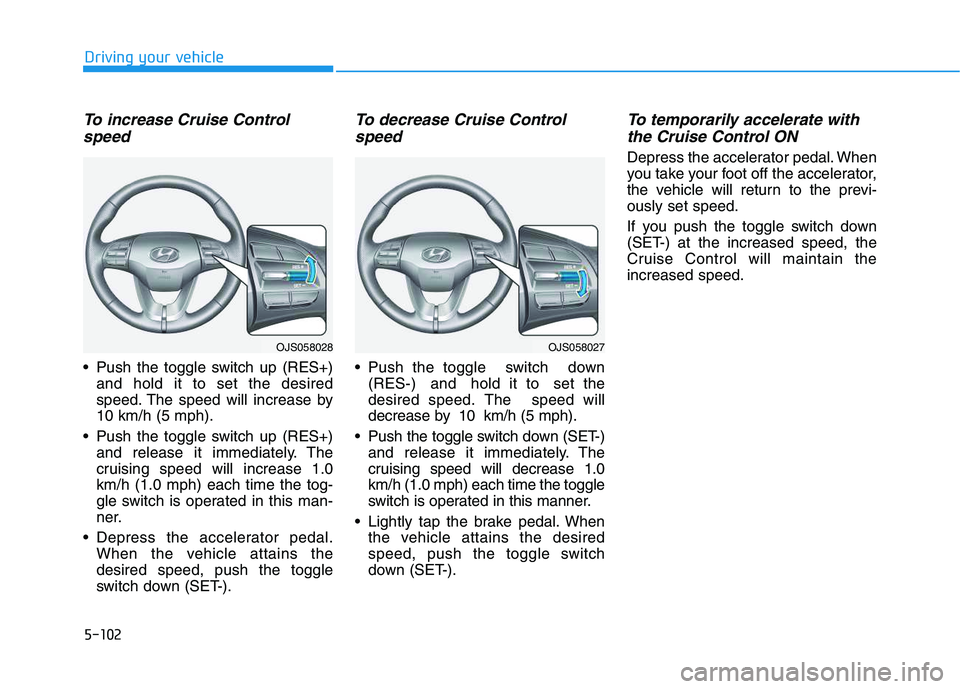
Push the toggle switch up (RES+)
and hold it to set the desired
speed. The speed will increase by
10 km/h (5 mph).
Push the toggle switch up (RES+)
and release it immediately. The
cruising speed will increase 1.0
km/h (1.0 mph) each time the tog-
gle switch is operated in this man-
ner.
Depress the accelerator pedal.
When the vehicle attains the
desired speed, push the toggle
switch down (SET-).
To decrease Cruise Control
speed
Push the toggle switch down
(RES-) and hold it to set the
desired speed. The speed will
decrease by 10 km/h (5 mph).
Push the toggle switch down (SET-)
and release it immediately. The
cruising speed will decrease 1.0
km/h (1.0 mph) each time the toggle
switch is operated in this manner.
Lightly tap the brake pedal. When
the vehicle attains the desired
speed, push the toggle switch
down (SET-).
To temporarily accelerate with
the Cruise Control ON
Depress the accelerator pedal. When
you take your foot off the accelerator,
the vehicle will return to the previ-
ously set speed.
If you push the toggle switch down
(SET-) at the increased speed, the
Cruise Control will maintain the
increased speed.
OJS058027OJS058028
Page 322 of 480
5-104
Driving your vehicle
To turn Cruise Control off
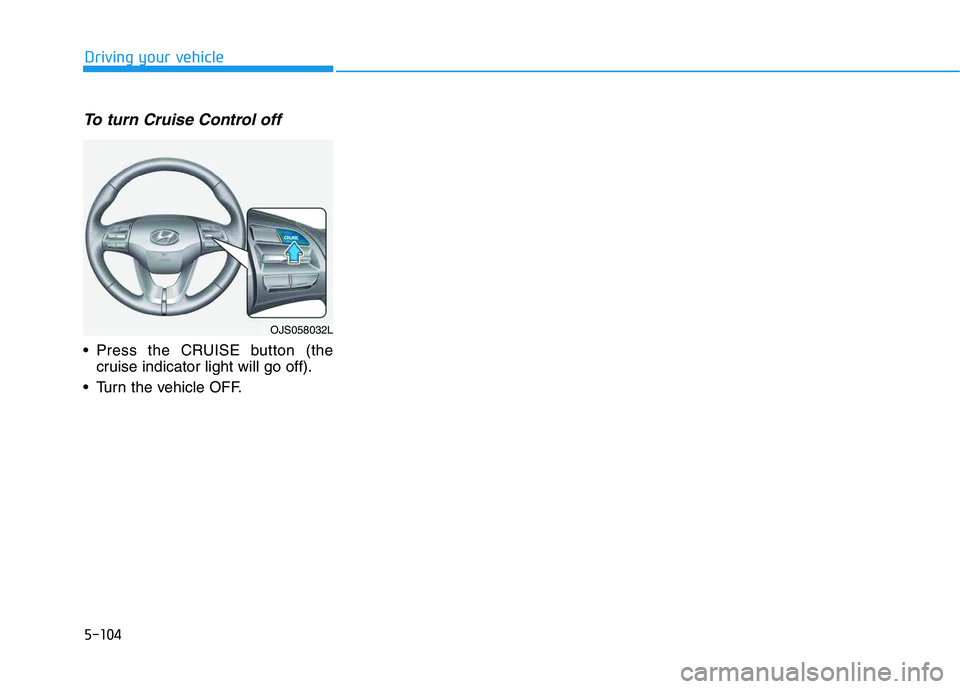
Press the CRUISE button (the
cruise indicator light will go off).
Turn the vehicle OFF.
OJS058032L
Page 323 of 480
5-105
Driving your vehicle
5
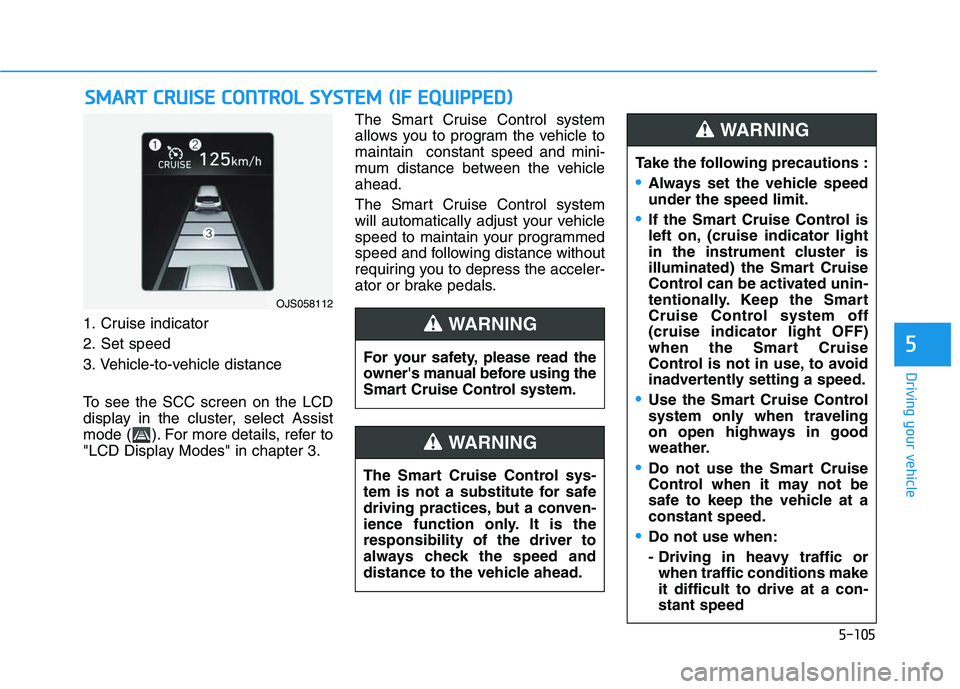
1. Cruise indicator
2. Set speed
3. Vehicle-to-vehicle distance
To see the SCC screen on the LCD
display in the cluster, select Assist
mode ( ). For more details, refer to
"LCD Display Modes" in chapter 3.The Smart Cruise Control system
allows you to program the vehicle to
maintain constant speed and mini-
mum distance between the vehicle
ahead.
The Smart Cruise Control system
will automatically adjust your vehicle
speed to maintain your programmed
speed and following distance without
requiring you to depress the acceler-
ator or brake pedals.
S SM
MA
AR
RT
T
C
CR
RU
UI
IS
SE
E
C
CO
ON
NT
TR
RO
OL
L
S
SY
YS
ST
TE
EM
M
(
(I
IF
F
E
EQ
QU
UI
IP
PP
PE
ED
D)
)
OJS058112
For your safety, please read the
owner's manual before using the
Smart Cruise Control system.
WARNING
The Smart Cruise Control sys-
tem is not a substitute for safe
driving practices, but a conven-
ience function only. It is the
responsibility of the driver to
always check the speed and
distance to the vehicle ahead.
WARNING
Take the following precautions :
Always set the vehicle speed
under the speed limit.
If the Smart Cruise Control is
left on, (cruise indicator light
in the instrument cluster is
illuminated) the Smart Cruise
Control can be activated unin-
tentionally. Keep the Smart
Cruise Control system off
(cruise indicator light OFF)
when the Smart Cruise
Control is not in use, to avoid
inadvertently setting a speed.
Use the Smart Cruise Control
system only when traveling
on open highways in good
weather.
Do not use the Smart Cruise
Control when it may not be
safe to keep the vehicle at a
constant speed.
Do not use when:
- Driving in heavy traffic or
when traffic conditions make
it difficult to drive at a con-
stant speed
WARNING
Page 325 of 480
5-107
Driving your vehicle
5
Smart Cruise Control Speed
To set Smart Cruise Control
speed
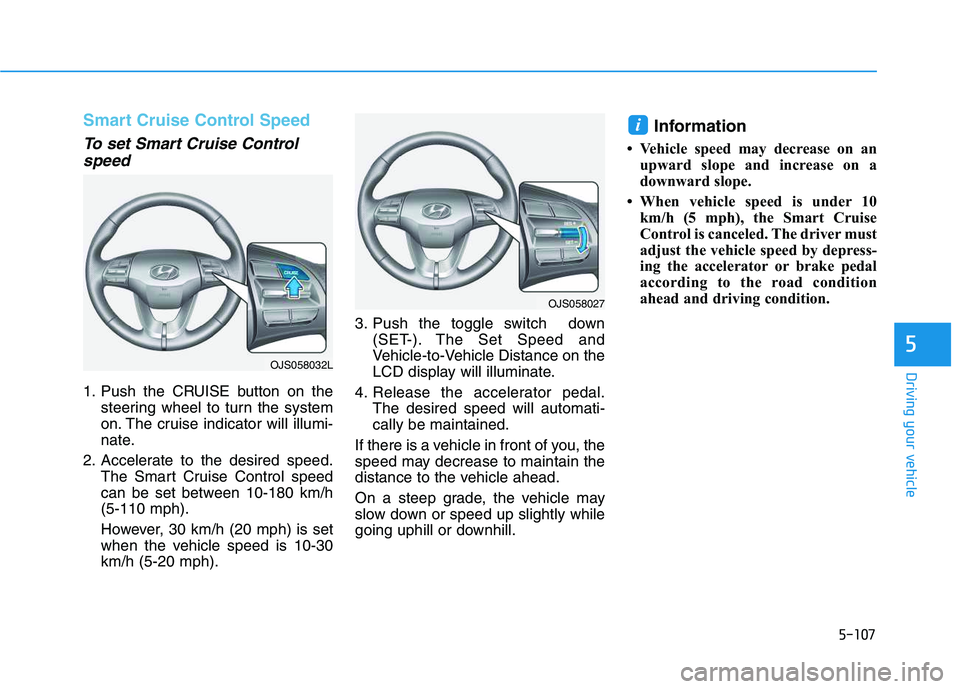
1. Push the CRUISE button on the
steering wheel to turn the system
on. The cruise indicator will illumi-
nate.
2. Accelerate to the desired speed.
The Smart Cruise Control speed
can be set between 10-180 km/h
(5-110 mph).
However, 30 km/h (20 mph) is set
when the vehicle speed is 10-30
km/h (5-20 mph).3. Push the toggle switch down
(SET-). The Set Speed and
Vehicle-to-Vehicle Distance on the
LCD display will illuminate.
4. Release the accelerator pedal.
The desired speed will automati-
cally be maintained.
If there is a vehicle in front of you, the
speed may decrease to maintain the
distance to the vehicle ahead.
On a steep grade, the vehicle may
slow down or speed up slightly while
going uphill or downhill.
Information
• Vehicle speed may decrease on an
upward slope and increase on a
downward slope.
• When vehicle speed is under 10
km/h (5 mph), the Smart Cruise
Control is canceled. The driver must
adjust the vehicle speed by depress-
ing the accelerator or brake pedal
according to the road condition
ahead and driving condition.
i
OJS058027
OJS058032L