audio HYUNDAI VERACRUZ 2010 Owner's Guide
[x] Cancel search | Manufacturer: HYUNDAI, Model Year: 2010, Model line: VERACRUZ, Model: HYUNDAI VERACRUZ 2010Pages: 425, PDF Size: 8.65 MB
Page 249 of 425
4167
Features of your vehicle
Volume Control
You can adjust the volume of the audio
heard in the vehicle speakers from the
RSE control panel or the remote control.
From the RSE control panel, rotate the
POWER/VOLUMEknob. From the
remote control, press "VOL +" to
increase and "VOL -" to decrease the
volume.
Adjusting the volume in this way will not
adjust the wireless headphone volume.
To adjust the headphones, roll the VOL
control wheel.
Play/Pause
When a CD is inserted, the RSE will
automatically begin playing the first track.
Press the PLAY/PAUSEbutton to
pause the CD. Press the button again to
resume play. While paused, the elapsed
time in the status display at the top of the
monitor will blink. The RSE control will
display "PAUSE."
When the player reaches the end of the
disc, the player will automatically return
to the first track and continue playing.
Fast Forward / Reverse
Press and hold the FF >or < REWbut-
ton and the player will fast forward or
reverse at 10 times the normal speed.
Release the button to return to normal
speed play.
The audio is muted while the player fast
forwards or fast reverses.
Previous/Next Track
While a CD is playing, press the
PREVbutton to jump to the beginning of
the current track. If less than 10 seconds
has elapsed on the current track, press-
ing PREVwill go to the previous
track. Press the button repeatedly to con-
tinue moving through previous tracks.
Press the NEXTbutton to jump to the
beginning of the next track. Press the
button repeatedly to continue moving
through the following tracks.
Instead of using the PREV /
NEXTbuttons, you can also enter the
track number using the numbers on the
remote control. While a CD is playing,
press the number button(s) that corre-
spond to the desired track and press
ENTER.
The current track number is shown in the
Status Display at the top of the monitor.
Stop
The CD will automatically stop when any
other source (e.g. the vehicle radio or an
external game) is selected. When you
switch back to the CD, it will begin play-
ing at the point where it stopped.
While a CD is playing, you can stop the
CD by pressing the POWER ON/OFF
button on the remote control or the
POWER/VOLUMEknob on the RSE
control panel. When the RSE is turned on
again, it will automatically begin playing
the CD at the point where it was stopped.
Turning the vehicle off, or selecting a dif-
ferent RSE Source, will also stop playing
the CD.
Eject
Press the EJECTbutton to eject the
CD. Discs can be ejected even when the
unit is not turned on.
✽ ✽
NOTICE
The player has an Auto-Reload Disc
Protection feature to protect discs from
accidental damage. If a disc is not
removed within 12 seconds after being
ejected, it will be pulled back into the
player. This is to protect the disc from
accidental damage.
procarmanuals.com
Page 250 of 425
Features of your vehicle
168 4
Using the MP3 Player
Most RSE functions work the same for
audio CDs and MP3 discs. The major dif-
ference is that audio CDs are organized
by "tracks," while MP3 discs are organ-
ized using folders and files. Therefore,
the navigation functions are somewhat
different for MP3 discs. If the discs
including CD and MP3 file, the system
only will play the CD track, not the MP3
data file.
✽ ✽
NOTICE
While the player will accept DVD ROM
and CD ROM discs, the RSE cannot
play discs in these formats.
Pause/Play
When an MP3 disc is inserted, the RSE
will automatically begin playing the first
file in the disc. Press the PLAY/PAUSE
button to pause the file. Press the
button again to resume play. While
paused, the elapsed time in the status
display at the top of the monitor will blink.
The RSE control panel will display
"PAUSE."
At the end of the disc, the player will
automatically return to the first file and
continue playing.
Fast Forward/Reverse
Press and hold the FF >or < REWbut-
ton and the player will fast forward or
reverse at 10 times the normal speed.
Release the button to return to normal
speed play.
The audio is muted while the player fast
forwards or fast reverses.
Song List : Navigating Folders and
Files
MP3 discs are organized by named fold-
ers, with each folder containing a collec-
tion of named music files. You can quick-
ly navigate through the folders and files
using the Song List function.
Press the MENUbutton on the RSE con-
trol panel or remote control to display the
song list. The focused song will be high-
lighted. And the music note icon appears
to left of the song currently playing.
To navigate through the folders, press
the < REWor FF >button to highlight the
FOLDER UP, FOLDER DOWN,or
HOMEbuttons on the monitor, the press
ENTERto move up or down the folders.
Press ENTERrepeatedly to move
through all the folders.
When you reach the desired folder, press
the PREVor NEXTbuttons to
scroll through the list of files in that folder
and press ENTERto select the desired
file. The player will switch to the selected
folder and begin playing the desired file.
procarmanuals.com
Page 254 of 425
Features of your vehicle
172 4
AM, FM1 and FM2 Selection
While the vehicle radio is the current
source, press the MODEbutton to cycle
through each of the available radio
bands, AM, FM1, FM2 and other avail-
able radio modes.
All of the RSE control panel and remote
control navigation functions can be used
to control the front radio when the vehicle
front radio is also playing the same radio
mode.
Viewing Front CD and MP3
Programs
The RSE can be used to control discs
that are loaded and playing in the vehicle
radio. To control these discs, you must
first select the vehicle radio as the
source. Press the SOURCEbutton on
the remote control, or the SRCbutton on
the RSE control panel, Meanwhile, the
Source Change UI will bring out. Use the
four direction arrow buttons to select the
source of vehicle radio. And press the
ENTERbutton for completing the selec-
tion.
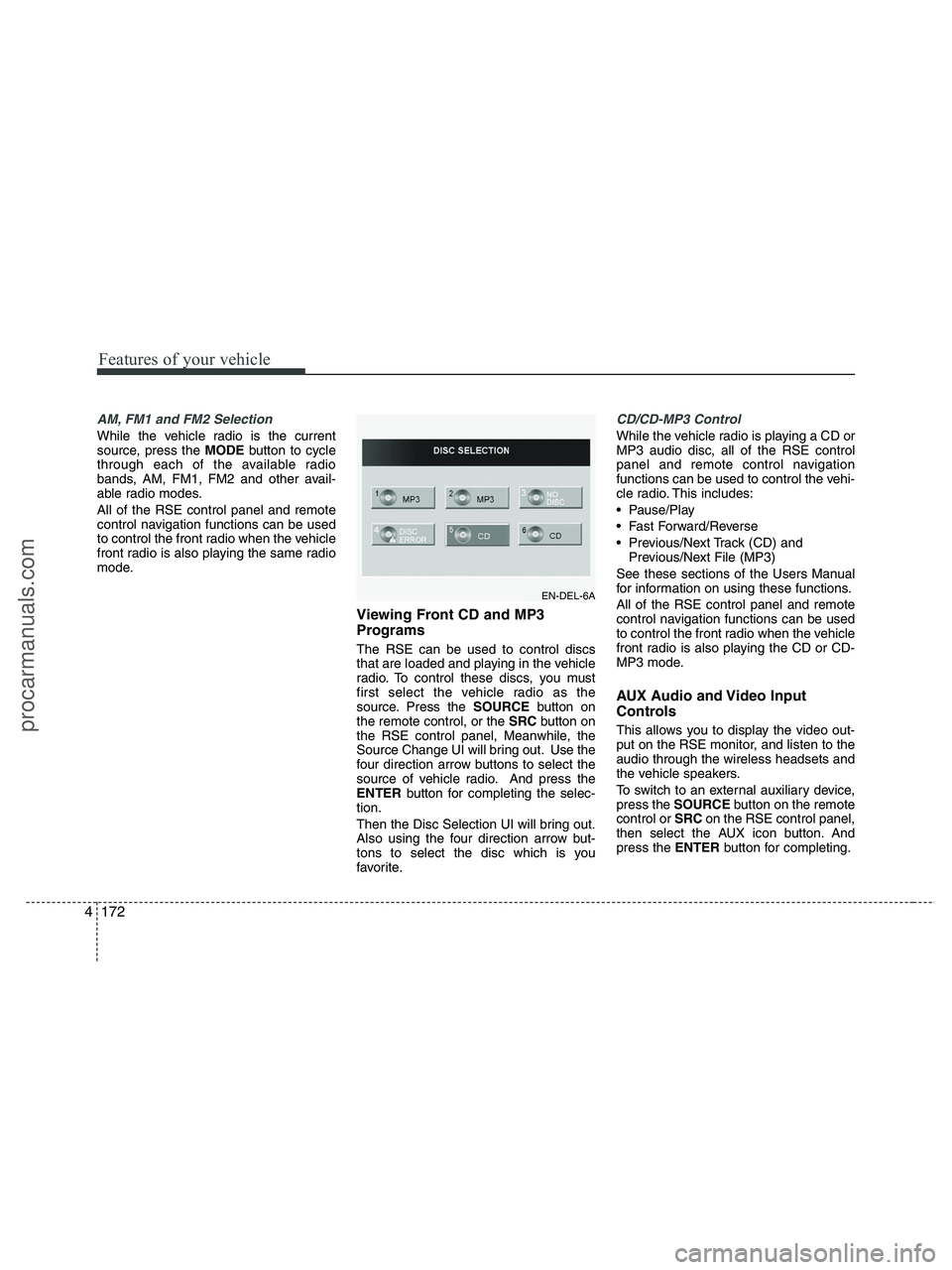
Then the Disc Selection UI will bring out.
Also using the four direction arrow but-
tons to select the disc which is you
favorite.
CD/CD-MP3 Control
While the vehicle radio is playing a CD or
MP3 audio disc, all of the RSE control
panel and remote control navigation
functions can be used to control the vehi-
cle radio. This includes:
Pause/Play
Fast Forward/Reverse
Previous/Next Track (CD) and
Previous/Next File (MP3)
See these sections of the Users Manual
for information on using these functions.
All of the RSE control panel and remote
control navigation functions can be used
to control the front radio when the vehicle
front radio is also playing the CD or CD-
MP3 mode.
AUX Audio and Video Input
Controls
This allows you to display the video out-
put on the RSE monitor, and listen to the
audio through the wireless headsets and
the vehicle speakers.
To switch to an external auxiliary device,
press the SOURCEbutton on the remote
control or SRCon the RSE control panel,
then select the AUX icon button. And
press the ENTERbutton for completing.
EN-DEL-6A
procarmanuals.com
Page 256 of 425
Features of your vehicle
174 4
1. POWER On/Off
Press the RSE control panel POWER
button or the POWER ON/OFFbutton
on the remote control to turn the
RSE on or off. If a disc is loaded and
playing when the RSE is turned off, when
the RSE is turned back on the disc will
automatically resume playback at the
point where it was stopped.
2. Mute
Press the MUTEbutton to mute the
audio in the vehicle speakers. The MUTE
button has no effect on the wireless
headphones.
While muted, the RSE control panel,
vehicle radio and RSE monitor will all dis-
play "MUTE." Press the button again, or
adjust the volume at RSE control panel
or vehicle radio, to un-mute the audio.
3. Number Buttons ~
The number buttons (0 through 9) can
be used to directly enter information such
as chapters in a DVD, track or file num-
bers for audio CDs, and preset radio.
To select a DVD or VCD chapter, while a
DVD/VCD is playing, press the number
button(s) that correspond to the desired
chapter and press ENTER.
To select a CD track, while a CD is play-
ing press the number button(s) that cor-
respond to the track and press ENTER.
To select a radio station preset, while the
desired band (AM, FM1 or FM2) is
selected, press the numbered button that
corresponds to the preset on the vehicle
radio. There is no need to press ENTER.
4. Source
Pressing this SOURCEbutton will bring
out the Source Change selection opera-
tion. You can select any available mode
by using the four direction arrow buttons
and press the ENTERbutton for com-
pleting the selection.
The RSE control panel will display
"REAR" if the current source is the RSE
player, and will display "FRONT" if the
current source is the vehicle radio.
5. A.LANG - Alternate Language
Folder -
Where alternate languages are available
on a DVD, pressing the A.LANGbutton
will allow you to select your preferred lan-
guage. Press the button repeatedly to
cycle through the available languages.
When the desired language is displayed,
press ENTER.
Pressing the A.LANG(or FOLD-) button
during MP3 normal play will immediately
bring the player to the first file of the pre-
vious folder.
Pressing the A.LANG(or FOLD-) button
during CD or VCD play will do nothing.
procarmanuals.com
Page 257 of 425
4175
Features of your vehicle
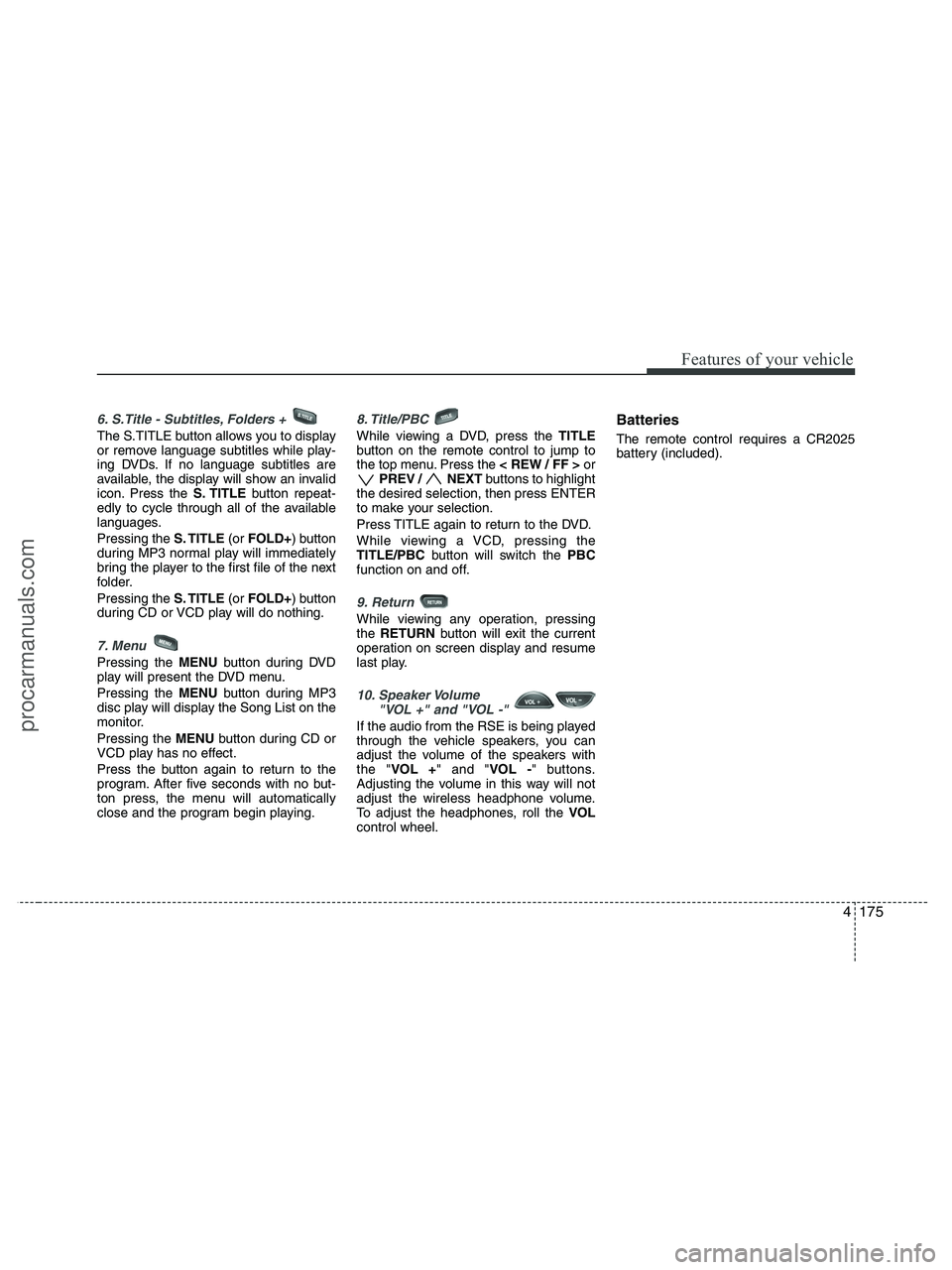
6. S.Title - Subtitles, Folders +
The S.TITLE button allows you to display
or remove language subtitles while play-
ing DVDs. If no language subtitles are
available, the display will show an invalid
icon. Press the S. TITLEbutton repeat-
edly to cycle through all of the available
languages.
Pressing the S. TITLE(or FOLD+) button
during MP3 normal play will immediately
bring the player to the first file of the next
folder.
Pressing the S. TITLE(or FOLD+) button
during CD or VCD play will do nothing.
7. Menu
Pressing the MENUbutton during DVD
play will present the DVD menu.
Pressing the MENUbutton during MP3
disc play will display the Song List on the
monitor.
Pressing the MENUbutton during CD or
VCD play has no effect.
Press the button again to return to the
program. After five seconds with no but-
ton press, the menu will automatically
close and the program begin playing.
8. Title/PBC
While viewing a DVD, press the TITLE
button on the remote control to jump to
the top menu. Press the < REW / FF >or
PREV / NEXTbuttons to highlight
the desired selection, then press ENTER
to make your selection.
Press TITLE again to return to the DVD.
While viewing a VCD, pressing the
TITLE/PBCbutton will switch the PBC
function on and off.
9. Return
While viewing any operation, pressing
the RETURNbutton will exit the current
operation on screen display and resume
last play.
10. Speaker Volume
"VOL +" and "VOL -"
If the audio from the RSE is being played
through the vehicle speakers, you can
adjust the volume of the speakers with
the "VOL +" and "VOL -" buttons.
Adjusting the volume in this way will not
adjust the wireless headphone volume.
To adjust the headphones, roll the VOL
control wheel.
Batteries
The remote control requires a CR2025
battery (included).
procarmanuals.com
Page 258 of 425
Features of your vehicle
176 4
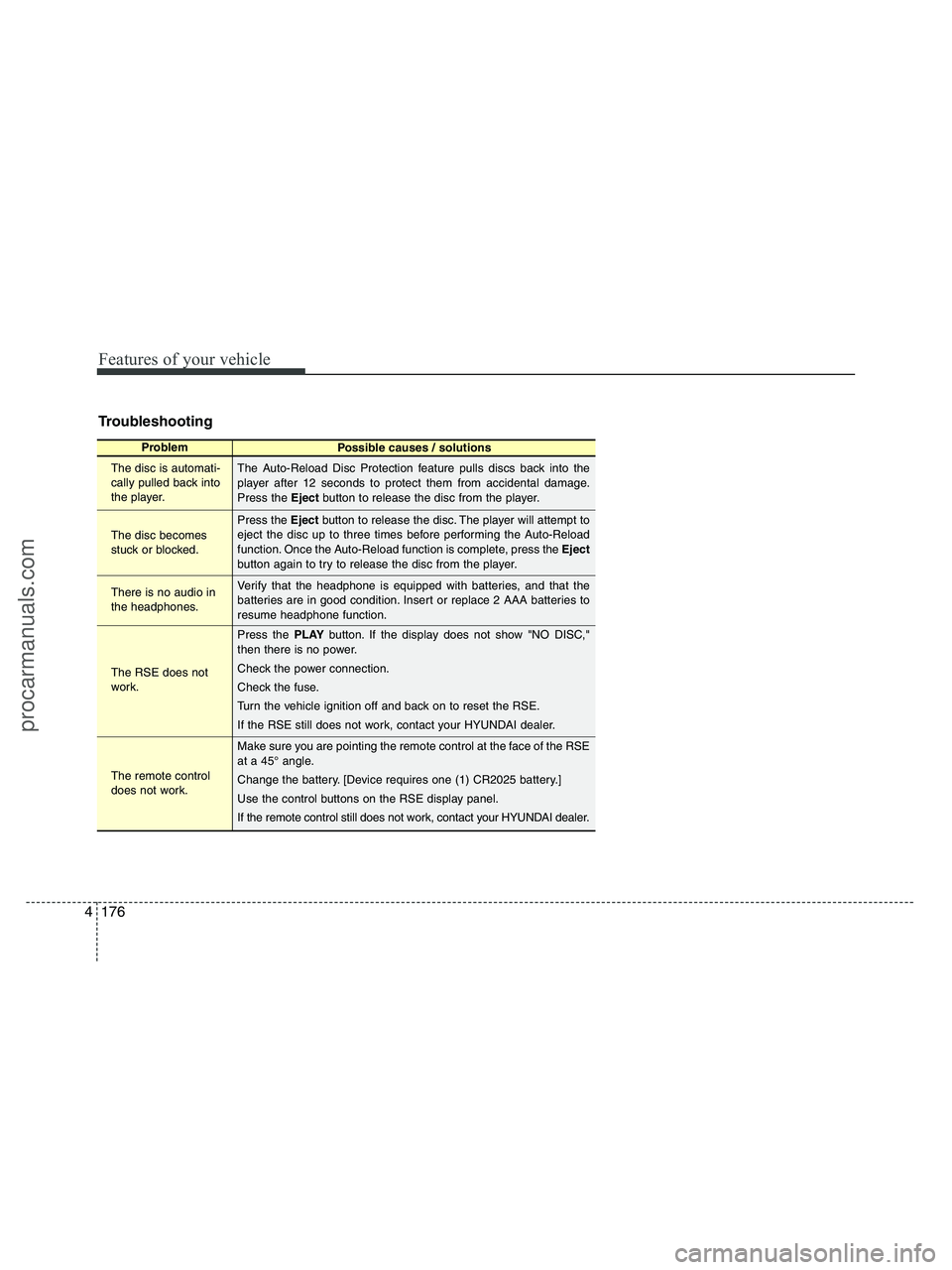
Troubleshooting
Problem
Possible causes / solutions
The disc is automati-
cally pulled back into
the player.
The disc becomes
stuck or blocked.
There is no audio in
the headphones.
The RSE does not
work.
The remote control
does not work.The Auto-Reload Disc Protection feature pulls discs back into the
player after 12 seconds to protect them from accidental damage.
Press the Ejectbutton to release the disc from the player.
Press the Ejectbutton to release the disc. The player will attempt to
eject the disc up to three times before performing the Auto-Reload
function. Once the Auto-Reload function is complete, press the Eject
button again to try to release the disc from the player.
Verify that the headphone is equipped with batteries, and that the
batteries are in good condition. Insert or replace 2 AAA batteries to
resume headphone function.
Press the PLAYbutton. If the display does not show "NO DISC,"
then there is no power.
Check the power connection.
Check the fuse.
Turn the vehicle ignition off and back on to reset the RSE.
If the RSE still does not work, contact your HYUNDAI dealer.
Make sure you are pointing the remote control at the face of the RSE
at a 45° angle.
Change the battery. [Device requires one (1) CR2025 battery.]
Use the control buttons on the RSE display panel.
If the remote control still does not work, contact your HYUNDAI dealer.
procarmanuals.com
Page 370 of 425
729
Maintenance
G190400AEN
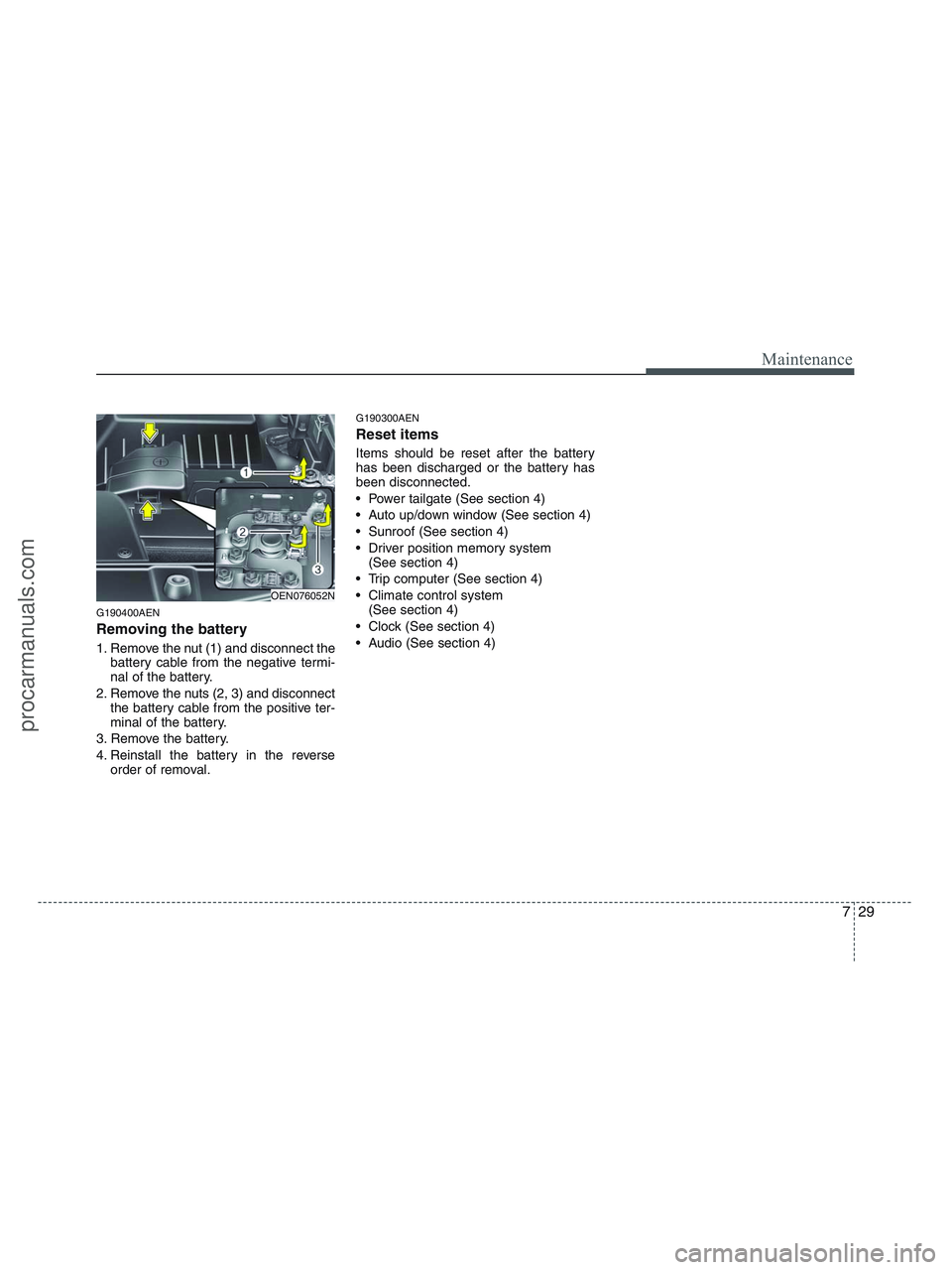
Removing the battery
1. Remove the nut (1) and disconnect the
battery cable from the negative termi-
nal of the battery.
2. Remove the nuts (2, 3) and disconnect
the battery cable from the positive ter-
minal of the battery.
3. Remove the battery.
4. Reinstall the battery in the reverse
order of removal.
G190300AEN
Reset items
Items should be reset after the battery
has been discharged or the battery has
been disconnected.
Power tailgate (See section 4)
Auto up/down window (See section 4)
Sunroof (See section 4)
Driver position memory system
(See section 4)
Trip computer (See section 4)
Climate control system
(See section 4)
Clock (See section 4)
Audio (See section 4)
OEN076052N
procarmanuals.com
Page 386 of 425
745
Maintenance
G210101AUN
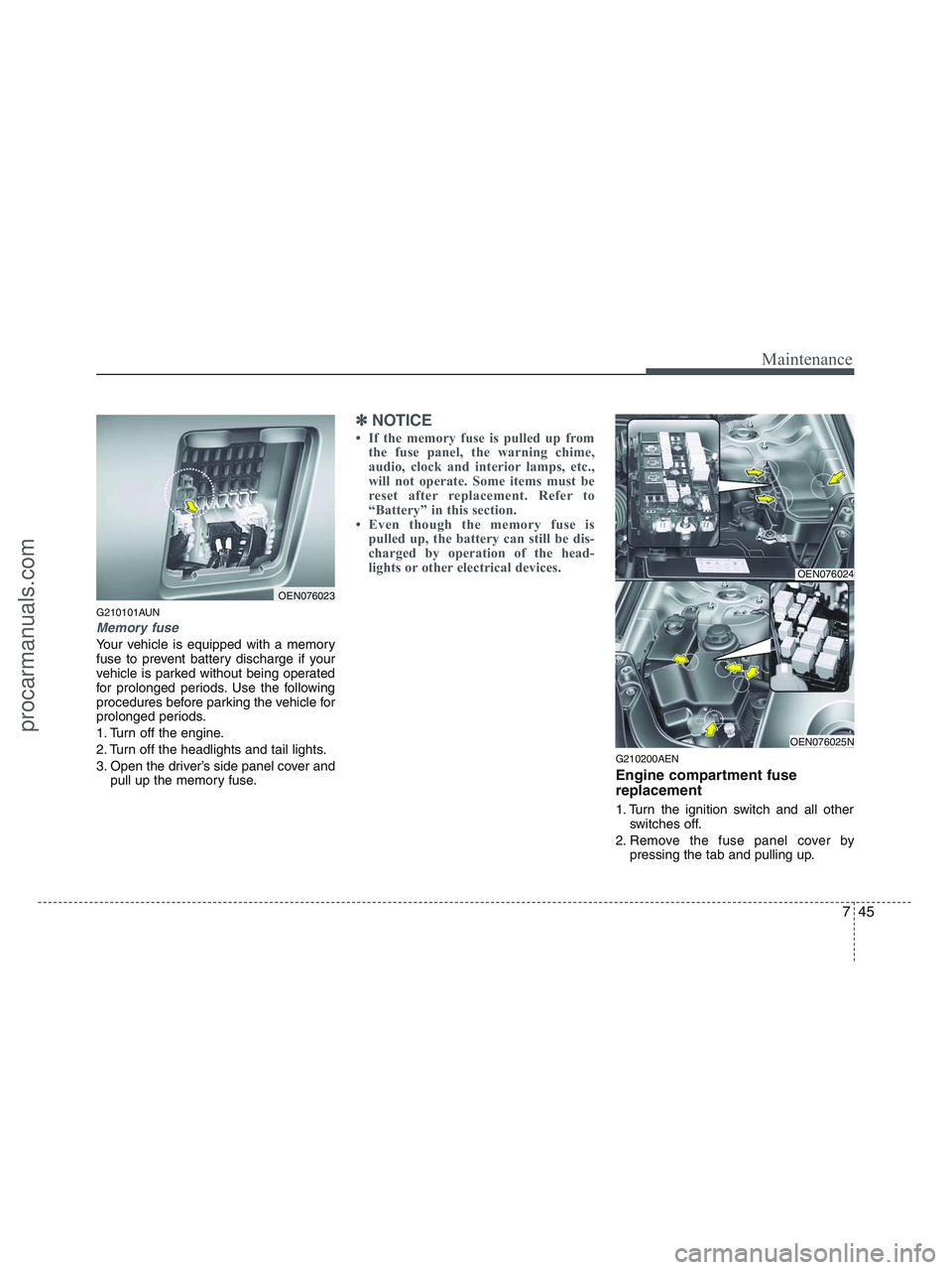
Memory fuse
Your vehicle is equipped with a memory
fuse to prevent battery discharge if your
vehicle is parked without being operated
for prolonged periods. Use the following
procedures before parking the vehicle for
prolonged periods.
1. Turn off the engine.
2. Turn off the headlights and tail lights.
3. Open the driver’s side panel cover and
pull up the memory fuse.
✽ ✽
NOTICE
• If the memory fuse is pulled up from
the fuse panel, the warning chime,
audio, clock and interior lamps, etc.,
will not operate. Some items must be
reset after replacement. Refer to
“Battery” in this section.
• Even though the memory fuse is
pulled up, the battery can still be dis-
charged by operation of the head-
lights or other electrical devices.
G210200AEN
Engine compartment fuse
replacement
1. Turn the ignition switch and all other
switches off.
2. Remove the fuse panel cover by
pressing the tab and pulling up.
OEN076023
OEN076024
OEN076025N
procarmanuals.com
Page 389 of 425
Maintenance
48 7
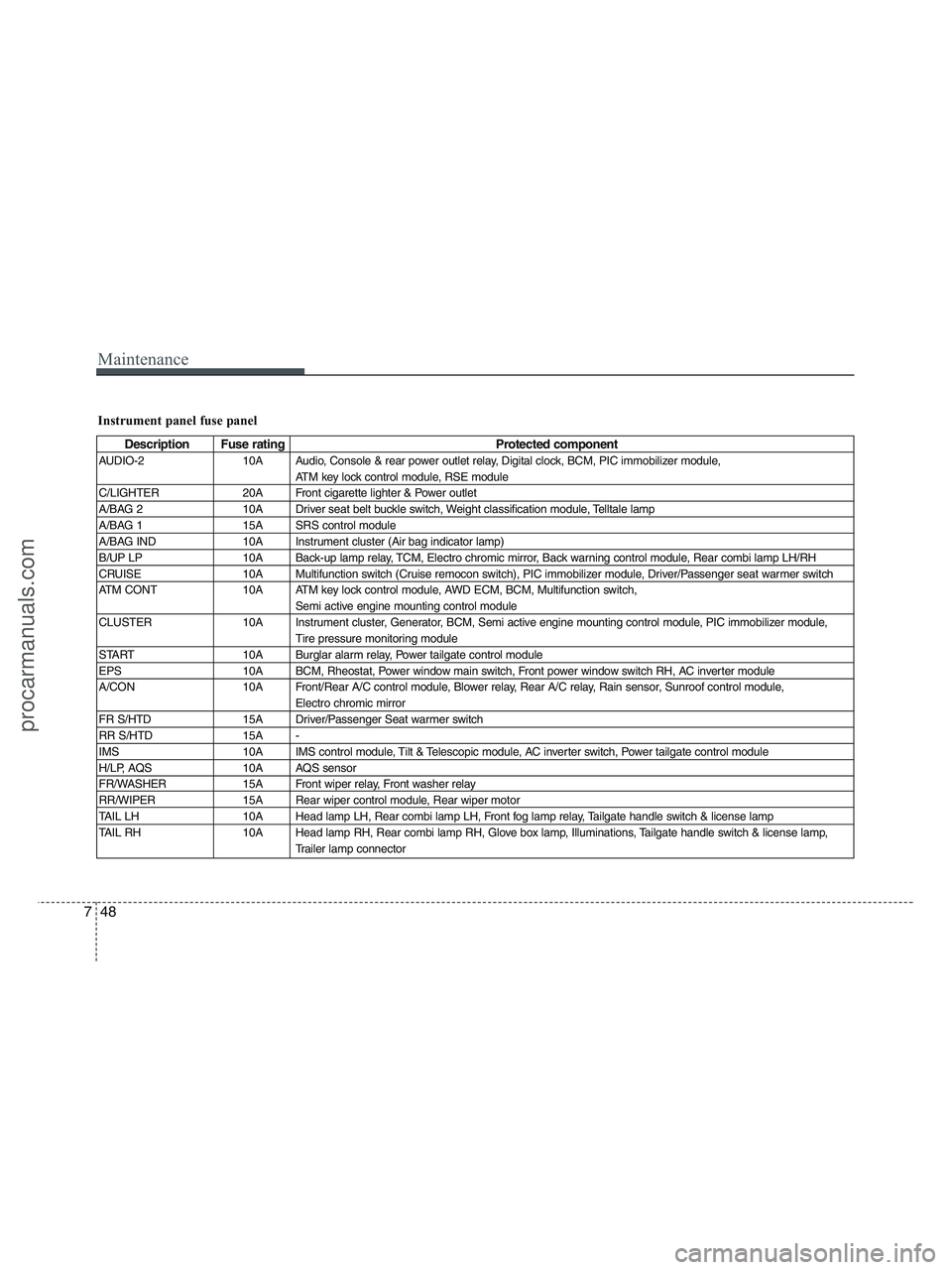
Instrument panel fuse panel
Description Fuse rating Protected component
AUDIO-2 10A Audio, Console & rear power outlet relay, Digital clock, BCM, PIC immobilizer module,
ATM key lock control module, RSE module
C/LIGHTER 20A Front cigarette lighter & Power outlet
A/BAG 2 10A Driver seat belt buckle switch, Weight classification module, Telltale lamp
A/BAG 1 15A SRS control module
A/BAG IND 10A Instrument cluster (Air bag indicator lamp)
B/UP LP 10A Back-up lamp relay, TCM, Electro chromic mirror, Back warning control module, Rear combi lamp LH/RH
CRUISE 10A Multifunction switch (Cruise remocon switch), PIC immobilizer module, Driver/Passenger seat warmer switch
ATM CONT 10A ATM key lock control module, AWD ECM, BCM, Multifunction switch,
Semi active engine mounting control module
CLUSTER 10A Instrument cluster, Generator, BCM, Semi active engine mounting control module, PIC immobilizer module,
Tire pressure monitoring module
START 10A Burglar alarm relay, Power tailgate control module
EPS 10A BCM, Rheostat, Power window main switch, Front power window switch RH, AC inverter module
A/CON 10A Front/Rear A/C control module, Blower relay, Rear A/C relay, Rain sensor, Sunroof control module,
Electro chromic mirror
FR S/HTD 15A Driver/Passenger Seat warmer switch
RR S/HTD 15A -
IMS 10A IMS control module, Tilt & Telescopic module, AC inverter switch, Power tailgate control module
H/LP, AQS 10A AQS sensor
FR/WASHER 15A Front wiper relay, Front washer relay
RR/WIPER 15A Rear wiper control module, Rear wiper motor
TAIL LH 10A Head lamp LH, Rear combi lamp LH, Front fog lamp relay, Tailgate handle switch & license lamp
TAIL RH 10A Head lamp RH, Rear combi lamp RH, Glove box lamp, Illuminations, Tailgate handle switch & license lamp,
Trailer lamp connector
procarmanuals.com
Page 390 of 425
749
Maintenance
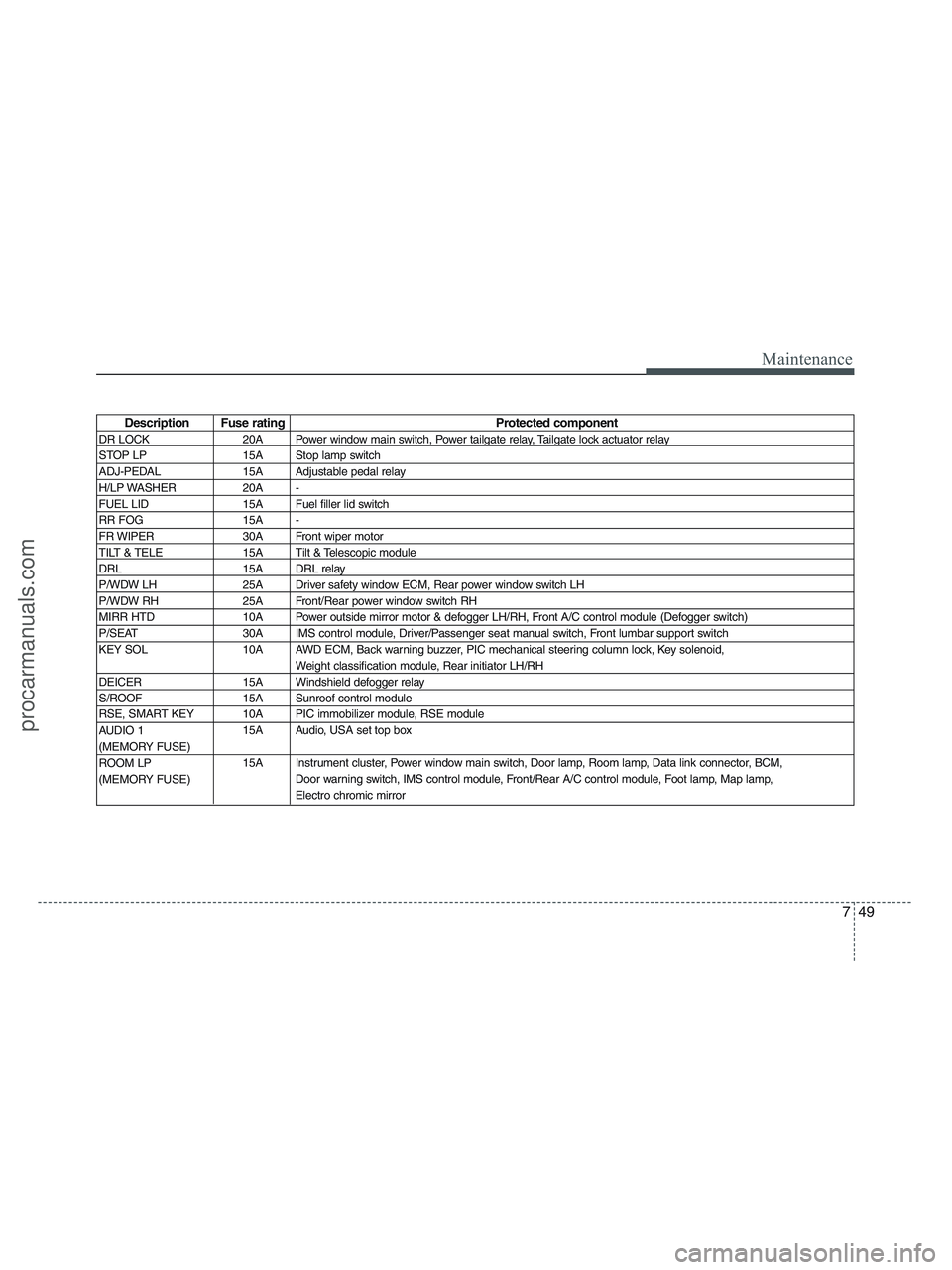
Description Fuse rating Protected component
DR LOCK 20A Power window main switch, Power tailgate relay, Tailgate lock actuator relay
STOP LP 15A Stop lamp switch
ADJ-PEDAL 15A Adjustable pedal relay
H/LP WASHER 20A -
FUEL LID 15A Fuel filler lid switch
RR FOG 15A -
FR WIPER 30A Front wiper motor
TILT & TELE 15A Tilt & Telescopic module
DRL 15A DRL relay
P/WDW LH 25A Driver safety window ECM, Rear power window switch LH
P/WDW RH 25A Front/Rear power window switch RH
MIRR HTD 10A Power outside mirror motor & defogger LH/RH, Front A/C control module (Defogger switch)
P/SEAT 30A IMS control module, Driver/Passenger seat manual switch, Front lumbar support switch
KEY SOL 10A AWD ECM, Back warning buzzer, PIC mechanical steering column lock, Key solenoid,
Weight classification module, Rear initiator LH/RH
DEICER 15A Windshield defogger relay
S/ROOF 15A Sunroof control module
RSE, SMART KEY 10A PIC immobilizer module, RSE module
15A Audio, USA set top box
15A Instrument cluster, Power window main switch, Door lamp, Room lamp, Data link connector, BCM,
Door warning switch, IMS control module, Front/Rear A/C control module, Foot lamp, Map lamp,
Electro chromic mirror
AUDIO 1
(MEMORY FUSE)
ROOM LP
(MEMORY FUSE)
procarmanuals.com