warning INFINITI FX 2012 Owners Manual
[x] Cancel search | Manufacturer: INFINITI, Model Year: 2012, Model line: FX, Model: INFINITI FX 2012Pages: 522, PDF Size: 3.51 MB
Page 171 of 522

3-30Pre-driving checks and adjustments
Automatic anti-glare type
The inside mirror is designed so that it
automatically changes reflection according
to the intensity of the headlights of the
following vehicle.
The anti-glare system will be automatically
turned on when the ignition switch is
pushed to the ON position.
When the anti-glare system is turned on,
the indicator light
*Awill illuminate and
excessive glare from the headlights of the
vehicle behind you will be reduced.
Type A: Push the
switch*Bto make the
inside rearview mirror operate normally
and the indicator light will turn off. Push
the
switch again to turn the system on.
Type B: Push the “*”switch
*Cto make
the inside rearview mirror operate nor-
mally. The indicator light will turn off. Push
the “I”switch
*Dto turn the system on.
Do not allow any object to cover the
sensors
*Eor apply glass cleaner on
them. Doing so will reduce the sensitivity
of the sensor, resulting in improper
operation.
For the compass (if so equipped) opera-
tion, see “Compass” (P.2-9). For the HomeLink
®Universal Transceiver
operation, see “HomeLink®Universal
Transceiver” (P.2-65).
SPA2214
OUTSIDE MIRRORS
WARNING
Objects viewed in the outside mirror on the
passenger side are closer than they appear.
Be careful when moving to the right. Using
only this mirror could cause an accident.
Use the inside mirror or glance over your
shoulder to properly judge distances to
other objects.
Page 180 of 522
WARNING
.Do not disassemble or modify this
system. If you do, it may result in
accidents, fire, or electric shock.
. Do not use this system if you notice any
abnormality, such as a frozen screen or
lack of sound. Continued use of the
system may result in accident, fire or
electric shock.
. In case you notice any foreign object in
the system hardware, spill liquid on it,
or notice smoke or smell coming from it,
stop using the system immediately and
contact your nearest INFINITI retailer.
Ignoring such conditions may lead to
accidents, fire, or electric shock.
. Park the vehicle in a safe location and
apply the parking brake to view the
images on the front center display
screen.
Do not attempt to operate the system in
extreme temperature conditions [below
−48F( −208C) and above 1588F (708C)].
Operating this system under these condi-
tions may result in system malfunctions.
SAA1836
Models with navigation system
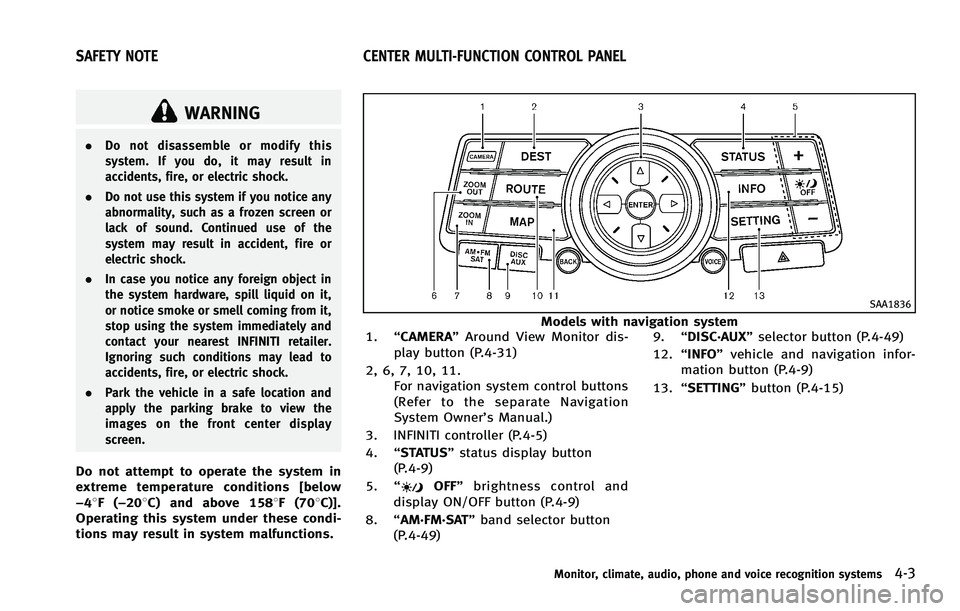
1. “CAMERA” Around View Monitor dis-
play button (P.4-31)
2, 6, 7, 10, 11. For navigation system control buttons
(Refer to the separate Navigation
System Owner’s Manual.)
3. INFINITI controller (P.4-5)
4. “STATUS” status display button
(P.4-9)
5. “
OFF” brightness control and
display ON/OFF button (P.4-9)
8. “AM·FM·SAT” band selector button
(P.4-49) 9.
“DISC·AUX” selector button (P.4-49)
12. “INFO” vehicle and navigation infor-
mation button (P.4-9)
13. “SETTING” button (P.4-15)
Monitor, climate, audio, phone and voice recognition systems4-3
SAFETY NOTE CENTER MULTI-FUNCTION CONTROL PANEL
Page 182 of 522

HOW TO USE INFINITI CONTROLLER
Choose an item on the display using the
main directional buttons
*2(or additional
directional buttons
*6models with navi-
gation system) or center dial
*3, and push
the ENTER button
*1for operation.
If you push the BACKbutton
*4before the
setup is completed, the setup will be
canceled and/or the display will return to
the previous screen. This button can also
be used to delete characters that have
been input.
After the setup is completed, push the
BACK button
*4and return to the previous
screen.
For the VOICEbutton
*5functions, refer to
the separate Navigation System Owner’s
Manual.
HOW TO USE TOUCH SCREEN
(models with navigation system)
CAUTION
. The glass screen on the liquid crystal
display may break if it is hit with a hard
or sharp object. If the glass screen
breaks, do not touch it. Doing so could result in an injury.
. To clean the display, use a soft, dry
cloth. If additional cleaning is necessary,
use a small amount of neutral detergent
with a soft cloth. Never use a rough
cloth, alcohol, benzine, thinner or any
kind of solvent or paper towel with a
chemical cleaning agent. They will
scratch or deteriorate the panel.
. Do not splash any liquid such as water
or car fragrance on the display. Contact
with liquid will cause the system to
malfunction.
To ensure safe driving, some functions
cannot be operated while driving.
The on-screen functions that are not
available while driving will be “grayed
out” or muted.
Park the vehicle in a safe location and then
operate the navigation system.
WARNING
. ALWAYS give your full attention to
driving.
. Avoid using vehicle features that could distract you. If distracted, you could lose
control of your vehicle and cause an
accident.
Monitor, climate, audio, phone and voice recognition systems4-5
Page 188 of 522
Fuel Economy information
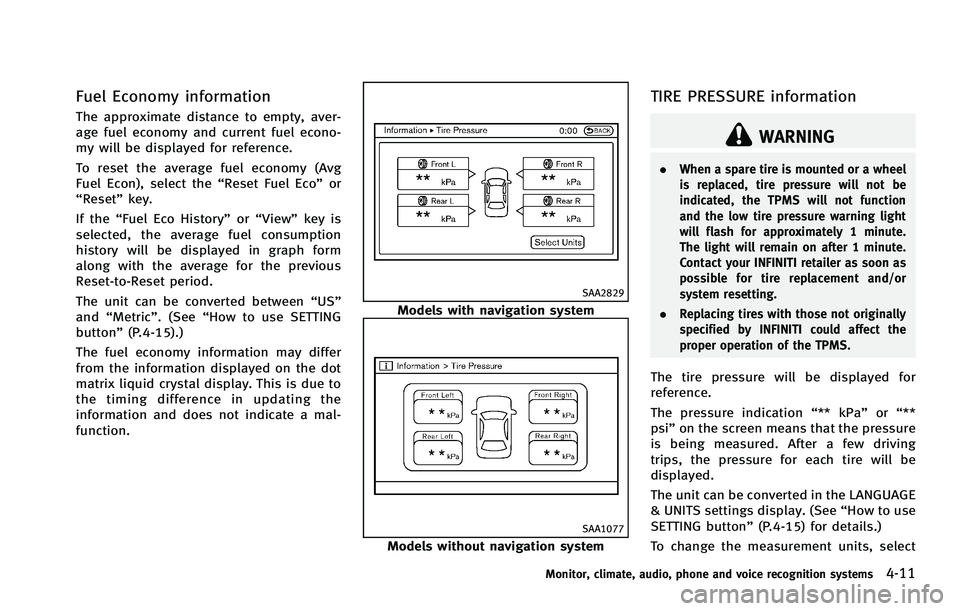
The approximate distance to empty, aver-
age fuel economy and current fuel econo-
my will be displayed for reference.
To reset the average fuel economy (Avg
Fuel Econ), select the“Reset Fuel Eco”or
“Reset” key.
If the “Fuel Eco History” or“View” key is
selected, the average fuel consumption
history will be displayed in graph form
along with the average for the previous
Reset-to-Reset period.
The unit can be converted between “US”
and “Metric”. (See “How to use SETTING
button” (P.4-15).)
The fuel economy information may differ
from the information displayed on the dot
matrix liquid crystal display. This is due to
the timing difference in updating the
information and does not indicate a mal-
function.
SAA2829
Models with navigation system
SAA1077
Models without navigation system
TIRE PRESSURE information
WARNING
. When a spare tire is mounted or a wheel
is replaced, tire pressure will not be
indicated, the TPMS will not function
and the low tire pressure warning light
will flash for approximately 1 minute.
The light will remain on after 1 minute.
Contact your INFINITI retailer as soon as
possible for tire replacement and/or
system resetting.
. Replacing tires with those not originally
specified by INFINITI could affect the
proper operation of the TPMS.
The tire pressure will be displayed for
reference.
The pressure indication “** kPa”or“**
psi ”on the screen means that the pressure
is being measured. After a few driving
trips, the pressure for each tire will be
displayed.
The unit can be converted in the LANGUAGE
& UNITS settings display. (See “How to use
SETTING button” (P.4-15) for details.)
To change the measurement units, select
Monitor, climate, audio, phone and voice recognition systems4-11
Page 201 of 522
4-24Monitor, climate, audio, phone and voice recognition systems
—Maximum Resolution: 2048 61536
pixels
— Maximum Size: 2-MB
— Colors: 32768 (15-bit)
— Maximum File Name lengths: 253-
Bytes
— Maximum Folders: 500
— Maximum Images per Folder: 1024
. If an electronic device (such as a digital
camera) is directly connected to the
vehicle using a USB cable, no image
will be displayed on the screen.
. If the file name is too long, some file
names may not be entirely displayed.
. When the total number of characters in
the file name exceeds 100 or if 1 file
name in a directory exceeds 100
characters, all files will show a shor-
tened 8-character version. The image
will still be displayed when selected. When the selector lever is shifted into the R
(Reverse) position, the monitor display
shows the view from the rear of the vehicle.
The system is designed as an aid to the
driver in detecting large stationary objects
to help avoid damaging the vehicle. The
system will not detect small objects below
the bumper and may not detect objects
close to the bumper or on the ground.
WARNING
.
The rearview monitor is a convenience
but it is not a substitute for proper
vehicle operation because it has areas
where objects cannot be viewed. Always
look out the windows and check mirrors
to be sure that it is safe to move before
operating the vehicle. Always operate
the vehicle slowly.
. Objects viewed in the RearView Monitor
differ from actual distance because a
wide-angle lens is used. Objects in the
RearView Monitor will appear visually
opposite like ones viewed in the inside
and outside mirrors.
. Make sure that the lift gate is securely
closed when backing up. .
Underneath the bumper and the corner
areas of the bumper cannot be viewed on
the rearview monitor because of its
monitoring range limitation.
. Do not put anything on the rearview
camera. The rearview camera is installed
above the license plate.
. When washing the vehicle with high-
pressure water, be sure not to spray it
around the camera. Otherwise, water
may enter the camera unit causing water
condensation on the lens, a malfunction,
fire or an electric shock.
. Do not strike the camera. It is a precision
instrument. Otherwise, it may malfunc-
tion or cause damage resulting in a fire
or an electric shock.
CAUTION
There is a plastic cover over the camera. Do
not scratch the cover when cleaning dirt or
snow from the cover.
REARVIEW MONITOR (if so equipped)
Page 202 of 522
SAA1896
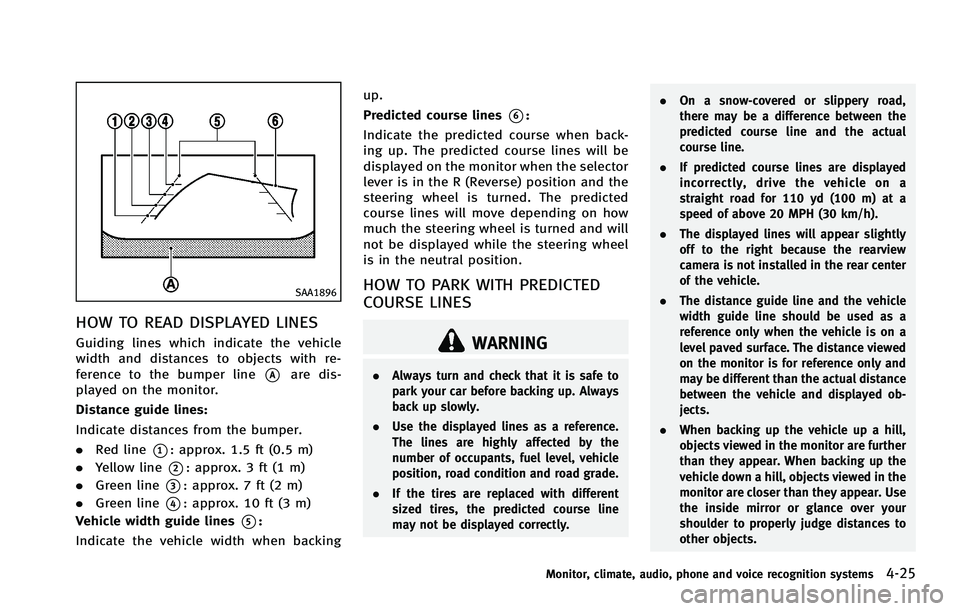
HOW TO READ DISPLAYED LINES
Guiding lines which indicate the vehicle
width and distances to objects with re-
ference to the bumper line
*Aare dis-
played on the monitor.
Distance guide lines:
Indicate distances from the bumper.
. Red line
*1: approx. 1.5 ft (0.5 m)
. Yellow line
*2: approx. 3 ft (1 m)
. Green line
*3: approx. 7 ft (2 m)
. Green line
*4: approx. 10 ft (3 m)
Vehicle width guide lines
*5:
Indicate the vehicle width when backing up.
Predicted course lines
*6:
Indicate the predicted course when back-
ing up. The predicted course lines will be
displayed on the monitor when the selector
lever is in the R (Reverse) position and the
steering wheel is turned. The predicted
course lines will move depending on how
much the steering wheel is turned and will
not be displayed while the steering wheel
is in the neutral position.
HOW TO PARK WITH PREDICTED
COURSE LINES
WARNING
. Always turn and check that it is safe to
park your car before backing up. Always
back up slowly.
. Use the displayed lines as a reference.
The lines are highly affected by the
number of occupants, fuel level, vehicle
position, road condition and road grade.
. If the tires are replaced with different
sized tires, the predicted course line
may not be displayed correctly. .
On a snow-covered or slippery road,
there may be a difference between the
predicted course line and the actual
course line.
. If predicted course lines are displayed
incorrectly, drive the vehicle on a
straight road for 110 yd (100 m) at a
speed of above 20 MPH (30 km/h).
. The displayed lines will appear slightly
off to the right because the rearview
camera is not installed in the rear center
of the vehicle.
. The distance guide line and the vehicle
width guide line should be used as a
reference only when the vehicle is on a
level paved surface. The distance viewed
on the monitor is for reference only and
may be different than the actual distance
between the vehicle and displayed ob-
jects.
. When backing up the vehicle up a hill,
objects viewed in the monitor are further
than they appear. When backing up the
vehicle down a hill, objects viewed in the
monitor are closer than they appear. Use
the inside mirror or glance over your
shoulder to properly judge distances to
other objects.
Monitor, climate, audio, phone and voice recognition systems4-25
Page 208 of 522

When you push theCAMERAbutton or shift
the selector lever into the R (Reverse)
position while the ignition switch is in the
ON position, the Around View Monitor
operates. The monitor displays various
views of the position of the vehicle.
Available views:
. Bird-Eye View
The surrounding view of the vehicle.
. Front-Side View
The view around and ahead of the front
passenger’s side wheel.
. Front View
The view to the front of the vehicle.
. RearView
The view to the rear of the vehicle.
. Rear-Wide View
An approximately 180-degree view of
the rear of the vehicle.
The system is designed as an aid to the
driver in situations such as slot parking or
parallel parking.
SAA2148
There are some areas where the system
will not detect objects. When in the front or
the rearview display, an object below the
bumper or on the ground may not be
detected
*1. When in the bird-eye view, a
tall object near the seam of the camera
detecting areas will not appear in the monitor
*2.
WARNING
.
The Around View Monitor is a conveni-
ence but it is not a substitute for proper
vehicle operation because it has areas
where objects cannot be viewed. Always
look out the windows and check to be
sure that it is safe to move before
operating the vehicle. Always operate
the vehicle slowly.
. Do not use the Around View Monitor with
the outside mirror in the stored position,
and make sure that the lift gate is
securely closed when operating the
vehicle using the Around View Monitor.
. The distance between objects viewed on
the Around View Monitor differs from the
actual distance.
. The cameras are installed above the
front grille, the outside mirrors and
above the rear license plate. Do not put
anything on the cameras.
. When washing the vehicle with high-
pressure water, be sure not to spray it
around the cameras. Otherwise, water
may enter the camera unit causing water
Monitor, climate, audio, phone and voice recognition systems4-31
AROUND VIEWTMMONITOR (AVM) (if so
equipped)
Page 211 of 522
4-34Monitor, climate, audio, phone and voice recognition systems
HOW TO SEE EACH VIEW
WARNING
.The distance guide line and the vehicle
width line should be used as a reference
only when the vehicle is on a paved,
level surface. The distance viewed on the
monitor is for reference only and may be
different than the actual distance be-
tween the vehicle and displayed objects.
. Use the displayed lines and the bird-eye
view as a reference. The lines and the
bird-eye view are greatly affected by the
number of occupants, fuel level, vehicle
position, road condition and road grade.
. If the tires are replaced with different
sized tires, the predicted course line and
the bird-eye view may be displayed
incorrectly.
. When driving the vehicle up a hill,
objects viewed in the monitor are further
than they appear. When driving the
vehicle down a hill, objects viewed in
the monitor are closer than they appear.
Use the mirrors or actually look to
properly judge distances to other ob-
jects.
The vehicle width and predicted course
lines are wider than the actual width and
course.
SAA1840
Front view
SAA1896
Rearview
Page 212 of 522
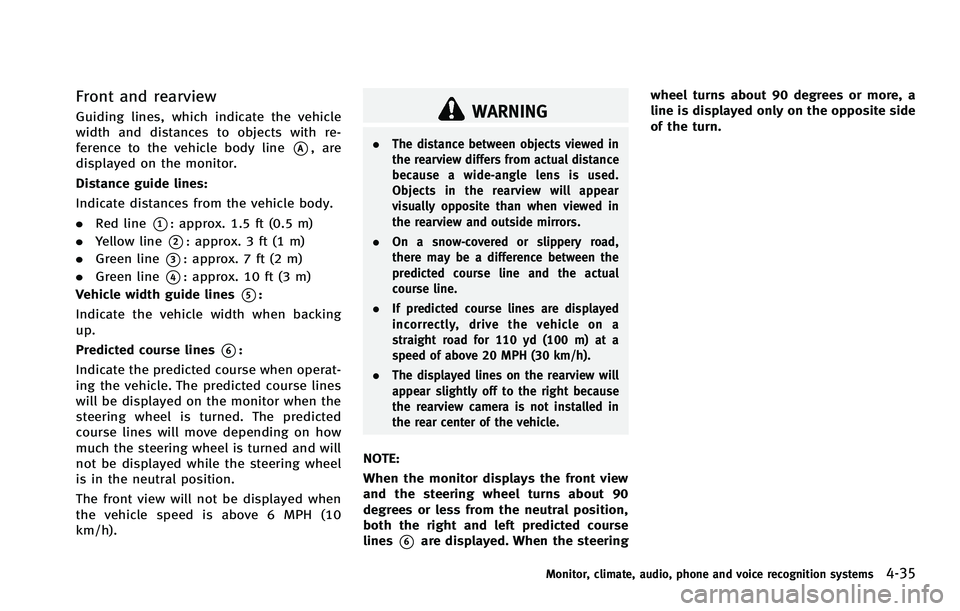
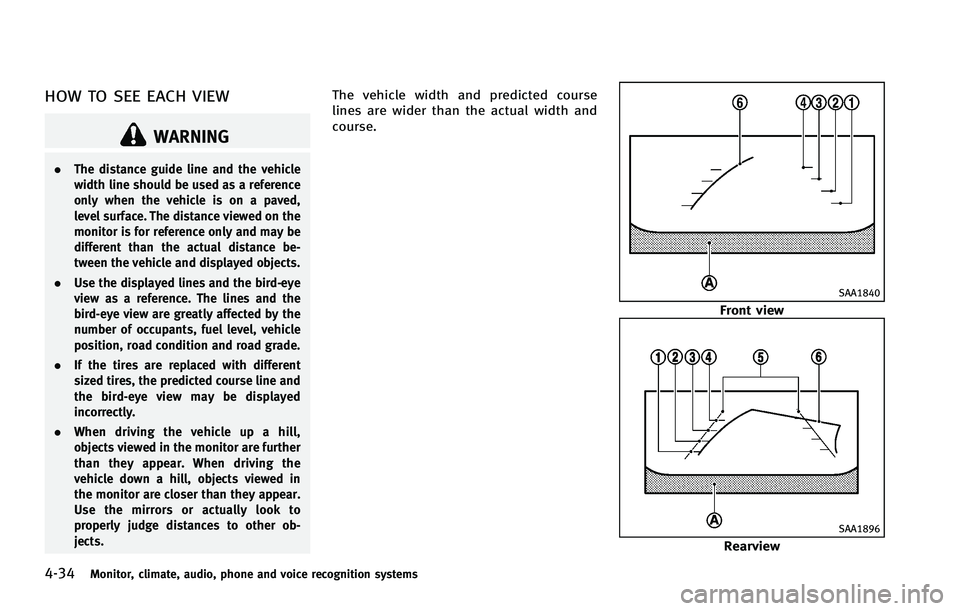
Front and rearview
Guiding lines, which indicate the vehicle
width and distances to objects with re-
ference to the vehicle body line
*A, are
displayed on the monitor.
Distance guide lines:
Indicate distances from the vehicle body.
. Red line
*1: approx. 1.5 ft (0.5 m)
. Yellow line
*2: approx. 3 ft (1 m)
. Green line
*3: approx. 7 ft (2 m)
. Green line
*4: approx. 10 ft (3 m)
Vehicle width guide lines
*5:
Indicate the vehicle width when backing
up.
Predicted course lines
*6:
Indicate the predicted course when operat-
ing the vehicle. The predicted course lines
will be displayed on the monitor when the
steering wheel is turned. The predicted
course lines will move depending on how
much the steering wheel is turned and will
not be displayed while the steering wheel
is in the neutral position.
The front view will not be displayed when
the vehicle speed is above 6 MPH (10
km/h).
WARNING
. The distance between objects viewed in
the rearview differs from actual distance
because a wide-angle lens is used.
Objects in the rearview will appear
visually opposite than when viewed in
the rearview and outside mirrors.
. On a snow-covered or slippery road,
there may be a difference between the
predicted course line and the actual
course line.
. If predicted course lines are displayed
incorrectly, drive the vehicle on a
straight road for 110 yd (100 m) at a
speed of above 20 MPH (30 km/h).
. The displayed lines on the rearview will
appear slightly off to the right because
the rearview camera is not installed in
the rear center of the vehicle.
NOTE:
When the monitor displays the front view
and the steering wheel turns about 90
degrees or less from the neutral position,
both the right and left predicted course
lines
*6are displayed. When the steering wheel turns about 90 degrees or more, a
line is displayed only on the opposite side
of the turn.
Monitor, climate, audio, phone and voice recognition systems4-35
Page 213 of 522
4-36Monitor, climate, audio, phone and voice recognition systems
SAA1841
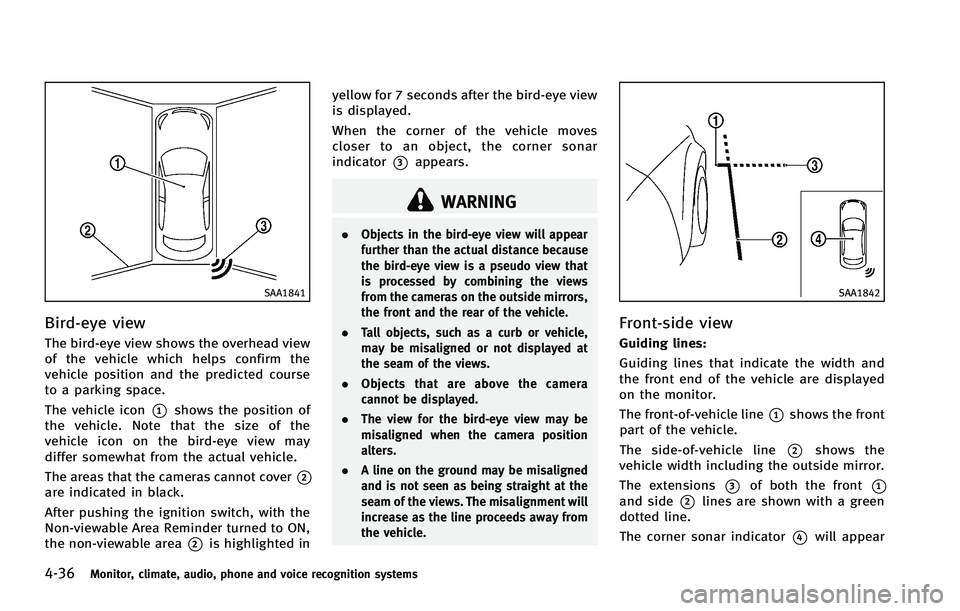
Bird-eye view
The bird-eye view shows the overhead view
of the vehicle which helps confirm the
vehicle position and the predicted course
to a parking space.
The vehicle icon
*1shows the position of
the vehicle. Note that the size of the
vehicle icon on the bird-eye view may
differ somewhat from the actual vehicle.
The areas that the cameras cannot cover
*2are indicated in black.
After pushing the ignition switch, with the
Non-viewable Area Reminder turned to ON,
the non-viewable area
*2is highlighted in yellow for 7 seconds after the bird-eye view
is displayed.
When the corner of the vehicle moves
closer to an object, the corner sonar
indicator
*3appears.
WARNING
.
Objects in the bird-eye view will appear
further than the actual distance because
the bird-eye view is a pseudo view that
is processed by combining the views
from the cameras on the outside mirrors,
the front and the rear of the vehicle.
. Tall objects, such as a curb or vehicle,
may be misaligned or not displayed at
the seam of the views.
. Objects that are above the camera
cannot be displayed.
. The view for the bird-eye view may be
misaligned when the camera position
alters.
. A line on the ground may be misaligned
and is not seen as being straight at the
seam of the views. The misalignment will
increase as the line proceeds away from
the vehicle.
SAA1842
Front-side view
Guiding lines:
Guiding lines that indicate the width and
the front end of the vehicle are displayed
on the monitor.
The front-of-vehicle line
*1shows the front
part of the vehicle.
The side-of-vehicle line
*2shows the
vehicle width including the outside mirror.
The extensions
*3of both the front*1and side*2lines are shown with a green
dotted line.
The corner sonar indicator
*4will appear