key INFINITI JX 2013 Workshop Manual
[x] Cancel search | Manufacturer: INFINITI, Model Year: 2013, Model line: JX, Model: INFINITI JX 2013Pages: 554, PDF Size: 5.48 MB
Page 204 of 554
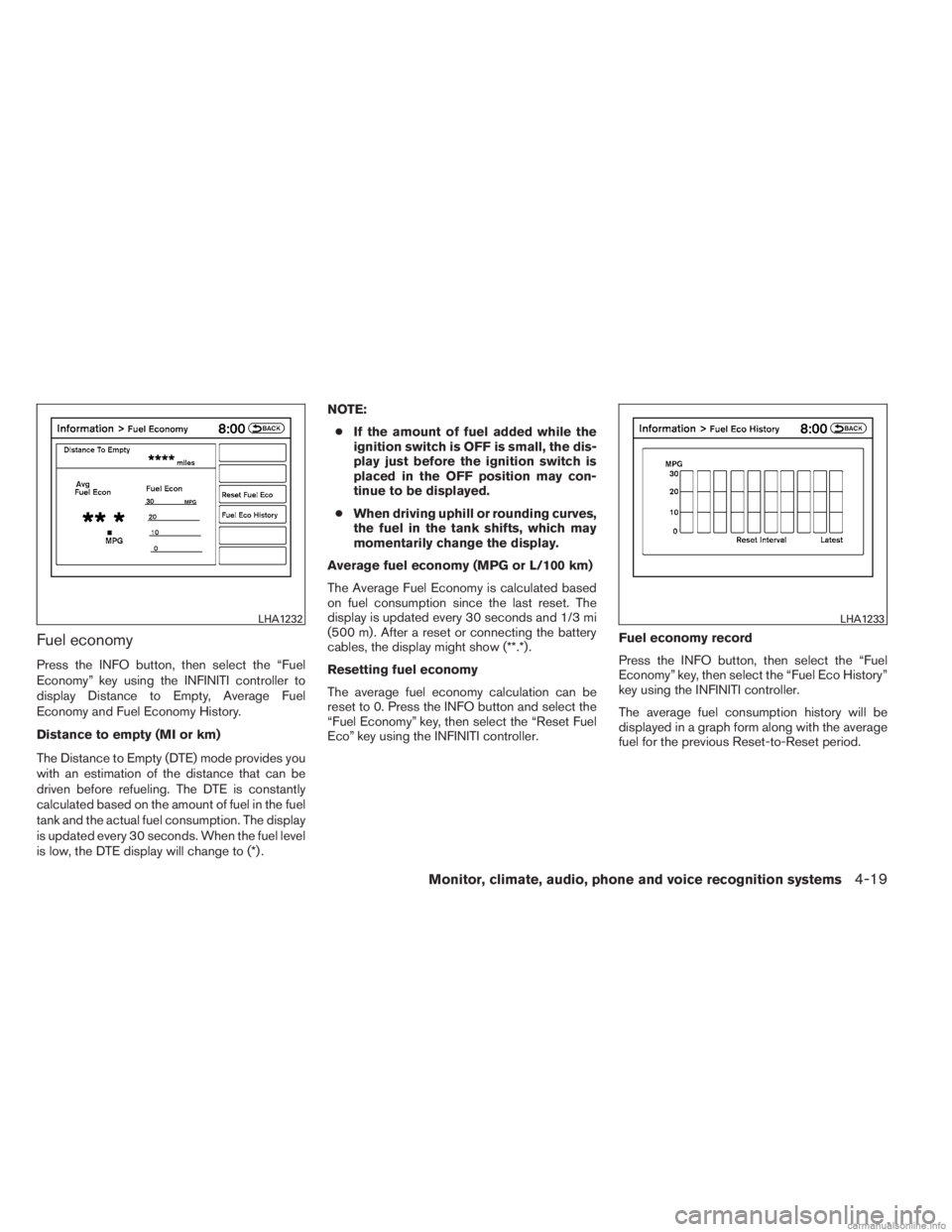
Fuel economy
Press the INFO button, then select the “Fuel
Economy” key using the INFINITI controller to
display Distance to Empty, Average Fuel
Economy and Fuel Economy History.
Distance to empty (MI or km)
The Distance to Empty (DTE) mode provides you
with an estimation of the distance that can be
driven before refueling. The DTE is constantly
calculated based on the amount of fuel in the fuel
tank and the actual fuel consumption. The display
is updated every 30 seconds. When the fuel level
is low, the DTE display will change to (*) .NOTE:
● If the amount of fuel added while the
ignition switch is OFF is small, the dis-
play just before the ignition switch is
placed in the OFF position may con-
tinue to be displayed.
● When driving uphill or rounding curves,
the fuel in the tank shifts, which may
momentarily change the display.
Average fuel economy (MPG or L/100 km)
The Average Fuel Economy is calculated based
on fuel consumption since the last reset. The
display is updated every 30 seconds and 1/3 mi
(500 m) . After a reset or connecting the battery
cables, the display might show (**.*) .
Resetting fuel economy
The average fuel economy calculation can be
reset to 0. Press the INFO button and select the
“Fuel Economy” key, then select the “Reset Fuel
Eco” key using the INFINITI controller. Fuel economy record
Press the INFO button, then select the “Fuel
Economy” key, then select the “Fuel Eco History”
key using the INFINITI controller.
The average fuel consumption history will be
displayed in a graph form along with the average
fuel for the previous Reset-to-Reset period.
LHA1232LHA1233
Monitor, climate, audio, phone and voice recognition systems4-19
Page 205 of 554
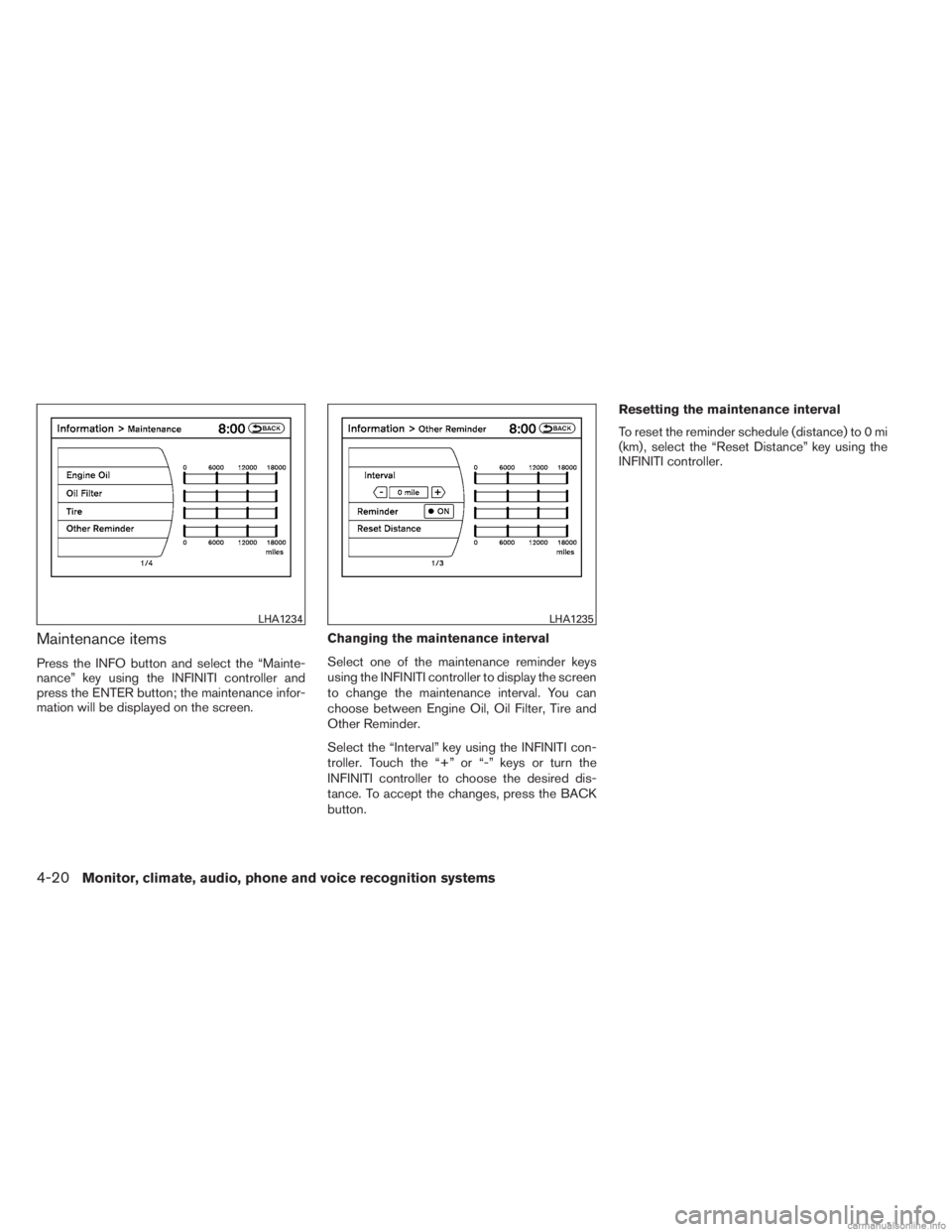
Maintenance items
Press the INFO button and select the “Mainte-
nance” key using the INFINITI controller and
press the ENTER button; the maintenance infor-
mation will be displayed on the screen.Changing the maintenance interval
Select one of the maintenance reminder keys
using the INFINITI controller to display the screen
to change the maintenance interval. You can
choose between Engine Oil, Oil Filter, Tire and
Other Reminder.
Select the “Interval” key using the INFINITI con-
troller. Touch the “+” or “-” keys or turn the
INFINITI controller to choose the desired dis-
tance. To accept the changes, press the BACK
button.Resetting the maintenance interval
To reset the reminder schedule (distance) to 0 mi
(km) , select the “Reset Distance” key using the
INFINITI controller.
LHA1234LHA1235
4-20Monitor, climate, audio, phone and voice recognition systems
Page 206 of 554
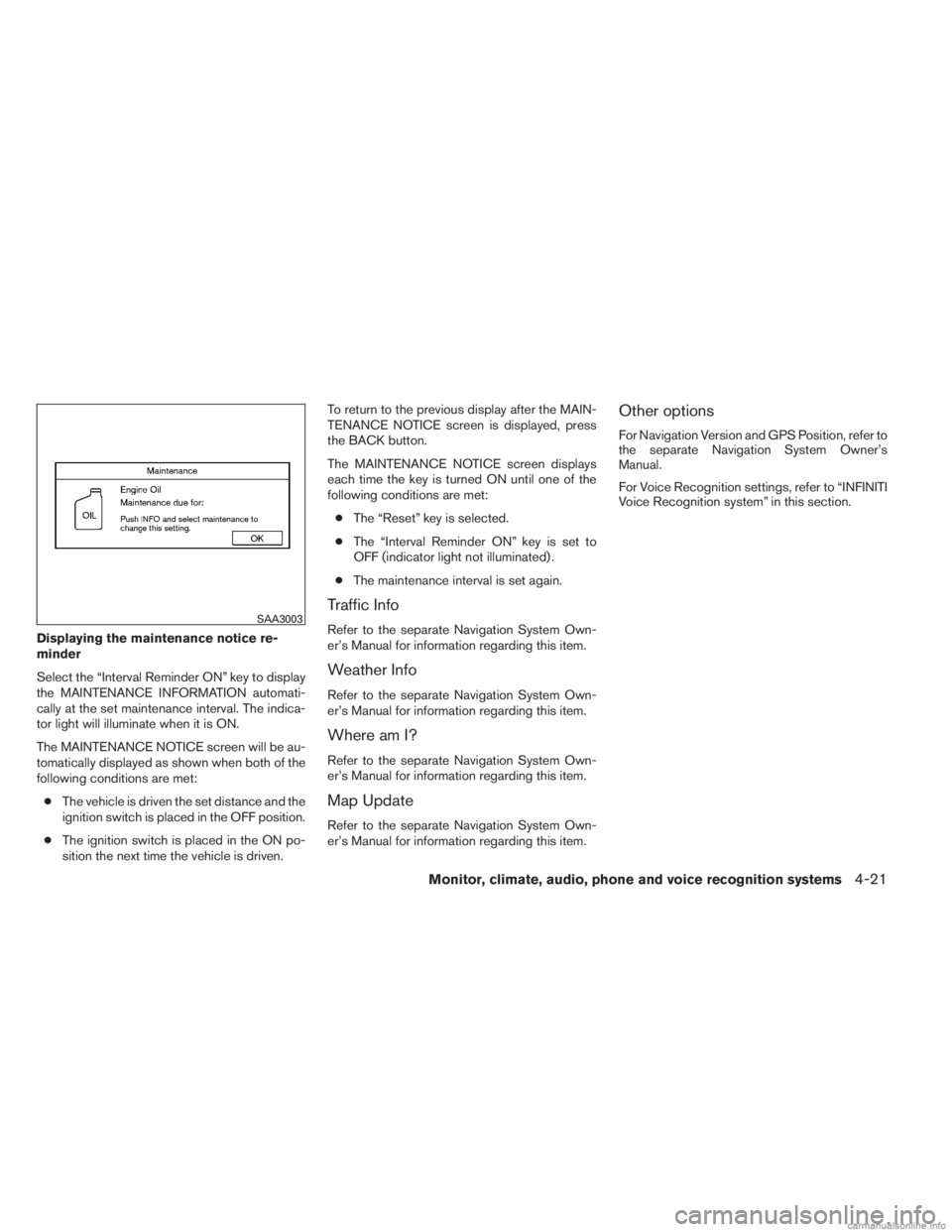
Displaying the maintenance notice re-
minder
Select the “Interval Reminder ON” key to display
the MAINTENANCE INFORMATION automati-
cally at the set maintenance interval. The indica-
tor light will illuminate when it is ON.
The MAINTENANCE NOTICE screen will be au-
tomatically displayed as shown when both of the
following conditions are met:● The vehicle is driven the set distance and the
ignition switch is placed in the OFF position.
● The ignition switch is placed in the ON po-
sition the next time the vehicle is driven. To return to the previous display after the MAIN-
TENANCE NOTICE screen is displayed, press
the BACK button.
The MAINTENANCE NOTICE screen displays
each time the key is turned ON until one of the
following conditions are met:
● The “Reset” key is selected.
● The “Interval Reminder ON” key is set to
OFF (indicator light not illuminated) .
● The maintenance interval is set again.
Traffic Info
Refer to the separate Navigation System Own-
er’s Manual for information regarding this item.
Weather Info
Refer to the separate Navigation System Own-
er’s Manual for information regarding this item.
Where am I?
Refer to the separate Navigation System Own-
er’s Manual for information regarding this item.
Map Update
Refer to the separate Navigation System Own-
er’s Manual for information regarding this item.
Other options
For Navigation Version and GPS Position, refer to
the separate Navigation System Owner’s
Manual.
For Voice Recognition settings, refer to “INFINITI
Voice Recognition system” in this section.
SAA3003
Monitor, climate, audio, phone and voice recognition systems4-21
Page 208 of 554
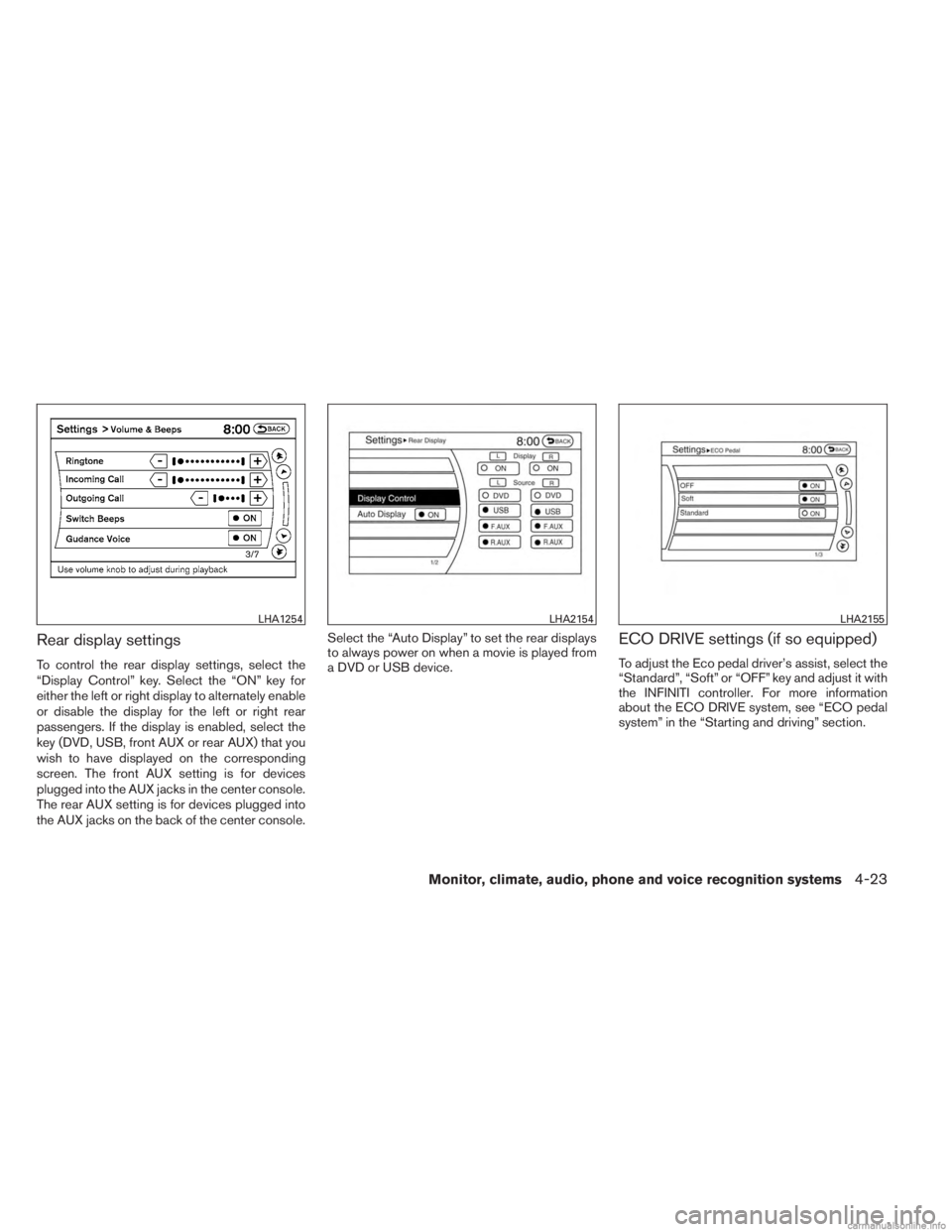
Rear display settings
To control the rear display settings, select the
“Display Control” key. Select the “ON” key for
either the left or right display to alternately enable
or disable the display for the left or right rear
passengers. If the display is enabled, select the
key (DVD, USB, front AUX or rear AUX) that you
wish to have displayed on the corresponding
screen. The front AUX setting is for devices
plugged into the AUX jacks in the center console.
The rear AUX setting is for devices plugged into
the AUX jacks on the back of the center console.Select the “Auto Display” to set the rear displays
to always power on when a movie is played from
a DVD or USB device.
ECO DRIVE settings (if so equipped)
To adjust the Eco pedal driver’s assist, select the
“Standard”, “Soft” or “OFF” key and adjust it with
the INFINITI controller. For more information
about the ECO DRIVE system, see “ECO pedal
system” in the “Starting and driving” section.
LHA1254LHA2154LHA2155
Monitor, climate, audio, phone and voice recognition systems4-23
Page 209 of 554
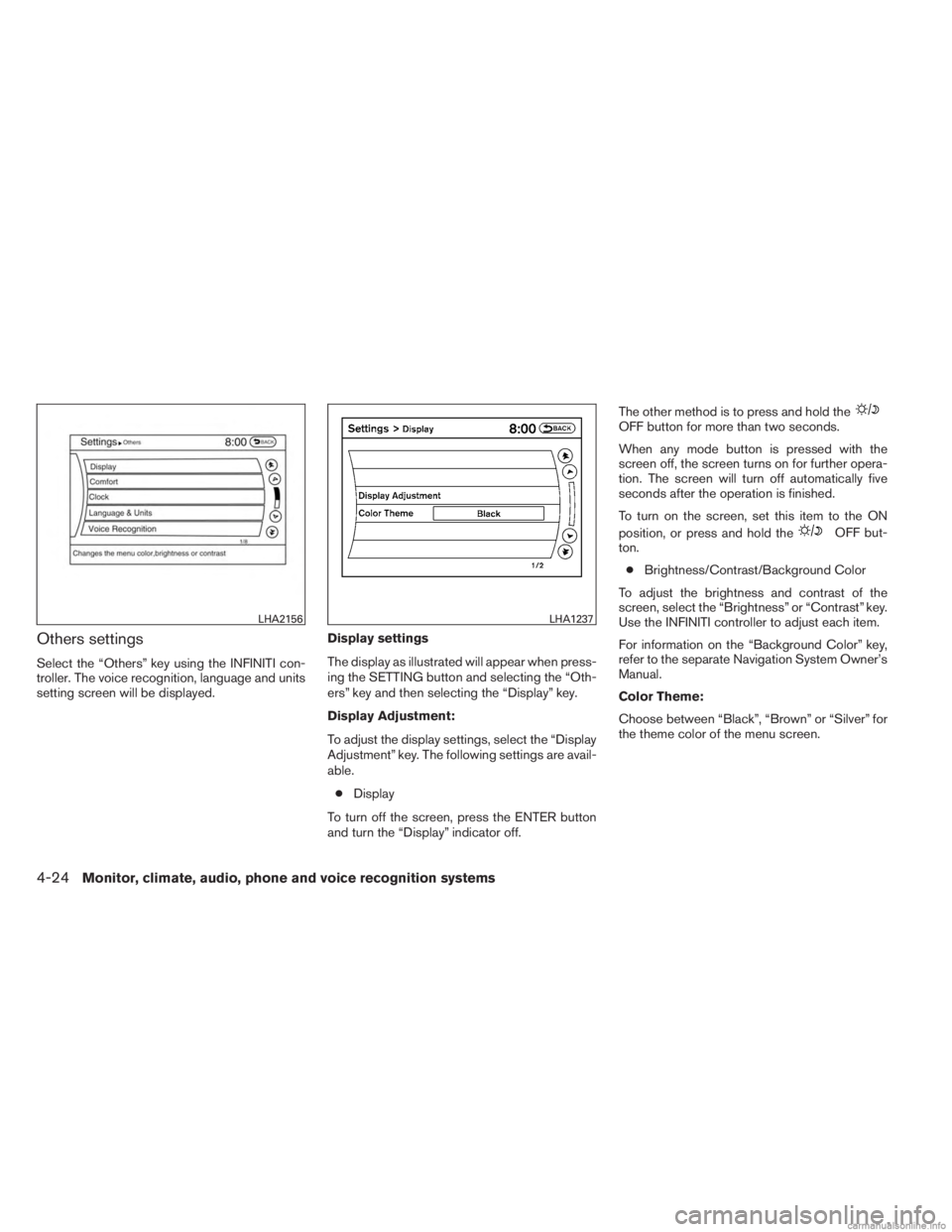
Others settings
Select the “Others” key using the INFINITI con-
troller. The voice recognition, language and units
setting screen will be displayed.Display settings
The display as illustrated will appear when press-
ing the SETTING button and selecting the “Oth-
ers” key and then selecting the “Display” key.
Display Adjustment:
To adjust the display settings, select the “Display
Adjustment” key. The following settings are avail-
able.
● Display
To turn off the screen, press the ENTER button
and turn the “Display” indicator off. The other method is to press and hold the
OFF button for more than two seconds.
When any mode button is pressed with the
screen off, the screen turns on for further opera-
tion. The screen will turn off automatically five
seconds after the operation is finished.
To turn on the screen, set this item to the ON
position, or press and hold the
OFF but-
ton.
● Brightness/Contrast/Background Color
To adjust the brightness and contrast of the
screen, select the “Brightness” or “Contrast” key.
Use the INFINITI controller to adjust each item.
For information on the “Background Color” key,
refer to the separate Navigation System Owner’s
Manual.
Color Theme:
Choose between “Black”, “Brown” or “Silver” for
the theme color of the menu screen.
LHA2156LHA1237
4-24Monitor, climate, audio, phone and voice recognition systems
Page 210 of 554
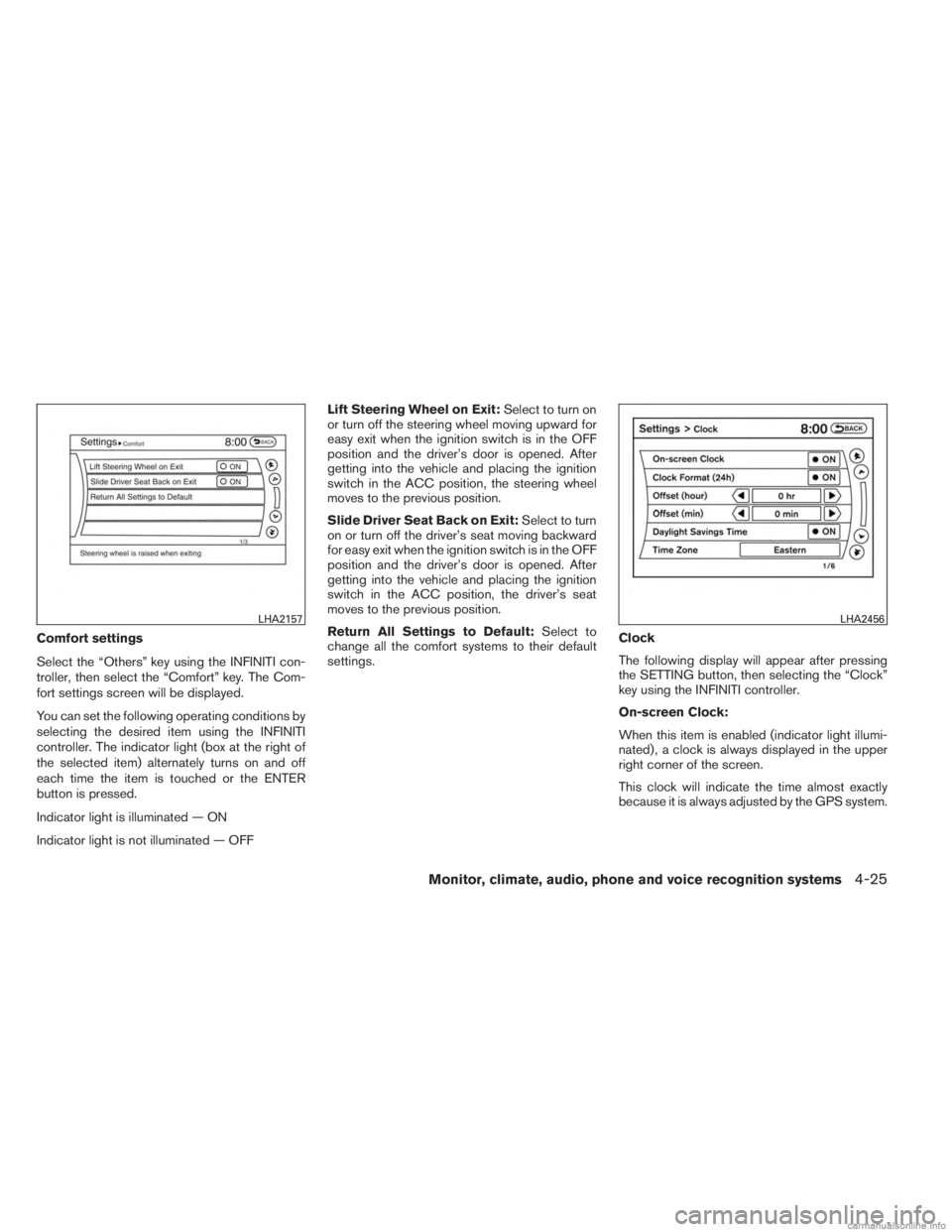
Comfort settings
Select the “Others” key using the INFINITI con-
troller, then select the “Comfort” key. The Com-
fort settings screen will be displayed.
You can set the following operating conditions by
selecting the desired item using the INFINITI
controller. The indicator light (box at the right of
the selected item) alternately turns on and off
each time the item is touched or the ENTER
button is pressed.
Indicator light is illuminated — ON
Indicator light is not illuminated — OFFLift Steering Wheel on Exit:
Select to turn on
or turn off the steering wheel moving upward for
easy exit when the ignition switch is in the OFF
position and the driver’s door is opened. After
getting into the vehicle and placing the ignition
switch in the ACC position, the steering wheel
moves to the previous position.
Slide Driver Seat Back on Exit: Select to turn
on or turn off the driver’s seat moving backward
for easy exit when the ignition switch is in the OFF
position and the driver’s door is opened. After
getting into the vehicle and placing the ignition
switch in the ACC position, the driver’s seat
moves to the previous position.
Return All Settings to Default: Select to
change all the comfort systems to their default
settings. Clock
The following display will appear after pressing
the SETTING button, then selecting the “Clock”
key using the INFINITI controller.
On-screen Clock:
When this item is enabled (indicator light illumi-
nated) , a clock is always displayed in the upper
right corner of the screen.
This clock will indicate the time almost exactly
because it is always adjusted by the GPS system.
LHA2157LHA2456
Monitor, climate, audio, phone and voice recognition systems4-25
Page 211 of 554
Clock Format (24h):
When this item is enabled (indicator light illumi-
nated) , the clock format will change from the
default 12-hour display to a 24-hour display.
Offset (hour):
Adjust the time by increasing or decreasing the
hours.
Offset (minute):
Adjust the time by increasing or decreasing the
minutes.
Daylight Savings Time:
When this item is enabled (indicator light illumi-
nated) , daylight savings time is on. To turn off the
daylight savings time, touch the “ON” key; the
amber indicator light will go out.Time Zone:
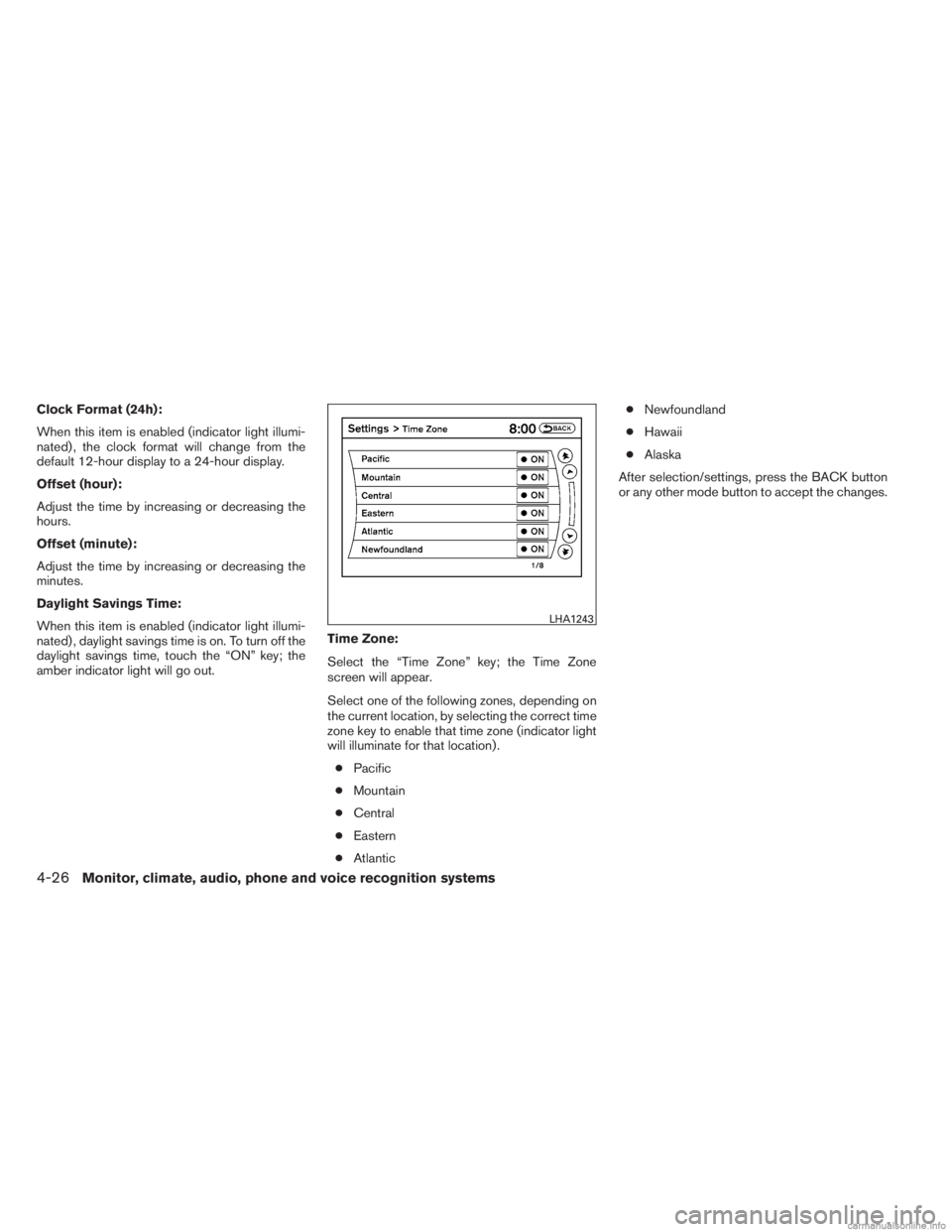
Select the “Time Zone” key; the Time Zone
screen will appear.
Select one of the following zones, depending on
the current location, by selecting the correct time
zone key to enable that time zone (indicator light
will illuminate for that location) .
● Pacific
● Mountain
● Central
● Eastern
● Atlantic ●
Newfoundland
● Hawaii
● Alaska
After selection/settings, press the BACK button
or any other mode button to accept the changes.
LHA1243
4-26Monitor, climate, audio, phone and voice recognition systems
Page 212 of 554
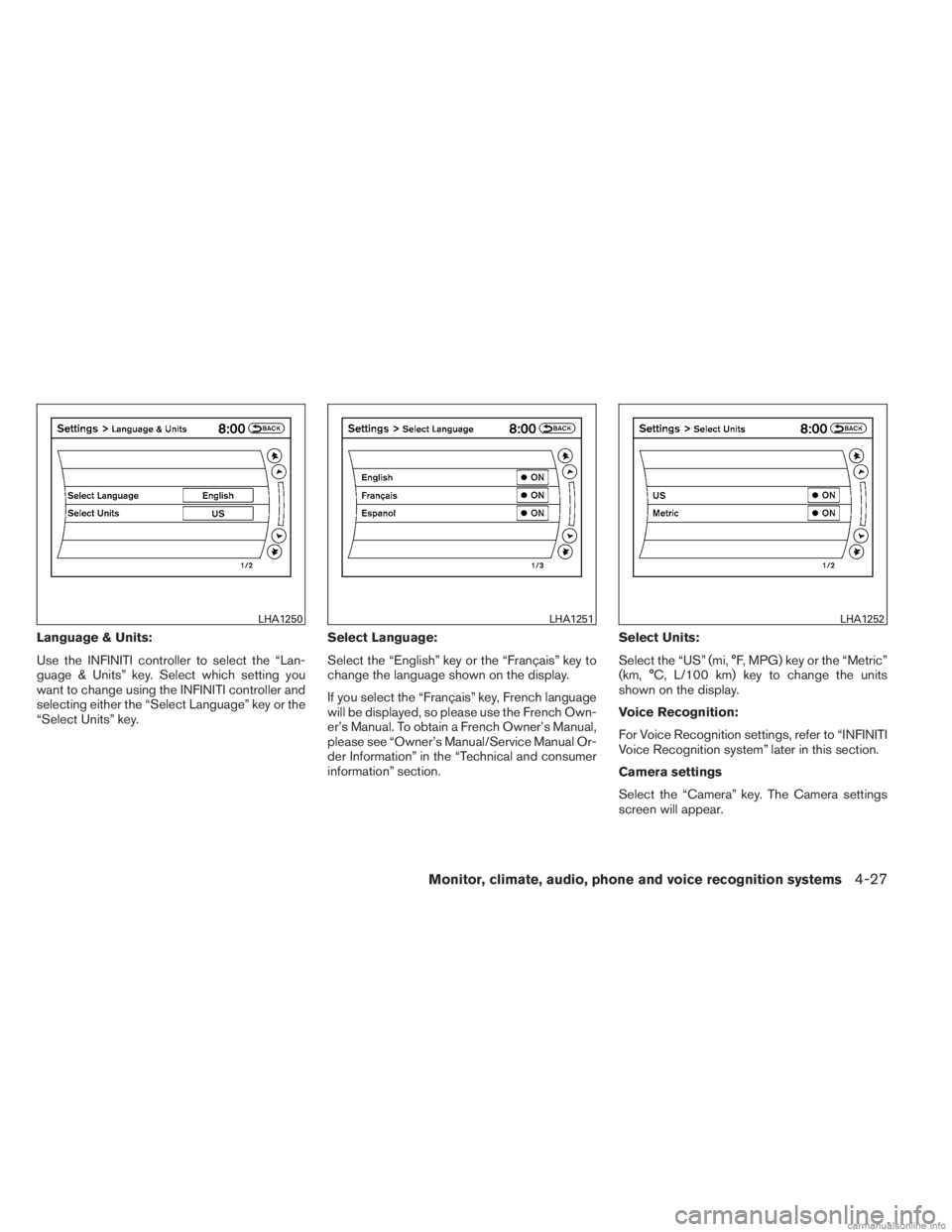
Language & Units:
Use the INFINITI controller to select the “Lan-
guage & Units” key. Select which setting you
want to change using the INFINITI controller and
selecting either the “Select Language” key or the
“Select Units” key.Select Language:
Select the “English” key or the “Français” key to
change the language shown on the display.
If you select the “Français” key, French language
will be displayed, so please use the French Own-
er’s Manual. To obtain a French Owner’s Manual,
please see “Owner’s Manual/Service Manual Or-
der Information” in the “Technical and consumer
information” section.Select Units:
Select the “US” (mi, °F, MPG) key or the “Metric”
(km, °C, L/100 km) key to change the units
shown on the display.
Voice Recognition:
For Voice Recognition settings, refer to “INFINITI
Voice Recognition system” later in this section.
Camera settings
Select the “Camera” key. The Camera settings
screen will appear.
LHA1250LHA1251LHA1252
Monitor, climate, audio, phone and voice recognition systems4-27
Page 213 of 554
When this option is on (indicator light illumi-
nated) , predictive course lines will be displayed
when the RearView monitor is displayed on the
screen. See “RearView Monitor” in this section
for more information.
Image viewer settings
For information about these settings, refer to
“Image viewer” in this section.
OFF BUTTON
To change the display brightness, press
the
OFF button. Press the button again to
change the display to the day
or the
night
display. The brightness can then be
adjusted using the INFINITI controller.
If no operation is performed within 5 seconds, the
display will return to the previous display.
Press and hold the
OFF button for more
than two seconds to turn the display off. Press
the button again to turn the display on.
USING THE IMAGE VIEWER
When a compatible portable storage device is
plugged into the USB jack located in the center
console, compatible image files stored on the
device can be viewed on the control panel de-
vice.
Connecting the portable storage
device
To connect a portable storage device to the sys-
tem so that images stored on it can be viewed,
insert the device into the USB jack located in the
center console.
Viewing images
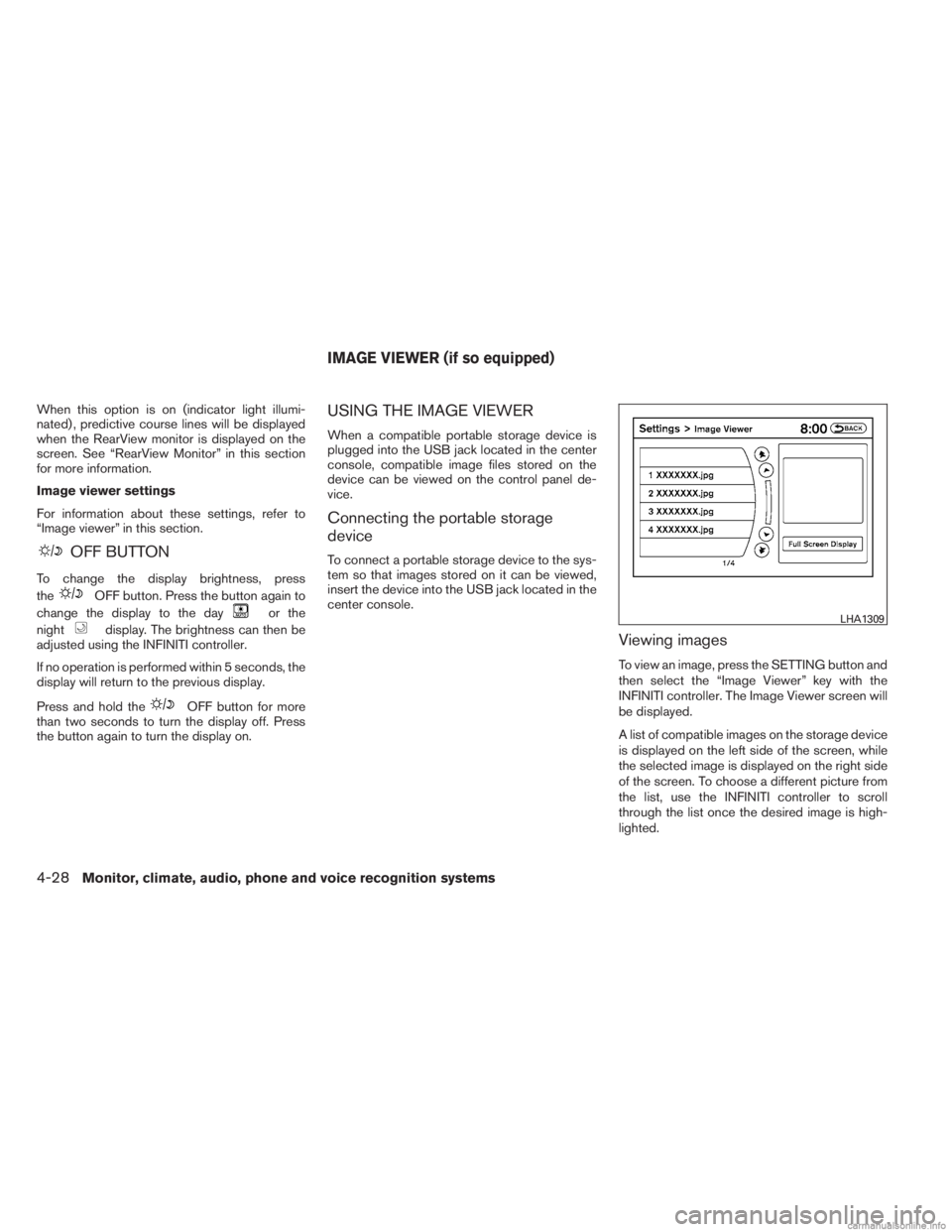
To view an image, press the SETTING button and
then select the “Image Viewer” key with the
INFINITI controller. The Image Viewer screen will
be displayed.
A list of compatible images on the storage device
is displayed on the left side of the screen, while
the selected image is displayed on the right side
of the screen. To choose a different picture from
the list, use the INFINITI controller to scroll
through the list once the desired image is high-
lighted.
LHA1309
IMAGE VIEWER (if so equipped)
4-28Monitor, climate, audio, phone and voice recognition systems
Page 214 of 554
Select the “Full Screen Display” key and press
the ENTER button to view a full screen version of
the image.
Image requirements:● Image type: JPEG
● File extensions: *.jpg, *.jpeg
● Maximum resolution: 2048 x 1536
● Maximum size: 2 MB
● Colors: 32,768 (15-bit)
● Maximum file name length: 253 bytes (dis-
play only shows first 8 characters)
● Maximum folders: 500
● Maximum images per folder: 1024
Viewing images in a slideshow
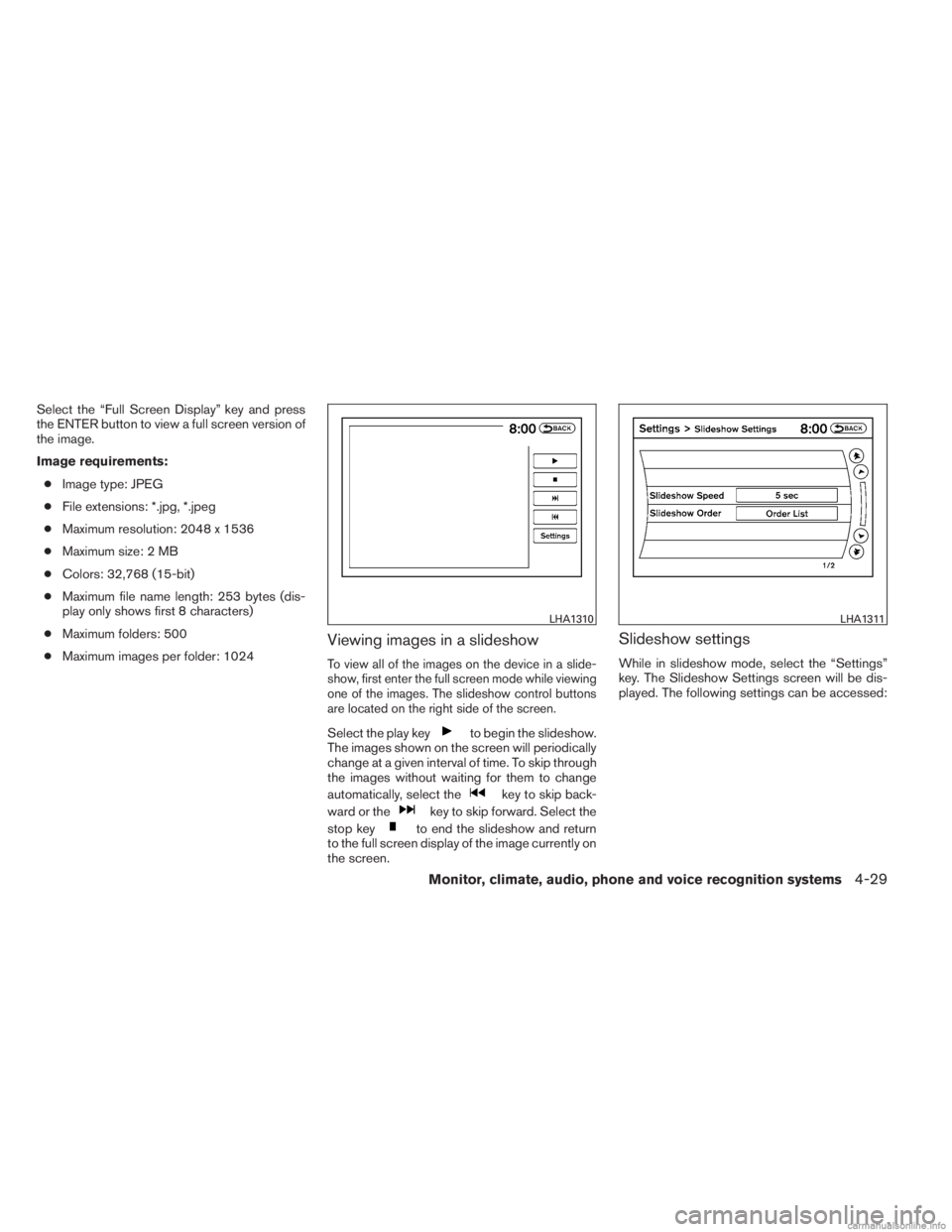
To view all of the images on the device in a slide-
show, first enter the full screen mode while viewing
one of the images. The slideshow control buttons
are located on the right side of the screen.
Select the play keyto begin the slideshow.
The images shown on the screen will periodically
change at a given interval of time. To skip through
the images without waiting for them to change
automatically, select the
key to skip back-
ward or the
key to skip forward. Select the
stop key
to end the slideshow and return
to the full screen display of the image currently on
the screen.
Slideshow settings
While in slideshow mode, select the “Settings”
key. The Slideshow Settings screen will be dis-
played. The following settings can be accessed:
LHA1310LHA1311
Monitor, climate, audio, phone and voice recognition systems4-29