AUX INFINITI M 2010 User Guide
[x] Cancel search | Manufacturer: INFINITI, Model Year: 2010, Model line: M, Model: INFINITI M 2010Pages: 445, PDF Size: 6.15 MB
Page 215 of 445
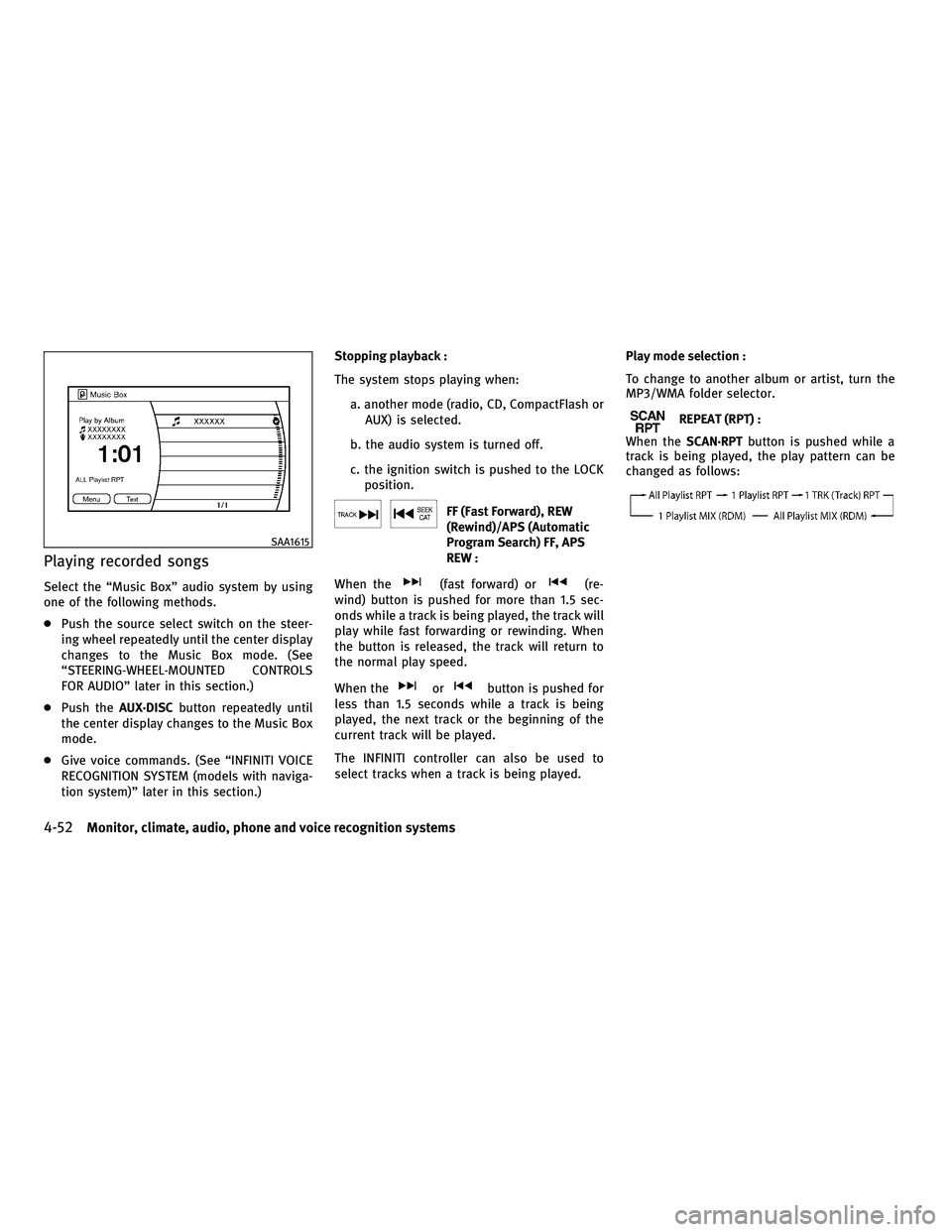
Playing recorded songs
Select the ªMusic Boxº audio system by using
one of the following methods.
cPush the source select switch on the steer-
ing wheel repeatedly until the center display
changes to the Music Box mode. (See
ªSTEERING-WHEEL-MOUNTED CONTROLS
FOR AUDIOº later in this section.)
c Push the AUX´DISC button repeatedly until
the center display changes to the Music Box
mode.
c Give voice commands. (See ªINFINITI VOICE
RECOGNITION SYSTEM (models with naviga-
tion system)º later in this section.) Stopping playback :
The system stops playing when:
a. another mode (radio, CD, CompactFlash orAUX) is selected.
b. the audio system is turned off.
c. the ignition switch is pushed to the LOCK position.
FF (Fast Forward), REW
(Rewind)/APS (Automatic
Program Search) FF, APS
REW :
When the
(fast forward) or(re-
wind) button is pushed for more than 1.5 sec-
onds while a track is being played, the track will
play while fast forwarding or rewinding. When
the button is released, the track will return to
the normal play speed.
When the
orbutton is pushed for
less than 1.5 seconds while a track is being
played, the next track or the beginning of the
current track will be played.
The INFINITI controller can also be used to
select tracks when a track is being played. Play mode selection :
To change to another album or artist, turn the
MP3/WMA folder selector.
REPEAT (RPT) :
When the SCAN´RPT button is pushed while a
track is being played, the play pattern can be
changed as follows:
SAA1615
4-52Monitor, climate, audio, phone and voice recognition systems
wÐ
Ð
05/14/09Ðpattie
X
Page 222 of 445
CD
cPushing DOWN ª
º/UP ªº shorter
Next track or the beginning of the current
track
c Pushing DOWN ª
º/UP ªº longer
(CD changer - if so equipped)
Disc change (When only one disc is loaded,
the 1st track of the disc will be selected.)
CD/CF (if so equipped) with MP3/WMA
c Pushing DOWN ª
º/UP ªº shorter
Next track or the beginning of the current
track
c Pushing DOWN ª
º/UP ªº longer
Folder change (When the last folder on a disc
is playing, the next disc will be selected.)
DVD (if so equipped)
c Pushing DOWN ª
º/UP ªº shorter
Next track/chapter or the beginning of the
current track/chapter
c Pushing DOWN ª
º/UP ªº longer
Next group/title or the beginning of the
current group/title iPodT
(if so equipped)
c Pushing DOWN ª
º/UP ªº shorter
Previous or next track (Start/Pause or Menu
can be selected when the ENTER button is
pushed.)
c Pushing DOWN ª
º/UP ªº longer
Rewind or fast forward search
ªMusic Boxº hard-disk drive audio system (if so
equipped)
c Pushing DOWN ª
º/UP ªº shorter
Next track or the beginning of the current
track
c Pushing DOWN ª
º/UP ªº longer
Playlist change (When the last playlist is
playing, the next playlist will be selected.)
ENTER switch operation :
You can also use the ENTER switch to select the
items on the usual setting menu screen.
After selecting an MP3 folder using the up and
down switch, push the ENTER switch to com-
plete the selection.
While the display is in the NAVI, STATUS or
Audio setting screen, some audio functions can
also be controlled using the ENTER switch. The function varies depending on if you push the
switch shorter (less than 1.5 seconds) or longer
(more than 1.5 seconds).
BACK switch
Push this switch to go back to the previous
screen or cancel the selection if it is not com-
pleted.
Volume control switches
Push the upper (+) or lower (2) side switch to
increase or decrease the volume.
SOURCE select switch
Push the source select switch to change the
mode, Preset A, Preset B, Preset C, ªMusic Boxº
(if so equipped), CD, CompactFlash (if so
equipped), DVD (if so equipped), AUX and iPodT
(if equipped).
Monitor, climate, audio, phone and voice recognition systems4-59
wÐ
Ð
05/14/09Ðpattie
X
Page 224 of 445
cPushing DOWN (rear) ªº/UP (front)
ª
º longer
Next group/title or the beginning of the
current group/title
iPodT (if so equipped) :
c Pushing DOWN (rear) ª
º/UP (front)
ª
º shorter
Previous or next track (Start/Pause or Menu
can be selected when the ENTER button is
pushed.)
c Pushing DOWN (rear) ª
º/UP (front)
ª
º longer
Rewind or fast forward search
ªMusic Boxº hard-disk drive audio system (if so
equipped) :
c Pushing DOWN (rear) ª
º/UP (front)
ª
º shorter
Next track or the beginning of the current
track
c Pushing DOWN (rear) ª
º/UP (front)
ª
º longer
Playlist change (When the last playlist is
playing, the next playlist will be selected.)
ªON/OFFº switch
With the ignition switch pushed to the ACC or
ON position, push the ª ON/OFFº switch to turn
the audio system ON or OFF.
Source select switch
Push the ªSRC º select switch to change the
audio mode.
ANTENNA
Window antenna
The antenna pattern is printed inside the rear
window.
CAUTION
c Do not place metalized film near the rear
window glass or attach any metal parts to it.
This may cause poor reception or noise.
c When cleaning the inside of the rear window,
be careful not to scratch or damage the rear
window antenna. Lightly wipe along the an-
tenna with a dampened soft cloth.
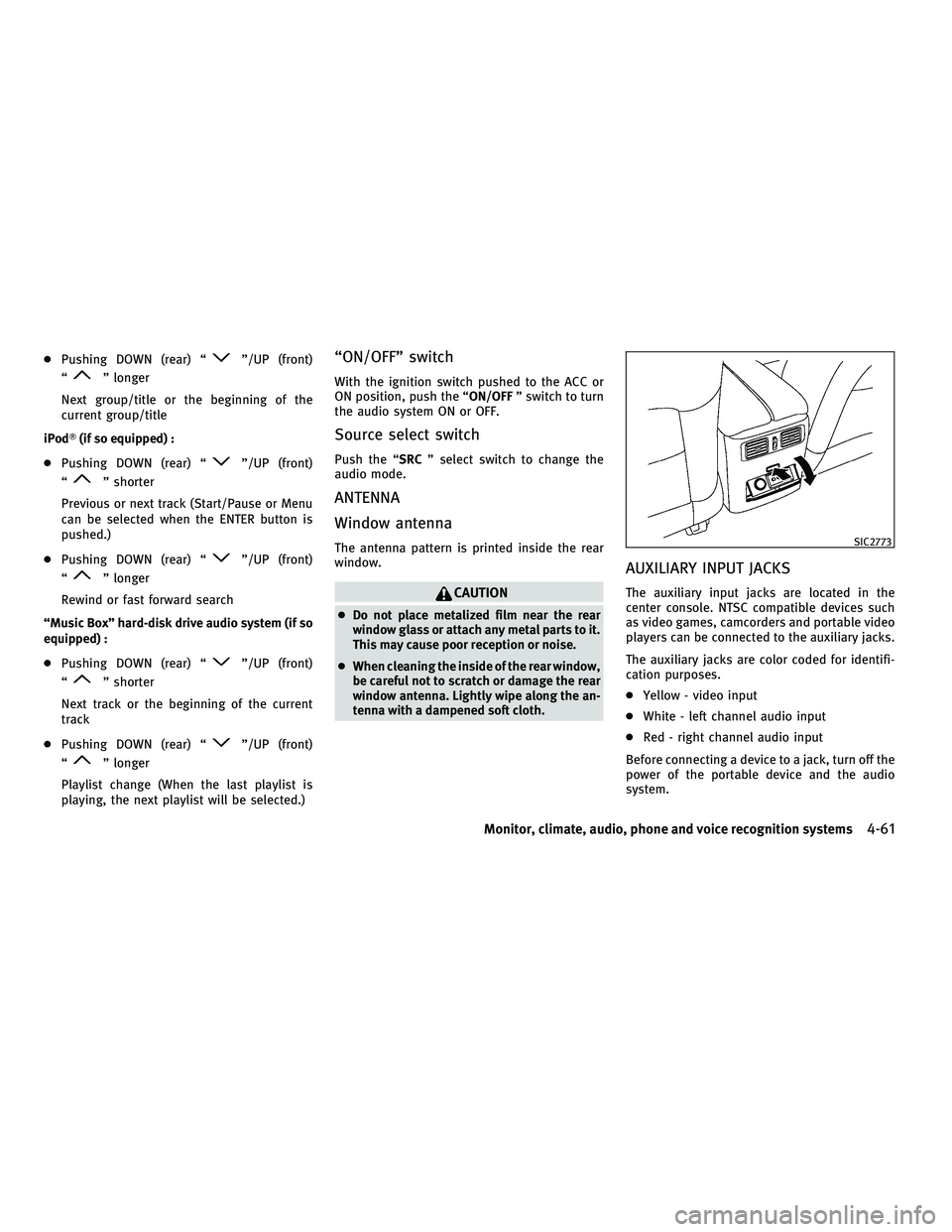
AUXILIARY INPUT JACKS
The auxiliary input jacks are located in the
center console. NTSC compatible devices such
as video games, camcorders and portable video
players can be connected to the auxiliary jacks.
The auxiliary jacks are color coded for identifi-
cation purposes.
c Yellow - video input
c White - left channel audio input
c Red - right channel audio input
Before connecting a device to a jack, turn off the
power of the portable device and the audio
system.
SIC2773
Monitor, climate, audio, phone and voice recognition systems4-61
wÐ
Ð
05/14/09Ðpattie
X
Page 226 of 445
CAUTION
cDo not force a DVD into the slot. This could
cause damage the player.
c Do not use 8 cm (3.1 in) discs.
Displays
WARNING
Park the vehicle in a safe location and apply the
parking brake to view the images on the front
center display screen using the DVD drive or
other devices connected to the auxiliary input
jacks.
CAUTION
cThe glass screen on the liquid crystal display
may break if hit with a hard or sharp object. If
the glass breaks, do not touch the liquid
crystalline material, which contains a small
amount of mercury. In case of contact with
skin, wash immediately with soap and
water.
c Use soft, damp cloth when cleaning the Mo-
bile Entertainment System components. Do
not use solvents or cleaning solutions.
c Be sure to stow the rear display when it is not
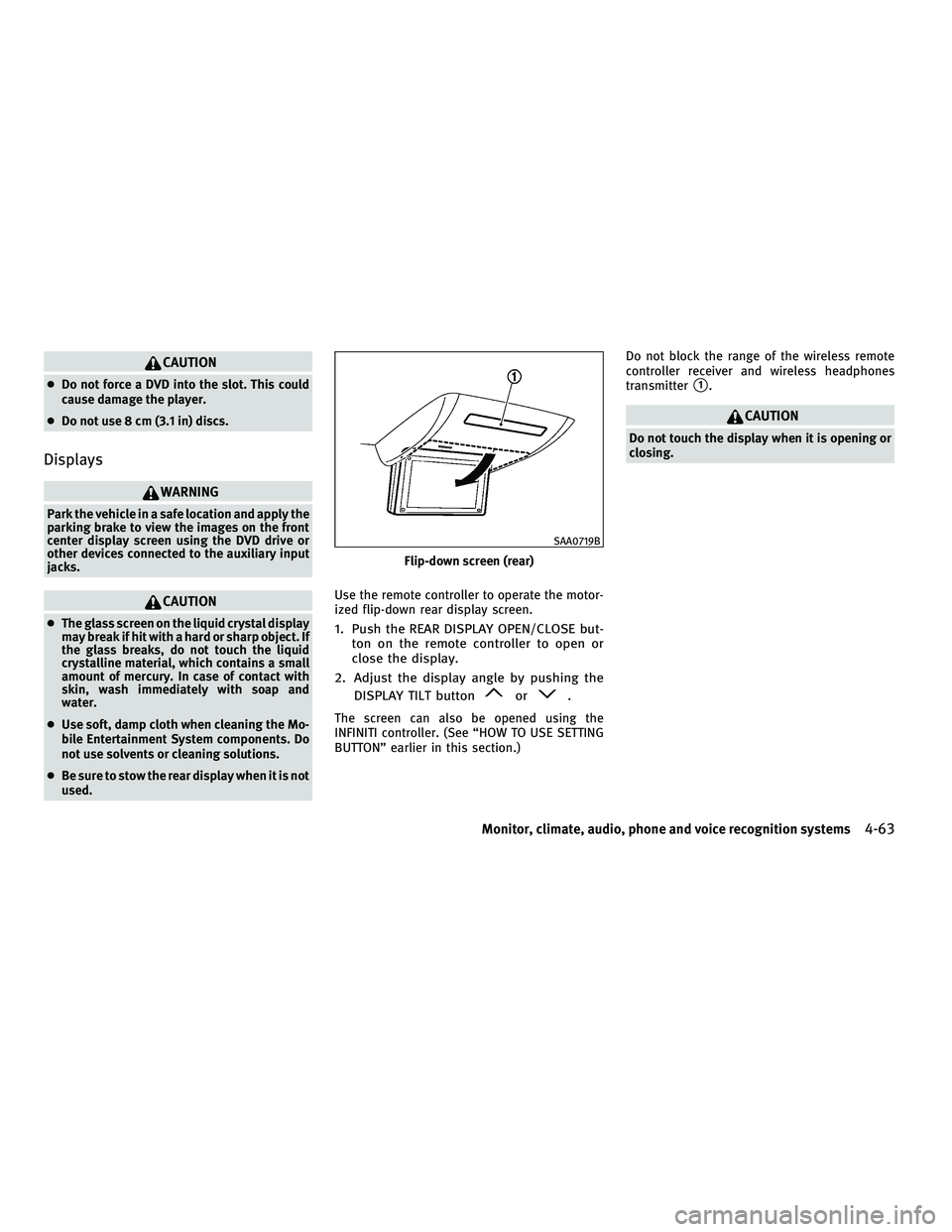
used. Use the remote controller to operate the motor-
ized flip-down rear display screen.1. Push the REAR DISPLAY OPEN/CLOSE but-
ton on the remote controller to open or
close the display.
2. Adjust the display angle by pushing the DISPLAY TILT button
or.
The screen can also be opened using the
INFINITI controller. (See ªHOW TO USE SETTING
BUTTONº earlier in this section.) Do not block the range of the wireless remote
controller receiver and wireless headphones
transmitter
s1.
CAUTION
Do not touch the display when it is opening or
closing.
Flip-down screen (rear)
SAA0719B
Monitor, climate, audio, phone and voice recognition systems4-63
wÐ
Ð
05/14/09Ðpattie
X
Page 227 of 445
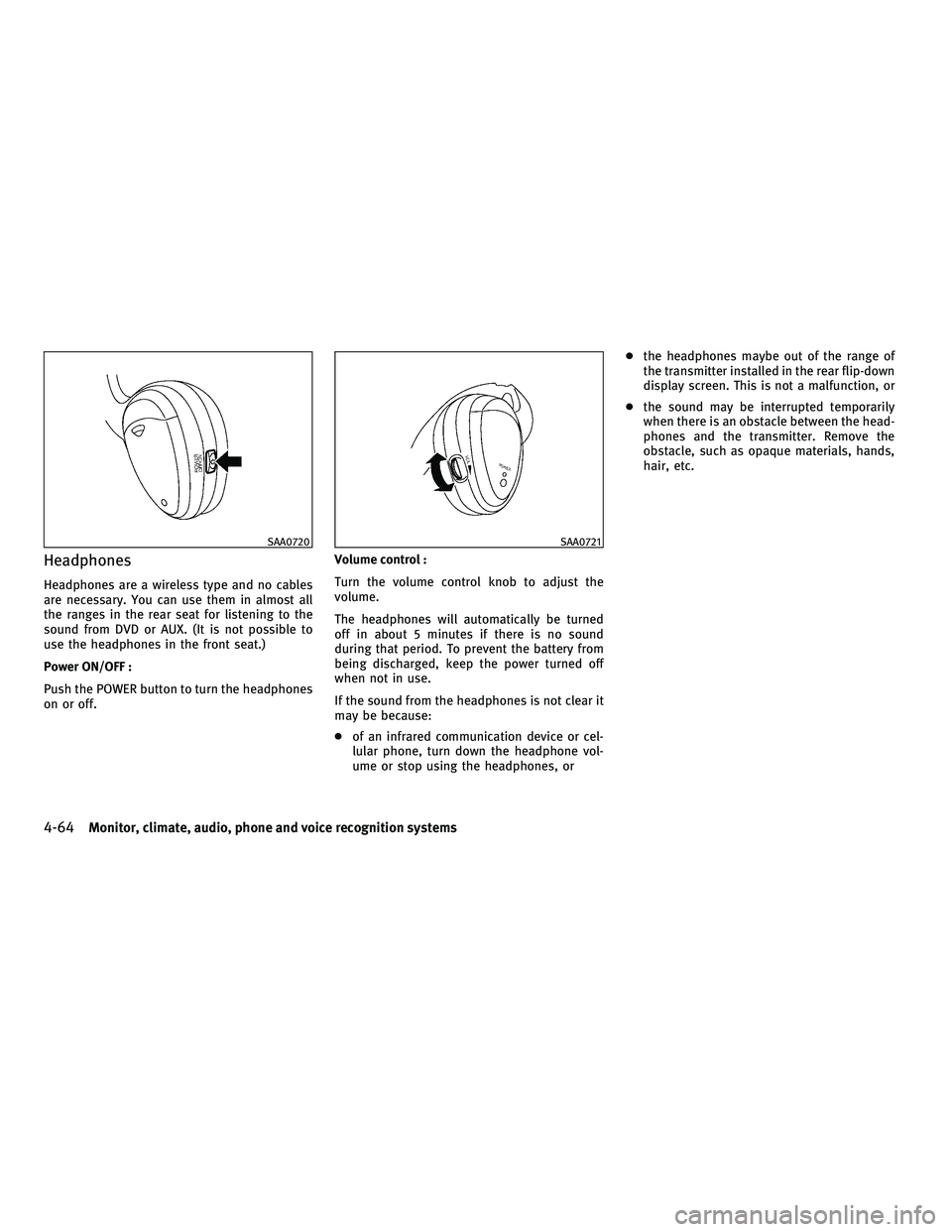
Headphones
Headphones are a wireless type and no cables
are necessary. You can use them in almost all
the ranges in the rear seat for listening to the
sound from DVD or AUX. (It is not possible to
use the headphones in the front seat.)
Power ON/OFF :
Push the POWER button to turn the headphones
on or off.Volume control :
Turn the volume control knob to adjust the
volume.
The headphones will automatically be turned
off in about 5 minutes if there is no sound
during that period. To prevent the battery from
being discharged, keep the power turned off
when not in use.
If the sound from the headphones is not clear it
may be because:
c
of an infrared communication device or cel-
lular phone, turn down the headphone vol-
ume or stop using the headphones, or c
the headphones maybe out of the range of
the transmitter installed in the rear flip-down
display screen. This is not a malfunction, or
c the sound may be interrupted temporarily
when there is an obstacle between the head-
phones and the transmitter. Remove the
obstacle, such as opaque materials, hands,
hair, etc.
SAA0720SAA0721
4-64Monitor, climate, audio, phone and voice recognition systems
wÐ
Ð
05/14/09Ðpattie
X
Page 228 of 445
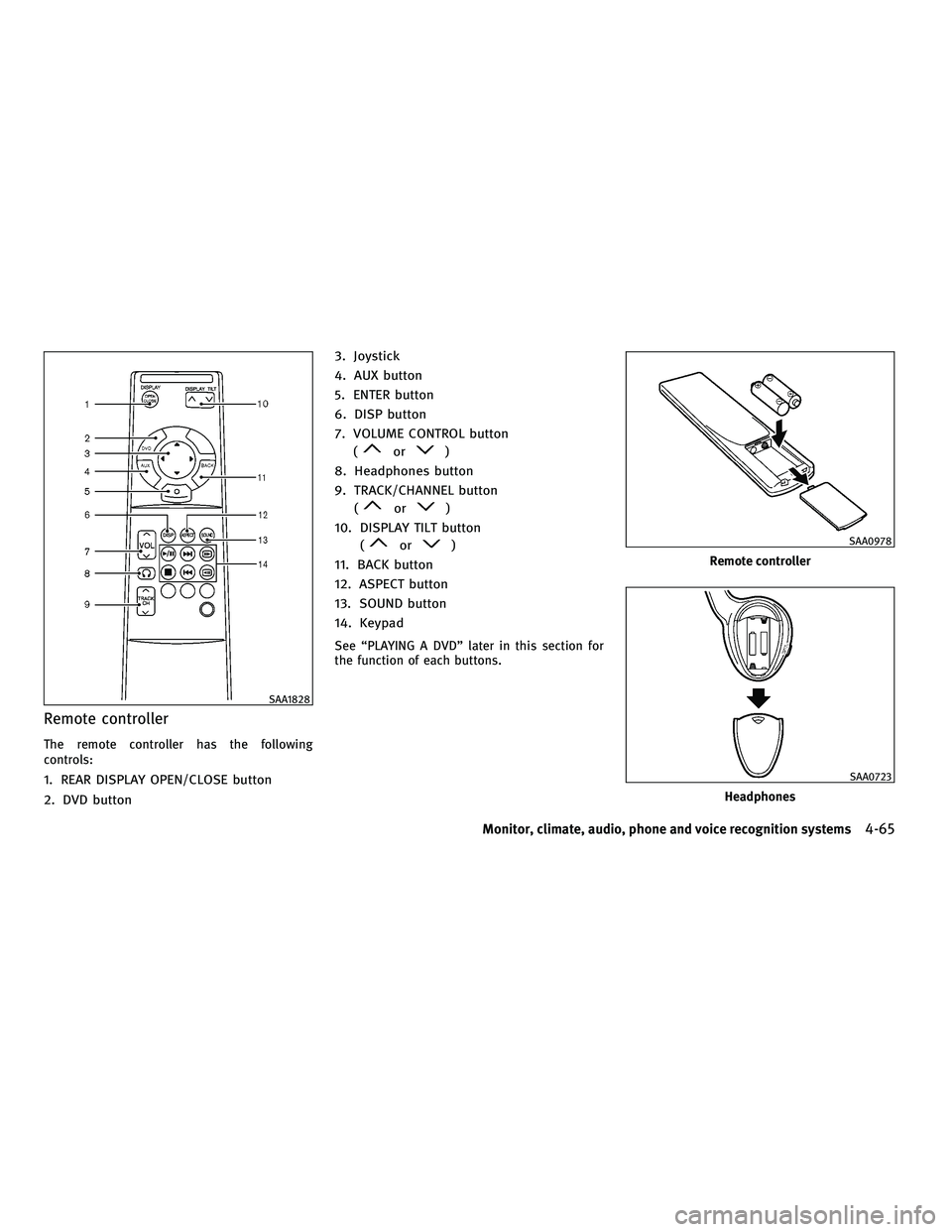
Remote controller
The remote controller has the following
controls:
1. REAR DISPLAY OPEN/CLOSE button
2. DVD button3. Joystick
4. AUX button
5. ENTER button
6. DISP button
7. VOLUME CONTROL button
(
or)
8. Headphones button
9. TRACK/CHANNEL button (
or)
10. DISPLAY TILT button (
or)
11. BACK button
12. ASPECT button
13. SOUND button
14. Keypad
See ªPLAYING A DVDº later in this section for
the function of each buttons.
SAA1828
Remote controller
SAA0978
Headphones
SAA0723
Monitor, climate, audio, phone and voice recognition systems4-65
wÐ
Ð
05/14/09Ðpattie
X
Page 231 of 445
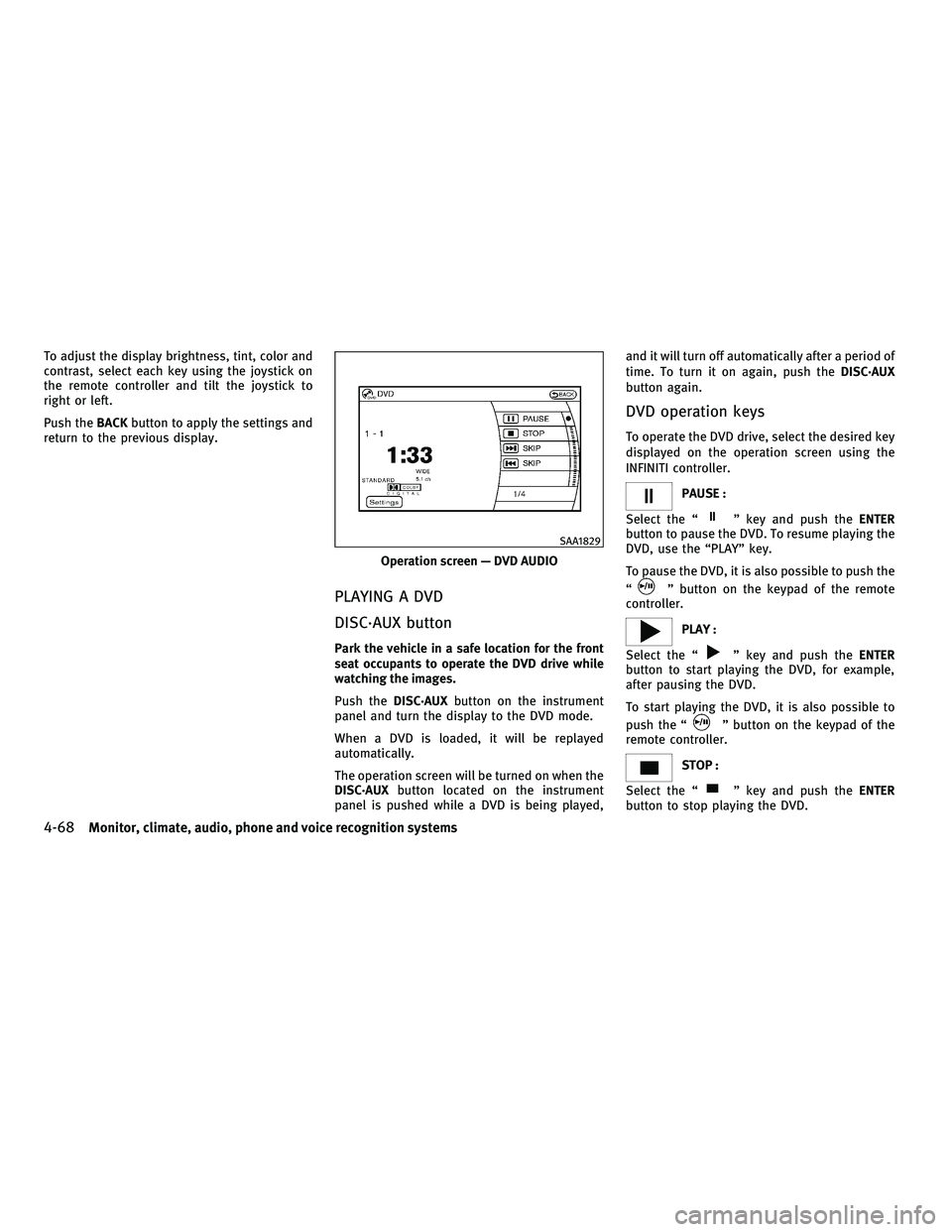
To adjust the display brightness, tint, color and
contrast, select each key using the joystick on
the remote controller and tilt the joystick to
right or left.
Push theBACKbutton to apply the settings and
return to the previous display.
PLAYING A DVD
DISC´AUX button
Park the vehicle in a safe location for the front
seat occupants to operate the DVD drive while
watching the images.
Push the DISC´AUX button on the instrument
panel and turn the display to the DVD mode.
When a DVD is loaded, it will be replayed
automatically.
The operation screen will be turned on when the
DISC´AUX button located on the instrument
panel is pushed while a DVD is being played, and it will turn off automatically after a period of
time. To turn it on again, push the
DISC´AUX
button again.
DVD operation keys
To operate the DVD drive, select the desired key
displayed on the operation screen using the
INFINITI controller.
PAUSE :
Select the ª
º key and push the ENTER
button to pause the DVD. To resume playing the
DVD, use the ªPLAYº key.
To pause the DVD, it is also possible to push the
ª
º button on the keypad of the remote
controller.
PLAY :
Select the ª
º key and push the ENTER
button to start playing the DVD, for example,
after pausing the DVD.
To start playing the DVD, it is also possible to
push the ª
º button on the keypad of the
remote controller.
STOP :
Select the ª
º key and push the ENTER
button to stop playing the DVD.
Operation screen Ð DVD AUDIO
SAA1829
4-68Monitor, climate, audio, phone and voice recognition systems
wÐ
Ð
05/14/09Ðpattie
X
Page 234 of 445
10 Key Search* (DVD-VIDEO, DVD-AUDIO, VIDEO-
CD, CD-DA) :
Select the ª10 Key Searchº key and push the
ENTER button to open the number entry screen.
Input the number you want to search for and
select the ª OKº key with the INFINITI controller.
Then push the ENTERbutton. The specified
Title/Chapter or Group/Track will be played.
Title Search* (DVD-VIDEO) :
The scene with the specified title will be dis-
played the number of times the ª+º side or ª 2º
side is selected.
Group Search* (DVD-AUDIO) :
The scene with the specified group will be
displayed the number of times the ª+º or ª 2º
side is selected.
Select No.* (VIDEO-CD) :
Select the ª Select No.º key and push the ENTER
button to open the number entry screen.
Input the number you wish to search for and
select the ªOK º key with the INFINITI controller,
and then push the ENTERbutton. The specified
scene will be played. Menu Skip (DVD-VIDEO, DVD-AUDIO) :
DVD menus are automatically configured and
the contents will be played directly when the
ªMenu Skip
º key is turned on. Note that some
discs may not be played directly even if this
item is turned on.
DVD Language (DVD-VIDEO, DVD-AUDIO, VIDEO-
CD) :
Select the ª DVD Language º key and push the
ENTER button to open the number entry screen.
Input the number corresponding to the pre-
ferred language and select the ª OKº key with
the INFINITI controller. Then push the ENTER
button. The DVD top menu language will be
changed to the one specified.
DRC (DVD-VIDEO, DVD-AUDIO) :
DRC (Dynamic Range Compression) allows you
to tune the dynamic range of the sound re-
corded in the Dolby Digital format.
DOWN MIX (DVD-VIDEO, DVD-AUDIO) :
Convert a multi-channel recording to a tradi-
tional two-channel (stereo) recording.
Remote controller operation
Use the remote controller to adjust the follow-
ing items. Rear display open/close :
To open or close the flip-down rear display,
push the ª
º button.
Joystick :
Use the joystick ª
º to select the items
displayed on the rear screen.
ENTER button :
Push the ENTER ª
º button to make the
selected item complete on the rear screen.
BACK button :
Push to go back to the previous screen or cancel
the selection.
Display tilt :
Adjust the display angle by pushing the DIS-
PLAY TILT button ª
º.
DVD mode :
To select the DVD mode, push the DVD button.
AUX mode :
To select the AUX (auxiliary input jacks), mode,
push the AUX button.
Monitor, climate, audio, phone and voice recognition systems4-71
wÐ
Ð
05/14/09Ðpattie
X
Page 436 of 445
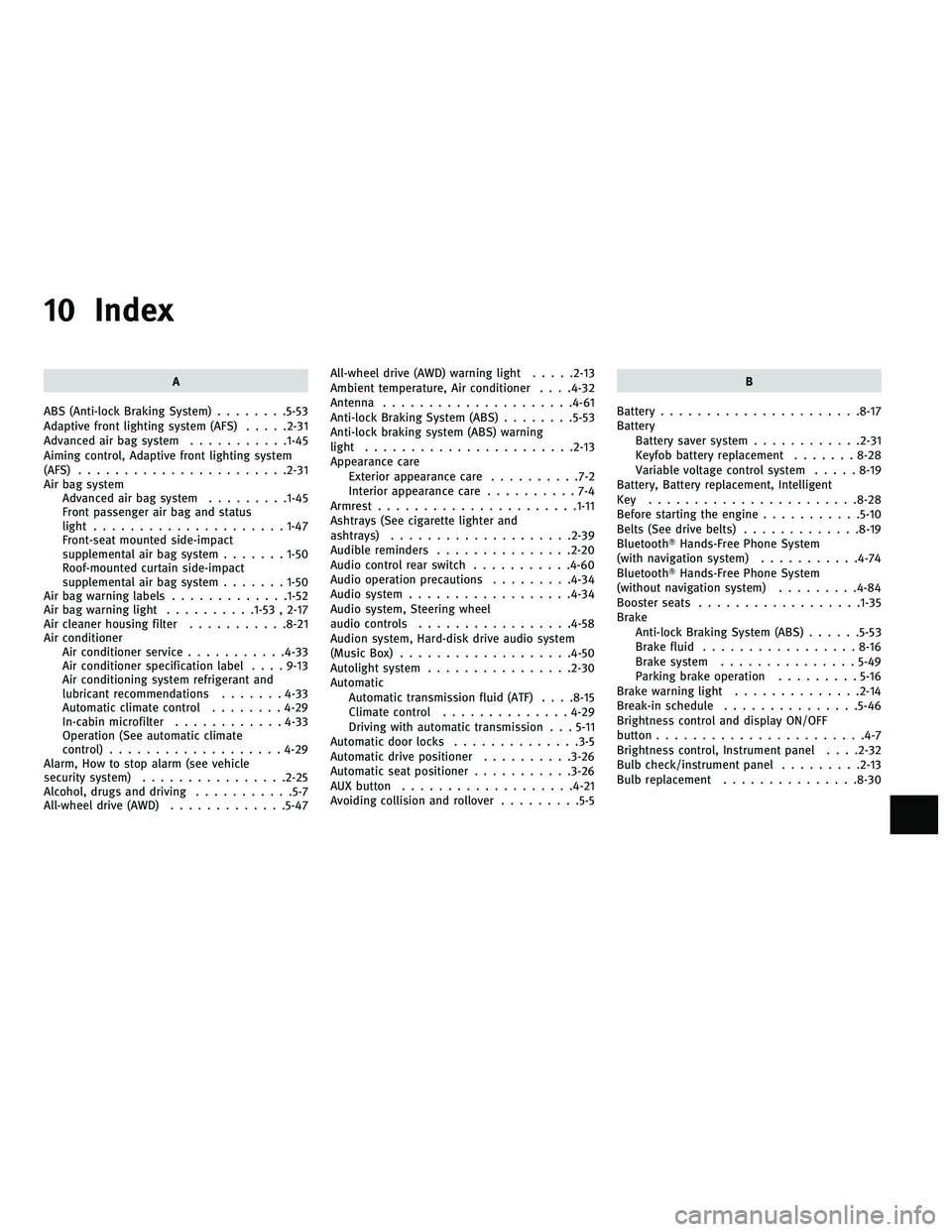
10 Index
A
ABS (Anti-lock Braking System) ........5-53
Adaptive front lighting system (AFS) .....2-31
Advanced air bag system ...........1-45
Aiming control, Adaptive front lighting system
(AFS) .......................2-31
Air bag system Advanced air bag system .........1-45
Front passenger air bag and status
light ..................... 1-47
Front-seat mounted side-impact
supplemental air bag system .......1-50
Roof-mounted curtain side-impact
supplemental air bag system .......1-50
Air bag warning labels .............1-52
Air bag warning light ..........1-53 , 2-17
Air cleaner housing filter ...........8-21
Air conditioner Air conditioner service ...........4-33
Air conditioner specification label ....9-13
Air conditioning system refrigerant and
lubricant recommendations .......4-33
Automatic climate control ........4-29
In-cabin microfilter ............4-33
Operation (See automatic climate
control) ................... 4-29
Alarm, How to stop alarm (see vehicle
security system) ................2-25
Alcohol, drugs and driving ...........5-7
All-wheel drive (AWD) .............5-47 All-wheel drive (AWD) warning light
.....2-13
Ambient temperature, Air conditioner . . . .4-32
Antenna .....................4-61
Anti-lock Braking System (ABS) ........5-53
Anti-lock braking system (ABS) warning
light .......................2-13
Appearance care Exterior appearance care ..........7-2
Interior appearance care ..........7-4
Armrest ......................1-11
Ashtrays (See cigarette lighter and
ashtrays) ....................2-39
Audible reminders ...............2-20
Audio control rear switch ...........4-60
Audio operation precautions .........4-34
Audio system ..................4-34
Audio system, Steering wheel
audio controls .................4-58
Audion system, Hard-disk drive audio system
(Music Box) ...................4-50
Autolight system ................2-30
Automatic Automatic transmission fluid (ATF) . . . .8-15
Climate control .............. 4-29
Driving with automatic transmission . . . 5-11
Automatic door locks ..............3-5
Automatic drive positioner ..........3-26
Automatic seat positioner ...........3-26
AUX button ...................4-21
Avoiding collision and rollover .........5-5 B
Battery ......................8-17
Battery Battery saver system ............2-31
Keyfob battery replacement .......8-28
Variable voltage control system .....8-19
Battery, Battery replacement, Intelligent
Key .......................8-28
Before starting the engine ...........5-10
Belts (See drive belts) .............8-19
BluetoothT Hands-Free Phone System
(with navigation system) ...........4-74
BluetoothT Hands-Free Phone System
(without navigation system) .........4-84
Booster seats ..................1-35
Brake Anti-lock Braking System (ABS) ......5-53
Brake fluid ................. 8-16
Brake system ............... 5-49
Parking brake operation .........5-16
Brake warning light ..............2-14
Break-in schedule ...............5-46
Brightness control and display ON/OFF
button .......................4-7
Brightness control, Instrument panel . . . .2-32
Bulb check/instrument panel .........2-13
Bulb replacement ...............8-30
wÐ
Ð
05/15/09Ðpattie
X