change time INFINITI M 2012 User Guide
[x] Cancel search | Manufacturer: INFINITI, Model Year: 2012, Model line: M, Model: INFINITI M 2012Pages: 522, PDF Size: 3.8 MB
Page 237 of 522

4-66Monitor, climate, audio, phone and voice recognition systems
CAUTION
.Only operate the DVD while the vehicle
engine is running. Operating the DVD for
extended periods of time with the
engine OFF can discharge the vehicle
battery.
. Do not allow the system to get wet.
Excessive moisture such as spilled
liquids may cause the system to mal-
function.
. While playing VIDEO-CD media, this DVD
player does not guarantee complete
functionality of all VIDEO-CD formats.
Display settings
To adjust the front display mode, push the
SETTING button while the DVD is being
played, select the “Others ”key and then
select the “Display ”key.
To adjust the display ON/OFF, brightness,
tint, color and contrast, select the “Display
Adjustment ”key and then select each key.
Then you can adjust each item using the
INFINITI controller. After changes have
been made push the BACK button to save
the setting.
SAA2497
Playing a DVD
DISC·AUX button:
Park the vehicle in a safe location for the
front seat occupants to operate the DVD
drive while watching the images.
Push the DISC·AUX button on the instru-
ment panel and turn the display to the DVD
mode.
When a DVD is loaded, it will be replayed
automatically.
The operation screen will be turned on
when the DISC·AUX button located on the
instrument panel is pushed while a DVD is being played, and it will turn off auto-
matically after a period of time. To turn it
on again, push the DISC·AUX button again.
DVD operation keys:
When the DVD is playing without the
operation screen being shown, you may
use the touch screen to select items from
the displayed video. You may also use the
INFINITI controller to select an item from
the displayed video. When the operation
screen is being shown, use the INFINITI
controller or touch screen to select an item
from the displayed menus.
PAUSE:
Select the “
”key to pause the DVD. To
resume playing the DVD, use the “PLAY ”
key.
PLAY:
Select the “
”key to start playing the
DVD, for example, after pausing the DVD.
STOP:
Select the “
”key to stop playing the
DVD.
Page 238 of 522
/Next/Previous Chapter:
Select the “
”or “”key to skip the
chapter(s) of the disc forward/backward.
The chapters will advance/go back the
number of times this key is selected.
/Commercial Skip:
This function is only for DVD-VIDEO, DVD-
VR. Select the “
”or “”key to skip
forward or backwards by the set amount as
defined in the DVD Settings menu.
Top Menu:
When the “Top Menu” key is selected in
the screen while a DVD is being played, the
top menu specific to each disc will be
displayed. For details, see the instructions
on the disc.
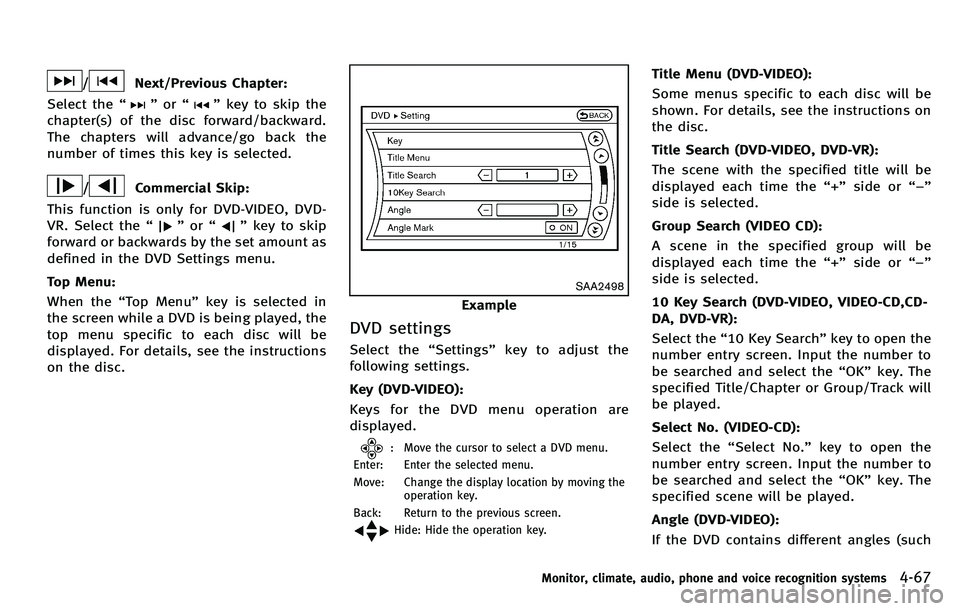
SAA2498
Example
DVD settings
Select the “Settings ”key to adjust the
following settings.
Key (DVD-VIDEO):
Keys for the DVD menu operation are
displayed.
: Move the cursor to select a DVD menu.
Enter: Enter the selected menu.
Move: Change the display location by moving the operation key.
Back: Return to the previous screen.
Hide: Hide the operation key.
Title Menu (DVD-VIDEO):
Some menus specific to each disc will be
shown. For details, see the instructions on
the disc.
Title Search (DVD-VIDEO, DVD-VR):
The scene with the specified title will be
displayed each time the “+ ” side or “− ”
side is selected.
Group Search (VIDEO CD):
A scene in the specified group will be
displayed each time the “+ ” side or “− ”
side is selected.
10 Key Search (DVD-VIDEO, VIDEO-CD,CD-
DA, DVD-VR):
Select the “10 Key Search ”key to open the
number entry screen. Input the number to
be searched and select the “OK ”key. The
specified Title/Chapter or Group/Track will
be played.
Select No. (VIDEO-CD):
Select the “Select No.” key to open the
number entry screen. Input the number to
be searched and select the “OK ”key. The
specified scene will be played.
Angle (DVD-VIDEO):
If the DVD contains different angles (such
Monitor, climate, audio, phone and voice recognition systems4-67
Page 239 of 522

4-68Monitor, climate, audio, phone and voice recognition systems
as moving images), the current image
angle can be switched to another one.
Select the“Angle ”key. The angle will
change each time the “+ ” side or “− ” side
is selected.
Angle Mark (DVD-VIDEO):
When this item is turned on, an angle mark
will be shown on the bottom of the screen
if the scene can be seen from a different
angle.
Menu Skip (DVD-VIDEO):
DVD menus are automatically configured
and the contents will be played directly
when the “Menu Skip ”key is turned on.
Note that some discs may not be played
directly even if this item is turned on.
CM Skip (DVD-VIDEO):
Select the “CM Skip ”key. Choose the
setting time from 15, 30 or 60 seconds by
selecting the “+ ” side or “− ” side.
DRC (DVD-VIDEO, DVD-VR):
DRC (Dynamic Range Compression) auto-
matically adjusts the soundtrack volume
level to maintain a more even sound to the
speakers. DVD Language (DVD-VIDEO, VIDEO-CD):
Select the
“DVD Language ”key to open the
number entry screen. Input the number
corresponding to the preferred language
and select the “OK” key. The DVD top menu
language will be changed to the one
specified.
Display:
To adjust the image quality of the screen,
select the preferred adjustment items.
Audio:
Select the preferred language for audio.
Subtitle (DVD-VIDEO, DVD-VR):
Select the preferred language for subtitles.
Display Mode (DVD-VIDEO, VIDEO-CD, DVD-
VR):
Select from the “Full ”, “Wide ”, “Normal ”or
“ Cinema ”modes.
Title List (DVD-VR):
Select the preferred title from the list.
Play Mode:
Select the preferred play mode.
PG/PL Mode (DVD-VR):
Select the “PG ”or “PL” mode.
SAA2963
USB INPUT OPERATION
Audio main operation
Open the console lid and connect a USB
memory. Then, push the DISC·AUX button
repeatedly to switch to the USB memory
mode.
If the system has been turned off while the
USB memory was playing, pushing the
ON·OFF/VOL control knob will start the USB
memory.
Page 242 of 522

ing to the movie playback mode.
. Play Mode
Select the preferred play mode.
SAA2503
Movie file operation (models with
navigation system)
Park the vehicle in a safe location for the
front seat occupants to operate the USB
memory while watching the images.
PLAY:
When the DISC·AUX button is pushed with
the system off and the USB memory
inserted, the system will turn on.
If another audio source is playing and a
USB memory is inserted, push the
DISC·AUX button repeatedly until the cen-
ter display changes to the USB memory mode.
Operation keys:
To operate the USB memory, select the
desired key displayed on the operation
screen using the INFINITI controller.
Pause
Select the “
”key to pause the movie
file. To resume playing the movie file,
select the “
”key.
Play
Select the “
”key to start playing a
movie file, for example, after pausing a
movie file.
STOP
Select the “
”key to stop playing a
movie file.
Skip (Next chapter)
Select the “
”key to skip the chapter(s)
of the disc forward. The chapters will
advance the number of times the ENTER
button is pushed.
Monitor, climate, audio, phone and voice recognition systems4-71
Page 251 of 522

4-80Monitor, climate, audio, phone and voice recognition systems
NOTE:
If the hard drive needs to be replaced due
to a malfunction, all stored music data will
be erased.
SAA2513
Recording CDs
1. Operate the audio system to play a CD.For the details of playing CDs, see
“Compact Disc (CD) player operation ”
earlier in this section.
2. Select the “Start REC ”key.
NOTE:
. The system starts playing and record-
ing the 1st track on the CD when the
“Start REC ”key is selected.
. The recording process can be stopped
at any time. All tracks that were played
before the CD was stopped are stored. .
Individual tracks can be deleted from
the hard drive after the CD is recorded.
. The order of the tracks may not be
changed while recording.
Page 256 of 522
This application or device contains soft-
ware from Gracenote, Inc. of Emeryville,
California (“Gracenote” ). The software from
Gracenote (the “Gracenote Software ”) en-
ables this application to perform disc and/
or file identification and obtain music-
related information, including name, artist,
track, and title information ( “Gracenote
Data ”) from online servers or embedded
databases (collectively, “Gracenote Ser-
vers ”) and to perform other functions. You
may use Gracenote Data only by means of
the intended End-User functions of this
application or device. You agree that you
will use Gracenote Data, the Gracenote
Software, and Gracenote Servers for your
own personal non-commercial use only.
You agree not to assign, copy, transfer or
transmit the Gracenote Software or any
Gracenote Data to any third party. YOU
AGREE NOT TO USE OR EXPLOIT GRACE-
NOTE DATA, THE GRACENOTE SOFTWARE,
OR GRACENOTE SERVERS, EXCEPT AS EX-
PRESSLY PERMITTED HEREIN.
You agree that your non-exclusive license
to use the Gracenote Data, the Gracenote
Software, and Gracenote Servers will ter-
minate if you violate these restrictions. If
your license terminates, you agree to cease any and all use of the Gracenote Data, the
Gracenote Software, and Gracenote Ser-
vers. Gracenote reserves all rights in
Gracenote Data, the Gracenote Software,
and the Gracenote Servers, including all
ownership rights. Under no circumstances
will Gracenote become liable for any
payment to you for any information that
you provide.
You agree that Gracenote, Inc. may enforce
its rights under this Agreement against you
directly in its own name.
The Gracenote service uses a unique
identifier to track queries for statistical
purposes. The purpose of a randomly
assigned numeric identifier is to allow the
Gracenote service to count queries without
knowing anything about who you are. For
more information, see the web page for the
Gracenote Privacy Policy for the Gracenote
service.
The Gracenote Software and each item of
Gracenote Data are licensed to you
“AS
IS. ”Gracenote makes no representations
or warranties, express or implied, regard-
ing the accuracy of any Gracenote Data
from in the Gracenote Servers. Gracenote
reserves the right to delete data from the
Gracenote Servers or to change data categories for any cause that Gracenote
deems sufficient. No warranty is made that
the Gracenote Software or Gracenote Ser-
vers are error-free or that functioning of
Gracenote Software or Gracenote Servers
will be uninterrupted. Gracenote is not
obligated to provide you with new en-
hanced or additional data types or cate-
gories that Gracenote may provide in the
future and is free to discontinue its
services at any time.
GRACENOTE DISCLAIMS ALL WARRANTIES
EXPRESS OR IMPLIED, INCLUDING, BUT NOT
LIMITED TO, IMPLIED WARRANTIES OF
MERCHANTABILITY, FITNESS FOR A PARTI-
CULAR PURPOSE, TITLE, AND NON-INFRIN-
GEMENT. GRACENOTE DOES NOT WARRANT
THE RESULTS THAT WILL BE OBTAINED BY
YOUR USE OF THE GRACENOTE SOFTWARE
OR ANY GRACENOTE SERVER. IN NO CASE
WILL GRACENOTE BE LIABLE FOR ANY
CONSEQUENTIAL OR INCIDENTAL DAMAGES
OR FOR ANY LOST PROFITS OR LOST
REVENUES.
Copyright:
Music recognition technology and related
data are provided by Gracenote
®. Grace-
note is the industry standard in music
recognition technology and related content
Monitor, climate, audio, phone and voice recognition systems4-85
Page 284 of 522

existing phone. If the user tries to
connect a phone that has already been
connected to the vehicle system, the
system announces the name that the
phone is already using. The connecting
procedure will then be cancelled.
The Add Phone command is not avail-
able when the vehicle is moving.
. Select Phone
Use the Select Phone command to
select a phone of lesser priority when
two or more phones connected with
Bluetooth
®Hands-Free Phone System
are in the vehicle at the same time.
The system asks the user to name the
phone and confirm the selection.
Once the selection is confirmed, the
selected phone remains active until the
ignition switch is turned OFF or a new
phone is selected.
. Delete Phone
Use the Delete Phone command to
delete a specific phone or all phones
from Bluetooth
®Hands-Free Phone
System. The system announces the
names of the phones already paired
with the system and their priority level.
The system then gives the option to
delete a specific phone, all phones or listen to the list again. Once the user
chooses to delete a phone or all
phones, the system asks the user to
confirm.
NOTE:
When the user deletes a phone, the
associated phone book for that phone will
also be deleted.
. Replace Phone
Use the Replace Phone command to
change the priority level of the active
phone.
The priority level determines which
phone is active when more than one
paired Bluetooth
®phone is in the
vehicle.
The system states the priority level of
the active phone and asks for a new
priority level (1, 2, 3, 4, 5).
If the new priority level is already being
used for another phone, the two
phones will swap priority levels.
For example, if the current priority
levels are:
Priority Level 1 = Phone A
Priority Level 2 = Phone B
Priority Level 3 = Phone C and you change the priority level of
Phone C to Level 1, then:
Priority Level 1 = Phone C
Priority Level 2 = Phone B
Priority Level 3 = Phone A
. Bluetooth
®On/Off
Use the Bluetooth®On/Off command
to turn on/off Bluetooth®Hands-Free
Phone System.
. Help
The system announces the available
commands.
VOICE ADAPTATION MODE
The Voice Adaptation mode allows up to
two users with different dialects to train
the system to improve recognition accu-
racy. By repeating a number of commands,
the users can create a voice model of their
own voice that is stored in the system. The
system is capable of storing a different
voice adaptation model for each connected
phone.
Training procedure
1. Position the vehicle in a reasonably quiet outdoor location.
2. Sit in the driver ’s seat with the engine
running, the parking brake on, and the
Monitor, climate, audio, phone and voice recognition systems4-113
Page 316 of 522
WARNING
.Do not leave children or adults who
would normally require the support of
others alone in your vehicle. Pets should
not be left alone either. They could
accidentally injure themselves or others
through inadvertent operation of the
vehicle. Also, on hot, sunny days,
temperatures in a closed vehicle could
quickly become high enough to cause
severe or possibly fatal injuries to
people or animals.
. Closely supervise children when they are
around cars to prevent them from play-
ing and becoming locked in the trunk
where they could be seriously injured.
Keep the car locked, with the rear
seatback and trunk lid securely latched
when not in use, and prevent children ’s
access to car keys.
EXHAUST GAS (carbon monoxide)
WARNING
. Do not breathe exhaust gases; they
contain colorless and odorless carbon
monoxide. Carbon monoxide is danger-
ous. It can cause unconsciousness or
death.
. If you suspect that exhaust fumes are
entering the vehicle, drive with all
windows fully open, and have the
vehicle inspected immediately.
. Do not run the engine in closed spaces
such as a garage.
. Do not park the vehicle with the engine
running for any extended length of time.
. Keep the trunk lid closed while driving,
otherwise exhaust gases could be drawn
into the passenger compartment. If you
must drive with the trunk lid open,
follow these precautions:
1) Open all the windows.
2) Set the
air recirculation to off
and the fan control to high to
circulate the air. .
If electrical wiring or other cable con-
nections must pass to a trailer through
the seal on the trunk lid or the body,
follow the manufacturer’ s recommenda-
tion to prevent carbon monoxide entry
into the vehicle.
. The exhaust system and body should be
inspected by a qualified mechanic when-
ever:
—The vehicle is raised for service.
—You suspect that exhaust fumes are
entering into the passenger com-
partment.
—You notice a change in the sound of
the exhaust system.
—You have had an accident involvingdamage to the exhaust system,
underbody, or rear of the vehicle.
THREE-WAY CATALYST
The three-way catalyst is an emission
control device installed in the exhaust
system. Exhaust gases in the three-way
catalyst are burned at high temperatures to
help reduce pollutants.
Starting and driving5-3
PRECAUTIONS WHEN STARTING AND
DRIVING
Page 319 of 522
5-6Starting and driving
the light still illuminates while driving
after adjusting the tire pressure, a tire
may be flat. If you have a flat tire,
replace it with a spare tire as soon as
possible. (See“Flat tire ”in the “6. In
case of emergency ”section for changing
a flat tire.)
. When a spare tire is mounted or a wheel
is replaced, the TPMS will not function
and the low tire pressure warning light
will flash for approximately 1 minute.
The light will remain on after 1 minute.
Contact your INFINITI retailer as soon as
possible for tire replacement and/or
system resetting.
. Replacing tires with those not originally
specified by INFINITI could affect the
proper operation of the TPMS.
. Do not inject any tire liquid or aerosol
tire sealant into the tires, as this may
cause a malfunction of the tire pressure
sensors.
CAUTION
.The TPMS may not function properly
when the wheels are equipped with tire chains or the wheels are buried in snow.
. Do not place metalized film or any metal
parts (antenna, etc.) on the windows.
This may cause poor reception of the
signals from the tire pressure sensors,
and the TPMS will not function properly.
Some devices and transmitters may tem-
porarily interfere with the operation of the
TPMS and cause the low tire pressure
warning light to illuminate. Some exam-
ples are:
.Facilities or electric devices using simi-
lar radio frequencies are near the
vehicle.
. If a transmitter set to similar frequen-
cies is being used in or near the
vehicle.
. If a computer (or similar equipment) or
a DC/AC converter is being used in or
near the vehicle.
FCC Notice:
For USA:
This device complies with Part 15 of the
FCC Rules. Operation is subject to the
following two conditions: (1) This device
may not cause harmful interference, and
(2) this device must accept any interfer- ence received, including interference that
may cause undesired operation.
NOTE:
Changes or modifications not expressly
approved by the party responsible for
compliance could void the user
’s authority
to operate the equipment.
For Canada:
This device complies with RSS-210 of
Industry Canada. Operation is subject to
the following two conditions: (1) this
device may not cause interference, and
(2) this device must accept any interfer-
ence, including interference that may
cause undesired operation of the device.
AVOIDING COLLISION AND ROLL-
OVER
WARNING
Failure to operate this vehicle in a safe and
prudent manner may result in loss of control
or an accident.
Be alert and drive defensively at all times.
Obey all traffic regulations. Avoid exces-
sive speed, high speed cornering, or
Page 321 of 522
5-8Starting and driving
tions of the vehicle, road and traffic.
WARNING
The following actions can increase the
chance of losing control of the vehicle if
there is a sudden loss of tire air pressure.
Losing control of the vehicle may cause a
collision and result in personal injury.
.The vehicle generally moves or pulls in
the direction of the flat tire.
. Do not rapidly apply the brakes.
. Do not rapidly release the accelerator
pedal.
. Do not rapidly turn the steering wheel.
1. Remain calm and do not overreact.
2. Maintain a firm grip on the steering
wheel with both hands and try to hold a
straight course.
3. When appropriate, slowly release the accelerator pedal to gradually slow the
vehicle.
4. Gradually steer the vehicle to a safe location off the road and away from
traffic if possible. 5. Lightly apply the brake pedal to gradu-
ally stop the vehicle.
6. Turn on the hazard warning flashers and either contact a roadside emer-
gency service to change the tire or see
“Changing a flat tire ”in the “6. In case
of emergency” section of this Owner ’s
Manual.
DRINKING ALCOHOL/DRUGS AND
DRIVING
WARNING
Never drive under the influence of alcohol or
drugs. Alcohol in the bloodstream reduces
coordination, delays reaction time and im-
pairs judgement. Driving after drinking
alcohol increases the likelihood of being
involved in an accident injuring yourself and
others. Additionally, if you are injured in an
accident, alcohol can increase the severity
of the injury.
INFINITI is committed to safe driving.
However, you must choose not to drive
under the influence of alcohol. Every year
thousands of people are injured or killed in
alcohol-related accidents. Although the local laws vary on what is considered to
be legally intoxicated, the fact is that
alcohol affects all people differently and
most people underestimate the effects of
alcohol.
Remember, drinking and driving don
’t mix!
And that is true for drugs, too (over-the-
counter, prescription, and illegal drugs).
Don ’t drive if your ability to operate your
vehicle is impaired by alcohol, drugs, or
some other physical condition.
INTELLIGENT ALL-WHEEL DRIVE
(AWD) DRIVING SAFETY PRECAU-
TIONS
WARNING
. Do not drive beyond the performance
capability of the tires, even with Intelli-
gent AWD engaged. Accelerating quickly,
sharp steering ma neuvers or sudden
braking may cause loss of control.
. Always use tires of the same type, size,
brand, construction (bias, bias-belted or
radial), and tread pattern on all four
wheels. Install tire chains on the rear
wheels when driving on slippery roads
and drive carefully.