key INFINITI M 2012 Workshop Manual
[x] Cancel search | Manufacturer: INFINITI, Model Year: 2012, Model line: M, Model: INFINITI M 2012Pages: 522, PDF Size: 3.8 MB
Page 191 of 522
4-20Monitor, climate, audio, phone and voice recognition systems
following items.
.Display
. Clock
SAA2486
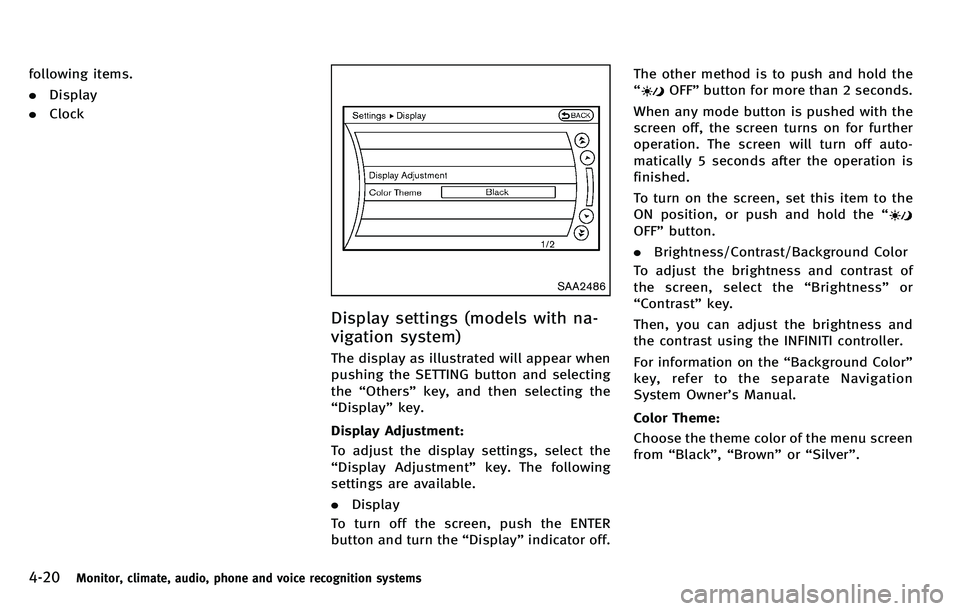
Display settings (models with na-
vigation system)
The display as illustrated will appear when
pushing the SETTING button and selecting
the “Others ”key, and then selecting the
“ Display ”key.
Display Adjustment:
To adjust the display settings, select the
“ Display Adjustment ”key. The following
settings are available.
. Display
To turn off the screen, push the ENTER
button and turn the “Display ”indicator off. The other method is to push and hold the
“
OFF
”button for more than 2 seconds.
When any mode button is pushed with the
screen off, the screen turns on for further
operation. The screen will turn off auto-
matically 5 seconds after the operation is
finished.
To turn on the screen, set this item to the
ON position, or push and hold the “
OFF”button.
. Brightness/Contrast/Background Color
To adjust the brightness and contrast of
the screen, select the “Brightness ”or
“ Contrast” key.
Then, you can adjust the brightness and
the contrast using the INFINITI controller.
For information on the “Background Color ”
key, refer to the separate Navigation
System Owner ’s Manual.
Color Theme:
Choose the theme color of the menu screen
from “Black ”, “Brown ”or “Silver” .
Page 192 of 522
SAA2115
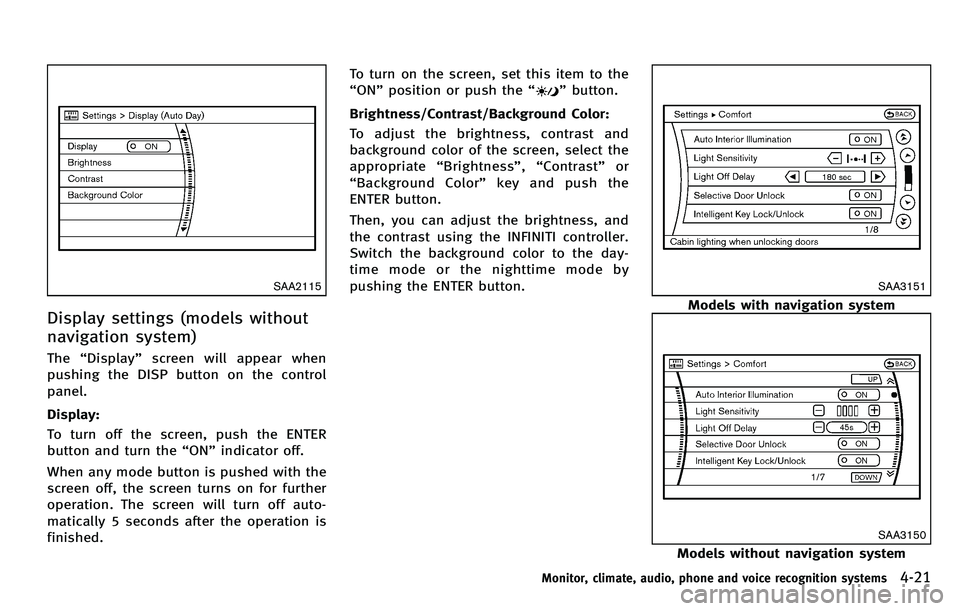
Display settings (models without
navigation system)
The“Display ”screen will appear when
pushing the DISP button on the control
panel.
Display:
To turn off the screen, push the ENTER
button and turn the “ON ”indicator off.
When any mode button is pushed with the
screen off, the screen turns on for further
operation. The screen will turn off auto-
matically 5 seconds after the operation is
finished. To turn on the screen, set this item to the
“
ON ”position or push the “
”button.
Brightness/Contrast/Background Color:
To adjust the brightness, contrast and
background color of the screen, select the
appropriate “Brightness ”, “Contrast ”or
“ Background Color ”key and push the
ENTER button.
Then, you can adjust the brightness, and
the contrast using the INFINITI controller.
Switch the background color to the day-
time mode or the nighttime mode by
pushing the ENTER button.
SAA3151
Models with navigation system
SAA3150
Models without navigation system
Monitor, climate, audio, phone and voice recognition systems4-21
Page 193 of 522

4-22Monitor, climate, audio, phone and voice recognition systems
Comfort settings
Models with navigation system
The display as illustrated will appear when
pushing the SETTING button and selecting
the“Others ”key, and then selecting the
“ Comfort ”key. This key does not appear on
the display until the ignition switch is
pushed to the ON position.
Models without navigation system
The display as illustrated will appear when
pushing the SETTING button and selecting
the “Comfort ”key. This key does not
appear on the display until the ignition
switch is pushed to the ON position.
Auto Interior Illumination:
When this item is turned to ON, the interior
lights will illuminate if any door is un-
locked.
Light Sensitivity:
Adjust the sensitivity of the automatic
headlights higher (right) or lower (left).
Lift Steering Wheel on Exit (if so
equipped):
When this item is turned to ON, the
steering wheel moves upward for easy exit
if the ignition switch is in the LOCK
position and the driver ’s door is opened. After getting into the vehicle and pushing
the ignition switch to the ACC position, the
steering wheel moves to the previous
position.
Slide Driver Seat Back on Exit (if so
equipped):
When this item is turned to ON, the driver
’s
seat moves backward for easy exit if the
ignition switch is in the OFF position and
the driver ’s door is opened. After getting
into the vehicle and pushing the ignition
switch to the ACC position, the driver ’s seat
moves to the previous position.
Light Off Delay:
Choose the duration of the automatic
headlight off timer from 0, 30, 45, 60, 90,
120, 150 and 180 second periods.
Selective Door Unlock:
When this item is turned to ON, only the
driver ’s door is unlocked first after the door
unlock operation. When the door handle
request switch on the driver ’s or front
passenger ’s side door is pushed to be
unlocked, only the corresponding door is
unlocked first. All the doors can be
unlocked if the door unlock operation is
performed again within 60 seconds. When this item is turned to OFF, all the
doors will be unlocked after the door
unlock operation is performed once.
Intelligent Key Lock/Unlock:
When this item is turned to ON, door lock/
unlock function by pushing the door
handle request switch will be activated.
Return All Settings to Default:
Select this item and then select
“YES ”to
return all settings to the default.
Page 194 of 522
SAA2487
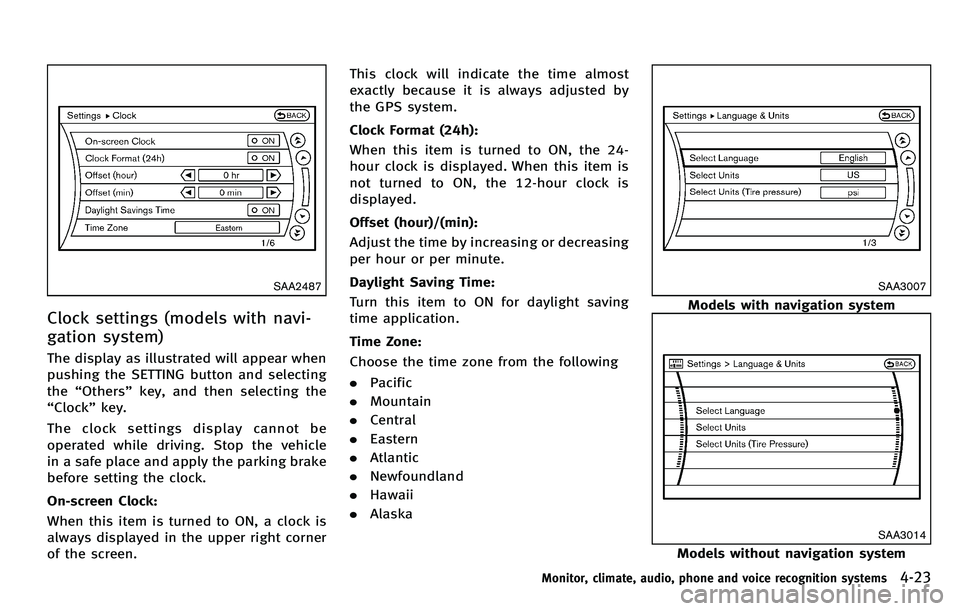
Clock settings (models with navi-
gation system)
The display as illustrated will appear when
pushing the SETTING button and selecting
the“Others ”key, and then selecting the
“ Clock ”key.
The clock settings display cannot be
operated while driving. Stop the vehicle
in a safe place and apply the parking brake
before setting the clock.
On-screen Clock:
When this item is turned to ON, a clock is
always displayed in the upper right corner
of the screen. This clock will indicate the time almost
exactly because it is always adjusted by
the GPS system.
Clock Format (24h):
When this item is turned to ON, the 24-
hour clock is displayed. When this item is
not turned to ON, the 12-hour clock is
displayed.
Offset (hour)/(min):
Adjust the time by increasing or decreasing
per hour or per minute.
Daylight Saving Time:
Turn this item to ON for daylight saving
time application.
Time Zone:
Choose the time zone from the following
.
Pacific
. Mountain
. Central
. Eastern
. Atlantic
. Newfoundland
. Hawaii
. Alaska
SAA3007
Models with navigation system
SAA3014
Models without navigation system
Monitor, climate, audio, phone and voice recognition systems4-23
Page 195 of 522

4-24Monitor, climate, audio, phone and voice recognition systems
Language & Units settings
The Language & Units settings display will
appear when pushing the SETTING button,
selecting the“Language & Units ”key with
the INFINITI controller and pushing the
ENTER button.
For models with the navigation system,
select the “Others ”key to show the
“ Language & Units ”key.
Select Language:
Select the “Select Language ”key. Choose
“ English ”, “Français ”or “Español ”for your
favorite display appearance.
If you select the “Français ”key, the French
language will be displayed, so please use
the French Owner ’s Manual. To obtain a
French Owner ’s Manual, see “Owner ’s
Manual/Service Manual order information ”
in the “9. Technical and consumer informa-
tion ”section.
Select Units:
Select the “Select Units ”key. Choose “US ”
(Mile, 8F, MPG) or “Metric ”(km, 8C, L/100
km) for your favorite display appearance.
Select Units (Tire Pressure):
Choose the “Select Units (Tire Pressure) ”
key and push the ENTER button. From the following display, select
“kPa” or“psi ”.
When the ignition switch is in the ACC
position, the “Select Units (Tire Pressure) ”
key is not displayed.
Voice Recognition settings (models
with navigation system)
For details about the “Voice Recognition ”
settings, see “INFINITI Voice Recognition
system (models with navigation system) ”
later in this section.
Camera settings
The “CAMERA ”screen will appear when
selecting the “Camera ”key with the
INFINITI controller and pushing the ENTER
button.
For the details about the camera system
operation, see “Rearview monitor ”later in
this section.SAA2491
Image Viewer (models with naviga-
tion system)
The image files in the USB memory will be
displayed. To display the Image Viewer,
push the SETTING button, select the
“ Other ”key and then select the “Image
Viewer ”key. The image of the selected file
is displayed on the right side of the screen.
When a number of folders are included in
the USB memory, select a folder from the
list to display the file list.
Images will not be shown on the display
while the vehicle is in any drive position to
reduce driver distraction. To view images,
Page 196 of 522

stop the vehicle in a safe location and
apply the parking brake.
SAA2492
Full Screen Display:
The full screen display will appear when
selecting the“Full Screen Display” key.
To operate the Image Viewer or to change
the settings, select the desired key using
the INFINITI controller.
.
(Start)
Select the “
”key to start playing
the slideshow.
.
(Stop)
Select the “
”key to stop the
slideshow.
.
(Next)
Select the “
”key to display the next file.
.
(Previous)
Select the “
”key to display the
previous file.
Setting the Image Viewer:
The Image Viewer setting display will
appear when selecting the “Settings ”key
on the full screen display. The following
settings are available for the full screen
display.
. Slideshow Speed
Select the “Slideshow Speed ”key.
From the following display, select the
changing time from 5, 10, 30, 60
seconds or “No Auto Change ”.
. Slideshow Order
Select the “Slideshow Order” key. From
the following display, select “Random ”
or “Order List ”. For “Order List ”, the
image order is the order of the files as
stored on the USB memory.
Operating tips:
. Only files that meet the following
conditions will be displayed.
— Image type: JPEG
— File Extensions: *.jpg, *jpeg
Monitor, climate, audio, phone and voice recognition systems4-25
Page 203 of 522
4-32Monitor, climate, audio, phone and voice recognition systems
PREDICTIVE COURSE LINE SETTINGS
To turn ON or OFF the predictive course line
display, push the SETTING button, select
the“Camera ”key and push the ENTER
button.
. Predictive Course Lines
When this item is turned to ON, the
predicted course lines will be displayed
on the monitor when the selector/shift
lever is in the “R ” (Reverse) position.
HOW TO ADJUST SCREEN
To adjust the Display ON/OFF, Brightness,
Tint, Color, Contrast and Black Level of the
RearView monitor, push the SETTING but-
ton with the RearView monitor on, select
the “Display ”key on the screen and select
the item key and adjust the level using the
INFINITI controller.
Do not adjust the Brightness, Tint, Color,
Contrast and Black Level of the RearView
monitor while the vehicle is moving. Make
sure the parking brake is firmly applied
and the engine is not running.
The display of the predicted course lines
can be set to ON or OFF. For details, see
“ Camera settings ”earlier in this section.
OPERATING TIPS
. When the selector lever is shifted to the
“ R ” (Reverse) position, the monitor
screen automatically changes to the
RearView monitor mode.
. It may take some time until the Rear-
View monitor is displayed after the
selector lever has been shifted to “R ”
from another position or to another
position from “R ”. Objects may be
distorted momentarily until the Rear-
View monitor screen is displayed com-
pletely.
. When the temperature is extremely high
or low, the screen may not clearly
display objects. This is not a malfunc-
tion.
. When strong light directly enters the
camera, objects may not be displayed
clearly. This is not a malfunction.
. Vertical lines may be seen in objects on
the screen. This is due to strong
reflected light from the bumper. This
is not a malfunction.
. The screen may flicker under fluores-
cent light. This is not a malfunction.
. The colors of objects on the RearView
monitor may differ somewhat from
those of the actual object. .
Objects on the monitor may not be clear
in a dark place or at night. This is not a
malfunction.
. If dirt, rain or snow attaches to the
camera, the RearView monitor may not
clearly display objects. Clean the cam-
era.
. Do not use alcohol, benzine or thinner
to clean the camera. This will cause
discoloration. To clean the camera,
wipe with a cloth dampened with
diluted mild cleaning agent and then
wipe with a dry cloth.
. Do not damage the camera as the
monitor screen may be adversely af-
fected.
. Do not use wax on the camera window.
Wipe off any wax with a clean cloth
dampened with mild detergent diluted
with water.
Page 209 of 522
4-38Monitor, climate, audio, phone and voice recognition systems
CLIMATE setting screen
Climate control settings can be changed on
the screen.
Push the CLIMATE button on the instrument
panel and turn the display to the Climate
mode.
Heating (A/C OFF):
The air conditioner does not activate in this
mode. When you need to heat only, use
this mode.
1. Push the“CLIMATE” button to on.
2. If the “A/C ”indicator on the screen
illuminates, select the “A/C ”key. (The
“ A/C ”indicator will turn off.)
3. Push the temperature control button to set the desired temperature.
. The temperature of the passenger
compartment will be maintained auto-
matically. Air flow distribution and fan
speed are also controlled automati-
cally.
. Do not set the temperature lower than
the outside air temperature. Otherwise
the system may not work properly.
. Not recommended if windows fog up.
When the outside temperature decreases
to approximately −23 8F(0 8C), the A/C function does not activate even if the
“
A/C ”indicator light illuminates.
Dual control mode setting:
You can individually set the driver and front
passenger side temperature and air flow
mode using each temperature control
button or manual air flow control button.
1. Push the “CLIMATE” button to on.
2. By selecting the “DUAL ”key, or when
the passenger side temperature control
button or manual air control button is
pushed, the “DUAL ”indicator on the
screen will illuminate.
3. To turn off the passenger side tempera- ture control, select the “DUAL ”key and
the “DUAL ”indicator will turn off.
. The Dual control mode cannot be
activated when the air conditioner is
in the front defrosting mode “
”.
Automatic upper ventilator system:
In this mode, air from the center ventilators
flows both straight and upward in order to
control the cabin temperature without
blowing air directly on the occupants.
1. Push the “CLIMATE” button to on.
2. Select the “Upper Vent ”key, and the
indicator on the screen will illuminate. The air flow against the driver
’sor
passenger ’s upper body becomes gen-
tle.
. Distribution between straight and up-
ward flows is determined automatically
by the climate control system. If you
prefer strong air flow against your
upper body, select the “Upper Vent ”
key to turn the indicator light off.
. When the outside temperature de-
creases to approximately 14 8F
( − 10 8C), the “Upper Vent ”function
does not activate. The “Upper Vent ”
function reactivates automatically when
ambient temperature is 14 8F( −10 8C) or
more.
Page 212 of 522
.The temperature can be set within the
following range.
— For U.S.: 60 to 90 8F (16 to 32 8C)
— For Canada: 64 to 90 8F (18 to 32 8C)
Air recirculation:
Push the intake air control “
”button to
recirculate interior air inside the vehicle.
The “
”indicator light on the button will
come on.
The air recirculation mode cannot be
activated when the air conditioner is in
the front defrosting mode “
”.
Outside air circulation:
Push the intake air control “
”button to
change the air circulation from the intake
air to the outside air. The “
”indicator
light will turn off.
Automatic air intake control:
In the AUTO mode, the intake air will be
controlled automatically. To manually con-
trol the intake air, push the intake air
control “
”button. To return to the
automatic control mode, push the intake
air control “
”button for approximately
2 seconds. The indicator lights will flash
twice, and then the intake air will be
controlled automatically.
SAA2959
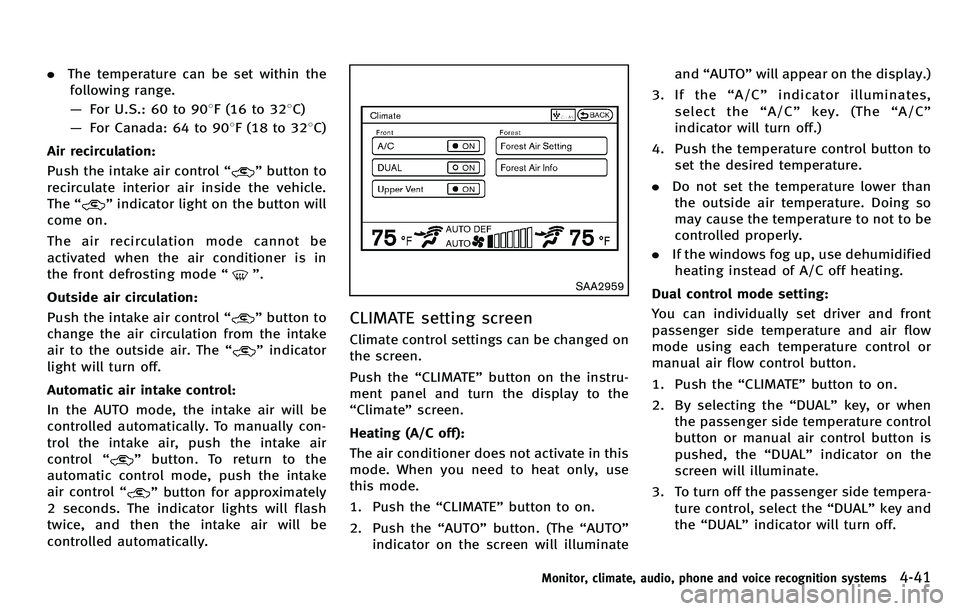
CLIMATE setting screen
Climate control settings can be changed on
the screen.
Push the “CLIMATE ”button on the instru-
ment panel and turn the display to the
“ Climate ”screen.
Heating (A/C off):
The air conditioner does not activate in this
mode. When you need to heat only, use
this mode.
1. Push the “CLIMATE” button to on.
2. Push the “AUTO” button. (The “AUTO ”
indicator on the screen will illuminate and
“AUTO” will appear on the display.)
3. If the “A/C ”indicator illuminates,
select the “A/C ”key. (The “A/C ”
indicator will turn off.)
4. Push the temperature control button to set the desired temperature.
. Do not set the temperature lower than
the outside air temperature. Doing so
may cause the temperature to not to be
controlled properly.
. If the windows fog up, use dehumidified
heating instead of A/C off heating.
Dual control mode setting:
You can individually set driver and front
passenger side temperature and air flow
mode using each temperature control or
manual air flow control button.
1. Push the “CLIMATE” button to on.
2. By selecting the “DUAL ”key, or when
the passenger side temperature control
button or manual air control button is
pushed, the “DUAL ”indicator on the
screen will illuminate.
3. To turn off the passenger side tempera- ture control, select the “DUAL ”key and
the “DUAL ”indicator will turn off.
Monitor, climate, audio, phone and voice recognition systems4-41
Page 213 of 522
4-42Monitor, climate, audio, phone and voice recognition systems
.The Dual control mode cannot be
activated when the air conditioner is
in the front defrosting mode “
”.
Automatic upper ventilator system:
1. Push the “CLIMATE” button to on.
2. Select the “Upper Vent ”key and the
indicator on the screen will illuminate.
The air flow against the driver ’sor
passenger ’s upper body becomes gen-
tle.
In this mode, air from the center
ventilators flows both straight and
upward in order to control the cabin
temperature without blowing air di-
rectly on the occupants.
Distribution between straight and upward
flows is determined automatically by the
climate control system. If you prefer strong
air flow against your upper body, select
“ Upper Vent ”key to turn the indicator off.
. When the outside temperature de-
creases to approximately 14 8F
( − 10 8C), the “Upper Vent ”function
does not activate. The “Upper Vent ”
function reactivates automatically when
the ambient temperature is 14 8F
( − 10 8C) or more. Display Forest Air
®system setting screen:
The “Forest Air setting ”screen will appear
when selecting the “Forest Air Setting ”key.
For the details about the Forest Air
®
system setting operation, see “Setting
Forest Air®” later in this section.
Display Forest Air
®Information screen:
The Forest Air®system information screen
will appear when selecting the “Forest Air
Info” key.
For details about the Forest Air
®system
information screen, see “Forest Air®sys-
tem Information ”later in this section.
FOREST AIR®
The Forest Air®system keeps the air inside
the vehicle clean using the automatic air
intake system and automatic ventilation.
The Forest Air
®system also makes the
inside of the vehicle more comfortable,
using a combination of the upper ventilator
and center ventilators at random.
*Forest Air
®is a trademark of Nissan Motor
Co., Ltd.
Main operation
Push the “”Forest button.
(The “
”and “AUTO” indicator light on the button will illuminate.)
When the following functions and sensors
are turned on, the Forest Air
®system
settings will activate.
. Breeze Mode
. Outside odor and exhaust gas detection
sensor
. Inside Air Quality sensor
. Auto humidity control
The fan speed and air flow is automatically
set to the AUTO position.
. The Forest Air
®system can be adjusted
and/or activated/deactivated for each
function. For details of The Forest Air
®
system settings, see later in this
section.
. When the “
”Forest button is
pushed while the air conditioner is
off, the air conditioner will automati-
cally activate.
. When the outside temperature drops to
approximately 32 8F(0 8C), the Forest
Air
®system will automatically turn off,
and the system will not be reactivated
automatically even if the outside tem-
perature reaches 32 8F(0 8C). To reacti-
vate the system, push the
Forest
button manually. (The indicator light on