climate control INFINITI M 2013 Workshop Manual
[x] Cancel search | Manufacturer: INFINITI, Model Year: 2013, Model line: M, Model: INFINITI M 2013Pages: 522, PDF Size: 3.72 MB
Page 235 of 522
4-64Monitor, climate, audio, phone and voice recognition systems
SAA2957
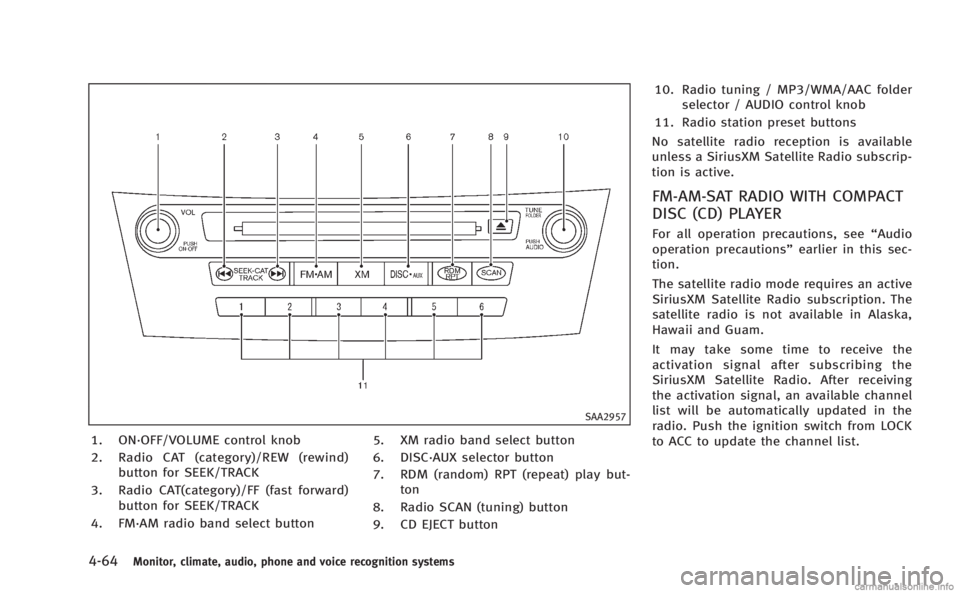
1. ON·OFF/VOLUME control knob
2. Radio CAT (category)/REW (rewind)button for SEEK/TRACK
3. Radio CAT(category)/FF (fast forward) button for SEEK/TRACK
4. FM·AM radio band select button 5. XM radio band select button
6. DISC·AUX selector button
7. RDM (random) RPT (repeat) play but-
ton
8. Radio SCAN (tuning) button
9. CD EJECT button 10. Radio tuning / MP3/WMA/AAC folder
selector / AUDIO control knob
11. Radio station preset buttons
No satellite radio reception is available
unless a SiriusXM Satellite Radio subscrip-
tion is active.
FM-AM-SAT RADIO WITH COMPACT
DISC (CD) PLAYER
For all operation precautions, see “Audio
operation precautions” earlier in this sec-
tion.
The satellite radio mode requires an active
SiriusXM Satellite Radio subscription. The
satellite radio is not available in Alaska,
Hawaii and Guam.
It may take some time to receive the
activation signal after subscribing the
SiriusXM Satellite Radio. After receiving
the activation signal, an available channel
list will be automatically updated in the
radio. Push the ignition switch from LOCK
to ACC to update the channel list.
Page 236 of 522
Audio main operation
Head unit :
The auto loudness circuit enhances the low
and high frequency ranges automatically in
both radio reception and CD playback.
ON·OFF/Volume control:
Push the ignition switch to the ACC or ON
position, and then push the ON·OFF button
while the system is off to turn on the last
audio source, which was playing immedi-
ately before the system was turned off.
While the system is on, pushing the
ON·OFF button turns the system off.
Turn the VOL control knob to adjust the
volume.
Adjusting tone quality and speaker bal-
ance:
To adjust Bass, Treble, Balance and Fade,
push the Audio control knob. When the
display shows the setting you want to
change (Bass, Treble, Balance and Fade),
rotate the Audio control knob to set the
desired setting. For the other setting
methods, see“How to use SETTING button”
earlier in this section.
This vehicle has some sound effect func-
tions as follows: .
Speed Sensitive Vol.
. Precision Phased Audio (if so equipped)
. BOSE®Centerpoint®2 (if so equipped)
. BOSE®AudioPilot®2 (if so equipped)
. Surround effect (if so equipped)
For more details, see “How to use SETTING
button” earlier in this section.
Switching the display:
Pushing the DISC·AUX button will switch
the displays as follows:
. Models with navigation system
iPod
®/USB ?CD/DVD ?Bluetooth®
Audio ?iPod®/USB
. Models without navigation system
iPod
®/USB ?CD ?iPod®/USB
Linking Intelligent Key (models with navi-
gation system):
The audio settings can be memorized for
each Intelligent Key. For more details, see
“Setting memory function” in the“3. Pre-
driving checks and adjustments” section.
FM-AM-SAT radio operation
When the radio band select button is
pushed while the ignition switch is in the
ACC or ON position, the radio will come on
at the channel last played. The last channel played will also come on
when the ON·OFF button is pushed to ON.
If another audio source is playing when the
radio band select button is turned to ON,
the audio source will automatically be
turned off and the last radio channel
played will come on.
When the stereo broadcast signal is weak,
the radio will automatically change from
stereo to monaural reception.
radio (FM·AM) band select :
Pushing the XM radio band select button
will change the band as follows:
AM ?FM1 ?FM2 ?AM
radio (XM) band select:
Pushing the XM radio band select button
will change the band as follows:
XM1 ?XM2 ?XM3 ?XM1
The satellite radio is not available in
Alaska, Hawaii and Guam.
TUNE (Tuning) : . For AM and FM radio
Turn the radio TUNE knob for manual
tuning.
Monitor, climate, audio, phone and voice recognition systems4-65
Page 238 of 522
song is playing on a station while
listening to SiriusXM Satellite Radio.
. Categories
Selecting a category will go to the first
channel in that category as defined by
SiriusXM Satellite Radio.
. Direct Tune
Inputs the channel number by using a
keypad.
Text (models without navigation system):
When the “Text”key is selected with the
INFINITI controller on the display and then
the ENTER button is pushed while the
satellite radio is being played, the text
information listed below will be displayed
on the screen.
. CH Name
. Category
. Name
. Title
. OtherCompact Disc (CD) player operation
Push the ignition switch to the ACC or ON
position and insert the Compact Disc (CD)
into the slot with the label side facing up.
The CD will be guided automatically into
the slot and start playing.
After loading the CD, the number of tracks
on the CD and the play time will appear on
the display.
If the radio is already operating, it will
automatically turn off and the CD will play.
If the system has been turned off while the
CD was playing, pushing the ON·OFF
button will start the CD.
Do not use 3.1 in (8 cm) discs.
PLAY:
When the DISC·AUX (CD play) button is
pushed with the system off and the CD
loaded, the system will turn on and the CD
will start to play.
When the DISC·AUX button is pushed with
the CD loaded and the radio playing, the
radio will automatically be turned off and
the CD will start to play. Menu (models with navigation system):
When the “Menu”key on the display is
selected while the CD is being played, the
menu screen will be displayed. The follow-
ing menu options are available.
. Folder List (for CD with compressed
audio files)
Displays the folder list.
. Track List
Displays the track list.
. Play Mode
Select a play mode from the following
items.
— Normal
— 1 Folder Repeat (for CD with com-
pressed audio files)
— 1 Track Repeat
— 1 Disc Random
— 1 Folder Random (for CD with
compressed audio files)
. Title Text Priority (for CD)
Set the priority to CDDB (Compact Disc
Data Base) to acquire track information
from the Gracenote Database, or set
the priority to CD-TEXT to acquire the
information from CDs.
Monitor, climate, audio, phone and voice recognition systems4-67
Page 239 of 522
4-68Monitor, climate, audio, phone and voice recognition systems
Text (models without navigation system):
When the“Text”key is selected in the
screen using the INFINITI controller and
then the ENTER button is pushed while the
CD is being played, the music information
below will be displayed on the screen.
CD:
. Disc title
. Track title
CD with compressed audio files:
. Folder title
. File title
. Song title
. Album title
. Artist
Next/Previous Track and Fast For-
ward/Rewind:
When the
orbutton is pushed for
more than 1.5 seconds while the CD is
being played, the CD will play while fast
forwarding or rewinding. When the button
is released, the CD will return to normal
play speed.
When the
orbutton is pushed for
less than 1.5 seconds while the CD is being
played, the next track or the beginning of the current track on the CD will be played.
RANDOM (RDM), REPEAT (RPT):
When the RPT button is pushed while the
CD is played, the play pattern can be
changed as follows:
(CD)
(CD with compressed audio files)
CD EJECT:
When the CD EJECT button is pushed with
the CD loaded, the CD will be ejected.
When this button is pushed while the CD is
being played, the CD will be ejected.
If the CD comes out and is not removed, it
will be pulled back into the slot to protect
it.
DVD (Digital Versatile Disc) PLAYER
OPERATION (models with naviga-
tion system)
Precautions
Start the engine when using the DVD
entertainment system.
Movies will not be shown on the front
display while the vehicle is in any drive
position to reduce driver distraction. Audio
is available when a movie is played. To
view movies in the front display, stop the
vehicle in a safe location, move the
selector lever to the P (Park) position.
WARNING
. The driver must not attempt to operate
the DVD system or wear the headphones
while the vehicle is in motion so that full
attention may be given to vehicle opera-
tion.
. Do not attempt to modify the system to
display a movie on the front screen while
the vehicle is being driven. Doing so may
distract the driver and may cause a
collision and serious personal injury or
death.
Page 240 of 522
CAUTION
.Only operate the DVD while the vehicle
engine is running. Operating the DVD for
extended periods of time with the
engine OFF can discharge the vehicle
battery.
. Do not allow the system to get wet.
Excessive moisture such as spilled
liquids may cause the system to mal-
function.
. While playing VIDEO-CD media, this DVD
player does not guarantee complete
functionality of all VIDEO-CD formats.
Display settings
To adjust the front display mode, push the
SETTING button while the DVD is being
played, select the “Others”key and then
select the “Display”key.
To adjust the display ON/OFF, brightness,
tint, color and contrast, select the “Display
Adjustment” key and then select each key.
Then you can adjust each item using the
INFINITI controller. After changes have
been made push the BACK button to save
the setting.
SAA2497
Playing a DVD
DISC·AUX button:
Park the vehicle in a safe location for the
front seat occupants to operate the DVD
drive while watching the images.
Push the DISC·AUX button on the instru-
ment panel and turn the display to the DVD
mode.
When a DVD is loaded, it will be replayed
automatically.
The operation screen will be turned on
when the DISC·AUX button located on the
instrument panel is pushed while a DVD is
being played, and it will turn off auto- matically after a period of time. To turn it
on again, push the DISC·AUX button again.
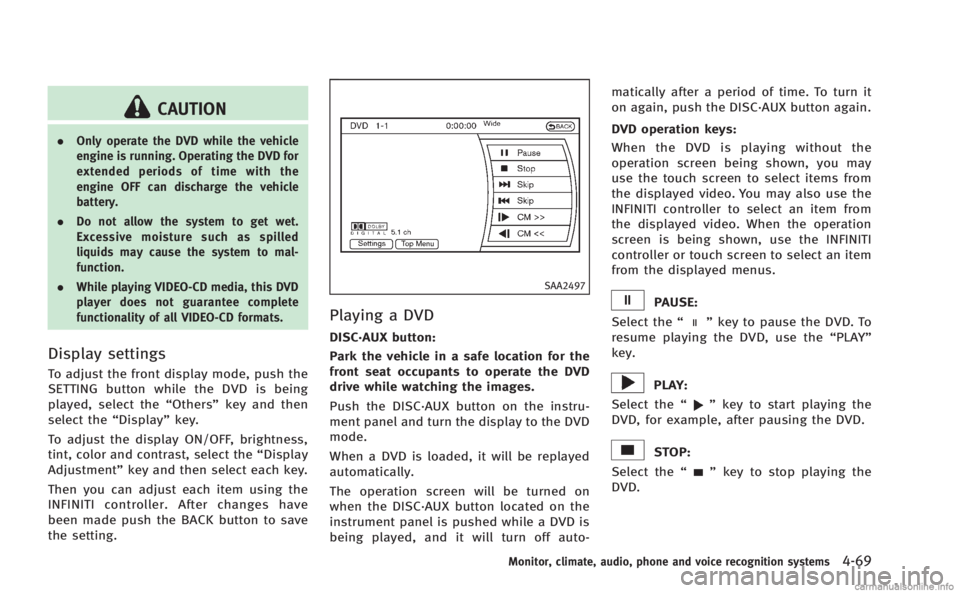
DVD operation keys:
When the DVD is playing without the
operation screen being shown, you may
use the touch screen to select items from
the displayed video. You may also use the
INFINITI controller to select an item from
the displayed video. When the operation
screen is being shown, use the INFINITI
controller or touch screen to select an item
from the displayed menus.
PAUSE:
Select the “
”key to pause the DVD. To
resume playing the DVD, use the “PLAY”
key.
PLAY:
Select the “
”key to start playing the
DVD, for example, after pausing the DVD.
STOP:
Select the “
”key to stop playing the
DVD.
Monitor, climate, audio, phone and voice recognition systems4-69
Page 242 of 522
Angle (DVD-VIDEO):
If the DVD contains different angles (such
as moving images), the current image
angle can be switched to another one.
Select the“Angle” key. The angle will
change each time the “+”side or “−”side
is selected.
Angle Mark (DVD-VIDEO):
When this item is turned on, an angle mark
will be shown on the bottom of the screen
if the scene can be seen from a different
angle.
Menu Skip (DVD-VIDEO):
DVD menus are automatically configured
and the contents will be played directly
when the “Menu Skip” key is turned on.
Note that some discs may not be played
directly even if this item is turned on.
CM Skip (DVD-VIDEO):
Select the “CM Skip” key. Choose the
setting time from 15, 30 or 60 seconds by
selecting the “+”side or “−”side.
DRC (DVD-VIDEO, DVD-VR):
DRC (Dynamic Range Compression) auto-
matically adjusts the soundtrack volume
level to maintain a more even sound to the
speakers. DVD Language (DVD-VIDEO, VIDEO-CD):
Select the “DVD Language” key to open the
number entry screen. Input the number
corresponding to the preferred language
and select the “OK”key. The DVD top menu
language will be changed to the one
specified.
Display:
To adjust the image quality of the screen,
select the preferred adjustment items.
Audio:
Select the preferred language for audio.
Subtitle (DVD-VIDEO, DVD-VR):
Select the preferred language for subtitles.
Display Mode (DVD-VIDEO, VIDEO-CD, DVD-
VR):
Select from the “Full”,“Wide”, “Normal” or
“Cinema” modes.
Title List (DVD-VR):
Select the preferred title from the list.
Play Mode:
Select the preferred play mode.
PG/PL Mode (DVD-VR):
Select the “PG”
or“PL” mode.
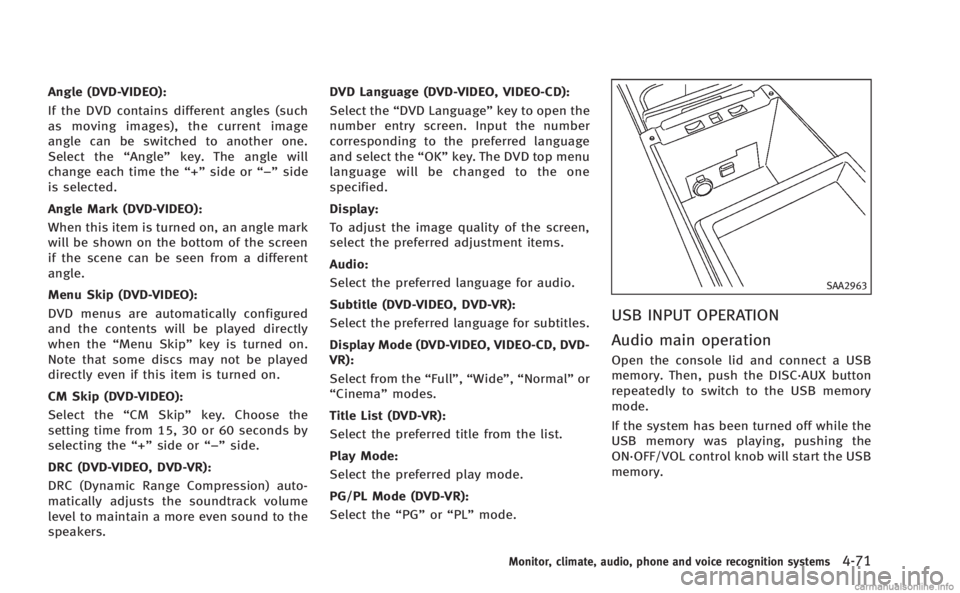
SAA2963
USB INPUT OPERATION
Audio main operation
Open the console lid and connect a USB
memory. Then, push the DISC·AUX button
repeatedly to switch to the USB memory
mode.
If the system has been turned off while the
USB memory was playing, pushing the
ON·OFF/VOL control knob will start the USB
memory.
Monitor, climate, audio, phone and voice recognition systems4-71
Page 244 of 522
Audio file operation
PLAY:
When the DISC·AUX button is pushed with
the system off and the USB memory
inserted, the system will turn on.
If another audio source is playing and a
USB memory is inserted, push the
DISC·AUX button repeatedly until the cen-
ter display changes to the USB memory
mode.
Next/Previous File and Fast Forward/
Rewind:
When the
orbutton is pushed for
more than 1.5 seconds while a USB
memory is being played, the USB memory
will play while forwarding or rewinding.
When the button is released, the USB
memory will return to normal play speed.
When the
orbutton is pushed for
less than 1.5 seconds while the USB
memory is being played, the next track or
the beginning of the current track on the
USB memory will be played.
The INFINITI controller can also be used to
select tracks when the USB memory is
being played. Folder selection:
To change to another folder in the USB
memory, turn the folder selector or choose
a folder displayed on the screen using the
INFINITI controller.
RANDOM (RDM), REPEAT (RPT):
When the RDM·RPT button is pushed while
the USB memory is played, the play
pattern can be change as follows.
To change the play mode, push the RPT
button repeatedly and the mode will
change as follows.
Normal ?1 Folder Repeat ?1 Track
Repeat ?All Random ?1 Folder Random
? Normal
Text (models without navigation system):
When the “Text”key is selected on the
screen using the INFINITI controller and
then the ENTER button is pushed while a
USB memory is being played, the music
information listed below will be displayed
on the screen.
. Folder title
. File title
. Song title .
Album Title
. Artist
Monitor, climate, audio, phone and voice recognition systems4-73
Page 246 of 522

mode.
Operation keys:
To operate the USB memory, select the
desired key displayed on the operation
screen using the INFINITI controller.
Pause
Select the “
”key to pause the movie
file. To resume playing the movie file,
select the “
”key.
Play
Select the “
”key to start playing a
movie file, for example, after pausing a
movie file.
STOP
Select the “
”key to stop playing a
movie file.
Skip (Next chapter)
Select the “
”key to skip the chapter(s)
of the disc forward. The chapters will
advance the number of times the ENTER
button is pushed.
Skip (Previous chapter)
Select the “
”key to skip the chapter(s)
of the disc backward. The chapters will go
back the number of times the “
”key is
selected.
List:
Select the “List”key on the movie file
operation screen to display the file list.
SAA2504
Example
Settings:
Select the “Settings”key to adjust the
following settings.
. Audio File Playback
Switch to the audio playback mode.
This item is displayed only when the
USB memory contains the audio files.
. Play Mode
Select the “Normal”or“1 Track Re-
peat” play mode.
. 10 Key Search
Select the “10 Key Search” key to open
the number entry screen.
Monitor, climate, audio, phone and voice recognition systems4-75
Page 247 of 522
4-76Monitor, climate, audio, phone and voice recognition systems
Input the number to be searched and
select the“OK”key.
The specified folder/file will be played.
. Display
To adjust the image quality of the
screen, select the preferred adjustment
items.
. DRC
DRC (Dynamic Range Compression)
automatically adjusts the soundtrack
volume level to maintain a more even
sound to the speakers.
. Audio
Select the preferred language for audio.
. Subtitle
Select the preferred language for sub-
title.
. Display Mode
Select the “Normal”,“Wide”,“Cinema”
or “Full” mode.Bluetooth®STREAMING AUDIO
(models with navigation system)
Your INFINITI is equipped with Bluetooth®
Streaming Audio. If you have a compatible
Bluetooth®device with streaming audio
(A2DP profile), you can set up the wireless
connection between your Bluetooth
®de-
vice and the in-vehicle audio system. This
connection allows you to listen to the
audio from the Bluetooth
®device using
your vehicle speakers. It also may allow
basic control of the device for playing and
skipping audio files using the AVRCP
Bluetooth
®profile. All Bluetooth®Devices
do not have the same level of controls for
AVRCP. Please consult the manual for your
Bluetooth
®Device for more details.
Once your Bluetooth®device is connected
to the in-vehicle audio system, it will
automatically reconnect whenever the de-
vice is present in the vehicle and you select
Bluetooth
®Audio from your audio system.
You do not need to manually reconnect for
each usage.
Wireless LAN (Wi-Fi) and the Bluetooth
®
functions share the same frequency band
(2.4 GHz). Using the Bluetooth®and the
wireless LAN functions at the same time
may slow down or disconnect the commu- nication and cause undesired noise. It is
recommended that you turn off the wire-
less LAN (Wi-Fi) when using the Bluetooth
®
functions.
Regulatory information
FCC Regulatory information:
.
CAUTION: To maintain compliance with
FCC’s RF exposure guidelines, use only
the supplied antenna. Unauthorized
antenna, modification, or attachments
could damage the transmitter and may
violate FCC regulations.
. Operation is subject to the following
two conditions:
1) This device may not cause inter- ference and
2) This device must accept any inter- ference, including interference that
may cause undesired operation of
the device
IC Regulatory information:
. Operation is subject to the following
two conditions:
1) This device may not cause inter- ference, and
2) This device must accept any inter- ference, including interference that
Page 250 of 522
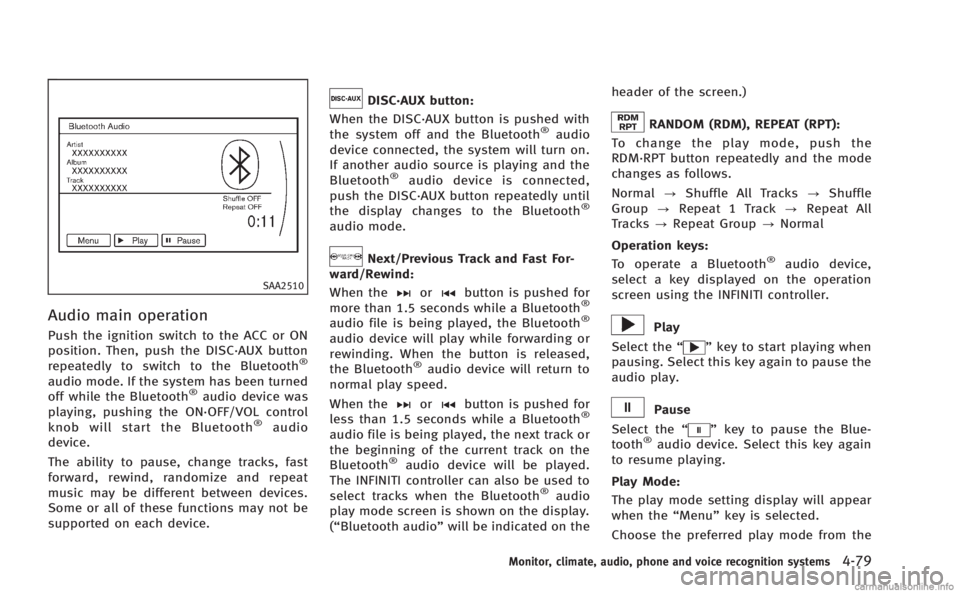
SAA2510
Audio main operation
Push the ignition switch to the ACC or ON
position. Then, push the DISC·AUX button
repeatedly to switch to the Bluetooth
®
audio mode. If the system has been turned
off while the Bluetooth®audio device was
playing, pushing the ON·OFF/VOL control
knob will start the Bluetooth
®audio
device.
The ability to pause, change tracks, fast
forward, rewind, randomize and repeat
music may be different between devices.
Some or all of these functions may not be
supported on each device.
DISC·AUX button:
When the DISC·AUX button is pushed with
the system off and the Bluetooth
®audio
device connected, the system will turn on.
If another audio source is playing and the
Bluetooth
®audio device is connected,
push the DISC·AUX button repeatedly until
the display changes to the Bluetooth
®
audio mode.
Next/Previous Track and Fast For-
ward/Rewind:
When the
orbutton is pushed for
more than 1.5 seconds while a Bluetooth®
audio file is being played, the Bluetooth®
audio device will play while forwarding or
rewinding. When the button is released,
the Bluetooth
®audio device will return to
normal play speed.
When the
orbutton is pushed for
less than 1.5 seconds while a Bluetooth®
audio file is being played, the next track or
the beginning of the current track on the
Bluetooth
®audio device will be played.
The INFINITI controller can also be used to
select tracks when the Bluetooth
®audio
play mode screen is shown on the display.
(“Bluetooth audio” will be indicated on the header of the screen.)
RANDOM (RDM), REPEAT (RPT):
To change the play mode, push the
RDM·RPT button repeatedly and the mode
changes as follows.
Normal ?Shuffle All Tracks ?Shuffle
Group ?Repeat 1 Track ?Repeat All
Tracks ?Repeat Group ?Normal
Operation keys: To operate a Bluetooth
®audio device,
select a key displayed on the operation
screen using the INFINITI controller.
Play
Select the “
”key to start playing when
pausing. Select this key again to pause the
audio play.
Pause
Select the “
”key to pause the Blue-
tooth®audio device. Select this key again
to resume playing.
Play Mode:
The play mode setting display will appear
when the “Menu”key is selected.
Choose the preferred play mode from the
Monitor, climate, audio, phone and voice recognition systems4-79