climate control INFINITI M 2013 Repair Manual
[x] Cancel search | Manufacturer: INFINITI, Model Year: 2013, Model line: M, Model: INFINITI M 2013Pages: 522, PDF Size: 3.72 MB
Page 252 of 522
see“Bluetooth®Hands-Free Phone System
(models with navigation system)” later in
this section.
SAA2964
iPod®PLAYER OPERATION
Connecting iPod
®
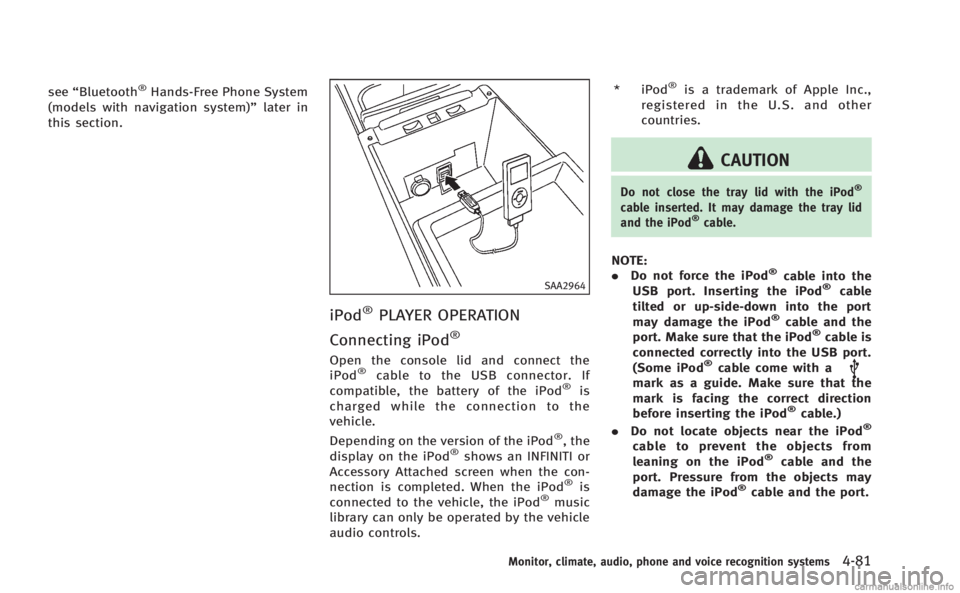
Open the console lid and connect the
iPod®cable to the USB connector. If
compatible, the battery of the iPod®is
charged while the connection to the
vehicle.
Depending on the version of the iPod
®, the
display on the iPod®shows an INFINITI or
Accessory Attached screen when the con-
nection is completed. When the iPod
®is
connected to the vehicle, the iPod®music
library can only be operated by the vehicle
audio controls. * iPod
®is a trademark of Apple Inc.,
registered in the U.S. and other
countries.
CAUTION
Do not close the tray lid with the iPod®
cable inserted. It may damage the tray lid
and the iPod®cable.
NOTE:
. Do not force the iPod®cable into the
USB port. Inserting the iPod®cable
tilted or up-side-down into the port
may damage the iPod
®cable and the
port. Make sure that the iPod®cable is
connected correctly into the USB port.
(Some iPod
®cable come with amark as a guide. Make sure that the
mark is facing the correct direction
before inserting the iPod
®cable.)
. Do not locate objects near the iPod®
cable to prevent the objects from
leaning on the iPod®cable and the
port. Pressure from the objects may
damage the iPod
®cable and the port.
Monitor, climate, audio, phone and voice recognition systems4-81
Page 253 of 522
4-82Monitor, climate, audio, phone and voice recognition systems
Compatibility
The following models are available:
Models with navigation system:
.Fifth generation iPod
®(version 1.2.3 or
later)
. iPod Classic
®(version 1.1.1 or later)
. First generation iPod touch®(version
2.0.0 or later)
. Second generation iPod touch
®(firm-
ware version 1.2.3 or later)
. First generation iPod nano
®(firmware
version 1.3.1 or later)
. Second generation iPod nano
®(firm-
ware version 1.1.3 or later)
. Third generation iPod nano
®(firmware
version 1.1 or later)
. Fourth generation iPod nano
®(firmware
version 1.0.2 or later)
Models without navigation system:
. Fifth generation iPod
®(firmware ver-
sion 1.3)
. First generation iPod Classic
®(firmware
version 1.1.2 PC)
. Second generation iPod Classic
®(firm-
ware version 2.0 PC)
. First generation iPod touch
®(firmware
version 2.1) .
Second generation iPod touch
®(firm-
ware version 2.1.1)
. First generation iPod nano
®(firmware
version 1.3.1)
. Second generation iPod nano
®(firm-
ware version 1.1.3)
. Third generation iPod nano
®(firmware
version 1.1 PC)
. Third generation iPhone
®(firmware
version 2.1)
Make sure that the iPod
®version is
updated.
Audio main operation
Push the ignition switch to the ACC or ON
position. Then, push the DISC·AUX button
repeatedly to switch to the iPod
®mode.
If the system has been turned off while the
iPod
®was playing, pushing the ON·OFF
button will start the iPod®.
PLAY:
When the DISC·AUX button is pushed with
the system off and the iPod
®connected,
the system will turn on. If another audio
source is playing and the iPod
®is con-
nected, push the DISC·AUX button repeat-
edly until the center display changes to the
iPod
®mode. Interface:
The interface for iPod
®operation shown on
the vehicle center display is similar to the
iPod
®interface. Use the INFINITI controller
and the ENTER or BACK button to play the
iPod
®with your favorite settings.
The following items can be chosen from the
menu list screen. For further information
about each item, see the iPod
®Owner’s
Manual.
. Now Playing
. Playlists
. Artists
. Albums
. Songs
. Podcasts
. Genres
. Composers
. Audiobooks
. Shuffle Songs
. Play Mode
The following buttons shown on the screen
are also available:
.
: returns to the previous screen.
.
: plays/pauses the music selected.
Page 254 of 522
Next/Previous Track and Fast For-
ward/Rewind:
When the
orbutton is pushed for
more than 1.5 seconds while the iPod®is
playing, the iPod®will play while fast
forwarding or rewinding. When the button
is released, the iPod
®will return to the
normal play speed.
When the
orbutton is pushed for
less than 1.5 seconds while the iPod®is
playing, the next track or the beginning of
the current track on the iPod
®will be
played.
The INFINITI controller can also be used to
select tracks when the iPod
®is playing.
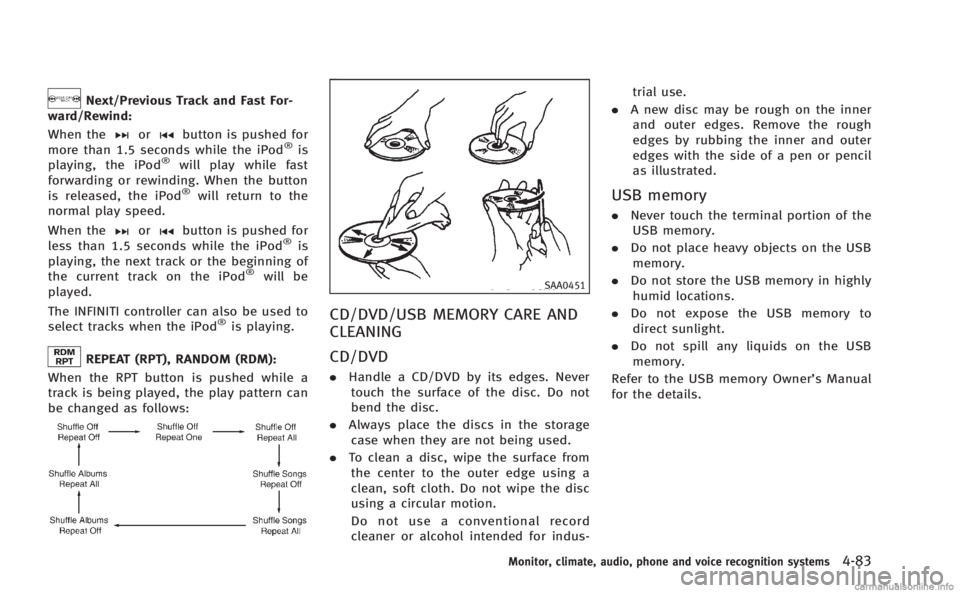
REPEAT (RPT), RANDOM (RDM):
When the RPT button is pushed while a
track is being played, the play pattern can
be changed as follows:
SAA0451
CD/DVD/USB MEMORY CARE AND
CLEANING
CD/DVD
. Handle a CD/DVD by its edges. Never
touch the surface of the disc. Do not
bend the disc.
. Always place the discs in the storage
case when they are not being used.
. To clean a disc, wipe the surface from
the center to the outer edge using a
clean, soft cloth. Do not wipe the disc
using a circular motion.
Do not use a conventional record
cleaner or alcohol intended for indus- trial use.
. A new disc may be rough on the inner
and outer edges. Remove the rough
edges by rubbing the inner and outer
edges with the side of a pen or pencil
as illustrated.
USB memory
. Never touch the terminal portion of the
USB memory.
. Do not place heavy objects on the USB
memory.
. Do not store the USB memory in highly
humid locations.
. Do not expose the USB memory to
direct sunlight.
. Do not spill any liquids on the USB
memory.
Refer to the USB memory Owner’s Manual
for the details.
Monitor, climate, audio, phone and voice recognition systems4-83
Page 255 of 522
4-84Monitor, climate, audio, phone and voice recognition systems
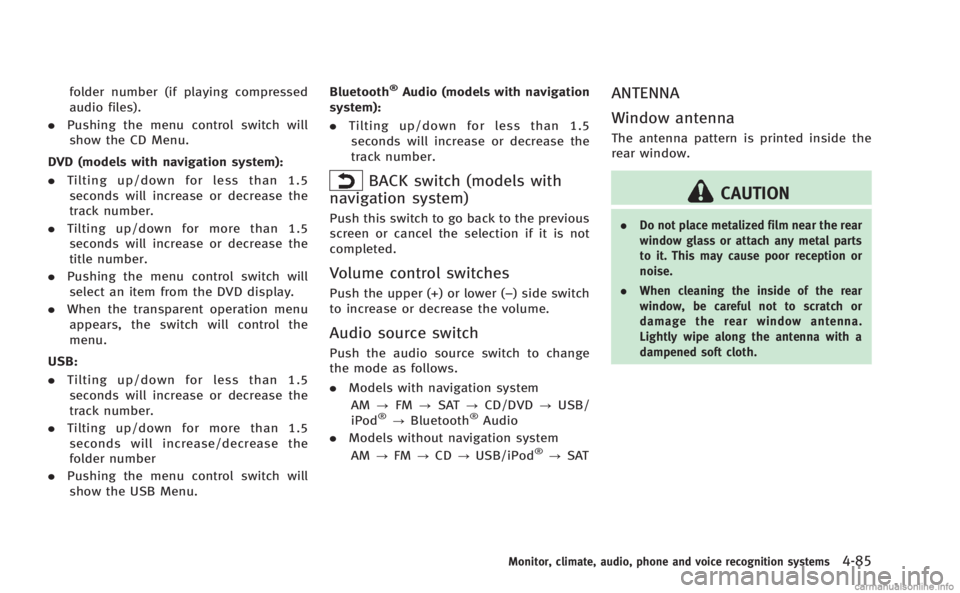
JVH0049X
Models with navigation system
JVH0050X
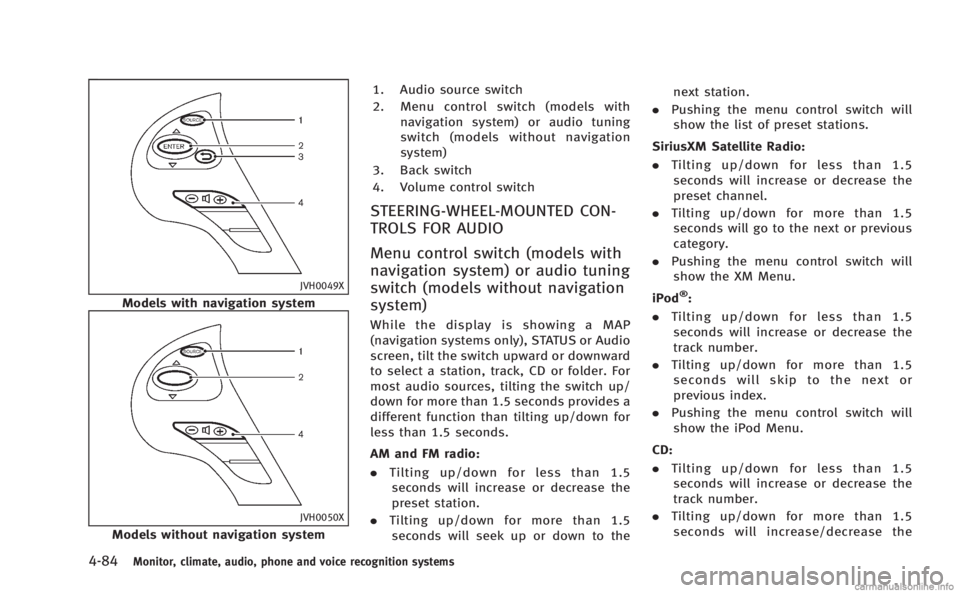
Models without navigation system1. Audio source switch
2. Menu control switch (models with
navigation system) or audio tuning
switch (models without navigation
system)
3. Back switch
4. Volume control switch
STEERING-WHEEL-MOUNTED CON-
TROLS FOR AUDIO
Menu control switch (models with
navigation system) or audio tuning
switch (models without navigation
system)
While the display is showing a MAP
(navigation systems only), STATUS or Audio
screen, tilt the switch upward or downward
to select a station, track, CD or folder. For
most audio sources, tilting the switch up/
down for more than 1.5 seconds provides a
different function than tilting up/down for
less than 1.5 seconds.
AM and FM radio:
. Tilting up/down for less than 1.5
seconds will increase or decrease the
preset station.
. Tilting up/down for more than 1.5
seconds will seek up or down to the next station.
. Pushing the menu control switch will
show the list of preset stations.
SiriusXM Satellite Radio:
. Tilting up/down for less than 1.5
seconds will increase or decrease the
preset channel.
. Tilting up/down for more than 1.5
seconds will go to the next or previous
category.
. Pushing the menu control switch will
show the XM Menu.
iPod
®:
. Tilting up/down for less than 1.5
seconds will increase or decrease the
track number.
. Tilting up/down for more than 1.5
seconds will skip to the next or
previous index.
. Pushing the menu control switch will
show the iPod Menu.
CD:
. Tilting up/down for less than 1.5
seconds will increase or decrease the
track number.
. Tilting up/down for more than 1.5
seconds will increase/decrease the
Page 256 of 522
folder number (if playing compressed
audio files).
. Pushing the menu control switch will
show the CD Menu.
DVD (models with navigation system):
. Tilting up/down for less than 1.5
seconds will increase or decrease the
track number.
. Tilting up/down for more than 1.5
seconds will increase or decrease the
title number.
. Pushing the menu control switch will
select an item from the DVD display.
. When the transparent operation menu
appears, the switch will control the
menu.
USB:
. Tilting up/down for less than 1.5
seconds will increase or decrease the
track number.
. Tilting up/down for more than 1.5
seconds will increase/decrease the
folder number
. Pushing the menu control switch will
show the USB Menu. Bluetooth®Audio (models with navigation
system):
. Tilting up/down for less than 1.5
seconds will increase or decrease the
track number.
BACK switch (models with
navigation system)
Push this switch to go back to the previous
screen or cancel the selection if it is not
completed.
Volume control switches
Push the upper (+) or lower (−) side switch
to increase or decrease the volume.
Audio source switch
Push the audio source switch to change
the mode as follows.
. Models with navigation system
AM ?FM ?SAT ?CD/DVD ?USB/
iPod
®? Bluetooth®Audio
. Models without navigation system
AM ?FM ?CD ?USB/iPod
®?SAT
ANTENNA
Window antenna
The antenna pattern is printed inside the
rear window.
CAUTION
. Do not place metalized film near the rear
window glass or attach any metal parts
to it. This may cause poor reception or
noise.
. When cleaning the inside of the rear
window, be careful not to scratch or
damage the rear window antenna.
Lightly wipe along the antenna with a
dampened soft cloth.
Monitor, climate, audio, phone and voice recognition systems4-85
Page 257 of 522
4-86Monitor, climate, audio, phone and voice recognition systems
When installing a car phone or a CB radio
in your vehicle, be sure to observe the
following cautions, otherwise the new
equipment may adversely affect the elec-
tronic control modules and electronic con-
trol system harness.
WARNING
.A cellular phone should not be used for
any purpose while driving so full atten-
tion may be given to vehicle operation.
Some jurisdictions prohibit the use of
cellular phones while driving.
. If you must make a call while your
vehicle is in motion, the hands-free
cellular phone operational mode (if so
equipped) is highly recommended. Ex-
ercise extreme caution at all times so full
attention may be given to vehicle opera-
tion.
. If a conversation in a moving vehicle
requires you to take notes, pull off the
road to a safe location and stop your
vehicle before doing so.
CAUTION
.Keep the antenna as far away as
possible from the electronic control
modules.
. Keep the antenna wire more than 8 in
(20 cm) away from the electronic control
system harness. Do not route the anten-
na wire next to any harness.
. Adjust the antenna standing-wave ratio
as recommended by the manufacturer.
. Connect the ground wire from the CB
radio chassis to the body.
. For details, consult an INFINITI retailer.
WARNING
.Use a phone after stopping your vehicle
in a safe location. If you have to use a
phone while driving, exercise extreme
caution at all times so full attention may
be given to vehicle operation.
. If you find yourself unable to devote full
attention to vehicle operation while
talking on the phone, pull off the road
to a safe location and stop your vehicle
before doing so.
CAUTION
To avoid draining the vehicle battery, use a
phone after starting the engine.
Your INFINITI is equipped with Bluetooth®
Hands-Free Phone System. If you are an
owner of a compatible Bluetooth®enabled
cellular phone, you can set up the wireless
connection between your cellular phone
and the in-vehicle phone module. With
Bluetooth
®wireless technology, you can
make or receive a telephone call with your
cellular phone in your pocket.
CAR PHONE OR CB RADIO Bluetooth®HANDS-FREE PHONE SYSTEM
(models with navigation system)
Page 259 of 522
4-88Monitor, climate, audio, phone and voice recognition systems
.Keep the interior of the vehicle as quiet
as possible to hear the caller ’s voice
clearly as well as to minimize its
echoes.
. If reception between callers is unclear,
adjusting the incoming or outgoing call
volume may improve the clarity.
REGULATORY INFORMATION
FCC Regulatory information
. CAUTION: To maintain compliance with
FCC’s RF exposure guidelines, use only
the supplied antenna. Unauthorized
antenna, modification, or attachments
could damage the transmitter and may
violate FCC regulations.
. Operation is subject to the following
two conditions:
1) this device may not cause interfer- ence and
2) this device must accept any inter- ference, including interference that
may cause undesired operation of
the device
IC Regulatory information
.Operation is subject to the following
two conditions: (1) this device may not
cause interference, and (2) this device must accept any interference, including
interference that may cause undesired
operation of the device.
. This Class B digital apparatus meets all
requirements of the Canadian Interfer-
ence-Causing Equipment Regulations.
Bluetooth trademark:
Bluetooth®is a trademark
owned by Bluetooth SIG, Inc.,
and licensed to Clarion Co., Ltd.
VOICE COMMANDS
You can use voice commands to operate
various Bluetooth®Hands-Free Phone Sys-
tem features using the INFINITI Voice
Recognition system.
For more details, see “INFINITI Voice
Recognition system (models with naviga-
tion system)” later in this section; page
4-111.
JVH0047X
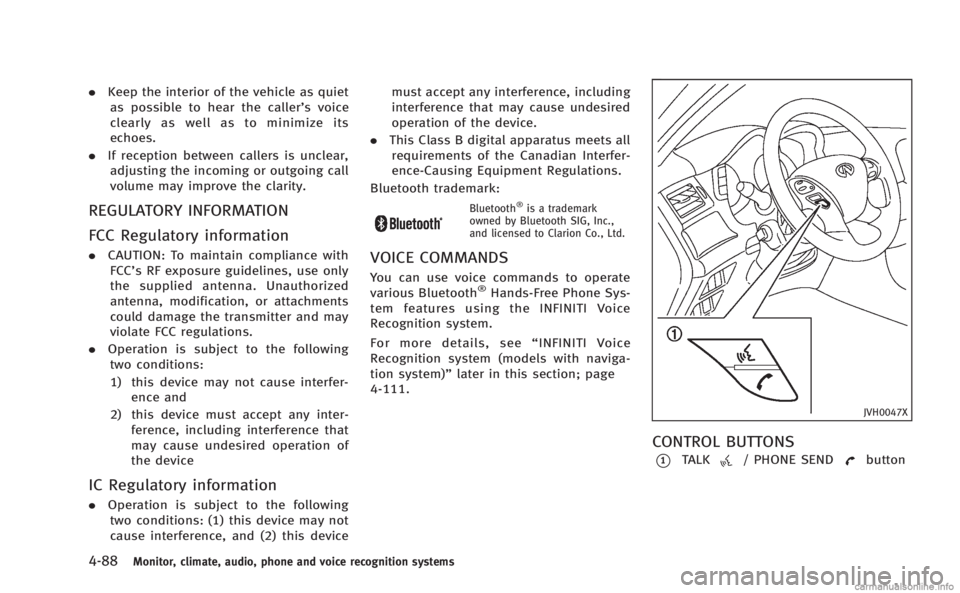
CONTROL BUTTONS
*1TALK/ PHONE SENDbutton
Page 265 of 522
4-94Monitor, climate, audio, phone and voice recognition systems
SAA3587
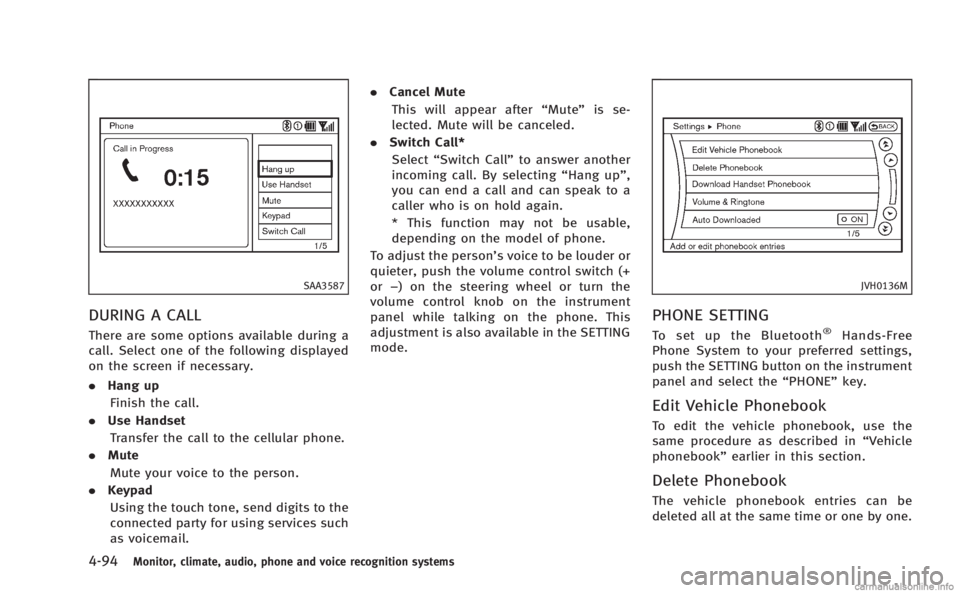
DURING A CALL
There are some options available during a
call. Select one of the following displayed
on the screen if necessary.
.Hang up
Finish the call.
. Use Handset
Transfer the call to the cellular phone.
. Mute
Mute your voice to the person.
. Keypad
Using the touch tone, send digits to the
connected party for using services such
as voicemail. .
Cancel Mute
This will appear after “Mute”is se-
lected. Mute will be canceled.
. Switch Call*
Select “Switch Call” to answer another
incoming call. By selecting “Hang up”,
you can end a call and can speak to a
caller who is on hold again.
* This function may not be usable,
depending on the model of phone.
To adjust the person’s voice to be louder or
quieter, push the volume control switch (+
or −) on the steering wheel or turn the
volume control knob on the instrument
panel while talking on the phone. This
adjustment is also available in the SETTING
mode.
JVH0136M
PHONE SETTING
To set up the Bluetooth®Hands-Free
Phone System to your preferred settings,
push the SETTING button on the instrument
panel and select the “PHONE”key.
Edit Vehicle Phonebook
To edit the vehicle phonebook, use the
same procedure as described in “Vehicle
phonebook” earlier in this section.
Delete Phonebook
The vehicle phonebook entries can be
deleted all at the same time or one by one.
Page 266 of 522
Download Handset Phonebook
Download the contacts registered in a
Bluetooth®cellular phone. Availability of
this function depends on each cellular
phone. The memory downloading proce-
dure from the cellular phone also varies
according to each cellular phone. See
cellular phone Owner’s Manual for details.
When “Auto Downloaded” is active, the
system will automatically re-download the
entries registered in the phone everytime it
is paired with the vehicle, even after you
delete the entries from your vehicle’ s
Handset Memory.
Volume & Ringtone
The following kinds of phone volume can
be set. Pushing thebutton and
selecting the “Volume & Ringtone” key
can also operate the same settings.
. Ringtone/Incoming Call/Outgoing Call
To increase or decrease the volume,
select the “Ringtone”, “Incoming Call”
or “Outgoing Call” key and adjust it
with the INFINITI controller.
. Automatic Hold
When this function is activated, an
incoming phone call is automatically
held. .
Vehicle Ringtone
When this function is activated, a
specific ringtone that is different from
the cellular phone will sound when
receiving a call.
Auto Downloaded
When this item is activated, the phonebook
of a hands-free phone is automatically
downloaded at the same time that the
hands-free phone is connected.
When this item is active, the system will
automatically re-download the entries re-
gistered in the connected phone even if
you attempt to delete the entries.
Monitor, climate, audio, phone and voice recognition systems4-95
Page 270 of 522
Bluetooth trademark:
Bluetooth®is a trademark
owned by Bluetooth SIG, Inc.,
and licensed to Visteon Cor-
poration.
JVH0134X
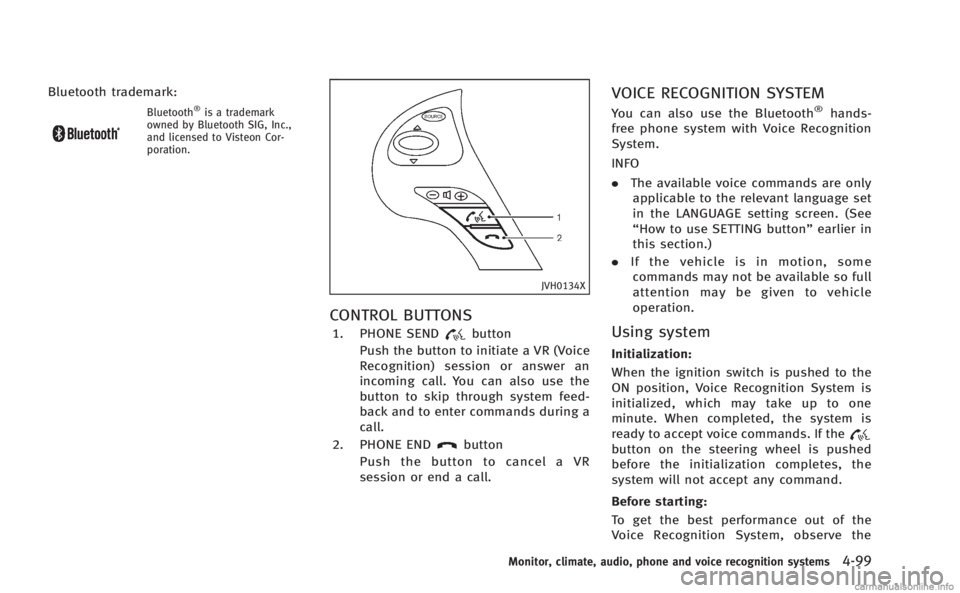
CONTROL BUTTONS
1. PHONE SENDbutton
Push the button to initiate a VR (Voice
Recognition) session or answer an
incoming call. You can also use the
button to skip through system feed-
back and to enter commands during a
call.
2. PHONE END
button
Push the button to cancel a VR
session or end a call.
VOICE RECOGNITION SYSTEM
You can also use the Bluetooth®hands-
free phone system with Voice Recognition
System.
INFO
. The available voice commands are only
applicable to the relevant language set
in the LANGUAGE setting screen. (See
“How to use SETTING button” earlier in
this section.)
. If the vehicle is in motion, some
commands may not be available so full
attention may be given to vehicle
operation.
Using system
Initialization:
When the ignition switch is pushed to the
ON position, Voice Recognition System is
initialized, which may take up to one
minute. When completed, the system is
ready to accept voice commands. If the
button on the steering wheel is pushed
before the initialization completes, the
system will not accept any command.
Before starting:
To get the best performance out of the
Voice Recognition System, observe the
Monitor, climate, audio, phone and voice recognition systems4-99