climate settings INFINITI M 2013 Owner's Manual
[x] Cancel search | Manufacturer: INFINITI, Model Year: 2013, Model line: M, Model: INFINITI M 2013Pages: 522, PDF Size: 3.72 MB
Page 117 of 522
2-44Instruments and controls
.Do not put anything on the seat which
insulates heat, such as a blanket,
cushion, seat cover, etc. Otherwise, the
seat may become overheated.
. Do not place anything hard or heavy on
the seat or pierce it with a pin or similar
object. This may result in damage to the
climate controlled seat.
. Any liquid spilled on the seat should be
removed immediately with a dry cloth.
. The climate controlled seat has an air
filter. Do not operate climate controlled
seat without an air filter. This may result
in damage to the system.
. When cleaning the seat, never use
gasoline, thinner, or any similar materi-
als.
. If any malfunctions are found or the
climate controlled seat does not operate,
turn the switch off and have the system
checked by an INFINITI retailer.
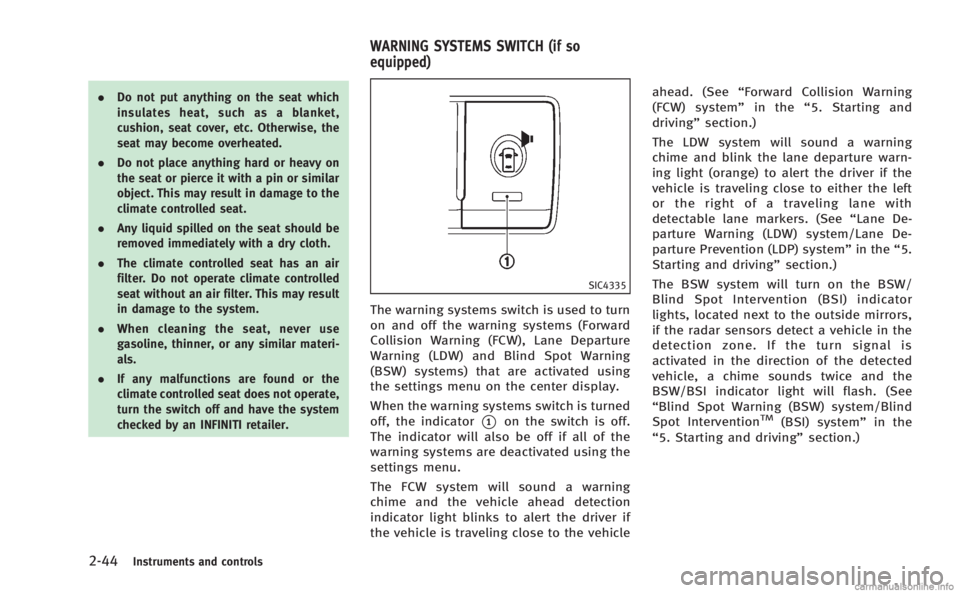
SIC4335
The warning systems switch is used to turn
on and off the warning systems (Forward
Collision Warning (FCW), Lane Departure
Warning (LDW) and Blind Spot Warning
(BSW) systems) that are activated using
the settings menu on the center display.
When the warning systems switch is turned
off, the indicator
*1on the switch is off.
The indicator will also be off if all of the
warning systems are deactivated using the
settings menu.
The FCW system will sound a warning
chime and the vehicle ahead detection
indicator light blinks to alert the driver if
the vehicle is traveling close to the vehicle ahead. (See
“Forward Collision Warning
(FCW) system” in the“5. Starting and
driving” section.)
The LDW system will sound a warning
chime and blink the lane departure warn-
ing light (orange) to alert the driver if the
vehicle is traveling close to either the left
or the right of a traveling lane with
detectable lane markers. (See “Lane De-
parture Warning (LDW) system/Lane De-
parture Prevention (LDP) system” in the“5.
Starting and driving” section.)
The BSW system will turn on the BSW/
Blind Spot Intervention (BSI) indicator
lights, located next to the outside mirrors,
if the radar sensors detect a vehicle in the
detection zone. If the turn signal is
activated in the direction of the detected
vehicle, a chime sounds twice and the
BSW/BSI indicator light will flash. (See
“Blind Spot Warning (BSW) system/Blind
Spot InterventionTM(BSI) system” in the
“5. Starting and driving” section.)
WARNING SYSTEMS SWITCH (if so
equipped)
Page 133 of 522
2-60Instruments and controls
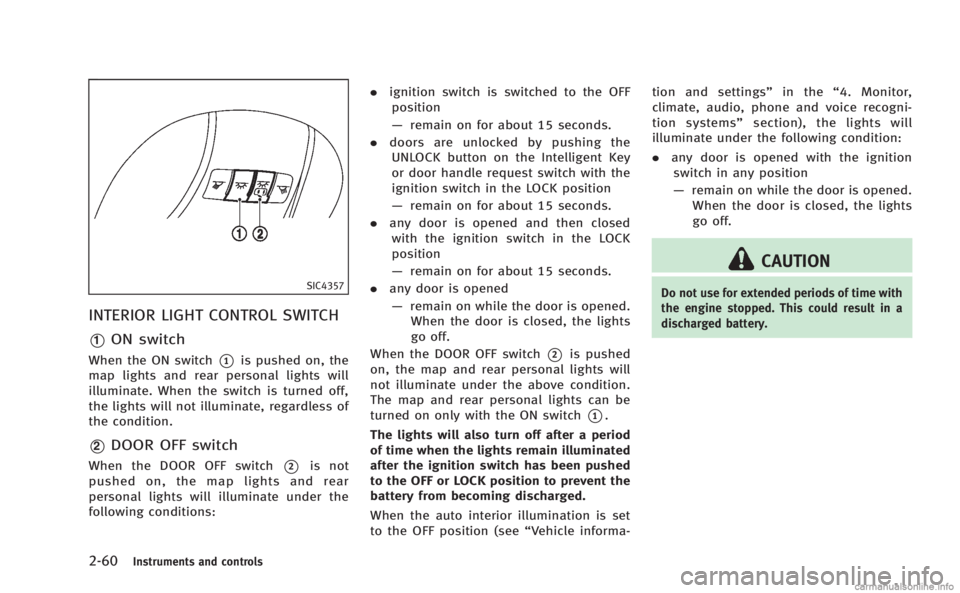
SIC4357
INTERIOR LIGHT CONTROL SWITCH
*1ON switch
When the ON switch*1is pushed on, the
map lights and rear personal lights will
illuminate. When the switch is turned off,
the lights will not illuminate, regardless of
the condition.
*2DOOR OFF switch
When the DOOR OFF switch*2is not
pushed on, the map lights and rear
personal lights will illuminate under the
following conditions: .
ignition switch is switched to the OFF
position
— remain on for about 15 seconds.
. doors are unlocked by pushing the
UNLOCK button on the Intelligent Key
or door handle request switch with the
ignition switch in the LOCK position
— remain on for about 15 seconds.
. any door is opened and then closed
with the ignition switch in the LOCK
position
— remain on for about 15 seconds.
. any door is opened
— remain on while the door is opened.
When the door is closed, the lights
go off.
When the DOOR OFF switch
*2is pushed
on, the map and rear personal lights will
not illuminate under the above condition.
The map and rear personal lights can be
turned on only with the ON switch
*1.
The lights will also turn off after a period
of time when the lights remain illuminated
after the ignition switch has been pushed
to the OFF or LOCK position to prevent the
battery from becoming discharged.
When the auto interior illumination is set
to the OFF position (see “Vehicle informa-tion and settings”
in the“4. Monitor,
climate, audio, phone and voice recogni-
tion systems” section), the lights will
illuminate under the following condition:
. any door is opened with the ignition
switch in any position
— remain on while the door is opened.
When the door is closed, the lights
go off.
CAUTION
Do not use for extended periods of time with
the engine stopped. This could result in a
discharged battery.
Page 148 of 522
When the Intelligent Key battery is dis-
charged or strong radio waves are present
near the operating location, the Intelligent
Key system’s operating range becomes
narrower, and the Intelligent Key may not
function properly.
The operating range is within 31.50 in (80
cm) from each request switch
*1.
If the Intelligent Key is too close to the door
glass, handle or rear bumper the request
switches may not function.
When the Intelligent Key is within the
operating range, it is possible for anyone
who does not carry the Intelligent Key to
push the request switch to lock/unlock the
doors and open the trunk lid.
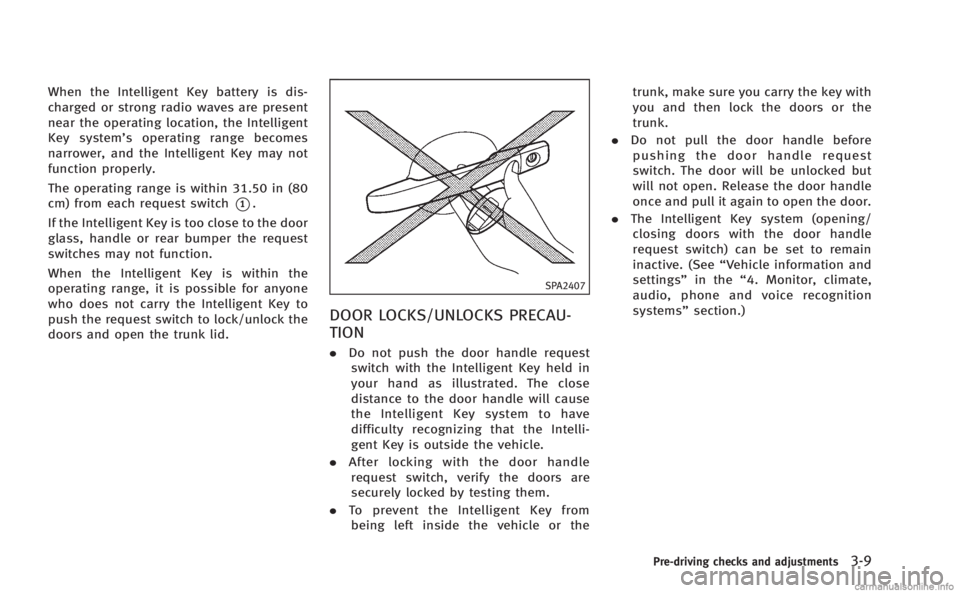
SPA2407
DOOR LOCKS/UNLOCKS PRECAU-
TION
. Do not push the door handle request
switch with the Intelligent Key held in
your hand as illustrated. The close
distance to the door handle will cause
the Intelligent Key system to have
difficulty recognizing that the Intelli-
gent Key is outside the vehicle.
. After locking with the door handle
request switch, verify the doors are
securely locked by testing them.
. To prevent the Intelligent Key from
being left inside the vehicle or the trunk, make sure you carry the key with
you and then lock the doors or the
trunk.
. Do not pull the door handle before
pushing the door handle request
switch. The door will be unlocked but
will not open. Release the door handle
once and pull it again to open the door.
. The Intelligent Key system (opening/
closing doors with the door handle
request switch) can be set to remain
inactive. (See “Vehicle information and
settings” in the“4. Monitor, climate,
audio, phone and voice recognition
systems” section.)
Pre-driving checks and adjustments3-9
Page 168 of 522
Cancel or activate entry/exit func-
tion
The selector lever must be in the P (Park)
position with the ignition switch in the OFF
position.
The entry/exit function can be activated or
canceled by pressing and holding the SET
switch for more than 10 seconds.
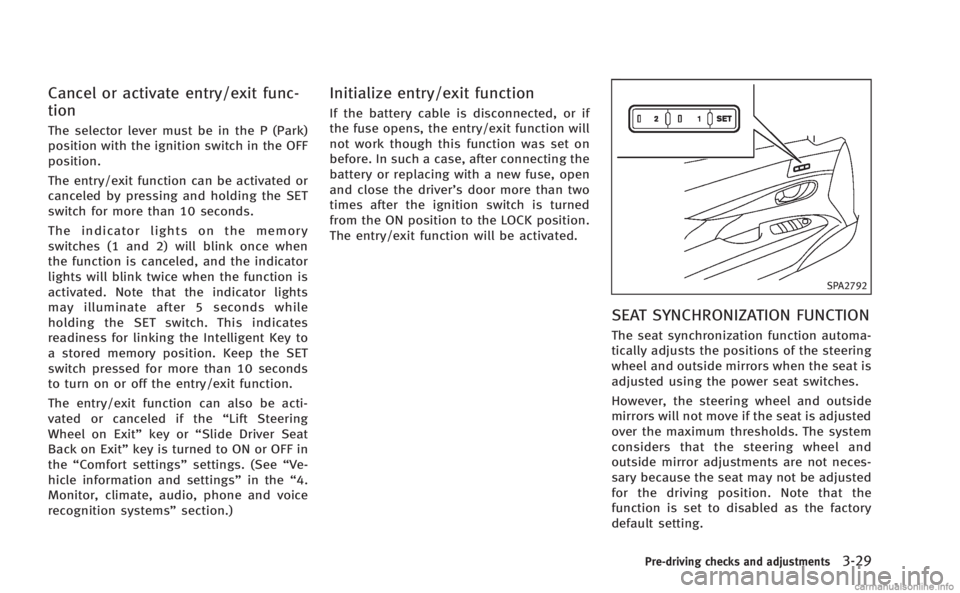
The indicator lights on the memory
switches (1 and 2) will blink once when
the function is canceled, and the indicator
lights will blink twice when the function is
activated. Note that the indicator lights
may illuminate after 5 seconds while
holding the SET switch. This indicates
readiness for linking the Intelligent Key to
a stored memory position. Keep the SET
switch pressed for more than 10 seconds
to turn on or off the entry/exit function.
The entry/exit function can also be acti-
vated or canceled if the“Lift Steering
Wheel on Exit” key or“Slide Driver Seat
Back on Exit” key is turned to ON or OFF in
the “Comfort settings” settings. (See“Ve-
hicle information and settings” in the“4.
Monitor, climate, audio, phone and voice
recognition systems” section.)
Initialize entry/exit function
If the battery cable is disconnected, or if
the fuse opens, the entry/exit function will
not work though this function was set on
before. In such a case, after connecting the
battery or replacing with a new fuse, open
and close the driver’s door more than two
times after the ignition switch is turned
from the ON position to the LOCK position.
The entry/exit function will be activated.
SPA2792
SEAT SYNCHRONIZATION FUNCTION
The seat synchronization function automa-
tically adjusts the positions of the steering
wheel and outside mirrors when the seat is
adjusted using the power seat switches.
However, the steering wheel and outside
mirrors will not move if the seat is adjusted
over the maximum thresholds. The system
considers that the steering wheel and
outside mirror adjustments are not neces-
sary because the seat may not be adjusted
for the driving position. Note that the
function is set to disabled as the factory
default setting.
Pre-driving checks and adjustments3-29
Page 170 of 522

indicator light will stay on for approxi-
mately 5 seconds.
. If the battery cable is disconnected, or if
the fuse opens, the memory will be
canceled. In this case, reset the desired
position using the previous procedure.
. If optional Intelligent Keys are added to
your vehicle, the memory storage pro-
cedure to switch 1 or 2 and linking
Intelligent Key procedure to a stored
memory position should be performed
again for each Intelligent Key. For
additional Intelligent Key information,
see “Keys” earlier in this section.
Selecting the memorized position
1. Move the selector lever to the P (Park)
position.
2. Use one of the following methods to move the driver’ s seat, the outside
mirrors and the steering wheel.
.Push the ignition switch to the ON position and push the memory
switch (1 or 2) fully for at least 1
second.
.Within 45 seconds of opening the
driver’ s door, push the memory
switch (1 or 2) fully for at least 1
second. The driver’s seat, steering column
and outside mirrors will move to the
memorized position with the indica-
tor light flashing, and then the light
will stay on for approximately 5
seconds.
SETTING MEMORY FUNCTION
The status of the following settings can be
linked to the Intelligent Key and the
memorized settings can be available for
each Intelligent Key.
. Climate control system
. Navigation system (if so equipped)
. Audio system
To use the memory function, lock the doors
with the Intelligent Key that is linked to the
settings.
To enable the memorized settings:
1. Carry the Intelligent Key that is linked to the settings, and unlock the doors by
pushing the driver’s door handle re-
quest switch or UNLOCK
button on
the Intelligent Key.
2. Push the ignition switch to the “ON”
position. “Connection with the key has
been done” will be displayed on the
screen and the memorized settings are
available (only when a new Intelligent Key is used).
SYSTEM OPERATION
The automatic drive positioner system will
not work or will stop operating under the
following conditions:
.
When the vehicle speed is above 4 MPH
(7 km/h).
. When the adjusting switch for the
driver’s seat and steering column is
turned on while the automatic drive
positioner is operating.
. When the memory switch 1 or 2 is not
pushed for at least 1 second.
. When the seat, steering column and
outside mirrors have already been
moved to the memorized position.
. When no position is stored in the
memory switch.
. When the engine is started while
moving the automatic drive positioner.
. When the selector lever is moved from
the P (Park) position to any other
position. (However, it will not be
canceled if the switch is pushed while
the seat and steering column are
returning to the previous positions
(entry/exit function).)
Pre-driving checks and adjustments3-31
Page 172 of 522
4 Monitor, climate, audio, phone and voice recogni-tion systems
Safety note .......................................................... 4-3
Center multi-function control panel ...................... 4-4 How to use INFINITI controller.......................... 4-6
How to use touch screen (models with
navigation system) .......................................... 4-6
Menu options (models with
navigation system) .......................................... 4-8
How to select menus on the screen................. 4-9
Vehicle information and settings........................ 4-10 How to use STATUS button ............................ 4-10
How to use brightness control and display
ON/OFF button .............................................. 4-10
How to use DISP button ................................ 4-10
How to use ECON button (models without
navigation system) ........................................ 4-10
How to use INFO button ................................ 4-10
How to use SETTING button ........................... 4-16
RearView monitor .............................................. 4-27 How to read displayed lines .......................... 4-27
How to park with predictive course lines ....... 4-28
Difference between predictive and
actual distances ............................................ 4-29
Predictive course line settings ....................... 4-32
How to adjust screen .................................... 4-32
Sonar indicator (if so equipped) .................... 4-33 Operating tips.............................................. 4-33
Ventilators ........................................................ 4-34
Automatic climate control.................................. 4-34
Automatic climate control (Type A) ............... 4-37
Automatic climate control (Type B) ............... 4-41
Forest Air
®(if so equipped) ......................... 4-43
Operating tips.............................................. 4-47
Linking intelligent key.................................. 4-48
In-cabin microfilter....................................... 4-48
Servicing climate control.............................. 4-48
Audio system .................................................... 4-49 Audio operation precautions ........................ 4-49
FM-AM-SAT radio with Compact Disc
(CD) player................................................... 4-64
DVD (Digital Versatile Disc) player operation
(models with navigation system) .................. 4-68
USB input operation .................................... 4-71
Bluetooth
®streaming audio (models with
navigation system)....................................... 4-76
iPod
®player operation ................................ 4-81
CD/DVD/USB memory care and cleaning...... 4-83
Steering-wheel-mounted controls
for audio ..................................................... 4-84
Antenna ....................................................... 4-85
Page 178 of 522
SAA2473
Example
Touch screen operation
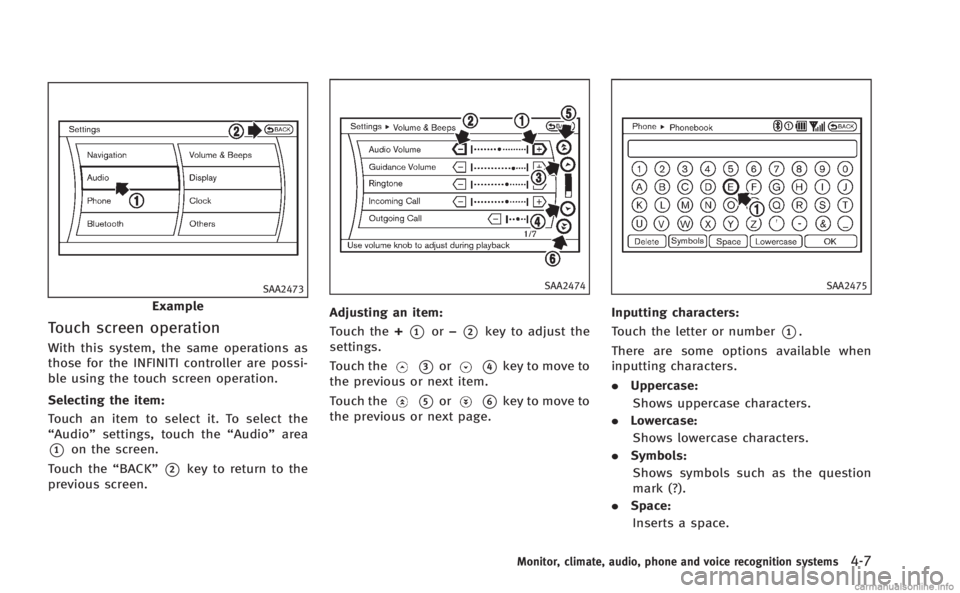
With this system, the same operations as
those for the INFINITI controller are possi-
ble using the touch screen operation.
Selecting the item:
Touch an item to select it. To select the
“Audio”settings, touch the “Audio”area
*1on the screen.
Touch the “BACK”
*2key to return to the
previous screen.
SAA2474
Adjusting an item:
Touch the +
*1or−*2key to adjust the
settings.
Touch the
*3or*4key to move to
the previous or next item.
Touch the
*5or*6key to move to
the previous or next page.
SAA2475
Inputting characters:
Touch the letter or number
*1.
There are some options available when
inputting characters.
. Uppercase:
Shows uppercase characters.
. Lowercase:
Shows lowercase characters.
. Symbols:
Shows symbols such as the question
mark (?).
. Space:
Inserts a space.
Monitor, climate, audio, phone and voice recognition systems4-7
Page 179 of 522

4-8Monitor, climate, audio, phone and voice recognition systems
.Delete:
Deletes the last character that has been
input with one touch. Push and hold to
delete all of the characters.
. OK:
Completes character inputs.
Touch screen maintenance
If you clean the display screen, use a dry,
soft cloth. If additional cleaning is neces-
sary, use a small amount of neutral
detergent with a soft cloth. Never spray
the screen with water or detergent. Dam-
pen the cloth first, and then wipe the
screen.
SAA3011
MENU OPTIONS (models with navi-
gation system)
The start menu can be displayed using the
menu control switch on the steering-wheel-
mounted controls.
1. While the MAP or STATUS screen is displayed, push and hold the menu
control switch until the “Menu Options”
screen appears.
2. Highlight the preferred item by tilting the menu control switch up or down,
and then push the menu control switch
to select it.
SAA2476
Available items
Destination/Route:
These items are for the navigation system.
See the separate Navigation System Own-
er’s Manual for details.
Info:
Displays the information screen. It is the
same screen that appears when you push
the INFO button.
Settings:
Displays the settings screen. It is the same
screen that appears when you push the
SETTING button.
Page 181 of 522

4-10Monitor, climate, audio, phone and voice recognition systems
HOW TO USE STATUS BUTTON
You can check information related to the
audio, climate control system, fuel con-
sumption and navigation system (if so
equipped) by pressing the STATUS button
repeatedly.
HOW TO USE BRIGHTNESS CON-
TROL AND DISPLAY ON/OFF BUTTON
Push the“OFF”button to switch the
display brightness to the daytime mode or
the nighttime mode, and to adjust the
display brightness using the INFINITI con-
troller while the indicator is displayed at
the bottom of the screen.
Push and hold the “
OFF”button for
more than 2 seconds to turn the display
off. Push the button again to turn the
display on.
Models without navigation system:
The display brightness can also be ad-
justed using the “
”button or “”
button.
HOW TO USE DISP BUTTON
Push the DISP button to show the display
setting screen. (See “Display settings
(models without navigation system)” or
“Display settings (models with navigation
system)” later in this section .)
HOW TO USE ECON BUTTON (mod-
els without navigation system)
Push the “ECON”button to show fuel
economy information. (See “Fuel Economy
information” later in this section.)
HOW TO USE INFO BUTTON
The display screen shows vehicle and
navigation (if so equipped) information
for your convenience.
The information shown on the screen
should be a guide to determine the
condition of the vehicle. See the following
for details.
JVH0256M
Models with navigation system
SAA2145
Models without navigation system
VEHICLE INFORMATION AND SETTINGS
Page 184 of 522
The unit can be converted in the LANGUAGE
& UNITS settings display. (See“How to use
SETTING button” later in this section for
details.)
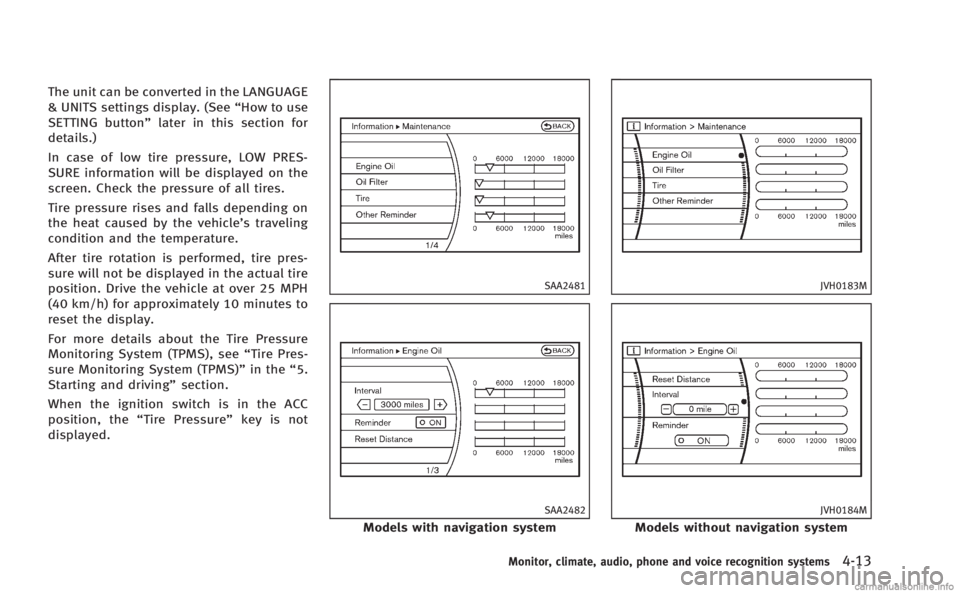
In case of low tire pressure, LOW PRES-
SURE information will be displayed on the
screen. Check the pressure of all tires.
Tire pressure rises and falls depending on
the heat caused by the vehicle’s traveling
condition and the temperature.
After tire rotation is performed, tire pres-
sure will not be displayed in the actual tire
position. Drive the vehicle at over 25 MPH
(40 km/h) for approximately 10 minutes to
reset the display.
For more details about the Tire Pressure
Monitoring System (TPMS), see “Tire Pres-
sure Monitoring System (TPMS)” in the“5.
Starting and driving” section.
When the ignition switch is in the ACC
position, the “Tire Pressure” key is not
displayed.
SAA2481
SAA2482
Models with navigation system
JVH0183M
JVH0184M
Models without navigation system
Monitor, climate, audio, phone and voice recognition systems4-13