key INFINITI Q50 HYBRID 2015 Quick Reference Guide
[x] Cancel search | Manufacturer: INFINITI, Model Year: 2015, Model line: Q50 HYBRID, Model: INFINITI Q50 HYBRID 2015Pages: 32, PDF Size: 2.78 MB
Page 16 of 32

14
Outside Mirror Control Switch
To select the right or lef t side mirror, move the
control switch 1 right or lef t.
Adjust each mirror to the desired position using
the switch 2.
REVERSE TILT-DOWN FEATURE (if so equipped)
The reverse tilt-down feature will turn both outside mirrors surfaces do\
wnward to provide
better rear visibility close to the vehicle.
1. Push the ignition switch to the ON position.
2. Move the shift lever to the R (REVERSE) position.
3. Choose the right or left outside mirror by operating the outside mirr\
or control switch.
4. The outside mirrors surfaces move downward.
Both outside mirror surfaces will return to their original positions whe\
n one of the following
conditions has occurred:
• The shift lever is moved to any position other than R (REVERSE).
• The outside mirror control switch is set to the center (neutral) posit\
ion.
• The ignition switch is placed in the OFF position.
For more information, refer to the “Pre-driving checks and adjustments (section 3)” of your Owner’s Manual.
2
1
Assist Charge Gauge
This shows the power consumed 2 or generated
1 by the electric motor.
For more information, refer to the “Hybrid System Overview” and the “Instruments and controls (section 2)” of your Owner’s Manual.
Starting/Stopping the Hybrid System
It is important to make sure the INFINITI Intelligent
Key is with you (that is, in your pocket or purse).
Depress the brake pedal.
Press the ignition switch START/STOP button to start
the hybrid system.
TURNING THE HYBRID SYSTEM OFF
Move the shift lever to the P (PARK) position and apply the parking brake.
Press the ignition switch START/STOP button to turn the hybrid system off.
For more information, refer to the “Starting and driving (section 5)” of your Owner’s Manual.
12
first drive features
Page 19 of 32

17
Climate Controls
1 CLIMATE BUTTON
Press to display the CLIMATE control screen on the lower display.
2 DRIVER’S SIDE TEMPERATURE CONTROL BUTTONS
Press the driver’s side temperature control buttons up for warmer air\
or down
for cooler air.
3 PASSENGER’S SIDE TEMPERATURE CONTROL BUTTONS
To manually adjust the passenger’s side temperature, press the passen\
ger’s side
temperature control buttons up for warmer air or down for cooler air.
4 FAN SPEED CONTROL
To manually adjust the fan speed, press the button or touch the key to increase
the fan speed. Press the button or touch the key to decrease the fan speed.
5 AUTO BUTTON
Press the AUTO button to turn the system on, and the system will automatically control\
the inside temperature (automatic cooling and/or dehumidified heating)\
, air flow
distribution and fan speed.
6 MODE CONTROL BUTTON
Press the button or touch the key in the center of the lower display to cycle through
the following air flow outlets:
Air flows from the center and side vents.
Air flows from the center, side and foot vents.
Air flows mainly from the foot vents.
Air flows from the defroster and foot vents.
6
4
5
2
6
4
7 910
1
3
8
11
12
13
Page 20 of 32

Touch to allow inside air recirculation and outside air circulation to s\
witch automatically
depending on the quality of the outside air.
8 INTA")
18
7 AUTO AIR RECIRCULATION KEY (if so equipped)
Touch to allow inside air recirculation and outside air circulation to s\
witch automatically
depending on the quality of the outside air.
8 INTAKE AIR CONTROL BUTTON
Pressing the intake air control button will cancel auto air recirculation 7 (if so
equipped) until it is re-activated from the touch-screen (see above).\
Press the intake
air control button to manually control whether the interior air is recirculated
or outside air is drawn into the vehicle. When the indicator light is on\
, interior air is
recirculated, outside odors are avoided and the interior vehicle tempera\
ture is most
effectively maintained.
The air recirculation mode cannot be activated when the climate control \
system is in the
front defroster mode or the front defroster foot vent mode .
9 A/C KEY
Touch the A/C key to turn the air conditioner system on or off. This system helps coo\
l and
dehumidify the air inside the cabin and defog the windows.
10 DUAL KEY
Touch to turn the passenger’s side temperature controls on or off. Wh\
en the system
is on, the indicator light will illuminate. This function will allow the\
passenger’s side
temperature to be adjusted independently from the driver’s side by pr\
essing the
passenger’s side temperature control buttons 3.
11 DEFROSTING/DEFOGGING FRONT AND SIDE WINDOWS
Press the defroster button to turn the system on. The A/C automatically turns
on when the defroster mode is selected. This features removes humidity f\
rom the air.
To defrost the front and side windows, set the driver’s side temperat\
ure controls 2 and
fan speed controls 4 to their maximum settings.
12 DEFROSTING REAR WINDOW AND OUTSIDE MIRRORS
Push the Rear window and outside mirror defroster switch to turn the system on or off.
This function automatically turns off after approximately 15 minutes.
13 ON/OFF BUTTON
Press the ON/OFF button to turn the climate control system on or off.
For more information, refer to the “Instruments and controls (section 2)” of your Owner’s Manual and the “Heater and Air Conditioner (section 3)” of your InTouch Owner’s Manual.
first drive features
Page 21 of 32
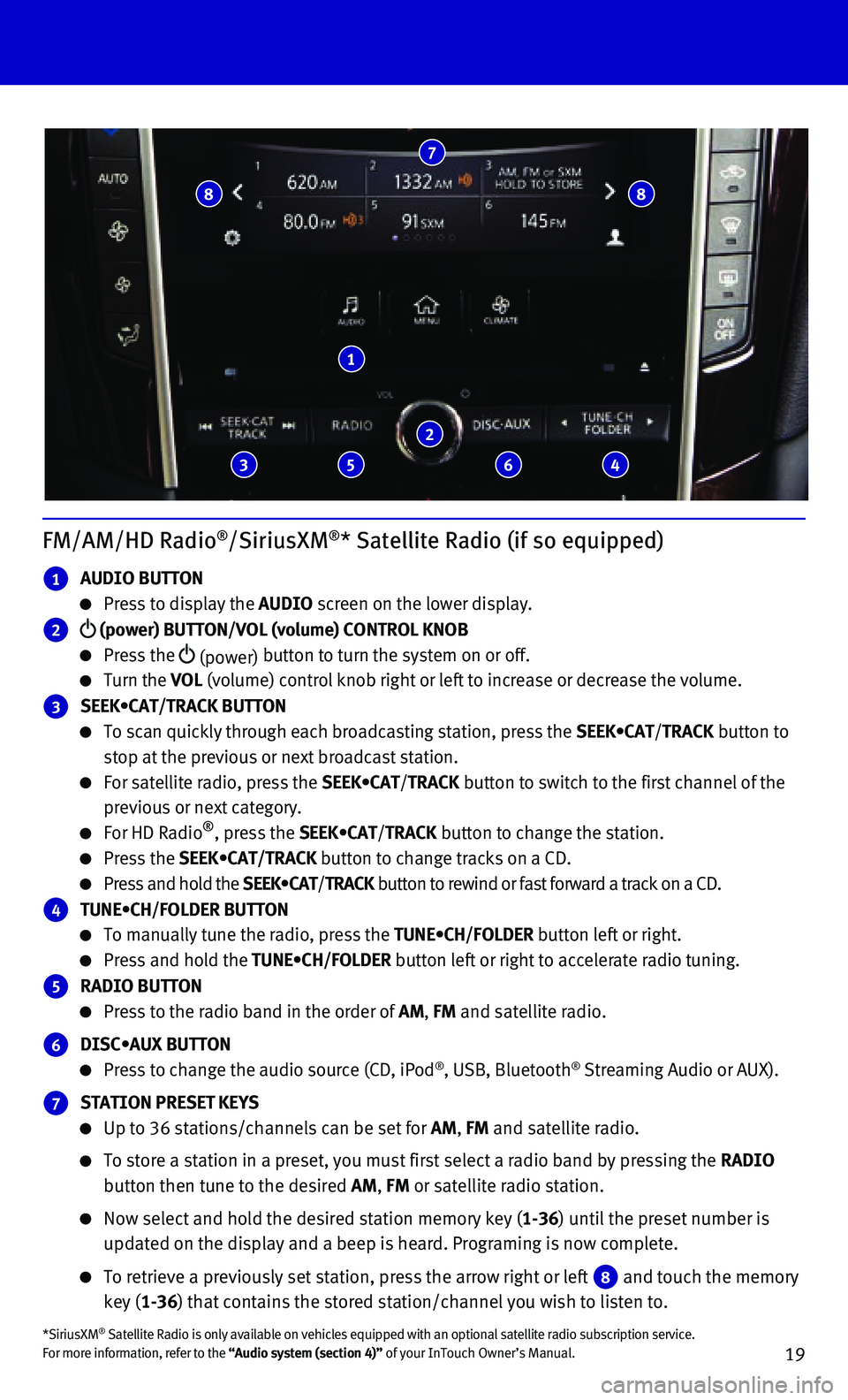
19
FM/AM/HD Radio®/SiriusXM®* Satellite Radio (if so equipped)
1 AUDIO BUTTON
Press to display the AUDIO screen on the lower display.
2 (power) BUTTON/VOL (volume) CONTROL KNOB
Press the (power) button to turn the system on or off.
Turn the VOL (volume) control knob right or left to increase or decrease the volume.
3 SEEK•CAT/TRACK BUTTON
To scan quickly through each broadcasting station, press the SEEK•CAT/TRACK button to
stop at the previous or next broadcast station.
For satellite radio, press the SEEK•CAT/TRACK button to switch to the first channel of the
previous or next category.
For HD Radio®, press the SEEK•CAT/TRACK button to change the station.
Press the SEEK•CAT/TRACK button to change tracks on a CD.
Press and hold the SEEK•CAT/TRACK button to rewind or fast forward a track on a CD.
4 TUNE•CH/FOLDER BUTTON
To manually tune the radio, press the TUNE•CH/FOLDER button left or right.
Press and hold the TUNE•CH/FOLDER button left or right to accelerate radio tuning.
5 RADIO BUTTON
Press to the radio band in the order of AM, FM and satellite radio.
6 DISC•AUX BUTTON
Press to change the audio source (CD, iPod®, USB, Bluetooth® Streaming Audio or AUX).
7 STATION PRESET KEYS
Up to 36 stations/channels can be set for AM, FM and satellite radio.
To store a station in a preset, you must first select a radio band by pr\
essing the RADIO
button then tune to the desired AM, FM or satellite radio station.
Now select and hold the desired station memory key (1-36) until the preset number is
updated on the display and a beep is heard. Programing is now complete.
To retrieve a previously set station, press the arrow right or left 8 and touch the memory
key (1-36) that contains the stored station/channel you wish to listen to.
*SiriusXM® Satellite Radio is only available on vehicles equipped with an optional\
satellite radio subscription service. For more information, refer to the “Audio system (section 4)” of your InTouch Owner’s Manual.
1
2
7
3
8
5 6 4
8
Page 25 of 32
 button/ VOL (volume) control
knob on the audio syst")
23
To decrease or increase the volume of the voice prompts, push the volume\
control
switches or on the steering wheel or turn the (power) button/ VOL (volume) control
knob on the audio system while the system is responding.
The Voice Recognition system allows you to choose between voice input an\
d manual
controls of lists. Choose the method that is easiest for you. For exampl\
e, when a list is
shown, you can use the switch and push the OK switch on the steering wheel to
select an item from the displayed list instead of saying the item.
When using the feature to navigate lists during Voice Recognition, use the spoken
menu readout feature to help navigate the list easily. Voice input is pa\
used when menu
control is activated. To resume Voice Recognition, select a menu item by\
pushing the
switch or simply push the button.
Reduce background noise as much as possible by closing windows and point\
ing HVAC vents
away from the ceiling.
After the tone, speak naturally without long pauses and without raising \
your voice.
When speaking phonebook names, use full name (e.g. Michael Smith) or f\
irst
name (e.g. Michael).
To cancel a Voice Recognition session, say “Exit” or press and hol\
d the button
for 5 seconds.
To go back to the previous command, say “Go back”.
For more detailed information and instructions, refer to your cellular p\
hone’s Owner’s Manual and
visit www.InfinitiUSA.com/bluetooth.
CONNECTING PROCEDURE
The vehicle must be stationary when
connecting the phone.
1. Press the MENU button below the lower display and
touch the Settings key.
2. Touch Bluetooth.
3. Touch Connect Device and then touch Add New.
4. Initiate connecting from the phone.
• The connecting procedure varies according
to each cellular phone model. For detailed
connecting instructions and a list of compatible
phones, please visit
www.InfinitiUSA.com/bluetooth.
• When prompted for a PIN, enter the PIN that
appears on the screen into the handset.
5. When connecting is complete, the screen will return
to the previous screen.
Page 26 of 32

24
PHONEBOOK SETUP
Depending on your cellular phone, the system may automatically download \
your cellular
phone’s entire phonebook to the vehicle’s Bluetooth® system.
If the phonebook does not download automatically, the vehicle’s phone\
book may be set up for
manual entry.
To manually download entries:
1. Press the MENU button below the lower display.
2. Touch the Settings key.
3. Touch Phone/Mail key.
4. Touch Phone Settings key.
5. Touch Phonebook/Favorites Settings key.
6. Touch Configure Phonebook Settings key.
7. Touch Manual Phonebook Transfer key.
• From here, you are able to transfer information
from your cellular phone to your vehicle.
MAKING A CALL FROM THE PHONEBOOK
1. Press the button on the steering wheel.
2. After waiting for the tone, say “Phone”.
3. After waiting for the tone, say “Call”.
4. After the next tone, speak the name of a phonebook entry. For example, “\
Michael Smith”.
In some cases, names stored using all UPPERCASE letters may not be recog\
nized by the
Voice Recognition system.
MAKING A CALL BY PHONE NUMBER
1. Press the button on the steering wheel. A tone will sound.
2. After waiting for the tone, say “Phone”.
3. After waiting for the tone, say “Dial”.
4. Say the number you wish to call, starting with the
area code in single digit format.
5. When you have finished speaking the phone
number, the system repeats it back and announces
the available commands.
6. Say “Dial”. The system acknowledges the command
and makes the call.
RECEIVING/ENDING A CALL
To accept the call, press the button on the
steering wheel or touch the Answer key.
To reject the call, touch the Decline key.
To hang-up, press the button or touch the
Hang Up key.
For more information, refer to the “Hands-Free Phone (section 5)” and the “Voice recognition (section 10) of your InTouch Owner’s Manual or please visit www.InfinitiUSA.com/bluetooth.
system guide