battery INFINITI Q60 COUPE 2014 Owner's Guide
[x] Cancel search | Manufacturer: INFINITI, Model Year: 2014, Model line: Q60 COUPE, Model: INFINITI Q60 COUPE 2014Pages: 458, PDF Size: 4.27 MB
Page 167 of 458

4-4Monitor, climate, audio, phone and voice recognition systems
SAA1524
Models without navigation system
1. “AUX” button (P.4-39)
2. “RADIO AM·FM” band selector button
(P.4-39)
3. INFINITI controller (P.4-5)
4. “
OFF” brightness control and
display ON/OFF button (P.4-9)
5. “INFO” vehicle information button
(P.4-9)
6. “DISC” selector button (P.4-39)
7. “STATUS” status display button
(P.4-9)
8. “SETTING” button (P.4-14)
When you use this system, make sure the
engine is running. If you use the system with the engine not
running (ignition ON or ACC) for a long
time, it will use up all the battery power,
and the engine will not start.
SAA1541
Models with navigation system
SAA1508
Models without navigation system
Page 203 of 458

4-40Monitor, climate, audio, phone and voice recognition systems
from a station transmitter, the signals will
tend to fade and/or drift.
Static and flutter: During signal interfer-
ence from buildings, large hills or due to
antenna position, usually in conjunction
with increased distance from the station
transmitter, static or flutter can be heard.
This can be reduced by lowering the treble
setting to reduce the treble response.
Multipath reception: Because of the reflec-
tive characteristics of FM signals, direct
and reflected signals reach the receiver at
the same time. The signals may cancel
each other, resulting in momentary flutter
or loss of sound.
AM radio reception:
AM signals, because of their low frequency,
can bend around objects and skip along
the ground. In addition, the signals can be
bounced off the ionosphere and bent back
to earth. Because of these characteristics,
AM signals are also subject to interference
as they travel from transmitter to receiver.
Fading: Occurs while the vehicle is passing
through freeway underpasses or in areas
with many tall buildings. It can also occur
for several seconds during ionospheric
turbulence even in areas where no obsta-cles exist.
Static: Caused by thunderstorms, electrical
power lines, electric signs and even traffic
lights.
Satellite radio reception:
When the satellite radio is used for the first
time or the battery has been replaced, the
satellite radio may not work properly. This
is not a malfunction. Wait more than 10
minutes with the satellite radio ON and the
vehicle outside of any metal or large
building for the satellite radio to receive
all of the necessary data.
The satellite radio mode requires an active
SiriusXM Satellite Radio subscription. The
satellite radio is not available in Alaska,
Hawaii and Guam.
The satellite radio performance may be
affected if cargo carried on the roof blocks
the satellite radio signal.
If possible, do not put cargo near the
satellite antenna.
A build up of ice on the satellite radio
antenna can affect satellite radio perfor-
mance. Remove the ice to restore satellite
radio reception.
SAA0480
Compact Disc (CD) player
. Do not force a compact disc into the CD
insert slot. This could damage the CD
and/or CD player.
. Trying to load a CD with the CD door
closed could damage the CD and/or CD
Page 214 of 458

dation and wireless connection disrup-
tion.
. While an audio device is connected
through a Bluetooth
®wireless connec-
tion, the battery power of the device
may discharge quicker than usual.
. This system supports the Bluetooth
®
Audio Distribution Profile (A2DP,
AVRCP).
. Wireless LAN (Wi-Fi) and the Bluetooth
®
functions share the same frequency
band (2.4 GHz). Using the Bluetooth®
and the wireless LAN functions at the
same time may slow down or discon-
nect the communication and cause
undesired noise. It is recommended
that you turn off the wireless LAN (Wi-
Fi) when using the Bluetooth
®func-
tions.
Monitor, climate, audio, phone and voice recognition systems4-51
Page 218 of 458

Forward or Rewind to tune from low to
high or high to low frequencies and to
stop at the next broadcasting station.
. For SiriusXM Satellite Radio
Push the SEEK·CAT or TRACK button
Forward or Rewind to tune to the first
channel of the next or previous cate-
gory.
During satellite radio reception, the follow-
ing notices will be displayed under certain
conditions.
. NO SIGNAL (No signal is received while
the SAT tuner is connected.)
. OFF AIR (Broadcasting signed off)
. CHECK ANTENNA (Antenna connection
error)
. LOADING (When the initial setting is
performed)
. UPDATING (When the satellite radio
subscription is not active)
SCAN tuning:
Push the SCAN tuning button to tune from
low to high frequencies and stop at each
broadcasting station/channel for 5 sec-
onds. Pushing the button again during this
5 seconds period will stop SCAN tuning
and the radio will remain tuned to that station/channel.
If the SCAN tuning button is not pushed
within 5 seconds, SCAN tuning moves to
the next station/channel.
*1to*6Station memory operations:
12 stations/channels can be set for the FM
band (6 each for FM1 and FM2), 18 for
SiriusXM Satellite Radio (6 each for XM1,
XM2 and XM3) and 6 stations can be set
for the AM band.
1. Choose the radio band using the radio band select button.
2. Tune to the desired station/channel using the SEEK·CAT, TRACK, SCAN
button or the radio TUNE knob.
3. Push and hold the desired station preset button
*1to*6until the radio
mutes.
4. The station indicator will then come on and the sound will resume. Memorizing
is now complete.
5. Other buttons can be set in the same manner.
If the battery cable is disconnected, or if
the fuse opens, the radio memory will be
erased. In that case, reset the desired
stations/channels. List (AM and FM radio) (models with
navigation system):
When the
“List”key on the display is
selected while the FM or AM radio is being
played, the preset station list will be
displayed.
If 1 of the 6 preset stations listed is
touched and held, the current station will
be stored as the new preset.
Menu (SiriusXM Satellite Radio) (models
with navigation system):
When the “Menu”key on the display is
selected while the SiriusXM Satellite Radio
is being played, the menu list will be
displayed.
The following items are available.
. Preset List
Displays the preset channel list. If 1 of
the 6 preset stations listed is touched
and held, the current station will be
stored as the new preset.
. Customize Channel List
Selects specific channels to skip while
using the TUNE, SEEK/CATEGORY or
Menu-Categories feature.
. Favorite Artists & Songs
Stores the current artist or song that is
Monitor, climate, audio, phone and voice recognition systems4-55
Page 221 of 458
4-58Monitor, climate, audio, phone and voice recognition systems
distract the driver and may cause a
collision and serious personal injury or
death.
CAUTION
.Only operate the DVD while the vehicle
engine is running. Operating the DVD for
extended periods of time with the
engine OFF can discharge the vehicle
battery.
. Do not allow the system to get wet.
Excessive moisture such as spilled
liquids may cause the system to mal-
function.
. While playing VIDEO-CD media, this DVD
player does not guarantee complete
functionality of all VIDEO-CD formats.
Display settings
To adjust the front display mode, push the
SETTING button while the DVD is being
played, select the “Others”key and then
select the “Display”key.
To adjust the display ON/OFF, brightness,
tint, color and contrast, select the “DisplayAdjustment”
key and then select each key.
Then you can adjust each item using the
INFINITI controller. After changes have
been made push the BACK button to save
the setting.
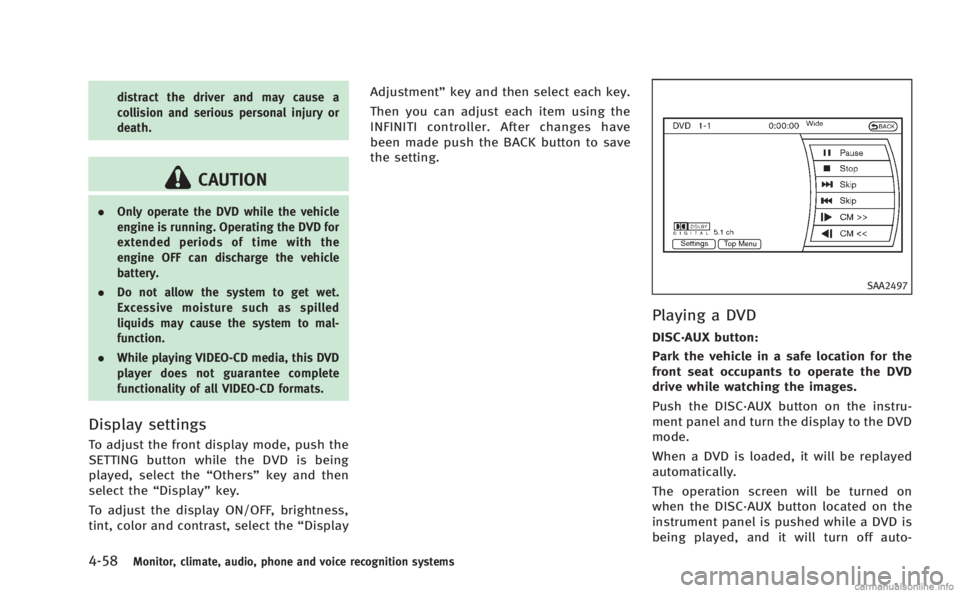
SAA2497
Playing a DVD
DISC·AUX button:
Park the vehicle in a safe location for the
front seat occupants to operate the DVD
drive while watching the images.
Push the DISC·AUX button on the instru-
ment panel and turn the display to the DVD
mode.
When a DVD is loaded, it will be replayed
automatically.
The operation screen will be turned on
when the DISC·AUX button located on the
instrument panel is pushed while a DVD is
being played, and it will turn off auto-
Page 234 of 458
SAA2974
Automatic transmission models
SAA2426
Manual transmission models
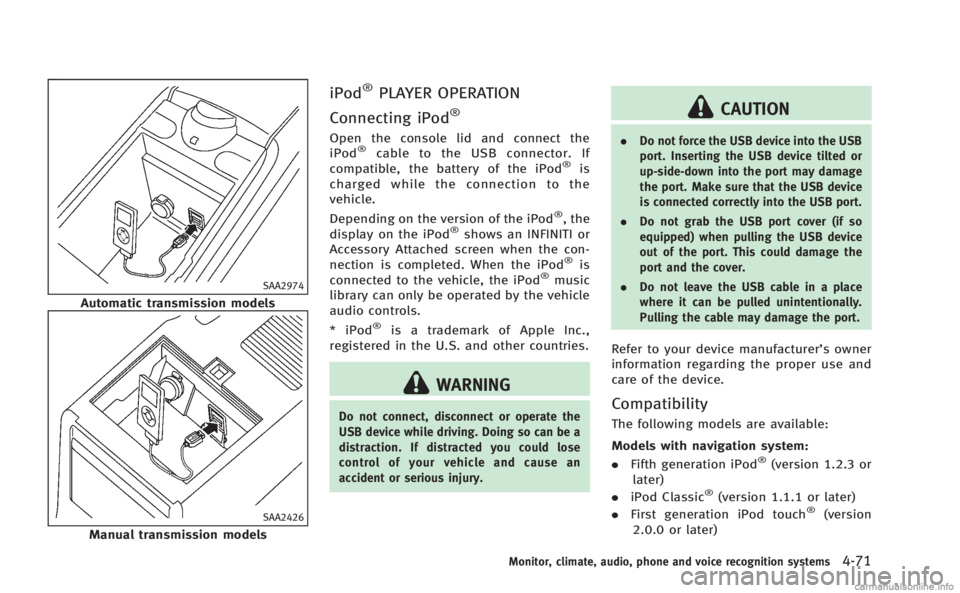
iPod®PLAYER OPERATION
Connecting iPod
®
Open the console lid and connect the
iPod®cable to the USB connector. If
compatible, the battery of the iPod®is
charged while the connection to the
vehicle.
Depending on the version of the iPod
®, the
display on the iPod®shows an INFINITI or
Accessory Attached screen when the con-
nection is completed. When the iPod
®is
connected to the vehicle, the iPod®music
library can only be operated by the vehicle
audio controls.
* iPod
®is a trademark of Apple Inc.,
registered in the U.S. and other countries.
WARNING
Do not connect, disconnect or operate the
USB device while driving. Doing so can be a
distraction. If distracted you could lose
control of your vehicle and cause an
accident or serious injury.
CAUTION
. Do not force the USB device into the USB
port. Inserting the USB device tilted or
up-side-down into the port may damage
the port. Make sure that the USB device
is connected correctly into the USB port.
. Do not grab the USB port cover (if so
equipped) when pulling the USB device
out of the port. This could damage the
port and the cover.
. Do not leave the USB cable in a place
where it can be pulled unintentionally.
Pulling the cable may damage the port.
Refer to your device manufacturer’s owner
information regarding the proper use and
care of the device.
Compatibility
The following models are available:
Models with navigation system:
.Fifth generation iPod
®(version 1.2.3 or
later)
. iPod Classic
®(version 1.1.1 or later)
. First generation iPod touch®(version
2.0.0 or later)
Monitor, climate, audio, phone and voice recognition systems4-71
Page 240 of 458
WARNING
.Use a phone after stopping your vehicle
in a safe location. If you have to use a
phone while driving, exercise extreme
caution at all times so full attention may
be given to vehicle operation.
. If you find yourself unable to devote full
attention to vehicle operation while
talking on the phone, pull off the road
to a safe location and stop your vehicle
before doing so.
CAUTION
To avoid draining the vehicle battery, use a
phone after starting the engine.
Your INFINITI is equipped with Bluetooth®
Hands-Free Phone System. If you are an
owner of a compatible Bluetooth®enabled
cellular phone, you can set up the wireless
connection between your cellular phone
and the in-vehicle phone module. With
Bluetooth
®wireless technology, you can
make or receive a telephone call with your
cellular phone in your pocket. Once a cellular phone is connected to the
in-vehicle phone module, no phone con-
necting procedure is required anymore.
Your phone is automatically connected
with the in-vehicle phone module when
the ignition switch is pushed to the ON
position with the registered cellular phone
turned on and carried in the vehicle.
You can register up to 5 different Blue-
tooth
®cellular phones in the in-vehicle
phone module. However, you can talk on
only one cellular phone at a time.
The INFINITI Voice Recognition system
supports the phone commands, so dialing
a phone number using your voice is
possible. For more details, see “INFINITI
Voice Recognition system (models with
navigation system)” (P.4-101).
Before using the Bluetooth
®Hands-Free
Phone System, refer to the following notes.
. Wireless LAN (Wi-Fi) and the Bluetooth
®
functions share the same frequency
band (2.4 GHz). Using the Bluetooth®
and the wireless LAN functions at the
same time may slow down or discon-
nect the communication and cause
undesired noise. It is recommended
that you turn off the wireless LAN (Wi-
Fi) when using the Bluetooth
®func- tions.
. Set up the wireless connection between
a compatible cellular phone and the in-
vehicle phone module before using the
Bluetooth
®Hands-Free Phone System.
. Some Bluetooth®enabled cellular
phones may not be recognized by the
in-vehicle phone module. Please visit
www.InfinitiUSA.com/bluetooth for a
recommended phone list.
. You will not be able to use a hands-free
phone under the following conditions:
— Your vehicle is outside of the tele-
phone service area.
— Your vehicle is in an area where it is
difficult to receive radio waves; such
as in a tunnel, in an underground
parking garage, behind a tall build-
ing or in a mountainous area.
— Your cellular phone is locked in
order not to be dialed.
. When the radio wave condition is not
ideal or ambient sound is too loud, it
may be difficult to hear the other
person’s voice during a call.
. Immediately after the ignition switch is
pushed to the ON position, it may be
impossible to receive a call for a short
period of time.
Monitor, climate, audio, phone and voice recognition systems4-77
Bluetooth®HANDS-FREE PHONE SYSTEM
(models with navigation system)
Page 241 of 458

4-78Monitor, climate, audio, phone and voice recognition systems
.Do not place the cellular phone in an
area surrounded by metal or far away
from the in-vehicle phone module to
prevent tone quality degradation and
wireless connection disruption.
. While a cellular phone is connected
through the Bluetooth
®wireless con-
nection, the battery power of the
cellular phone may discharge quicker
than usual.
. If the Bluetooth
®Hands-Free Phone
System seems to be malfunctioning,
please visit www.InfinitiUSA.com/blue-
tooth for troubleshooting help.
. Some cellular phones or other devices
may cause interference or a buzzing
noise to come from the audio system
speakers. Storing the device in a
different location may reduce or elim-
inate the noise.
. Refer to the cellular phone Owner’s
Manual regarding the telephone pairing
procedure specific to your phone,
battery charging, cellular phone anten-
na, etc.
. The antenna display on the monitor will
not coincide with the antenna display
of some cellular phones. .
Keep the interior of the vehicle as quiet
as possible to hear the caller ’s voice
clearly as well as to minimize its
echoes.
. If reception between callers is unclear,
adjusting the incoming or outgoing call
volume may improve the clarity.
REGULATORY INFORMATION
FCC Regulatory information
. CAUTION: To maintain compliance with
FCC’s RF exposure guidelines, use only
the supplied antenna. Unauthorized
antenna, modification, or attachments
could damage the transmitter and may
violate FCC regulations.
. Operation is subject to the following
two conditions:
1. this device may not cause interference and
2. this device must accept any interfer- ence, including interference that may
cause undesired operation of the de-
vice
IC Regulatory information
.Operation is subject to the following
two conditions: (1) this device may not
cause interference, and (2) this device
must accept any interference, including
interference that may cause undesired
operation of the device.
. This Class B digital apparatus meets all
requirements of the Canadian Interfer-
ence-Causing Equipment Regulations.
Bluetooth®trademark
Bluetooth®is a trademark
owned by Bluetooth SIG, Inc.,
and licensed to Clarion Co., Ltd.
VOICE COMMANDS
You can use voice commands to operate
various Bluetooth®Hands-Free Phone Sys-
tem features using the INFINITI Voice
Recognition system.
For more details, see “INFINITI Voice
Recognition system (models with naviga-
tion system)” (P.4-101).
Page 250 of 458

WARNING
.Use a phone after stopping your vehicle
in a safe location. If you have to use a
phone while driving, exercise extreme
caution at all times so full attention may
be given to vehicle operation.
. If you find yourself unable to devote full
attention to vehicle operation while
talking on the phone, pull off the road
to a safe location and stop your vehicle
before doing so.
CAUTION
To avoid draining the vehicle battery, use a
phone after starting the engine.
Your vehicle is equipped with Bluetooth®
Hands-Free Phone System. If you are an
owner of a Bluetooth®enabled cellular
phone, you can set up the wireless
connection between your cellular phone
and the in-vehicle phone module. With
Bluetooth
®wireless technology, you can
make or receive a telephone call with your
cellular phone in your pocket. Once your cellular phone is paired to the
in-vehicle phone module, no phone con-
necting procedure is required. Your phone
is automatically connected with the in-
vehicle phone module when the ignition
switch is pushed to the
“ON”position with
the registered cellular phone turned on
and carried in the vehicle.
You can register up to 5 different Blue-
tooth
®cellular phones in the in-vehicle
phone module. However, you can talk on
only one cellular phone at a time.
When a call is active, the audio system and
microphone (located in the ceiling in front
of the rearview mirror) are used for the
handsfree communications.
If the audio system is being used at the
time, the audio mode will mute and will
stay muted until the active call is ended.
The INFINITI Voice Recognition system
supports the phone commands, so dialing
a phone number using your voice is
possible.
Before using the Bluetooth
®Hands-Free
Phone System, refer to the following notes.
. Wireless LAN (Wi-Fi) and the Bluetooth
®
functions share the same frequency
band (2.4 GHz). Using the Bluetooth®
and the wireless LAN functions at the
same time may slow down or discon-
nect the communication and cause
undesired noise. It is recommended
that you turn off the wireless LAN (Wi-
Fi) when using the Bluetooth
®func-
tions.
. Set up the wireless connection between
a cellular phone and the in-vehicle
phone module before using the Blue-
tooth
®Hands-Free Phone System.
. Some Bluetooth®enabled cellular
phones may not be recognized by the
in-vehicle phone module.
. You will not be able to use a hands-free
phone under the following conditions:
— Your vehicle is outside of the tele-
phone service area.
— Your vehicle is in an area where it is
difficult to receive radio waves; such
as in a tunnel, in an underground
parking garage, behind a tall build-
ing or in a mountainous area.
— Your cellular phone is locked in
order not to be dialed.
. When the radio wave condition is not
ideal or ambient sound is too loud, it
may be difficult to hear the other
person’s voice during a call.
Monitor, climate, audio, phone and voice recognition systems4-87
Bluetooth®HANDS-FREE PHONE SYSTEM
(models without navigation system) (if so
equipped)
Page 251 of 458

4-88Monitor, climate, audio, phone and voice recognition systems
.Immediately after the ignition switch is
pushed to the “ON”position, it may be
impossible to receive a call for a short
period of time.
. Do not place the cellular phone in an
area surrounded by metal or far away
from the in-vehicle phone module to
prevent tone quality degradation and
wireless connection disruption.
. While a cellular phone is connected
through the Bluetooth
®wireless con-
nection, the battery power of the
cellular phone may discharge quicker
than usual.
. If the Bluetooth
®Hands-Free Phone
System seems to be malfunctioning,
please contact an INFINITI retailer.
. Some cellular phones or other devices
may cause interference or a buzzing
noise to come from the audio system
speakers. Storing the device in a
different location may reduce or elim-
inate the noise.
. Refer to the cellular phone Owner’s
Manual regarding the telephone pairing
procedure specific to your phone,
battery charging, cellular phone anten-
na, etc. .
The antenna display on the monitor will
not coincide with the antenna display
of some cellular phones.
. Keep the interior of the vehicle as quiet
as possible to hear the caller ’s voice
clearly as well as to minimize its
echoes.
. If reception between callers is unclear,
adjusting the incoming or outgoing call
volume may improve the clarity.
. This wireless hands free car kit is based
on Bluetooth
®technology,
— Frequency: 2402 MHz - 2480 MHz
— Output Power: 4.14 dBm E.I.R.P
— Modulation: FHSS GFSK 8DPSK, p/
4DQPSK
— Number of Channel: 79
— This wireless equipment can’tbe
used for any services related to
safety because there is the possibi-
lity of radio interference.
REGULATORY INFORMATION
FCC Regulatory information
. CAUTION: To maintain compliance with
FCC’s RF exposure guidelines, use only
the supplied antenna. Unauthorized
antenna, modification, or attachments
could damage the transmitter and may
violate FCC regulations.
. Operation is subject to the following
two conditions:
1) this device may not cause interfer- ence and
2) this device must accept any inter- ference, including interference that
may cause undesired operation of
the device
IC Regulatory information
.Operation is subject to the following
two conditions: (1) this device may not
cause interference, and (2) this device
must accept any interference, including
interference that may cause undesired
operation of the device.
. This Class B digital apparatus meets all
requirements of the Canadian Interfer-
ence-Causing Equipment Regulations.