AUX INFINITI QX 2013 User Guide
[x] Cancel search | Manufacturer: INFINITI, Model Year: 2013, Model line: QX, Model: INFINITI QX 2013Pages: 578, PDF Size: 3.92 MB
Page 271 of 578

4-70Monitor, climate, audio, phone and voice recognition systems
ing to the movie playback mode.
. Play Mode
Select the preferred play mode.
SAA2503
Movie file operation
Park the vehicle in a safe location for the
front seat occupants to operate the USB
memory while watching the images.
PLAY:
When the DISC·AUX button is pushed with
the system off and the USB memory
inserted, the system will turn on.
If another audio source is playing and a
USB memory is inserted, push the
DISC·AUX button repeatedly until the cen-
ter display changes to the USB memory
mode. Operation keys:
To operate the USB memory, select the
desired key displayed on the operation
screen using the INFINITI controller.
Pause
Select the “
”key to pause the movie
file. To resume playing the movie file,
select the “
”key.
Play
Select the “
”key to start playing a
movie file, for example, after pausing a
movie file.
STOP
Select the “
”key to stop playing a
movie file.
Skip (Next chapter)
Select the “
”key to skip the chapter(s)
of the disc forward. The chapters will
advance the number of times the ENTER
button is pushed.
Skip (Previous chapter)
Select the “
”key to skip the chapter(s)
of the disc backward. The chapters will go
Page 275 of 578

4-74Monitor, climate, audio, phone and voice recognition systems
SAA3005
4. When a passkey appears on the screen,operate the compatible Bluetooth®
audio device to enter the passkey. The
pairing procedure of the audio device
varies according to each audio device.
See the Bluetooth
®audio Owner’ s
Manual for details.
When pairing is completed, the screen
will return to the Bluetooth
®setup
display.
SAA2510
Audio main operation
Push the ignition switch to the ACC or ON
position. Then, push the DISC·AUX button
repeatedly to switch to the Bluetooth audio
mode. If the system has been turned off
while the Bluetooth audio device was
playing, pushing the ON·OFF/VOL control
knob will start the Bluetooth audio device.
The ability to pause, change tracks, fast
forward, rewind, randomize and repeat
music may be different between devices.
Some or all of these functions may not be
supported on each device.
DISC·AUX button:
When the DISC·AUX button is pushed with
the system off and the Bluetooth audio
device connected, the system will turn on.
If another audio source is playing and the
Bluetooth
®audio device is connected,
push the DISC·AUX button repeatedly until
the display changes to the Bluetooth audio
mode.
Next/Previous Track and Fast
Forward/Rewind:
When the
orbutton is pushed for
more than 1.5 seconds while a Bluetooth®
audio file is being played, the Bluetooth®
audio device will play while forwarding or
rewinding. When the button is released,
the Bluetooth
®audio device will return to
normal play speed.
When the
orbutton is pushed for
less than 1.5 seconds while a Bluetooth®
audio file is being played, the next track or
the beginning of the current track on the
Bluetooth audio device will be played.
When the rewind button is pushed for less
than 1.5 seconds within 3 seconds after
the current track starts playing, the pre-
vious track will be played.
Page 278 of 578

* iPod®is a trademark of Apple Inc.,
registered in the U.S. and other countries.
WARNING
Do not connect or disconnect the iPod®
cable while driving. Doing so can be a
distraction. If distracted your could lose
control of your vehicle and cause an
accident or serious injury.
CAUTION
. Depending on size and shape of iPod®
and iPod®cable, the tray lid may not
fully close. Do not force tray lid closed as
this may damage iPod
®and iPod®cable.
. Do not force the iPod®cable into the
USB port. Inserting the iPod®cable
tilted or up-side-down into the port
may damage the iPod
®cable and the
port. Make sure that the iPod®cable is
connected correctly into the USB port.
(Some iPod
®cable come with amark as a guide. Make sure that the
mark is facing the correct direction
before inserting the iPod
®cable.) .
Do not locate objects near the iPod
®
cable to prevent the objects from leaning
on the iPod®cable and the port.
Pressure from the objects may damage
the iPod
®cable and the port.
Compatibility
The following models are available:
. Fifth generation iPod®(version 1.2.3 or
later)
. iPod Classic
®(version 1.1.1 or later)
. First generation iPod touch®(version
2.0.0 or later)
. Second generation iPod touch
®(version
1.2.3 or later)
. First generation iPod nano
®(version
1.3.1 or later)
. Second generation iPod nano
®(version
1.1.3 or later)
. Third generation iPod nano
®(version
1.1 or later)
. Fourth generation iPod nano
®(version
1.0.2 or later)
This unit may not control/operate correctly
when connected to some iPod
®versions/
firmware and iPhone.
Make sure that the iPod
®version is updated.
Audio main operation
Push the ignition switch to the ACC or ON
position. Then, push the DISC·AUX button
repeatedly to switch to the iPod
®mode.
If the system has been turned off while the
iPod
®was playing, pushing the ON·OFF
button will start the iPod®.
PLAY:
When the DISC·AUX button is pushed with
the system off and the iPod
®connected,
the system will turn on. If another audio
source is playing and the iPod
®is con-
nected, push the DISC·AUX button repeat-
edly until the center display changes to the
iPod
®mode.
Interface:
The interface for iPod
®operation shown on
the vehicle center display is similar to the
iPod
®interface. Use the INFINITI controller
and the ENTER or BACK button to play the
iPod
®with your favorite settings.
The following items can be chosen from the
menu list screen. For further information
about each item, see the iPod
®Owner’s
Manual.
Monitor, climate, audio, phone and voice recognition systems4-77
Page 279 of 578

4-78Monitor, climate, audio, phone and voice recognition systems
.Now Playing
. Playlists
. Artists
. Albums
. Songs
. Podcasts
. Genres
. Composers
. Audiobooks
. Shuffle Songs
The following touch-panel buttons shown
on the screen are also available:
.
: returns to the previous screen.
.
: plays/pauses the music selected.
Next/Previous Track and Fast
Forward/Rewind:
When the
orbutton is pushed for
more than 1.5 seconds while the iPod®is
playing, the iPod®will play while fast
forwarding or rewinding. When the button
is released, the iPod
®will return to the
normal play speed.
When the
orbutton is pushed for
less than 1.5 seconds while the iPod®is
playing, the next track or the beginning of
the current track on the iPod
®will be played.
When the rewind button is pushed for less
than 1.5 seconds within 3 seconds after
the current track starts playing, the pre-
vious track will be played.
The INFINITI controller can also be used to
select tracks when the iPod
®is playing.
Play pattern change:
When the
button is pushed while a
track is being played, the play pattern can
be changed as follows:
SAA3162
FRONT AUXILIARY INPUT JACKS
The front auxiliary input jacks are located
in the console box. NTSC compatible
devices such as video games, camcorders
and portable video players can be con-
nected to the auxiliary jacks. Compatible
audio devices, such as some MP3 players,
can also be connected to the system
through the auxiliary jacks. The images
from the connected device can be viewed
on the front and rear displays.
The auxiliary jacks are color coded for
identification purposes.
. Yellow - video input
Page 280 of 578
.White - left channel audio input
. Red - right channel audio input
Before connecting a device to a jack, turn
off the power of the portable device.
With a compatible device connected to the
jacks, push the DISC·AUX button repeat-
edly until the display switches to the AUX
mode. The output from the device will be
played through the monitor and audio
system.
SAA2597
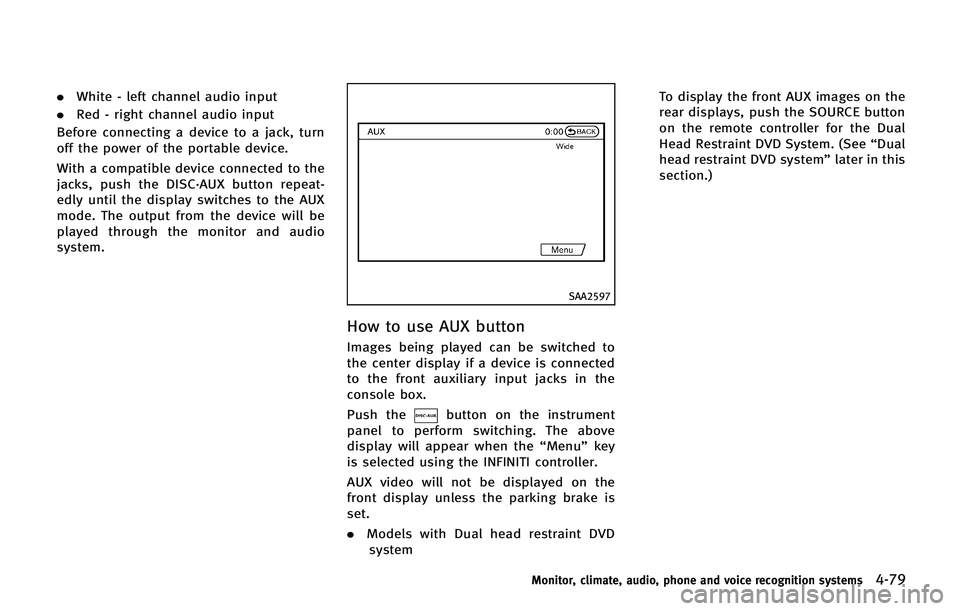
How to use AUX button
Images being played can be switched to
the center display if a device is connected
to the front auxiliary input jacks in the
console box.
Push the
button on the instrument
panel to perform switching. The above
display will appear when the “Menu”key
is selected using the INFINITI controller.
AUX video will not be displayed on the
front display unless the parking brake is
set.
. Models with Dual head restraint DVD
system To display the front AUX images on the
rear displays, push the SOURCE button
on the remote controller for the Dual
Head Restraint DVD System. (See
“Dual
head restraint DVD system” later in this
section.)
Monitor, climate, audio, phone and voice recognition systems4-79
Page 281 of 578

4-80Monitor, climate, audio, phone and voice recognition systems
SAA2496
AUX Menu
When the“Menu”key on the display is
selected while in the AUX mode, the menu
screen will be displayed.
Display Mode:
Choose the display mode from the follow-
ing items.
. Normal
. Wide
. Cinema
Volume Settings:
Choose the volume setting from the
following items. .
Low
. Medium
. High
Display:
Adjust the image quality of the screen,
select the preferred adjustment items.
SAA0451
CD/DVD/USB MEMORY CARE AND
CLEANING
CD/DVD
. Handle a CD/DVD by its edges. Never
touch the surface of the disc. Do not
bend the disc.
. Always place the discs in the storage
case when they are not being used.
. To clean a disc, wipe the surface from
the center to the outer edge using a
clean, soft cloth. Do not wipe the disc
using a circular motion.
Do not use a conventional record
cleaner or alcohol intended for indus-
Page 284 of 578

If your vehicle is equipped with the Dual
Head Restraint DVD System, you can enjoy
playing video files via a DVD, CD or USB
memory that provides images and sound
both from the front and rear display
screens.
You can also enjoy compatible auxiliary
devices such as video games, camcorders
or portable video players through the
auxiliary jacks.
The front and right/left rear displays can
show different sources individually. The
maximum of 3 sources, such as an iPod
®,
DVD and auxiliary device, can be enjoyed
at the same time.
WARNING
The driver must not attempt to operate the
Dual Head Restraint DVD System while
driving so full attention may be given to
vehicle operation.
Park the vehicle in a safe location and apply
the parking brake to view the images on the
front center display screen using the DVD
player.
CAUTION
. Do not attempt to use the system in
extremely high or low temperature con-
dition [below −48F( −208 C) or above
1588F (708C)].
. To avoid draining the vehicle battery, do
not operate the system for more than 15
minutes without starting the engine.
The front display is designed not to show
the images while driving, as the driver’s
attention must be given to vehicle opera-
tion for safety. Sounds are available. To
show the images in the front display, stop
the vehicle in a safe location, move the
shift lever to the P (Park) position and
apply the parking brake.
SYSTEM COMPONENTS
Rear displays
CAUTION
.The glass screen on the liquid crystal
display may break if hit with a hard or
sharp object. If the glass breaks, do not
touch the liquid crystalline material. In
case of contact with skin, wash immedi-
ately with soap and water.
. Use soft, damp cloth when cleaning the
Dual Head Restraint DVD System compo-
nents. Do not use solvents or cleaning
solutions.
Monitor, climate, audio, phone and voice recognition systems4-83
DUAL HEAD RESTRAINT DVD SYSTEM (if so
equipped)
Page 285 of 578
4-84Monitor, climate, audio, phone and voice recognition systems
SAA3329
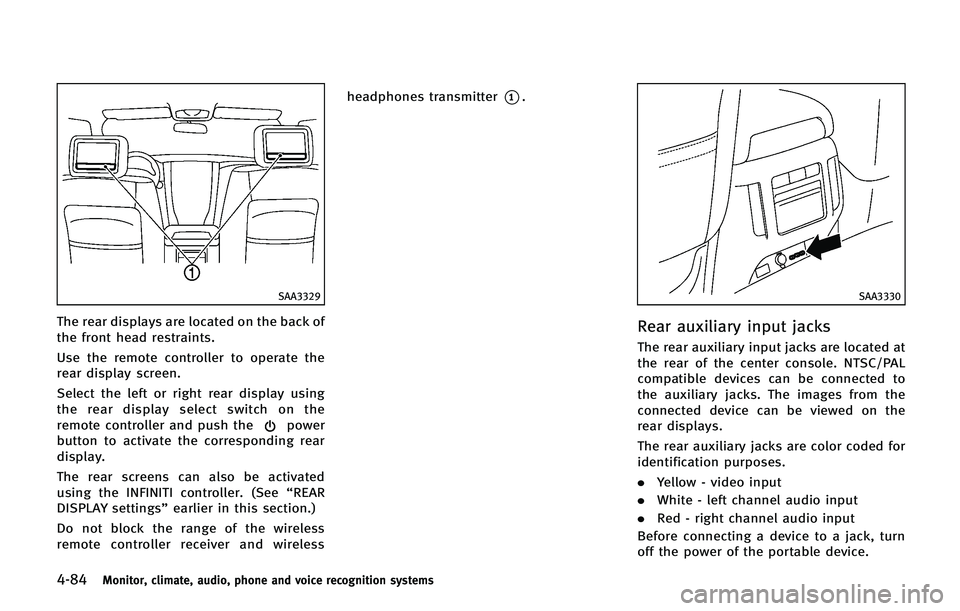
The rear displays are located on the back of
the front head restraints.
Use the remote controller to operate the
rear display screen.
Select the left or right rear display using
the rear display select switch on the
remote controller and push the
power
button to activate the corresponding rear
display.
The rear screens can also be activated
using the INFINITI controller. (See “REAR
DISPLAY settings” earlier in this section.)
Do not block the range of the wireless
remote controller receiver and wireless headphones transmitter
*1.
SAA3330
Rear auxiliary input jacks
The rear auxiliary input jacks are located at
the rear of the center console. NTSC/PAL
compatible devices can be connected to
the auxiliary jacks. The images from the
connected device can be viewed on the
rear displays.
The rear auxiliary jacks are color coded for
identification purposes.
.
Yellow - video input
. White - left channel audio input
. Red - right channel audio input
Before connecting a device to a jack, turn
off the power of the portable device.
Page 286 of 578

To display the AUX screen, select the left or
right rear display using the rear display
select switch on the remote controller, and
select the AUX mode after pushing the
SOURCE button on the remote controller.
The AUX screen cannot be displayed on the
front screen.
The remote controller cannot be used for
the portable device.
SAA3077
Headphones
Headphones are a wireless type and no
cables are necessary. The headphones can
only be used in the rear seat.
Power ON/OFF:
Push the power ON/OFF button to turn the
headphones on or off.
SAA3078
Volume control:
Turn the volume control knob to adjust the
volume.
The headphones will automatically turn off
in about 4 minutes if there is no sound
during that period. The headphones will
also turn off after approximately 4 hours of
continuous use. To prevent the battery
from being discharged, keep the power
turned off when not in use.
If the sound from the headphones is not
clear, it may be due to interference from an
infrared communication device or a cellular
phone. If this happens, turn down the
headphone volume or stop using the
Monitor, climate, audio, phone and voice recognition systems4-85
Page 293 of 578

4-92Monitor, climate, audio, phone and voice recognition systems
Front display:
.Radio
. CD/DVD
. USB memory/iPod
®
.Bluetooth®audio
. AUX (front)
Rear display:
. DVD
. USB memory with video files
. AUX (front/rear)
JVH0243X
Front display
JVH0361X
Rear display
PLAYING DIGITAL VERSATILE DISC
(DVD)/USB
DISC·AUX button
Park the vehicle in a safe location and
apply the parking brake to operate the
DVD player while watching the images.
Push the DISC·AUX button on the instru-
ment panel and turn the display to the DVD
or USB mode.
When a DVD or USB is loaded, it will be
replayed automatically.
If“Auto Display” is set to ON in the
settings screen for the rear display, a
DVD or USB movie file will be read
automatically when the power is turned
on. (See “REAR DISPLAY settings” later in
this section.)
The operation screen will be turned on
when the DISC·AUX button is pushed while
a DVD or USB movie file is being played,
and it will turn off automatically after a
period of time. To turn it on again, push the
DISC·AUX button again.
DVD/USB operation keys
To operate the DVD/USB movie file, select
the preferred key displayed on the opera-
tion screen using the INFINITI controller.